


 Video Converter Ultimate
 Skærmoptager
 Video reparation
 Sikker download
Sådan konverteres og uploades FLV-videofiler til YouTube
“Jeg har lige uploadet en videofil med .flv‑endelse, men jeg fik en advarselsmeddelelse om ugyldigt filformat – hvordan kan jeg uploade FLV til YouTube?” FLV er ikke kun en filendelse, men også en videobeholder. Det betyder, at en FLV‑videofil kan indeholde forskellige video‑ og lydcodecs, og nogle af dem understøttes ikke af YouTube. Denne artikel fortæller dig alt, hvad du har brug for at vide om, hvordan du uploader FLV til YouTube uden problemer.

Del 1: Hvilke video- og lydkodeker YouTube understøtter
Ifølge Google foretrækker YouTube udsendelsesformatet såvel som DVD-kompatible MPEG-2-streams med .mpg-udvidelse. De codecs, der understøttes af YouTube, inkluderer:
- MPEG-2
- Audio codec: MPEG Layer II eller Dolby AC-3
- Audio bithastighed: 128 kbps eller bedre
- MPEG-4
- Video codec: H.264
- Audio codec: AAC
- Audio bithastighed: 128 kbps eller bedre
Desuden understøtter YouTube kun WAV-container med MP3- eller PCM-lyd, MOV med AAC-lyd og FLAC-lyd. YouTube understøtter WMV, AVI, MOV, MP4 og FLV med de rigtige codecs.
Når det kommer til FLV, får YouTube adgang til videoer kodet med Adobe-FLV1-videokodec sammen med MP3- og AAC-lyd. Hvis din FLV-video indeholder ukomprimeret lyd eller ADPCM-lyd, accepterer YouTube den ikke.
Derudover er der flere regler for upload af FLV til YouTube:
- Anbefal billedhastighed: 24 til 60
- Anbefal løsning: 1080p
- Minimum varighed: 33 sekunder
Del 2: Nemmeste måder at konvertere FLV til YouTube
Måde 1: Konverter FLV til YouTube på skrivebordet
Hvis du får en fejl, når du uploader FLV til YouTube, er det første, du skal gøre, at finde en FLV‑konverter, såsom FVC Free FLV Converter. Den gør det muligt at justere video‑ og lydcodecs samt andre parametre, så du kan tilpasse dine FLV‑filer til YouTubes regler. Desuden udnytter den hardwareacceleration og multitrådning til at forbedre ydeevnen.
Nøglefunktioner i den bedste FLV-konverter til YouTube
- 1. Juster video- og lydkodeks af FLV nemt.
- 2. Batchproces ubegrænset FLV-videoer ad gangen.
- 3. Beskyt videokvaliteten automatisk under konvertering.
Gratis downloadTil Windows 7 eller nyereSikker download
Gratis downloadTil macOS 10.7 eller nyereSikker download
Sådan konverteres FLV til YouTube på skrivebordet
Trin 1: Tilføj FLV‑filer
Start den bedste FLV-konverter, når du har installeret den på din computer. Klik på menuen Tilføj fil (er) øverst til venstre, og tilføj de FLV-filer, som du vil uploade til YouTube.

Trin 2: Skift codecs
Klik på rullemenuen ved siden af Output format nederst for at åbne profildialogen. Indtast FLV i feltet Search Profile, og tryk på Enter på tastaturet. Vælg derefter det FLV‑format med de passende video‑ og lydcodecs.
Hvis din FLV‑video er for lang, er det bedst at dele den op i klip og derefter uploade dem til YouTube. Du kan klikke på menuen Edit for at åbne videoredigeringsvinduet.

Trin 3: Konverter FLV til YouTube
Gå derefter ned nederst og klik på knappen Open Folder. Vælg en bestemt mappe til at gemme de eksporterede videoer. Klik til sidst på knappen Convert for straks at begynde at konvertere FLV til YouTube.

Måde 2: Konverter FLV til YouTube Online
Hvis du ikke ønsker at installere videokonverteringssoftware på din harddisk, er FVC Free Online Video Converter en god alternativ løsning. Den er gratis uden nogen begrænsninger, som f.eks. vandmærke. Desuden har den ingen begrænsninger på filstørrelse. Her er trinnene nedenfor:
Trin 1: Besøg https://www.free-videoconverter.net/free-online-video-converter/ i en browser, og klik på knappen Add Files to Convert for at hente startprogrammet.

Trin 2: Klik på knappen Add File for at uploade flere FLV‑filer. Tryk derefter på Gear-ikonet for at åbne profildialogen. Her kan du justere Video Encoder og Audio Encoder. Klik på OK for at bekræfte.

Trin 3: Vælg et format, som YouTube understøtter, nederst, og klik på knappen Convert for at begynde at konvertere FLV til YouTube. Når det er færdigt, downloader du de eksporterede filer.
Gå ikke glip af:
Del 3: Sådan uploades FLV til YouTube
Efter konvertering kan du uploade dine FLV-filer til YouTube på din computer nu. Vi deler trinene her, så du ikke går vild.
Trin 1: Gå til YouTubes startside, og log ind på din konto.
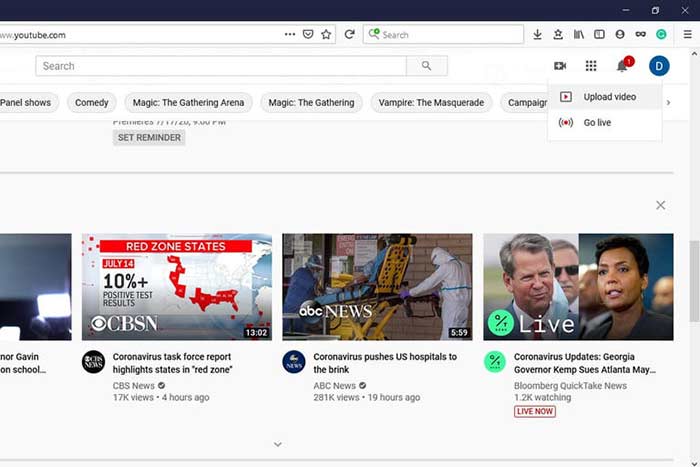
Trin 2: Klik på Camcorder-ikonet, og vælg Upload video for at gå til upload‑siden.
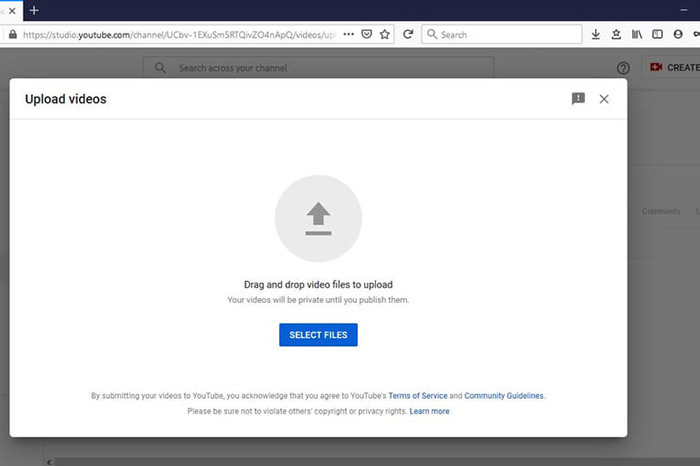
Trin 3: Klik på den store Select Files-knap på siden, og åbn derefter de konverterede FLV‑filer til YouTube. Eller træk og slip FLV‑filerne ind på siden for at uploade dem.
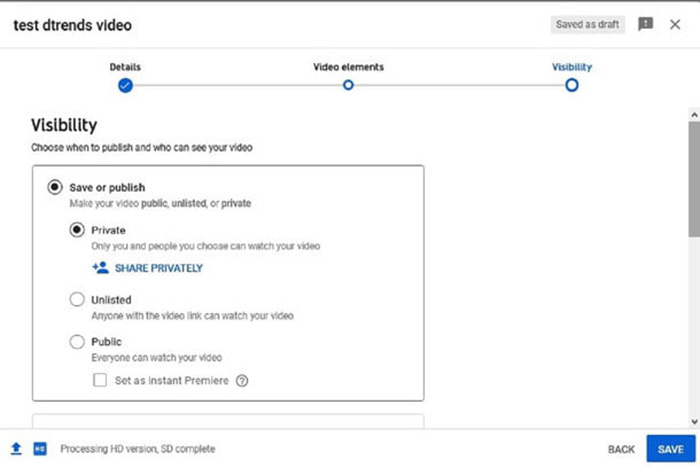
Trin 4: Vælg derefter indstillinger for synlighed. Som standard er den Public, men du kan ændre den til Private, Schedule eller Unlisted.
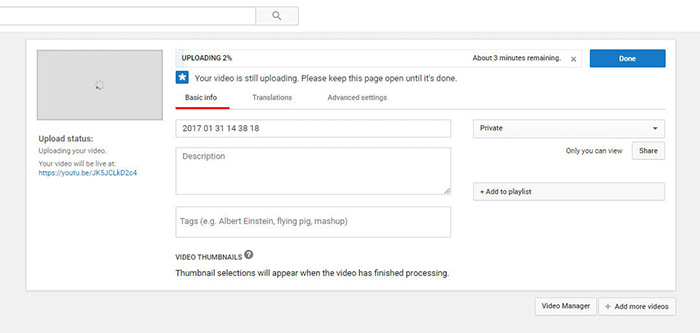
Trin 5: Klik på knappen Save eller Publish efter indstillingerne. Så bliver du ført til siden Dashboard. Her kan du se FLV‑filen uploadet til din YouTube‑konto.
Del 4: Ofte stillede spørgsmål om FLV til YouTube
Kan du uploade FLV til YouTube?
Ja og nej. YouTube understøtter FLV-videoformat, men som en videokontainer kan du kun uploade FLV-filer med understøttede video- og lydkodekser; Ellers vil det være fiasko.
Kan jeg downloade YouTube-videoer i FLV?
Hvis YouTube-videoen tilbyder download-knappen, kan du klikke på den og vælge FLV som outputformat.
Hvilket videoformat er bedst for YouTube?
MP4 er det bedste videoformat til YouTube. Google anbefaler at bruge MP4 med H.256 video codec og AAC audio codec. Det skyldes, at det producerer høj kvalitet med mindre filstørrelse. Derudover understøttes MOV, WMV, AVI, FLV og 3GPP også på YouTube.
Konklusion
Denne guide har fortalt dig, hvilke videoformater YouTube accepterer, og hvordan du uploader FLV til YouTube uden fejl. FVC Free FLV Converter kan hjælpe dig med at konvertere FLV til YouTube og giver dig mulighed for nemt at justere video- og lydkodecs. Det kræver endda ingen tekniske færdigheder, så begyndere kan mestre hurtigt. Hvis du støder på andre problemer, når du uploader video til YouTube, skal du efterlade en besked under dette indlæg.
-
 Sådan konverteres dine FLV-videofiler til MP4 uden at betale en krone
 Denne guide deler fire gratis metoder til at konvertere dine FLV-videofiler til MP4-format på Windows 10/8/7 / XP og Mac OS X, så du kan nyde videoerne på alle enheder.
-
 Sådan konverteres dine FLV-videoer til MP3-lydfiler på skrivebordet og online
 Sådan konverteres en FLV til en MP3-fil? Alt hvad du skal gøre er at læse denne artikel omhyggeligt, finde din yndlingsmetode og følge vores trin-for-trin guide for at få det, du ønsker.
-
 3 gratis måder at konvertere FLV til WAV
 Hvordan konverterer jeg en FLV-fil? Kan VLC konvertere YouTube FLV til WAV? Dette indlæg fortæller 3 gratis måder at konvertere FLV til WAV uden kvalitetstab.
