


 Video Converter Ultimate
 Skærmoptager
 Video reparation
Sådan laver du en GIF fra dine fotos gemt på din iPhone
Vi brugte GIF’er til at gøre vores almindelige tekst mere fængende og endte med at få et bedre resultat end med billeder. Det skyldes, at de er bevægelige, animerede, statiske billeder. Og fordi formatet er så populært, prøver mange brugere allerede at lave deres egne GIF’er, både på computer og telefon. Nu vil vi derfor tale om, hvordan man laver en GIF på en iPhone ud fra fotos, som du har gemt i din lagerplads. Læs videre i denne artikel, hvor vi forklarer, hvordan man laver GIF’er, og hvilket forskelligt software du kan bruge.

Del 1. Sådan gemmer du Live Photo som GIF i Photos App
Vidste du, at du kan lave simple GIF’er ud fra dine fotos på iPhone? Ved at bruge Fotos. Denne forudinstallerede app gemmer en masse billeder og videoer på din telefon. Grundlæggende er det en lagringsplads for de fotos, du tager – ligesom Galleri på Android. Men dette værktøj har også redigeringsfunktioner, som du måske ikke kender til. Selvom det har en slags GIF-funktion, mangler det stadig nogle vigtige redigeringsmuligheder, for at dine GIF’er kan blive virkelig flotte og friske for øjet. Hvis du gerne vil prøve værktøjet, så følg trinene nedenfor og lær, hvordan man laver en GIF på iPhone fra Fotos.
Trin 1. Åbn den forudinstallerede Kamera-app på din iPhone.
Trin 2. Tryk derefter på Live Photo øverst i midten, og tryk på Optag-knappen.
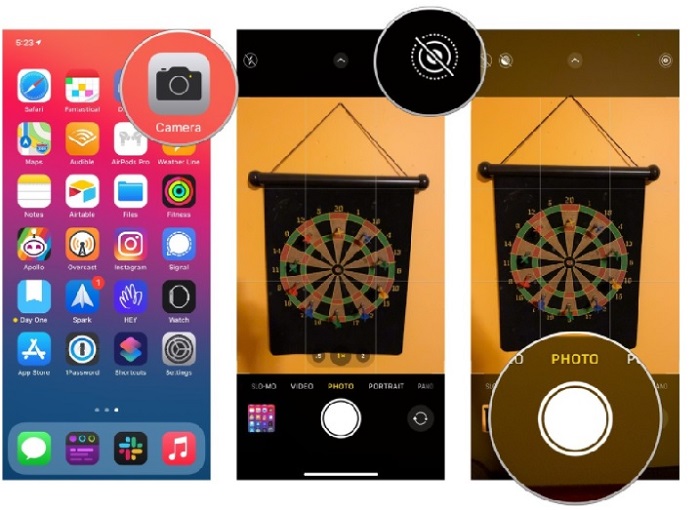
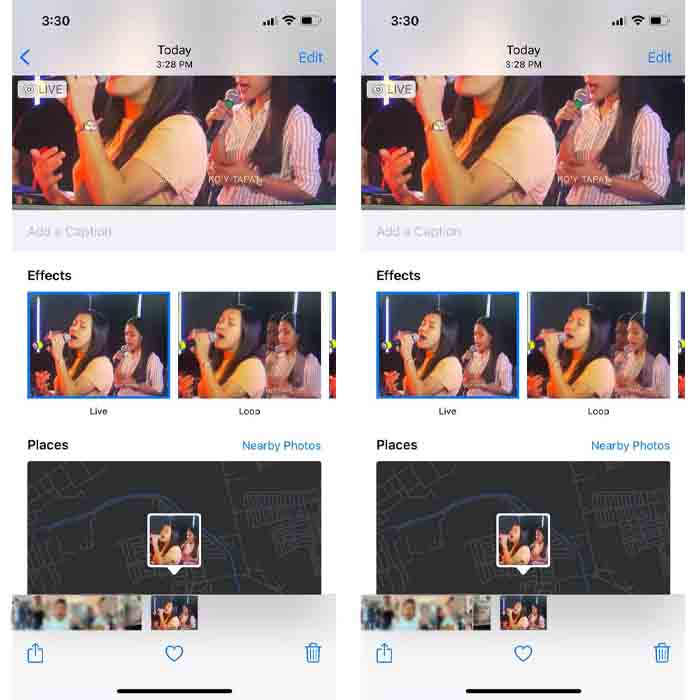
Trin 3. Klik derefter på det lille kvadratiske foto nederst til venstre i kameraets grænseflade. Skub fotoet opad, og vælg GIF-effekterne der. Når du har valgt effekten, bliver den automatisk gemt og er klar til at blive delt med andre eller på sociale medier.
Fordele
- Ingen grund til at downloade, fordi den allerede er forudinstalleret på din iPhone.
- Enkel at bruge som redigeringsværktøj.
Ulemper
- Du kan ikke forvandle billeder til GIF'er, hvis det ikke er et levende billede.
- Det giver ikke en masse redigeringsfunktioner for at gøre din GIF fantastisk.
Del 2. Sådan laver du en GIF på iPhone med GIPHY
GIPHY er et gigantisk GIF-bibliotek, som du kan få gratis adgang til, men hvis du registrerer dig. Du kan også dele dine egne GIF’er her for at hjælpe andre ved at bruge dine hjemmelavede GIF’er. Værktøjet understøtter dog ikke, at man laver én GIF ud fra flere billeder. Til gengæld er filtrene her gode og nemme at bruge. Hvis du vil bruge GIPHY og skabe GIF’er, så følg trinene nedenfor.
Trin 1. Download først GIPHY på din iPhone, og start appen.
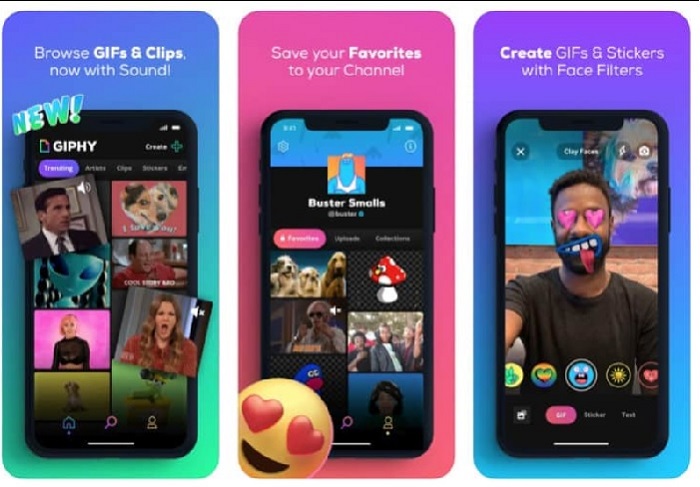
Trin 2. Tryk på Create, og tryk derefter på album-knappen øverst til venstre og giv appen tilladelse til at få adgang til dine billeder.
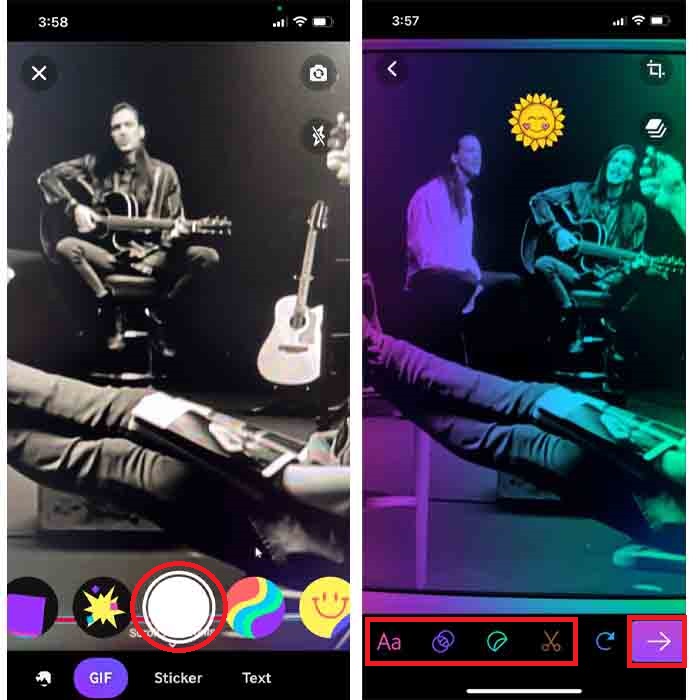
Vælg derefter dit billede, du vil have forvandlet til GIF, og foretag redigeringen i grænsefladen.
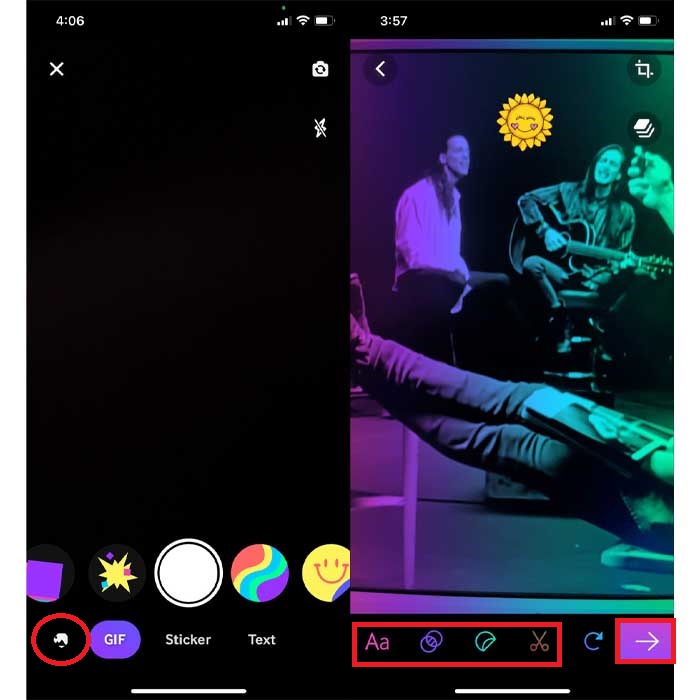
Trin 3. Du kan ikke gemme GIF’en direkte på din iPhone, så du har to muligheder. Den første er at uploade den til GIPHY’s cloudlager og gøre den offentlig eller privat, eller at dele den med det samme.
Fordele
- Det er et enormt bibliotek af GIF'er.
- Det har en bedre effekt, end billederne kan tilbyde.
Ulemper
- Du kan ikke gemme den færdige GIF direkte på dit lager. Det er enten, du gemmer det på den konto, du har oprettet på GIPHY, eller deler det.
- Kan ikke kompilere billeder til at lave GIF'er.
Del 3. Det mest professionelle værktøj til at lave GIF'er fra flere billeder
Hvis det første præsenterede værktøj ikke giver de GIF’er, du gerne vil lave, så prøv at bruge Video Converter Ultimate. Dette værktøj kan lave dine foto-GIF’er bedre end de to andre standardapps og de andre downloadbare løsninger. Men værktøjet findes kun til computer, så du skal først overføre de flere fotos til din computer, før du kan lave GIF’er. Derudover er filtrene her helt enestående og kan virkelig imponere dig. For at lære, hvordan man laver en GIF på iPhone ud fra flere billeder, skal du følge trinene nedenfor.
Trin 1. Download først Video Converter Ultimate og installer den.
Gratis download til Windows 7 eller nyere Sikker download
Gratis download til MacOS 10.7 eller nyere Sikker download
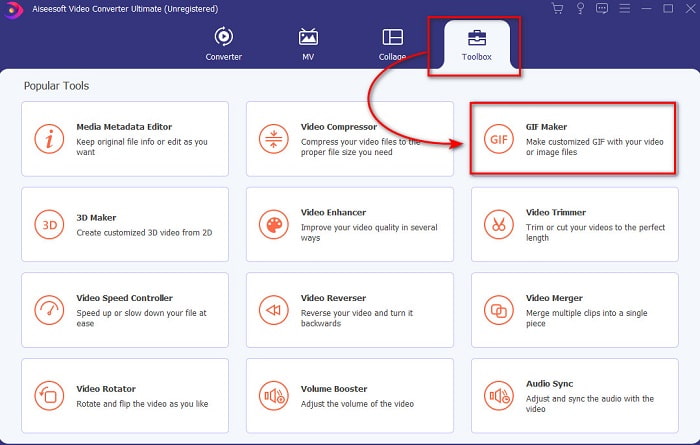
Trin 2. Gå til sektionen Værktøjskasse, og klik på GIF Maker.
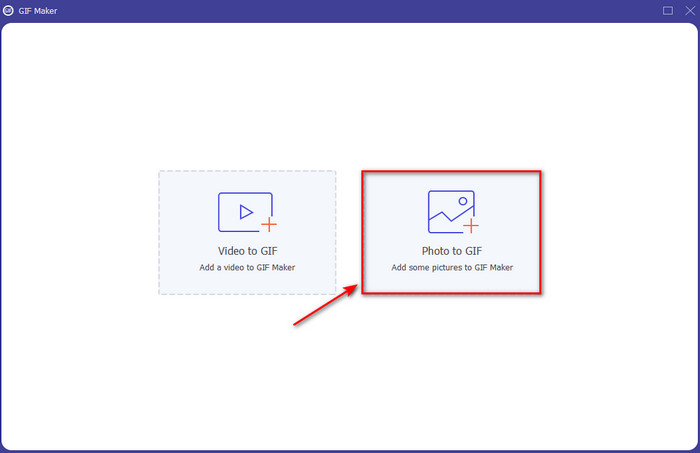
Trin 3. Klik på Photos to GIF, vælg det foto, du vil lave om til en GIF, og klik på Open. Du kan ikke tilføje flere billeder med det samme, men du kan tilføje dem senere. Ændr derefter Output Settings for GIF’en, og klik på OK.
Trin 4. For at tilføje de andre billeder skal du klikke på +-knappen og vælge dem. Når alle billederne er indsat, skal du klikke på Export.
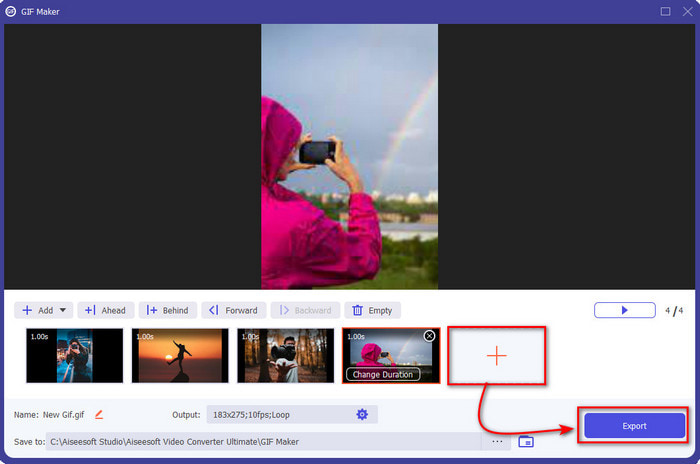
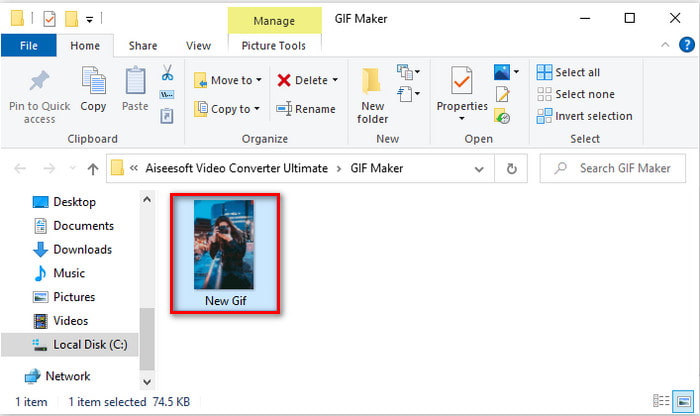
Trin 5. Vent nogle få sekunder, og en mappe vil blive vist på skærmen med den GIF, du lige har lavet.
Fordele
- Den fænomenale editor, som du kan stole på for at gøre din GIF enestående.
- Den har en masse avancerede funktioner, du kan bruge.
- At lære at bruge dette værktøj er lettere på grund af dets on-point.
Ulemper
- Du skal overføre billederne på din iPhone til skrivebordet.
- Skal først downloades på dit skrivebord, før du kan få adgang.
Del 4. Ofte stillede spørgsmål om Lav GIF fra billeder på iPhone
Hvordan laver man en GIF på Android fra billeder?
Du kan gentage trinene på del 3 og bare gøre det samme. Dybest set skal du overføre al den video, du ønsker at blive omdannet til GIF'er til dit drev. Følg derefter nedenstående trin.
Hvad er en GIF?
GIF’er er meget populære i dag, fordi de kan gøre vores enkle beskeder mere meningsfulde end nogensinde før. Hvis du vil vide mere om, hvad en GIF er, så klik på dette link og læs mere.
Hvorfor bliver mine billeder slørede, når jeg laver dem om til GIF'er?
Fordi GIF'er maksimalt understøtter kun 256 forskellige farver. I modsætning til JPEG og PNG understøtter dette billedformat over 16 millioner farvekombinationer. Så JPEG og PNG producerer den højeste billedkvalitet sammenlignet med GIF'er. Men JPEG og PNG kan ikke indeholde bevægende animationer, som GIF'er gør.
Konklusion
Nu hvor vi er nået til slutningen, er det blevet meget lettere for os at håndtere og skabe GIF’er – selv på vores iPhones. Selvom alle de værktøjer, der er nævnt i denne artikel, kan hjælpe dig med at lave simple GIF’er, er Video Converter Ultimate stadig det bedste. Det tilbyder mange forskellige funktioner, du kan bruge til at gøre din video endnu mere imponerende, så du næsten ikke kan tro, du selv har lavet den GIF. Så nøjes ikke med et simpelt program, når du kan få det bedste værktøj. Download det nu, og lav dine samlinger af billeder om til GIF’er.
-
 Vælg den bedste GIF Cropper online og offline til at beskære GIF'er [2021]
 Det er et must at vælge det bedste beskæringsværktøj, og nogle af GIF-producenterne leverede ikke denne funktion. Men hvad er det bedste GIF-beskæringsværktøj at bruge, og hvordan bruger man det?
-
 5 bedste muligheder for at optage GIF -format med GIF -optagere til pc og Mac
 Hvad er den bedste GIF -optager, du skal bruge til at optage GIF'er? Listen nedenfor giver bevis på, hvilken der er den bedste skærmoptager.
-
 Sådan konverteres MPG til GIF-format [Online & Offline]
 Vil du udtrykke en meget bedre følelse? Så skal du bruge GIF i stedet. Denne opskrift lærer dig, hvordan du konverterer en MPG-fil til GIF for at udtrykke din følelse meget bedre.
