


 Video Converter Ultimate
 Skærmoptager
 Video reparation
Sådan fjerner du vandmærke fra GIF online [trin for trin]
At tilføje et vandmærke på en GIF er blevet en af måderne at sikre GIF’en på, men hvad nu hvis du har brug for at fjerne det vandmærke, du har tilføjet til din GIF? Hvad skal du gøre? Har din GIF‑maker denne funktion? Har den ikke en vandmærkefjerner? Vi ved, at det er besværligt at have dette problem, ikke? Men du behøver ikke at bekymre dig, for alle disse spørgsmål får et svar om lidt, da vi har fundet fire vandmærkefjernere, du kan bruge offline og online. Disse værktøjer er nøje udvalgt på markedet for at give dig det bedste, du kan bruge til at fjerne vandmærket på en GIF.

Et overblik over disse apps
| Video Converter Ultimate | Online GIF værktøjer | WatermarkRemover.io | Pixlr | PhotoShop | |
| Løsning | 8K | 1080P | 5K | 8K | 300.000 |
| Proceshastighed | Hurtig | Medium | Medium | Hurtig | Afhænger af din hardware |
| Hardwarekrav | Lav | N/A | Medium | Høj | Meget høj |
Del 1. Nemmeste måde at fjerne vandmærke fra GIF på Windows og Mac hurtigt
Video Converter Ultimate kan effektivt hjælpe dig med at fjerne vandmærket fra en GIF, når du ønsker det. Dette værktøj kan hjælpe dig både med at tilføje og fjerne et vandmærke – grundlæggende er det et alt‑i‑ét‑værktøj, du får brug for på din Windows‑ eller Mac‑computer. Ikke nok med det, med dette værktøj kan du også oprette din egen GIF og tilføje det vandmærke, du ønsker, for at sikre den GIF, du har lavet. For at afprøve det kan du følge de enkle trin, vi giver, og det er det. Så kan du bruge GIF’en uden vandmærke på under et minut.
Fordele ved Video Converter Ultimate:
◆ Det er det bedste valg at fjerne og tilføje et vandmærke på din GIF.
◆ En brugervenlig GUI kan hurtigt hjælpe dig med at forstå, hvad der sker med værktøjets grænseflade.
◆ Den indbyggede ultrahurtige konverteringsproces og hardwareacceleration kan hjælpe dig med lynhurtig import og eksport.
◆ Tilgængelig på alle platforme såsom Windows og Mac til download.
◆ Den har de bedste avancerede GIF-maker-funktioner, du kan bruge på dit skrivebord til at oprette en personlig GIF.
Trin til, hvordan du fjerner vandmærke fra GIF med den ultimative vandmærkefjerner
Trin 1. Download softwaren til din computers drev ved at klikke på knappen nedenfor. Start den derefter og upload en GIF eller video.
Gratis download til Windows 7 eller nyere Sikker download
Gratis download til MacOS 10.7 eller nyere Sikker download
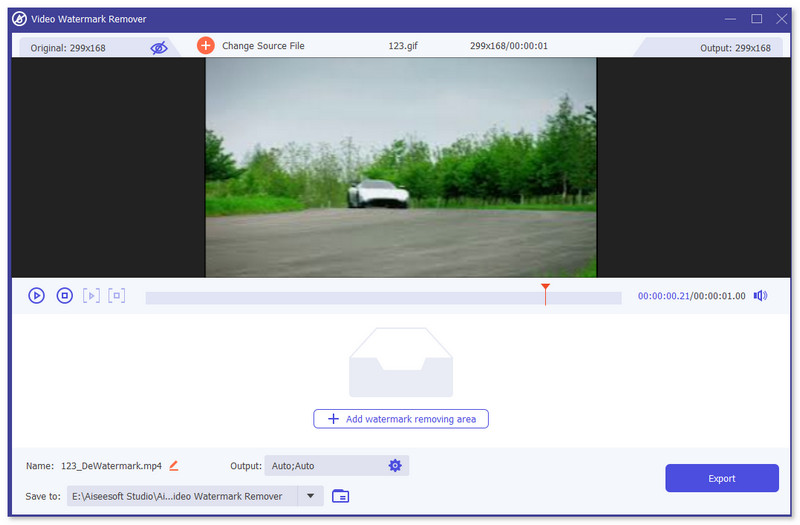
Trin 2. Åbn vandmærkefjerneren, gå til Værktøjskasse, og find Video Watermark Remover.

Trin 3. Upload en GIF eller video, og klik på Export.
Relateret:
Fjern vandmærke fra GIF med Adobe Photoshop
Hvis du har Adobe PhotoShop installeret på din computer, kan du også bruge det til at fjerne vandmærker eller skygger fra et billede. PhotoShop er anerkendt som et af de mest populære og kraftfulde billedredigeringsværktøjer, der giver dig mulighed for at tilføje effekter, filtrere, slette objekter osv. Selvom det ikke er et gratis billedredigeringsprogram, giver det dig en 30-dages gratis prøveperiode. Nu kan du følge vejledningen nedenfor for at fjerne uønskede objekter fra et billede.
Trin 1. Start Photoshop på din computer. Du kan gå til Adobes officielle websted for gratis at downloade Photoshop og få en gratis prøveperiode.
Trin 2. Du kan trække og slippe direkte for at importere den billedfil, du vil redigere. Du kan også klikke på File i menulinjen og derefter klikke på Open for at vælge et lokalt foto på din computer.
Trin 3. Du kan bruge Select and Mask‑værktøjet til at vælge de uønskede objekter. I dette trin kan du frit vælge et passende værktøj til at markere det område, du vil fjerne.
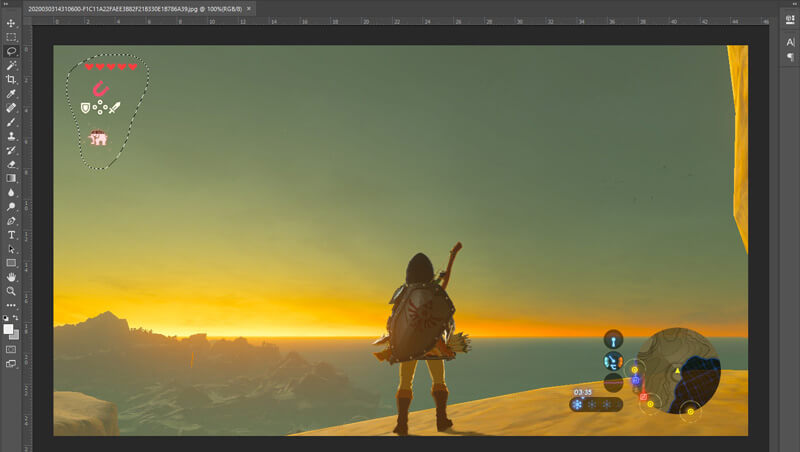
Trin 4. Nu kan du benytte Photoshops Content‑Aware Fill-værktøj til at fjerne objektet fra billedet og erstatte denne del med passende indhold. Relativt set, hvis du ikke blot vil viske nogle objekter ud i et foto, kan funktionen Content‑Aware Fill give dig en bedre outputeffekt.
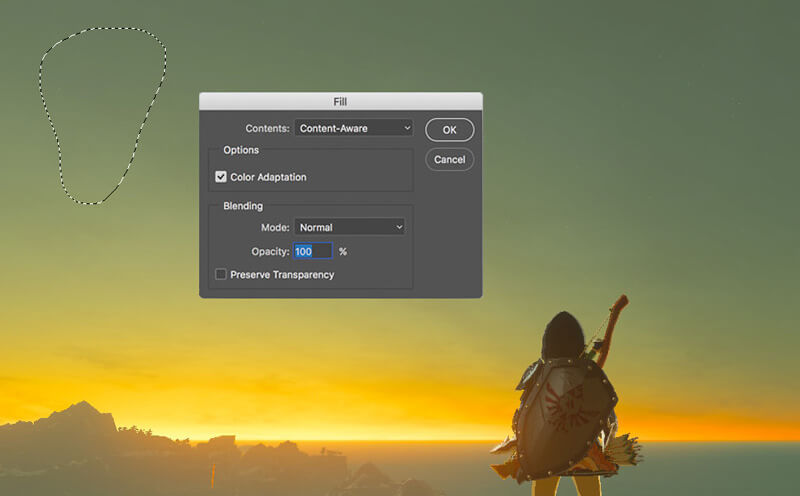
Trin 5. Når Photoshop har fjernet objektet, kan du klikke på File og derefter Save for at gemme det redigerede billede på din computer. Du kan vælge et hvilket som helst populært billedformat som JPG, PNG, GIF og flere som outputformat. Her kan du også trykke på Ctrl + S for at gemme og eksportere din billedfil fra Photoshop.
Del 2. Sådan fjerner du vandmærke fra GIF online
Med disse gratis onlineværktøjer kan du fjerne vandmærker på GIF'er. Men du skal huske, at disse værktøjer ikke virker, hvis du ikke har en internetforbindelse, fordi alle værktøjerne er netværksafhængige. Det kan også tage tid at bruge dem, fordi det buffer, når du bruger disse webværktøjer. Så hvis du vil kende den gratis GIF-fjerner online, så læs detaljerne nedenfor.
Fjern vandmærke fra GIF med online GIF-værktøjer
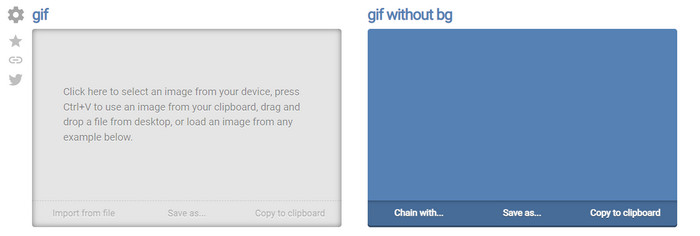
Online GIF Tools er et gratis værktøj, du kan bruge til at fjerne vandmærker på GIF’er. Dette værktøj giver brugerne avancerede fjernelsesfunktioner som for eksempel at fjerne baggrundsvandmærket på GIF’en. Selvom værktøjet er imponerende, kan det være kompliceret at fjerne vandmærket, fordi det fjerner farve for farve i hver enkelt frame.
Trin 1. Åbn Online GIF Tools i din webbrowser.
Trin 2. Klik på Import File for at uploade GIF’en. Under background color skal du klikke på options color coder for at finde vandmærkets farve.
Trin 3. Klik på Save As og derefter Download for at gemme GIF’en på dit drev.
Fjern vandmærke fra GIF med vandmærkefjerner online
Med WatermarkRemover.io bliver dit vandmærke automatisk fjernet fra GIF’en. Dette værktøj er fremragende til gratis at fjerne vandmærker. Det gør det mindre besværligt for brugerne at fjerne vandmærket, fordi du ikke selv behøver at gøre det – værktøjet klarer det for dig. Men nogle områder er ikke inden for rækkevidde med dette værktøj; grundlæggende kan du ikke downloade den GIF, hvor vandmærket er fjernet.
Trin 1. Åbn WatermarkRemover.io, og tilføj GIF‑filen ved at klikke på den nederste del af logoet.
Trin 2. Efter at du har tilføjet filen, starter processen automatisk – vent blot på, at den bliver færdig.
Trin 3. Klik på download‑knappen for at gemme den på din computer.
Fjern vandmærke fra GIF med Pixlr

Hvis du vil have det bedste webbaserede værktøj til at fjerne vandmærket på din GIF, så brug Pixlr. I modsætning til de to førnævnte webværktøjer er dette værktøj helt anderledes, fordi det har mange funktioner, du kan bruge til at fjerne vandmærket. Selvom værktøjet ligner Photoshop, er nogle dele her ikke lige så effektive, som Photoshop kan være for dig, især til at fjerne vandmærker fra GIF’er, og der tilføjes et vandmærke i slutningen af eksporten.
Trin 1. Søg efter Pixlr, og åbn det.
Trin 2. Klik på Advance Editor, tilføj GIF’en, og klik på Open Image. Efter at have tilføjet GIF’en skal du klikke på droplet-ikonet for at sløre vandmærket, klikke gentagne gange på vandmærket og sørge for at fjerne det.
Trin 3. Klik på File og derefter Save.
Del 3. Ofte stillede spørgsmål om fjernelse af vandmærke fra GIF
Gør filstørrelsen mindre, hvis du fjerner vandmærket?
Filstørrelsen vil ændre sig, men det vil ikke have en væsentlig indflydelse, fordi du bare fjerner en smule af vandmærket på din video. Så hvis den originale filstørrelse og det udpakkede vandmærke ikke er næsten det samme, ligger problemet i det, du har brugt.
Hvorfor er der en sløring på min video efter at have fjernet vandmærket?
Der er en sløring på din video, efter du har fjernet vandmærket, fordi det er værktøjets måde at fjerne vandmærket på. Det er en af de metoder, værktøjer giver til at fjerne vandmærket på enhver video eller billede ved at sløre det.
Vil kvaliteten af GIF ændre sig efter fjernelse af vandmærket?
Du vil ikke bemærke en ændring med hensyn til kvalitet efter at have fjernet vandmærket på din GIF. Men nogle værktøjer sænker kvaliteten af din GIF, fordi de ikke understøttede GIF'er af høj kvalitet. Så husk at vælge det rigtige værktøj, der understøtter eksport af højkvalitetsoutput, selvom du har fjernet vandmærket fra det.
Konklusion
Alt i alt giver dette blogindlæg os mulighed for effektivt at fjerne vandmærket på den GIF eller video, vi har brugt. De værktøjer, vi præsenterer, er altså effektive og velegnede til at fjerne vandmærket på vores GIF. Og alligevel er det stadig Video Converter Ultimate, der har de stærkeste sider, når det gælder om at fjerne eller tilføje et vandmærke på din GIF. Så hvis vi er enige om dette værktøj, bør du bruge det, og hvis vi ikke er, bør du prøve at downloade det og fjerne vandmærket på din GIF. Derefter vil værktøjet hjælpe dig med hurtigt at gøre det, og du vil ændre mening om værktøjets kapacitet.
-
 Bedste måde, hvordan man tilføjer vandmærke til en video i Photoshop på Windows og Mac
 Vil du vide, hvordan man tilføjer et vandmærke til en video i Photoshop? I så fald vil denne artikel give dig de ting eller to, du skal vide.
-
 3 bedste løsninger til, hvordan du nemt fjerner vandmærke fra videoer
 Vil du fjerne det irriterende vandmærke på videoen? Med denne blog kan du lære de forskellige ideer til at fjerne vandmærket på en video.
-
 5 bedste måder at ændre billede til animeret GIF [Opdateret 2022]
 Har du brug for et konverterbillede til GIF? Denne artikel vil give de fem bedste konvertere, vi kan finde på markedet. Så lad os finde ud af disse værktøjer ved at læse denne artikel.
