


 Video Converter Ultimate
 Skærmoptager
 Video reparation
 Sikker download
6 bedste HEIC til JPG-konvertere til at bruge til at konvertere HEIC til en standard JPG
I dag elsker mange af os at tage billeder – hvad enten det er selfies eller gruppebilleder – på vores mobile enheder som f.eks. iPhones. Langt de fleste billeder, der tages på iOS‑enheder, er i HEIC‑format, fordi det er blevet standard billedformat på iOS. Når du overfører filen til andre, der ikke bruger iOS, vil den måske ikke kunne åbnes, fordi den enhed som udgangspunkt ikke understøtter formatet. Hvis du vil sende billedfilen til andre enheder, bør du overveje at konvertere den til JPG‑format, fordi dette format er bredt understøttet af mange enheder. Listen nedenfor viser dig, hvordan du kan konvertere HEIC til JPG med fem forskellige konvertere, du kan bruge til at klare opgaven.

Del 1. Sådan konverteres HEIC til JPG ved hjælp af webværktøjerne [Online måder]
Vi tester hver af disse 3 nævnte online HEIC-konvertere for at give relevant information om dem. Hvis du vil bruge et gratis webværktøj, er dette delen for dig, men husk at der er nogle begrænsninger for at bruge en konverter som denne. Endnu vigtigere, sørg for en stabil internetforbindelse, hvis du bruger værktøjerne nedenfor for at undgå afbrydelser under konvertering. Læs venligst de komplette detaljer nedenfor for at kende hver af dem.
FVC Gratis HEIC til JPG Converter
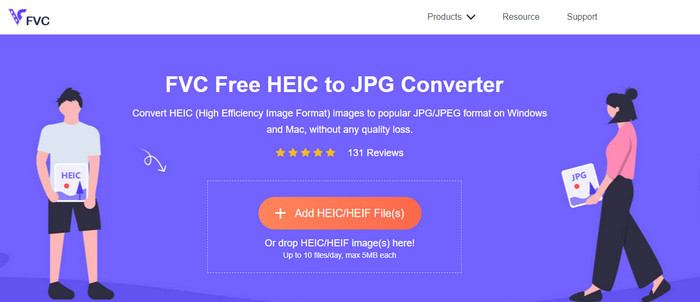
FVC Free HEIC to JPG Converter kan hjælpe dig med at konvertere HEIC‑filer til JPG‑format på få klik. Med dette onlineværktøj behøver du ikke downloade noget ekstra installationsprogram på din computer eller endda oprette en konto for at bruge det. Selvom værktøjet er gratis, har det visse begrænsninger: du kan konvertere op til ti filer om dagen, og den maksimale filstørrelse pr. billede skal være 5 MB eller mindre. Sammenlignet med nogle andre onlinekonvertere kan det være rigeligt, især hvis du ikke bruger det så ofte. Hvis du vil prøve det online værktøj, kan du følge vejledningen nedenfor.
Trin 1. Først og fremmest skal du klikke på dette link for at åbne en ny fane i din webbrowser; linket fører dig til hovedsiden for onlinekonverteren.
Trin 2. Klik på Add HEIC/HEIF File (s), find HEIC‑filen i den mappe, der vises, klik på den, og tryk på Open for at uploade den.
Trin 3. Konverteringsprocessen starter automatisk; du kan derefter klikke på Download‑knappen, når konverteringen er færdig.
HEIC til JPEG
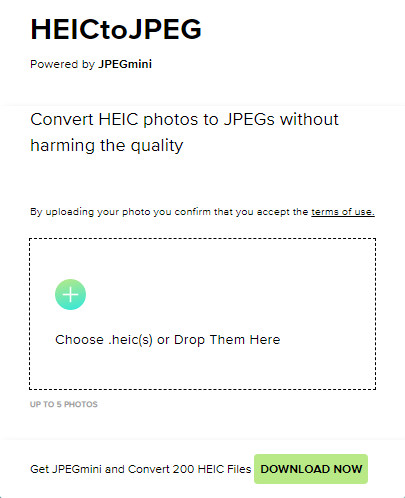
HEIC to JPEG er et onlineværktøj, du kan bruge til at konvertere HEIC til JPG, og ligesom det tidligere nævnte onlineværktøj er det gratis at bruge. Med dette værktøj kan du konvertere din HEIC‑fil til en understøttet JPG og derefter overføre den til en enhed, der ikke understøtter HEIC. Selvom værktøjet kan konvertere dine HEIC‑filer, skal du være opmærksom på, at der er begrænsninger for, hvor mange gange du kan konvertere om dagen. I modsætning til onlinekonverteren ovenfor kan dette webværktøj kun konvertere fem HEIC‑filer om dagen, hvilket er mere begrænset end de andre konvertere. Hvis du vil bruge det, kan du følge trinnene herunder.
Trin 1. Søg efter webkonverteren i din søgemaskine, og åbn den.
Trin 2. Klik på plus-knappen for at uploade den HEIC‑fil, du har på din computer.
Trin 3. Vent på, at upload og optimering er færdig, og klik derefter på Download JPEG.
Image.convert-online
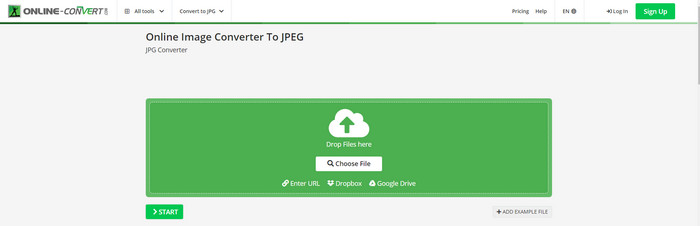
Image.convert-online giver dig mulighed for at konvertere HEIC til JPG online med ekstra indstillinger til at justere billedkvaliteten. I modsætning til de to første webbaserede konvertere kan du bruge dette værktøj uden begrænsninger og konvertere så mange HEIC‑filer, du vil, ud over hvad de andre to tilbyder. Du kan også forbedre billedkvaliteten og vælge den komprimering, du ønsker. Dog er billedredigeringsfunktionerne i dette værktøj ikke lige så avancerede som i dedikerede billedredigeringsprogrammer. Ikke desto mindre er det stadig en fremragende HEIC‑konverter, du kan bruge.
Trin 1. Åbn din foretrukne browser, skriv Image.convert-online, og klik for at åbne siden.
Trin 2. Klik på Choose File, og indsæt HEIC‑filen i webværktøjet.
Trin 3. Justér billedindstillinger og komprimering; klik på Start, når alt er på plads, og klik derefter på Download for at gemme filen på din computer.
Del 2. Sådan konverteres HEIC-fil til JPG eller JPEG på Windows og Mac [Offline måder]
Hvis du har en dårlig internetforbindelse, er webværktøjet, vi nævnte ovenfor, ikke det bedste valg til at løse og håndtere dette problem. Så hvis du vil løse problemet uden at bruge en internetforbindelse, kan du læse og følge de trin, vi tilføjer til hvert værktøj, der er nævnt nedenfor. Læs dem omhyggeligt for at vide, hvordan du konverterer HEIC på dit skrivebord ved hjælp af offline-måder.
Aiseesoft HEIC Converter – Bedste valg til konvertering af HEIC-filer
Aiseesoft HEIC Converter er det værktøj, du vil få brug for, når du skal løse problemer med, hvordan man ændrer HEIC til JPG på computeren. Hvis du vil have det bedste værktøj til at konvertere HEIC‑filer, er dette uden tvivl værktøjet, der kan hjælpe dig. Takket være den enkle brugerflade behøver du ikke være professionel for at bruge det – med blot få klik kan du få den konverterede HEIC‑fil lige ved hånden.
Ud over dets konverteringsevne understøtter dette værktøj en lynkonverteringsproces, så du skal ikke bekymre dig mere, fordi du kan få JPEG med det samme. Overraskende nok kan værktøjet konvertere flere HEIC-filer samtidigt, hvis du har forskellige HEIC-filer. Forbløffende, ikke? Hvis du er forbløffet over den beskrivelse, vi nævner, skal du fortsætte med at læse de efterfølgende trin, da vi giver en nem at følge tutorial til at konvertere HEIC til JPG på Windows og Mac med succes.
Trin 1. Efter at have downloadet softwaren skal du følge installationsprocessen og derefter åbne den.
Trin 2. Du kan trække og slippe HEIC‑filerne herind for at gøre det nemmere at uploade filerne, eller du kan klikke på Add HEIC, finde filen på din computer og derefter klikke på Open for at tilføje den.
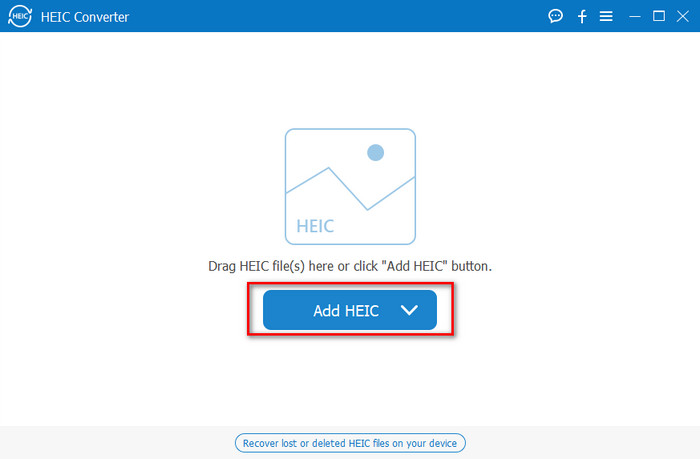
Du tilføjer så mange som du vil have en HEIC-fil her, fordi dette værktøj samtidig kan konvertere HEIC-filen til en JPG.
Trin 3. Når HEIC‑filen er uploadet, skal du klikke på drop-down-knappen i øverste højre hjørne af grænsefladen og vælge JPEG/JPG.
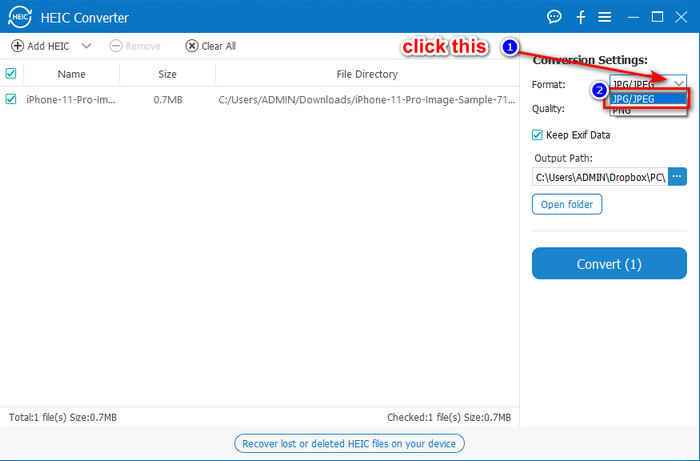
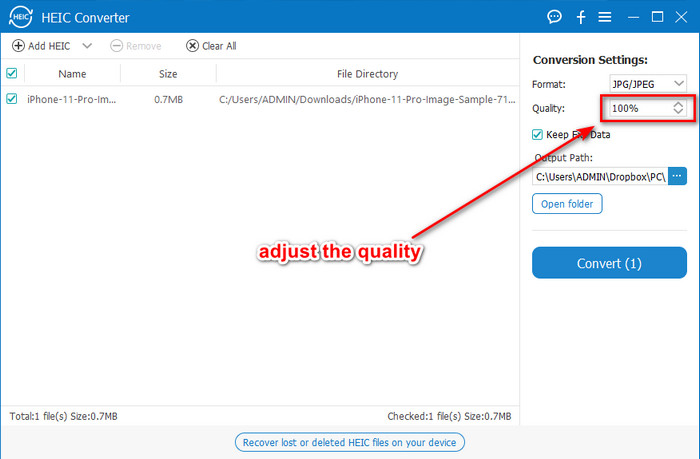
Valgfrit. I modsætning til nogle andre konvertere kan du her justere kvaliteten af HEIC‑billedet ved at ændre det under Quality, før du eksporterer det.
Trin 4. Når alt er klar, og du er parat til at konvertere HEIC til JPG, kan du klikke på Convert-knappen. Konverteringsprocessen begynder; ventetid er næsten ikke nødvendig på grund af den ultrahurtige konvertering, som værktøjet understøtter. Så enkelt er det – du kan nu dele filen i et andet format, men med .jpg‑endelse.
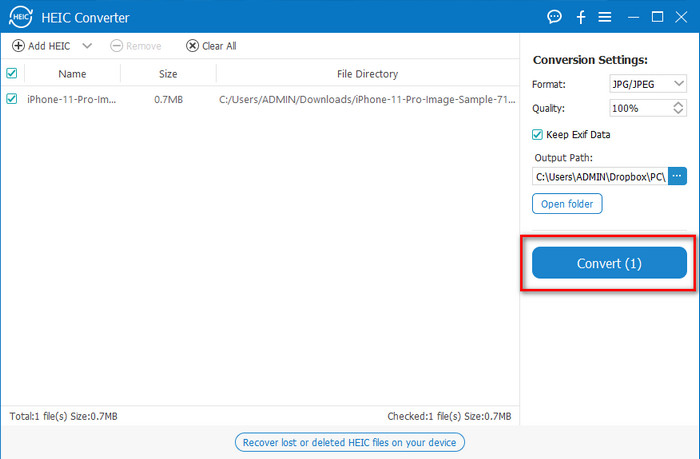
Det er alt for at konvertere dit HEIC-billede til JPG. Du kan også bruge dette værktøj til at konvertere HEIC til PNG i en batch.
Eksempel
Preview er den indbyggede billedfremviser på Mac, som du kan bruge til at se og ændre HEIC‑formatet. Men den måde, dette værktøj konverterer på, er ikke helt den samme proces som med de andre værktøjer i denne artikel. Hvis du bruger denne standard billedfremviser, kan du ændre filendelsen fra HEIC til .jpg.
Ud over dets evne til at se og konvertere, kan den også kryptere PDF-filer og begrænse brugen af filen, billedkorrektion og andre. Du kan følge trinene nedenfor for at konvertere HEIC til JPG på macOS, hvis du er en Mac-bruger.
Trin 1. Åbn din Finder, find Preview, og åbn HEIC‑filen med værktøjet.
Trin 2. Når du har åbnet filen med Preview, skal du gå til menuen File og vælge Export på listen.
Trin 3. Klik på Format, og vælg enten JPEG eller JPEG-2000, og klik på Save, når du er færdig.
GIMP
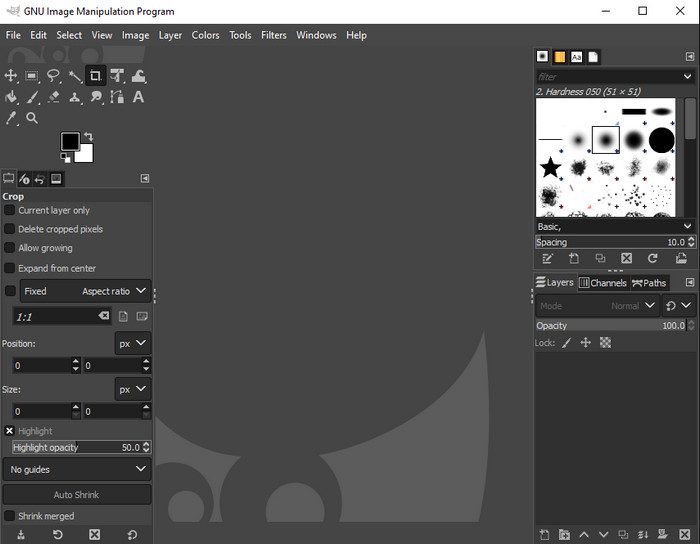
GIMP er et dedikeret billedredigeringsprogram, du kan downloade til både Windows og Mac. Dette værktøj understøtter redigering af HEIC‑filer; du kan forbedre dem ved f.eks. at justere mætning, kontrast osv. Ligesom Preview på Mac fungerer dette værktøj ikke primært som en konverter, men det kan ændre filendelsen fra HEIC til JPE, JPEG, JPG eller et andet billedformat, du ønsker.
Der er ikke meget dette værktøj at tilbyde ved konvertering, men hvis du vil lære at konvertere HEIC til JPG på pc, kan du kopiere de trin, vi tilføjer nedenfor.
Trin 1. Download softwaren til din Windows‑ eller Mac‑computer, og start den, når download er færdig.
Trin 2. Gå til menuen File, klik på Open, vælg HEIC‑filen fra din computer, og upload den.
Trin 3. Gå tilbage til menuen File, klik på Export As; der åbnes nu et vindue med eksportindstillinger. Klik på Select File Type (By Extension), vælg JPEG på listen, og klik til sidst på Export, når du er færdig.
Del 3. Ofte stillede spørgsmål om konvertering af HEIC til JPEG
Fjerner det gennemsigtigheden efter at have konverteret HEIC-billeder til JPG?
Ja, gennemsigtigheden i en HEIC‑fil vil ikke være tilgængelig, efter du har konverteret formatet til JPG. JPEG eller JPG understøtter nemlig ikke gennemsigtighed på samme måde som PNG. I stedet kan du bruge Aiseesoft HEIC Converter til at konvertere HEIC til en gennemsigtig PNG. I trin 3, efter at du har klikket på rullemenuen, skal du vælge PNG i stedet for JPG/JPEG og derefter følge de efterfølgende trin for at eksportere filen.
Hvad er HEIC-formatet?
HEIC er et kendt format til billedfiler, som giver mindre filstørrelse end JPG, men hvor kvaliteten bevares og er høj. Apple Inc bruger nu dette format som standard billedformat på deres iOS‑ og Mac‑produkter. Hvis du vil vide mere om dette format, kan du klikke på dette link for at læse mere om HEIC-filformatet.
Kan jeg batchkonvertere HEIC til JPG?
Du kan bruge Aiseesoft HEIC Converter, et dedikeret batch‑konverteringsværktøj til HEIC‑filer, som du kan downloade til både Windows og Mac. Upload så mange HEIC‑filer, du vil, og konverter dem alle til JPG eller PNG uden at forringe kvaliteten. Der er heller ingen begrænsning på, hvor mange gange du kan konvertere, og filstørrelsen er ligegyldig for dette værktøj.
Konklusion
Du kan nu håndtere at konvertere HEIC-filerne til et JPG-format med oplysningerne og trinene. Vælg, om du vil bruge en online HEIC til JPG-konverter eller den offline; uanset hvad dit valg er, er succes ved siden af dig, når du læser denne artikel grundigt.
Hvis du endnu ikke har besluttet, hvad du vil bruge, anbefaler vi, at du downloader Aiseesoft HEIC Converter, da det er den bedste HEIC‑konverter på listen. Du kan teste værktøjet ved at downloade det til din computer, se om det passer til dine behov, og løse problemet ved at følge trinnene ovenfor.
-
 Bedste MOV til DivX gratis at bruge konvertere til Mac og Windows
 Vi har løsningen til dig, hvis du leder efter MOV til DivX gratis konvertere. Denne artikel præsenterer de bedste MOV til DivX-konvertere til Mac og Windows.
-
 Gratis WMV til DivX-konvertere Brugerens bedste valg
 Her er de bedste gratis WMV til DivX-konvertere, som brugere for det meste bruger. Denne artikel giver dig de bedste måder at konvertere din WMV-fil til DivX.
-
 Tips til, hvordan du ændrer videometadata på iPhone inden for rækkevidde
 Har du problemer med at ændre videometadata på iPhone-enheder? Heldigvis taler denne artikel om den bedste måde at ændre videometadata på iPhone.
