


 Video Converter Ultimate
 Skærmoptager
 Video reparation
Sådan ændres billedbaggrund - Begyndervejledning
I dag er det ikke noget nyt at se fotos, hvor motivet har forskellige baggrunde. Det er en måde for folk at give deres kreativitet et ekstra twist. Selvom det er en sjov ting at gøre med vores billeder, kan det nogle gange være svært og tidskrævende at udskifte baggrunden. Men nu behøver du ikke længere bøvle med det, for i denne artikel lærer du, hvordan du ændrer fotoets baggrund hurtigt, og du får forståelse for, hvorfor det er relevant for os alle at lege med billedbaggrunde ved at tilpasse og ændre dem. Derudover kan du opdage andre værktøjer og metoder til at redigere billedbaggrunden, så du kan finde det, der passer bedst til dig. Klar til at løfte din kreativitet? Læs hele artiklen nu!

Del 1. Nemmeste måde at ændre billedbaggrund på
Det er vigtigt at lære at ændre billedbaggrunde, fordi det får billeder til at se bedre og mere interessante ud. Uanset om du tager professionelle billeder eller skaber indhold til sociale medier, tilføjer det at være i stand til at tilpasse baggrunde et kreativt touch. Det hjælper med at holde et ensartet udseende i dine designs og branding, hvilket får alt til at matche og se poleret ud. Her er værktøjet, du kan bruge til hurtigt at ændre billedbaggrunden.
FVC Free Background Remover er et værktøj, der gør det nemmere at ændre billedbaggrunde. Dette brugervenlige værktøj lader dig automatisk fjerne baggrunde fra dine billeder eller skabe en gennemsigtig baggrund uden besvær. Desuden fjerner det ikke kun baggrunde, men lader dig også ændre baggrunden til en ensfarvet baggrund efter eget valg eller endda erstatte den med et andet foto fra din lokale mappe. Værktøjet understøtter almindelige billedformater som PNG, JPG og JPEG, hvilket gør det praktisk til forskellige formål.
Hovedtræk
◆ Automatisk fjernelse af baggrund.
◆ Rediger billeder ved hjælp af beskæring, vend og andre funktioner.
◆ Understøtter populære billedformater: PNG, JPG og JPEG.
◆ Sikrer brugernes privatliv og datasikkerhed.
◆ Brugervenlig grænseflade med forhåndsvisning i realtid.
◆ Helt gratis værktøj uden abonnementer eller tilmeldinger.
◆ Bevarer original billedkvalitet efter fjernelse af baggrunden.
Trin-for-trin guide
Trin 1. Start med at gå ind på deres officielle hjemmeside og vælge knappen Upload Image.
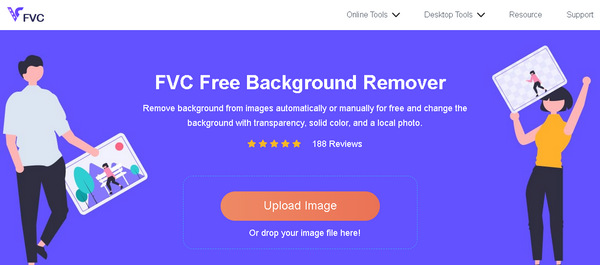
Trin 2. Giv processen lidt tid. Når den er fuldført, har du mulighed for at tilpasse dit billede ved at ændre baggrunden.
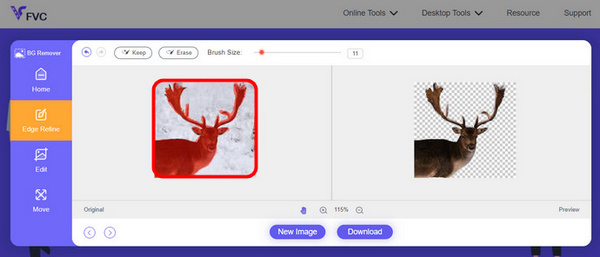
Trin 3. For at beholde det redigerede resultat skal du blot klikke på download-knappen.
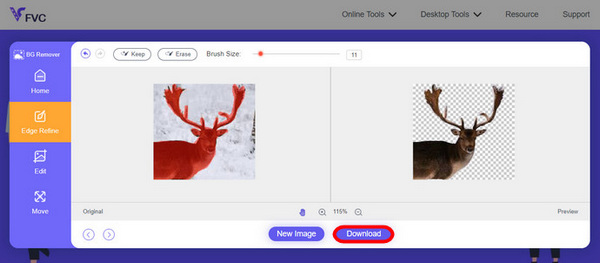
FVC Online Image Background Remover er virkelig et alsidigt værktøj. Det ændrer ikke kun baggrunden på billedet, men det giver også brugerne mulighed for at tilpasse deres billeder efter at have fjernet baggrunden. Med sine brugervenlige funktioner kan alle bruge dette hurtigt og nemt.
Del 2. Flere måder at ændre fotobaggrund på
Der er forskellige måder at ændre billedbaggrunde på, og hvis du leder efter muligheder ud over FVC Free Background Remover, er her et par flere værktøjer og måder at udforske:
Photoshop
Adobe Photoshop står som et kraftcenter inden for billedbaggrundsredigering. Med sine omfattende funktioner er Photoshop det perfekte valg for både professionelle og entusiaster. Dens avancerede muligheder, herunder præcise markeringsværktøjer og lagjusteringer, gør den ideel til indviklede baggrundsændringer. Selvom det kommer med en indlæringskurve, tilbyder Photoshop uovertruffen fleksibilitet og kreativ kontrol.
Hurtig guide:
Trin 1. Åbn dit billede i Photoshop ved at klikke på fanen File.
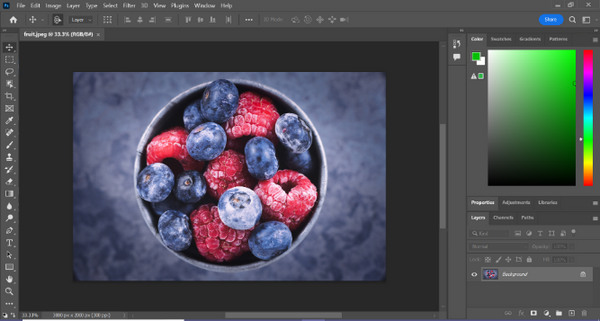
Trin 2. Brug værktøjet Object Selection, og træk musen hen over det objekt, du vil skære ud.
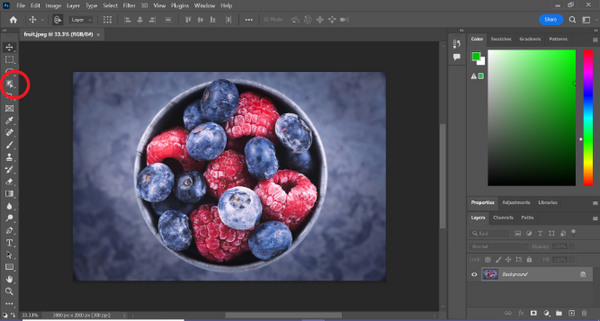
Trin 3. Klik på Select and Mask.
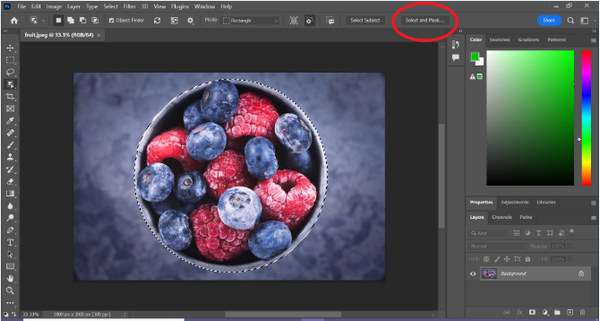
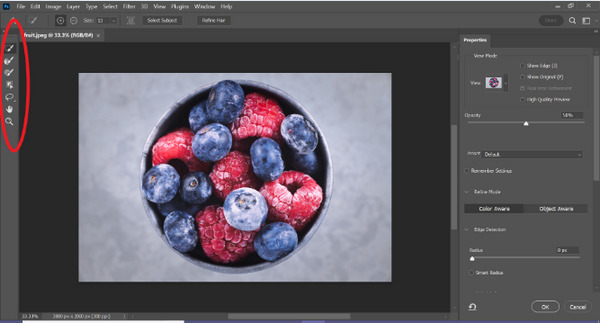
Trin 4. Justér indstillingerne for markeringen, f.eks. udtynding (feathering), hvis det er nødvendigt.
Trin 5. Klik på ikonet Mask for at skære dit billede ud og gem det ændrede billede.
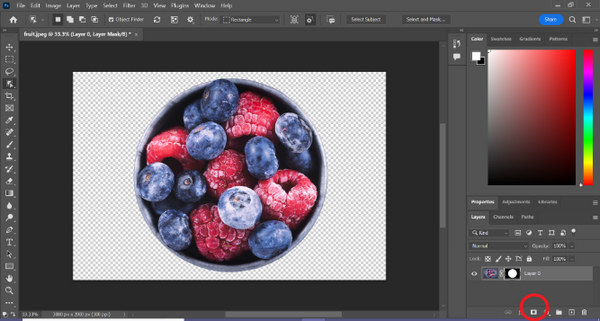
Trin 6. Til sidst, for at udskifte baggrunden, skal du trække ikonet for det nye baggrundsbillede hen på det maskerede foto. Åbn derefter panelet Layers, og træk det nye baggrundslag ned under laget med masken.
Photoshop er faktisk en anden god måde at erstatte billedbaggrund, det eneste ved dette værktøj er, at det kræver færdigheder, da værktøjets grænseflade er kompleks, så den let kan navigeres af nye brugere. Ikke desto mindre er Photoshop et kraftcenter, når det kommer til at erstatte billedbaggrunde.
Canva
Canva er en velkendt grafisk designplatform, der er lavet til at forenkle processen med at skabe visuelt tiltalende indhold. Selvom det måske ikke matcher Photoshops kompleksitet, ligger Canvas styrke i dets enkelhed og tilgængelighed. Det giver en nem træk-og-slip-grænseflade, hvilket gør den perfekt til dem, der søger ligetil baggrundsændringer, især til grafik på sociale medier. Canva er en fantastisk mulighed for hurtige og effektive redigeringer uden behov for omfattende designekspertise.
Hurtig guide:
Trin 1. Åbn Canva.
Trin 2. For at uploade dit billede skal du klikke på knappen Upload.

Trin 3. Når du har uploadet dit billede, skal du klikke på Use in a New Design og vælge Custom size.
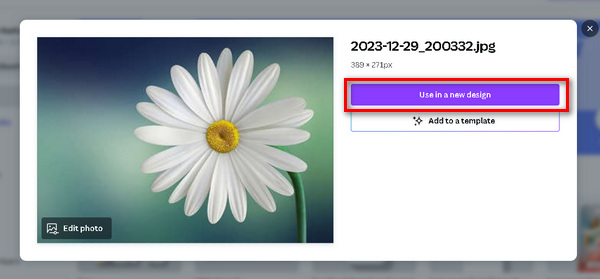
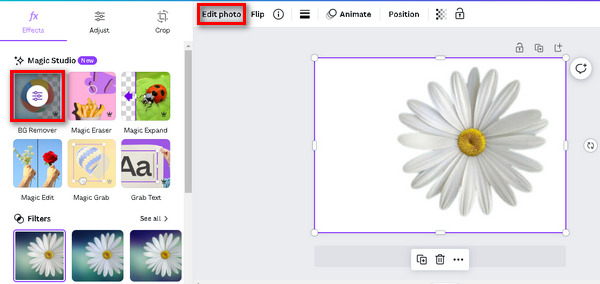
Trin 4. Marker billedet, klik på Edit Image, og vælg BG Remover.
Trin 5. For at gemme dit billede skal du trykke på knappen Share øverst til højre på skærmen og derefter klikke på Download.
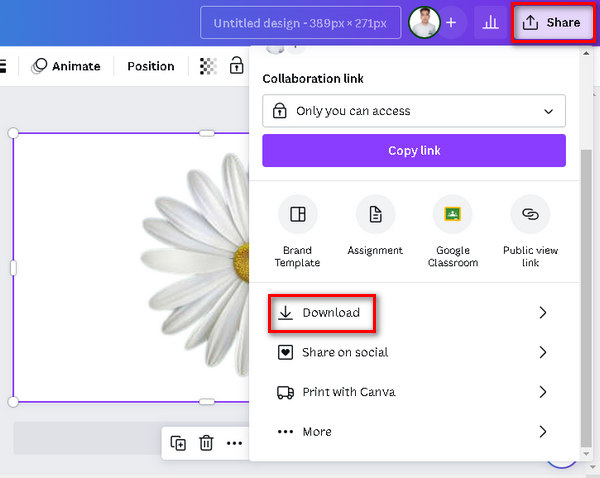
Glem ikke at gemme filen i PNG- eller JPEG-format og en gennemsigtig baggrund. Derefter skal du indsætte det i din ønskede baggrund.
Fotor
Fotor er et alsidigt online billedredigeringsværktøj, hvor brugere nemt kan manipulere billedbaggrunde gennem funktioner som fjernelse og udskiftning af baggrund. Det tilbyder forskellige filtre, effekter og grundlæggende redigeringsværktøjer, hvilket gør det bedst for både begyndere og brugere, der leder efter en strømlinet redigeringsoplevelse. Fotors brugervenlige grænseflade og forskellige sæt funktioner bidrager til dens popularitet til hurtige og effektive baggrundsændringer.
Hurtig guide:
Trin 1. Begynd med at uploade dit billede til lærredet. Klik på Open Image midt på lærredet, og vælg derefter dit billede på computeren og upload det.
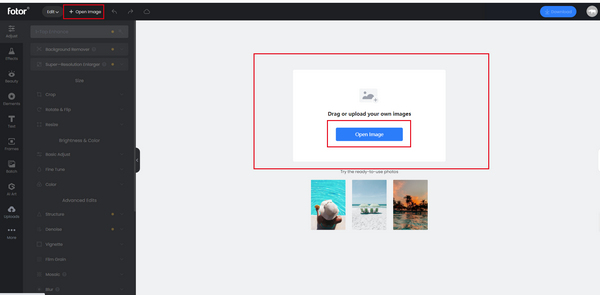
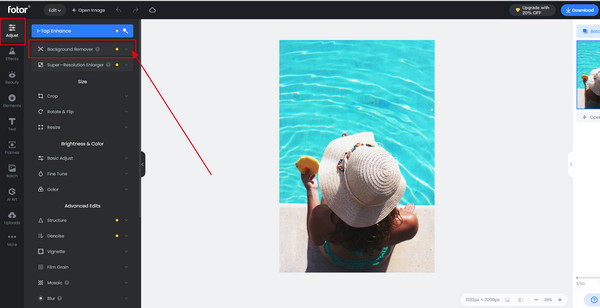
Trin 2. Klik på funktionen Adjust, og vælg Background Remover. Systemet fjerner automatisk baggrunden på dit billede.
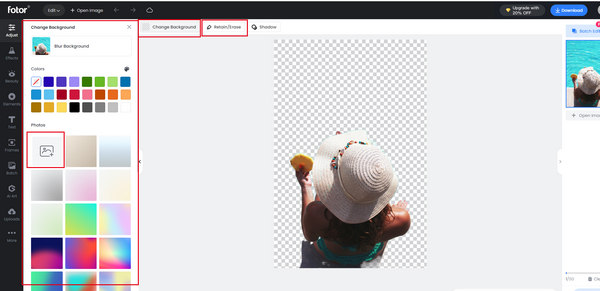
Trin 3. Brug værktøjet Retain/Erase til at gendanne fjernede dele, hvis det er nødvendigt. Du kan også klikke på Change Background for at skifte billedets baggrund.
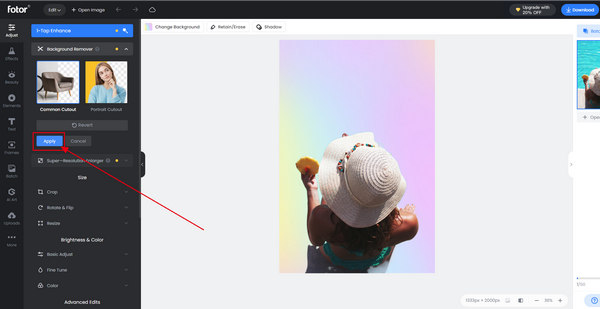
Trin 4. Når du er færdig med alle dine redigeringer, skal du klikke på knappen Save for at anvende ændringerne. Når du eksporterer billedet, kan du ændre størrelsen på fotoet via eksportfunktionen.
Fotor er virkelig et fantastisk værktøj til at ændre billedbaggrund hurtigt og nemt. Bortset fra det har det en gratis plan, som brugerne kan nyde.
Del 3. Ofte stillede spørgsmål om ændring af billedbaggrund
Kan ChatGPT AI ændre billedbaggrund med prompter?
Mens ChatGPT AI udmærker sig ved at generere tekstbaseret indhold, kan den ikke manipulere billeder, herunder ændring af baggrunde direkte. Til billedrelaterede opgaver kan du overveje at bruge dedikerede billedredigeringsværktøjer eller software.
Kan du ændre baggrundsbilledet på iPhone?
Ja, du kan ændre billedbaggrunden på en iPhone ved hjælp af forskellige apps, der er tilgængelige i App Store. Apps som Remove.bg eller Adobe Photoshop Express giver brugerne mulighed for at fjerne eller erstatte baggrunde på deres billeder direkte fra deres iPhones. Du skal blot installere den foretrukne app, følge de appspecifikke instruktioner, og nyde baggrundsændringer på farten.
Hvordan sætter jeg et billede bag baggrunden i Photoshop?
For at placere et billede bag baggrunden i Photoshop skal du følge disse trin:
Trin 1. Åbn dit baggrundsbillede i Photoshop.
Trin 2. Træk og slip det billede, du vil placere bag baggrunden, ind på lærredet.
Trin 3. Justér størrelsen og placeringen af det nye billede efter behov.
Trin 4. Sørg for i panelet Layers, at laget med det nye billede er placeret under baggrundslaget.
Trin 5. Brug om nødvendigt lagmasker eller andre værktøjer til at finpudse placeringen og sammensmeltningen af de to billeder.
Trin 6. Gem dit redigerede billede.
Kan jeg bruge FVC Online Background Remover på en Mac?
Ja, FVC Free Background Remover er kompatibel med macOS. Du kan få adgang til og bruge dette værktøj på din Mac ved at besøge det officielle websted og følge de medfølgende instruktioner.
Påvirker ændring af billedbaggrunden billedkvaliteten?
Når du bruger anerkendte værktøjer som FVC Free Background Remover eller professionel software som Photoshop, påvirker det ikke billedkvaliteten nævneværdigt at ændre billedets baggrund. Disse værktøjer er udviklet til at bevare billedets oprindelige opløsning og skarphed, så det fortsat har en høj visuel kvalitet.
Konklusion
I dag er det ren rutine at ændre baggrundsbilledet. Der findes en række værktøjer, der kan gøre det for dig. Med FVC Online Background Remover kan du hurtigt redigere fotobaggrunden gratis, ligesom med de andre værktøjer, der er nævnt i dette indlæg. Vælg blot det, der passer bedst til dig.
-
 Fuld guide til at gøre et billede gennemsigtigt i Google Slides
 Lær, hvordan du gør et billede i Google Slides gennemsigtigt med nogle få enkle trin. Gør dine præsentationsdias endnu mere professionelle med gennemsigtighedseffekter!
-
 Hvordan fjerner PPT baggrundsbillede? Omfattende guide
 Klar til at tage din præsentation til næste niveau? I denne artikel kan du opdage, hvordan PPT fjerner baggrundsbilleder og nemt opretter fremragende PowerPoint-præsentationer.
-
 Tilføj baggrund til foto på iPhone, Android, computer, online
 Kan jeg tilføje en hvid baggrund til billedet? Hvordan gør man det? Lær 3 måder at tilføje baggrund til billeder online, på computeren, iPhone eller Android.
