


 Video Converter Ultimate
 Skærmoptager
 Video reparation
 Sikker download
Lær hvordan du gør et billede klarere med disse nemme metoder
Når du tager et billede, som viser sig at være sløret, betragtes det som en fejl. Og det er meget utilfredsstillende at ende med et sløret billede. Heldigvis findes der i dag masser af programmer, der kan hjælpe dig med at gøre dit billede skarpere og fjerne slør. Adobe Photoshop er blandt de mest kendte billedredigeringsprogrammer. Det er dog ikke et værktøj, der er særligt begyndervenligt. Derfor vil vi præsentere mere enkle metoder, du kan bruge til at få et sløret billede til at få fremragende kvalitet. Læs afsnittet nedenfor for at lære, hvordan man gør et billede klarere med nemme trin.

Del 1. Sådan gør du et billede klarere online
Med brugen af AI-teknologi er der nu mange online billedopskalere, der automatisk kan skærpe dit billede. Det er praktisk at bruge online-apps til at gøre dit billede klarere, fordi du ikke behøver at downloade noget på din enhed. Det vil også spare lagerplads på din enhed, fordi du kan få adgang til det i din browser.
FVC Free Image Upscaler er det mest kendte onlineprogram, hvis du vil gøre dit billede skarpere eller klarere. Dette værktøj er let at bruge, fordi det har en enkel brugergrænseflade. Derudover kan du forbedre kvaliteten af dit billede med 2x, 4x, 6x og 8x forstørrelse. FVC Free Image Upscaler bruger også AI‑teknologi (kunstig intelligens), der automatisk registrerer de slørede dele af dit billede og derefter forbedrer dem. Det gør det muligt præcist at genskabe mistede pixels, farveteksturer og flere detaljer.
Desuden understøtter det flere billedformater, såsom PNG, JPG, JPEG og WebP. Og hvad der endda er fantastisk ved dette onlineværktøj er, at du ikke behøver nogen konti for at få adgang til det. Det er også gratis at bruge og sikkert at bruge. Og på trods af at det er en online app, indeholder den ingen irriterende annoncer, der kan distrahere dig, og den er hurtig og effektiv at bruge. Så hvis du leder efter et praktisk værktøj, er FVC Free Image Upscaler det bedste værktøj.
Sådan gør du et billede klarere online ved hjælp af FVC Free Image Upscaler:
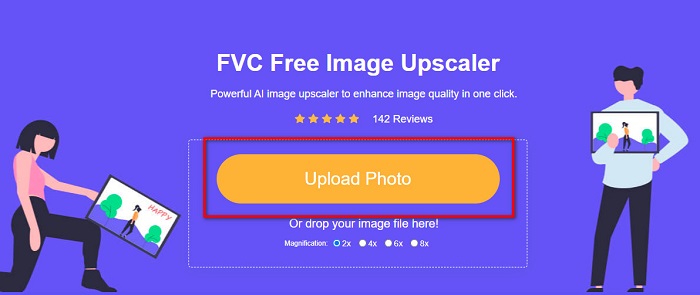
Trin 1. Åbn din browser på computeren, og søg efter FVC Free Image Upscaler i søgefeltet. Eller du kan klikke på det angivne link for at gå direkte til appens hovedside. Klik på knappen Upload Photo for at starte appen.
Trin 2. Efter at have startet appen skal du igen klikke på Upload Photo for at tilføje det billede, du vil opskalere/gøre skarpere. Der åbnes et vindue med dine computerfiler, hvor du skal finde dit billede og åbne det.
Trin 3. Vælg derefter den forstørrelse, du foretrækker. Jo højere forstørrelse, desto større skarphed får dit billede. Bemærk dog, at filstørrelsen også vil stige, efterhånden som kvaliteten øges. Du kan vælge forstørrelse mellem 2x, 4x, 6x og 8x.
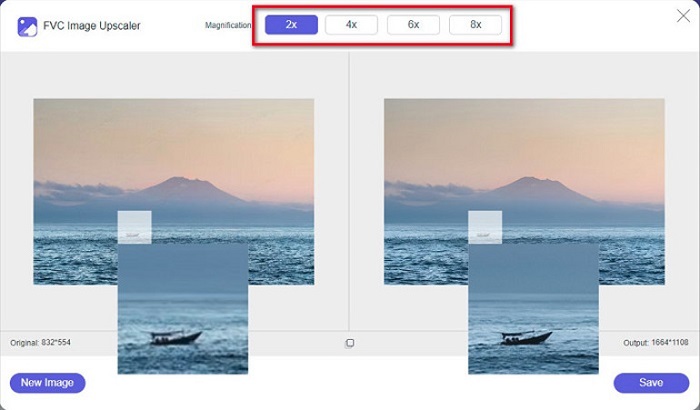
Trin 4. Du vil se resultatet i højre side af grænsefladen. Hvis du er tilfreds med dit resultat, skal du klikke på knappen Save for at gemme billedet på din enhed.
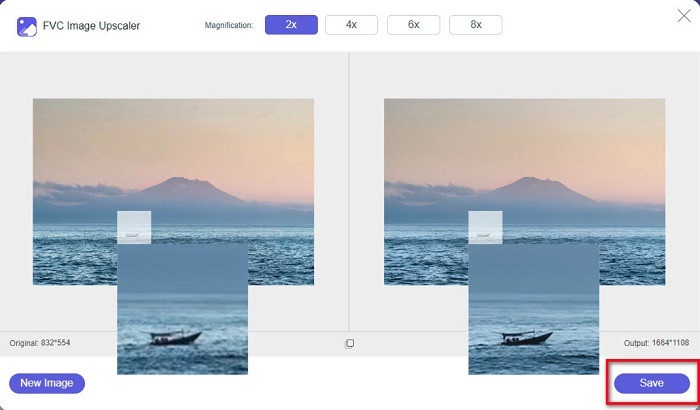
Bare vent på, at dit billede gemmes, og voila! Du kan nu dele dit fantastiske billede med venner eller på andre sociale medieplatforme.
Del 2. Sådan gør du et billede klarere offline
Det er også godt at bruge et offline-program, når du vil skærpe eller redigere dit billede. Mange fotoredigeringsapplikationer er offline; du skal købe dem, før du bruger dem. Men bare rolig; i denne del vil vi tilbyde et gratis offlineværktøj, du kan bruge på dit skrivebord.
Paint.net er blandt de mest brugte billedredigeringsprogrammer, som er gratis og sikre at bruge. Dette offline‑værktøj har en enklere brugerflade end Adobe Photoshop, som mange professionelle bruger. Selvom det har en simpel brugergrænseflade, kan det stadig levere fremragende resultater og gør det muligt for dig at gøre dit slørede billede skarpere. Derudover har det andre redigeringsfunktioner, der kan hjælpe dig med at forbedre dit billede. Med Paint.net kan du gøre skarpere, farvekorrigere og tilføje baggrund til dit billede.
Desuden kan du ved at flytte skyderen vælge skarpheden af dit billede og fjerne de slørede dele af det. Det er dog kun tilgængeligt på Windows-enheder. Men hvis du vil gøre et billede større, mens du gør det skarpere, kan du bruge Paint.net.
Sådan gør du et billede større og klarere ved hjælp af Paint.net:
Trin 1. Download og installer først Paint.net på din computer, og åbn det, når installationen er færdig. Upload derefter dit billede ved at klikke på File > Open.
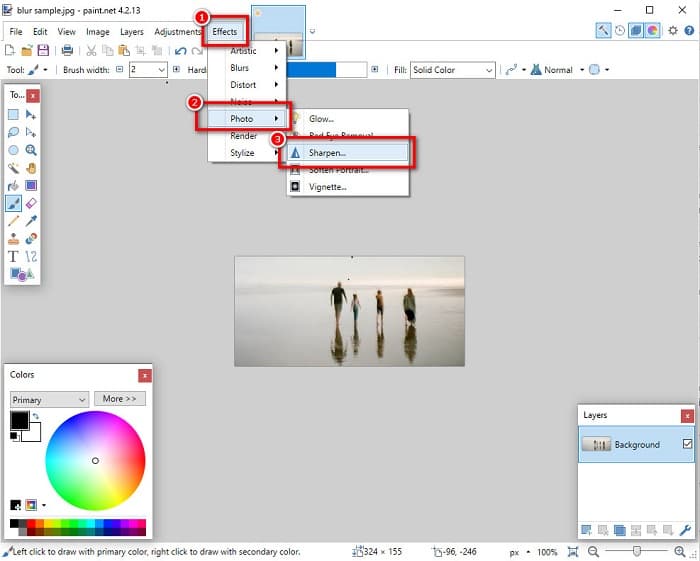
Trin 2. Gå derefter til Effects > Photo > Sharpen. Et nyt vindue vises, hvor du kan justere skarpheden på dit billede for at fjerne slør.
Trin 3. På fanen Sharpen skal du flytte skyderen for at vælge den ønskede skarphed på dit billede. Du kan også klikke på op/ned‑pilen for at vælge skarphedsniveauet på dit billede numerisk.
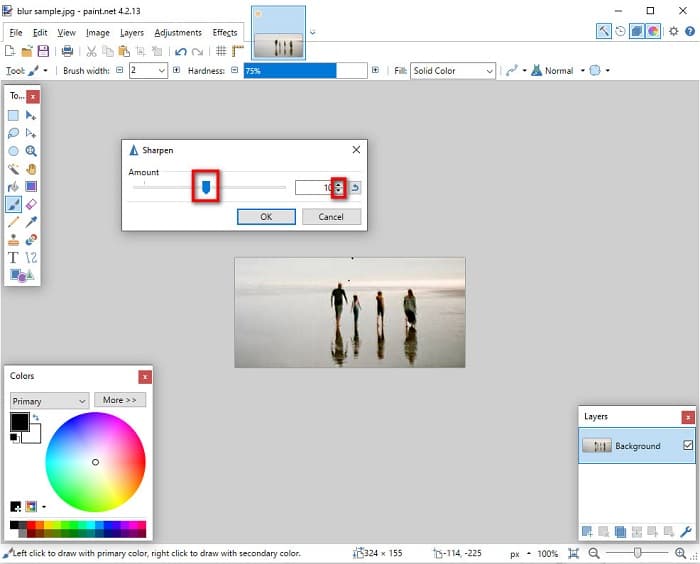
Trin 4. Til sidst skal du klikke på knappen OK og derefter gå til File > Save for at gemme dit resultat på din computer.
Del 3. Sådan gør du et billede klarere på din iPhone
Og hvis du har et sløret billede taget med din iPhone, kan du også bruge en sløringsapp til din iPhone-enhed. Adskillige billedredigeringsapps, du kan downloade fra AppStore, kan hjælpe dig med at fjerne sløring af dit billede. Det er dog ikke alle apps, der er gratis at bruge; du skal købe dem, før du bruger dem. Heldigvis fandt vi en app til sløring af billeder, som er gratis at bruge fra AppStore. Læs dette afsnit fuldstændigt for at lære, hvordan du gør et billede klarere på din iPhone-enhed.
Hvis du spekulerer på, hvilken gratis billedredigeringsapp der kan hjælpe dig med at fjerne slør i et billede, er VSCO den app, du leder efter. VSCO er en kendt billedredigeringsapp, der kan downloades fra App Store. Når du fjerner slør i et billede med VSCO, er der nogle indstillinger, du skal fokusere på. For at gøre dit foto mindre sløret med VSCO skal du justere billedets klarhed, skarphed, klarhed (igen) og eksponering. VSCO har også andre redigeringsværktøjer, du kan bruge til at redigere dine billeder. Desuden understøtter den de mest almindelige billedformater på iPhone, som HEIC og HEIF. En lille ulempe ved denne app er, at den kun understøtter få billedformater, og at du skal købe den for at bruge dens øvrige redigeringsfunktioner.
Sådan gør du et billede klarere på iPhone ved hjælp af VSCO:
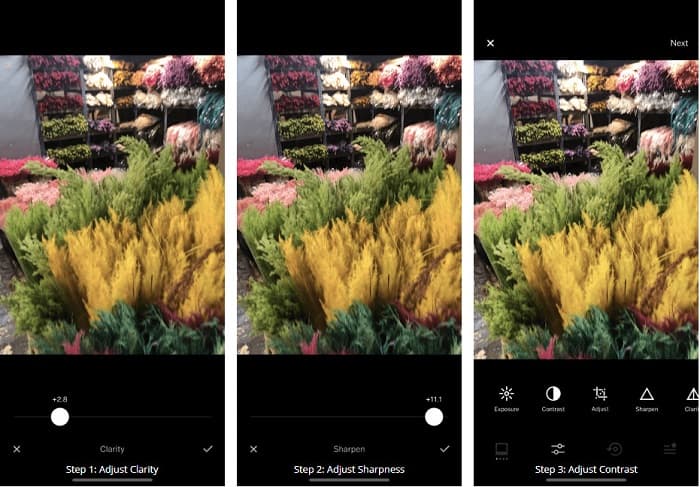
Trin 1. Installer VSCO fra App Store, og åbn derefter appen på din iPhone.
Trin 2. Åbn dit billede, og gå derefter til Clarity. Indstillingen Clarity hjælper dig med at fjerne støj i dit billede i større skala. Flyt blot Clarity‑skyderen lidt nederst i grænsefladen.
Trin 3. Derefter justerer vi skarpheden på dit billede. Funktionen Sharpen hjælper dig med at få den sprødhed, du ønsker i dit billede. Ved at flytte skyderen kan du vælge, hvor skarpt dit billede skal være.
Trin 4. Når du er færdig med at redigere klarhed og skarphed på dit billede, skal vi nu justere kontrasten. Flyt indstillingen Contrast og Contrast‑skyderen for at vælge den lysstyrke og mørkegrad, du ønsker for dit billede.
Trin 5. Til sidst justerer vi nu dit fotos Exposure for at gøre det en smule lysere. Ved at øge eksponeringen på dit billede kan du balancere mørket med kontrasten. Og det var det! Ved at justere disse funktioner kan du gøre dit slørede billede skarpere. Klik her for at lære, hvordan du ændrer størrelsen på et billede på en iPhone.
Del 4. Sådan gør du et billede klarere på din Android
Der er også apps på Android, som du kan bruge til at gøre et billede klarere. Så hvis du vil have et sløret billede gemt i dit galleri, kan denne app hjælpe dig med at forbedre dit billede. Læs denne del for at lære, hvordan du slører et billede på din Android-enhed.
Remini-appen (til Android) er sandsynligvis en af de bedste billedredigeringsapps, du kan bruge på din Android‑enhed. Denne app giver dig mulighed for at redigere og endda fjerne slør i dit slørede billede. Desuden er den nem at bruge og gratis. Ved at bruge funktionen Enhance kan du gøre dit billede klarere. Du skal dog først oprette en konto, før du kan bruge denne app. I Pro‑versionen får du adgang til appens avancerede funktioner til at fjerne slør.
Sådan fjerner du sløring af et billede ved hjælp af Remini til Android:
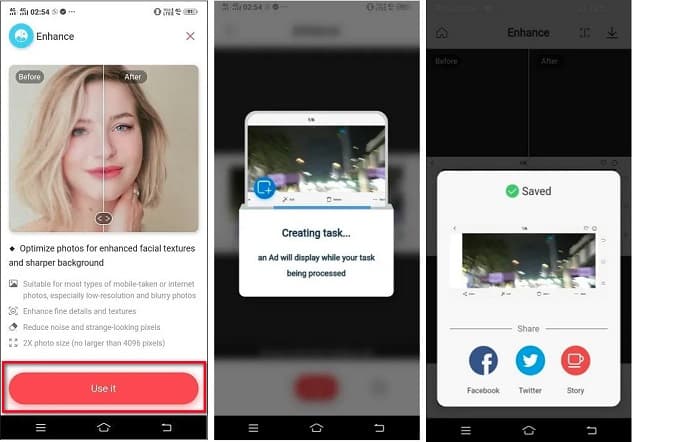
Trin 1. Installer Remini på din Android‑enhed. Når appen er installeret, skal du åbne den med det samme. På appens hovedgrænseflade skal du trykke på knappen Use it for at fortsætte med at fjerne slør i dit billede.
Trin 2. Vælg derefter billedet, og klik på den røde knap nederst i grænsefladen. Der oprettes en opgave, og der vises en reklame, mens billedet behandles.
Trin 3. Derefter vises det endelige resultat, hvor du kan sammenligne før og efter på dit billede. Hvis du allerede er tilfreds med resultatet, skal du gemme dit billede.
Del 5. Ofte stillede spørgsmål om, hvordan man gør et billede klarere
Kan jeg bruge GIMP til at sløre et billede?
Ja. GIMP er en fantastisk billedredigeringssoftware, som du kan bruge til at sløre dit billede. Du kan også downloade denne app på din Windows-enhed.
Øger filstørrelsen filstørrelsen ved at sløre et billede?
Ja. At sløre et billede betyder at øge kvaliteten og opløsningen af dit billede. Når opløsningen øges, øges filstørrelsen på dit billede også.
Hvilken app kan jeg bruge til at sløre mit billede?
YouCam Perfect er et program, der kan hjælpe dig med at sløre dit billede. Med dens AI-teknologi kan du straks sløre dit billede.
Konklusion
Dette indlæg har fortalt dig, hvad du behøver at vide om, hvordan man gør et billede klarere. Så hvis du leder efter programmer, der gør det muligt at fjerne slør i et billede, vil metoderne ovenfor hjælpe dig med at nå dit mål. Men hvis du foretrækker at bruge et onlineværktøj med en brugervenlig grænseflade, kan du bruge FVC Free Image Upscaler.
-
 Factual PicResize-gennemgang, du skal vide dette 2022
 Vil du vide, om PicResize er den bedste mulighed for redigering af billede? Læs denne artikel, mens vi gennemgår det overordnede værktøj.
-
 Alt du behøver at vide om Waifu2x og Alternative
 Har du brug for at vide mere om Waifu2x? Denne artikel giver de oplysninger, der skal fremhæves i denne app og dens alternativ.
-
 Sådan optimerer du billedet til internettet ved hjælp af de bedste løsninger [Hurtig]
 Hvordan optimerer man billedet til nettet? Du skal bruge pålidelig software og en tutorial; alle oplysninger er her.
