


 Video Converter Ultimate
 Skærmoptager
 Video reparation
 Sikker download
3 tip til løsning af VLC afspiller ikke DVD
VLC Media Player is one of the most popular video and audio playing software. Besides various digital media formats, VLC is also capable of playing DVDs, Audio CDs, and VCDs. However, many users have encountered the VLC not playing DVD problem. Are you facing the same situation?

In fact, many reasons may cause the VLC Media Player does not play DVD. This post will discuss how to solve it in 3 different ways, whether VLC can’t read DVD disc, video and audio files of DVD are choppy, or VLC does not play the whole DVD.
Del 1. Opdater eller geninstaller VLC for at rette VLC afspiller ikke DVD
When the VLC Media Player does not play DVD, you should first restart computer and VLC to check if the problem is still there. If the VLC not playing DVD issue is still existing, you can choose to upgrade VLC to its latest version.
Open VLC Media Player on your Windows 10/8/7 PC or Mac. Click Help tab on the top menu bar. From the drop-down list, choose the Check for Updates option. If there is an available one, you can follow the on-screen instructions to upgrade your VLC to the latest version.
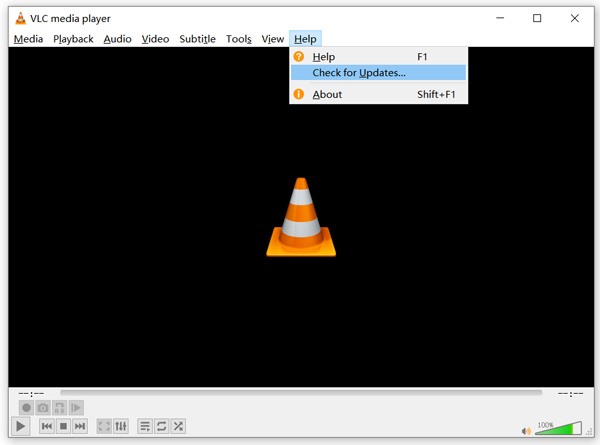
Here you can also uninstall VLC and then re-install it on your computer. You can go to the VideoLAN site to free install a suitable version.
Når du får en ny VLC-version installeret, kan du afspille din DVD og kontrollere, om den kan åbne DVD som normalt.
Del 2. Nulstil præferencer for at rette VLC afspiller ikke DVD-udgave
I nogle tilfælde kan du tilpasse eller nulstille VLC-præferencer for at løse VLC, der ikke afspiller DVD-problemet. Den følgende vejledning viser dig, hvordan du indstiller VLC-præferencer.
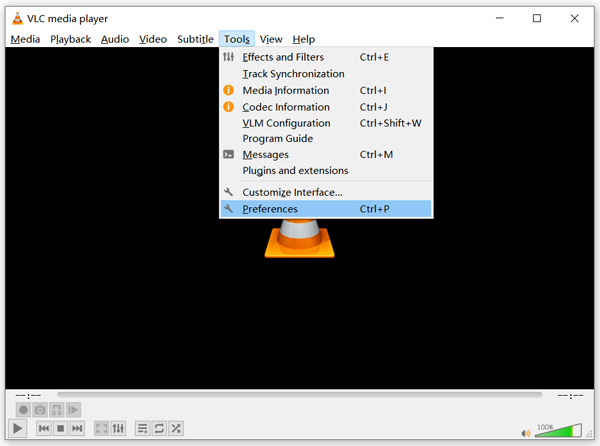
Step 1. Open VLC and choose the Tools menu. Select the Preferences option from the drop-down list.
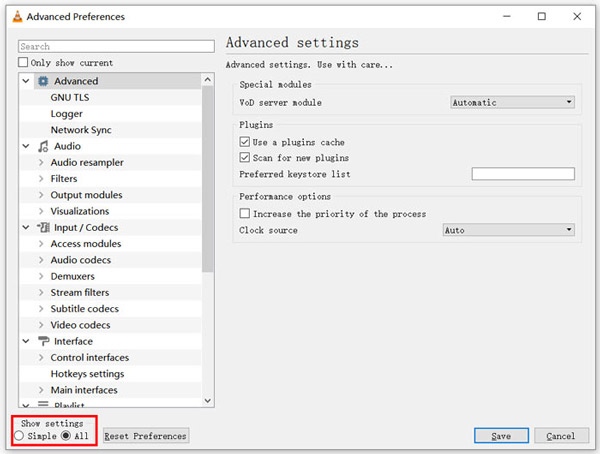
Step 2. Now you will be guided to the Simple Preferences window. Tick All under the Show Settings at the bottom left corner to enter the Advanced Preferences window.
Step 3. Here you can click on the Reset Preferences button to try fix VLC not playing DVD issue. Also, you can go to the Video section on the left, click Filters and then choose Deinterlacing video filter option on the right. Click Save button to confirm your operation.
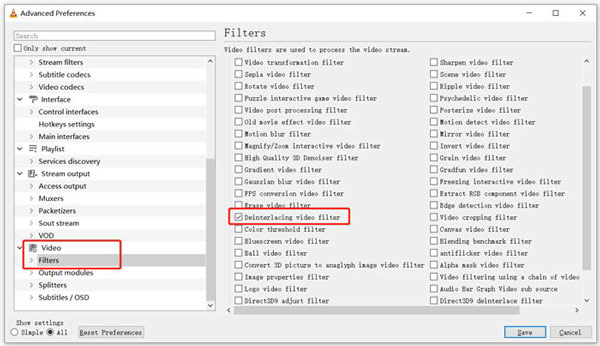
Whether you choose to reset or custom VLC preferences, after all your operations, you should restart VLC and then use it play DVDs.
Del 3. Få et alternativt VLC-værktøj til at afspille DVD'er
If VLC is still not playing DVD on Windows 10/8/7 PC or Mac, you should find a VLC alternative player to help you watch DVD movies on computer. Here we strongly recommend the Free Online DVD Player for you to watch any DVDs with high quality.
Det er en helt gratis DVD-afspiller, der giver dig mulighed for at afspille DVD-diske, DVD-mapper og ISO-billedfiler på både Windows 10/8/7 PC og Mac. Denne gratis DVD-afspiller kan afspille din DVD direkte i enhver webbrowser som Chrome, IE, Firefox og Safari. Den er udstyret med alle DVD-afspilningsfunktioner, du har brug for. Desuden giver det dig mulighed for at tage snapshots, tilføje, justere og vælge undertekster og lydspor.
Step 1. When you want to play DVD, you can go to this Free Online DVD Player page and click on the Play Now button to install a Launcher for the DVD playback. Once the installation is finished, the DVD player will be initiated automatically.

Step 2. When you enter this DVD player, you can choose Open Disc or Open File according to your need. To play a DVD disc, you should insert your DVD disc and select the Open Disc option. To open DVD folder or DVD ISO file, you can use the Open File.
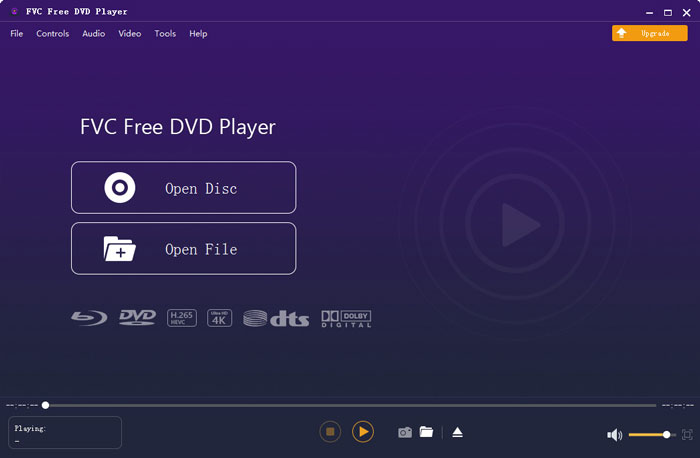
Step 3. You are given the full control of the DVD playing. You can forward, backward, pause, and stop it anytime you like. You are also able to take screenshots of your favorite scenes. Also, you can change the audio track, video track, and subtitle track based on your need.
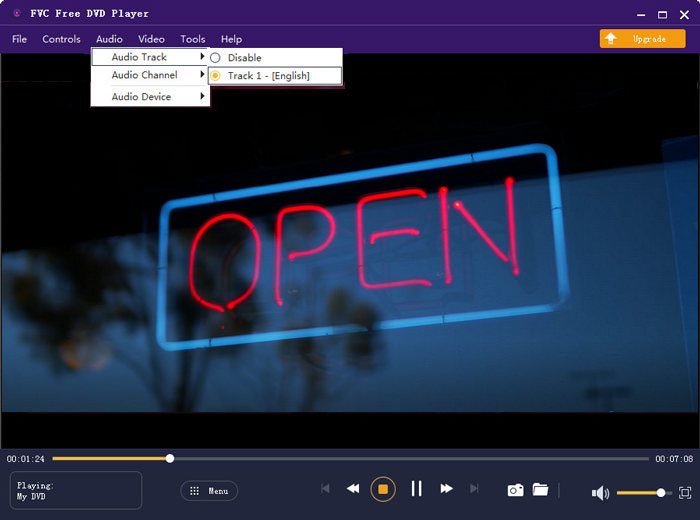
Dette VLC Media Player-alternativ har mulighed for at afspille alle DVD-film med høj billed- og lydkvalitet. Det er designet med den avancerede videokodningsteknologi og understøtter både DTS-HD og Dolby TrueHD. Så når du står over for VLC, der ikke afspiller DVD-problem, kan du stole på, at denne DVD-afspiller ser dine DVD'er.
More VLC alternatives are here.
Del 4. Ofte stillede spørgsmål om VLC Media Player afspiller ikke DVD
Spørgsmål 1. Hvordan afspilles DVD med VLC?
For at afspille DVD-filmen på VLC Media Player kan du indsætte DVD-disken i computerdiskdrevet, åbne VLC Media Player og derefter klikke på menuen Media. Vælg Åbn disk og DVD, og klik derefter på knappen Gennemse for at indlæse din DVD-fil. Derefter begynder VLC at afspille din DVD.
Spørgsmål 2. Hvorfor kan jeg ikke afspille DVD'er i Windows 10?
Den indbyggede understøttelse af afspilning af DVD fra Microsoft er ikke længere tilgængelig i Windows 10. Derfor kan du ikke afspille DVD'er på en Windows 10-pc. I stedet tilbyder Microsoft Windows DVD-afspillersoftwaren, der koster $14.99 for dig at se DVD'er.
Spørgsmål 3. Hvordan rippes en DVD til MP4?
When you want to watch DVD on computer, you can also choose to convert DVD to a digital video file like MP4. You can rely on the powerful DVD to MP4 converter to rip your DVD to MP4 without quality loss.
Konklusion
VLC can work as a free DVD player to help you play DVDs on Windows 10/8/7, Mac and Linux computer. It can easily access DVD menu, chapters, and other related contents. However, many users complained about the VLC not playing DVD problem.
Here in this post, you can get 3 effective solutions to fix the VLC Media Player does not play DVD issue. Hope you can better watch your DVD movies after reading this page.
-
 Sådan brændes video _TS-fil til DVD på Mac / Windows 10
 Hvordan konverterer jeg og brænder TS-filer til DVD-disk? Denne trinvise vejledning viser dig, hvordan du kopierer TS-filer og -mapper til DVD på Windows / Mac, så du kan se TS-filer på DVD-afspiller eller TV.
-
 Sådan optages skærmvideo med lyd med VLC Media Player
 Det er en trinvis vejledning om den omfattende brug af VLC-skærmoptagelsesfunktionen. Du kan finde den detaljerede proces, fejlfinding og det bedste alternativ fra artiklen.
-
 Top 5 bedste videospillere til iPhone, du ikke bør gå glip af i 2021
 For at afspille videoer i alle formater og få en bedre seeroplevelse på din iPhone, bør du læse denne artikel og lære om de bedste 5 videospillere til iPhone 12/11/X/8/7/6.
