


 Video Converter Ultimate
 Skærmoptager
 Video reparation
Bedste måde at optage lyd på iPhone via tilgængelige apps og konverter
Med en smartphone i lommen kan vi næsten gøre hvad som helst. Denne lille gadget er skabt som den nye generation af computere, der nemt kan tages med overalt i verden uden opsætning. På grund af den har vi nu mulighed for at lave lydoptagelser på vores telefon uden at skulle sætte en masse udstyr op. For eksempel kan du optage din egen podcast på din iPhone, men vores værste fjende er dårlig optagekvalitet. Derfor præsenterer vi i denne liste forskellige måder at optage lyd på iPhones uden at bruge en masse udstyr og uden at miste lydkvalitet i optagelsen.

Del 1. Sådan optager du ekstern lyd på iPhone med de 2 af de bedste apps
Lær, hvordan du bruger dette værktøj, der er tilgængeligt på Apple-enheder eller App Store. Disse apps på denne liste er kendt for at blive brugt af mange brugere over hele verden. Især hvis de vil optage sig selv eller optage noget gennem lyd. Så uden flere forsinkelser, lad os præsentere dig for de 2 bedste lydoptagere, du kan bruge.
1. Stemmememoer
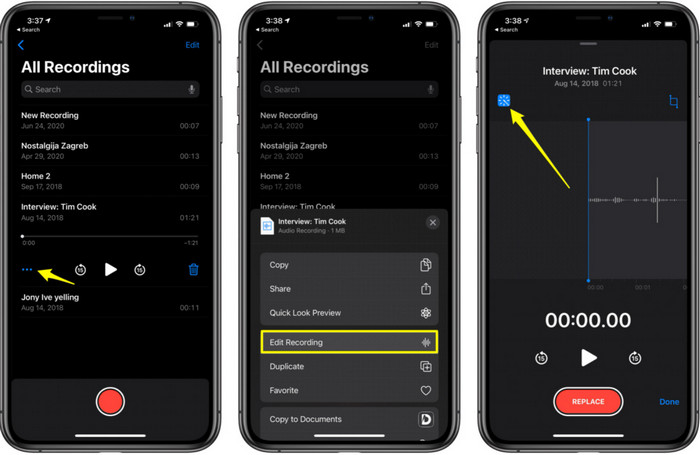
Memoer er den bedste måde at optage lyd på en iPhone uden at downloade noget og helt gratis. Du kan også redigere din optagelse her. Men redigeringsfunktionerne er begrænset til at klippe til og tilføje andre lydfiler. Hvis du vil forbedre din optagelse, kan du derfor ikke gøre det her, for der er ingen funktioner til det. Men helt grundlæggende optagelser som notater, lyd-dagbog, forelæsninger og lignende kan klares ved hjælp af Memoer.
Fordele
- Indbygget værktøj på iPhone til at lave lydoptagelsen eksternt.
- Grundlæggende redigering er tilgængelig som trimning og fletning.
Ulemper
- Den har ingen lydforstærker for at gøre din optagelse bedre.
- Kan ikke optage internt.
2. GarageBand
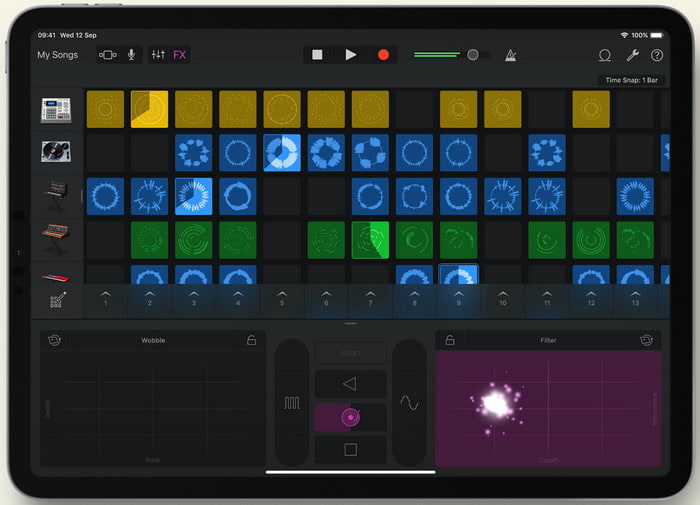
Vil du producere musikoptagelser? Så prøv at bruge GarageBand. Dette værktøj tilbyder mange funktioner, du kan lege med. Men det er meget mere komplekst end Memoer, fordi appen er beregnet til musikproduktion. At lære hvordan man optager stemme på iPhone med GarageBand vil derfor tage en del af din tid. Men hvis du er dedikeret til at lære det, kan du downloade værktøjet gratis, og filstørrelsen er 1,7 GB, inklusive de tunge funktioner, du skal bruge til at optage musik.
Fordele
- Det er den bedste app at bruge som bærbar musikproduktion, der kan optage lyd internt.
Ulemper
- Ikke det bedste valg for en begynder på grund af den komplicerede app-grænseflade.
- Filstørrelsen kan gå op til mere end 1,7 GB.
Del 2. Sådan ændres iPhone-skærmoptagelse til lydformat
Da iPhone ikke kun har intern lydoptagelse, kan du først lave en skærmoptagelse og senere konvertere den til lyd. Med hjælp fra det enestående Video Converter Ultimate kan du vælge mellem 200+ formater i værktøjet og klippe unødvendig lyd væk så nemt som ingenting. Ikke nok med det, du kan også forstærke din lyd her, så den lyder klarere og bedre. I modsætning til at bruge Memoer kan du, hvis du bruger dette værktøj og konverterer, lave en masse magiske ting for at gøre den så god som muligt. Uden yderligere omsvøb: Lad os gå i gang med at konvertere din skærmoptagelse til et lydformat ved at følge trinene nedenfor.
Trin til, hvordan du konverterer skærmoptagelse til et lydformat med Video Converter Ultimate
Trin 1. Tryk på knappen til gratis download for at hente softwaren til din PC eller Mac. Når den er downloadet, installér og opsæt den, og klik derefter på Afslut for at starte programmet.
Gratis download til Windows 7 eller nyere Sikker download
Gratis download til MacOS 10.7 eller nyere Sikker download
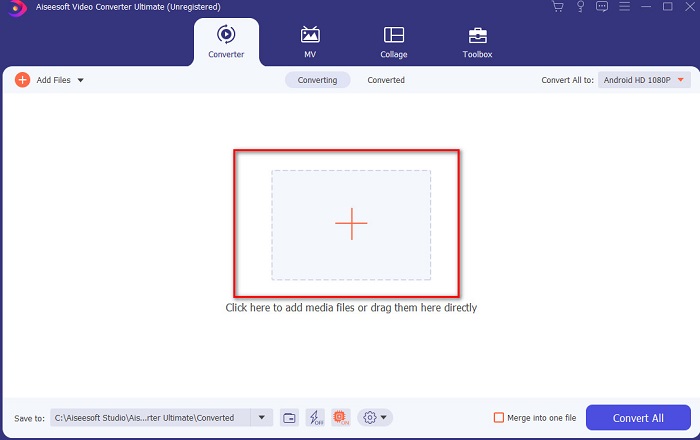
Trin 2. Tilføj den fil, du har optaget på iPhone, ved at klikke på knappen Add Files øverst til venstre i værktøjets grænseflade. Find derefter filen i mappen, hvorefter den dukker op; klik så på Open.
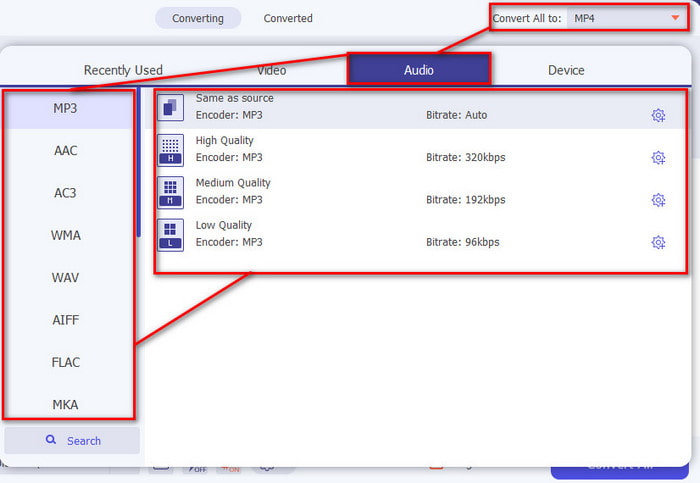
Trin 3. Klik på drop-down-muligheden ved siden af Convert All to, og vælg det endelige format, du vil have, fra listen i kategorien Audio for at fortsætte. Derudover kan du også redigere den optagede fil, hvis du klikker på tryllestavs-knappen i hovedgrænsefladen. Når du er færdig med at redigere, klikker du på OK for at gemme de ændringer, du har lavet.
Trin 4. Når du er klar til at starte konverteringsprocessen, klikker du på Convert All-knappen og venter mindre end et sekund.
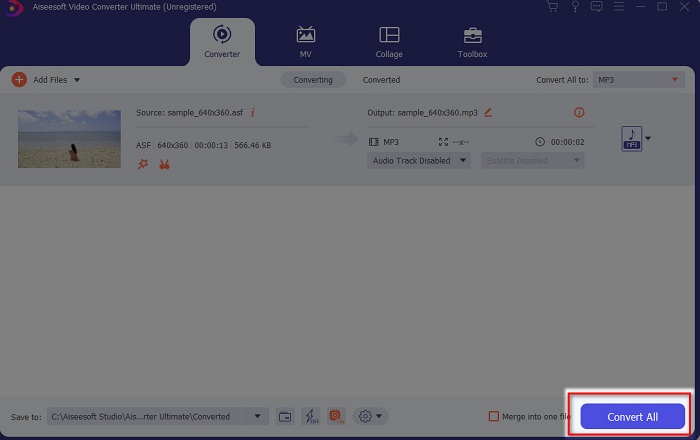
Trin 5. En mappe åbnes, når konverteringen er færdig; klik på filen og lyt til den, og derefter kan du overføre og gemme den på din iPhone.
Fordele
- Det bedste fænomenale værktøj, der bruges til at konvertere din skærmoptagelse til lydformat.
- Avancerede redigeringsfunktioner er tilgængelige her for at gøre din optagelse bedre.
- Flere batches af konvertering kan udføres her.
Ulemper
- Kan ikke lave skærm- eller lydoptagelse her, fordi det ikke understøttes.
- Det er betalt, men det er ikke dyrt.
Del 3. Ofte stillede spørgsmål om optagelse af lyd på iPhone
Hvad er det bedste lydformat til lydoptagelse?
Det ideelle format, du vil bruge, hvis du vil optage lyd i den højeste kvalitet, er formatet FLAC. Selvom værktøjet ovenfor ikke tilbyder ændring til dette format, kan du altså ikke lave FLAC-optagelser med det. Men hvis du klikker på dette link, kan du lære en masse om de bedste FLAC-optagere til at optage lyd i den højeste kvalitet.
Hvor længe kan jeg optage på min iPhone?
Nå, du kan optage, så længe du har plads nok. Grundlæggende anslås det, at du for hver 1 GB kan gemme mindst 100 minutters lydoptagelse. Så hvis du ønsker at optage en lang diskussion eller et foredrag, er det ideelt at frigøre lidt plads, før du begynder at optage.
Kan jeg lave lydoptagelse gennem VLC?
Ja, helt sikkert! Du kan lave lydoptagelser, hvis du bruger VLC, uanset om det er på PC eller Mac. For at finde ud af, hvordan du optager i VLC, skal du klikke på dette link.
Konklusion
Afslutningsvis har vi allerede introduceret en række måder, du kan vælge imellem for at gøre dine optagelser bedre og mere effektive. Dette er de bedste løsninger inden for optagelse, da vi selv har testet dem, før vi skrev denne artikel. Men der findes ingen bedre og mere brugervenlig editor med en indbygget lydforstærker end Video Converter Ultimate. Så hvis du vil gøre dine optagelser bedre end bare gode, så prøv at redigere og konvertere dem med dette værktøj.
Gratis download til Windows 7 eller nyere Sikker download
Gratis download til MacOS 10.7 eller nyere Sikker download
-
 7 af de bedste AAC-optagere til Windows og Mac [2021]
 Find ud af, hvad der er AAC og de mest vurderede AAC -optagere, som du kan bruge gratis og kan downloades på både Mac- og Windows -computere.
-
 Spot-On Guide: Hvad er den bedste M4A-optager til Windows og Mac
 M4A er containere fil ACA og ALAC kodet til tabende komprimering. Listen nedenfor er de M4A -optagerværktøjer, du kan bruge. Læs følgende grundigt.
-
 Mest nyttige OGG-optager i 2021 [gratis og online]
 Denne artikel taler om de bedste OGG-optagelsesværktøjer, der hjælper dig med at lave OGG-lydoptagelse. Fortsæt med at læse den for at tilføje mere detaljeret information til brugeren
