


 Video Converter Ultimate
 Skærmoptager
 Video reparation
 Sikker download
Sådan udskriver du HEIC-fotos med et billedoutput af høj kvalitet på et minut
Selv om der er mindre understøttelse på andre enheder, erklærer Apple stadig, at de vil bruge HEIC‑formatet til hurtigt at tage billeder og gemme dem som hyperspektrale billeder, der ikke koster dig noget, men sparer plads. Hvis du derimod vil udskrive, se eller overføre et billede til en anden enhed, der ikke er Apple‑relateret, vil du kun få en meddelelse om, at formatet ikke understøttes. Men hvis du er Mac‑bruger, kan du hurtigt lære hvordan man udskriver HEIC‑fotos med samme kvalitet, som du har i råfilen. Så hvis du vil kende trinene til, hvordan du får det ud på papir, bør du læse videre nedenfor.

Del 1. 2 effektive måder til, hvordan man udskriver HEIC-fotos på Mac
Mens vi udforsker og afprøver, hvordan man udskriver HEIC-fotos på Mac, bemærker vi, at der er to måder, du kan gøre for at lave en papirkopi af HEIC-filen uden at konvertere formatet. Så hvis du vil vide, hvordan du laver en papirkopi af det HEIC-billede, du har, skal du blive ved med at læse de to metoder nedenfor.
Tjek venligst, om printeren er installeret korrekt på Mac'en, og fejlfind den, før du fortsætter til trinene. HVIS alt er klar og forberedt, så skal du nu fortsætte.
1. metode: Brug af en genvejstast
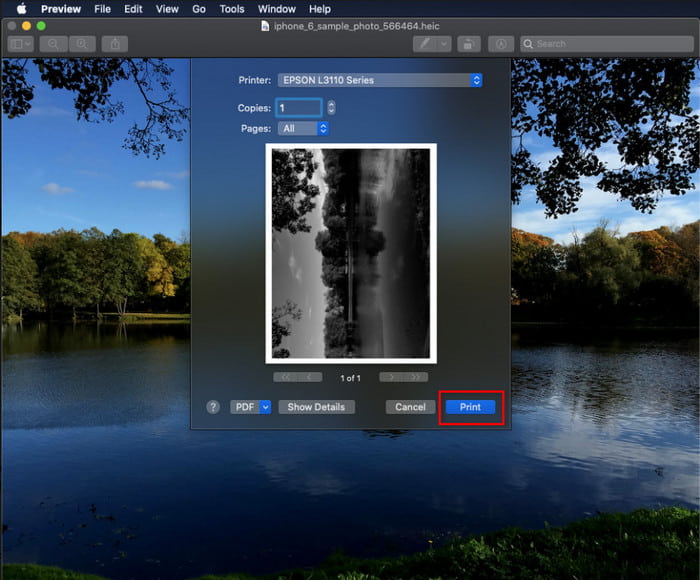
Hvis du vil have færre klik, skal du bruge genvejstasten til at udskrive et billede på Mac. Følg trinene og tasterne, vi klikker på b for nemt at udskrive HEIC-filen på din Mac.
Trin 1. Klik på den HEIC‑fil, der er gemt på din Mac, og åbn den.
Trin 2. Når du har åbnet den, skal du trykke på tasterne Kommando + P på tastaturet.
Trin 3. I udskrivningsdialogen kan du se en forhåndsvisning af billedet og justere udskriftsindstillingerne. Klik på Print for at lave en papirkopi af HEIC‑billedet i høj kvalitet.
2. metode: Brug af menuen Filer
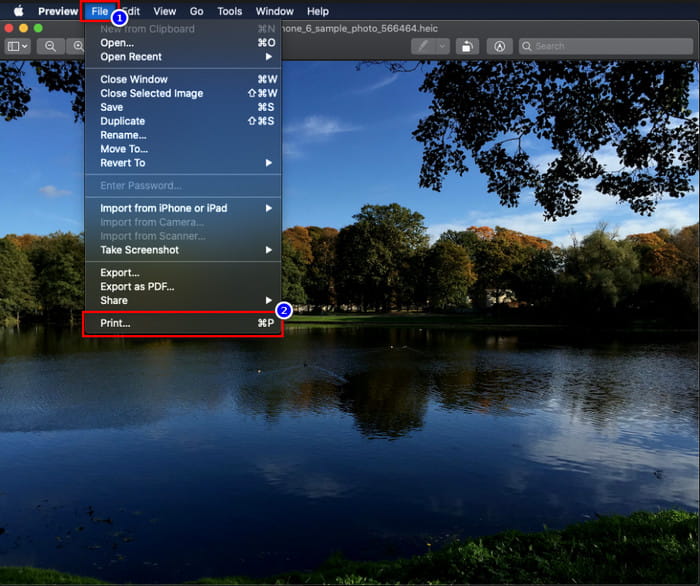
Hvis du tror, at genvejstasten ikke kan hjælpe dig med at udskrive dokumentet, skal du prøve at bruge menuen Filer. Med denne menu kan du nemt klikke på udskriv-knappen og foretage nogle ændringer, før du har en papirkopi af HEIC-billedet. Lad os begynde at udskrive den HEIC du har på din macOS uden at bruge genvejstaster uden videre.
Trin 1. Åbn HEIC‑filen på din Mac, før du gør noget som helst andet.
Trin 2. Klik i den øverste del på menuen File, og en liste med valgmuligheder vises på skærmen. Vælg nu den sidste mulighed, som er Print.
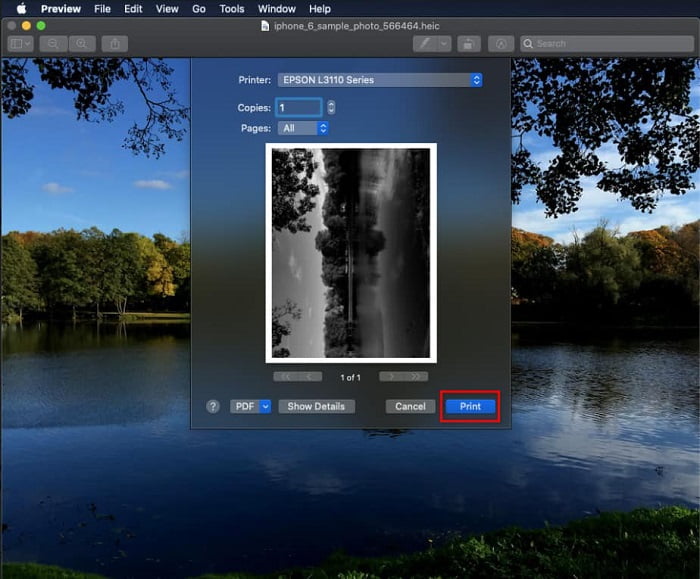
Trin 3. Nu vil du se, at udskrivningsdialogen åbnes på skærmen. I midten kan du se en prøve på, hvordan din HEIC‑fil vil se ud som papirkopi, og i den anden side kan du lave justeringer, før du udskriver. Når alt er på plads, skal du klikke på Print for at starte udskrivningen af dokumentet.
Del 2. Hvorfor kan jeg ikke uploade mine HEIC-billeder til udskrivning?
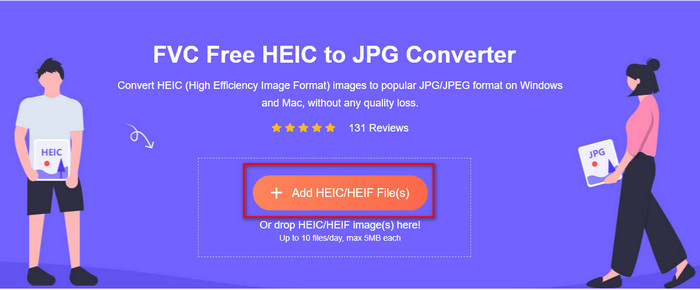
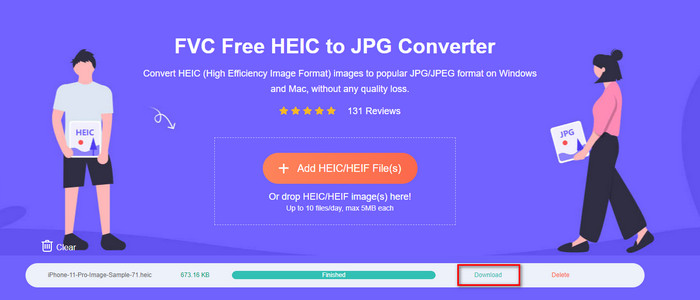
Er du en af de brugere, der har svært ved at håndtere HEIC‑filer, fordi du ikke kan lave en papirkopi af dem? I så fald vil vi introducere et bestemt webværktøj, der kan hjælpe dig med at løse problemet: FVC Free HEIC to JPG Converter. Dette webværktøj kan uden besvær lave din HEIC om til JPG. Når du ændrer formatet til JPEG, kan du nemt uploade filen til udskrivning, fordi det format er mere genkendeligt end HEIC. Selvom du er begrænset til at konvertere op til ti gange om dagen med filer på 5 MB eller mindre, er det stadig en pålidelig webkonverter, selv med disse begrænsninger. Så lad os ikke bruge mere tid og gå videre til trinene i, hvordan du bruger den bedste open source webkonverter, du har ved hånden.
Trin 1. Du kan klikke på dette link for at få adgang til webkonverteren, og en ny fane åbnes med det samme.
Trin 2. Indsæt HEIC‑filen ved at klikke på denne knap, find HEIC‑filen i din mappe, og klik på Open for at uploade den helt.
Trin 3. Konverteringsprocessen starter om kort tid, og bagefter skal du klikke på Download for at gemme filen på dit skrivebord. Den er nu klar til at blive udskrevet, så du lige så nemt kan lave kopier af HEIC‑billedet på din printer med samme kvalitet som råbilledet, blot i et andet format.
Del 3. Ofte stillede spørgsmål om udskrivning af HEIC-fotos
Kan jeg udskrive HEIC-fotos på Windows?
Windows understøtter desværre ikke HEIC, så det betyder, at det ikke kan lave en papirkopi af højkvalitets HEIC. Men tab ikke håbet, fordi vi inkluderer en måde at konvertere HEIC til et genkendeligt JPEG-format i del to. Du kan frit læse den for at vide, hvordan du gør det, og derefter udskrive den HEIC-fil, du har på Windows, men filtypenavnet er anderledes.
Hvorfor genkender printeren ikke HEIC?
På grund af komprimeringen og strukturen i formatet kan det godt indeholde billeder i høj kvalitet i mindre filstørrelser end JPEG, men det er stadig svært at få genkendt, fordi det er ret nyt på markedet. Du kan dog stadig konvertere formatet til det mest kompatible billedformat, som alle printere kan læse, og som uden tvivl stadig er det bedste højopløselige billedformat i brug i dag, nemlig JPEG. Hvis du har brug for en konverter, har vi tilføjet én ovenfor, men du kan klikke på dette link for at se andre værktøjer, du kan bruge til at konvertere HEIC til JPEG, hvor vi gennemgår dem alle for dig.
Hvad er HEIC-filen?
Moving Picture Expert Group udviklede HEIC som et alternativt standard billedformat til JPEG eller JPG. Selvom de har skabt begge formater, er de stadig forskellige. Hvis du vil vide mere om hvad HEIC er, så klik på dette link og læs detaljerne, som vi har researchet til dig.
Konklusion
Så nu hvor vi har fået ideen til, hvordan man udskriver HEIC-fotos med ovenstående trin, bliver det muligt for enhver Mac-bruger at lave en papirkopi af det. Men hvis du er Windows-bruger, kan du ikke klare at udskrive et enkelt HEIC-billede på din printer, fordi formatet ikke understøttes på Windows. Men det betyder ikke, at du mister håbet om at udskrive HEIC-billedet. Selvom vi ikke kan hjælpe dig med at udskrive den originale HEIC-fil, er det stadig muligt, hvis du først konverterer formatet til JPEG/JPG, før du udgiver det.
I del to inkluderer vi den bedste online HEIC til JPG-konverter, du kan få adgang til på nettet, og den er også fri for virus. Stadig ikke sikker på, om det kan udføre arbejdet med at konvertere korrekt? Hvorfor giver du det så ikke en chance ved at klikke på dette link? Du vil helt sikkert blive imponeret, fordi værktøjet nemt kan konvertere de HEIC-filer, du har.
-
 Konverter HEIC til PDF ved hjælp af Top 4 forbedrede måder i 2022
 For at vide mere om den bedste HEIC til PDF-konverter, kan du downloade denne 2022. Du kan læse denne artikel, da vi har givet en anmeldelse af dem.
-
 5 af de bedste HEIC til JPG-konvertere vælger denne 2022
 Med HEIC til JPC-konverteren kan du nemt ændre billedformatet til en bærbar JPG. Vil du vide, hvad disse 5 værktøjer er? Læs denne artikel.
-
 Bedste gratis og betalte HEIC-konverter, du skal kende [Opdateret 2022]
 Vil du vide, hvad HEIC-konverteren er? Hvis det er tilfældet, inkluderer vi de 5 bedste gratis og betalte HEIC-konvertere, du kan bruge til at ændre HEIC-formatet.
