


 Video Converter Ultimate
 Skærmoptager
 Video reparation
Sådan tilføjer du hurtigt billeder til en video på mindre end et minut
Der er mange grunde til, at du skal tilføje billeder til video. For eksempel fandt nogle redaktører ud af, at tilføjelse af billeder til deres videoer skaber en ny interaktion for de andre brugere. På denne måde kan du bruge dette til at repræsentere din branding eller lave en fremragende visuel præsentation og hjælpe din video med at formidle det rigtige budskab til brugerne. Men vidste du, at mange værktøjer udfører det samme job? Vi ved, at det er svært at vælge, hvilket værktøj der passer dig bedst. Så i dag har vi allerede sigtet de tre værktøjer, vi fandt, som fungerer godt. Når du har læst denne artikel, lærer du at tilføje billeder til dine videoer.

Del 1. Trin-for-trin guide til at tilføje billede til video med Video Converter Ultimate
Vil du tilføje et billede til en video med det ultimative værktøj? Brug i så fald Video Converter Ultimate. Med hjælp fra dette ultimative værktøj kan du nemt lægge et billede oven på videoen, selvom du ikke er professionel inden for videoredigering. Ud over muligheden for at lægge et billede oven på videoen kan du også nemt bruge dette værktøj til at tilføje baggrundsmusik, undertekster og meget mere. Det er kendt som en alt-i-én‑løsning på de fleste problemer i forbindelse med video. Vil du vide, hvad fordelene ved at bruge det er? Hvis ja, kan du læse de oplysninger, der er givet nedenfor.

FVC Video Converter Ultimate
5.689.200+ downloads- Giver enestående ydeevne ved konvertering og redigering.
- Rediger og lav en fantastisk video inden for få klik.
- Det understøtter 200+ formater, såsom MP4, MOV, FLV, WMV, AVI, MTV osv.
- Tilgængelig på alle tværplatforme til download, såsom Windows og Mac.
Gratis download til Windows 7 eller nyere Sikker download
Gratis download til MacOS 10.7 eller nyere Sikker download
Er det ikke fantastisk, hvad du kan gøre med værktøjet? Ja, vi ved, at værktøjet er imponerende på mange måder. Hvis dette værktøj fangede din opmærksomhed, og du vil lære, hvordan du tilføjer et billede til en video med dette værktøj, kan du læse selvstudiet nedenfor.
Trin 1. Klik på download-knappen nedenfor for at downloade det direkte til din disk, følg installationen med det samme, og start programmet. Før noget andet vil vi sætte pris på, at du gør dig fortrolig med værktøjets grænseflade, så du nemt kan skelne de næste trin.
Gratis download til Windows 7 eller nyere Sikker download
Gratis download til MacOS 10.7 eller nyere Sikker download
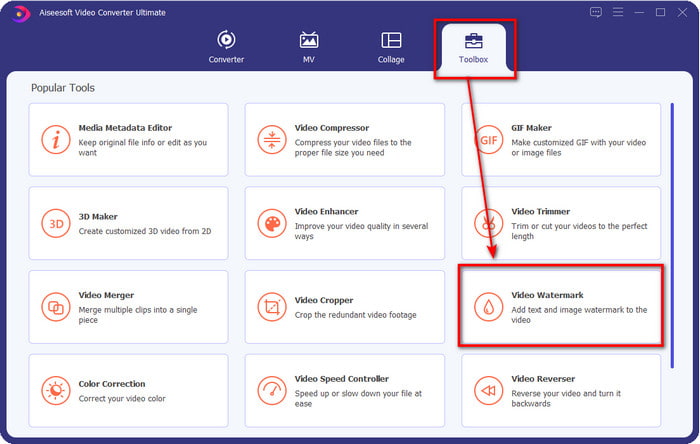
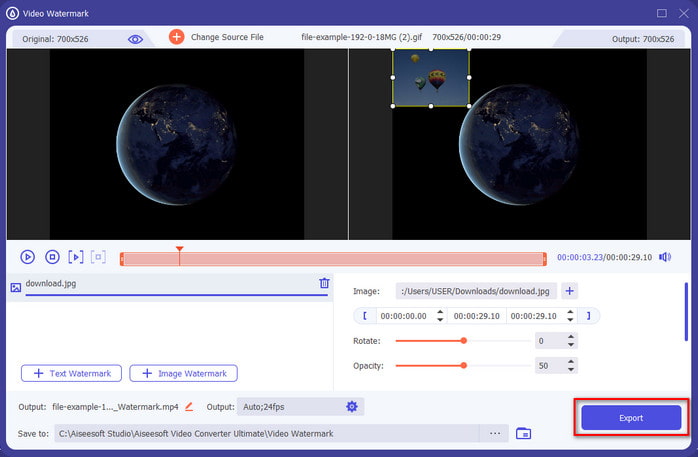
Trin 2. Når værktøjet kører på systemet, skal du klikke på Toolbox og derefter finde Video Watermark under denne og åbne det.
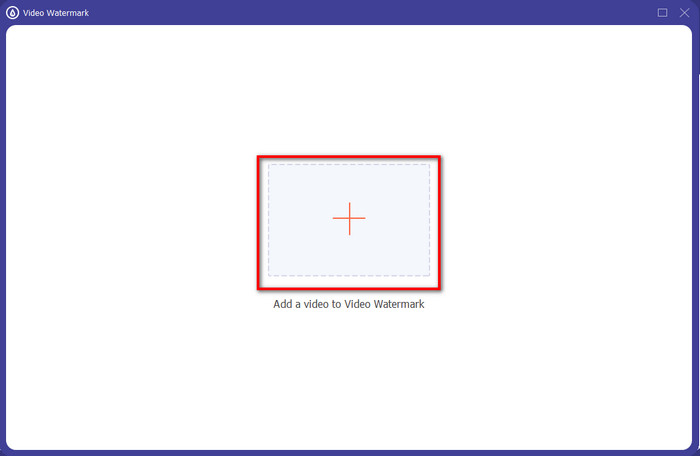
Trin 3. Når du har trykket på +-knappen, vises der en mappe på skærmen; find filen, og klik på Open, hvis det er videofilen.
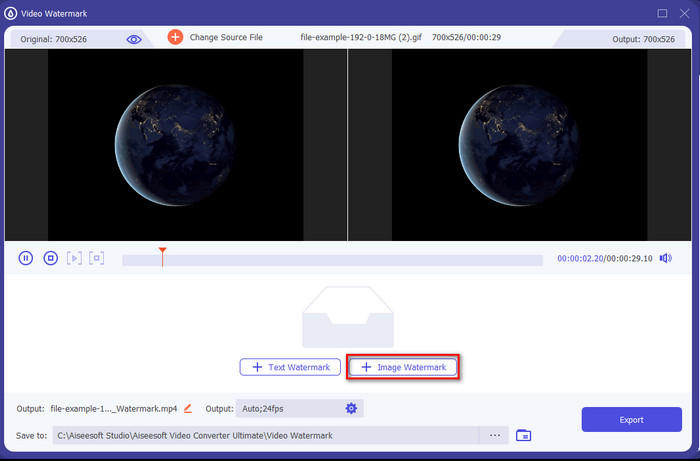
Trin 4. Et nyt vindue vises, klik på Image Watermark, så vises der igen en mappe, men denne gang skal du indsætte det billede, du vil føje til din video, og trykke på Open.
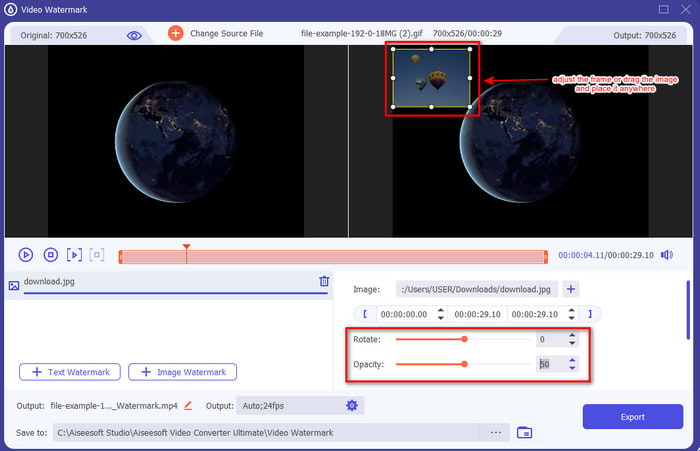
Trin 5. Justér billedets størrelse, som du har indsat på videoen, og dets placering ved at trække i fotoets frame. Du kan placere det hvor som helst ved at holde og trække i billedet. Desuden kan du også justere billedets synlighed ved at ændre Opacity. Du kan også rotere billedet ved at trække i slideren for Rotate.
Trin 6. Når du har redigeret billedet, er det tid til at klikke på Export.
Relateret:
Sådan tilføjer du lyd til video
Sådan tilføjer du undertekster til video
Del 2. Sådan overlejres billeder til videoer på internettet gratis
Online Video Cutter – Føj billede til en video
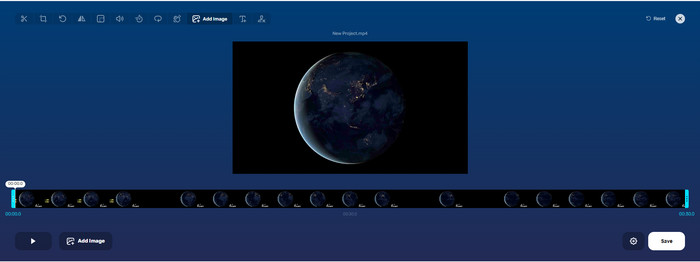
Hvis du vil lægge billeder oven på hinanden online, kan du bruge Online Video Cutter – Add Image to a Video. Dette webværktøj giver en enkel og effektiv måde at tilføje fotos til enhver video på. Selv om værktøjet er godt at bruge, er det stadig en smule besværligt at uploade videoen, fordi det afhænger af din internetforbindelse. Desuden kan du ikke tilføje to billeder her, da det ikke understøttes. Men hvis du vil bruge værktøjet, kan du følge trinene nedenfor.
Trin 1. Åbn din browser, søg efter webværktøjet i søgefeltet, og åbn det.
Trin 2. Klik på Open File for at uploade videoen, og klik derefter på Add Image for at uploade det billede, du har indsat.
Trin 3. Træk billedet for at ændre dets placering, klik på Save for at enkode, og gem det på din computer.
Fordele
- Gratis at bruge, og du behøver ikke at downloade det.
- Det understøtter grundlæggende redigeringsfunktioner for brugerne.
- Den har ikke et vandmærke på det endelige output.
Ulemper
- Det kan ikke tilføje op til 2 eller flere billeder på videoen.
- Det tager tid at uploade billedet og videoen.
Flixier
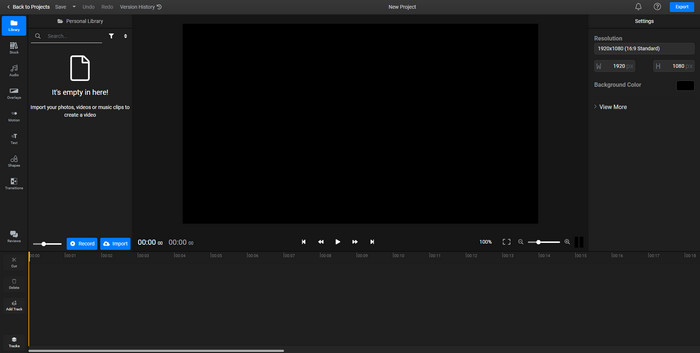
Du kan bruge Flixier til gratis at tilføje et billede til en video online. Du kan også redigere din videotemplate med dette onlineværktøj, herunder tilføje billeder. Dette værktøj tilbyder enestående indbyggede redigeringsfunktioner, du kan bruge til at få din video til at se bedre ud. Selvom webværktøjet tilbyder dig denne unikke funktion, vil der, når du eksporterer den, være et vandmærke på det endelige resultat, fordi det er gratis. Men du kan købe premium-versionen for at fjerne dette vandmærke.
Trin 1. Åbn din søgemaskine, søg efter værktøjets navn, og klik på Choose File.
Trin 2. Klik på Import for at uploade video og billeder, træk videoen og billedet ned på tidslinjen, og sørg for, at billedet ligger oven på videoen. Ændr billedets placering ved at trække det inde i videoen.
Trin 3. Klik på Export, derefter Export and Download for at gemme det på din computerdisk.
Fordele
- Gratis og tilgængelig på nettet.
- Det giver flere redigeringsfunktioner end det første onlineværktøj.
- Det understøtter tilføjelse af flere billeder til din video.
Ulemper
- Det endelige output har et vandmærke i slutningen, fordi det er gratis.
- Den skal købe VIP-versionen for at fjerne vandmærket på videoudgangen.
Del 3. Ofte stillede spørgsmål om tilføjelse af billeder til video
Påvirker det kvaliteten at tilføje billeder til en video?
Videokvaliteten påvirker ikke det billede, du tilføjer. For at forenkle har tilføjelse af billeder ikke nogen væsentlig videokvalitet, selvom du tilføjer mange billeder. Men hvis du eksporterer videoen til den editor, du har brugt, og indstiller den til lav kvalitet, skal du forvente videooutput nedenfor.
Hvorfor bliver de billeder, jeg føjer til videoen, slørede?
Hovedårsagen til det er, at billedet allerede er sløret fra starten. For at undgå dette problem skal du først tjekke billedet og sikre dig, at det ikke er sløret, før du bruger det på din video.
Kan jeg tilføje en overgang til billedet på videoen?
Med nogle editorer er det muligt at tilføje en overgang til dit billede. Selvom der er mange forskellige animerede overgange, er klip, fade, wipe og dissolve de mest tilgængelige. Selvom disse er de mest almindelige, er de stadig ideelle til at tilføje en overgang til billedet for at gøre videoen mere professionel og spændende.
Konklusion
Efter du har læst dette blogindlæg, er det blevet lettere at forstå, hvordan man tilføjer fotos i en video, hvis du læser hele artiklen med de forskellige online- og offlineværktøjer. Selvom vi præsenterer forskellige sæt værktøjer, anbefaler vi stadig, at alle brugere anvender det ultimative værktøj til denne opgave. Video Converter Ultimate har en brugervenlig grænseflade, der hjælper brugerne med at udføre jobbet effektivt. Stadig i tvivl om, hvorvidt det passer til dig? Tja, at downloade værktøjet er den eneste måde at bevise, at det er noget for dig.
-
 5 fordelagtige OGV til WMV-konvertere til at konvertere dine OGV-filer
 Der er 5 forskellige OGV til WMV-konvertere, du kan bruge til at konvertere OGV-filerne. Denne artikel giver et stærkt faktum om de 5 tilgængelige ogv-konvertere.
-
 Gennemgang af de 2 bedste AMV til WMV-konverteringssoftware [2022]
 Vil du konvertere AMV til WMV? Hvis ja, skal du læse denne artikel for at få en idé om, hvad AMV er, og hvordan du konverterer filen til et WMV-format.
-
 Mest nyttige værktøjer til at konvertere SWF til WMV (online og offline)
 Kæmper du med at finde en afspiller til dine SWF-filer? Du behøver ikke bekymre dig, fordi du bare kan konvertere det til WMV-format for en bedre videoforbrugende oplevelse. Læs denne artikel for at vide mere om denne konverteringsproces.
