


 Video Converter Ultimate
 Skærmoptager
 Video reparation
4 nemmeste metoder Sådan ændres videoopløsning med omfattende trin
Der er mange grunde til, at du kan få brug for at ændre videoens opløsning. En af grundene kan være at spare plads på videoen. Uanset hvad din grund er, vil denne vejledning lære dig fire metoder til at sænke eller forbedre videokvaliteten. Uden yderligere forsinkelse, lad os se nærmere på de videokonvertere til opløsning, du kan bruge til at ændre opløsningen på din video.

Del 1. 1. metode: Det ultimative skrivebordsværktøj til at ændre videoopløsning på Windows og macOS
Video Converter Ultimate er det ultimative værktøj til denne opgave, da det kan hjælpe dig med at konvertere ikke kun videoformatet, men også videokvaliteten med få klik. Dette værktøj understøtter en ultrahurtig konverteringsproces, så du nemt kan ændre videokvaliteten til den højeste eller en standard videoopløsning. Er det ikke dejligt at bruge denne software? Vil du vide mere? I så fald understøtter dette værktøj begge desktop‑platforme. Selvom det understøtter både Windows og Mac, er de funktioner, du ser på Windows, også tilgængelige på Mac og omvendt. Vi ved, at værktøjet har noget særligt, så vi har tilføjet det til denne liste. Hvis du nu vil have en trin‑for‑trin‑vejledning, kan du følge den skriftlige tutorial nedenfor for at lære, hvordan du ændrer videoopløsning med succes.
Trin 1. Klik på den relevante knap for at downloade programmet til din disk. Åbn den downloadede fil, og følg installationsprocessen, der vises på skærmen. Når du har installeret det, åbner du videokonverteren til opløsning og går videre til de næste trin.
Gratis download til Windows 7 eller nyere Sikker download
Gratis download til MacOS 10.7 eller nyere Sikker download
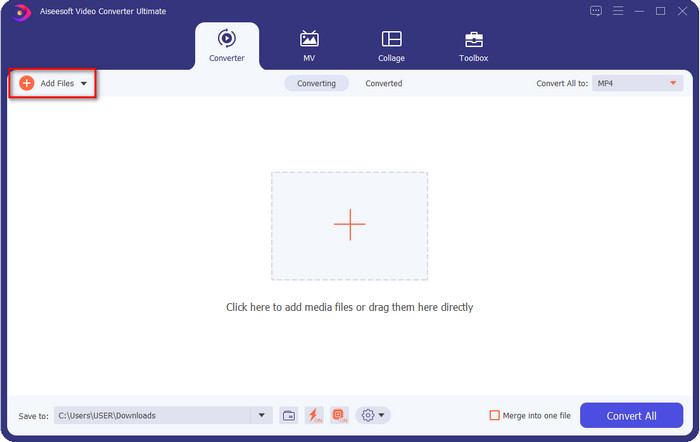
Trin 2. For at indsætte videofilen, du vil ændre opløsning på, skal du klikke på knappen Add File. Gennemse filen i den computer-mappe, der vises, klik på den, og tryk på Open.
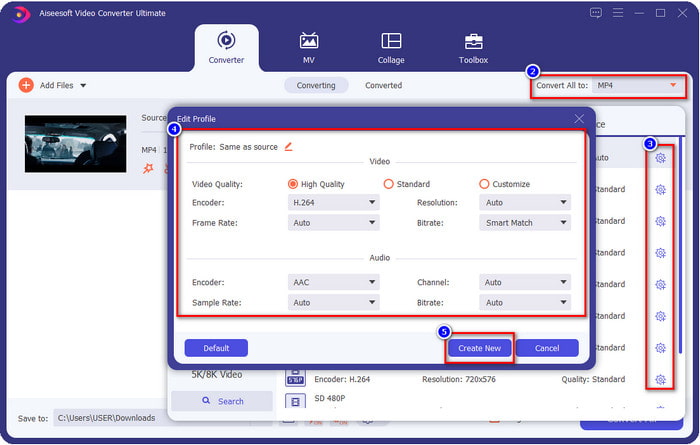
Trin 3. Se øverst til højre og klik på drop‑down-knappen i hovedgrænsefladen. Vælg det videoformat, du vil have; MP4, MOV, AVI, MKV, FLV og mere end 200 andre formater er tilgængelige her. Når du har valgt formatet, skal du klikke på widget-knappen for at redigere formatets profil. Her kan du gøre din opløsning højere eller lavere, ændre encoder, kvalitet, bitrate og meget mere for at øge eller lade være med at øge videoopløsningen. For at gemme ændringerne skal du klikke på Create New.
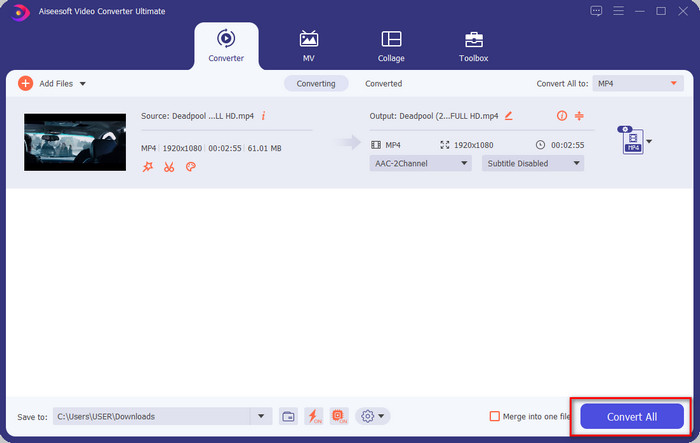
Trin 4. Til sidst, ved at klikke på Convert All, begynder konverteringen af opløsningen. Dermed har du nu konverteret videoens opløsning ved hjælp af Video Converter Ultimate.
Del 2. 2. metode: Den enkle og gratis metode til at ændre videoopløsning online
Vil du ændre videoopløsning online? I så fald skal du bruge den gratis onlineversion af det ultimative værktøj, FVC Free Video Converter Online. Dette værktøj kan hjælpe dig med frit at konvertere opløsningen på din video. Det er et onlineværktøj, så forvent, at det kræver internetforbindelse for at fungere. Derudover understøtter dette værktøj ikke alle videoformater, så der er en begrænsning på, hvilke videoformater du kan tilføje her. Lad os nu prøve at bruge værktøjet til at ændre opløsningen ved at følge trinene nedenfor.
Trin 1. For at åbne den online videokonverter til opløsning skal du klikke på dette link for at åbne værktøjet direkte.
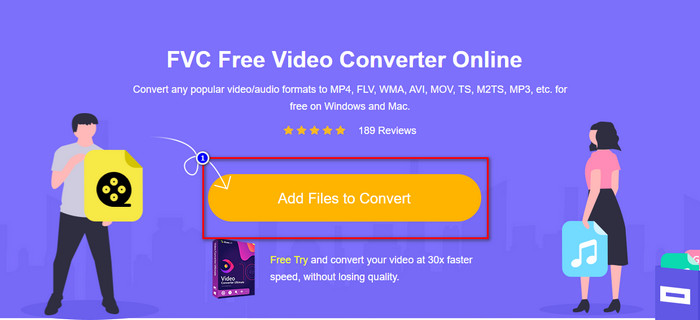
Trin 2. Tryk på Add Files to Convert for at downloade startprogrammet første gang; klik på den igen, efter du har downloadet installationsfilen. Når du har klikket på den, vises en mappe; find videofilen i mappen, og klik på Open.
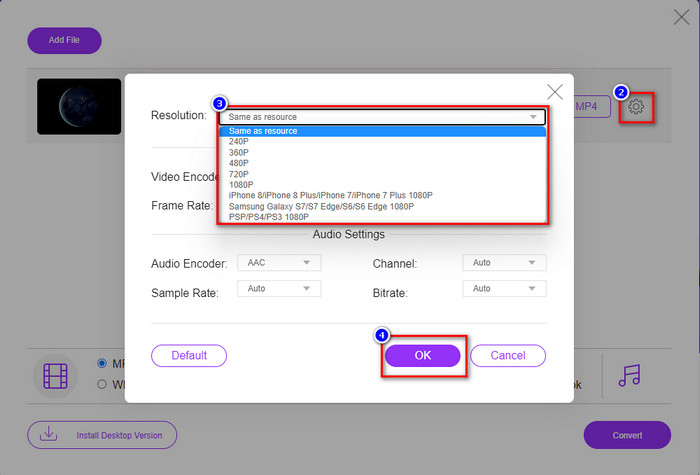
Trin 3. Klik på gear-knappen for at åbne et nyt vindue, hvor du kan ændre videoopløsningen. Øverst i det nye vindue skal du klikke på Resolution, vælge den videoopløsning, du ønsker, og klikke på OK for at gemme den.
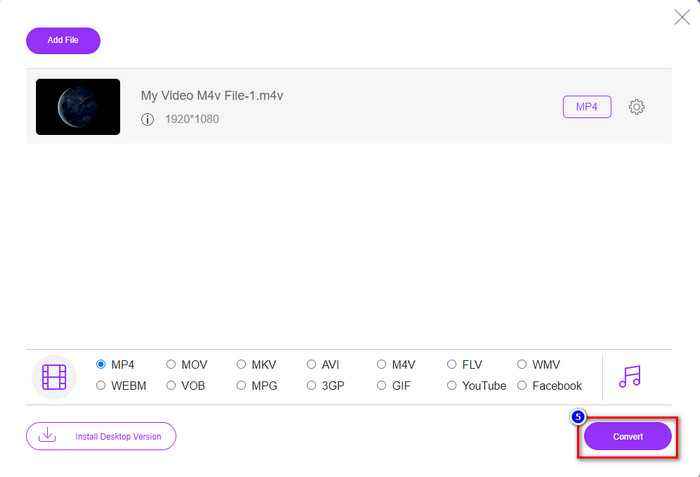
Trin 4. Vælg formatet på listen og klik på Convert for at starte processen med at konvertere opløsningen.
Relateret:
Del 3. 3. metode: Mobilbaseret måde at ændre videoopløsning på iPhone og Android
Disse metoder kan ikke konvertere din videoopløsning, men du kan tage en video med lavere eller højere opløsning. Lad os desuden se, hvordan vi kan ændre videoopløsningen, mens vi filmer videoen.
1. Indbygget iPhone-videoopløsning
Hvis du er iOS-bruger, kan du ændre den videoopløsning, du tager, hvis du vil. Du kan dog ikke finde det på kameraet, så hvis du ikke kan finde det, kan du følge nedenstående trin for at vide, hvordan du ændrer videoopløsning på iPhone, før du filmer en video.
Disse trin er taget fra iPhone X-modellen, så trinene kan være lidt anderledes end de andre versioner af iPhone-lignende navn eller funktioner.
Trin 1. Åbn Indstillinger på din iPhone.
Trin 2. Find Kamera under den, og klik på den.
Trin 3. Klik på Record Video, og vælg den opløsning, du vil bruge, når du optager video. Gå tilbage til Hjem, gå ind i Kamera, og optag videoen med den opløsning, du har angivet i indstillingerne.
2. Indbygget Android-videoopløsning
For Android-brugere kan du få direkte adgang til videoopløsningen på dit kamera. De trin, vi giver, er ikke så komplicerede som for iPhone, fordi du ikke behøver at konfigurere indstillingerne. Så nu, for at ændre videoopløsning på Android, følg instruktionerne nedenfor.
Disse trin er taget fra Redmi 10, så trinene kan være lidt anderledes med nogle andre Android-enheder som navn eller funktionalitet.
Trin 1. Tryk på Kamera-appen på din telefon for at åbne den.
Trin 2. Når den er åben, gå til Video, klik på de tre parallelle streger, og vælg den videoopløsning, du ønsker.
Trin 3. Tryk på den røde knap for at optage videoen med den valgte videoopløsning.
Del 4. Ofte stillede spørgsmål om ændring af videoopløsning
Hvad er videoopløsningen?
Antallet af pixels pr. frame er, hvad vi kalder videoopløsning. Det styrer også de detaljer, du kan se på en enkelt video, som hvor tydeligere billedet kan være. Desuden er der forskellige videoopløsningsvarianter; vi kalder højere opløsning fra HD og derover, der bruger flere kvalitetsbilleder pr. sekund. Mens den lavere opløsning starter fra SD og lavere, får denne videoopløsning mindre båndbredde end den højere opløsning, men den har en mere lille billedkvalitet pr. sekund.
Er 1080 den bedste videoopløsning?
Det producerer en af de mest udvalgte videoopløsningsbrugere, der oftest er valgt på Youtube og andre videostreaming-apps. Men det er ikke altid det bedste valg at se en video i høj kvalitet, fordi det kan tage længere tid at buffere videoen end 720. Så næste gang du ser en video online, foretrækker vi at bruge 720 end 1080 til at indlæse video meget hurtigere, og der er ingen væsentlig ændring i begge kvalitet, hvis du ændrer den.
Påvirker reduktion af opløsning kvaliteten?
Ja, der vil ske en ændring, når du har sænket videokvaliteten. For eksempel, hvis din video er i HD, ændrer du den til SD, kvaliteten vil ændre sig drastisk. Så hvis du ændrer videoopløsningen, vil du se en pludselig ændring, men den kan stadig ses selv efter det.
Konklusion
Endelig kan vi nu ændre videoopløsningen efter vores ønsker. Selvom du kan bruge mange forskellige værktøjer til at ændre videokvaliteten, præsenterer vi stadig de sikreste og bedste online, offline og indbyggede værktøjer. Vi håber, at denne artikel hjælper dig med at ændre opløsningen; hvis du har flere spørgsmål, kan du efterlade en kommentar nedenfor, og vi vil faktisk svare på dine kommentarer.
-
 Gennemgang af Top 10 HD Video Converter-software (gratis og kommerciel)
 Læs og sammenlign for at få den bedste HD-videokonverteringssoftware fra 10 anbefalinger. Her er de detaljerede anmeldelser af hver HD-videokonverter til multiplatform.
-
 Retningslinjer for, hvordan man konverterer M4A til WAV [PC og Mac]
 Få mere at vide om, hvordan du konverterer M4A til WAV med detaljerede trin og forskellige værktøjer, du kan vælge imellem.
-
 Fremragende valg til at konvertere MKV til et AVI -format
 Lær hvordan du konverterer MKV -videoer med nemme trin, der udelukkende er til dig. Vil du vide hvordan? Klik derefter på dette link for at lære mere.
