


 Video Converter Ultimate
 Skærmoptager
 Video reparation
Sådan forvandler du dit kedelige skærmtapet til en fantastisk livlig GIF
De fleste af os bruger et billede i høj kvalitet som baggrund, og nogle bruger videobaggrunde. Men vidste du, at du kan bruge GIF’er som tapet for at gøre din baggrund mere levende end nogensinde før? Så hvis du vil have en idé om, hvordan du gør en GIF til din baggrund, så læs videre nedenfor. Det tager kun fem minutter at lære at sætte det op, og vi lærer dig endda at lave den perfekte GIF ud fra video eller billeder.

Del 1. Sådan laver du en GIF som dit tapet på iPhone
De fleste af os har allerede en mobiltelefon i hånden, for eksempel en iPhone. Men vidste du, at du kan forvandle din kedelige baggrund til noget meget bedre? Ja, din baggrund på din iPhone kan blive til en magisk GIF. GIF’er kan dog ikke bruges direkte som baggrund på iPhone-enheder. Den mulige løsning er derfor først at konvertere GIF’en til Live Photo og derefter indsætte den som ny baggrund. Ellers får du kun et stillbillede i stedet for et animeret. I dette tilfælde skal du konvertere GIF’en til Live Photo ved at downloade Convert - GIF & Live Wallpaper og konvertere den der. Gå derefter videre til hvordan du gør en GIF til din baggrund på iPhone ved at følge de næste trin.
Trin til hvordan man konverterer GIF til Live Photo:
Trin 1. Hent Convert - GIF & Live Wallpaper i App Store, og åbn appen med det samme.
Trin 2. Tryk på Allow for at give appen adgang til dine billeder, og vælg derefter GIF’en i galleriet.
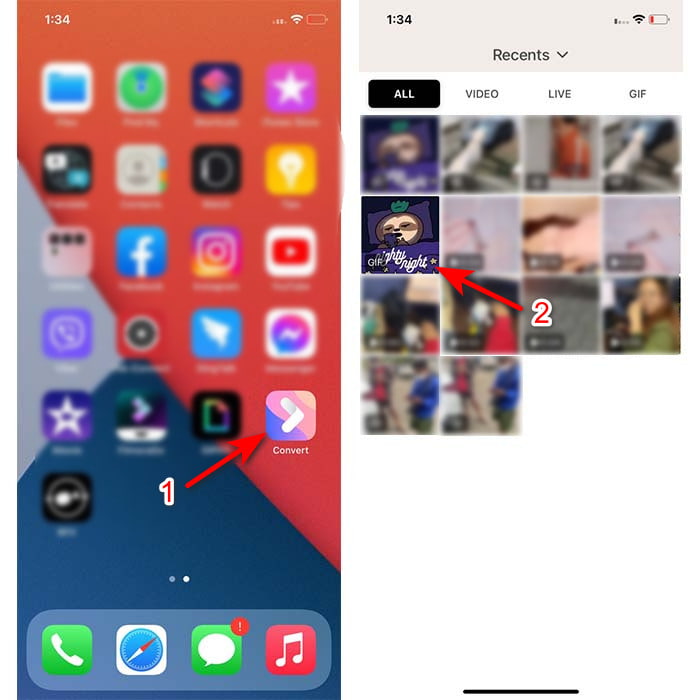
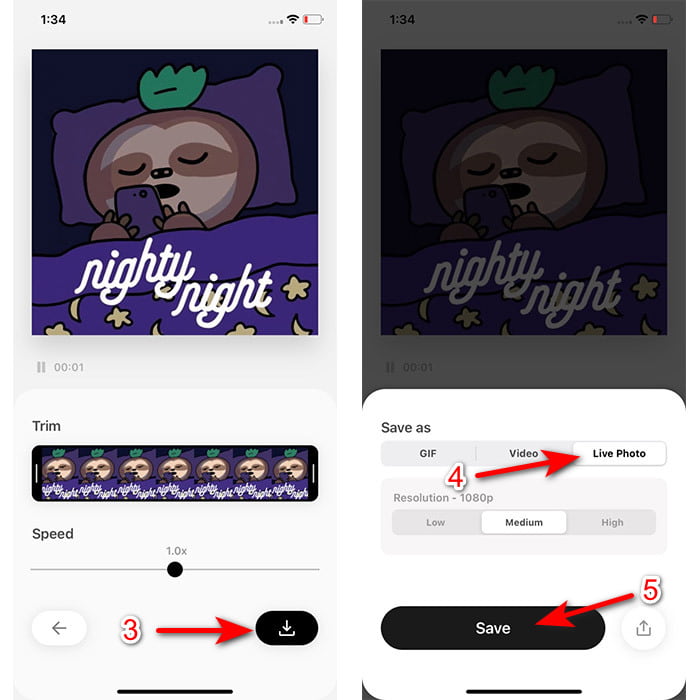
Trin 3. Klik derefter på download-knappen, vælg at gemme som Live Photo, og tryk på Save for at fortsætte.
Trin til, hvordan man laver et levende billede som dit tapet på iPhone:
Trin 1. Åbn Fotos, og find i Biblioteket den konverterede GIF, du har lavet.
Trin 2. Tryk derefter på Del-knappen, og find Brug som baggrund.
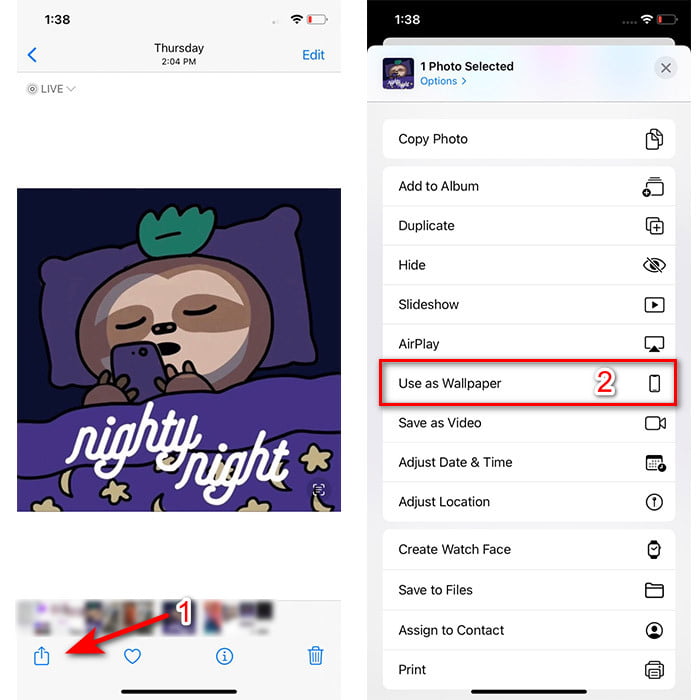
Trin 3. Tryk på Live Photo for at sikre, at det er aktiveret, og klik på Indstil. Vælg, om du vil bruge det som baggrund på din låseskærm, hjemmeskærm eller begge dele. Bemærk desuden, at Live Photos ikke virker på hjemmeskærmen, fordi du skal trykke på skærmen i 3 til 5 sekunder. Det er derfor mest ideelt at bruge et Live Photo på låseskærmen.
Del 2. Sådan laver du en GIF som dit tapet på Windows
Hvis du vil gøre din baggrund i Windows endnu sejere, så prøv at følge trinene nedenfor. I dette tilfælde kan du ikke bare tilføje en GIF direkte som baggrund, for så ender du kun med et stillbillede. For at undgå dette skal du bruge et tredjepartsværktøj som Lively Wallpaper. Lad os nu begynde rejsen med hvordan du gør en GIF til din baggrund på Windows 10.
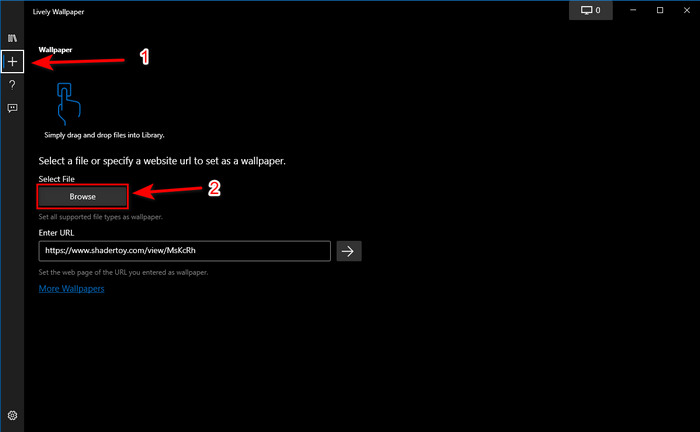
Trin 1. Download Lively Wallpaper fra Microsoft Store. Start det, når download-processen er færdig.
Trin 2. Klik på +-knappen øverst til venstre, og tryk på Browse. Find GIF-filen i den mappe, der dukker op på skærmen, og klik på Open. Et lille bibliotek vises; klik på OK og derefter Save.
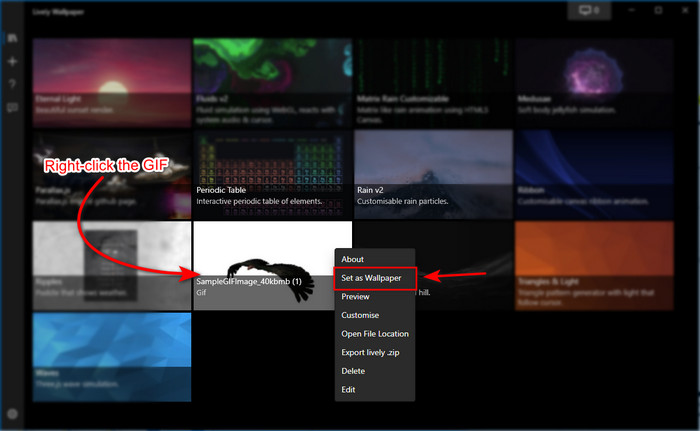
Trin 3. Find GIF’en i det indbyggede galleri, højreklik med musen, og vælg den som baggrund.
Del 3. Sådan opretter du en GIF fra video/fotos med Video Converter Ultimate
Gør din skærmbaggrund til live ved at bruge en animeret GIF oprettet i Video Converter Ultimate. Denne software har allerede bevist, at det nemt kan laves en GIF, uanset om det er et billede eller en video. I modsætning til alle andre værktøjer online og offline er dette værktøj desuden meget unikt sammenlignet med dem. Fordi den ultimative konverter allerede har alle de avancerede funktioner, du sandsynligvis ville bruge.
Selv om softwaren understøtter avancerede værktøjsfunktioner, er den alligevel brugervenlig og kan nemt bruges af alle, uanset om man er øvet eller ej. Nu vil vi derfor vise dig, hvordan du laver en GIF til din baggrund på PC, Mac, Android og iPhone. Vi præsenterer også forskellige måder at vise, at både video og billeder kan forvandles til en fantastisk GIF ved hjælp af Video Converter Ultimate. Før vi går videre til trinnene, skal du downloade værktøjet til din computer, installere det, gennemføre den hurtige opsætning og derefter klikke på Finish for at fortsætte.
Gratis download til Windows 7 eller nyere Sikker download
Gratis download til MacOS 10.7 eller nyere Sikker download
4 nemme trin til at lave en animeret GIF fra videoer:
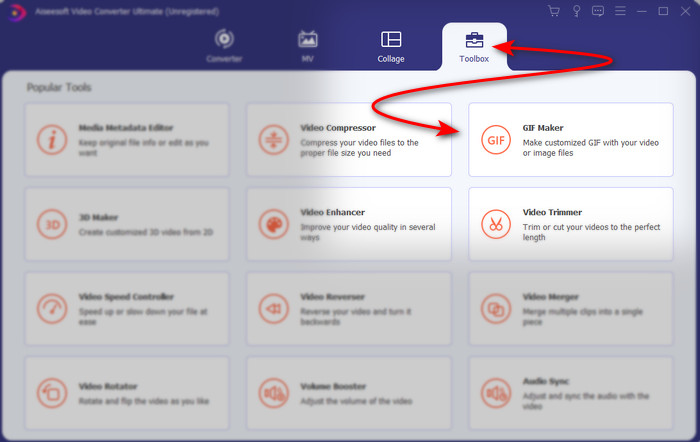
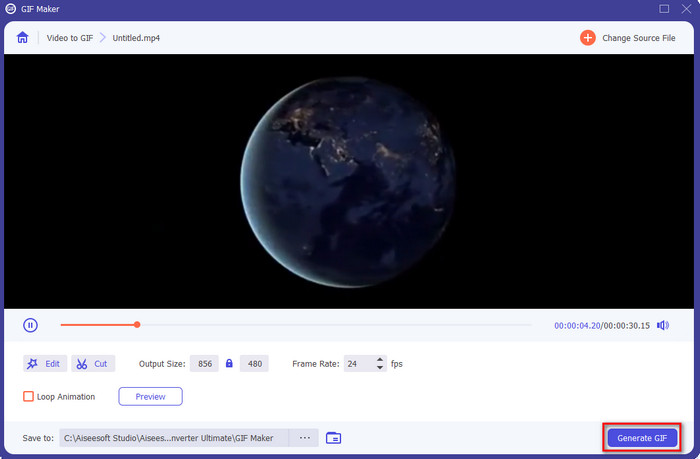
Trin 1. Start værktøjet, og gå til Toolbox, hvor du finder GIF Maker. Klik for at fortsætte.
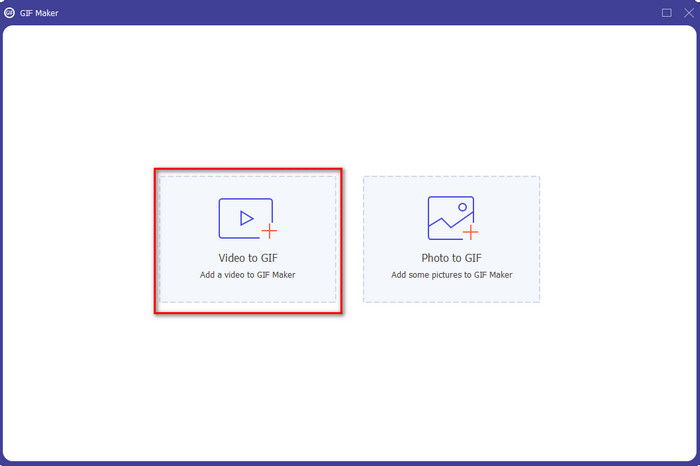
Trin 2. Klik derefter på Videos to GIF; en filmappe dukker op, så snart du klikker. Vælg den videofil, du vil lave om til en GIF, og tryk på Open.
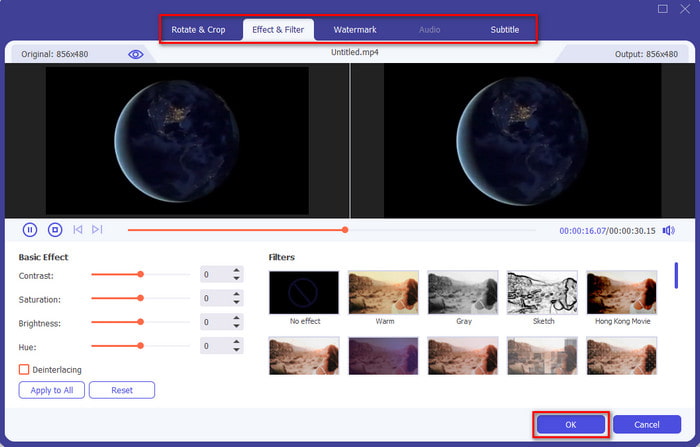
Trin 3. Klik på tryllestavs-knappen i grænsefladen for at redigere din video. Når du er færdig med redigeringen, klikker du på OK for at gemme de ændringer, du har lavet.
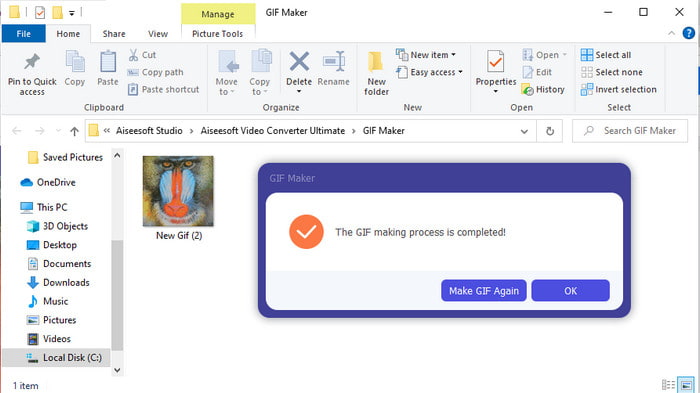
Trin 4. Klik på Generate GIF for straks at gemme GIF’en på din enhed. Når konverteringen fra video til GIF er færdig, åbnes Stifinder med GIF-filen; klik på den for at se den.
4 nemme trin til at lave en animeret GIF fra billeder:
Trin 1. Når softwaren er fuldt installeret, skal du åbne den. Gå til afsnittet Toolbox, og find GIF Maker der.
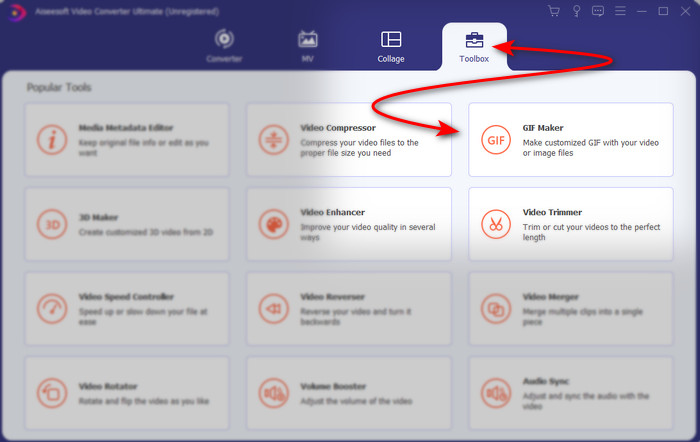
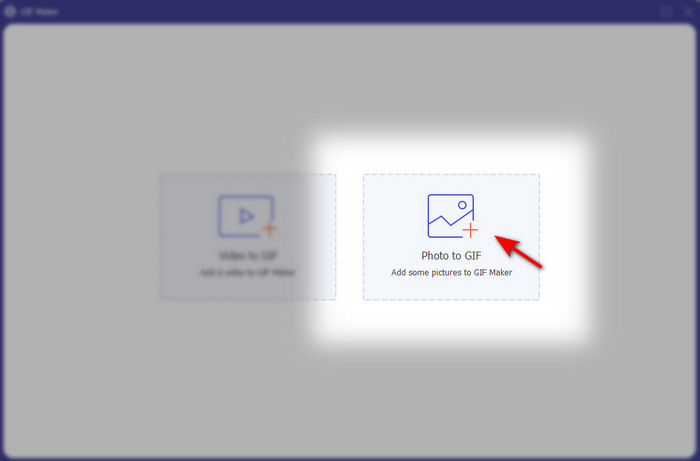
Trin 2. For at omdanne dine billeder til en animeret GIF skal du klikke på Image to GIF. En mappe vises derefter på skærmen; vælg det første billede, og klik på Open.
Trin 3. Output Setting vises automatisk; klik på OK for at fortsætte. For at tilføje to eller flere billeder skal du klikke på +-knappen. Her kan du ikke lave avanceret redigering, som når du laver video om til GIF. I stedet kan du justere billedernes placering og varighed.
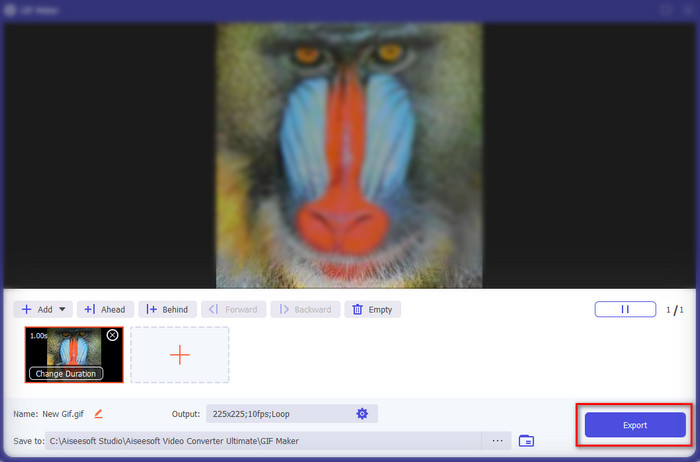
Trin 4. Når alt er på plads, er det tid til at klikke på Export-knappen for at fortsætte. Når eksporten er færdig, dukker en filhåndtering op med den GIF, du lavede tidligere.
Relateret:
Sådan poster du en GIF på Instagram
Bedste online GIF‑til‑video-konverter
Del 4. Ofte stillede spørgsmål om Lav en GIF som dit tapet
Hvorfor fryser GIF'er, når de bruges som baggrund?
Alle enheder understøtter ikke GIF som baggrund naturligt. Du kan dog stadig bruge et tredjepartsværktøj til at anvende din GIF på din baggrund.
Kan jeg gemme animerede GIF'er online og bruge dem som tapet på min iPhone?
Selvfølgelig ja! Du kan gemme dem. Hvis du i øjeblikket bruger GIPHY, skal du klikke på ellipsen for at gemme det som et levende billede. Så nu kan du springe over trinene til at konvertere GIF til en live video og bare fortsætte med, hvordan du bruger GIF til at bruge det som baggrund ovenfor.
Bruger animeret tapet batterilevetid?
Faktisk er det et ja, fordi animeret tapet eller bevægende tapet bruger næsten 2-4% af batterilevetiden, fordi CPU'en og GPU'en stadig kører i baggrunden.
Konklusion
Til sidst kan vi konkludere, at vi kan bruge en GIF som baggrund for at give et almindeligt billede liv. Alle apps, vi har præsenteret, er naturligvis gode på hver deres måde. Ligesom med Video Converter Ultimate kan du med denne software nemt lære, hvordan du bruger en GIF som din baggrund, uanset hvilken platform du er på. Så hvis du vil skabe en unik GIF, så download dette værktøj til din computer og prøv det selv.
-
 Vejledning til at komprimere GIF og reducere dens filstørrelse med høj kvalitet
 Her er 2 nemme måder at komprimere GIF på din computer eller mobiltelefon. Du kan bruge FVC Free Online Video Compressor og Photoshop reducere GIF-filstørrelsen i forskellige aspekter.
-
 Opret din bedste animerede GIF via Online GIF Maker [2021]
 En informativ gennemgang om, hvordan du laver en GIF ved hjælp af disse enkle online GIF -beslutningstagere, du allerede støder på eller ikke over internettet.
-
 Vælg den bedste GIF Cropper online og offline til at beskære GIF'er [2021]
 Det er et must at vælge det bedste beskæringsværktøj, og nogle af GIF-producenterne leverede ikke denne funktion. Men hvad er det bedste GIF-beskæringsværktøj at bruge, og hvordan bruger man det?
