


 Video Converter Ultimate
 Skærmoptager
 Video reparation
Enkle måder at tilføje billede på video i iMovie hurtigt
At tilføje billeder til en video er blevet en af de bedste måder at formidle budskabet endnu bedre til publikum på. De fleste videoredigeringsprogrammer kan hurtigt hjælpe dig med at lægge et billede oven på en video, og hvis du er Apple‑bruger, er du måske allerede stødt på iMovie. Det er kendt som et af de bedste redigeringsprogrammer, du kan bruge på din Apple‑enhed. Alligevel synes den gennemsnitlige Apple‑bruger, at det er udfordrende at bruge iMovie, fordi de ikke har erfaring med det. Så hvis du er den samme type Apple‑bruger, der har problemer med at bruge det og gerne vil tilføje et billede til en video, kan du læse denne artikel – at lære hvordan man tilføjer billeder til video i iMovie er enkelt, hvis du læser forklaringerne nedenfor.

Del 1. Sådan overlejres et billede på en video i iMovie [Mac]
Hvis du har en iMovie på Mac, kan du bruge den og tilføje billedet til videoen. Så nu, hvis du vil lære at sætte et billede på video iMovie, vil nedenstående trin hjælpe dig.
Trin 1. Søg efter iMovie i Finder, og klik derefter på det for at åbne det.
Trin 2. Øverst til venstre i iMovie klikker du på knappen Import for nemt at importere video og billede. Træk og placer mediefilen, du har indsat, på Tidslinjen.
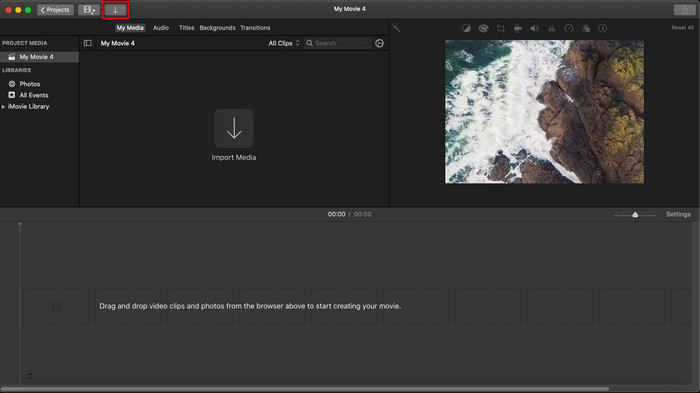
Trin 3. Justér det billede, du har importeret, samt varigheden af det. Klik derefter på Eksportér for at downloade filen til din computer.
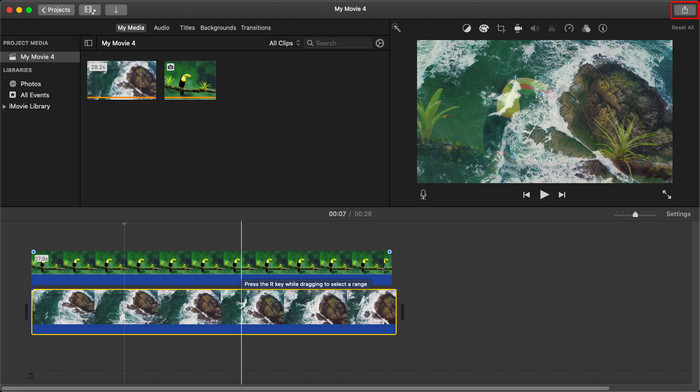
De trin, vi præsenterede her, er fra den praktiske oplevelse af at bruge iMovie. Trinene kan variere, hvis der er en opdatering på værktøjet, eller der sker nogle ændringer om kort tid.
Del 2. Sådan indsætter du billeder på video med iMovie [iOS]
Hvad hvis du bruger en iOS-enhed og vil bruge iMovie som editor til at tilføje et billede til en video? Er det muligt? Nå, ja, det er det. Vi kan lære dig, hvordan du indsætter et billede i en video iMovie på iPhone ved at læse detaljerne nedenfor med de trin, vi har angivet.
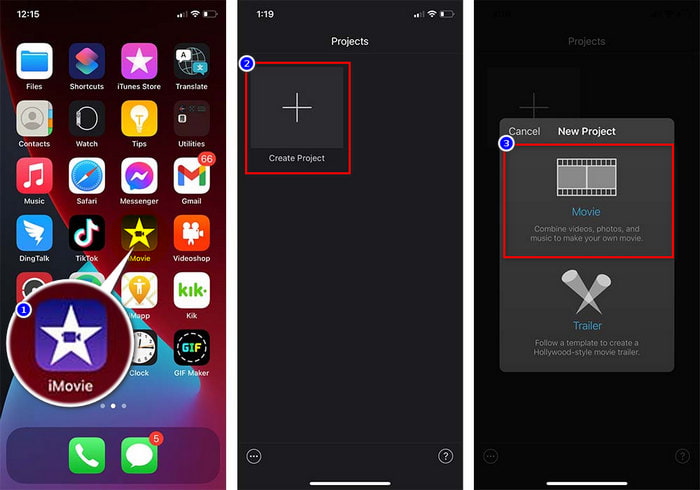
Trin 1. Åbn iMovie‑appen på din iOS‑enhed, klik på Create Project, og derefter Movie. Tilføj videoen, der ligger i dit bibliotek.
Trin 2. Klik på knappen + for at tilføje vandmærkebilledet til videoen. Find det i biblioteket, klik på det, tryk på de tre prikker, og vælg derefter Green/Blue Screen. Tryk på billedet for automatisk at fjerne baggrunden.
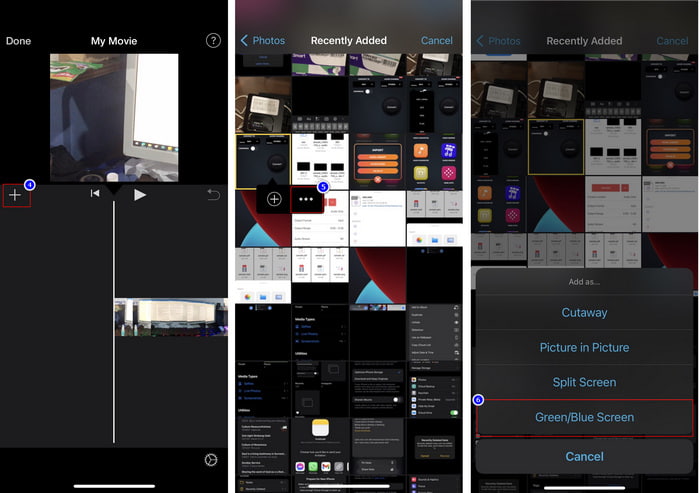
Trin 3. Tryk på Done, klik på Export, og derefter Save Videos.
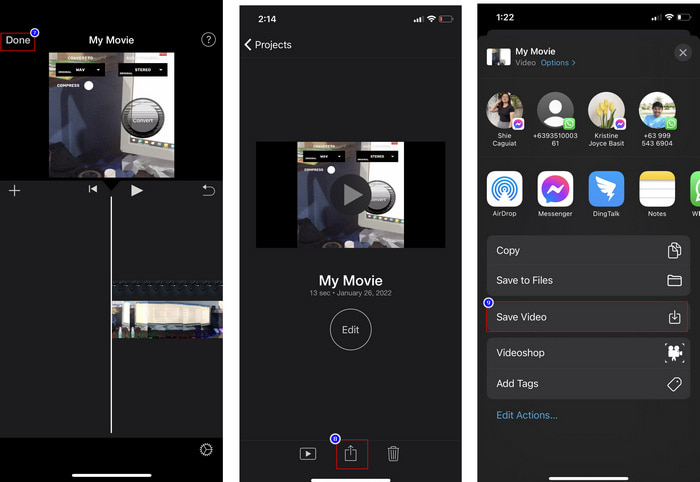
Alle de trin, vi præsenterede her, er fra den praktiske oplevelse af at bruge iMovie på iOS. Men nogle af trinene kan ændre sig, hvis der snart sker en opdatering på editor-appen.
Del 3. Nemmeste løsning til at indsætte foto i video med den bedste videovandmærkesoftware på Mac
Har du de samme problemer med at tilføje fotos oven på video i iMovie? Prøv at bruge Video Converter Ultimate, for dette værktøj er det bedste alternativ til iMovie. Den samlede ydeevne er allerede blevet rost af millioner af brugere, som har prøvet det. Selv om de har forskellige problemer med deres videoer, vælger de stadig dette ultimative værktøj til at løse dem. Desuden kan du med dette værktøj næsten gøre alt, hvad der har med video at gøre, såsom at klippe, tilføje billeder, flette, beskære osv. Uanset hvilket problem du har, er dette en alt‑i‑én‑løsning. Vil du løse problemet? Følg da trinene nedenfor, som vi har skrevet, så du nemt kan være med.
Funktioner:
◆ Det ultimative værktøj understøtter flere formater, så det vil ikke være svært at uploade dit format.
◆ Det understøtter en letforståelig grænseflade til hurtigt at tilføje billeder til enhver video inden for få sekunder.
◆ Det understøtter forskellige platforme som Mac og Windows for at give brugerne mulighed for at nyde på alle platforme.
Trin 1. Du kan downloade værktøjet ved at klikke på downloadknappen nedenfor, derefter hurtigt installere det og åbne det efter installationen.
Gratis download til Windows 7 eller nyere Sikker download
Gratis download til MacOS 10.7 eller nyere Sikker download
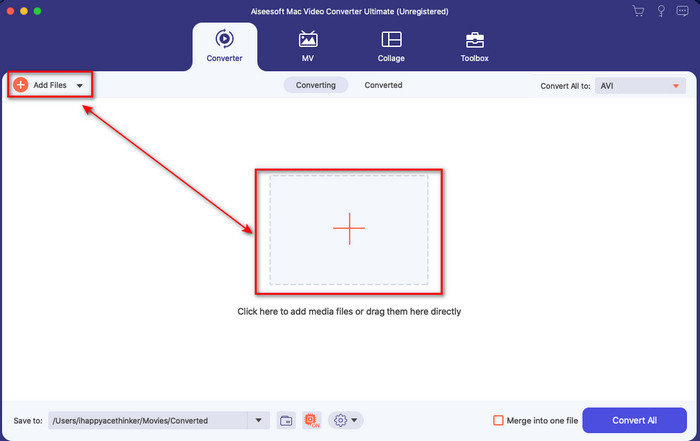
Trin 2. Når du har åbnet det, skal du klikke på knappen + for at importere videofilen. Derefter åbnes en mappe, hvor du finder videofilen, og klikker på Open.
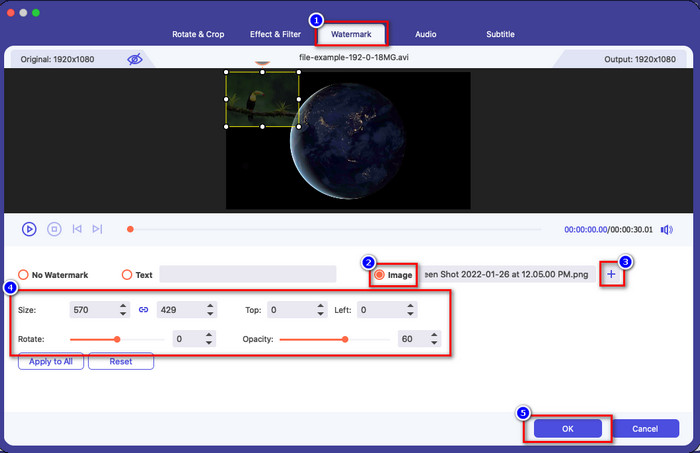
Trin 3. Tryk på tryllestavs-knappen for at åbne redigeringsvinduet i konverteren. Gå til Watermark, klik på billedet, og tryk derefter på add for at uploade billedet. Du kan også redigere billedets opacity eller rotate det efter behov, og for at anvende ændringerne skal du klikke på OK.
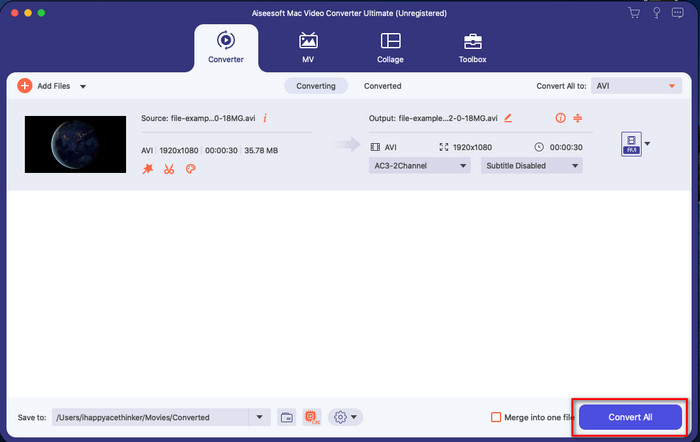
Trin 4. Klik på knappen Convert All for at eksportere videofilen. Den bliver gemt i en mappe på din computer efter eksportprocessen, og lige så enkelt har du nu et vandmærkebillede på din video. Tror du nu på mulighederne i Video Converter Ultimate? Du har allerede tilføjet vandmærkebilledet til videoen så hurtigt som ingenting.
Relateret:
Sådan tilføjer du lyd til video
Sådan tilføjer du undertekster til video
Del 4. Ofte stillede spørgsmål om tilføjelse af fotos til video i iMovie
Er der begrænsninger på antallet af billeder tilføjet i iMovie-videoer?
Indtil videre har vi ikke oplevet nogen gener ved at tilføje flere billeder på videoen, mens vi brugte iMovie. Men eksportprocessen tager tid, hvis du tilføjer for mange billeder på videoen, men den vil ikke gå ned, som det erfaret.
Hvilke billedformater kan jeg bruge på iMovie?
Der er adskillige stillbilledeformater, som iMovie understøtter, såsom BMP, PNG, JPG eller JPEG, HEIF, PSD, RAW TIFF og TGA, men hvis du vil have et animeret billede, kan du bruge GIF. Selvom disse formater er mange, understøtter det stadig ikke alle billedformater som EXIF, WebP og lignende.
Hvorfor skal jeg bruge iMovie?
For Apple-brugere er iMovie et af de bedste valg til at skabe en kortfilm, reklame, vlogs og mere; alle disse er gratis. Editoren giver en semi-avanceret grænseflade for at hjælpe brugerne med at få en praktisk oplevelse af, hvordan en avanceret grænseflade eller værktøj ser ud. Desuden er softwaren mindre teknisk, men den er specialiseret. Det er ikke almindeligt at se en editor, der giver en mindre teknisk måde at bruge, men den kan hjælpe dig med at være en professionel og tilføje nogle specialiserede teknikker, avancerede værktøjer har.
Konklusion
Til sidst kan vi sige, at vi nu har viden nok til nemt at tilføje fotos oven på video i iMovie. Med det bedste værktøj på Apple kan du næsten udføre den avancerede redigering her. Men ikke alle de funktioner, du har brug for, findes i iMovie, og derfor kan du bruge Video Converter Ultimate som en let anvendelig editor på alle platforme. Tænker du måske: Hvorfor skulle jeg bruge dette ultimative værktøj? Der er ikke behov for mange forklaringer, når vi taler om det ultimative værktøj, for vi har allerede fremlagt beviserne ovenfor. Hvad skal du så gøre? Du kan klikke på downloadknappen for selv at prøve det ultimative værktøj og løse dette problem.
-
 5 mest udvalgte lydoptagerapps på Android og iOS [2022 Opdateret]
 Ved du ikke, hvilken lydoptager-app du skal bruge? Hvis ja, hjælper denne artikel dig med at vælge, hvilken app der hjælper dig med din lydoptagelsesopgave.
-
 Stemmememo på iOS – Fordele, ulemper, funktioner og 4 bedste erstatninger
 Hvad er Voice Memo? Er det den bedste lydoptager på iOS? Søger du svar på det spørgsmål? Så læs hele omfanget af denne artikel for at vide mere.
-
 7 seneste gratis MOD-konvertere til at ændre MOD-fil til et nyt format
 Hvad er de MOD-konvertere, du kan bruge? Tænker du det samme spørgsmål? Så her er vi, og leverer de syv værktøjer, du kan bruge til at konvertere dine MOD-filer.
