


 Video Converter Ultimate
 Skærmoptager
 Video reparation
 Sikker download
Sådan bremser du en video på Snapchat som en professionel [Løst]
En af de bedste filterapps, du gratis kan downloade på din enhed, er Snapchat. Ud over filtrene, du kan lægge på video, spørger brugere ofte hvordan man sænker hastigheden på en video på Snapchat for at lave en slowmotion‑effekt på videoen, de optager. Med denne app kan du optage en slowmotion‑video, så den ser imponerende og unik ud sammenlignet med andre brugere, der anvender den samme app. Vil du kende hemmeligheden bag, hvordan man gør det? Du behøver ikke at bekymre dig, for vi hjælper dig.
Denne artikel vil fokusere på den hastighedsmodifikator, du kan bruge til at maksimere den video, du vil have slow-mo. Så hvad venter du på? Hold tempoet op med at læse denne artikel for at vide mere om Snapchats langsommere virkninger.

Del 1. Sådan bremser du nemt en video på Snapchat
Hvordan sænker du en video på Snapchat? Hvis du har det samme spørgsmål indtil nu, er dette trin for dig, fordi du kan finde hastighedsmodifikatoren på Snapchat. For at få det resultat, du ønsker at have, er nedenfor de forenklede trin, du skal følge.
Trin 1. Download Snapchat på din enhed, og åbn appen.
Trin 2. Tryk på fotoikonet på skærmen, og giv appen adgang til dit bibliotek, der indeholder billeder og videoer. Når du har givet adgang, skal du vælge den video, du vil gøre langsommere, på listen, der vises, og trykke på den.
Trin 3. Når du har åbnet videoen, skal du trykke på Rediger for at bruge den hastighedsregulering, der er tilgængelig i Snapchat.
Trin 4. Stryg til venstre eller højre, indtil du finder snegleikonet. Dette ikon betyder, at videoens hastighed bliver langsommere end den oprindelige. Hvis ikonet derimod er en kanin, bliver videoen afspillet hurtigt. Gem derefter videoen i slowmotion.
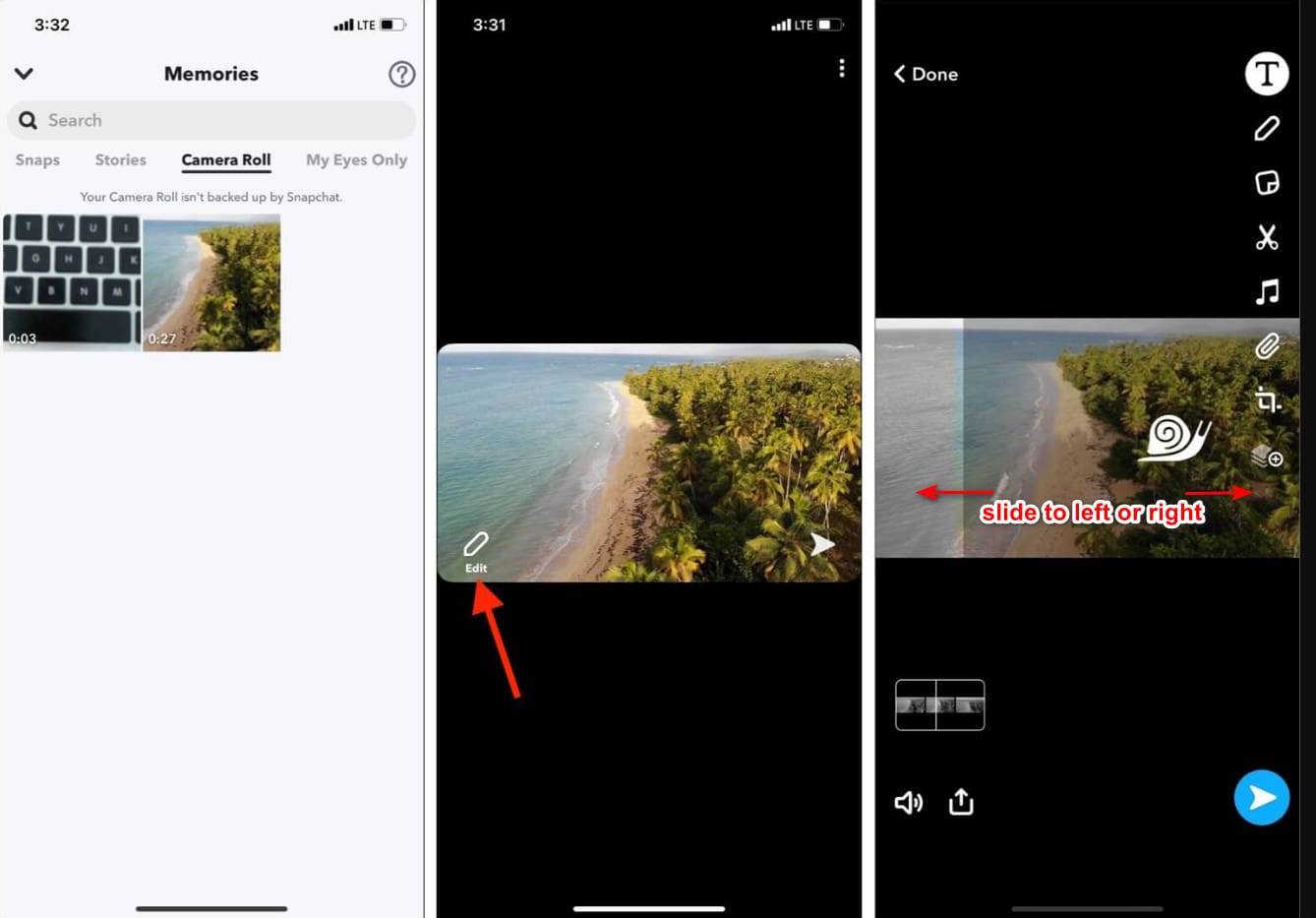
Selvom appen har en indbygget hastighedsmodifikator, er afspilningshastigheden, den understøtter, kun en enkelt bevægelse. Det betyder, at du ikke har mulighed for at ændre slow-mo'en efter dine præferencer, hvilket er frustrerende, især hvis slow-mo'en ikke er, hvad du ønsker. Men det næste værktøj kan hjælpe dig med at ændre afspilningshastigheden i slowmotion efter dine ønsker, og det vil ikke give en enkelt hastighedsbevægelse som på Snapchat. For at vide dette skal du læse følgende detaljer i del 2.
Del 2. Sådan sætter du en video i slowmotion på Snapchat effektivt på Windows og Mac
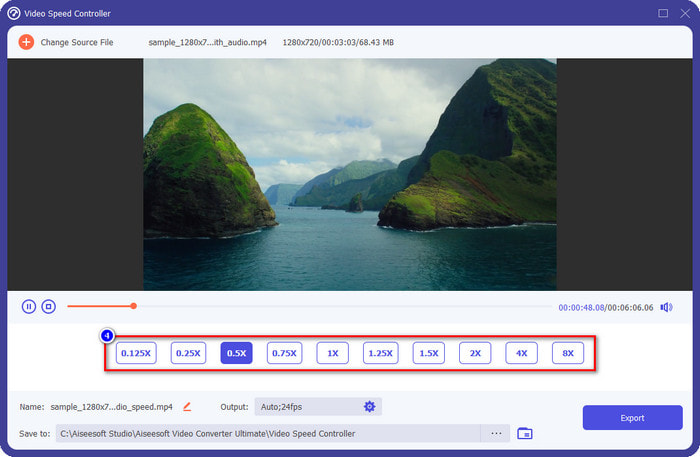
Som du kan se, når vi viser dig, hvordan man sætter en video i slowmotion på Snapchat, er den slowmotion, appen giver, ikke så langsom, som de fleste ønsker. Så i stedet for at stole på den indbyggede hastighedskontrol, du kan bruge i Snapchat, hvorfor så ikke prøve at bruge FVC Video Converter Ultimate? Den giver dig mulighed for hurtigt at ændre videoens hastighed præcis efter dine ønsker. Med dens hastighedskontroller kan du importere en video i normal hastighed og gøre den til en slowmotion‑video. Du kan gøre videoen så langsom som 0,75x, 0,5x, 0,25 eller 0,125; vælg en af mulighederne, og se den i forhåndsvisningen for at tjekke, om det er den slowmotion‑hastighed, du foretrækker.
Ud over dens speed-up controller-funktioner kan du også bruge denne software til at tilføje filtre og effekter som det, du kan have på Snapchat. Selvom den understøttes, er den ikke så bred som den filtreringsapp, du kan have på din enhed. Du kan også lave avanceret redigering her, som du ikke kan lave på Snapchat. Såsom lydstyrkeforstærker, synkronisering af lyd, fjernelse af vandmærket, tilføjelse af metadata og mange flere. På trods af at det er et ultimativt værktøj, er softwaren ikke tilgængelig på mobile enheder. Du kan stadig downloade det på din Windows og Mac. Så nu, hvis du beslutter dig for at bruge dette værktøj, kan du læse og følge vejledningen for at ændre videoens hastighed.
Trin 1. Ved at klikke på download‑knappen herunder kan du få dette ultimative hastighedsværktøj på Windows og Mac. Installer softwaren med det samme, og start den for at ændre afspilningshastigheden på din video.
Gratis download til Windows 7 eller nyere Sikker download
Gratis download til MacOS 10.7 eller nyere Sikker download
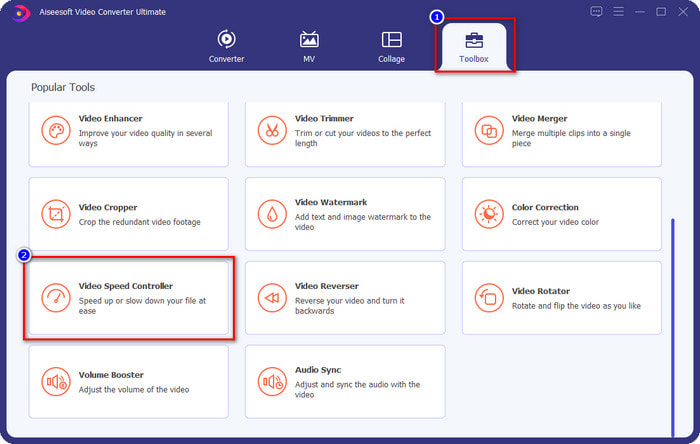
Trin 2. På grænsefladen vil du se fire forskellige sektioner, du kan bruge; klik på Værktøjskasse, og find Videohastighedskontroller på listen.
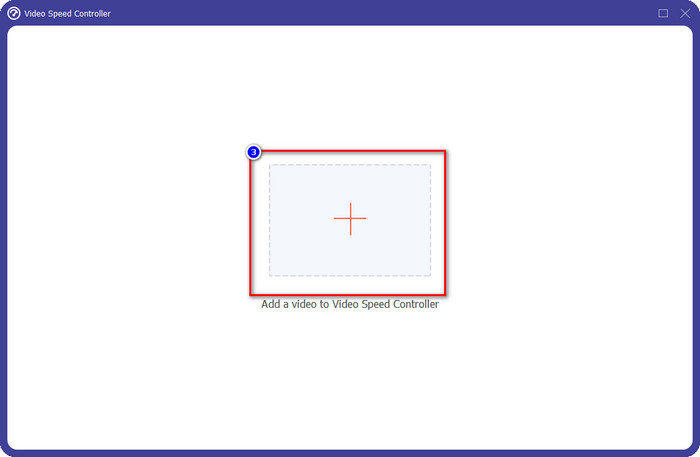
Trin 3. Tryk på +-knappen for at åbne mappen, upload Snapchat‑videoen eller en hvilken som helst video, du vil lave i slowmotion, og klik på Åbn.
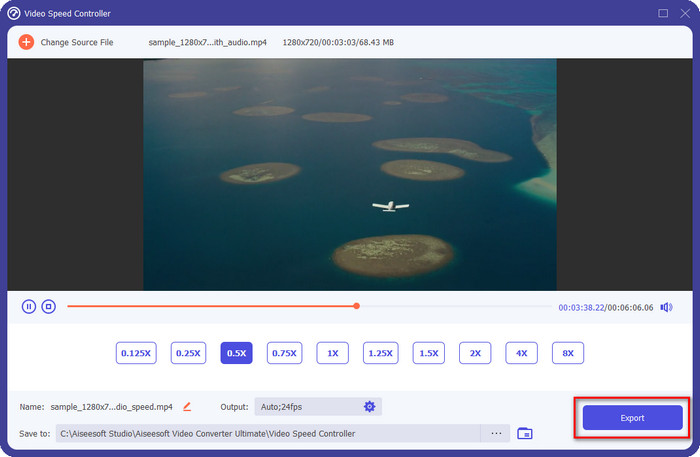
Trin 4. Når du er i den nye grænseflade, hvor du kan redigere hastigheden, skal du klikke på den ønskede slowmotion‑hastighed, du vil anvende på din video. Du kan frit vælge, hvilken slowmotion‑hastighed du vil have, og den bliver afspillet i forhåndsvisningsvinduet.
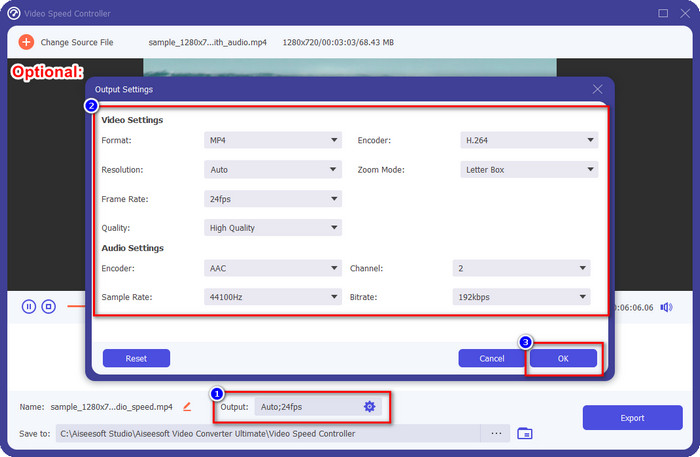
Valgfrit: Hvis du vil lave avancerede ændringer af output, kan du klikke på Output. I denne sektion kan du ændre format, opløsning, billedhastighed, kvalitet, zoomtilstand osv.; klik på OK for at anvende de ændringer, du har foretaget.
Trin 5. Klik på Eksporter-knappen, når du er klar til at konvertere videoens afspilningshastighed. Du har nu videoen i slowmotion; du kan nu dele videoen eller bruge slowmotion‑videoen, du har eksporteret herfra.
Relateret:
Sådan sænker du hastigheden på MP4‑filer
Del 3. Ofte stillede spørgsmål om, hvordan man bremser en video på Snapchat
Har eksport slow-mo video på Snapchat et vandmærke?
Du kan frit eksportere den video, du har slow-mo på Snapchat uden vandmærket for det endelige output. Selvom du vil tilføje et, har du ikke lov til at tilføje et Snapchat-vandmærke på videoen.
Kan jeg ændre videoens hastighed, selvom jeg ikke har taget den på Snapchat?
Det kan du, men hvis du kun tillod det, for hvis du ikke gav appen adgang til dit galleri eller dine billeder, kan du ikke ændre hastigheden på den video, du ønsker. For at se den video, du ikke har taget på Snapchat, kan du gå til Kamerarullen i stedet for Snaps og Stories.
Er der nogen begrænsninger for at bremse en video på Snapchat?
Indtil videre er der ingen begrænsning, hvis du vil bremse videoen ved hjælp af Snapchat. Bortset fra mulighederne for slow-mo-hastighed, er der ikke længere. Så antag, at du har en video, du vil sænke farten. I så fald kan denne app hjælpe dig med at afslutte opgaven nemt uden at downloade yderligere udvidelser for at ændre hastigheden.
Konklusion
Har du brug for en hjælpende hånd til at lære, hvordan man sænker hastigheden på en video på Snapchat? Du har allerede fået den hjælp, du behøver, ved at læse denne artikel. Hvis du stadig mener, at Snapchats indbyggede hastighedskontrol ikke er tilstrækkelig til dine behov, skal du bruge en videohastighedskontroller som FVC Video Converter Ultimate for at få fuld kontrol over videoens hastighed. Du kan sende os en besked, hvis du har spørgsmål til det, så vi kan hjælpe dig, og vi kan løse problemet sammen.
-
 Sådan bremser du en video: Perfekte tips [Desktop/mobiltelefon]
 Er du træt af at søge efter de bedste værktøjer, der hjælper med at bremse en video online? Læs denne særlige artikel for at blive oplyst med de oplysninger, der er anført nedenfor.
-
 Sådan ændres slowmotion-video til normal hastighed [Easy Steps]
 Vil du vide, hvordan du gendanne en slowmotion-video, du har downloadet fra internettet eller ved et uheld optaget i slowmotion? Lær, hvordan du konverterer slowmotion-video til normal hastighed på Mac, Windows, iOS og Android.
-
 Alt du behøver at vide om, hvordan man laver slowmotion-videoer
 Du vil lave slowmotion-videoer som en professionel redaktør, men du ved ikke, hvilken software eller hvilke programmer du vil bruge? Læs denne artikel for at lære alle de detaljer, du har brug for.
