


 Video Converter Ultimate
 Skærmoptager
 Video reparation
Offline vs. Online: Lær hvordan du nemt kan fremskynde videoer i MP4-format
Du ser din yndlingsfilm for 6. gang. I stedet for at se den hele igen beslutter du dig for kun at se alle de afgørende scener i filmen, så du vil gerne sætte farten op på videoen, men den er i MP4-format. Desuden ville du gerne sætte hastigheden op på dit videoklip, men du løb tør for forbindelse, og du havde brug for det til et skoleprojekt. Derudover er dit videoklip i MP4-format. Du spekulerer på, om der findes et værktøj, der er kompatibelt med konvertering og kan fremskynde MP4-videofiler. Denne artikel fortæller alt om konvertering af MP4-format, både online og offline. Derudover er der trin med, så du kan sikre dig, at du udfører alle overgange korrekt.

Del 1. Sådan fremskyndes en MP4-video ved hjælp af Video Converter Ultimate [Offline]
Video Converter Ultimate er den bedste software til både at konvertere og redigere videoer. Denne software har værktøjer til at forbedre din videokvalitet, mens du kan tilpasse den efter din smag, indtil du får den ønskede video. Derudover er disse værktøjer nemme at bruge og gør det ikke kompliceret for begyndere at anvende softwaren. Det er også et gratis program at downloade, som kan producere videofiler i høj kvalitet, der er kompatible med alle formater, især MP4-formatet. Da MP4 er et af de mest almindelige formater, kan Video Converter Ultimate få dit MP4-format til at udnytte sit fulde potentiale ved at justere opløsning og billedfrekvens. Imens er dette den bedste løsning på problemet med afspilningshastighed. Her er de trin, du skal følge for at udføre det korrekt:
Trin 1: Vælg knappen Free Download for at downloade softwaren til din computers skrivebord. Installér derefter softwaren og konfigurer den efter dine ønsker.
Gratis download til Windows 7 eller nyere Sikker download
Gratis download til MacOS 10.7 eller nyere Sikker download
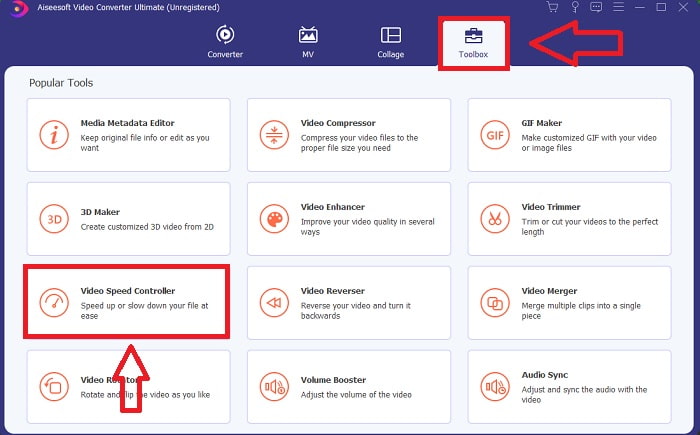
Trin 2: Når installationen er færdig, skal du starte softwaren, vælge indstillingen Toolbox og derefter vælge Video Speed Controller
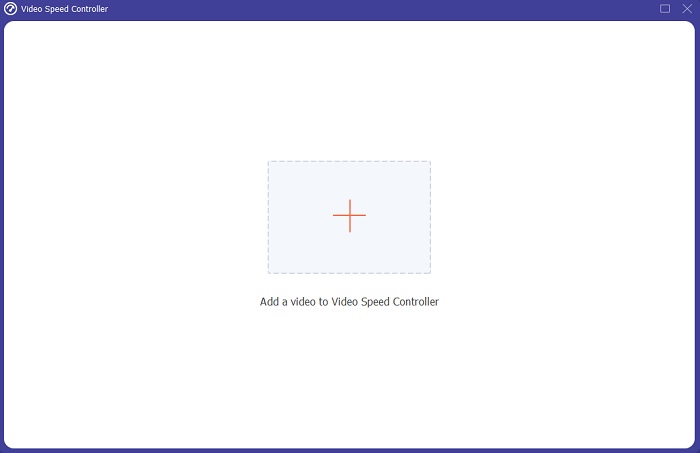
Trin 3: Klik på +-knappen i din præferencebjælke for at uploade den MP4-video, du vil sætte hastigheden op på.
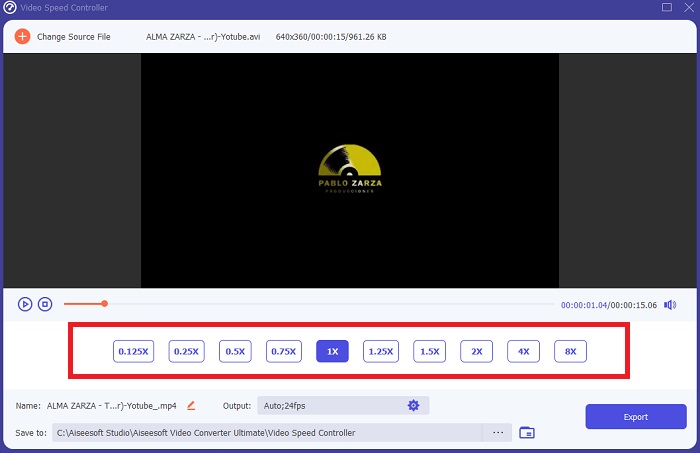
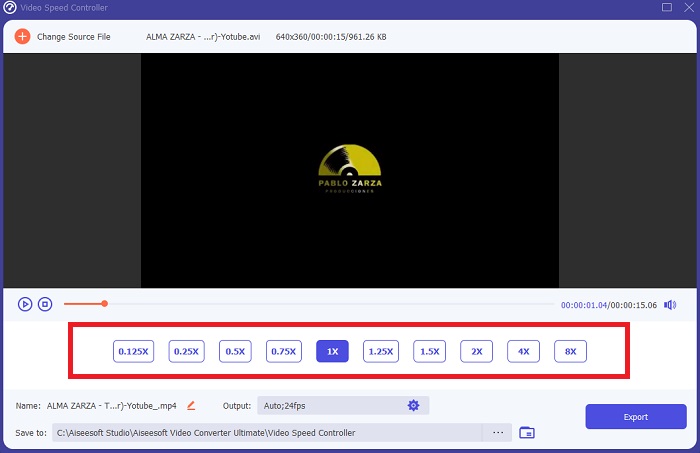
Trin 4: Du kan ændre afspilningshastigheden ved at beslutte, hvor mange gange videoens billedfrekvens skal øges eller sænkes under afspilning.
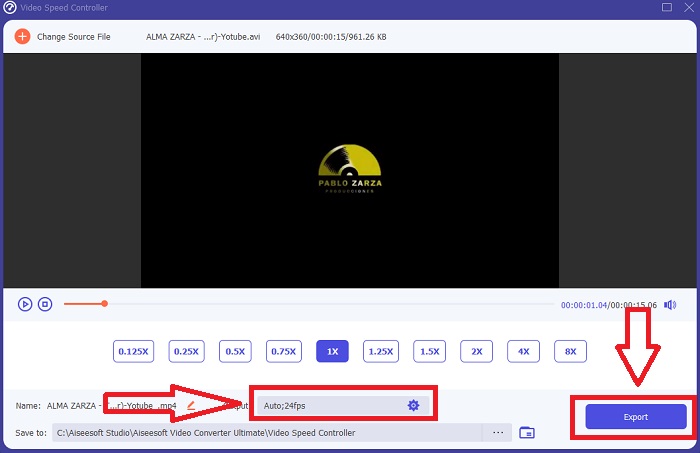
Trin 5: Afspilningshastigheden for dit videoklip kan finjusteres ved at ændre format, opløsning, kvalitet osv. Når du er klar til at gemme dit arbejde, skal du klikke på Export og vælge en placering.
Del 2. Andre måder til, hvordan man fremskynder en MP4-video [online]
Vi vil præsentere de bedste webbaserede værktøjer, der kan gøre din video til det andet niveau. Derudover har de fleste webværktøjer funktioner, der kan øge eller mindske afspilningshastigheden af videoklippet. Det gode er, at disse webværktøjer er gratis, og de er nemme at bruge. Perfekt til almindelige brugere, der vil bruge disse webværktøjer, vi giver trin til at følge for at bruge dem korrekt.
Tips 1: Brug VEED
Indholds-skabere verden over er afhængige af VEED og dets open source-software til at lave videoer til sociale medier og andre formål. Der kræves ingen erfaring med videoredigering, og der er heller ingen software, der skal downloades på forhånd. Det er helt gratis at bruge vores webbaserede videoeditor. En fremdriftslinje på en Instagram-historie, en undertekst på et YouTube-klip eller beskæring af optagelser, så de passer til et Twitter-opslag, kan alt sammen gøres med VEED. Denne MP4-hastighedseditor er et webværktøj, som kræver en stabil internetforbindelse for at fungere godt; du kan uploade direkte og justere afspilningshastigheden i grænsefladen. Derudover tilbyder det også forskellige funktioner, herunder muligheden for at øge afspilningshastigheden på videoen.
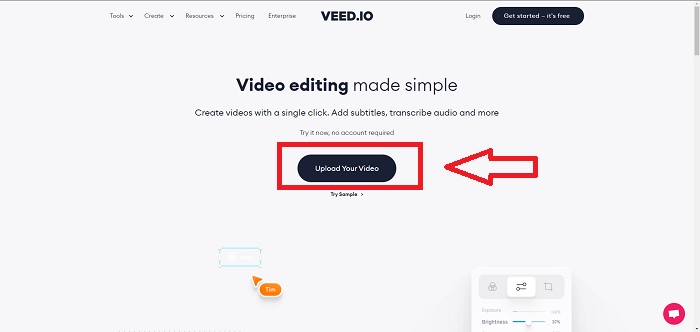
Trin 1: Upload video fra dit skrivebord ved at klikke på Upload Your Video.
Trin 2: Tryk på videosporet for at se redigeringsgrænsefladen i venstre hjørne af webværktøjet. Find funktionen Speed og vælg mellem afspilningshastighederne 0.5x, 1x, 1.5x, 2x. Hvis den ønskede hastighed ikke findes blandt valgmulighederne, kan du tilpasse afspilningshastigheden på dit videoklip ved at vælge Custom.
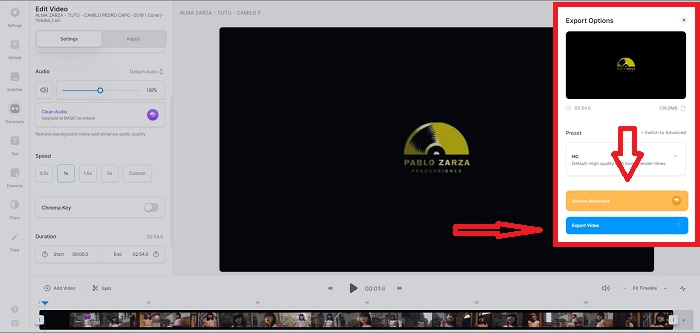
Trin 3: Når du har redigeret den ønskede video-hastighed, går du videre til eksportfanen ved at klikke på Export. Imens kan du vælge, hvilken kvalitet du foretrækker til din video, og fjerne vandmærket ved at købe premium-versionen af webværktøjet. Hvis alt er i orden, overfører du den konverterede video til din computer ved at Exporting Video.
Tip 2: Brug InVideo
InVideo er et webbaseret videoredigeringsværktøj, som gør det muligt for virksomheder af alle størrelser at oprette og dele videoer med tilpasset indhold og branding på forskellige sociale medieplatforme og websites. Derudover har det et indholdsbibliotek med billeder og videoer fra flere online-arkiver som Storyblocks og Shutterstock, som kan bruges. I modsætning til det forrige webværktøj i denne artikel kræver InVideo, at du indtaster din e-mailadresse, før du kan bruge hele værktøjet. Dette webværktøj tilbyder et enormt antal skabeloner, du kan bruge til at udsmykke eller forbedre dit videoklip. Med dette webværktøj kan du blive en professionel redaktør takket være dets enestående funktioner.
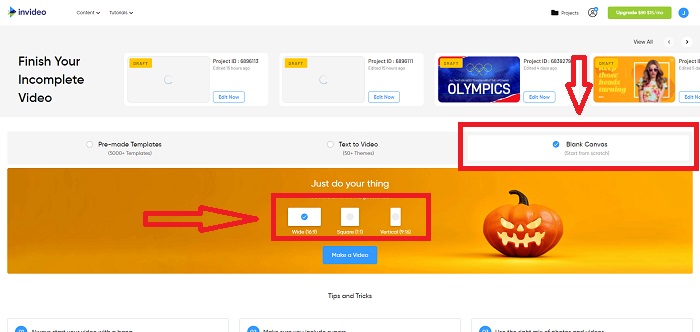
Trin 1: For at få adgang til webværktøjet skal du først oprette en konto. Vælg derefter den skabelon, du vil bruge, eller start fra bunden ved at vælge Blank Canvas. Fortsæt med at uploade din fil ved at klikke på Upload i venstre hjørne af grænsefladen.
Trin 2: Træk dit videoklip ned på redigeringssporet, og begynd at redigere dets afspilningshastighed ved at klikke på fanen Speed i det øverste hjørne af grænsefladen. Begynd derefter at trække Slider for at tilpasse hastigheden på dit videoklip.
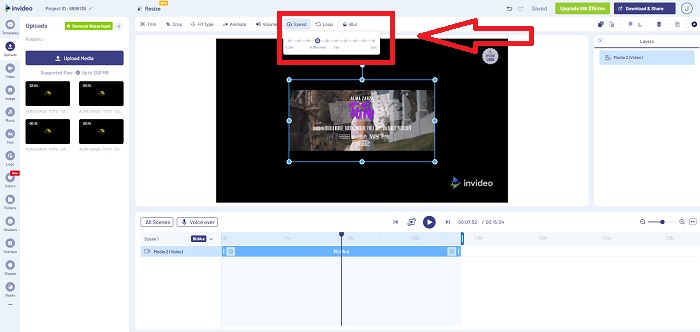
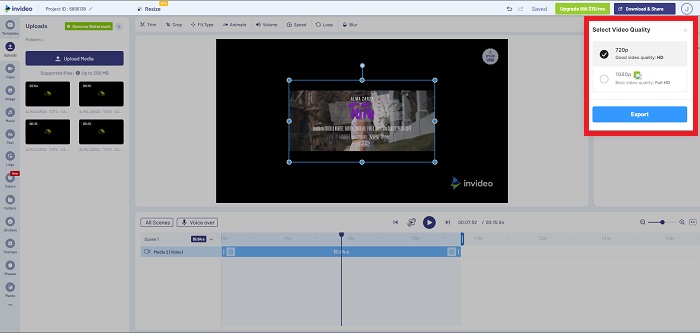
Trin 3: Når du er færdig med at redigere, eksporterer du filen ved at klikke på Download & Share og låser premium op, hvis du vælger højere kvalitet.
Tip 3: Brug Typito
Du kan bruge Typito til at skabe flotte videoer med flotte skabeloner og billeder, som vil hjælpe din virksomhed med at skille sig ud fra konkurrenterne. Det lyder som Canva – bare til video. Dette webværktøj er ikke kun til erhvervsformål. Det kan bruges til skoleprojekter og nogle semiprofessionelle opgaver inden for multimedie. Dette webværktøj kræver også en e-mail for at kunne bruges og for at konvertere dit videoklip efter dine ønskede justeringer.
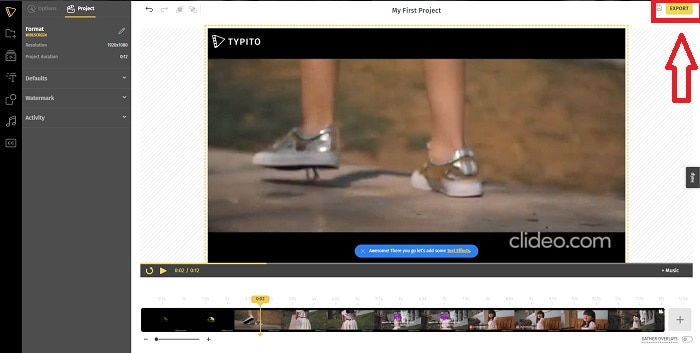
Trin 1: Tilføj mediefiler ved at trække dine filer fra skrivebordet eller ved at klikke på mappeikonet.
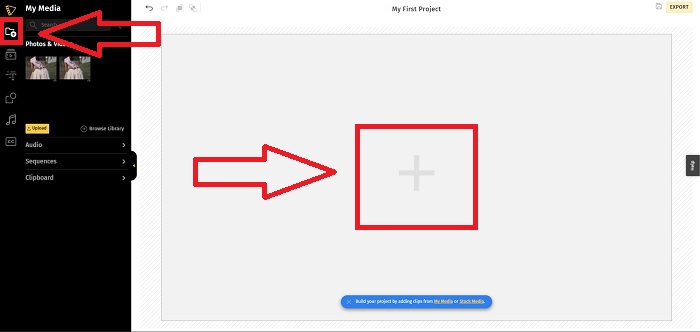
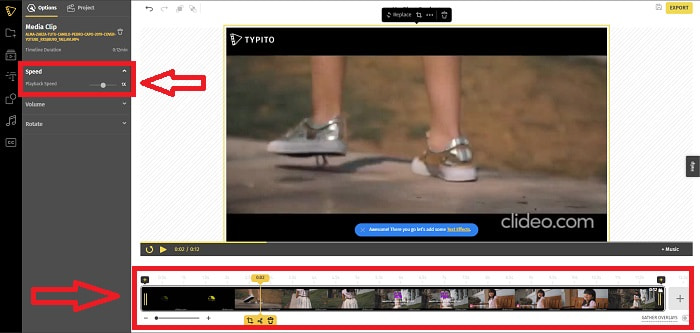
Trin 2: Klik på videofilen og klik på Add Projects, så din videofil kommer ned på videosporet, og du kan begynde at redigere. Klik på videosporet nedenfor, find funktionen Speed i venstre hjørne af grænsefladen, og juster afspilningshastigheden ved at justere Slider.
Trin 3: Upload den konverterede fil til dit skrivebord ved at klikke på Export i øverste højre hjørne af grænsefladen og vælge, hvilken e-mail du vil bruge til at downloade. Når alt er klar, skal du downloade den.
Del 3. Ofte stillede spørgsmål om, hvordan man fremskynder en MP4-video
Er det bedre at konvertere videoer offline eller online?
For nogle brugere kan det være besværligt at konvertere videofiler via en internetforbindelse, når det gælder bekvemmelighed og tryghed. Den gode ting ved at konvertere offline er dog, at du ikke behøver at bekymre dig om detaljer som at logge ind, før du bruger softwaren eller webværktøjet. Du behøver heller ikke bekymre dig om selve konverteringsprocessen. Uanset om din fil er stor eller lille, skal du ikke bekymre dig om, hvor lang tid konverteringen tager, fordi der ikke bruges internetforbindelse. Du kan klikke her for at lære hvordan du konverterer MP4 til M4V med detaljerede trin.
Hvad er en MP4?
MP4 er en almindeligt brugt betegnelse for en multimedielagerfil, der gemmer mediefiler i MP4-formatet. Til videoindhold bruges MP4-formatet ofte. Dette format kan også bruges til undertekster, lyd og billeder. Som et resultat af den store mængde komprimerede data, der er indeholdt i MP4-filer, omtales disse filtyper som digitale multimediebeholderformater. Standard beskriver, hvordan det opbevares, men adresserer ikke kodede data i disse containere.
Er MP4 tilgængelig på alle medieafspillere?
Ja, MP4 er blevet en af de mest almindelige medieafspillere at bruge, selv når filstørrelsen er lille. MP4 sætter standarden i de fleste medieafspillere, da det endda er kompatibelt med visse konvertere. Her er de bedste MP4-afspillere, du kan bruge.
Konklusion
Afslutningsvis er der hverken noget godt eller noget dårligt ved at konvertere eller ændre MP4-hastighed, hvad enten det er online eller offline. Forskellene ligger i nogle detaljer ved konverteringen, men resultatet er generelt altid det samme. Da nogle konvertere kun understøtter visse videoformater, bruger vi MP4 som et af de bedste eksempler på formater, der kan anvendes sammen med de værktøjer, der er præsenteret i artiklen. Men hvis du vil bruge et andet videoformat til konvertering, skal du gå til linket nedenfor for at lære mere om at konvertere MP4 til et andet format.
-
 [Løst] Sådan afspilles MP4-filer i Google Drev
 MP4 afspilles ikke på mit Google Drev? Sådan afspilles MP4-filer i Google Drev? Dette indlæg fortæller 3 måder at afspille MP4-videoer på Google Drev.
-
 [Løst] Afspil MP4-filer på Chromebook 2021
 Kan du afspille videoer på Chromebook? Sådan afspilles MP4-filer fra USB på Chromebook? Dette indlæg deler 3 måder at afspille MP4 på Chromebook.
-
 Windows Media Player spiller ikke MP4? 5 effektive måder at løse det på
 Kunne ikke afspille MP4 i Windows Media Player? Lær mere om årsagerne og de ultimative løsninger til at afspille MP4 i Windows Media Player på Windows 10-computeren.
