


 Video Converter Ultimate
 Εγγραφή οθόνης
 Επισκευή βίντεο
 Ασφαλές κατέβασμα
Πώς να αλλάξετε το μέγεθος μιας εικόνας στο iPhone χρησιμοποιώντας 3 αποτελεσματικούς τρόπους [Δωρεάν]
Όχι όλες οι εικόνες από τον ιστό που έχετε αποθηκεύσει στο iPhone σας ταιριάζουν ως ταπετσαρίες ή ως εικόνες αρχικής οθόνης λόγω της αναλογίας πλευρών και των διαστάσεών τους. Μερικές φορές, όταν χρησιμοποιείτε μια φωτογραφία με λανθασμένες διαστάσεις ως ταπετσαρία ή αρχική οθόνη, γίνεται θολή και εμφανίζει μαύρες πλευρές αντί να προσαρμόζεται σωστά στην οθόνη. Ενοχλητικό, έτσι δεν είναι; Ευτυχώς, μπορείτε να κατεβάσετε μια εφαρμογή αλλαγής μεγέθους εικόνας από το App Store, να χρησιμοποιήσετε το Shortcut ή να εκμεταλλευτείτε τον ενσωματωμένο επεξεργαστή εικόνων που έχετε στη διάθεσή σας. Για να αλλάξετε γρήγορα το μέγεθος μιας φωτογραφίας στο iPhone σας, αφιερώστε λίγα λεπτά για να διαβάσετε αυτό το άρθρο ώστε να το κατανοήσετε καλύτερα και να διορθώσετε το πρόβλημα μεγέθους που έχετε στη συσκευή σας.

Μέρος 1. 3 αποτελεσματικοί τρόποι για να αλλάξετε το μέγεθος μιας εικόνας στο iPhone [Δυνατότητα λήψης και ενσωματωμένη]
Χρήση συντόμευσης [Ενσωματωμένη]
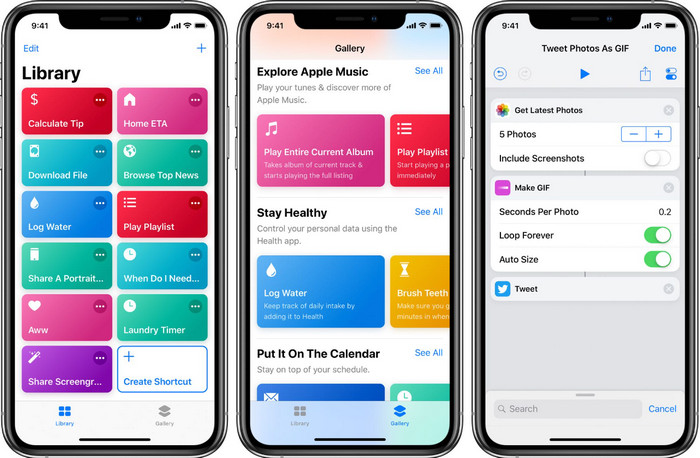
Το Shortcut επιτρέπει στους χρήστες iOS να δημιουργούν εκτεταμένες λειτουργίες που μπορείτε να χρησιμοποιήσετε, όπως για παράδειγμα να αλλάζετε το μέγεθος της εικόνας που έχετε στο τοπικό αρχείο σας. Όλες οι εκδόσεις iOS 13 και άνω διαθέτουν αυτή την προεγκατεστημένη εφαρμογή. Επειδή η εισαγωγή της εφαρμογής είναι σχετικά πρόσφατη, οι παλαιότερες εκδόσεις δεν έχουν μια τόσο εκτενή εφαρμογή. Ωστόσο, μπορείτε να τη λάβετε δωρεάν από το App Store του iPhone ή του iPad σας. Για να σας δείξουμε πώς να αλλάξετε μέγεθος σε μια εικόνα iPhone με αυτό το εργαλείο, ακολουθήστε τα βήματα που προσθέτουμε παρακάτω.
Βήμα 1. Ανοίξτε την εφαρμογή στο iPhone σας και πατήστε το κουμπί συν επάνω για να προσθέσετε ένα shortcut για την αλλαγή μεγέθους στη συσκευή σας.
Βήμα 2. Πατήστε τις τρεις γραμμές με τελείες και δώστε όνομα στο shortcut· για αυτό το shortcut μπορείτε να χρησιμοποιήσετε το όνομα Resizing Photo. Ενεργοποιήστε το Show in Share Sheet ώστε κάθε φορά που θέλετε να κοινοποιήσετε την εικόνα, να αλλάζει αυτόματα μέγεθος όταν το επιλέγετε.
Βήμα 3. Από την επιλογή τύπου στο Share Sheet, αποεπιλέξτε το Anything και αφήστε μόνο τις Images. Έπειτα πατήστε Done για να αποθηκεύσετε τις ρυθμίσεις που δημιουργήσατε.
Βήμα 4. Πριν χρησιμοποιήσετε αυτή τη λειτουργία, θα χρειαστεί να πατήσετε το εικονίδιο συν, έπειτα Media και μετά Resize Image. Μπορείτε να ορίσετε το μήκος όπως το χρειάζεστε και να πατήσετε Done για να το αποθηκεύσετε. Πλέον, κάθε φορά που θα κοινοποιείτε μια εικόνα, θα έχετε την επιλογή να την αλλάζετε αυτόματα σε νέο μέγεθος με αυτό το shortcut.
Χρήση της εφαρμογής φωτογραφιών [Ενσωματωμένη]
Μια ακόμη ενσωματωμένη εφαρμογή που μπορείτε να χρησιμοποιήσετε ελεύθερα στο iPhone σε κάθε έκδοση είναι η Εφαρμογή Φωτογραφίες (Photo App). Με τα χρόνια, ως αξιόπιστος επεξεργαστής και βελτιωτής εικόνων για κάθε χρήστη iPhone, θα ήταν ελλιπές να μην αναφερθούμε σε αυτή την εφαρμογή. Κάποιοι γνωρίζουν πώς λειτουργεί για την αλλαγή μεγέθους, κάποιοι όχι. Για όσους, λοιπόν, δεν ξέρουν πώς να αλλάξουν το μέγεθος μιας φωτογραφίας στο iPhone, αυτό το σεμινάριο μπορεί να βοηθήσει.
Βήμα 1. Ανοίξτε την Εφαρμογή Φωτογραφίες και πατήστε τη φωτογραφία που θέλετε να αλλάξετε σε μέγεθος.
Βήμα 2. Αφού επιλέξετε την εικόνα που θέλετε να αλλάξετε, πατήστε Edit.
Βήμα 3. Πατήστε το εικονίδιο περικοπής στην επάνω δεξιά γωνία και μετά το κουμπί με τα τετράγωνα.
Βήμα 4. Εκεί θα εμφανιστούν διάφορα έτοιμα πρότυπα λόγου διαστάσεων που μπορείτε να επιλέξετε· στη συνέχεια πατήστε Done για να αποθηκεύσετε τις αλλαγές.
Χρήση μεγέθους εικόνας [Δυνατότητα λήψης]
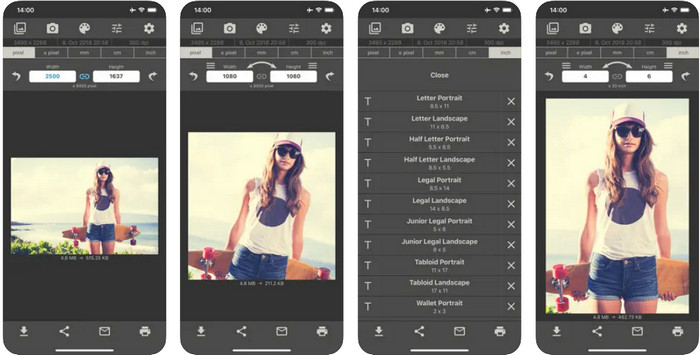
Το Image Size είναι μια εφαρμογή τρίτου μέρους στην οποία μπορείτε να βασιστείτε και να κατεβάσετε στο iOS για να αλλάζετε εύκολα το μέγεθος των φωτογραφιών για ταπετσαρία iPhone. Σε αντίθεση με τους δύο τρόπους που παρουσιάσαμε, πρέπει πρώτα να κατεβάσετε αυτή την εφαρμογή από το App Store πριν τη χρησιμοποιήσετε. Δεν είναι ενσωματωμένη εφαρμογή στο iOS, αλλά είναι διαθέσιμη στις περισσότερες εκδόσεις iOS για άμεση λήψη. Επειδή η χρήση και η λήψη της είναι δωρεάν, θα εμφανίζονται αρκετές αναδυόμενες διαφημίσεις όταν τη χρησιμοποιείτε. Αν δεν σας ενοχλούν οι διαφημίσεις, μπορείτε να προχωρήσετε στα βήματα χρήσης αυτής της εφαρμογής αλλαγής μεγέθους φωτογραφιών στο iPhone σας.
Βήμα 1. Εγκαταστήστε αυτή την εφαρμογή αλλαγής μεγέθους φωτογραφιών στο iOS σας και μετά ανοίξτε την.
Βήμα 2. Πατήστε το εικονίδιο image για να ανεβάσετε την εικόνα στην οποία θέλετε να αλλάξετε μέγεθος με αυτή την εφαρμογή.
Βήμα 3. Στο επάνω μέρος θα δείτε τις διαστάσεις που έχουν οριστεί στην εικόνα· αλλάξτε τις στο επιθυμητό ύψος και πλάτος.
Βήμα 4. Πατήστε το κουμπί download για να αποθηκεύσετε την εικόνα στην οποία αλλάξατε το μέγεθος.
Μέρος 2. Ο καλύτερος τρόπος για να αλλάξετε το μέγεθος μιας εικόνας στο διαδίκτυο χωρίς διαφημίσεις ή διαδικασία εγκατάστασης
Με το FVC Free Image Upscaler μπορείτε εύκολα να αλλάξετε αυτόματα τις διαστάσεις κάθε εικόνας με τη βοήθεια της τεχνητής νοημοσύνης. Δεν χρειάζεστε μακροχρόνια εμπειρία στην αλλαγή μεγέθους, γιατί είναι εφικτό με αυτή την εφαρμογή. Εκατομμύρια χρήστες αξιοποιούν αυτό το εργαλείο για να αλλάζουν μέγεθος, να αναβαθμίζουν, να βελτιώνουν και να αναβαθμίζουν την ποιότητα των εικόνων τους ταυτόχρονα. Αυτό που κάνει το εργαλείο ακόμη καλύτερο είναι ότι μπορείτε να το χρησιμοποιήσετε δωρεάν. Δεν είναι εντυπωσιακό; Πράγματι είναι. Ένας πολυλειτουργικός επεξεργαστής είναι αυτό που προσφέρει αυτή η εφαρμογή. Για να σας βοηθήσουμε να αλλάξετε μέγεθος στη φωτογραφία σας, ακολουθήστε τα παρακάτω βήματα και χρησιμοποιήστε αυτό το εργαλείο.
Βήμα 1. Μπορείτε να ανοίξετε αυτό το διαδικτυακό εργαλείο κάνοντας κλικ σε αυτόν τον σύνδεσμο· θα εμφανιστεί μια νέα καρτέλα στην οθόνη σας.
Βήμα 2. Για να προσθέσετε την εικόνα στην οποία θέλετε να αλλάξετε μέγεθος, κάντε κλικ στο Add Image. Αναζητήστε την εικόνα στο φάκελο αρχείων που θα εμφανιστεί στην οθόνη σας και πατήστε Open για να την προσθέσετε εδώ.
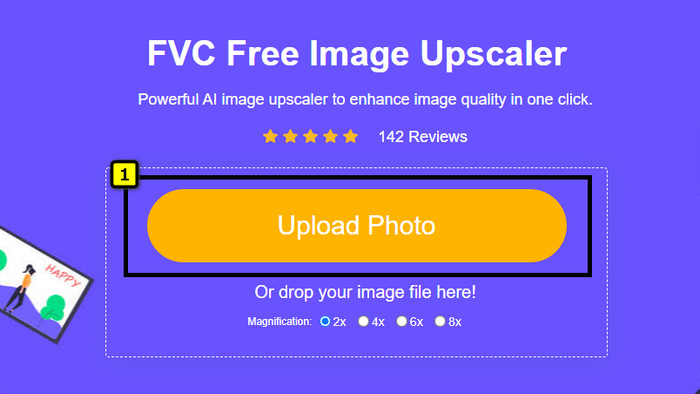
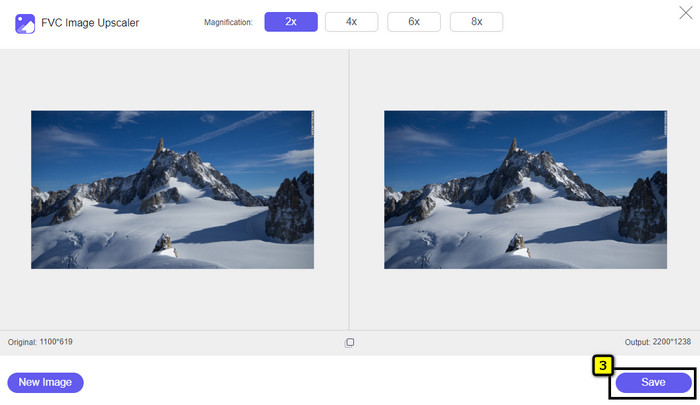
Βήμα 3. Αυτή η εφαρμογή θα φορτώσει την εικόνα που ανεβάσατε και θα επιλέξετε τη μεγέθυνση που θέλετε να εφαρμόσετε στην εικόνα σας. Θα αλλάξει αυτόματα το μέγεθος της φωτογραφίας σας σε νέες διαστάσεις.
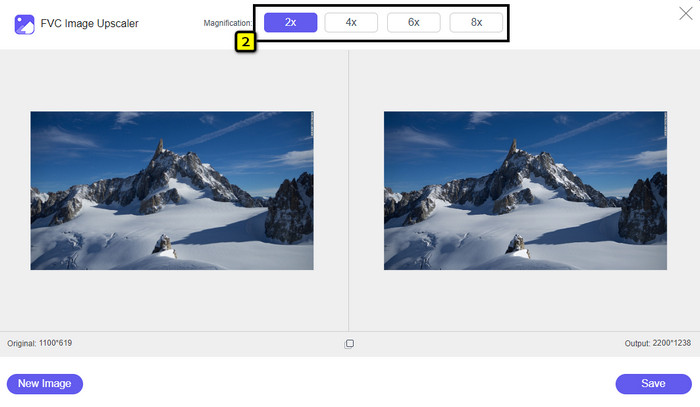
Βήμα 4. Όταν ολοκληρώσετε τη ρύθμιση της εικόνας, πατήστε Save για να κατεβάσετε την αλλαγμένη σε μέγεθος έκδοση στον τοπικό σας δίσκο.
Μέρος 3. Συχνές ερωτήσεις σχετικά με τον τρόπο αλλαγής μεγέθους της εικόνας στο iPhone
Ποια είναι η τέλεια διάσταση για χρήση ως ταπετσαρία στο iPhone;
Για τους χρήστες του iPhone SE, 6, 6 plus, 7, 7 plus, 8, 8 plus, η τυπική διάσταση της εικόνας που θα χρησιμοποιηθεί ως ταπετσαρία πρέπει να είναι μεταξύ 1136 x 640 και 1920 x 1080 px. Είναι το τυπικό μήκος και ύψος για την εικόνα που θέλετε να χρησιμοποιήσετε ως ταπετσαρία σε συσκευές iPhone. Αλλά για όσους χρησιμοποιούν iPhone XR, 11 και 13, μπορείτε τώρα να χρησιμοποιήσετε 828 x 1792 ή 3073 x 1420 px ως διάσταση οθόνης.
Ποιο είναι το μειονέκτημα της περικοπής αντί της αλλαγής μεγέθους εικόνων στο iPhone;
Όταν περικόψετε την εικόνα, θα δείτε ότι θα κόψει τη διάστασή της. Ναι, το μέγεθος της εικόνας θα αλλάξει, αλλά η συνολική εμφάνισή της δεν είναι ίδια με την αλλαγή μεγέθους. Κατά την αλλαγή μεγέθους, μπορείτε να αλλάξετε ελεύθερα το ύψος και το μήκος μιας εικόνας χωρίς να κόψετε τις άκρες ή κάποιο είδος. Επομένως, εάν θέλετε να χρησιμοποιήσετε τη φωτογραφία ως ταπετσαρία και να την κάνετε να ταιριάζει, καλύτερα να την αλλάξετε το μέγεθός της αντί να την περικόψετε στο iPhone σας.
Γιατί η αύξηση της εικόνας έγινε θολή μετά την αλλαγή μεγέθους στο iPhone;
Επειδή αυτές οι εφαρμογές και οι τρόποι που συμπεριλαμβάνουμε σε αυτό το άρθρο δεν δημιουργούν PPI, απλώνουν το μέγεθος της εικόνας στο iPhone σας. Επομένως, εάν δεν σας αρέσει να αντιμετωπίζετε τέτοιου είδους προβλήματα, τότε πρέπει να χρησιμοποιήσετε το διαδικτυακό εργαλείο που περιλαμβάνουμε εδώ για να δημιουργήσετε PPI όταν αλλάζετε το μέγεθος της εικόνας στο iPhone σας.
συμπέρασμα
Μπορείτε να βασιστείτε στα εργαλεία που βρήκαμε στο iPhone για να μπορείτε εύκολα να αλλάξετε το μέγεθος μιας φωτογραφίας στο iPhone σας. Ακόμη κι αν δεν κατεβάσετε εφαρμογή, μπορείτε να χρησιμοποιήσετε τις ενσωματωμένες εφαρμογές που υπάρχουν ήδη στη συσκευή σας. Αν θέλετε πιο εξειδικευμένες ρυθμίσεις, μπορείτε να χρησιμοποιήσετε και να κατεβάσετε την εφαρμογή που αναφέραμε. Αν όμως θέλετε να αλλάξετε το μέγεθος της εικόνας σας χωρίς να επηρεάσετε την ποιότητα, χρησιμοποιήστε το διαδικτυακό εργαλείο που προσθέσαμε. Διαβάστε το μέρος 2, όπου έχουμε προσθέσει αναλυτικό οδηγό χρήσης.
-
 5 από τα καλύτερα GIF Resizer που είναι διαθέσιμα σε όλες τις πλατφόρμες [2022]
 Θέλετε να μάθετε τα προγράμματα αλλαγής μεγέθους GIF που μπορείτε να χρησιμοποιήσετε; Σε αυτήν την περίπτωση, οι πληροφορίες που παρέχονται παρακάτω θα μιλήσουν για τα προγράμματα αλλαγής μεγέθους που μπορείτε να χρησιμοποιήσετε στα GIF σας σε όλες τις πλατφόρμες.
-
 Τρόπος αλλαγής μεγέθους εικόνας – Αλλαγή μεγέθους εικόνας Adobe [Online και Offline]
 Αν ψάχνετε για εικόνα αλλαγής μεγέθους της Adobe, τότε έχουμε τη λύση για εσάς. Δείτε προσεκτικά αυτήν την ανάρτηση για να μάθετε πώς να αλλάξετε το μέγεθος των εικόνων χρησιμοποιώντας το Adobe στον υπολογιστή σας.
-
 Πώς να αλλάξετε το μέγεθος της φωτογραφίας για το Facebook [Γρήγορα και εύκολα βήματα]
 Εάν αντιμετωπίζετε προβλήματα με τη μεταφόρτωση μιας εικόνας μεγάλου μεγέθους στο Facebook, έχουμε μια λύση για εσάς. Ολοκληρώστε αυτό το άρθρο για να μάθετε πώς να αλλάζετε το μέγεθος των φωτογραφιών για το Facebook.
