


 Video Converter Ultimate
 Εγγραφή οθόνης
 Επισκευή βίντεο
 Ασφαλές κατέβασμα
Πώς να μετατρέψετε την εγγραφή ζουμ σε MP4 σε υπολογιστές Windows και Mac
Το Zoom είναι μια πλατφόρμα που επιτρέπει βιντεοκλήσεις, όπως συναντήσεις και διαδικτυακά μαθήματα. Κανονικά, αποθηκεύει τις εγγραφές σε μια μορφή που μπορεί να αναπαραχθεί στα περισσότερα συστήματα, όπως το MP4. Ωστόσο, αν σταματήσετε κατά λάθος την εγγραφή νωρίτερα, το αρχείο μπορεί να «κολλήσει» στην αρχική μορφή της πλατφόρμας, δηλαδή στο .zoom, το οποίο δεν μπορείτε να ανοίξετε αμέσως. Αυτό συμβαίνει επειδή το Zoom δεν πρόλαβε να μετατρέψει αυτόματα το αρχείο σε MP4. Αν σας συμβεί κάτι τέτοιο, τότε θα χρειαστεί να μετατρέψετε το Zoom σε MP4, είτε μέσα από την πλατφόρμα είτε εκτός αυτής. Ευτυχώς, υπάρχουν μερικοί τρόποι για να ολοκληρώσει το Zoom αυτή τη διαδικασία μετατροπής. Θα σας δείξουμε πώς να το κάνετε χρησιμοποιώντας το ίδιο το πρόγραμμα Zoom και ένα ειδικό εργαλείο που παρέχεται με το Zoom. Αν αυτό δεν λειτουργήσει για εσάς, έχουμε παραθέσει και άλλο εργαλείο που μπορείτε να χρησιμοποιήσετε. Ας περάσουμε λοιπόν κατευθείαν στο περιεχόμενο!

Μέρος 1. Είναι εγγραφές ζουμ σε MP4
Πρώτα και κύρια, το Zoom παράγει εγγραφές MP4, που είναι η προεπιλεγμένη ρύθμιση. Ωστόσο, αυτό δεν θα συμβεί σε μια στιγμή. Αυτό που εννοούμε είναι ότι, κατά τη διάρκεια της εγγραφής, το ακατέργαστο υλικό σας δεν είναι ακόμη στη μορφή MP4 που νομίζετε ότι είναι. Στην πραγματικότητα, όπως αναφέρθηκε παραπάνω, το υλικό της διαδικασίας εξακολουθεί να είναι σε μορφή .zoom, η οποία είναι η αποκλειστική μορφή της πλατφόρμας, και θα μετατραπεί σε MP4 μόνο αφού ολοκληρωθεί η εγγραφή και ολοκληρωθεί η μετατροπή. Αυτό ισχύει ιδιαίτερα όταν διακόπτετε κατά λάθος τις εγγραφές.
Μέρος 2. 3 τρόποι για να μετατρέψετε την εγγραφή με ζουμ σε MP4 με ζουμ
Ας προχωρήσουμε τώρα στα αποτελεσματικά εργαλεία που θα σας βοηθήσουν να μετατρέψετε τις εγγραφές Zoom σε MP4, εάν δεν έχετε μία στην πλατφόρμα.
1. Zoom Client (επιτραπέζιος υπολογιστής)
Γνωρίζατε ότι το Zoom παρακολουθεί όλες τις εγγραφές σας στην εφαρμογή πελάτη για επιτραπέζιους υπολογιστές; Όχι μόνο μπορείτε να έχετε εύκολη πρόσβαση στις εγγραφές σας, αλλά το Zoom παρέχει επίσης έναν ενσωματωμένο μετατροπέα. Αυτό θα εξασφαλίσει συμβατότητα αναπαραγωγής στις περισσότερες συσκευές. Επομένως, εάν δεν είστε σίγουροι για το πώς να το χρησιμοποιήσετε, ακολουθεί μια λεπτομερής ανάλυση του τρόπου εύρεσης και μετατροπής των εγγραφών Zoom σε μορφή MP4.
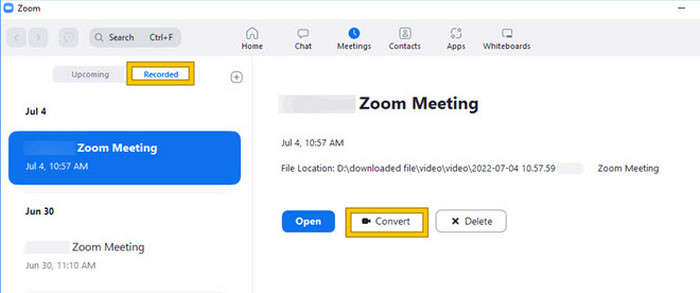
Βήμα 1. Εκκινήστε το Zoom στον υπολογιστή σας και εντοπίστε αμέσως την ενότητα Meetings για να ανοίξετε το ιστορικό των συναντήσεών σας.
Βήμα 2. Μόλις ανοίξει, θα δείτε τη λίστα με τις εγγεγραμμένες συναντήσεις σας. Βρείτε την εγγραφή που θέλετε να μετατρέψετε και κάντε κλικ για να την επιλέξετε.
Βήμα 3. Αφού την επιλέξετε, θα εμφανιστεί μια επιλογή στη δεξιά πλευρά της οθόνης. Κάντε κλικ στο κουμπί Convert και περιμένετε για το τελικό αποτέλεσμα σε MP4.
2. Transcode (macOS)
Εάν είστε χρήστης Mac και η αυτόματη μετατροπή εγγραφής του Zoom σε MP4 αποτύχει, τότε εδώ είναι ένα εύχρηστο εργαλείο που ονομάζεται Transcode για να σας βοηθήσει. Αυτό το εργαλείο σάς επιτρέπει να μετατρέψετε μη αυτόματα αυτά τα αρχεία .zoom σε MP4, τα οποία ενδέχεται να μην αναπαράγονται σωστά λόγω της αποτυχημένης αυτόματης μετατροπής. Ουσιαστικά, το Transcode παρέχει μια μη αυτόματη λύση για χρήστες Mac για να διασφαλίσουν ότι οι εγγραφές Zoom τους είναι προσβάσιμες και χρησιμοποιούνται όταν η αυτόματη διαδικασία δεν λειτουργεί όπως αναμένεται.
Βήμα 1. Εντοπίστε το αρχείο σας .zoom, κάντε διπλό κλικ σε αυτό και επιλέξτε Choose Application από το παράθυρο που θα εμφανιστεί. Έπειτα, ανοίξτε το αρχείο με την εφαρμογή Transcode, την οποία μπορείτε επίσης να ορίσετε ώστε να χρησιμοποιείται πάντα για αυτά τα αρχεία.
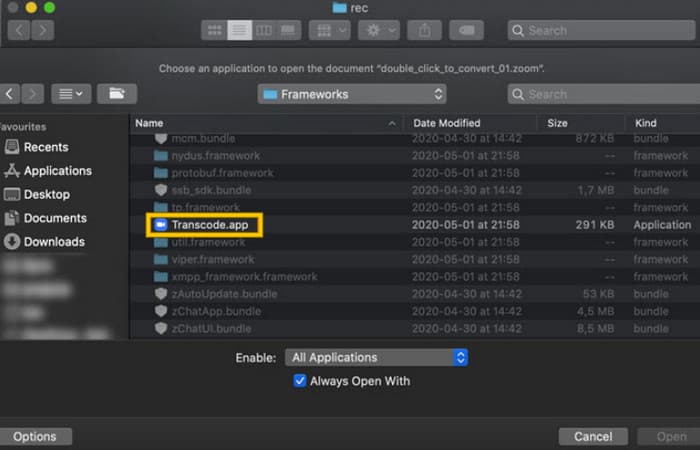
Βήμα 2. Αμέσως μετά την επιλογή της εφαρμογής, η διαδικασία μετατροπής θα ξεκινήσει αυτόματα.
Βήμα 3. Όταν ολοκληρωθεί η διαδικασία μετατροπής, επιλέξτε τον φάκελο προτίμησής σας όπου θέλετε να αποθηκευτεί το τελικό αρχείο.
3. zTscoder (Επιτραπέζιος υπολογιστής)
Εάν θέλετε ένα εργαλείο παρόμοιο με το προηγούμενο για την επιφάνεια εργασίας σας, τότε σας προτείνουμε το zTscoder. Το zTscoder είναι η έκδοση του Transcode για Windows, το πρόγραμμα στο οποίο βασίζονται οι χρήστες Mac για παρόμοιες καταστάσεις. Και τα δύο εργαλεία σάς επιτρέπουν να μετατρέπετε μη αυτόματα τα αρχεία Zoom σε τυπική μορφή MP4, η οποία ενδέχεται να μην αναπαράγεται σωστά. Επομένως, εάν βρίσκεστε τώρα απέναντι στην επιφάνεια εργασίας σας, ακολουθήστε τα παρακάτω βήματα.
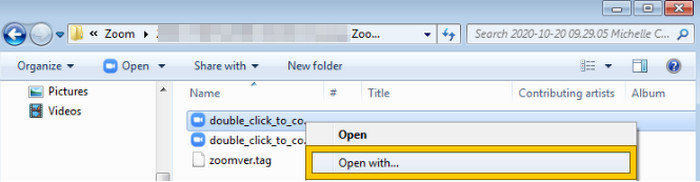
Βήμα 1. Εντοπίστε τον φάκελο όπου αποθηκεύονται οι εγγραφές Zoom και επιλέξτε εκείνη που χρειάζεται μετατροπή. Κάντε δεξί κλικ στο αρχείο και ανοίξτε το με το zTscoder.
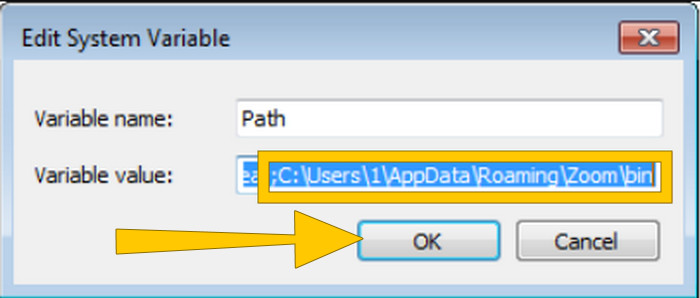
Βήμα 2. Αν το εργαλείο δεν ανταποκρίνεται, μπορείτε να πάτε στον Πίνακα Ελέγχου, να μεταβείτε στο System and Security > System και έπειτα να ανοίξετε τις Advanced System settings. Από εκεί, προσθέστε το C:\Users\*your username*\AppData\Roaming\Zoom\bin στην τιμή της μεταβλητής και στη συνέχεια κάντε κλικ στο OK.
Βήμα 3. Μόλις το αρχείο οριστεί να ανοίγει με το εργαλείο, η διαδικασία μετατροπής θα ξεκινήσει αυτόματα.
Μέρος 3. Εγγραφή συσκέψεων ζουμ σε MP4 με ποιότητα έως 4K
Θέλετε μια καλή λύση για να έχετε τις συναντήσεις Zoom σας σε MP4; Ηχογραφήστε τις με το FVC Screen Recorder! Αυτό το πρόγραμμα προσφέρει μια ευέλικτη λύση που ξεπερνά τις συναντήσεις Zoom. Σας επιτρέπει να καταγράφετε τα διαδικτυακά σας μαθήματα, τα συνέδρια, τα σεμινάρια ή οτιδήποτε εμφανίζεται στην οθόνη του Zoom. Επιπλέον, έχετε την ευελιξία να καταγράφετε ολόκληρη την οθόνη ή μόνο ένα συγκεκριμένο παράθυρο, καθώς παρέχει σχετικές ρυθμίσεις. Μπορεί επίσης να συλλάβει ήχο από το μικρόφωνο, τον ήχο του συστήματος και ακόμη και την κάμερα web σας, αρκεί να ρυθμίσετε τις επιλογές εκ των προτέρων. Το λογισμικό είναι συμβατό τόσο με Mac όσο και με υπολογιστές Windows και σας επιτρέπει να αποθηκεύετε τις εγγραφές σας σε ποιοτικές μορφές, ακόμη και έως ανάλυση 4K. Ένας ακόμη αξιοσημείωτος λόγος για να προτιμήσετε το FVC είναι ότι προχωρά ένα βήμα παραπέρα, προσφέροντας εργαλεία σχολιασμού που σας επιτρέπουν να επισημαίνετε βασικά σημεία κατά τη διάρκεια της εγγραφής. Παρακάτω θα δείτε πώς να μετατρέψετε εγγραφές Zoom σε MP4.
Βήμα 1. Εγκαταστήστε τον καταγραφέα στον υπολογιστή σας. Μπορείτε να χρησιμοποιήσετε το κουμπί Λήψης που δίνεται παρακάτω. Όσο διαρκεί η διαδικασία εγκατάστασης, ανοίξτε τη συνάντηση Zoom που θέλετε να ηχογραφήσετε σε MP4.
Δωρεάν ΛήψηΓια Windows 7 ή νεότεραΑσφαλής Λήψη
Δωρεάν ΛήψηΓια MacOS 10.7 ή νεότεροΑσφαλής Λήψη
Βήμα 2. Εκκινήστε το πρόγραμμα και κάντε κλικ στο εργαλείο Video Recorder. Έπειτα, χρειάζεται να ρυθμίσετε την προβολή της οθόνης ώστε να καλύπτει ολόκληρη τη διεπαφή της συνάντησης Zoom. Μπορείτε επίσης να ρυθμίσετε τον ήχο System και το Microphone, αν θέλετε.
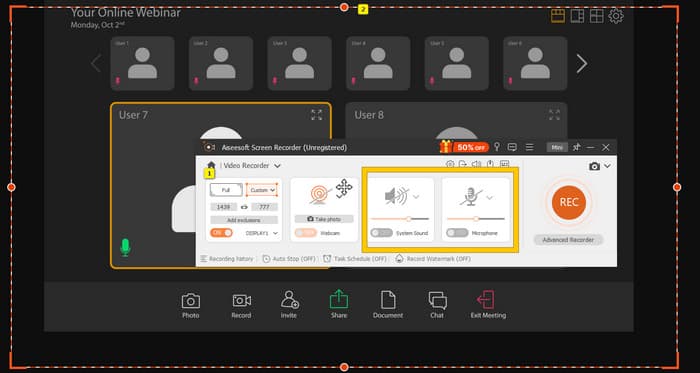
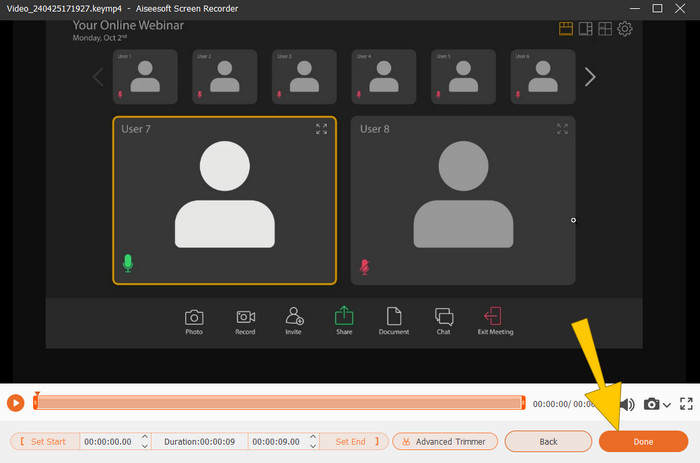
Βήμα 3. Στη συνέχεια, κάντε κλικ στο κουμπί REC για να ξεκινήσει η εγγραφή. Όταν τελειώσει η συνάντηση, κάντε κλικ στο κουμπί Stop από τη μπάρα που αιωρείται στην οθόνη. Έπειτα, κάντε μια μικρή προσαρμογή στο νέο παράθυρο. Διαφορετικά, κάντε κλικ στο κουμπί DONE για να προχωρήσετε στην αποθήκευση της εγγραφής.
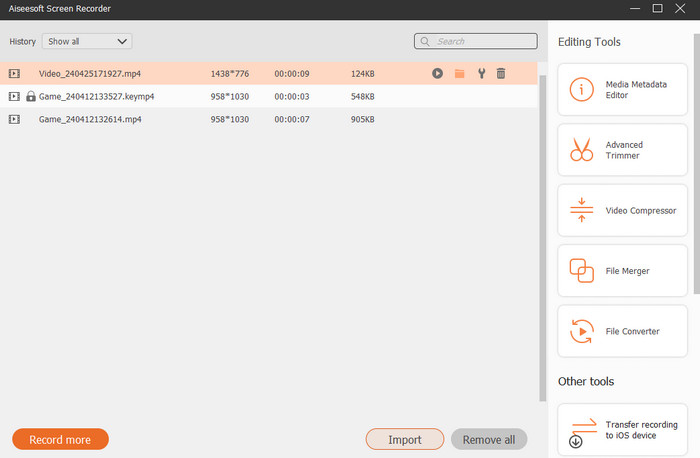
Βήμα 4. Για περισσότερες επιλογές επεξεργασίας, το εργαλείο θα σας μεταφέρει στη βιβλιοθήκη του, όπου θα δείτε τη λίστα με τις εγγραφές σας. Εκεί θα βρείτε και τα εργαλεία επεξεργασίας που μπορείτε ελεύθερα να χρησιμοποιήσετε.
Επέκταση ανάγνωσης:
6 εκπληκτικά εργαλεία MP4 Recorder για το 2024 [Δωρεάν & Επί πληρωμή]
Top 5 Zoom Meeting Recorders για εγγραφή συναντήσεων στο Zoom [2024]
Μέρος 4. Συχνές ερωτήσεις σχετικά με τη μετατροπή εγγραφής ζουμ
Είναι οι εγγραφές με ζουμ MP4;
Ναί. Ωστόσο, οι εγγραφές ενδέχεται να μην είναι σε MP4 εάν διακόπηκαν κατά λάθος.
Υπάρχει όριο στη διάρκεια των εγγραφών που μπορώ να μετατρέψω σε MP4;
Εξαρτάται. Οι δωρεάν λογαριασμοί ενδέχεται να έχουν περιορισμούς στον αποθηκευτικό χώρο και στις επιλογές μετατροπής, ενώ τα προγράμματα επί πληρωμή συνήθως προσφέρουν μεγαλύτερη ευελιξία και υψηλότερα όρια.
Πώς μπορώ να μετατρέψω μια εγγραφή Zoom σε MP4;
Μπορείτε να μετατρέψετε μια εγγραφή Zoom σε MP4 με το πρόγραμμα-πελάτη Zoom, καθώς έχει μια ενσωματωμένη δυνατότητα μετατροπής. Όταν ανοίγετε την εγγραφή, πρέπει απλώς να κάνετε κλικ στο κουμπί Μετατροπή.
συμπέρασμα
Από προεπιλογή, οι συναντήσεις Zoom αποθηκεύονται σε MP4, αλλά αν τα αρχεία δεν αποθηκευτούν σωστά, θα χρειαστεί και πάλι να μετατρέψετε τις εγγραφές Zoom σε MP4. Το καλό είναι ότι σε αυτήν την ανάρτηση παρουσιάζονται αποτελεσματικοί τρόποι για να κάνετε τη μετατροπή. Ελπίζουμε να σας φάνηκε χρήσιμη.
-
 7 του Magnificent Voice Recorder προσβάσιμο σε όλες τις πλατφόρμες
 Θέλετε να μάθετε πώς να κάνετε ηχογράφηση; Στη συνέχεια, μεταβείτε σε αυτό το άρθρο καθώς μιλάμε για την καλύτερη συσκευή εγγραφής ήχου που μπορεί να ταιριάζει στις ανάγκες σας.
-
 CamStudio 2025 Review: Πλεονεκτήματα και μειονεκτήματα της χρήσης του CamStudio
 Το CamStudio είναι ένα φανταστικό δωρεάν και ανοιχτού κώδικα πρόγραμμα καταγραφής οθόνης για την εγγραφή της οθόνης σας. Είναι ασφαλές το καταγραφικό οθόνης CamStudio; Λοιπόν, αυτή η κριτική θα σας βοηθήσει να ανακαλύψετε όλες τις δυνατότητες του CamStudio.
-
 Εφικτοί τρόποι για τον τρόπο εγγραφής ήχου με το VLC Player
 Μάθετε τους καλύτερους τρόπους εγγραφής ήχου με συσκευή αναπαραγωγής VLC και άλλα πρακτικά εργαλεία, διαβάζοντας το άρθρο.
