


 Video Converter Ultimate
 Εγγραφή οθόνης
 Επισκευή βίντεο
 Ασφαλές κατέβασμα
3 Μηχανήματα αφαίρεσης υδατογραφημάτων Shutterstock για χρήση και κατάργηση του υδατογραφήματος στα βίντεο
Χρειάζεστε βίντεο υψηλής ποιότητας με άδεια χρήσης από το Shutterstock για το πρότζεκτ σας, αλλά εμφανίζεται πάνω τους το υδατογράφημα του Shutterstock; Με τη βοήθεια του Shutterstock watermark remover, μπορείτε εύκολα να σβήσετε το υδατογράφημα από το ληφθέν βίντεο. Σε επαγγελματικό αλλά και σε προσωπικό επίπεδο, δεν μας αρέσει τα βίντεό μας να έχουν υδατογράφημα, γιατί καταστρέφει όλη την ιδέα του βίντεο. Αν, λοιπόν, θέλετε να απαλλαγείτε από το υδατογράφημα του Shutterstock, μπορείτε να συνεχίσετε να διαβάζετε τις πληροφορίες και το σύντομο οδηγό που παρουσιάζουμε σε αυτό το άρθρο.

Μέρος 1. Πώς να αφαιρέσετε το υδατογράφημα Shutterstock με το απόλυτο εργαλείο αφαίρεσης υδατογραφήματος στην αγορά [Επιλογή του συντάκτη]
Το FVC Video Converter Ultimate μπορεί με ακρίβεια να σας βοηθήσει και να σας καθοδηγήσει σχετικά με το πώς να αφαιρέσετε το υδατογράφημα του Shutterstock από το βίντεο που έχετε αποθηκεύσει. Πρόκειται για μια ολοκληρωμένη λύση που μπορείτε να κατεβάσετε σε Windows και Mac, ώστε να προσαρμόσετε το βίντεό σας, όπως για παράδειγμα να αφαιρέσετε υδατογραφήματα. Παρά το γεγονός ότι είναι ένα «πολυεργαλείο» λογισμικό, ο δημιουργός του προγράμματος διατηρεί τη φιλικότητα προς τον χρήστη σε υψηλό επίπεδο, ώστε ο καθένας που θέλει να το χρησιμοποιήσει να μπορεί να το κάνει χωρίς να διαθέτει εκτεταμένες γνώσεις.
Ακόμη και με δεξιότητες χαμηλού επιπέδου, μπορείτε να έχετε ένα κορυφαίο αποτέλεσμα στο τέλος μόλις χρησιμοποιήσετε αυτό το πρόγραμμα επεξεργασίας. Δεν έχετε πειστεί ακόμα με τις πληροφορίες που προσθέσαμε; Για να το αποδείξουμε, θα σας διδάξουμε πώς να αφαιρέσετε το υδατογράφημα του Shutterstock δωρεάν με αυτό το πρόγραμμα επεξεργασίας βίντεο.
Βήμα 1. Για να αφαιρέσετε το υδατογράφημα από το βίντεο που έχετε κατεβάσει, θα χρειαστεί πρώτα να κατεβάσετε αυτόν τον επεξεργαστή, κάνοντας κλικ στο κατάλληλο κουμπί λήψης για το λειτουργικό σας σύστημα. Θα ακολουθήσει μια σύντομη διαδικασία εγκατάστασης· μόλις ολοκληρωθεί, μπορείτε να ξεκινήσετε να χρησιμοποιείτε το λογισμικό.
Δωρεάν ΛήψηΓια Windows 7 ή νεότεραΑσφαλής λήψη
Δωρεάν ΛήψηΓια MacOS 10.7 ή νεότεροΑσφαλής λήψη
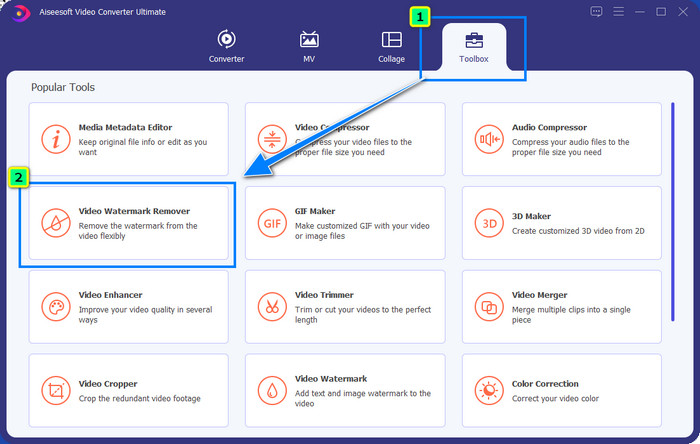
Βήμα 2. Στη συνέχεια, χρησιμοποιήστε το Video Watermark Remover, το οποίο θα βρείτε στην ενότητα Toolbox. Όπως θα δείτε, μπορείτε να χρησιμοποιήσετε πολλές δυνατότητες και λειτουργίες επεξεργασίας για να προσαρμόσετε την εικόνα στο αποτέλεσμα που προτιμάτε.
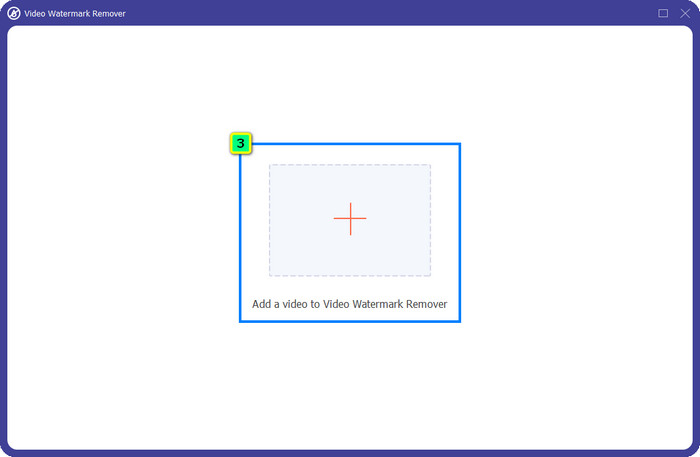
Βήμα 3. Πατήστε το εικονίδιο συν και θα εμφανιστεί στη οθόνη σας ο διαχειριστής αρχείων. Επιλέξτε το αρχείο βίντεο με το υδατογράφημα και μετά κάντε κλικ στο Open για να το ανεβάσετε.
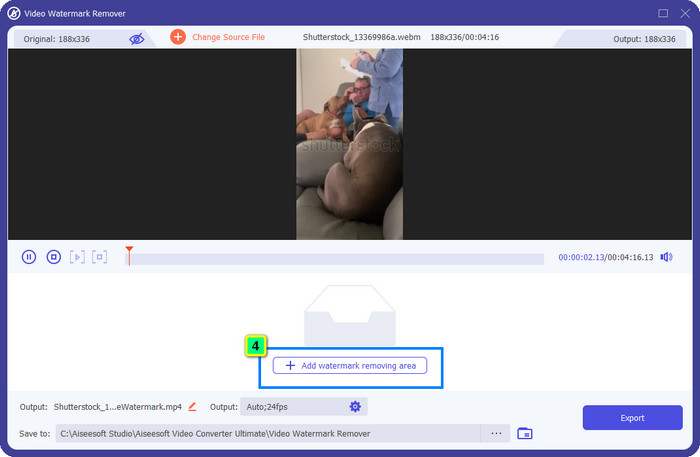
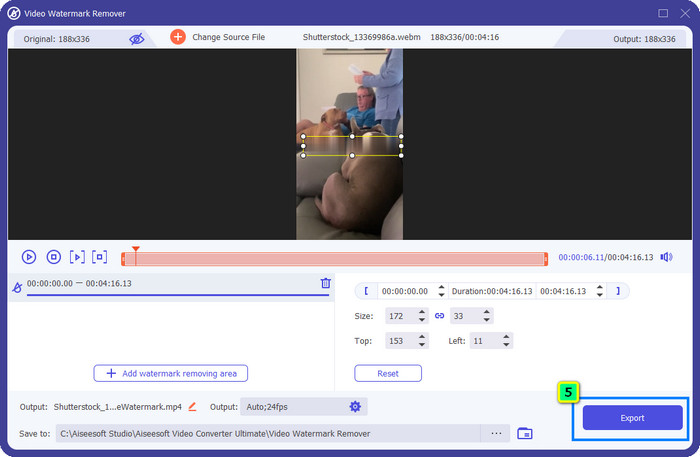
Βήμα 4. Για να σβήσετε το υδατογράφημα από το βίντεο που ανεβάσατε, πατήστε Add Watermark Removing Area και θα εμφανιστεί ένα νέο παράθυρο.
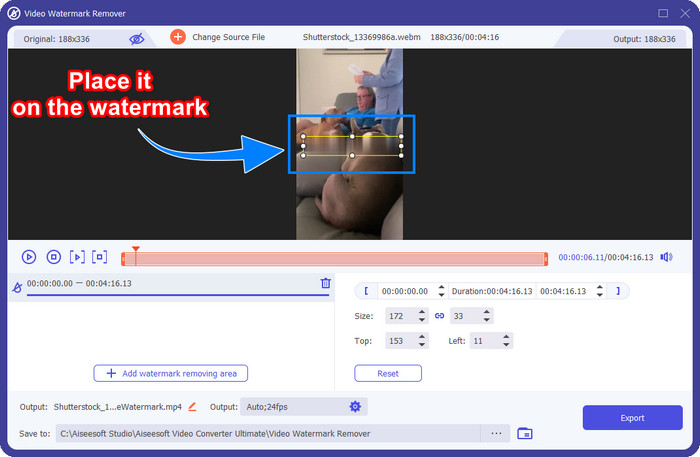
Βήμα 5. Σε αυτό το σημείο, θα εμφανιστεί ένα τετράγωνο επάνω στο βίντεό σας· τοποθετήστε το πάνω στο υδατογράφημα. Μπορείτε να αλλάξετε το μέγεθος, να το σύρετε, να το μικρύνετε ή να το μεγεθύνετε, ώστε να εφαρμόζει ακριβώς στην περιοχή του υδατογραφήματος που θέλετε να διαγράψετε.
Βήμα 6. Τέλος, κάντε κλικ στο κουμπί Export για να κατεβάσετε το τελικό αποτέλεσμα του βίντεο Shutterstock που αποθηκεύσατε στη συσκευή σας. Πλέον μπορείτε να το απολαύσετε χωρίς να ανησυχείτε για το υδατογράφημα, καθώς έχει αφαιρεθεί.
Μέρος 2. Πώς να αφαιρέσετε το υδατογράφημα Shutterstock Online δωρεάν
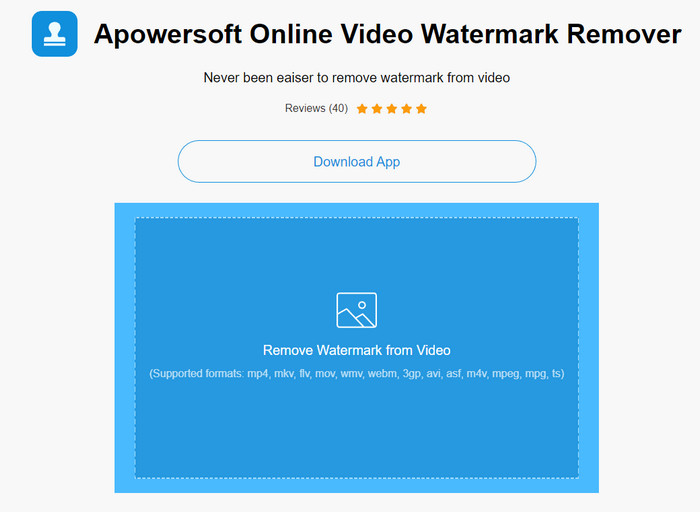
Δεν σας αρέσει η ιδέα να κατεβάσετε πρόγραμμα αφαίρεσης υδατογραφήματος στον υπολογιστή σας; Αν ναι, μπορείτε να χρησιμοποιήσετε το Apowersoft Online Watermark Remover, και είμαστε εδώ για να σας δείξουμε πώς να αφαιρέσετε το υδατογράφημα του Shutterstock διαδικτυακά. Είναι μια εξαιρετική επιλογή για όσους χρειάζεται να αφαιρέσουν υδατογράφημα από κάποιο βίντεο ή εικόνα που διαθέτουν. Ο λόγος που το προσθέτουμε είναι ότι αυτό το λογισμικό είναι εύκολα προσβάσιμο και συμβατό με τα διάφορα λειτουργικά συστήματα που μπορεί να έχετε.
Σε αντίθεση με τα εργαλεία εκτός σύνδεσης, θα χρειαστείτε μια σταθερή και ισχυρή σύνδεση στο διαδίκτυο για να τα χρησιμοποιήσετε. Όπως υποσχόμαστε, παρακάτω είναι το σεμινάριο σχετικά με τη χρήση αυτού του εργαλείου αφαίρεσης υδατογραφήματος για την αφαίρεση του υδατογραφήματος που αφήνει το Shutterstock σε αυτό.
Βήμα 1. Ανοίξτε την επίσημη ιστοσελίδα του Apowersoft Online Watermark Remover χρησιμοποιώντας τη μηχανή αναζήτησης της προτίμησής σας και, στη συνέχεια, κάντε κλικ στο κουμπί + στα δεξιά για να ανεβάσετε το αρχείο βίντεο.
Βήμα 2. Τοποθετήστε το selection box πάνω στο υδατογράφημα του Shutterstock στο βίντεο.
Βήμα 3. Έπειτα, κάντε κλικ στο Erase για να αφαιρέσετε το υδατογράφημα και να δείτε το αποτέλεσμα.
Βήμα 4. Πατήστε το Download File για να αποκτήσετε το βίντεο Shutterstock χωρίς το υδατογράφημα.
Μέρος 3. Πώς να αφαιρέσετε το υδατογράφημα Shutterstock χρησιμοποιώντας το Photoshop [Paid]
Πολλοί χρήστες ρωτούν πώς να αφαιρέσουν το υδατογράφημα του Shutterstock χρησιμοποιώντας το Photoshop, και είμαστε εδώ για να σας βοηθήσουμε! Το Adobe Photoshop υποστηρίζει μια επαγγελματική λειτουργία αφαίρεσης υδατογραφημάτων, την οποία θα λατρέψετε να χρησιμοποιήσετε. Όπως και το λογισμικό που παρουσιάστηκε σε αυτό το άρθρο, κάνει τη δουλειά· ωστόσο, η προσέγγισή του για την αφαίρεση υδατογραφημάτων γίνεται καρέ προς καρέ. Αυτό σημαίνει ότι θα χρειαστεί να αφιερώσετε χρόνο για να εξαλείψετε το υδατογράφημα σε κάθε καρέ του βίντεο· όσο μεγαλύτερο είναι το βίντεο, τόσο περισσότερα καρέ θα έχει. Αν θέλετε να μάθετε πώς λειτουργεί το εργαλείο, διαβάστε τα παρακάτω ενημερωτικά βήματα.
Βήμα 1. Κατεβάστε την εφαρμογή στον υπολογιστή σας και, στη συνέχεια, κάντε κλικ στο File. Από εκεί, πατήστε Open για να ανεβάσετε το βίντεο που είναι αποθηκευμένο στον υπολογιστή σας.
Βήμα 2. Στα αριστερά, επιλέξτε το Magic Wand Tool και μετά κάντε κλικ στο υδατογράφημα που θέλετε να αφαιρέσετε. Αυτή η λειτουργία θα εντοπίσει αυτόματα το υδατογράφημα στο καρέ.
Βήμα 3. Μεταβείτε στο Edit και πατήστε Content-Aware Fill αφού εντοπίσετε το υδατογράφημα.
Βήμα 4. Μόλις ανοίξετε το Content-Aware Fill, θα αφαιρέσει αυτόματα το υδατογράφημα που επιλέξατε νωρίτερα· στη συνέχεια πατήστε OK.
Περαιτέρω ανάγνωση:
Εύκολοι τρόποι για να αφαιρέσετε το υδατογράφημα Shootproof
Πώς να αφαιρέσετε εύκολα το υδατογράφημα του Bandicam [3 αποτελεσματικοί τρόποι]
Μέρος 4. Συχνές ερωτήσεις σχετικά με τον τρόπο κατάργησης του υδατογραφήματος Shutterstock
Πώς να αφαιρέσετε το υδατογράφημα Shutterstock χωρίς Photoshop;
Μπορείτε να χρησιμοποιήσετε το FVC Video Converter Ultimate για να αφαιρέσετε το Shutterphoto που είναι συνδεδεμένο στο βίντεό σας. Διαθέτει μια ισχυρή γόμα υδατογραφήματος που θα θέλατε να δοκιμάσετε. Ακολουθήστε τα βήματα που προσθέτουμε σε αυτό το άρθρο για να το κάνετε τόσο αποτελεσματικά όσο το Photoshop.
Η περικοπή του υδατογραφήματος του Shutterstock θα λειτουργήσει σε βίντεο;
Εάν θέλετε να αλλάξετε το μέγεθος του βίντεο αλλάζοντας τη διάσταση, μπορείτε να περικόψετε το βίντεο με τη βοήθεια πολλών προγραμμάτων επεξεργασίας βίντεο στο διαδίκτυο και εκτός σύνδεσης. Εφόσον το υδατογράφημα του Shutterstock βρίσκεται στη μέση, είναι προτιμότερο να μην χρησιμοποιείτε τα χαρακτηριστικά περικοπής. Πολλά προϊόντα αφαίρεσης υδατογραφημάτων είναι εδώ για να βοηθήσουν. μπορείτε να διαβάσετε και να αντιγράψετε το σεμινάριο που προσθέτουμε, ώστε να μπορείτε να το διαγράψετε αποτελεσματικά χωρίς να αφήσετε μουτζούρα πάνω του.
Είναι νόμιμη η αφαίρεση του υδατογραφήματος του Shutterstock;
Η αφαίρεση του υδατογραφήματος του Shutterstock δεν είναι νόμιμη, αλλά αν θέλετε να το χρησιμοποιήσετε για μη εμπορικούς σκοπούς, μπορείτε να το κάνετε με τη βοήθεια ενός εργαλείου αφαίρεσης υδατογραφήματος. Είναι καλύτερα να αγοράσετε τη φωτογραφία που θέλετε στο Shutterstock εάν πρόκειται να τη χρησιμοποιήσετε για εμπορικούς σκοπούς. Αν και θα σας κόστιζε, θα σας επιτρέψει τουλάχιστον να έχετε νόμιμα δικαιώματα να το χρησιμοποιήσετε.
συμπέρασμα
Τώρα γνωρίζετε πώς να αφαιρέσετε το υδατογράφημα του Shutterstock με το λογισμικό που περιλαμβάνεται σε αυτό το άρθρο. Λοιπόν, ποιο λογισμικό προτιμάτε, το επί πληρωμή, το δωρεάν online ή το ultimate εργαλείο; Όποια κι αν είναι η επιλογή σας, μπορείτε να αποκτήσετε εικόνα Shutterstock χωρίς το λογότυπο του προϊόντος. Αν, όμως, μας ρωτήσετε τι θα προτείναμε εμείς, χωρίς δισταγμό θα επιλέγαμε το FVC Video Converter Ultimate, καθώς προσφέρει την πιο ικανοποιητική ολοκλήρωση της εργασίας. Παρά το γεγονός ότι είναι ένα ολοκληρωμένο εργαλείο αφαίρεσης υδατογραφημάτων, παραμένει εύκολο στη χρήση. Αν, λοιπόν, θέλετε να δοκιμάσετε αυτό το λογισμικό, μπορείτε να κάνετε κλικ στο κουμπί λήψης για να το αποκτήσετε στον υπολογιστή σας.
-
 Απόλυτα εργαλεία για την κατάργηση υδατογραφήματος από εξαγόμενα βίντεο του Renderforest
 Για να αφαιρέσετε το υδατογράφημα από το Renderforest θα χρειαστείτε ένα εργαλείο αφαίρεσης υδατογραφήματος στη συσκευή σας, όλα τα εργαλεία που μπορείτε να χρησιμοποιήσετε είναι εδώ.
-
 Εύκολα βήματα για το πώς να αφαιρέσετε το υδατογράφημα του ρυθμιστικού WOW [Επίλυση]
 Το WOW Slider είναι μια εφαρμογή για τη δημιουργία ενός φανταστικού slideshow. Ωστόσο, ενσωματώνει υδατογραφήματα στην έξοδο του. Διαβάστε παρακάτω για να μάθετε πώς μπορείτε να αφαιρέσετε το υδατογράφημα του WOW Slider.
-
 Πώς να απαλλαγείτε από το υδατογράφημα του Power Director δωρεάν [Ολοκληρώθηκε]
 Πώς να απαλλαγείτε από το υδατογράφημα του Power Director δωρεάν; Τα καλύτερα εργαλεία για την εξάλειψη του υδατογραφήματος είναι εδώ, γι' αυτό μάθετε τα διαβάζοντας αυτό.
