


 Video Converter Ultimate
 Εγγραφή οθόνης
 Επισκευή βίντεο
 Ασφαλές κατέβασμα
Πώς να αφαιρέσετε το Biteable Watermark από τα βίντεό σας χωρίς κόπο
Αν ψάχνετε για τους καλύτερους και πιο εύκολους τρόπους να αφαιρέσετε τα υδατογραφήματα του Biteable από τα βίντεό σας, δεν χρειάζεται πλέον να ταλαιπωρείστε. Ειλικρινά, το να βλέπεις ένα βίντεο με υδατογραφήματα είναι εκνευριστικό και απογοητευτικό. Δεν μπορείς να απολαύσεις πραγματικά το βίντεο που παρακολουθείς. Επιπλέον, αυτά τα υδατογραφήματα αποσπούν την προσοχή των θεατών. Είναι κατανοητό ότι τα υδατογραφήματα υπάρχουν για την προστασία του κατόχου του βίντεο. Όμως, η τοποθέτηση ενός μεγάλου υδατογραφήματος δεν είναι καλή πρακτική. Δημιουργεί μόνο αρνητικές εντυπώσεις σε όσους αγαπούν να βλέπουν τα αγαπημένα τους βίντεο. Ένα παράδειγμα είναι τα υδατογραφήματα του Biteable. Αυτά τα υδατογραφήματα προέρχονται από την εφαρμογή Biteable, όπου το υδατογράφημα προστίθεται αυτόματα μετά τη δημιουργία ή αποθήκευση ενός βίντεο. Ευτυχώς, μπορείτε να χρησιμοποιήσετε εφαρμογές για να αφαιρέσετε αυτά τα υδατογραφήματα από τα βίντεό σας. Μπορείτε έτσι να παρακολουθείτε τα αγαπημένα σας βίντεο χωρίς να αισθάνεστε εκνευρισμό και απογοήτευση. Αν θέλετε να μάθετε ποιες είναι οι καλύτερες και πιο αξιόπιστες εφαρμογές που πρέπει να χρησιμοποιήσετε για να αφαιρέσετε αυτά τα υδατογραφήματα, συνεχίστε να διαβάζετε αυτό το άρθρο.

Μέρος 1: Ο καλύτερος τρόπος για να αφαιρέσετε το Biteable Watermark από τα βίντεο
Το Video Converter Ultimate είναι η καλύτερη και πιο ολοκληρωμένη εφαρμογή που μπορείτε να χρησιμοποιήσετε για την αφαίρεση των υδατογραφημάτων του Biteable από τα βίντεό σας. Επιπλέον, αυτό το εξαιρετικό λογισμικό είναι ικανό να αφαιρεί και άλλα άσχετα και ενοχλητικά αντικείμενα, όπως λογότυπα, κείμενα, υπογραφές κ.λπ. Επίσης, η διαδικασία αφαίρεσης και αποθήκευσης είναι πολύ γρήγορη, ώστε να μην σπαταλάτε χρόνο. Επιπλέον, το Video Converter Ultimate προσφέρει δύο εύκολες μεθόδους για να αφαιρέσετε υδατογραφήματα από τα βίντεό σας: τον κόπτη/περικοπή βίντεο (video cropper) και την αφαίρεση υδατογραφημάτων βίντεο (video watermark remover). Διαθέτει επίσης περισσότερα εργαλεία επεξεργασίας που μπορείτε να απολαύσετε, όπως ελεγκτή ταχύτητας βίντεο, μετατροπέα βίντεο, συμπιεστή βίντεο, διόρθωση χρωμάτων, δημιουργό κολάζ, δημιουργό GIF, κόπτη βίντεο, μετατροπέα εικόνων και πολλά άλλα. Το πιο σημαντικό πλεονέκτημα αυτού του εργαλείου είναι ότι μπορείτε να το χρησιμοποιήσετε πολύ εύκολα, αφού έχει ένα απλό και κατανοητό περιβάλλον εργασίας, ιδανικό για αρχάριους. Υποστηρίζει επίσης διάφορες μορφές αρχείων, όπως MP4, MOV, FLV, MKV, OGV, DIVX και άλλες. Τέλος, το Video Converter Ultimate είναι διαθέσιμο τόσο σε Windows όσο και σε Mac, κάτι που είναι πολύ βολικό για τους χρήστες. Αν θέλετε να αφαιρέσετε ένα υδατογράφημα από ένα βίντεο, ακολουθήστε τα παρακάτω απλά και εύκολα βήματα.
Χρησιμοποιώντας το εργαλείο Αφαίρεσης υδατογραφήματος βίντεο
Βήμα 1: Μεταβείτε στην ιστοσελίδα του Video Converter Ultimate και κατεβάστε την εφαρμογή. Στη συνέχεια προχωρήστε στη διαδικασία εγκατάστασης. Μετά την εγκατάσταση, εκκινήστε την εφαρμογή.
Δωρεάν ΛήψηΓια Windows 7 ή νεότεραΑσφαλής λήψη
Δωρεάν ΛήψηΓια MacOS 10.7 ή νεότεροΑσφαλής λήψη
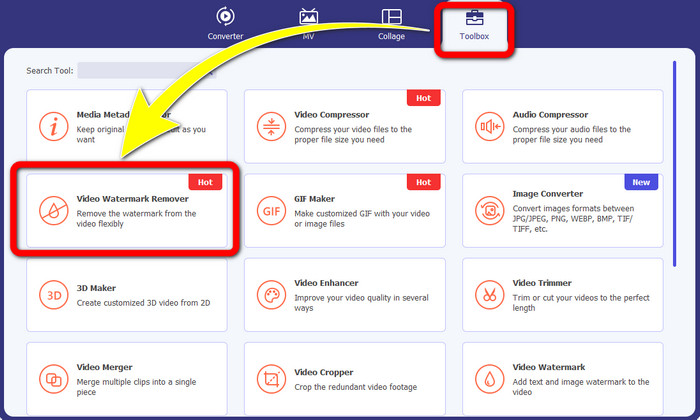
Βήμα 2: Αφού ανοίξετε το Video Converter Ultimate, κάντε κλικ στο κουμπί Toolbox > Video Watermark Remover. Έπειτα θα εμφανιστεί μια νέα διεπαφή στην οθόνη σας.
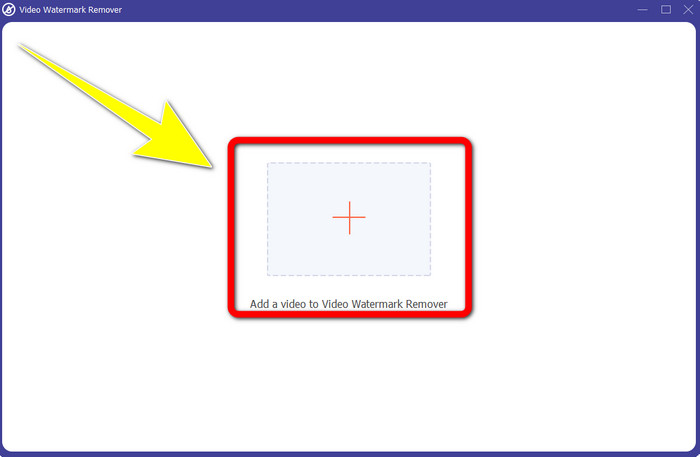
Βήμα 3: Όταν η νέα διεπαφή εμφανιστεί στην οθόνη σας, κάντε κλικ στο κουμπί με το σύμβολο Plus για να προσθέσετε το βίντεό σας με το υδατογράφημα του Biteable.
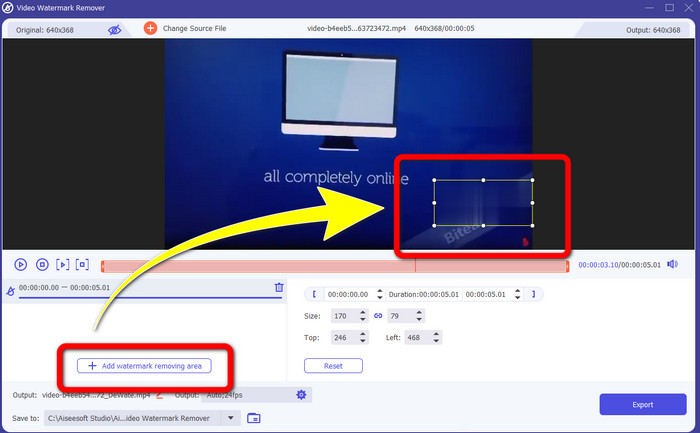
Βήμα 4: Αφού προσθέσετε το βίντεό σας, κάντε κλικ στο Add Watermark Removing Area. Έπειτα θα εμφανιστεί ένα μικρό πλαίσιο επάνω στο βίντεό σας. Σύρετε το πλαίσιο ώστε να καλύψει τα υδατογραφήματα.
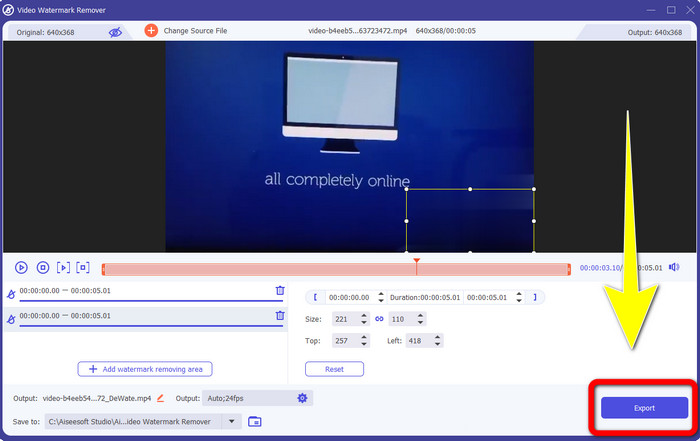
Βήμα 5: Όταν αφαιρέσετε το υδατογράφημα του Biteable από το βίντεό σας, κάντε κλικ στο κουμπί Export για να αποθηκεύσετε το τελικό αποτέλεσμα.
Χρησιμοποιώντας το εργαλείο Video Cropper
Βήμα 1: Εκκινήστε το Video Converter Ultimate. Κάντε κλικ στο κουμπί Toolbox > Video Cropper.
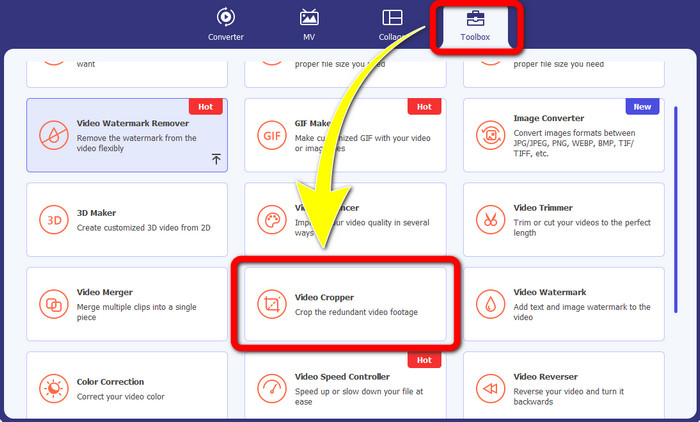
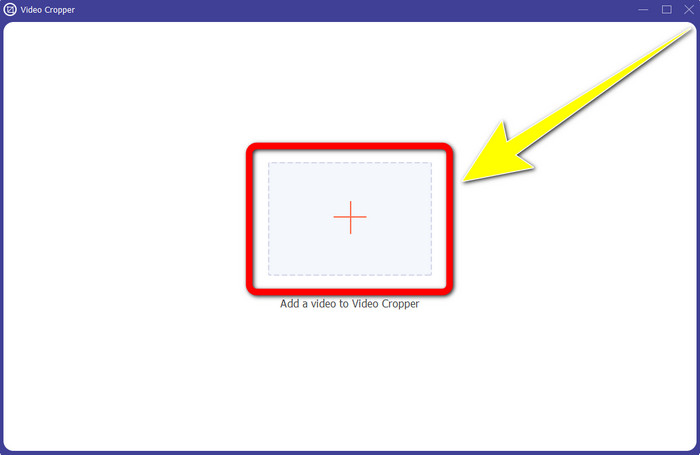
Βήμα 2: Αφού κάνετε κλικ στο Video Cropper, θα εμφανιστεί μια νέα διεπαφή στην οθόνη σας. Πατήστε το εικονίδιο Plus και προσθέστε το βίντεό σας με το υδατογράφημα του Biteable.
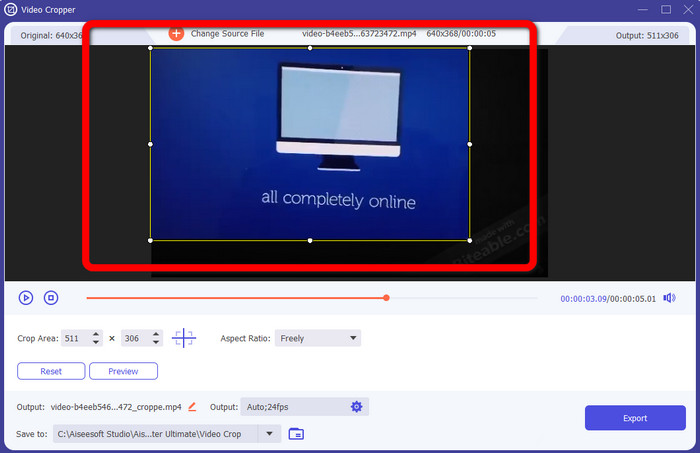
Βήμα 3: Αφού προσθέσετε το βίντεό σας, μπορείτε πλέον να το Crop (περικόψετε) για να αφαιρέσετε τα υδατογραφήματα.
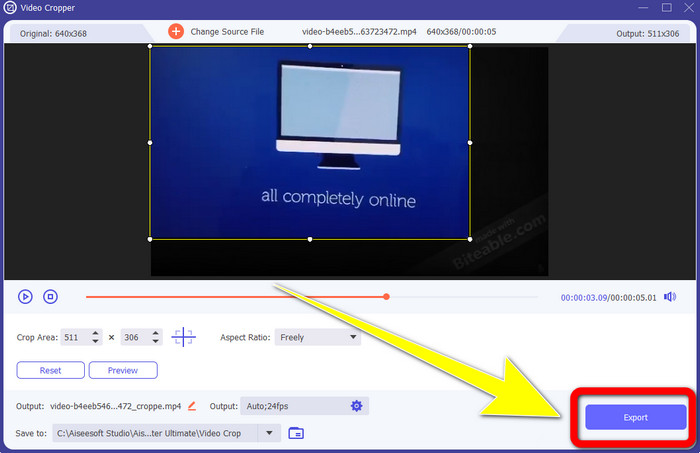
Βήμα 4: Όταν ολοκληρώσετε την περικοπή του βίντεό σας, κάντε κλικ στο κουμπί Export και αποθηκεύστε το βίντεο χωρίς το υδατογράφημα του Biteable.
Μέρος 2: Πώς να αφαιρέσετε το Biteable Watermark από τα διαδικτυακά βίντεο
1. Χρήση του BeeCut
Εάν θέλετε να αφαιρέσετε το υδατογράφημα που μπορείτε να δαγκώσετε δωρεάν στο διαδίκτυο, το BeeCut είναι η καλύτερη διαδικτυακή εφαρμογή που μπορείτε να χρησιμοποιήσετε. Έχει τη δυνατότητα να αφαιρεί υδατογραφήματα από τα βίντεό σας. Είναι ένα απλό διαδικτυακό εργαλείο που μπορείτε να χρησιμοποιήσετε, το οποίο είναι ιδανικό για αρχάριους. Μπορείτε να αφαιρέσετε υδατογραφήματα που μπορούν να δαγκωθούν από τέσσερα βίντεο σε λίγα μόνο βήματα.
Επιπλέον, το BeeCut διαθέτει πολλά εργαλεία επεξεργασίας, όπως περικοπή, κοπή, διαχωρισμό και συνδυασμό βίντεο. Επιπλέον, εάν θέλετε να δημιουργήσετε ένα βίντεο, μπορείτε να προσθέσετε υπότιτλους στο βίντεό σας παρακάτω, κάτι που είναι βολικό για τους θεατές. Ωστόσο, είναι αργή στη μεταφόρτωση αρχείων και στην αποθήκευση διαδικασιών χρησιμοποιώντας αυτό το εργαλείο. Επίσης, δεν μπορείτε να χρησιμοποιήσετε αυτό το εργαλείο εάν δεν έχετε σύνδεση στο Διαδίκτυο. Εάν θέλετε να αφαιρέσετε τα υδατογραφήματα που μπορούν να δαγκωθούν από το βίντεό σας χρησιμοποιώντας αυτό το διαδικτυακό εργαλείο, ακολουθήστε τα παρακάτω βήματα.
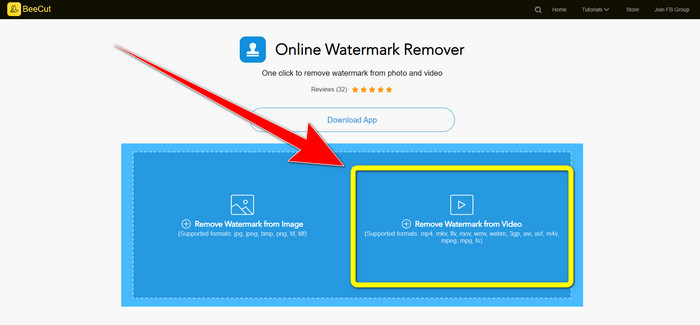
Βήμα 1: Επισκεφθείτε την ιστοσελίδα του BeeCut. Έπειτα κάντε κλικ στο κουμπί Remove Watermark from Video και προσθέστε το βίντεό σας με το υδατογράφημα του Biteable.
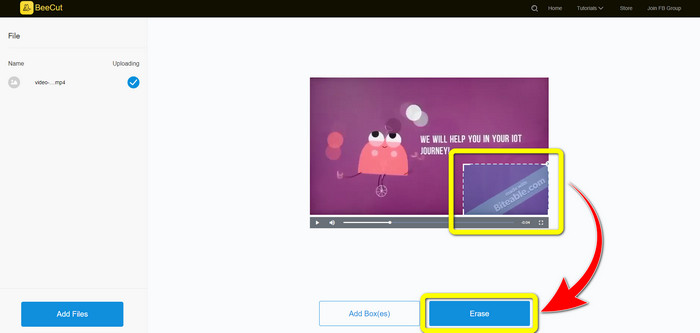
Βήμα 2: Αφού προσθέσετε το αρχείο σας, θα εμφανιστεί ένα μικρό πλαίσιο επάνω στο βίντεο. Σύρετέ το και καλύψτε το υδατογράφημα του Biteable. Όταν τελειώσετε με την κάλυψη των υδατογραφημάτων, κάντε κλικ στο κουμπί Erase.
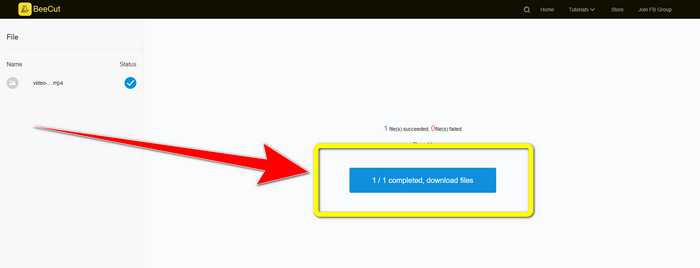
Βήμα 3: Όταν κάνετε κλικ στο κουμπί Erase, περιμένετε να ολοκληρωθεί η διαδικασία αφαίρεσης. Στη συνέχεια μπορείτε να κατεβάσετε το αρχείο και να απολαύσετε την παρακολούθηση χωρίς το υδατογράφημα του Biteable στο βίντεό σας.
2. Χρήση Blur Video Online
Εάν εξακολουθείτε να ψάχνετε για άλλη εφαρμογή που μπορείτε να χρησιμοποιήσετε για να αφαιρέσετε το υδατογράφημα που μπορεί να δαγκωθεί από το βίντεό σας στο διαδίκτυο, το Blur Video Online είναι ένα εξαιρετικό εργαλείο για εσάς. Και το Blur Video Online είναι διαθέσιμο για όλες σχεδόν τις συσκευές και τα προγράμματα περιήγησης, όπως το Google Chrome, Opera, IE, Mozilla Firefox και άλλα. Ωστόσο, αυτή η εφαρμογή που εξαρτάται από τον ιστό είναι πολύ αργή στην εισαγωγή αρχείων βίντεο και η διαδικασία αφαίρεσης υδατογραφημάτων είναι χρονοβόρα. Είναι επίσης ένα εργαλείο που εξαρτάται από το Διαδίκτυο, πράγμα που σημαίνει ότι λειτουργεί μόνο εάν έχετε σύνδεση στο Διαδίκτυο. Ακολουθήστε τα παρακάτω απλά βήματα για να αφαιρέσετε/θολώσετε ένα υδατογράφημα Biteable από το βίντεό σας.
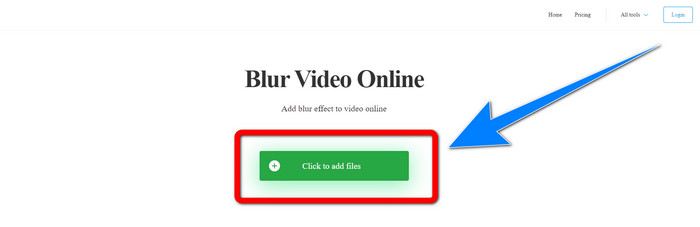
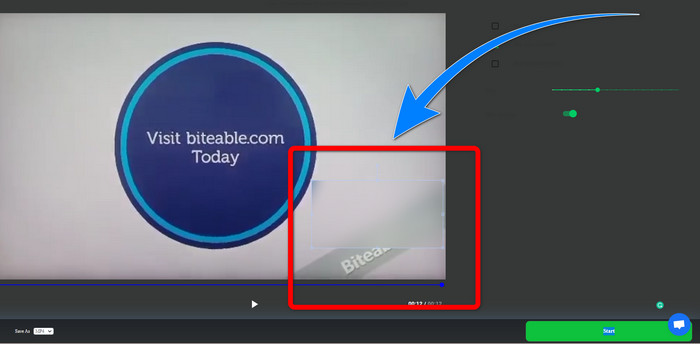
Βήμα 1: Μεταβείτε στην ιστοσελίδα του Blur Video Online. Έπειτα κάντε κλικ στο κουμπί Click to Add File και προσθέστε το βίντεό σας με το υδατογράφημα.
Βήμα 2: Αφού εισαγάγετε το βίντεό σας, θα εμφανιστεί ένα πλαίσιο επάνω στο βίντεο. Σύρετέ το ώστε να καλύψει τα υδατογραφήματα και αποθηκεύστε το τελικό αποτέλεσμα.
Σχετικά με:
Ο καλύτερος τρόπος για να αφαιρέσετε το υδατογράφημα από το Camtasia 9 στα Windows
Πώς να αφαιρέσετε γρήγορα το banner υδατογραφήματος από το AVS Video Editor
Μέρος 3: Συχνές ερωτήσεις σχετικά με την κατάργηση υδατογραφημάτων με δυνατότητα Biteable από βίντεο
Μπορώ να αφαιρέσω μια σφραγίδα ημερομηνίας χρησιμοποιώντας το Video Converter Ultimate;
Ναι μπορείς! Το Video Converter Ultimate μπορεί να σας βοηθήσει να εξαλείψετε ενοχλητικά αντικείμενα από τα βίντεό σας, όπως σφραγίδες ημερομηνίας, υδατογραφήματα, κείμενο κ.λπ.
Είναι χρονοβόρο να αφαιρέσω τα υδατογραφήματα από τα βίντεό μου;
Εξαρτάται από τις εφαρμογές που χρησιμοποιείτε. Ορισμένες εφαρμογές μπορούν να αφαιρέσουν άμεσα τα υδατογραφήματα από τα βίντεό σας και ορισμένες εφαρμογές χρειάζονται χρόνο για να αφαιρέσουν τα υδατογραφήματα.
Υπάρχει κάποιο εργαλείο αφαίρεσης υδατογραφήματος που μπορώ να χρησιμοποιήσω χωρίς να χάσω την ποιότητα των βίντεό μου;
Ναι, υπάρχει! Μπορείτε να χρησιμοποιήσετε το Video Converter Ultimate. Δεν είναι μόνο εξαιρετικό στην αφαίρεση υδατογραφημάτων και στην επεξεργασία βίντεο· αυτή η εφαρμογή σάς επιτρέπει επίσης να αφαιρείτε υδατογραφήματα από τα βίντεό σας χωρίς απώλεια ποιότητας.
συμπέρασμα
Η αφαίρεση του υδατογραφήματος από τα βίντεό σας είναι πολύ χρήσιμη, ειδικά αν θέλετε να παρακολουθείτε τα αγαπημένα σας βίντεο χωρίς περιττά αντικείμενα. Αυτό το άρθρο σάς παρουσίασε πρακτικές εφαρμογές που μπορείτε να χρησιμοποιήσετε για την αφαίρεση των υδατογραφημάτων του Biteable από τα βίντεό σας. Τέλος, η χρήση του Video Converter Ultimate είναι η καλύτερη επιλογή, αν αναζητάτε την πιο εξαιρετική και αξιόπιστη εφαρμογή για να αφαιρείτε υδατογραφήματα από τα βίντεό σας.
-
 Πώς να αφαιρέσετε το υδατογράφημα Powtoon χρησιμοποιώντας 4 αποτελεσματικές μεθόδους
 Διαβάστε αυτό το άρθρο για να μάθετε πώς μπορείτε να αφαιρέσετε το υδατογράφημα Powtoon χρησιμοποιώντας τα καλύτερα εργαλεία που συμπεριλάβαμε εδώ και έναν οδηγό.
-
 Αναθεώρηση του Apowersoft Watermark Remover – Χαρακτηριστικά, πλεονεκτήματα και μειονεκτήματα και τιμές
 Το Apowersoft Watermark Remover είναι ένα από τα καλύτερα υδατογραφήματα που υποστηρίζει online και offline, κάντε κλικ σε αυτό για να μάθετε περισσότερα!
-
 3 από τα πιο πρόσφατα μηχανήματα αφαίρεσης υδατογραφημάτων Shutterstock που θα χρειαστείτε ποτέ
 Δεν σας αρέσει το υδατογράφημα Shutterstock που επισυνάπτεται στο εξαγόμενο βίντεο; Μπορείτε να χρησιμοποιήσετε ένα εργαλείο αφαίρεσης υδατογραφήματος Shutterstock για να το διαγράψετε αποτελεσματικά.
