


 Video Converter Ultimate
 Εγγραφή οθόνης
 Επισκευή βίντεο
 Ασφαλές κατέβασμα
Επαγγελματικοί τρόποι για τη μετατροπή εικόνων σε διάνυσμα
Η καλύτερη μορφή γραφικών για λογότυπα και σχέδια είναι τα διανυσματικά γραφικά. Αυτό οφείλεται στις καθαρές καμπύλες και γραμμές τους. Επιπλέον, αντί για εικονοστοιχεία, χρησιμοποιούνται εξισώσεις για την κατασκευή τους. Μπορούν να κλιμακωθούν σε οποιοδήποτε μέγεθος χωρίς απώλεια ευκρίνειας. Ο χρήστης χρειάζεται να μπορεί να μετατρέπει φωτογραφίες σε διανύσματα. Τα καλά νέα είναι ότι μπορείτε να μάθετε όσα χρειάζεται να γνωρίζετε διαδικτυακά, χάρη στην αφθονία εργαλείων και μαθημάτων που είναι διαθέσιμα. Οι σχεδιαστές και οι διαφημιστές πρέπει να μάθουν να δουλεύουν με τον διαδεδομένο τύπο αρχείου που είναι γνωστός ως διανυσματικές εικόνες. Εξάλλου, τα διαφημιστικά πανό (billboards) και άλλες μορφές διαφήμισης προτιμούν αυτή τη μορφή. Υπάρχουν πολυάριθμες τεχνικές για τη μετατροπή εικόνων σε διανύσματα. Αν θέλετε τον καλύτερο τρόπο για να μετατρέψετε εικόνες σε διανύσματα, τότε υπάρχει λόγος που διαβάζετε αυτόν τον οδηγό.

Μέρος 1. Τι είναι ένα διάνυσμα εικόνας;
Μια εικόνα υπολογιστή με σημεία, γραμμές και καμπύλες αναφέρεται ως διανυσματική εικόνα. Με βάση μαθηματικές εξισώσεις, χρησιμοποιείται για τη δημιουργία διαφόρων σχημάτων. Κάθε μαθηματική εξίσωση έχει μοναδικές ιδιότητες όπως χρώμα, πάχος, καμπύλη και άλλα. Εξαιτίας αυτού, μια διανυσματική εικόνα μπορεί να μεγεθύνεται και να κλιμακώνεται προς τα πάνω ή προς τα κάτω χωρίς να χάνονται οι λεπτομέρειες της εικόνας. Αυτό σημαίνει ότι οι γραμμές, οι καμπύλες και τα σημεία παραμένουν ομαλές ανεξάρτητα από το μέγεθος ή τον βαθμό μεγέθυνσης στην εικόνα. Δεν θα υπάρχουν ποτέ θολές ή κουρελιασμένες άκρες στο έργο τέχνης. Τα λογότυπα είναι συχνά διανυσματικά αρχεία. Επιπλέον, τα χρώματα χωρίζονται σε διακριτά σχήματα. Τόσο απλό όσο το κλικ σε ένα κουμπί απλοποιεί την αλλαγή των χρωμάτων αυτών των γραφικών.
Μέρος 2. Καλύτερος τρόπος για να διανυσματοποιήσετε μια εικόνα
Πώς να διανυσματοποιήσετε μια εικόνα στο Illustrator
Αν θέλετε να διανυσματοποιήσετε τις εικόνες σας, μπορείτε να χρησιμοποιήσετε το Illustrator. Αυτό το πρόγραμμα σάς επιτρέπει να διανυσματοποιείτε μια εικόνα με ακρίβεια. Διαθέτει όλα τα απαραίτητα εργαλεία και επιλογές. Επίσης, υποστηρίζει σχεδόν όλες τις πιο συνηθισμένες μορφές εικόνας για προσθήκη αρχείων. Μπορείτε να προσθέσετε JPG, BMP, PNG, EPS, TIFF και άλλα. Ωστόσο, πρέπει να αγοράσετε το πρόγραμμα αν θέλετε να το χρησιμοποιείτε καθημερινά. Το Illustrator μπορεί να σας προσφέρει μόνο μια δωρεάν δοκιμαστική έκδοση για λίγες ημέρες. Επιπλέον, έχει μια περίπλοκη διαδικασία εγκατάστασης. Θα το βρείτε δύσκολο στη χρήση αν είστε αρχάριος. Πρέπει να ζητήσετε βοήθεια από προχωρημένους χρήστες αν θέλετε να διανυσματοποιήσετε τις εικόνες σας στο Illustrator. Επιπρόσθετα, το πρόγραμμα έχει πολύπλοκες επιλογές. Είναι απαραίτητο να μελετήσετε πρώτα το πρόγραμμα πριν το χρησιμοποιήσετε. Επίσης, κατά τη διανυσματοποίηση μιας εικόνας, απαιτούνται πολλά βήματα. Δείτε τη διαδικασία παρακάτω για να μάθετε πώς να διανυσματοποιείτε μια εικόνα.
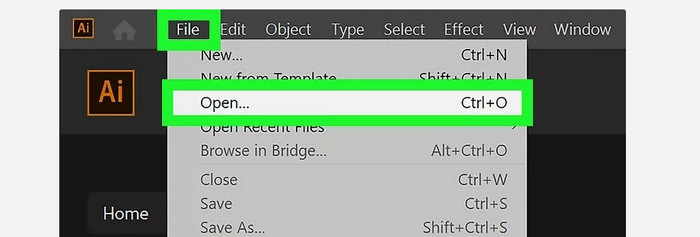
Βήμα 1. Κάντε λήψη του Illustrator στον υπολογιστή σας. Μπορείτε να χρησιμοποιήσετε τη δωρεάν δοκιμαστική έκδοση αν θέλετε. Μετά τη διαδικασία εγκατάστασης, εκκινήστε το πρόγραμμα. Μεταβείτε στο μενού File > Open για να προσθέσετε την εικόνα που θέλετε να διανυσματοποιήσετε.
Βήμα 2. Στο νέο παράθυρο που εμφανίζεται, ενεργοποιήστε το πλαίσιο Preview για να βλέπετε την εικόνα σας σε διανυσματική μορφή σε πραγματικό χρόνο.
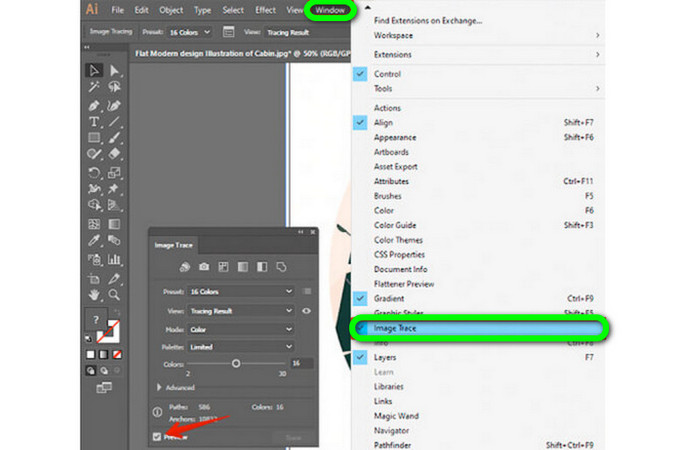
Βήμα 3. Η επιλογή λειτουργίας είναι το επόμενο βήμα για να κατανοήσετε πώς να διανυσματοποιείτε στο Illustrator. Εντοπίστε το αναπτυσσόμενο μενού Mode στο παράθυρο Image Trace και επιλέξτε τη λειτουργία που ταιριάζει καλύτερα στο σχέδιό σας. Οι διαθέσιμες λειτουργίες είναι grayscale, ασπρόμαυρο ή έγχρωμο.

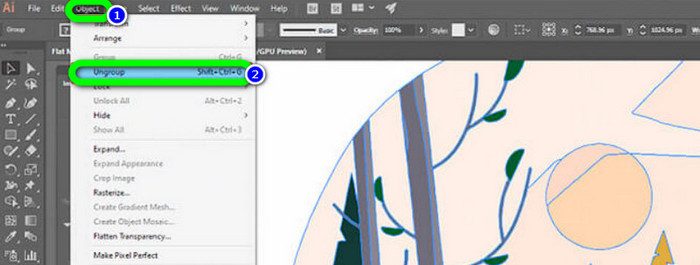
Βήμα 4. Στη συνέχεια, κάντε δεξί κλικ στην εικόνα σας. Επιλέξτε Ungroup από το αναπτυσσόμενο μενού στην καρτέλα Object. Μπορείτε επίσης να χρησιμοποιήσετε τους συνδυασμούς πλήκτρων Shift+Ctrl+G/Shift+Cmd+G αν προτιμάτε συντομεύσεις για πιο εύκολη πρόσβαση. Με αυτήν την ενέργεια τα χρωματικά σχήματα θα χωριστούν σε τμήματα.
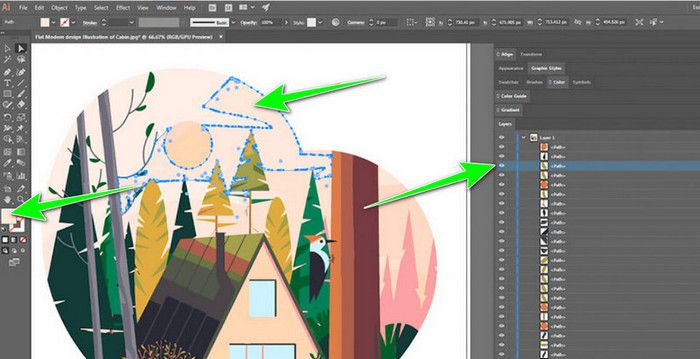
Βήμα 5. Μπορείτε να τροποποιήσετε ελεύθερα την εικόνα μόλις ολοκληρωθεί η μετατροπή. Κάντε κλικ σε ένα σχήμα και έπειτα επιλέξτε Select > Same > Fill Color για να διαγράψετε τυχόν ομάδες χρωμάτων που δεν θέλετε.
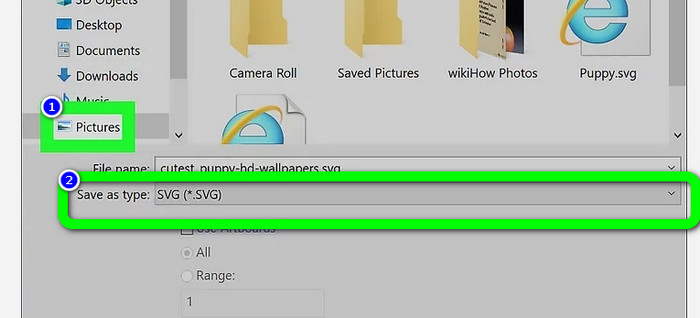
Βήμα 6. Τέλος, αποθηκεύστε την εικόνα σας ως διανυσματικό αρχείο. Μεταβείτε στην επιλογή File > Save as. Στη συνέχεια, επιλέξτε τη μορφή αρχείου SVG.
Πώς να κάνετε Vectorize μια εικόνα στο Photoshop
Το Adobe Photoshop είναι καλό στην διανυσματοποίηση μιας εικόνας. Διαθέτει αποτελεσματικές μεθόδους που το κάνουν εύχρηστο για όλους τους χρήστες. Επίσης, μπορείτε να διανυσματοποιήσετε μια εικόνα με λίγα βήματα. Επιπλέον, το Photoshop είναι ικανό και για επεξεργασία εικόνων. Αν θέλετε να επεξεργαστείτε τις εικόνες πριν τις αποθηκεύσετε, μπορείτε να το κάνετε. Ωστόσο, το Photoshop έχει ορισμένα μειονεκτήματα. Προσφέρει μόνο 7ήμερη δωρεάν δοκιμή. Μετά τη δοκιμαστική έκδοση, πρέπει να πληρώσετε για το συνδρομητικό πλάνο. Η διαδικασία εγκατάστασης είναι επίσης χρονοβόρα.
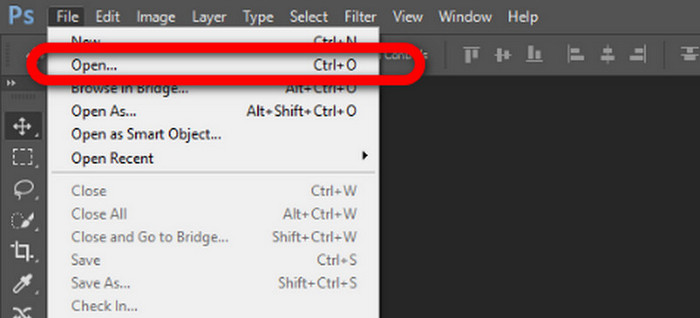
Βήμα 1. Εκκινήστε το Adobe Photoshop στον υπολογιστή σας. Στη συνέχεια, πηγαίνετε στο μενού File και επιλέξτε την επιλογή Open για να προσθέσετε την εικόνα που θέλετε να διανυσματοποιήσετε.
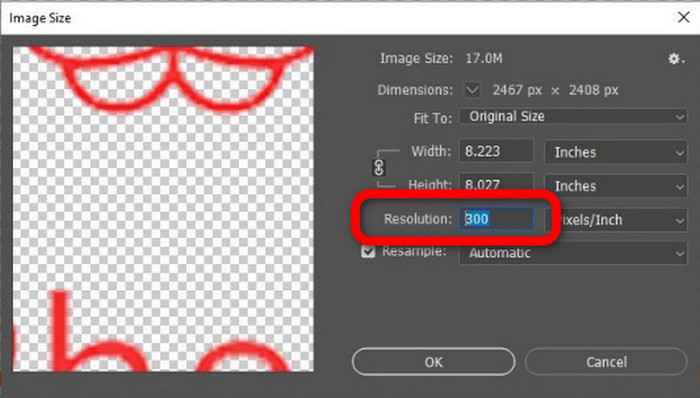
Βήμα 2. Πατήστε Ctrl + Alt + I στο πληκτρολόγιό σας για να εμφανιστεί το παράθυρο Image Size και ρυθμίστε την ανάλυση στα 300.
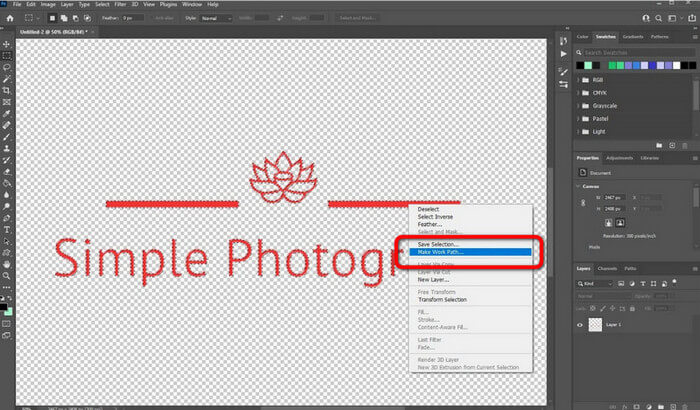
Βήμα 3. Μετακινήστε τον κέρσορα πάνω από την επιλογή, επιλέξτε το εργαλείο Marquee από την εργαλειοθήκη και κάντε δεξί κλικ. Στη συνέχεια, επιλέξτε την επιλογή Make Work Path από το μενού.
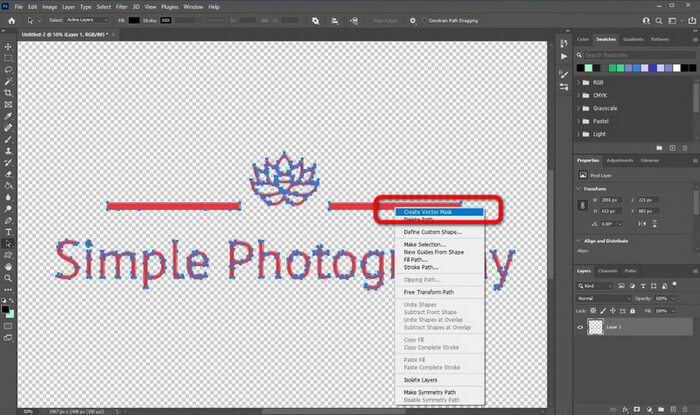
Βήμα 4. Έπειτα, πατήστε Ctrl + A στο πληκτρολόγιο για να ενεργοποιήσετε το εργαλείο Direct Selection. Μετά, κάντε δεξί κλικ στην εικόνα και επιλέξτε την επιλογή Create Vector Mask. Με αυτόν τον τρόπο θα δημιουργηθεί μια διανυσματική μάσκα πάνω στο layer.
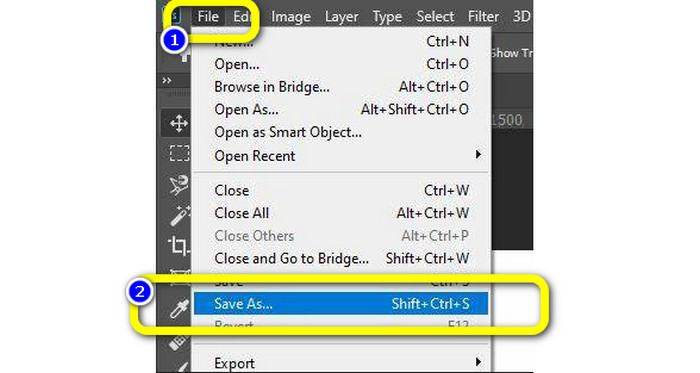
Βήμα 5. Για να αποθηκεύσετε τη διανυσματοποιημένη εικόνα, μεταβείτε στο μενού File και επιλέξτε την επιλογή Save as.
Μέρος 3. Πώς να μετατρέψετε διανυσματικές εικόνες
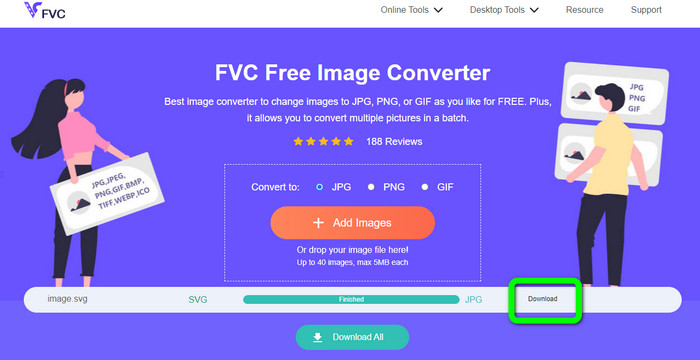
Ένας εξαιρετικός online μετατροπέας εικόνων είναι το FVC Free Image Converter. Μπορεί να μετατρέψει διανυσματικά γραφικά σε άλλες μορφές, όπως JPG και PNG. Η διεπαφή χρήστη είναι εξαιρετική. Μπορείτε να συγκεντρωθείτε αποκλειστικά στη μετατροπή αρχείων, επειδή δεν περιέχει ενοχλητικές διαφημίσεις. Επιπλέον, δεν είναι απαραίτητη η εγκατάσταση αυτού του μετατροπέα. Τον χειρίζεστε απευθείας μέσω του browser σας. Επίσης, η ποιότητα της εικόνας μετά τη μετατροπή θα είναι ίδια με του αρχικού αρχείου. Παρέχει ένα εύχρηστο περιβάλλον και οδηγίες, κάτι που είναι ιδανικό για τους χρήστες. Επιπλέον, είναι δυνατή η μετατροπή πολλών αρχείων εικόνας. Αυτός ο μετατροπέας εικόνων υποστηρίζει μετατροπή κατά παρτίδες (batch conversion). Μπορείτε επίσης να κατεβάσετε πολλά μετατρεπόμενα αρχεία με ένα μόνο κλικ. Δέχεται, επίσης, αρχεία εισόδου σε διάφορες επιπλέον μορφές, όπως PNG, BMP, TIFF και GIF. Ένα από τα θετικά στοιχεία αυτού του εργαλείου είναι η απουσία ενοχλητικών διαφημίσεων. Έτσι διασφαλίζεται ότι το τελικό αποτέλεσμα είναι ευχάριστο στη χρήση και στην προβολή. Χρησιμοποιώντας το FVC Free Image Converter, η ιδιωτικότητά σας προστατεύεται. Δεν θα αποθηκεύσει τα δεδομένα σας μετά την αποθήκευση της εικόνας.
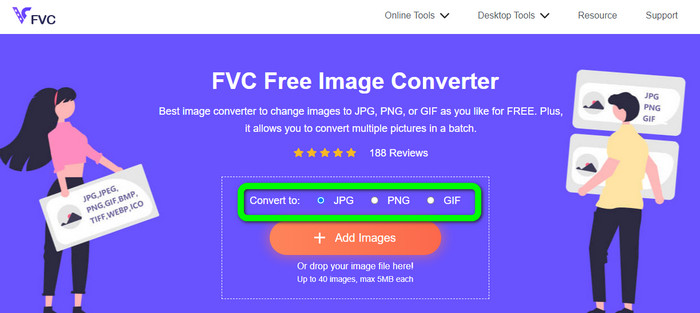
Βήμα 1. Μεταβείτε στον ιστότοπο του FVC Free Image Converter. Πηγαίνετε στην επιλογή convert και επιλέξτε την επιθυμητή μορφή εξόδου.
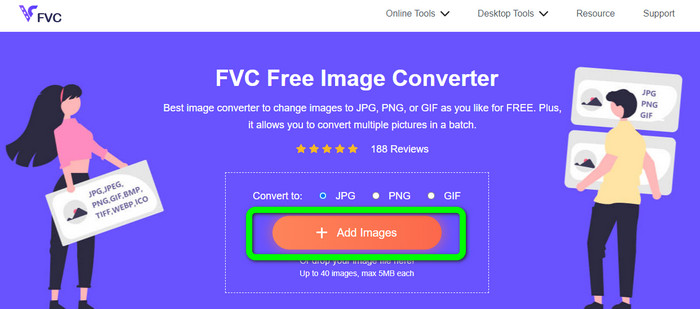
Βήμα 2. Κάντε κλικ στο κουμπί Add Images για να ανεβάσετε τη διανυσματική εικόνα. Μπορείτε επίσης να τη σύρετε μέσα στο πλαίσιο.
Βήμα 3. Αφού ανεβάσετε τη διανυσματική εικόνα, το εργαλείο θα τη μετατρέψει αυτόματα. Στη συνέχεια, μετά τη διαδικασία μετατροπής, κάντε κλικ στο κουμπί Download.
Που σχετίζονται με:
Ανεπίπονοι τρόποι μετατροπής εικόνων σε ασπρόμαυρες
Οι καλύτεροι τρόποι μετατροπής εικόνων σε συνδέσμους [Πλήρεις μέθοδοι]
Μέρος 4. Συχνές ερωτήσεις σχετικά με τη μετατροπή εικόνων σε διάνυσμα
1. Ποιες είναι οι διαφορετικές χρήσεις των διανυσματικών εικόνων;
Υπάρχουν πολλοί λόγοι για τους οποίους πρέπει να χρησιμοποιήσετε διανυσματικά αρχεία. Εάν σκοπεύετε να εκτυπώσετε εικόνες, είναι προτιμότερο να βάλετε την εικόνα σε διανυσματικό αρχείο. Εκτός από την εκτύπωση, είναι επίσης τέλειο για κινούμενα σχέδια. Οι χρήστες το χρησιμοποιούν για εικόνες καρέ-καρέ που απαιτούν λιγότερη υπολογιστική ισχύ. Επίσης, ορισμένοι σχεδιαστές χρησιμοποιούν διανυσματικές εικόνες για διαφημιστικές πινακίδες και διαφημίσεις.
2. Ποιοι είναι οι κύριοι τύποι διανυσματικών μορφών εικόνας;
Οι κύριες μορφές διανυσματικών εικόνων είναι Scalable Vectors Graphics (SVG), Windows Metafile (WMF), Adobe Illustrator Artwork (AI), Encapsulated PostScript (APS) και Portable Document Format (PDF).
3. Χρειάζομαι πάντα ένα διανυσματικό αρχείο εάν έχω κάνει σχεδιαστικές εργασίες;
Δεν είναι πάντα. Υπάρχουν τρόποι χρήσης διαφορετικών μορφών αρχείων. Αλλά αν χρειάζεστε ή όχι διανυσματικά αρχεία εξαρτάται τελικά από το είδος της δουλειάς που έχετε κάνει. Στο τέλος, εάν έχετε κάνει σχεδιαστικές εργασίες, συζητήστε τις μορφές αρχείων σας με τον σχεδιαστή σας. Με αυτόν τον τρόπο, μπορείτε να συγκεντρώσετε ή να δημιουργήσετε τα κατάλληλα αρχεία εάν δεν είναι διαθέσιμα.
4. Πώς να μετατρέψετε οποιαδήποτε εικόνα σε ασπρόμαυρη διανυσματική σιλουέτα;
Για να μετατρέψετε την εικόνα σε ασπρόμαυρη, μπορείτε να χρησιμοποιήσετε το Photoshop. Μεταβείτε στο μενού Αρχείο και επιλέξτε Άνοιγμα για να προσθέσετε την εικόνα. Στη συνέχεια, στην επάνω διεπαφή, κάντε κλικ στο μενού Εικόνα. Επιλέξτε Προσαρμογές > Όριο. Στη συνέχεια, θα εμφανιστεί το παράθυρο Threshold. Στη συνέχεια, κάντε κλικ στο OK.
συμπέρασμα
Οι διανυσματικές εικόνες είναι ιδανικές για χρήση σε διαφημίσεις, πινακίδες (billboards) και πολλά άλλα. Γι' αυτό το άρθρο σάς έμαθε τις καλύτερες μεθόδους για το πώς να διανυσματοποιήσετε μια εικόνα. Επίσης, μάθατε πώς να μετατρέπετε διανυσματικές εικόνες σε άλλες μορφές, όπως JPG και PNG. Αν θέλετε να διανυσματοποιήσετε μια εικόνα και να μετατρέψετε εικόνες σε άλλες μορφές, χρησιμοποιήστε το FVC Free Image Converter.
-
 Εύκολα κατανοητοί τρόποι μετατροπής PSD σε PNG ή JPG
 Αυτή η ανάρτηση θα σας δώσει διαχειρίσιμα βήματα για να μετατρέψετε το PSD σε JPG ή PNG. Υπάρχουν διάφοροι μετατροπείς που μπορείτε να χρησιμοποιήσετε για να μετατρέψετε τα αρχεία σας. Διαβάστε περισσότερα για να μάθετε.
-
 Δοκιμασμένοι τρόποι μετατροπής TGA σε PNG εύκολα αλλά επαγγελματικά
 Ελέγξτε αυτούς τους οδηγούς για να μάθετε πώς να μετατρέπετε το TGA σε PNG χρησιμοποιώντας μετατροπείς εικόνας στο διαδίκτυο. Κάντε κλικ στο άρθρο για να μάθετε τις πλήρεις λεπτομέρειες της μετατροπής εικόνας.
-
 Ασύγκριτα σεμινάρια για τη μετατροπή εικόνων σε μορφή SVG
 Θέλετε να μετατρέψετε τις φωτογραφίες σας σε μορφή αρχείου SVG; Στη συνέχεια, αυτή η ανάρτηση θα σας δώσει εξαιρετικούς μετατροπείς που μπορείτε να χρησιμοποιήσετε στο διαδίκτυο, εκτός σύνδεσης και σε κινητές συσκευές.
