


 Video Converter Ultimate
 Εγγραφή οθόνης
 Επισκευή βίντεο
 Ασφαλές κατέβασμα
Λύσεις για την αποκοπή βίντεο στο Διαδίκτυο [Βήμα-βήμα Εκμάθηση]
Πώς μπορείς να κάνεις το μακρύ σου βίντεο πιο σύντομο; Αν δεν γνωρίζεις τις καλύτερες μεθόδους που μπορείς να εφαρμόσεις, τότε έχεις έναν λόγο να διαβάσεις αυτόν τον οδηγό. Καθώς διαβάζεις το άρθρο, θα σου δώσουμε όλες τις βασικές πληροφορίες σχετικά με τη μείωση της διάρκειας του βίντεό σου. Επίσης, θα σου παρουσιάσουμε online και offline προγράμματα επεξεργασίας βίντεο που μπορείς να χρησιμοποιήσεις. Έτσι, θα έχεις περισσότερες ευκαιρίες να πετύχεις τον στόχο σου. Λοιπόν, χωρίς άλλη καθυστέρηση, διάβασε αυτήν την ανάρτηση και μάθε πώς να κόβεις βίντεο online.

Μέρος 1. Εξαιρετικές μέθοδοι για την αποκοπή βίντεο στο διαδίκτυο
1. InVideo
Ένα από τα χρήσιμα εργαλεία επεξεργασίας βίντεο που μπορείτε να βρείτε στο διαδίκτυο είναι το πρόγραμμα περικοπής βίντεο InVideo. Αυτό το λογισμικό που βασίζεται στο web προσφέρει μια εύχρηστη διάταξη. Αφού επισκεφτείτε τον ιστότοπο, δεν χρειάζεται να εγκαταστήσετε το εργαλείο. Το μόνο που χρειάζεται να κάνετε είναι να προσθέσετε το βίντεο και μπορείτε ήδη να προχωρήσετε στην περικοπή. Επιπλέον, αφού έχει απλή διάταξη, θα υπάρχει και μια κατανοητή μέθοδος. Με αυτόν τον τρόπο, είτε είστε επαγγελματίας είτε μη επαγγελματίας χρήστης, μπορείτε να χρησιμοποιήσετε το InVideo. Επιπλέον, το InVideo είναι προσβάσιμο σε όλες σχεδόν τις πλατφόρμες Ιστού. Μπορείτε να χρησιμοποιήσετε το εργαλείο σε Google Chrome, Mozilla Firefox, Internet Explorer και άλλα. Ωστόσο, το InVideo έχει ορισμένα μειονεκτήματα. Όταν χρησιμοποιείτε τη δωρεάν έκδοση, το InVideo δεν μπορεί να προσφέρει υψηλή ποιότητα βίντεο. Επίσης, μπορεί να προσφέρει μόνο χαμηλή ποιότητα βίντεο, η οποία δεν είναι ικανοποιητική. Εάν θέλετε εξαιρετική ποιότητα βίντεο, πρέπει να αγοράσετε ένα πρόγραμμα συνδρομής. Ακολουθήστε τα παρακάτω βήματα για να κόψετε/περικόψετε το βίντεό σας χρησιμοποιώντας το πρόγραμμα περικοπής βίντεο InVideo.
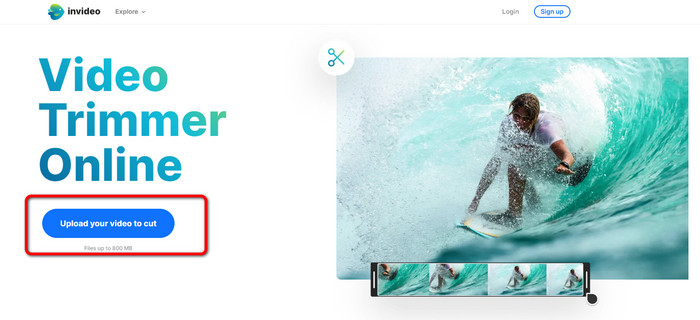
Βήμα 1. Άνοιξε το πρόγραμμα περιήγησής σου και πήγαινε στην επίσημη ιστοσελίδα του InVideo. Έπειτα, αν βρίσκεσαι ήδη στη σελίδα, κάνε κλικ στο κουμπί Upload your video to cut. Όταν εμφανιστεί ο φάκελος αρχείων στην οθόνη, επίλεξε το βίντεο που θέλεις να περικόψεις/κόψεις και άνοιξέ το.
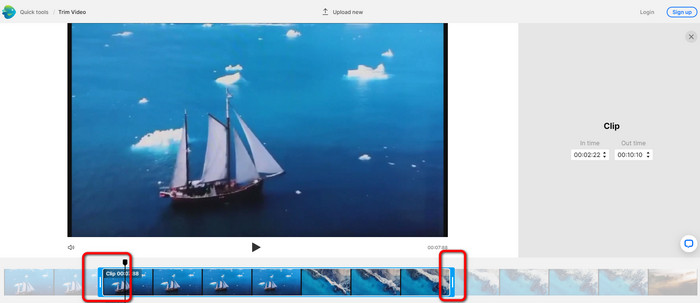
Βήμα 2. Αφού επιλέξεις ένα βίντεο, θα μεταφερθείς στο τμήμα όπου μπορείς να το περικόψεις. Για να περικόψεις το βίντεό σου, μετακίνησε τους δείκτες (sliders) στα δύο άκρα του βίντεο στο χρονικό σημείο που θέλεις.
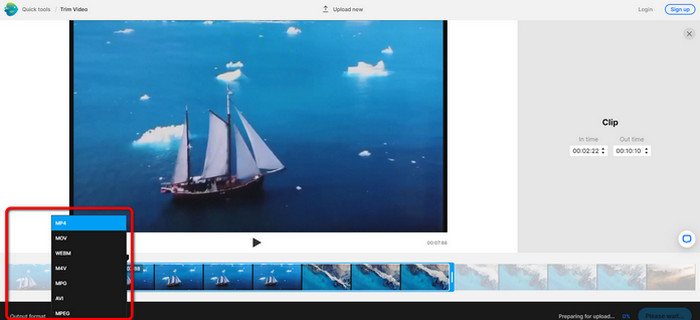
Βήμα 3. Όταν περικόψεις το βίντεο, μπορείς να το αποθηκεύσεις σε διάφορες μορφές. Πήγαινε στην επιλογή Output Format στο κάτω αριστερό μέρος της διεπαφής. Έπειτα, όταν εμφανιστούν οι επιλογές μορφών, διάλεξε τη μορφή εξόδου που προτιμάς. Στη συνέχεια κάνε κλικ στο Done.
Βήμα 4. Πρέπει να δημιουργήσεις λογαριασμό στο InVideo ή να συνδεθείς με ήδη υπάρχοντα λογαριασμό πριν μπορέσεις να αποθηκεύσεις το βίντεο. Το βίντεό σου θα είναι διαθέσιμο για αποθήκευση μέσα σε λίγα δευτερόλεπτα αφότου συμπληρώσεις τα στοιχεία σύνδεσης.
2. Εζγκίφ
Ένα ακόμη online εργαλείο κοπής βίντεο δωρεάν είναι το Ezgif. Διαθέτει απλές διαδικασίες για να συντομεύσεις ένα βίντεο. Το Ezgif είναι ένα δωρεάν online εργαλείο, επομένως δεν χρειάζεται να ανησυχείς για έξοδα. Επιπλέον, μπορείς να έχεις πρόσβαση στο εργαλείο από όλους τους browsers, όπως Google, Edge, Firefox, Explorer και άλλους. Ωστόσο, online υποστηρίζει μόνο GIF. Έτσι, αν σκοπεύεις να κόψεις ένα βίντεο σε άλλη μορφή, το Ezgif δεν είναι το κατάλληλο εργαλείο. Επίσης, όταν χρησιμοποιείς το εργαλείο, εμφανίζονται πολλές ενοχλητικές διαφημίσεις στην οθόνη, κάτι που μπορεί να αποσπά την προσοχή κατά την επεξεργασία του βίντεο.
Βήμα 1. Μετάβαση στην ιστοσελίδα του Ezgif και επιλογή της εντολής Cut.
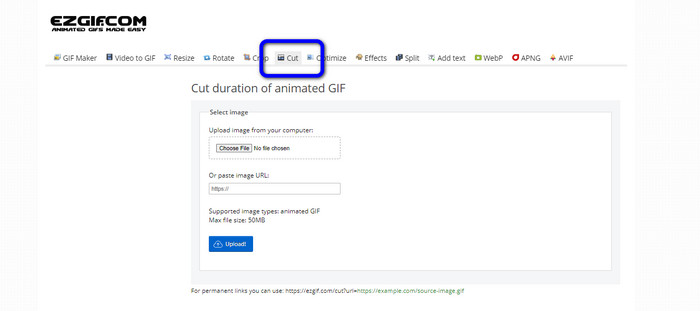
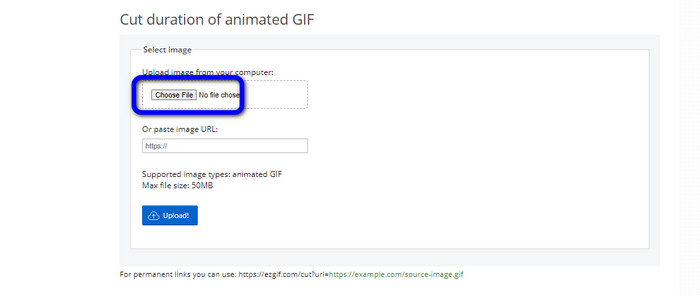
Βήμα 2. Στη συνέχεια, κάνε κλικ στο κουμπί Choose File. Έπειτα, πρόσθεσε το αρχείο GIF που θέλεις να ανεβάσεις από τον φάκελο του υπολογιστή.
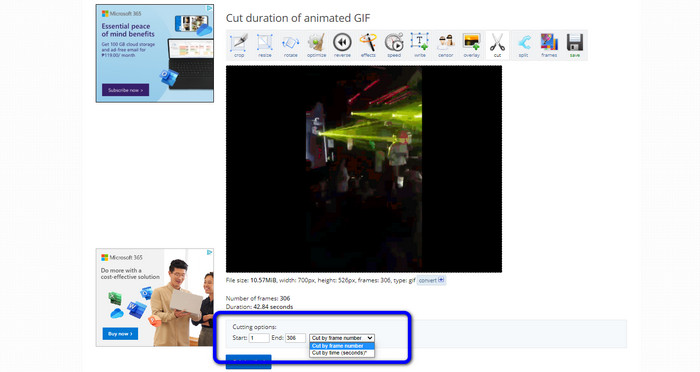
Βήμα 3. Αφού ανεβάσεις το αρχείο GIF, μπορείς πλέον να το κόψεις. Υπάρχουν δύο τρόποι να κόψεις το αρχείο GIF: μπορείς να κόψεις ανά αριθμό καρέ (frame) ή ανά χρόνο. Κόψ’ το με βάση τον τρόπο που προτιμάς.
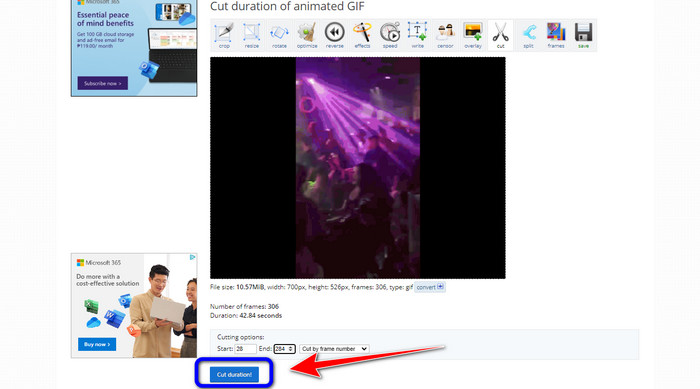
Βήμα 4. Κάνε κλικ στο κουμπί Cut Duration για να ξεκινήσει η διαδικασία κοπής.
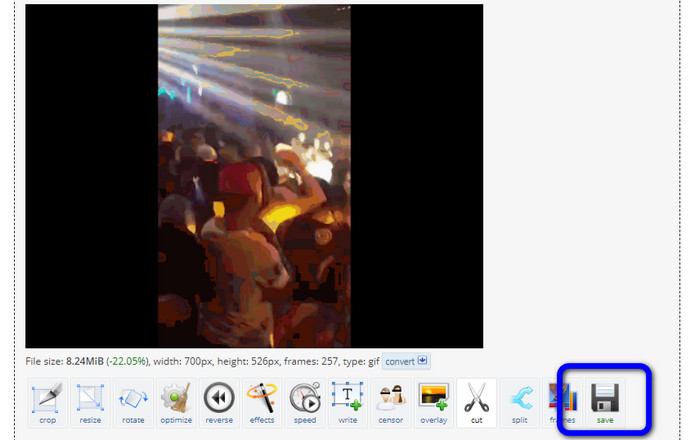
Βήμα 5. Στη συνέχεια, θα εμφανιστεί η επεξεργασμένη έκδοση. Κάνε κλικ στην επιλογή Save για να κατεβάσεις το τελικό αποτέλεσμα στον υπολογιστή σου.
3. Kapwing
Για να κόψεις βίντεο, μπορείς επίσης να χρησιμοποιήσεις το εργαλείο κοπής βίντεο Kapwing. Αυτό το διαδικτυακό εργαλείο μπορεί να κόψει ένα βίντεο με μια διαδικασία χωρίς ταλαιπωρία. Επιπλέον, μπορείς να έχεις πρόσβαση στο εργαλείο από διάφορους browsers, όπως Chrome, Mozilla, Edge και άλλους. Ακόμη, το Kapwing υποστηρίζει διάφορες μορφές βίντεο, όπως MP4, MOV, AVI, FLV, WEBM και άλλες, γεγονός που το κάνει βολικό για όλους τους χρήστες. Ωστόσο, το Kapwing έχει και ορισμένα μειονεκτήματα. Εμφανίζει ενοχλητικές διαφημίσεις συνεχώς στην οθόνη. Επιπλέον, στη δωρεάν έκδοση σου επιτρέπει να ανεβάζεις βίντεο μόνο έως 720p ποιότητα. Επίσης, προσθέτει ενοχλητικά υδατογραφήματα μετά την επεξεργασία του βίντεο. Αν θέλεις να πάρεις το βίντεο χωρίς υδατογραφήματα και να απολαύσεις περισσότερες προηγμένες λειτουργίες, πρέπει να αγοράσεις ένα συνδρομητικό πλάνο.
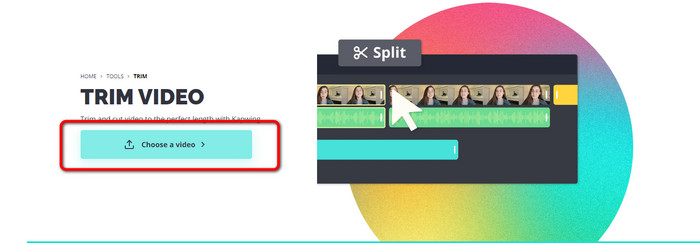
Βήμα 1. Πήγαινε στην ιστοσελίδα του Kapwing. Έπειτα, κάνε κλικ στην επιλογή Choose a video για να μεταβείς στην κύρια διεπαφή του εργαλείου.
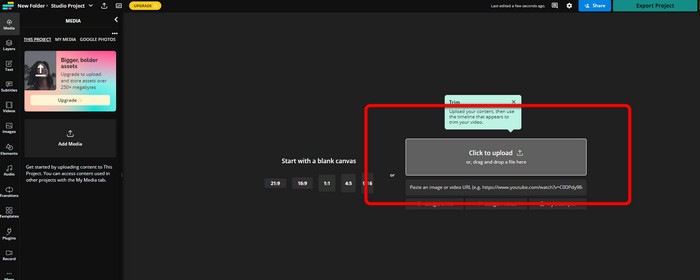
Βήμα 2. Κάνε κλικ στο κουμπί Click to upload για να εισαγάγεις το βίντεο από τον φάκελο αρχείων.
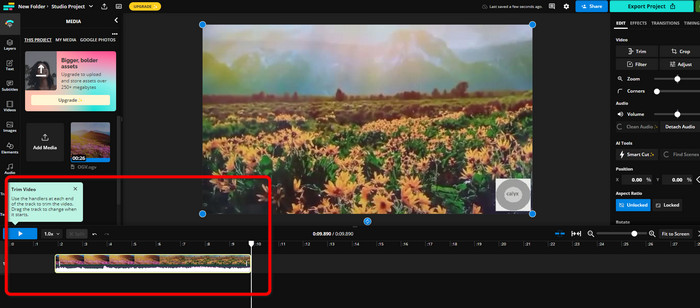
Βήμα 3. Όταν το βίντεο βρεθεί ήδη στο timeline, μπορείς να κάνεις κλικ στις λαβές (handlers) σε κάθε πλευρά για να αρχίσεις να περικόπτεις το βίντεο.
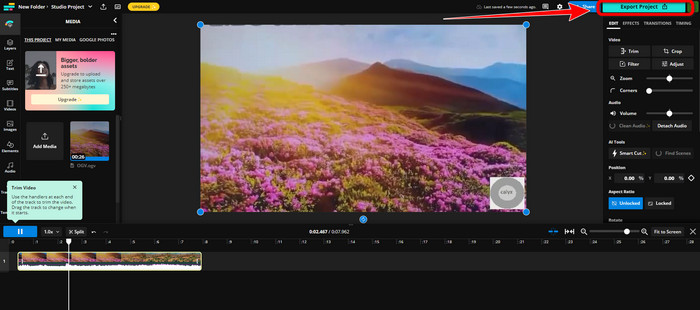
Βήμα 4. Όταν τελειώσεις, πήγαινε στην επάνω δεξιά γωνία της διεπαφής και κάνε κλικ στο κουμπί Export Project. Έτσι θα μπορέσεις να αποθηκεύσεις το επεξεργασμένο βίντεο στον υπολογιστή σου.
Μέρος 2. Εναλλακτικός τρόπος περικοπής βίντεο εκτός σύνδεσης
Χρησιμοποίησε το Video Converter Ultimate για να επεξεργάζεσαι βίντεο offline με τον καλύτερο δυνατό τρόπο. Αυτό το εργαλείο κάνει απλή υπόθεση το να κόψεις και/ή να περικόψεις το βίντεό σου. Διαθέτει επίσης ένα απλό περιβάλλον εργασίας με ξεκάθαρη πλοήγηση, γεγονός που το καθιστά ιδανικό για όλους τους χρήστες. Το τελικό σου αποτέλεσμα μπορεί επίσης να αποθηκευτεί σε διάφορες μορφές, όπως MOV, AVI, MP4, MKV και άλλες. Υπάρχουν ακόμη περισσότερα που μπορείς να κάνεις όταν κόβεις βίντεο. Μπορείς να κάνεις διάφορες ρυθμίσεις πηγαίνοντας στις επιλογές εξόδου (Output). Μπορείς να αλλάξεις τον ρυθμό καρέ (frame rate), την ανάλυση, τον κωδικοποιητή, την ποιότητα κ.λπ. Επιπλέον, το Video Converter Ultimate δεν θα προσθέσει υδατόσημα στο επεξεργασμένο βίντεο. Με αυτόν τον τρόπο, μπορείς να παρακολουθήσεις το επεξεργασμένο βίντεο χωρίς ενοχλητικά στοιχεία. Επίσης, τόσο οι χρήστες Windows όσο και οι χρήστες Mac μπορούν να έχουν πρόσβαση στο Video Converter Ultimate. Αυτό σημαίνει ότι το πρόγραμμα είναι βολικό και για χρήστες Windows και για χρήστες Mac. Ακολούθησε τις αναλυτικές οδηγίες παρακάτω για να ξεκινήσεις να κόβεις το βίντεο.
Βήμα 1. Κάνε κλικ στο κουμπί Λήψη παρακάτω για να εγκαταστήσεις το Video Converter Ultimate στον υπολογιστή σου. Άνοιξε το πρόγραμμα μετά τη διαδικασία εγκατάστασης.
Δωρεάν ΛήψηΓια Windows 7 ή νεότεραΑσφαλής λήψη
Δωρεάν ΛήψηΓια MacOS 10.7 ή νεότεροΑσφαλής λήψη
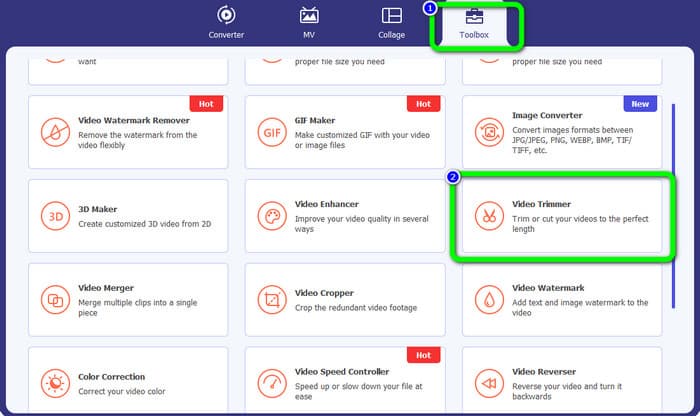
Βήμα 2. Στη διεπαφή, κάνε κλικ στο μενού Toolbox και επίλεξε το εργαλείο Video Trimmer.
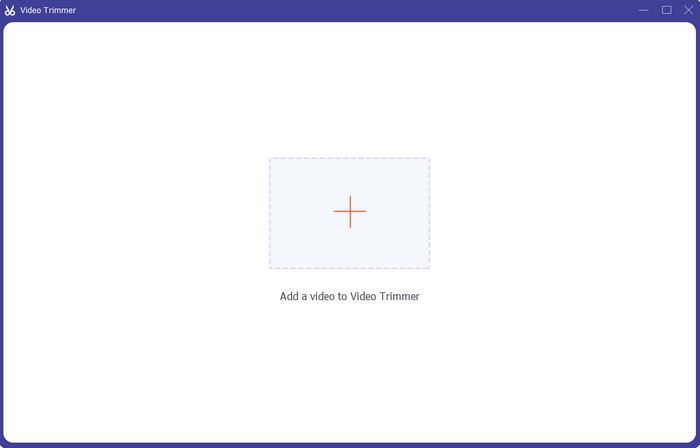
Βήμα 3. Όταν εμφανιστεί η νέα διεπαφή στην οθόνη, κάνε κλικ στο σύμβολο Plus για να εισαγάγεις το βίντεο που θέλεις να επεξεργαστείς.
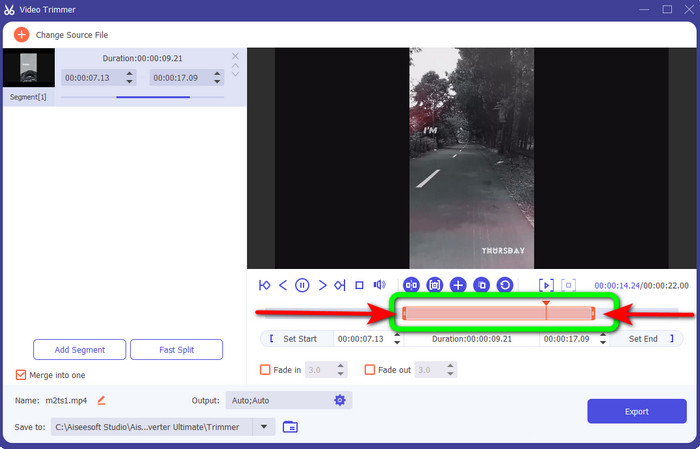
Βήμα 4. Έπειτα, μπορείς πλέον να αρχίσεις να επεξεργάζεσαι το βίντεό σου σε αυτό το σημείο. Μπορείς να μετακινήσεις τα άκρα του βίντεο για να ελέγξεις πώς θέλεις να κόψεις/περικόψεις το βίντεο. Μπορείς να μετακινήσεις τα δεξιά και αριστερά άκρα ανάλογα με τις ανάγκες σου.
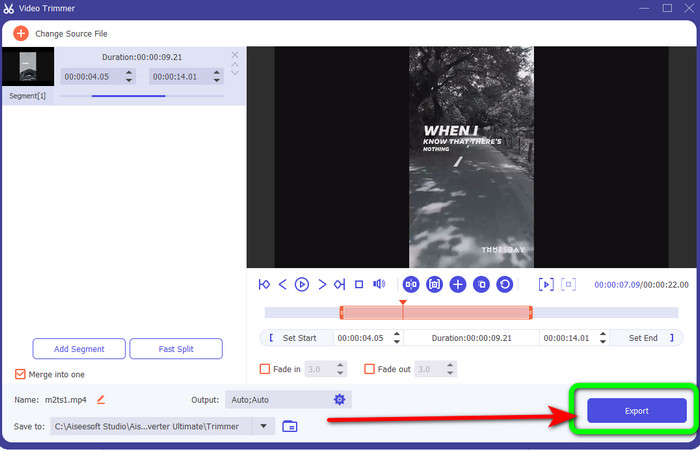
Βήμα 5. Όταν είσαι ικανοποιημένος με το βίντεο, κάνε κλικ στο κουμπί Export για να προχωρήσεις στην εξαγωγή. Έπειτα, αποθήκευσε το τελικό, επεξεργασμένο βίντεο.
Μέρος 3. Συχνές ερωτήσεις σχετικά με τον τρόπο αποκοπής βίντεο στο διαδίκτυο
Πώς να κόψετε ένα βίντεο σε ένα iPhone;
Μετά την εκκίνηση, πατήστε το βίντεο που θέλετε να επεξεργαστείτε στην εφαρμογή Εικόνες. Κάντε κλικ στην Επεξεργασία. Αλλάξτε τους χρόνους έναρξης και λήξης σύροντας τα ρυθμιστικά σε κάθε πλευρά της γραμμής χρόνου του βίντεο. Χρησιμοποιήστε το κουμπί αναπαραγωγής για να δείτε μια προεπισκόπηση του επεξεργασμένου βίντεο. Επιλέξτε Αποθήκευση βίντεο ή Αποθήκευση βίντεο ως νέο κλιπ αφού επιλέξετε Τέλος.
Πώς να κόψετε βίντεο στο Shotcut;
Σύρετε το αρχείο βίντεο στη γραμμή χρόνου αφού το εισαγάγετε στο Shotcut. Τοποθετήστε την κεφαλή αναπαραγωγής στην αρχή του τμήματος που θέλετε να περικόψετε. Στη συνέχεια, πατήστε το πλήκτρο συντόμευσης I. Πατήστε το πλήκτρο O αφού προωθήσετε την κεφαλή αναπαραγωγής στο τέλος της ενότητας. Το τμήμα θα διαχωριστεί τώρα από το υπόλοιπο βίντεο.
Ποιο είναι το καλύτερο λογισμικό για την αποκοπή αρχείων MP4 εκτός σύνδεσης;
Αν θέλεις να κόψεις αρχεία MP4 offline, χρησιμοποίησε το Video Converter Ultimate. Αυτό το πρόγραμμα δωρεάν λήψης σου επιτρέπει να κόβεις αρχεία MP4 χωρίς ταλαιπωρία.
συμπέρασμα
Αυτές είναι οι καλύτερες μέθοδοι για να κόβεις βίντεο online. Μπορείς να χρησιμοποιήσεις όλα τα προγράμματα επεξεργασίας βίντεο που αναφέρθηκαν παραπάνω για να κόψεις ένα βίντεο. Ωστόσο, όταν χρησιμοποιείς ένα online εργαλείο, υπάρχουν φορές που δεν θα αποδίδει καλά λόγω κακής σύνδεσης στο διαδίκτυο. Σε αυτήν την περίπτωση, χρησιμοποίησε το Video Converter Ultimate. Είναι ένα πρόγραμμα που μπορείς να κατεβάσεις και σου επιτρέπει να επεξεργάζεσαι βίντεο χωρίς σύνδεση στο διαδίκτυο.
-
 [4 τρόποι] Πώς να επιταχύνετε εύκολα τα βίντεό σας στο Διαδίκτυο
 Θέλετε να επιταχύνετε ένα βίντεο στο διαδίκτυο; Διαβάστε αυτό το άρθρο για να μάθετε περισσότερα σχετικά με την επιτάχυνση ενός βίντεο με διάφορους δυνατούς τρόπους.
-
 Πώς να κόψετε και να συγχωνεύσετε τραγούδια στο Διαδίκτυο - 4 καλύτεροι τρόποι που πρέπει να γνωρίζετε
 Όταν θέλετε να κόψετε και να συγχωνεύσετε τραγούδια στο διαδίκτυο για να δημιουργήσετε ένα κομμάτι μουσικής, μπορείτε να μάθετε περισσότερα σχετικά με τα 4 καλύτερα διαδικτυακά εργαλεία για να τραβήξετε τα τραγούδια και να συνδυάσετε αρχεία από το άρθρο.
-
 Ανακαλύψτε το καλύτερο MP4 Trimmer με διαδικασία και πληροφορίες
 Θέλετε να μάθετε πώς να κόβετε βίντεο όπως τα vlogger που παρακολουθείτε; Στη συνέχεια, συνεχίστε να διαβάζετε αυτήν την ανάρτηση για να μάθετε ποια κοπτικά MP4 μπορείτε να χρησιμοποιήσετε.
