


 Video Converter Ultimate
 Εγγραφή οθόνης
 Επισκευή βίντεο
 Ασφαλές κατέβασμα
Κορυφαίοι μετατροπείς MP3 σε M4A: Γρήγορη και εύκολη μετατροπή ήχου
Δεν μένετε ικανοποιημένοι όταν ακούτε χαμηλής ποιότητας ήχο που δεν αποδίδει σωστά τα αγαπημένα σας τραγούδια; Ήρθε η ώρα να αναβαθμίσετε την ηχητική σας εμπειρία με τη δύναμη της μετατροπής MP3 σε M4A! Μετατρέποντας τα αρχεία ήχου σας σε M4A, μπορείτε να ξεκλειδώσετε τις πραγματικές δυνατότητες της μουσικής σας βιβλιοθήκης και να ακούσετε μόνοι σας τη διαφορά. Σε αυτόν τον οδηγό, θα σας παρουσιάσουμε τα πλεονεκτήματα της μετατροπής MP3 σε M4A και θα σας προτείνουμε το καλύτερο λογισμικό μετατροπέων, ώστε η διαδικασία να είναι ομαλή και απροβλημάτιστη. Ετοιμαστείτε να μεταμορφώσετε την ακουστική σας εμπειρία και να απολαύσετε τη μουσική σας όπως ποτέ πριν.

Μέρος 1. Καλύτεροι τρόποι μετατροπής MP3 σε M4A
Εδώ είναι μερικοί από τους καλύτερους μετατροπείς ήχου από MP3 σε M4a. Υπάρχει ένας τρόπος εκτός σύνδεσης, ο οποίος είναι μια εφαρμογή για υπολογιστές και ένα άλλο διαδικτυακό εργαλείο, το οποίο είναι ένα πρόγραμμα που βασίζεται στον ιστό. Ελέγξτε τα για να μάθετε περισσότερα.
1. Video Converter Ultimate
Το Video Converter Ultimate είναι ένα ευέλικτο λογισμικό που προσφέρει μια σειρά από λειτουργίες για μετατροπή ήχου και βίντεο. Όσον αφορά τη μετατροπή MP3 σε M4A, το Video Converter Ultimate αποτελεί εξαιρετική επιλογή, προσφέροντας στους χρήστες μια απλή και ξεκάθαρη διαδικασία για τη μετατροπή των αρχείων ήχου τους. Το εργαλείο υποστηρίζει μια ευρεία γκάμα μορφών ήχου, ενώ η προηγμένη τεχνολογία κωδικοποίησης ήχου που διαθέτει εξασφαλίζει υψηλής ποιότητας αποτέλεσμα. Είτε χρειάζεται να μετατρέψετε αρχεία ήχου για προσωπική είτε για επαγγελματική χρήση, το Video Converter Ultimate κάνει τη διαδικασία γρήγορη, επιτρέποντάς σας να εστιάσετε σε αυτό που έχει μεγαλύτερη σημασία – την απόλαυση των υψηλής ποιότητας αρχείων ήχου σας.
Βήμα 1. Κατεβάστε και εγκαταστήστε το πρόγραμμα
Για να ξεκινήσετε, επιλέξτε ένα από τα κουμπιά Free Download και ακολουθήστε τις οδηγίες στην οθόνη για να αποθηκεύσετε το αρχείο στον υπολογιστή σας. Στη συνέχεια, εκκινήστε την εφαρμογή και εξοικειωθείτε με τα εύχρηστα, διαισθητικά χειριστήρια.
Δωρεάν λήψηΓια Windows 7 ή νεότεραΑσφαλής λήψη
Δωρεάν λήψηΓια MacOS 10.7 ή νεότεροΑσφαλής λήψη
Βήμα 2. Προσθέστε αρχεία ήχου
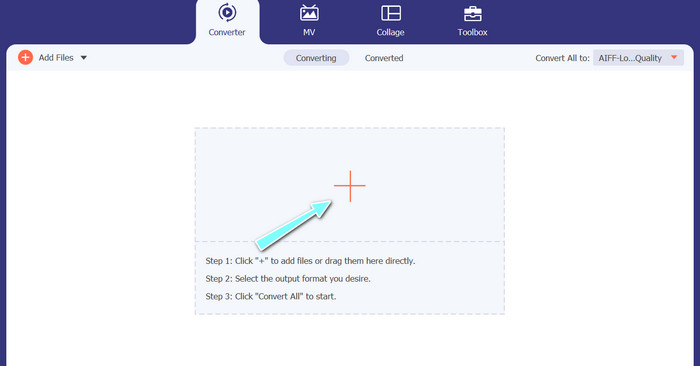
Έπειτα, επιλέξτε το σύμβολο συν από την κύρια διεπαφή και μεταβείτε στη θέση όπου βρίσκεται το αρχείο ήχου που θέλετε να μετατρέψετε. Μόλις ανέβει το αρχείο, θα εμφανιστεί μια προεπισκόπησή του στη διεπαφή χρήστη. Αν θέλετε να κάνετε μαζική μετατροπή από MP3 σε M4A, μπορείτε να ανεβάσετε έναν φάκελο με αρχεία.
Βήμα 3. Επιλέξτε μορφή εξόδου
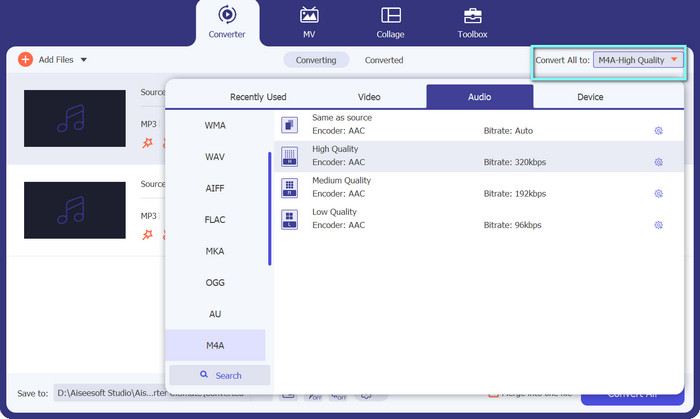
Στη συνέχεια, επιλέξτε τη μορφή εξόδου κάνοντας κλικ στην καρτέλα Audio στο μενού Profile (που βρίσκεται επάνω δεξιά στο εργαλείο). Μπορείτε να μετατρέψετε προς ή από MP3 χρησιμοποιώντας είτε τη μορφή MP3 είτε τη μορφή M4A.
Βήμα 4. Αποθηκεύστε το αποτέλεσμα
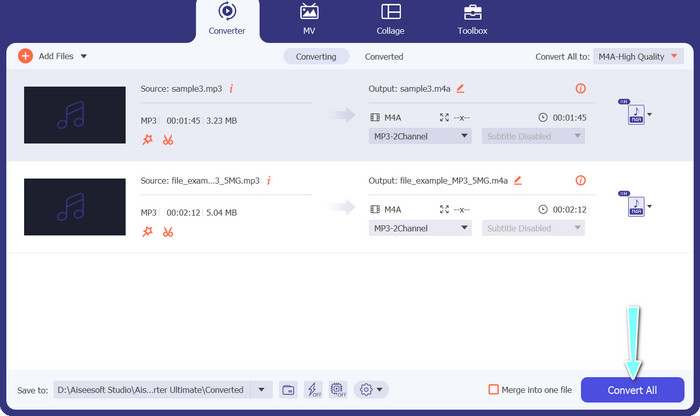
Κάτω μέρος της οθόνης, επιλέξτε τον φάκελο προορισμού. Όταν είστε έτοιμοι να ξεκινήσει η μετατροπή, κάντε κλικ στο κουμπί Convert All.
2. Δωρεάν Online Converter Video
Δεν έχετε χώρο για να εγκαταστήσετε άλλο πρόγραμμα; Μην ανησυχείτε, γιατί μπορείτε να επιλέξετε ένα online εργαλείο για να μετατρέπετε αρχεία χωρίς να κατεβάσετε κάποιο λογισμικό. Η διαδικτυακή εφαρμογή Free Video Converter Online σάς επιτρέπει να κάνετε μετατροπές απευθείας από τον browser σας. Επιπλέον, υποστηρίζει πολλές μορφές, τόσο για αρχεία βίντεο όσο και για αρχεία ήχου. Χωρίς να παραλείψουμε ότι μπορείτε να κάνετε και μαζικές μετατροπές με αυτό το online εργαλείο. Πέρα από αυτά, η προσαρμογή των ρυθμίσεων εξόδου του αρχείου ήχου είναι ένα ακόμη μεγάλο πλεονέκτημα του εργαλείου. Δείτε πώς λειτουργεί αυτός ο online μετατροπέας MP3 σε M4A.
Βήμα 1. Για να αρχίσετε να χρησιμοποιείτε το Free Video Converter Online, ανοίξτε πρώτα τον αγαπημένο σας browser και μεταβείτε απευθείας στην ιστοσελίδα.
Βήμα 2. Στη συνέχεια, επιλέξτε το αρχείο MP3 που θέλετε να μετατρέψετε σε M4A κάνοντας κλικ στο κουμπί Add Files to Convert.
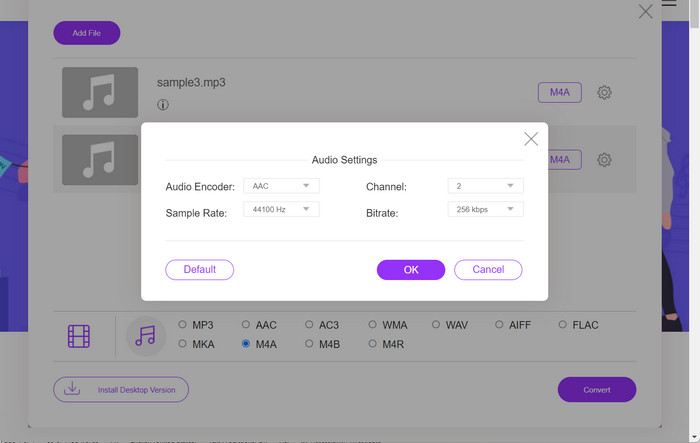
Βήμα 3. Από την επιλογή μορφής Audio, επιλέξτε M4A ως επιθυμητή μορφή εξόδου. Μπορείτε επίσης να ρυθμίσετε την ποιότητα εξόδου, δηλαδή το bitrate, του αρχείου M4A.
Βήμα 4. Κάντε κλικ στο κουμπί Convert για να ξεκινήσει η διαδικασία μετατροπής. Έτσι μπορείτε να μετατρέψετε MP3 σε M4A online.
Μέρος 2. Μετατροπή MP3 σε M4A στα Windows
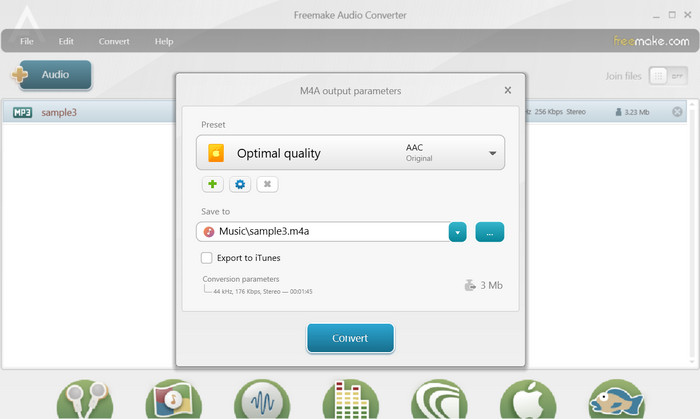
Το Freemake Audio Converter είναι ένα δωρεάν και εύχρηστο πρόγραμμα που επιτρέπει στους χρήστες να μετατρέπουν αρχεία ήχου σε διάφορες μορφές, όπως M4A, MP3, WAV και άλλα. Με την απλή διεπαφή μεταφοράς και απόθεσης, οι χρήστες μπορούν εύκολα να προσθέσουν τα αρχεία MP3 και να τα μετατρέψουν σε M4A χωρίς περίπλοκες ρυθμίσεις ή διαμορφώσεις. Το εργαλείο διαθέτει επίσης μια σειρά επιλογών προσαρμογής, επιτρέποντας στους χρήστες να προσαρμόζουν παραμέτρους όπως ο ρυθμός μετάδοσης bit και ο ρυθμός δειγματοληψίας για να λάβουν την επιθυμητή ποιότητα εξόδου. Συνολικά, είναι ένας από τους καλύτερους μετατροπείς MP3 σε M4A που μπορείτε να χρησιμοποιήσετε.
Βήμα 1. Κατεβάστε και εγκαταστήστε το Freemake Audio Converter στον υπολογιστή σας με Windows.
Βήμα 2. Εκκινήστε το πρόγραμμα και κάντε κλικ στο κουμπί +Audio για να προσθέσετε το/τα αρχείο(α) MP3 στο πρόγραμμα.
Βήμα 3. Επιλέξτε M4A από τη λίστα των διαθέσιμων μορφών στο κάτω μέρος του παραθύρου του προγράμματος. Χρησιμοποιήστε το αναπτυσσόμενο μενού για να επιλέξετε τις επιθυμητές ρυθμίσεις ποιότητας για το αρχείο εξόδου.
Βήμα 4. Επιλέξτε τον φάκελο προορισμού όπου θέλετε να αποθηκευτεί το μετατρεπόμενο αρχείο. Τέλος, πατήστε στο κουμπί Convert για να ξεκινήσει η διαδικασία μετατροπής.
Μέρος 3. Μετατροπή MP3 σε M4A σε Mac
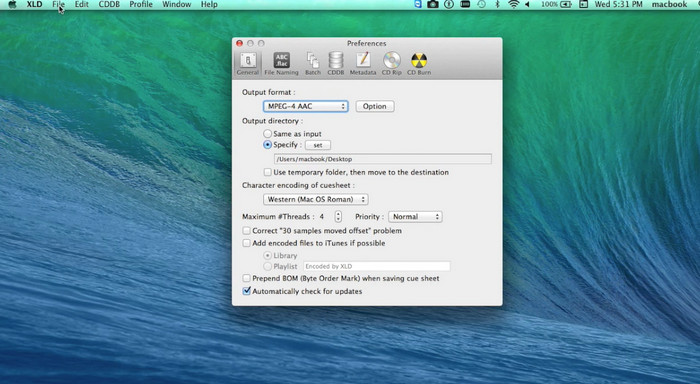
Το XLD είναι ένα δωρεάν και εύχρηστο πρόγραμμα που επιτρέπει στους χρήστες Mac να μετατρέπουν αρχεία ήχου σε διάφορες μορφές, όπως M4A, MP3, FLAC και άλλα. Με την απλή διεπαφή μεταφοράς και απόθεσης, οι χρήστες μπορούν εύκολα να προσθέσουν τα αρχεία MP3 και να τα μετατρέψουν σε M4A χωρίς περίπλοκες ρυθμίσεις ή διαμορφώσεις. Το XLD προσφέρει επίσης μια σειρά από επιλογές προσαρμογής, επιτρέποντας στους χρήστες να προσαρμόζουν παραμέτρους όπως ο ρυθμός μετάδοσης bit και ο ρυθμός δειγματοληψίας για να επιτύχουν την επιθυμητή ποιότητα εξόδου.
Βήμα 1. Κατεβάστε και εγκαταστήστε το XLD στον υπολογιστή Mac σας.
Βήμα 2. Εκκινήστε το πρόγραμμα και κάντε κλικ στο κουμπί Open για να προσθέσετε το/τα αρχείο(α) MP3 στο πρόγραμμα.
Βήμα 3. Επιλέξτε M4A από τη λίστα των διαθέσιμων μορφών στις προτιμήσεις του προγράμματος. Μπορείτε να χρησιμοποιήσετε το αναπτυσσόμενο μενού για να επιλέξετε τις επιθυμητές ρυθμίσεις ποιότητας για το αρχείο εξόδου.
Βήμα 4. Στη συνέχεια, επιλέξτε τον φάκελο προορισμού όπου θέλετε να αποθηκευτεί το μετατρεπόμενο αρχείο. Τέλος, πατήστε το κουμπί Convert για να ξεκινήσει η διαδικασία μετατροπής. Έτσι μπορείτε να μετατρέψετε MP3 σε M4A δωρεάν σε Mac.
Μέρος 4. Μετατροπή MP3 σε M4A στο Android
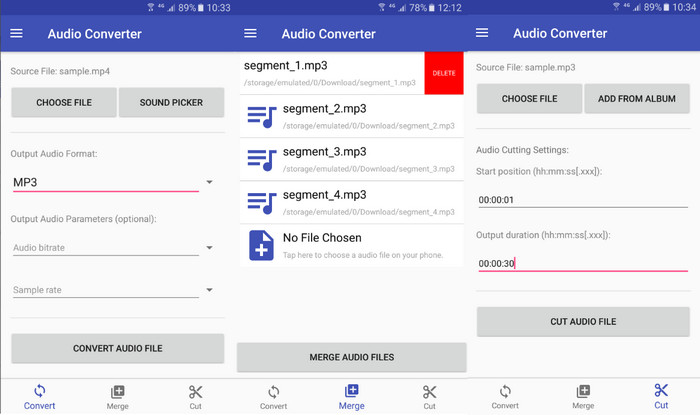
Όσον αφορά τη μετατροπή αρχείων ήχου, το δωρεάν και απλό λογισμικό Android Audio Converter από την Online-Convert.com είναι δύσκολο να ξεπεραστεί. Οι χρήστες μπορούν απλώς να σύρουν και να αποθέσουν τα αρχεία MP3 τους στη διεπαφή του προγράμματος για να ξεκινήσουν τη διαδικασία μετατροπής σε M4A. Η ποιότητα εξόδου ενός αρχείου ήχου μπορεί να ρυθμιστεί αλλάζοντας ρυθμίσεις όπως ο ρυθμός μετάδοσης bit και ο ρυθμός δειγματοληψίας στο Audio Converter. Ακολουθούν τα βήματα για να αλλάξετε MP3 σε M4A στο Android:
Βήμα 1. Κατεβάστε και εγκαταστήστε την εφαρμογή Audio Converter από το Online-Convert.com μέσω του Google Play Store στη συσκευή Android σας. Εκκινήστε την εφαρμογή και πατήστε στο κουμπί Convert Audio.
Βήμα 2. Έπειτα, επιλέξτε MP3 ως μορφή εισόδου και M4A ως μορφή εξόδου.
Βήμα 3. Τώρα, πατήστε στο κουμπί Select Files για να προσθέσετε το/τα αρχείο(α) MP3 στην εφαρμογή. Τέλος, πατήστε στο κουμπί Start Conversion για να ξεκινήσει η διαδικασία μετατροπής. Τόσο απλό! Τώρα μάθατε πώς να μετατρέπετε MP3 σε M4A σε Android.
Μέρος 5. Μετατροπή MP3 σε M4A σε iOS
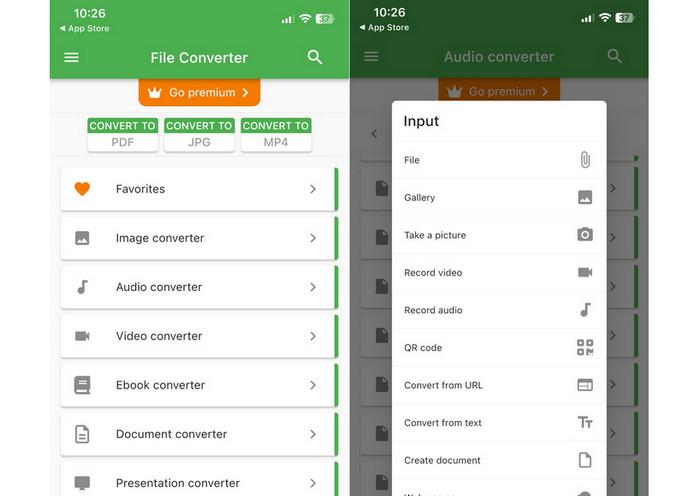
Τα αρχεία ήχου, όπως το MP3, μπορούν να μετατραπούν στην πιο φορητή και χωρίς απώλειες μορφή M4A με τη βοήθεια του File Converter Free, ενός δωρεάν και απλού λογισμικού iOS. Ο απλός σχεδιασμός του καθιστά εύκολο για οποιονδήποτε να φορτώσει αρχεία MP3 και να τα μετατρέψει σε M4A χωρίς να χρειάζεται να ασχοληθεί με ρυθμίσεις ή ρυθμίσεις.
Βήμα 1. Το File Converter Free διατίθεται δωρεάν στο App Store για λήψη και χρήση. Εκκινήστε το πρόγραμμα και πατήστε στην καρτέλα Audio.
Βήμα 2. Επιλέξτε MP3 για τη μορφή εισόδου και εξόδου και M4A για τη μορφή AAC της Apple. Επιλέξτε την επιθυμητή ποιότητα αρχείου εξόδου με το αναπτυσσόμενο μενού. Για να εισαγάγετε ένα MP3 στο πρόγραμμα, πατήστε στο κουμπί Add File.
Βήμα 3. Για να ξεκινήσει η διαδικασία μετατροπής, κάντε κλικ στο κουμπί Convert.
Μέρος 6. Συχνές ερωτήσεις σχετικά με τη μετατροπή MP3 σε M4A
Μπορώ να μετατρέψω MP3 σε M4A χρησιμοποιώντας το Windows Media Player;
Ναι, μπορείτε να μετατρέψετε MP3 σε M4A χρησιμοποιώντας το Windows Media Player, αλλά απαιτούνται μερικά επιπλέον βήματα, καθώς το M4A δεν υποστηρίζεται εγγενώς από το Windows Media Player. Εναλλακτικά, μπορείτε απλώς να χρησιμοποιήσετε μια εναλλακτική λύση στο Windows Media Player.
Η μετατροπή MP3 σε M4A θα οδηγήσει σε απώλεια ποιότητας ήχου;
Η μετατροπή MP3 σε M4A μπορεί να οδηγήσει σε ελαφρά απώλεια ποιότητας ήχου λόγω των διαφορών στους αλγόριθμους συμπίεσης που χρησιμοποιούνται από τις δύο μορφές.
Μπορώ να μετατρέψω το M4A ξανά σε MP3;
Ναι, πολλά προγράμματα και εργαλεία μετατροπής ήχου σάς επιτρέπουν να μετατρέψετε M4A σε MP3, αν χρειαστεί. Ωστόσο, να έχετε υπόψη ότι η επαναλαμβανόμενη μετατροπή μεταξύ μορφών μπορεί να οδηγήσει σε απώλεια ποιότητας.
συμπέρασμα
Η μετατροπή MP3 σε M4A είναι μια πολύτιμη διαδικασία για όποιον θέλει να βελτιώσει την ποιότητα και τη συμβατότητα των αρχείων ήχου του. Ακολουθώντας τα βήματα και τις συμβουλές που παρουσιάστηκαν σε αυτή τη συζήτηση, μπορείτε εύκολα να μετατρέψετε τα αρχεία MP3 σε M4A και να απολαμβάνετε ήχο υψηλής ποιότητας σε οποιαδήποτε συσκευή.
-
 Δωρεάν & Διαδικτυακά | Πώς να μετατρέψετε MP4 σε M4A σε Windows / Mac
 Πώς μπορώ να μετατρέψω MP4 σε M4A online; Μπορώ να εξαγάγω τον ήχο από αρχεία MP4; Διαβάστε αυτήν την ανάρτηση και θα λάβετε όλες τις απαντήσεις σχετικά με τη μετατροπή από MP4 σε M4A.
-
 Τα καλύτερα εργαλεία που μπορείτε να χρησιμοποιήσετε για τη μαζική μετατροπή αρχείων MP3 σε M4R
 Αναζητάτε έναν μετατροπέα που μπορεί να μετατρέψει το αρχείο MP3 σας σε ήχο κλήσης M4R για το iPhone ή το iPad σας ανά δέσμη; Διαβάστε το άρθρο για να ανακαλύψετε μερικά από τα καλύτερα που υπάρχουν.
-
 5 κόφτες MP3 για εύκολη κοπή οποιουδήποτε ήχου [2023 Ενημερώθηκε]
 Χρειάζεστε έναν κόφτη MP3 για να κόψετε τον ήχο; Σε αυτήν την περίπτωση, διαβάστε αυτό το άρθρο γιατί παρέχουμε τα εργαλεία από τα οποία μπορείτε να βασιστείτε, τα οποία παρέχουν εύκολη κοπή του ήχου.
