


 Video Converter Ultimate
 Εγγραφή οθόνης
 Επισκευή βίντεο
 Ασφαλές κατέβασμα
Πώς να μετατρέψετε το WebP σε MP4 σε υπολογιστή για έξοδο κινουμένων σχεδίων βίντεο
Υπάρχουν διάφοροι λόγοι για τους οποίους μετατρέπουμε WebP σε MP4. Ένας από τους βασικούς λόγους είναι ότι, όταν έχετε μια συλλογή από κινούμενες εικόνες σε μορφή WebP, οι συσκευές σας δεν την υποστηρίζουν. Είναι απογοητευτικό να διαπιστώνετε ότι δεν μπορείτε να απολαύσετε τα δικά σας αρχεία στη δική σας συσκευή. Για αυτόν τον λόγο, οι περισσότεροι χρήστες στην ίδια κατάσταση επιλέγουν να μετατρέπουν τα αρχεία WebP σε μια μορφή όπως το MP4, ώστε το ψηφιακό τους υλικό να είναι πιο συμβατό και πιο μικρό σε μέγεθος. Αλλά πώς θα το κάνετε για πρώτη φορά; Ευτυχώς, αυτή η ανάρτηση συγκέντρωσε αξιόπιστους μετατροπείς που θα σας βοηθήσουν ουσιαστικά. Επιπλέον, προσθέσαμε και μια επαγγελματική μέθοδο για να σας βοηθήσουμε περαιτέρω σε αυτό το ζήτημα.

Μέρος 1. Πώς να μετατρέψετε το WebP σε MP4 Online
Αυτή η ενότητα θα παρουσιάσει τις κορυφαίες 3 λύσεις μας για τη μετατροπή WebP σε MP4 online.
1. ΕΖΓΙΦ
Η πρώτη από τις κορυφαίες διαδικτυακές λύσεις είναι το EZGIF. Είναι ένα εύχρηστο εργαλείο χωρίς κόστος στο οποίο μπορείτε να έχετε πρόσβαση στον Ιστό. Αυτό το εργαλείο σάς βοηθά να δημιουργείτε, να αλλάζετε και να τροποποιείτε GIF. Αλλά δεν αφορά μόνο τα GIF, επειδή χειρίζεται επίσης μορφές WebP, AVIF και APNG. Επιπλέον, το EzGIF σάς επιτρέπει να αλλάξετε αυτές τις μορφές με GIF, JPG, PNG και, φυσικά, MP4. Όπως υποδηλώνει το όνομά του, το EZGIF έχει να κάνει με τα πράγματα απλά. Είτε θέλετε να δημιουργήσετε κινούμενες εικόνες είτε να μετατρέψετε τα κινούμενα σχέδια σε βίντεο, αυτό το εργαλείο έχει την πλάτη σας. Έτσι, μπορείτε επίσης να το χρησιμοποιήσετε για να αλλάξετε αρχεία WebP, τόσο τα ακίνητα όσο και τα κινούμενα, σε MP4. Ως εκ τούτου, εδώ είναι τα απλά βήματα που πρέπει να ακολουθήσετε με το EZGIF.
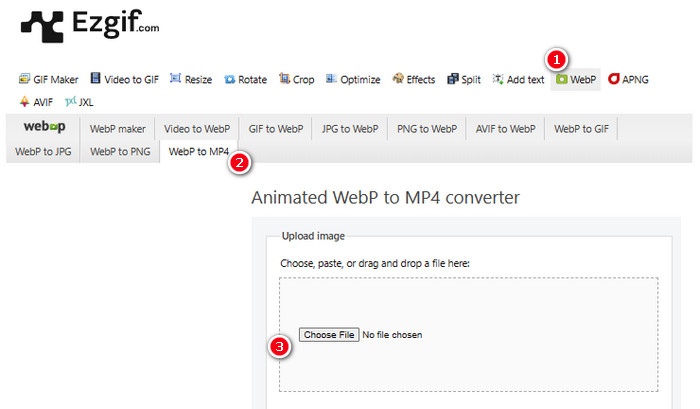
Βήμα 1. Στον ιστότοπο EZGIF, μεταβείτε στο εργαλείο WebP>WebP to MP4 για να αποκτήσετε πρόσβαση στον μετατροπέα WebP σε MP4. Μόλις βρεθείτε εκεί, κάντε κλικ στο κουμπί Choose File για να ανεβάσετε το αρχείο WebP.
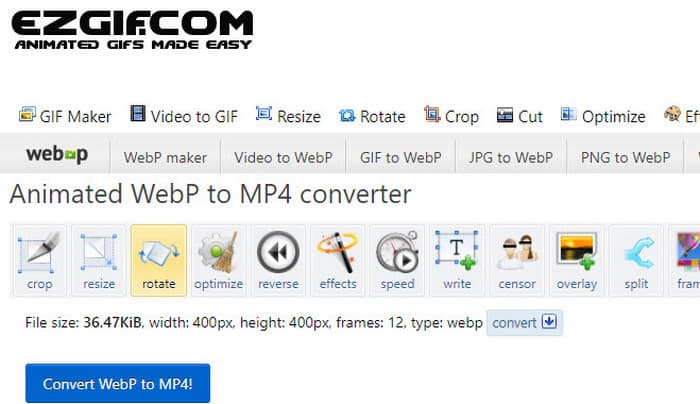
Βήμα 2. Αφού ανεβάσετε το αρχείο WebP, μπορείτε πλέον να προχωρήσετε στη διαδικασία μετατροπής. Κάντε κλικ στο κουμπί Convert για να ξεκινήσετε.
Βήμα 3. Όταν ολοκληρωθεί, κατεβάστε το νέο, μετατρεμμένο αρχείο σας.
2. MCconverter
Το επόμενο εργαλείο είναι ο MConverter. Αυτός ο μετατροπέας είναι ένα πραγματικά εύχρηστο εργαλείο στον Ιστό που σας βοηθά να αλλάξετε αρχεία από τον έναν τύπο στον άλλο. Είναι αξιοσημείωτο ότι αν έχετε πολλές εικόνες WebP που θέλετε να μετατρέψετε σε βίντεο MP4, το MConverter σάς επιτρέπει να τις κάνετε όλες ταυτόχρονα. Δεν εξοικονομεί πολύ χρόνο; Επιπλέον, έχει μια δέσμη μορφών που μπορεί να χειριστεί - όπως βίντεο, τραγούδια, εικόνες, υπότιτλοι, κ.λπ. Αλλά υπάρχει μια ατάκα με τη δωρεάν έκδοση - σας επιτρέπει μόνο να κάνετε αρχεία μεγέθους έως 200 MB. Στο μεταξύ, ας δούμε πώς λειτουργεί το MConvert όταν μετατρέπετε το WebP σε MP4 με αυτό.
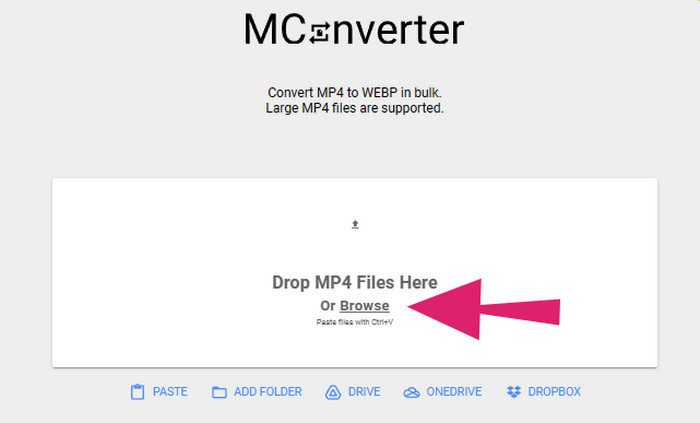
Βήμα 1. Στο online εργαλείο, κάντε κλικ στο κουμπί Browse για να ανεβάσετε τα αρχεία WebP που χρειάζεται να μετατρέψετε.
Βήμα 2. Όταν το αρχείο ανέβει με επιτυχία, κάντε κλικ στη μορφή MP4 ανάμεσα στις διαθέσιμες επιλογές.
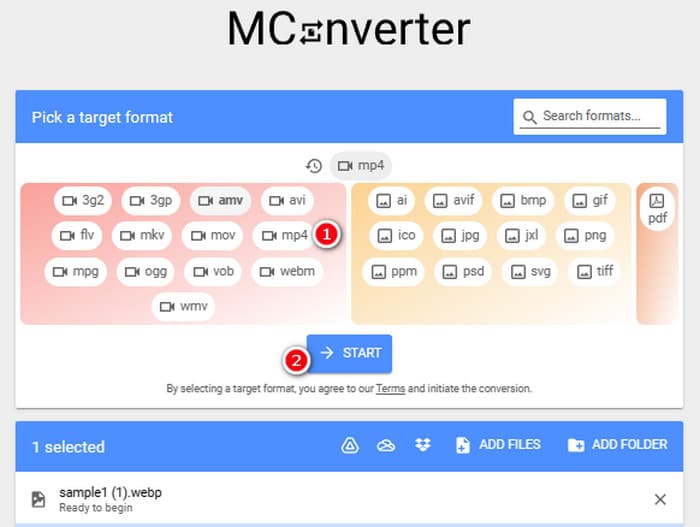
Βήμα 3. Έπειτα, κάντε κλικ στο κουμπί START για να εκτελέσετε τη μετατροπή.
3. Online-Μετατροπή
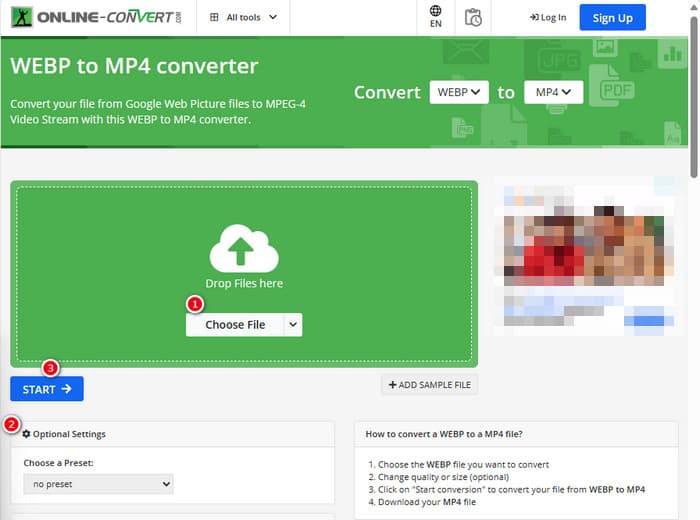
Τέλος, επιτρέψτε στο Online Convert να καλύψει την τελευταία θέση στο διαδίκτυο. Αυτό το Online Convert είναι ένας αξιόλογος μετατροπέας που μπορεί να αλλάξει σχεδόν κάθε τύπο αρχείου πολυμέσων για εσάς. Παρόλα αυτά, δεν θα σας κοστίσει ούτε μια δεκάρα για οποιαδήποτε μετατροπή θέλετε να κάνετε αρκεί να την υποστηρίζει. Επιπλέον, λειτουργεί αρκετά γρήγορα, εκτός από τις περιπτώσεις που το Διαδίκτυό σας είναι προβληματικό. Τώρα, εάν θέλετε να μετατρέψετε ένα αρχείο WebP σε MP4, μπορείτε να το κάνετε στον ιστότοπό τους. Όχι μόνο αυτό, αλλά μπορείτε να προσαρμόσετε τις παραμέτρους του βίντεο όπως το μέγεθος, τον ρυθμό καρέ και την ποιότητά του, ακόμη και να το γυρίσετε, να το κόψετε ή να κόψετε μέρη που δεν χρειάζεστε. Επομένως, εάν το αρχείο WebP σας είναι έτοιμο για μετατροπή, ακολουθήστε αμέσως τα παρακάτω βήματα.
Βήμα 1. Βεβαιωθείτε ότι χρησιμοποιείτε το εργαλείο μετατροπής WebP σε MP4 μόλις μπείτε στον επίσημο ιστότοπο.
Βήμα 2. Κάντε κλικ στο κουμπί Choose File και εισαγάγετε το αρχείο WebP. Στη συνέχεια, μπορείτε να το ρυθμίσετε προσαρμόζοντάς το μέσω των ρυθμίσεων που παρέχονται στη διεπαφή.
Βήμα 3. Διαφορετικά, κάντε κλικ στο κουμπί START για να ξεκινήσετε τη διαδικασία μετατροπής.
Μέρος 2. Επαγγελματική προσέγγιση για τη μετατροπή του αρχείου WebP σε MP4: FFmpeg
Για μια πιο επαγγελματική προσέγγιση στη μετατροπή ενός αρχείου εικόνας σε βίντεο, μπορείτε να χρησιμοποιήσετε το FFmpeg. Πρόκειται για ένα ισχυρό λογισμικό εργαλείο που χρησιμοποιείται για την επεξεργασία πολυμέσων. Αυτό το πρόγραμμα σάς επιτρέπει να μετατρέπετε μορφές ήχου, βίντεο και εικόνας ανάμεσα σε μεγάλη ποικιλία από codecs. Ωστόσο, λειτουργεί με χρήση γραμμής εντολών, κάτι που το καθιστά απαιτητικό για αρχάριους. Επομένως, εδώ παρατίθενται τα απλουστευμένα βήματα που μπορείτε να ακολουθήσετε. Για ενημέρωσή σας, το FFmpeg, ως επαγγελματικός μετατροπέας βίντεο, μπορεί ακόμη και να επιδιορθώνει κατεστραμμένα βίντεο.
Βήμα 1. Ανοίξτε το FFmpeg αφού το εγκαταστήσετε στον υπολογιστή σας. Έπειτα, ξεκινήστε πατώντας CD για να ανοίξετε τη γραμμή εντολών.
Βήμα 2. Τώρα μπορείτε να μεταβείτε στον φάκελο που περιέχει το αρχείο WebP. Έπειτα, χρησιμοποιήστε την εντολή ffmpeg -i input.webp output.mp4.
Βήμα 3. Ξεκινήστε τη διαδικασία μετατροπής πατώντας το πλήκτρο ENTER στο πληκτρολόγιό σας.

Μέρος 3. Συμβουλή μπόνους: Ο καλύτερος τρόπος για να μετατρέψετε αρχεία MP4 σε οποιονδήποτε τύπο βίντεο/ήχου στο Διαδίκτυο
Τι θα λέγατε για τη μετατροπή των αρχείων MP4 στις επιθυμητές μορφές βίντεο και ήχου online; Αυτό θα ήταν απλό, γρήγορο και αποδοτικό αν χρησιμοποιήσετε το FVC Free Video Converter Online. Είναι η δωρεάν λύση σας που σας επιτρέπει να αλλάζετε τα βίντεό σας σε μορφή MP4 σε διάφορες μορφές βίντεο και ήχου, όπως WMV, MOV, FLV, AVI, MKV, AAC, MP3, WAV και άλλες. Επίσης, μπορείτε εύκολα να μετατρέπετε τα βίντεο υψηλής ευκρίνειας σε μικρότερα MP4 χωρίς απώλεια ποιότητας. Ακόμη καλύτερα, μπορείτε να μετατρέπετε πολλά αρχεία ταυτόχρονα, απολαμβάνοντας μια διαδικασία που παραμένει εύκολη και γρήγορη. Επιπλέον, δεν χρειάζεται να ανησυχείτε για υδατογραφήματα στα βίντεό σας ή για απώλεια δεδομένων κατά τη μετατροπή, επειδή αυτός ο online μετατροπέας δεσμεύεται να σας παρέχει καθαρά και ασφαλή αποτελέσματα! Ακολουθούν τα τρία απλά βήματα για να μετατρέψετε τα αρχεία MP4 σε διάφορους τύπους μορφών.
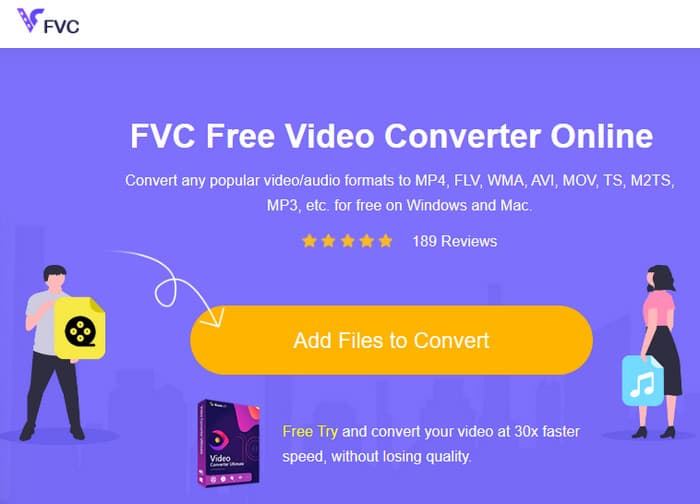
Βήμα 1. Κάντε κλικ στην καρτέλα Add Files to Convert μόλις μπείτε στον ιστότοπο. Αυτό θα σας επιτρέψει να ανεβάσετε τα αρχεία MP4.
Βήμα 2. Μετά τη διαδικασία εισαγωγής των αρχείων, ρυθμίστε τα στην επιθυμητή μορφή εξόδου.
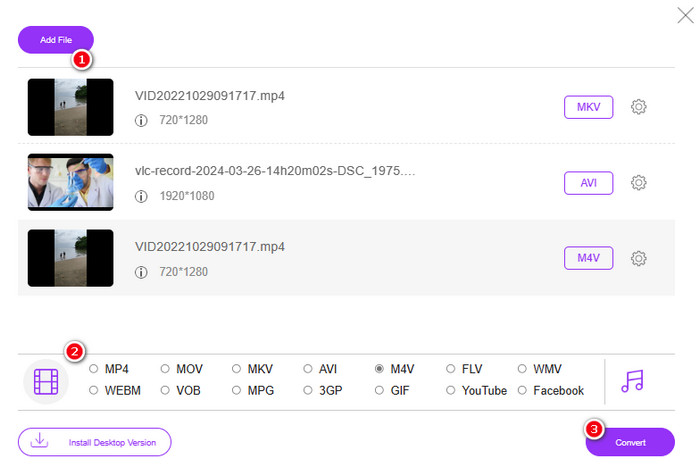
Βήμα 3. Μόλις ρυθμιστούν, κάντε κλικ στο κουμπί Convert για να ξεκινήσει η μετατροπή.
Ακολουθούν περισσότερες συμβουλές για τις μετατροπές εικόνας σε MP4.
Εκτεταμένη ανάγνωση
Πώς να μετατρέψετε VLC σε MP4: οι ταχύτερες διαδικασίες για να μάθετε
Μετατρέψτε εύκολα βίντεο iPhone σε MP4 στον υπολογιστή χωρίς απώλεια ποιότητας
Μέρος 4. Συχνές ερωτήσεις σχετικά με τη μετατροπή Webp και MP4
Γιατί να μετατρέψω ένα αρχείο εικόνας όπως το WebP σε βίντεο όπως το MP4;
-Πρέπει να μετατρέψετε μια εικόνα σε βίντεο για λόγους ευρύτερης συμβατότητας και διατήρησης.
Μπορούν οι εικόνες σε μορφή WebP να εμφανίζονται σε όλα τα προγράμματα περιήγησης ιστού;
-Οχι. Ορισμένα παλαιότερα προγράμματα περιήγησης, ιδιαίτερα ο Internet Explorer, δεν υποστηρίζουν εγγενώς το WebP. Ωστόσο, τα σύγχρονα προγράμματα περιήγησης υποστηρίζουν την εμφάνισή του.
Πώς μπορώ να μετατρέψω μια εικόνα σε WebP;
-Πρέπει να χρησιμοποιήσετε έναν αποκλειστικό κατασκευαστή WebP. Επίσης, υπάρχουν πολλά διαθέσιμα εργαλεία και βιβλιοθήκες για τη μετατροπή εικόνων σε μορφή WebP.
συμπέρασμα
Με τους παραπάνω μετατροπείς WebP σε MP4, η εμπειρία μετατροπής σας θα είναι πλέον απλή και άμεση. Έτσι, χρησιμοποιούνται τρεις ευρέως διαδεδομένες μέθοδοι για να επιτευχθεί η επιθυμητή μετατροπή. Αν αντιμετωπίσετε δυσκολίες με τη διαχείριση της διαδικασίας σε κάποια από αυτές, μη διστάσετε να πραγματοποιήσετε τη μετατροπή χρησιμοποιώντας τις υπόλοιπες.
-
 Μάθετε τις ευκολότερες προσεγγίσεις για γρήγορη μετατροπή WebP σε JPG
 Ας μάθουμε όλοι αποτελεσματικοί τρόποι για να μετατρέπουμε εύκολα εικόνες Ιστού σε JPG. Αυτό το άρθρο θα σας δώσει εξαιρετικούς μετατροπείς εικόνας που μπορείτε να χρησιμοποιήσετε για να μετατρέψετε αρχεία εικόνας.
-
 Τέλειες μέθοδοι για να μετατρέψετε το WebP σε PNG χωρίς κόπο
 Να είστε ενημερωμένοι σχετικά με τις αξιόλογες μεθόδους μετατροπής του WebP σε PNG. Αυτός ο οδηγός θα σας παρέχει τους πιο χρήσιμους μετατροπείς εικόνας που μπορείτε να δοκιμάσετε.
-
 Απόλυτες μέθοδοι για το πώς να μετατρέψετε τέλεια το WebP σε GIF
 Θέλετε να μετατρέψετε το WebP σε GIF αλλά δεν έχετε ιδέα τι να κάνετε; Ευτυχώς, αυτή η ανάρτηση θα παρουσιάσει πολλούς τρόπους για το πώς να μετατρέψετε το WebP σε GIF αμέσως.
