


 Video Converter Ultimate
 Εγγραφή οθόνης
 Επισκευή βίντεο
 Ασφαλές κατέβασμα
Λεπτομερής οδηγός για το πώς να αντιστρέψετε τον ήχο στο Audacity [2024]
Η αντιστροφή κομματιών ήχου μπορεί να προσθέσει μοναδική διάσταση και χρώμα στις μουσικές σας παραγωγές, δημιουργώντας συναρπαστικά ηχητικά εφέ για δημιουργική αφήγηση. Αυτό το στυλ χρησιμοποιείται ευρέως και γίνεται δημοφιλές όταν πρόκειται για τον εμπλουτισμό των ηχητικών έργων με βάθος και πρωτοτυπία. Έτσι, αν επεξεργάζεστε ήχο στο Audacity και θέλετε να προσθέσετε μια αλλαγή αντιστρέφοντάς τον, είστε στο σωστό μέρος!
Σε αυτό το άρθρο, θα σας καθοδηγήσουμε σε λεπτομερή βήματα σχετικά με τον τρόπο αντιστροφής του ήχου στο Audacity και θα μοιραστούμε πολύτιμες συμβουλές που θα σας βοηθήσουν να αξιοποιήσετε στο έπακρο αυτήν τη δυνατότητα. Μέχρι το τέλος αυτού του οδηγού, θα είστε έτοιμοι να αντιστρέψετε τα ηχητικά κομμάτια σας και να εξερευνήσετε εύκολα νέους δημιουργικούς ορίζοντες. Έτσι, ετοιμαστείτε να μεταμορφώσετε τα ηχητικά έργα σας και ανακαλύψτε τις συναρπαστικές δυνατότητες του αντίστροφου ήχου!

Μέρος 1. Πώς να αντιστρέψετε τον ήχο στο Audacity
Το Audacity είναι ένα πρόγραμμα που έχει σχεδιαστεί για να δίνει τη δυνατότητα στους χρήστες να επεξεργάζονται αρχεία ήχου χωρίς την ανάγκη ακριβών κορυφαίων εργαλείων, διασφαλίζοντας υψηλής ποιότητας έξοδο χωρίς κόστος. Ως εργαλείο ανοιχτού κώδικα, είναι ελεύθερα προσβάσιμο σε όλους και προσφέρει μια μακρά λίστα λειτουργιών που συνήθως βρίσκονται σε λογισμικό επί πληρωμή. Μεταξύ των δυνατοτήτων του, το Audacity ξεχωρίζει με την ικανότητά του να αντιστρέφει κομμάτια ήχου. Αυτή η δυνατότητα επιτρέπει στους χρήστες να είναι απλώς δημιουργικοί με το πώς θέλουν να ακούγεται ο ήχος τους. Συνήθως, οι συντάκτες αντιστρέφουν τον ήχο τους επειδή προσθέτει ένα μοναδικό εφέ στα έργα τους.
Δείτε πώς μπορείτε να αντιστρέψετε ήχο στο Audacity.
Βήμα 1. Κατεβάστε και εγκαταστήστε το Audacity στον υπολογιστή σας.
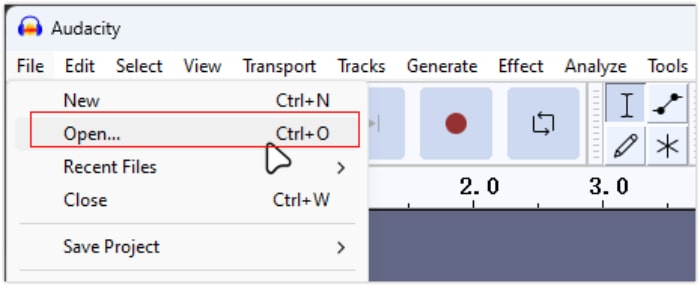
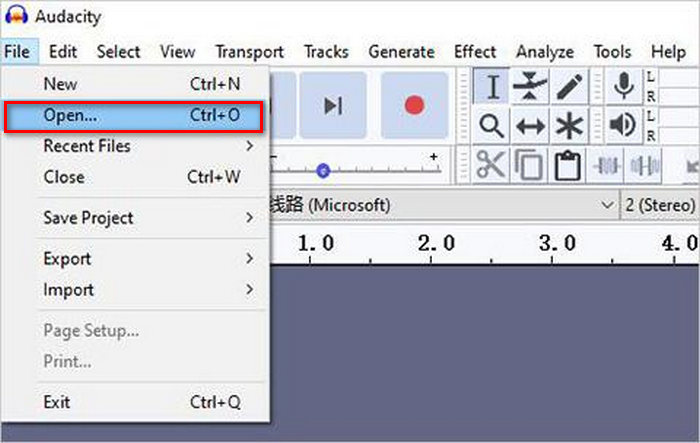
Βήμα 2. Εκκινήστε το εργαλείο, μεταβείτε στο μενού File επάνω αριστερά και επιλέξτε Open. Από εκεί, περιηγηθείτε στον υπολογιστή σας για να εντοπίσετε και να επιλέξετε το αρχείο ήχου ή σύρετε και αποθέστε το αρχείο ήχου που θέλετε να αντιστρέψετε μέσα στο πρόγραμμα.
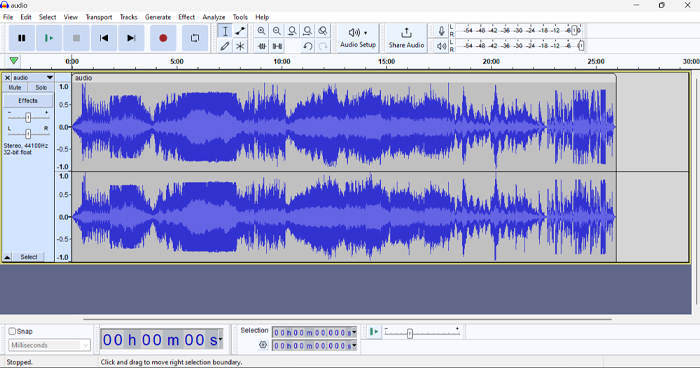
Βήμα 3. Τώρα, κάντε κλικ στο κομμάτι ήχου, μεταβείτε στην καρτέλα Select και επιλέξτε All για να επιλέξετε ολόκληρο το αρχείο ήχου.
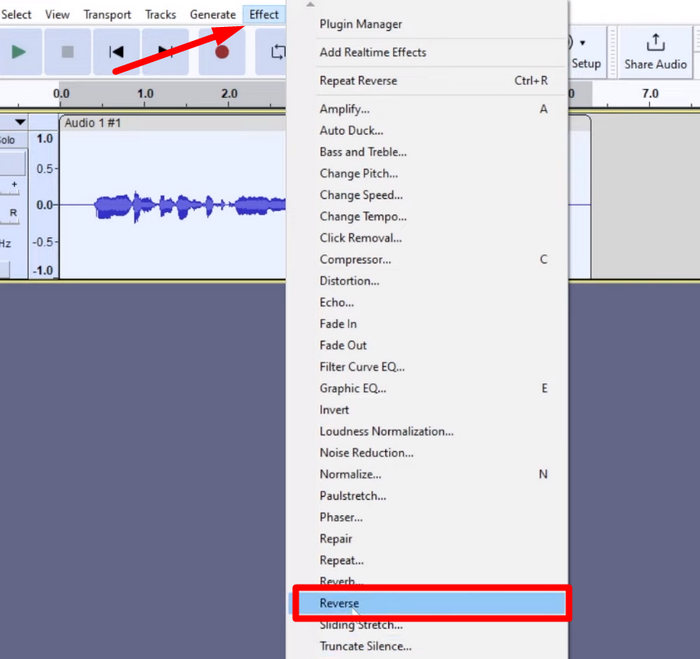
Βήμα 4. Για να αντιστρέψετε τον ήχο, πηγαίνετε στην καρτέλα Effect και επιλέξτε Reverse από το αναπτυσσόμενο μενού. Το Audacity θα επεξεργαστεί και θα αντιστρέψει το επιλεγμένο κλιπ ήχου.
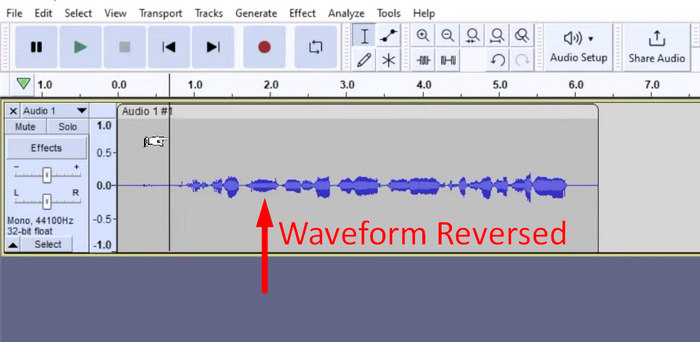
Βήμα 5. Μπορείτε να κάνετε προεπισκόπηση του αντιστραμμένου ήχου πατώντας το Spacebar στο πληκτρολόγιό σας. Εναλλακτικά, χρησιμοποιήστε τα χειριστήρια αναπαραγωγής στην επάνω αριστερή γωνία του παραθύρου του Audacity και κάντε κλικ στο κουμπί Play.
Βήμα 6. Τέλος, για να εξαχθεί το αντιστραμμένο αρχείο ήχου, επιστρέψτε στο μενού File και από εκεί επιλέξτε Export. Έτσι, ο ήχος σας θα αποθηκευτεί ως νέο αρχείο. Παράλληλα, μην ξεχάσετε να επιλέξετε τη μορφή αρχείου ήχου που προτιμάτε πριν από την εξαγωγή.
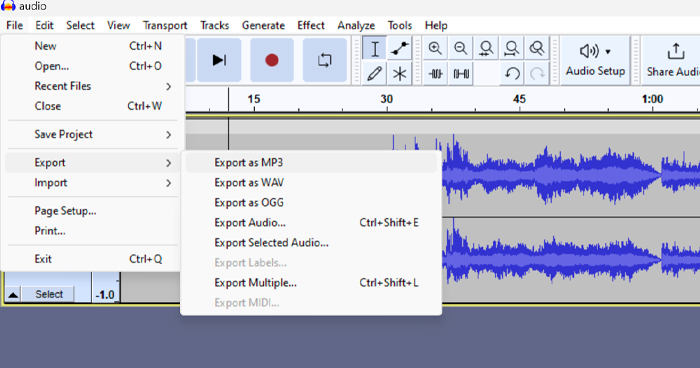
Λόγω ορισμένων ζητημάτων σχετικά με την απροσδόκητη απώλεια εργασίας, αποθηκεύετε τακτικά το έργο σας κατά την επεξεργασία για να αποτρέψετε τυχόν απώλεια προόδου. Μπορείτε να αποθηκεύσετε γρήγορα την εργασία σας χρησιμοποιώντας Ctrl + S σε Windows ή Cmd + S σε Mac. Επιπλέον, εξετάστε το ενδεχόμενο να χρησιμοποιήσετε περιγραφικά ονόματα αρχείων και να οργανώσετε τα αρχεία σας σε έναν ειδικό φάκελο για να διατηρήσετε τα έργα σας καλά οργανωμένα και εύκολα προσβάσιμα.
Μέρος 2. Πώς να αντιστρέψετε μέρος του ήχου στο Audacity
Υπάρχουν περιπτώσεις όπου οι χρήστες ήθελαν να αντιστρέψουν μόνο ένα μέρος του ήχου στο Audacity, ίσως επειδή υπάρχουν μόνο συγκεκριμένες ενότητες που θέλουν να τονίσουν ή να δημιουργήσουν ένα ξεχωριστό εφέ. Τα παρακάτω βήματα είναι σχεδόν τα ίδια με το πώς να αντιστρέψετε ένα ολόκληρο κομμάτι. Ωστόσο, η επιλογή ενός μέρους ενός ήχου είναι λίγο δύσκολη και χρειάζεται έμφαση στα βήματα για να αποφευχθεί η σύγχυση, ειδικά για αρχάριους.
Δείτε πώς να αντιστρέψετε ένα μέρος του ήχου στο Audacity.
Βήμα 1. Όταν βρίσκεστε στην κύρια διεπαφή του εργαλείου, μεταβείτε στο μενού File επάνω αριστερά και επιλέξτε Open. Από εκεί, περιηγηθείτε στον υπολογιστή σας για να εντοπίσετε και να επιλέξετε το αρχείο ήχου ή σύρετε και αποθέστε το αρχείο ήχου που θέλετε να αντιστρέψετε μέσα στο πρόγραμμα.
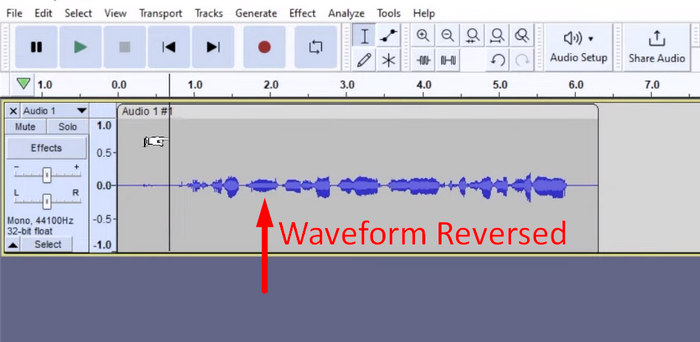
Βήμα 2. Τώρα, για να επιλέξετε ένα μέρος του ήχου που θέλετε να αντιστρέψετε, χρησιμοποιήστε τη λειτουργία Zoom για να κάνετε μεγέθυνση στο κυματογράφημα και σύρετε το ποντίκι σας ώστε να επιλέξετε μόνο το τμήμα ή το μέρος του ήχου που θέλετε να αντιστρέψετε.
Βήμα 3. Για να αντιστρέψετε τον ήχο, πηγαίνετε στην καρτέλα Effect και επιλέξτε Reverse από το αναπτυσσόμενο μενού. Το Audacity θα επεξεργαστεί και θα αντιστρέψει το επιλεγμένο κλιπ ήχου.
Βήμα 4. Μπορείτε να κάνετε προεπισκόπηση του αντιστραμμένου ήχου πατώντας το Spacebar στο πληκτρολόγιό σας. Εναλλακτικά, χρησιμοποιήστε τα χειριστήρια αναπαραγωγής στην επάνω αριστερή γωνία του παραθύρου του Audacity και κάντε κλικ στο κουμπί Play.
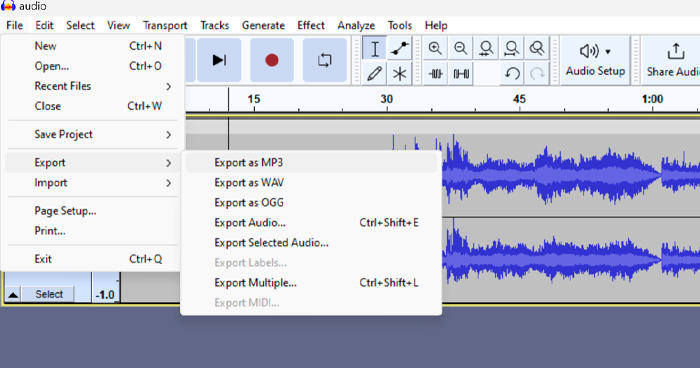
Βήμα 5. Τέλος, για να εξαχθεί το αντιστραμμένο αρχείο ήχου, επιλέξτε Export από το μενού File. Επιλέξτε Export as και διαλέξτε τη μορφή αρχείου ήχου που προτιμάτε πριν από την τελική εξαγωγή.
Όταν επιλέγετε ένα συγκεκριμένο μέρος του ήχου για αντιστροφή στο Audacity, βεβαιωθείτε ότι κάνετε ακριβή μεγέθυνση στο κυματογράφημα, ώστε να βλέπετε καθαρά πού αρχίζει και πού τελειώνει το τμήμα. Αυτό βοηθά να κάνετε ακριβείς επιλογές και αποφεύγει την ένταξη ανεπιθύμητων τμημάτων του ήχου. Επιπλέον, πριν από την αντιστροφή, χρησιμοποιήστε το εργαλείο Clip Split, εάν χρειάζεται, για να χωρίσετε τον ήχο σε τμηματικά κομμάτια, για παράδειγμα, κόβοντας ένα MP3, ώστε να είναι ευκολότερος ο χειρισμός και η επεξεργασία συγκεκριμένων τμημάτων ανεξάρτητα. Αυτή η προσέγγιση βελτιώνει τον έλεγχο στις επεξεργασίες σας και διασφαλίζει ότι ο αντιστραμμένος ήχος επιτυγχάνει ομαλά το επιθυμητό εφέ.
Μέρος 3. Αντίστροφη Ήχος/Βίντεο με Εναλλακτικό Audacity
Εάν, στο μεταξύ, προτιμάτε έναν πιο απλό και εύκολο τρόπο να αντιστρέψετε ήχο ή βίντεο, μπορείτε να χρησιμοποιήσετε αυτήν την εναλλακτική λύση του Audacity, δηλαδή το FVC-picked Video Converter Ultimate. Αυτό το ολοκληρωμένο εργαλείο βίντεο και ήχου μπορεί να είναι γνωστό για τις ισχυρές δυνατότητες μετατροπής του, αλλά πέρα από αυτό, είναι επίσης εξαιρετικό για χρήστες που χρειάζονται έναν πρακτικό τρόπο για να αντιστρέφουν ήχο ή βίντεο.
Βήμα 1. Στον υπολογιστή σας, κατεβάστε και εγκαταστήστε το FVC-picked Video Converter Ultimate.
Δωρεάν ΛήψηΓια Windows 7 ή νεότεραΑσφαλής λήψη
Δωρεάν ΛήψηΓια MacOS 10.7 ή νεότεροΑσφαλής λήψη
Βήμα 2. Εκκινήστε το εργαλείο και μεταβείτε στην καρτέλα Moretools. Από εκεί, επιλέξτε Video Reverser.
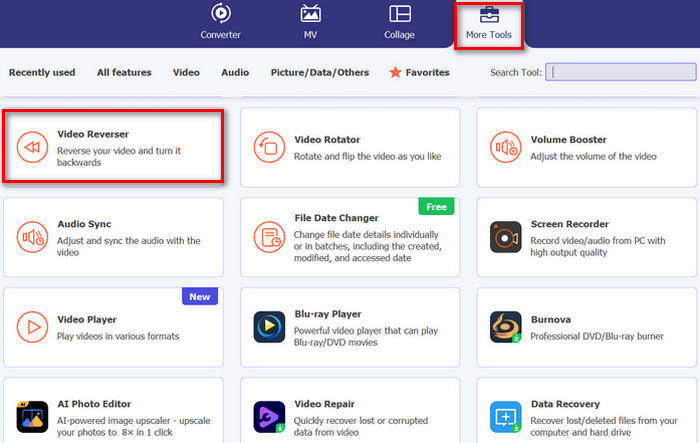
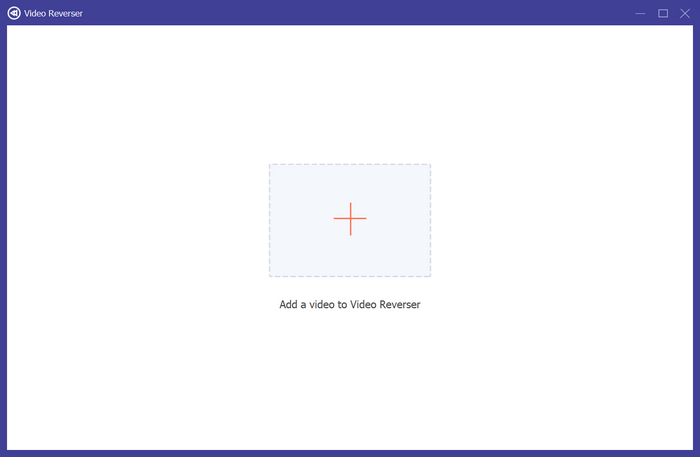
Βήμα 3. Τώρα, εισαγάγετε το αρχείο ήχου ή βίντεο που θέλετε να αντιστρέψετε κάνοντας κλικ στο κουμπί Add a Video to Video Reverser.
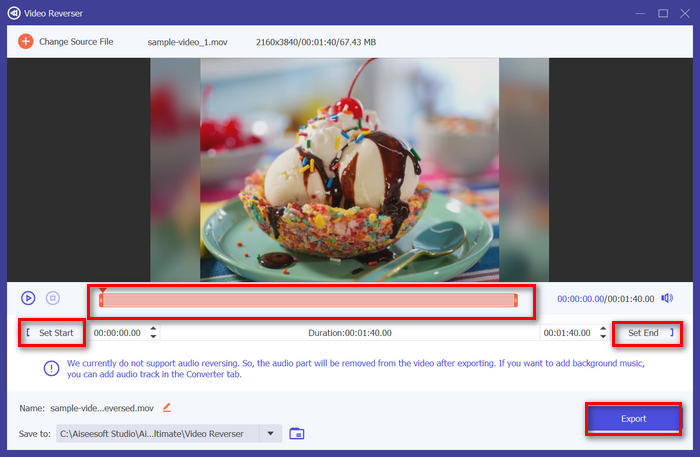
Βήμα 4. Μόλις βρεθείτε στη διεπαφή του Video Reverser, αν θέλετε να αντιστρέψετε ολόκληρο το κομμάτι, μπορείτε απλά να πάτε στο κουμπί Export για να αντιστραφεί αυτόματα το αρχείο σας. Αλλά αν θέλετε να αντιστρέψετε μόνο ένα μέρος, μπορείτε να σύρετε τη γραμμή και να επιλέξετε προσεκτικά το τμήμα του ήχου ή του βίντεο που θέλετε να αντιστρέψετε. Εναλλακτικά, μπορείτε απλώς να καταχωρίσετε την ώρα έναρξης και λήξης του τμήματος του αρχείου που θέλετε να αντιστρέψετε. Όταν τελειώσετε, απλώς κάντε κλικ στο κουμπί Export.
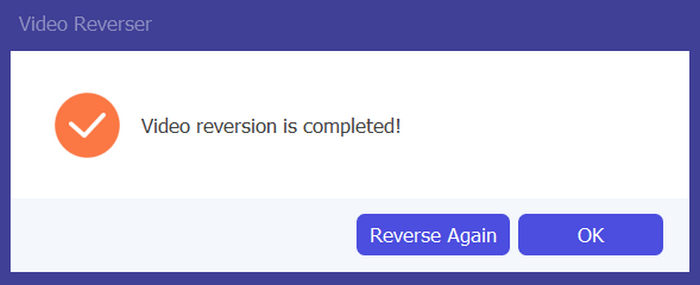
Βήμα 5. Όταν ολοκληρωθεί η εξαγωγή, θα λάβετε αυτό το μήνυμα και θα μπορείτε να αποκτήσετε πρόσβαση στο αντιστραμμένο βίντεό σας στο φάκελο του υπολογιστή σας.
Ορίστε το! Εύκολο peasy, σωστά; Δεν χρειάζεται να μπερδευτείτε με μια πολύπλοκη διεπαφή. Με το Video Converter Ultimate που έχει επιλεγεί από το FVC, όλα όσα χρειάζεστε είναι στα χέρια σας.
Μέρος 4. Συχνές ερωτήσεις σχετικά με την αντιστροφή ήχου στο Audacity
Πώς να αναιρέσετε το αντίστροφο ηχητικό εφέ στο Audacity;
Εάν έχετε αντιστρέψει ένα στο Audacity και θέλετε να το αναιρέσετε, μπορείτε εύκολα να επιστρέψετε στον αρχικό ήχο. Απλώς μεταβείτε στο μενού Επεξεργασία στην επάνω αριστερή γωνία της διεπαφής Audacity και επιλέξτε Αναίρεση αντιστροφής. Επιπλέον, μπορείτε να χρησιμοποιήσετε τη συντόμευση πληκτρολογίου Ctrl + Z για Windows ή Cmd + Z για Mac για να αναιρέσετε την τελευταία ενέργεια. Αυτό θα επαναφέρει τον ήχο στην αρχική του κατάσταση πριν εφαρμοστεί το αντίστροφο εφέ.
Ποιες μορφές ήχου υποστηρίζει το Audacity για την αντιστροφή ήχου;
Το Audacity υποστηρίζει διάφορες δημοφιλείς μορφές ήχου, όπως WAV, MP3, FLAC, AIFF και OGG.
Μπορείτε να παραμορφώσετε τον ήχο στο Audacity;
Ναί. Μπορείτε να παραμορφώσετε τον ήχο στο Audacity. Το Audacity προσφέρει πολλά εφέ και εργαλεία που σας επιτρέπουν να εφαρμόσετε παραμόρφωση στα ηχητικά σας κομμάτια. Για να το προσθέσετε, μεταβείτε στο Εφέ, κάντε κλικ στο Παραμόρφωση και Διαμόρφωση και επιλέξτε Παραμόρφωση.
Μπορείτε να μετατρέψετε ήχο στο Audacity;
Ναι, μπορείτε. Το Audacity υποστηρίζει πολλές μορφές ήχου. Αν, για παράδειγμα, διαπιστώσετε ότι κάποιο αρχείο ήχου δεν είναι συμβατό με τη συσκευή σας, μπορείτε να χρησιμοποιήσετε το Audacity για να μετατρέψετε εύκολα AIFF σε MP3.
συμπέρασμα
Συμπερασματικά, το να μάθετε πώς να αντιστρέφετε ήχο στο Audacity είναι απλό και προσθέτει μοναδικά εφέ στα έργα ήχου ή βίντεο που δημιουργείτε. Ακολουθήστε τα αναλυτικά βήματα για να αρχίσετε να αντιστρέφετε τα ηχητικά σας κομμάτια σήμερα. Για μια πιο εύκολη εναλλακτική, δοκιμάστε το FVC-picked Video Converter Ultimate. Έτοιμοι να γίνετε δημιουργικοί; Δοκιμάστε τώρα οποιαδήποτε από αυτές τις μεθόδους!
-
 Εγγραφείτε δωρεάν στο MOV - Πώς να συγχωνεύσετε δύο αρχεία MOV σε ένα
 Μπορεί να είναι δύσκολο για τους αρχάριους να ενώσουν πολλά βίντεο κλιπ MOV. Υπάρχει λοιπόν ένας απλός και γρήγορος τρόπος συνδυασμού αρχείων MOV; Εάν υπάρχει, τότε πώς να το χρησιμοποιήσετε; Αυτή η ανάρτηση θα σας βοηθήσει να λάβετε αυτές τις απαντήσεις.
-
 4 τρόποι συγχώνευσης βίντεο δωρεάν σε Windows / Mac / Online
 Ακολουθούν 4 γρήγοροι τρόποι συγχώνευσης βίντεο σε ένα νέο βίντεο. Χωρίς όριο μεγέθους ή μορφής αρχείου βίντεο. Μπορείτε να ενώσετε με επιτυχία 2, 3, 4 και ακόμη περισσότερα βίντεο κλιπ σε διαφορετικές μορφές και αναλύσεις.
-
 Συγκεκριμένος οδηγός για συμμετοχή σε αρχεία M4V σε Windows και Mac δωρεάν
 Εάν ψάχνετε μια λύση για να συνδυάσετε αρχεία βίντεο M4V σε ένα, μην χάσετε ποτέ αυτό το απόσπασμα. Εδώ θα μιλήσουμε για τις δύο καλύτερες μεθόδους για το συνδυασμό αρχείων βίντεο M4V.
