


 Video Converter Ultimate
 Εγγραφή οθόνης
 Επισκευή βίντεο
 Ασφαλές κατέβασμα
2 εύκολοι τρόποι αναπαραγωγής αρχείων MKV σε iPad
Μπορώ να αναπαράγω αρχεία MKV σε iPad;
Δεν μπορείτε να αναπαράγετε απευθείας αρχεία MKV σε iPad, είτε χρησιμοποιείτε iPad Pro, iPad Air, iPad mini ή iPad 2/4/6/8. Το MKV είναι ένας δημοφιλής τύπος πολυμεσικού container. Όμως δεν υποστηρίζεται από όλα τα προϊόντα της Apple, όπως iPad, iPhone, iPod και Mac. Τότε πώς μπορείτε να αναπαράγετε MKV σε iPad;

Μπορείτε να χρησιμοποιήσετε μια εφαρμογή τρίτου κατασκευαστή για την αναπαραγωγή αρχείων MKV σε iPad. Επίσης, μπορείτε να επιλέξετε να μετατρέψετε το MKV σε μια μορφή που υποστηρίζεται από το iPad, όπως MP4 ή MOV. Σε αυτή την ανάρτηση, θα μοιραστούμε 2 αποτελεσματικούς τρόπους για να σας βοηθήσουμε να αναπαράγετε αρχεία MKV σε iPad Pro, Air, mini και άλλα μοντέλα.
Μέρος 1. Πώς να παίξετε απευθείας αρχεία MKV σε iPad με VLC
Όπως αναφέρθηκε παραπάνω, δεν επιτρέπεται να αναπαράγετε απευθείας αρχεία MKV σε iPad Pro, Air, mini ή iPad 8/6/4/2. Ωστόσο, υπάρχουν κάποιες εφαρμογές αναπαραγωγής MKV τρίτων στο App Store που μπορούν να σας βοηθήσουν να αναπαράγετε MKV σε iPad, iPhone ή iPod touch. Μπορείτε να βασιστείτε στον δημοφιλή media player, το VLC, για να αναπαράγετε οποιαδήποτε βίντεο, συμπεριλαμβανομένων των αρχείων MKV, στη συσκευή iOS σας.
Το VLC Media Player είναι ένα πολύ δημοφιλές εργαλείο αναπαραγωγής αρχείων πολυμέσων που υποστηρίζει όλες τις συχνά χρησιμοποιούμενες μορφές βίντεο, όπως MKV, MOV, MP4, AVI, FLV και άλλες. Σας επιτρέπει να αναπαράγετε αρχεία πολυμέσων σε υπολογιστή Windows, Mac και Linux. Επιπλέον, το VLC προσφέρει μια εφαρμογή για iOS που σας δίνει τη δυνατότητα να αναπαράγετε αρχεία MKV σε iPad και iPhone.
Βήμα 1. Μεταβείτε στο App Store στο iPad σας και αναζητήστε το VLC. Το πρώτο αποτέλεσμα αναζήτησης θα είναι το VLC for Mobile. Πατήστε πάνω του και στη συνέχεια πατήστε Get για να το εγκαταστήσετε δωρεάν στο iPad σας. Αυτή η εφαρμογή VLC είναι συμβατή με iPad, iPhone, iPod touch και Apple TV.
Βήμα 2. Πατήστε το εικονίδιο VLC για να το ανοίξετε. Τώρα μπορείτε να συγχρονίσετε τα αρχεία MKV μέσω iTunes, κοινής χρήσης μέσω Wi‑Fi ή υπηρεσιών cloud. Μετά από αυτό, μπορείτε να τα δείτε στο Video. Εδώ μπορείτε επίσης να ελέγξετε τα αρχεία MKV στην εφαρμογή Files. Επιλέξτε το αρχείο MKV που θέλετε να αναπαράγετε στο iPad και στη συνέχεια πατήστε το κουμπί Share.
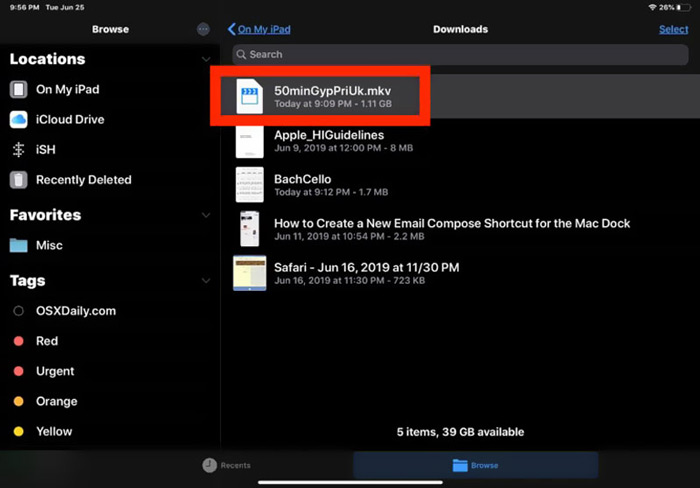
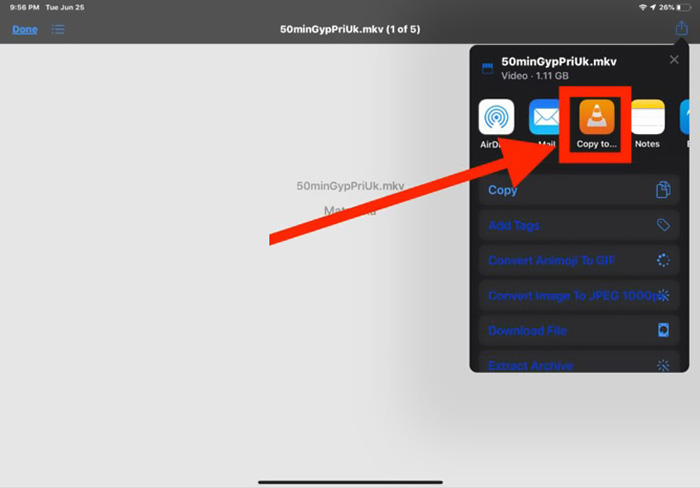
Βήμα 3. Επιλέξτε την επιλογή Open in VLC ή Copy to VLC από το αναπτυσσόμενο μενού. Στη συνέχεια μπορείτε να αναπαράγετε MKV στο iPad με αυτή την εφαρμογή VLC.
Εκτός από τα αρχεία MKV, μπορείτε επίσης να βασιστείτε στο VLC για να αναπαράγετε και άλλα αρχεία πολυμέσων με ευκολία. Φυσικά υπάρχουν και άλλοι αναπαραγωγείς MKV, όπως το KMPlayer και άλλοι, που μπορούν να σας βοηθήσουν να παρακολουθείτε αρχεία MKV σε iPad.
Μέρος 2. Πώς να μετατρέψετε MKV σε MP4 για αναπαραγωγή σε iPad
Όταν θέλετε να αναπαράγετε αρχεία MKV σε iPad, μπορείτε επίσης να επιλέξετε να μετατρέψετε το MKV σε μια μορφή βίντεο που υποστηρίζεται από το iPad, όπως MP4 ή MOV. Για να το κάνετε αυτό, μπορείτε να βασιστείτε στο επαγγελματικό λογισμικό μετατροπής MKV, το Free Online Video Converter.
Αυτός ο μετατροπέας MKV σε iPad υποστηρίζει ιδιαίτερα όλες τις μορφές βίντεο και ήχου που χρησιμοποιούνται συχνά. Σας επιτρέπει να μετατρέψετε MKV σε υποστηριζόμενη μορφή iPad, συμπεριλαμβανομένων MOV και MP4 χωρίς απώλεια ποιότητας. Ο παρακάτω οδηγός θα σας δείξει πώς να το χρησιμοποιήσετε για να μετατρέψετε MKV σε iPad.
Βήμα 1. Ανοίξτε το πρόγραμμα περιήγησής σας, όπως Chrome, IE, Firefox ή Safari, και μεταβείτε στον ιστότοπο του Free Online Video Converter. Όταν φτάσετε εκεί, κάντε κλικ στο Add Files to Convert και στη συνέχεια στο κουμπί download για να εγκαταστήσετε γρήγορα έναν μικρού μεγέθους FVC Launcher για τη μετατροπή MKV.

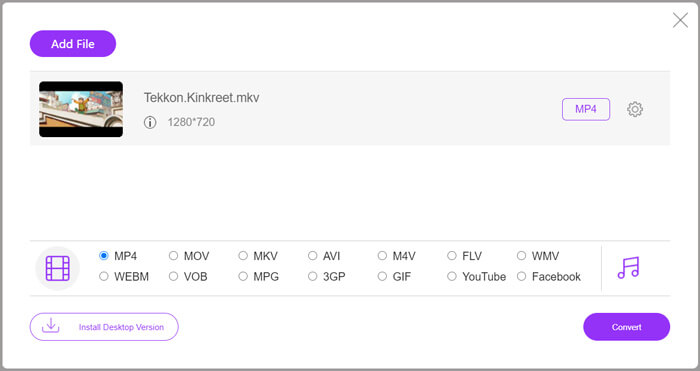
Βήμα 2. Θα εμφανιστεί ένα αναδυόμενο παράθυρο Open File στην οθόνη για να περιηγηθείτε και να εισαγάγετε το αρχείο MKV. Στη συνέχεια θα μεταφερθείτε στο κύριο παράθυρο μετατροπής. Μπορείτε να δείτε ότι πολλές δημοφιλείς μορφές βίντεο, όπως MP4, MKV, MOV, AVI, FLV, WMV, VOB, WEBM και άλλες, είναι καταχωρισμένες εκεί. Εδώ θα πρέπει να επιλέξετε MP4 ή MOV ως μορφή εξόδου.
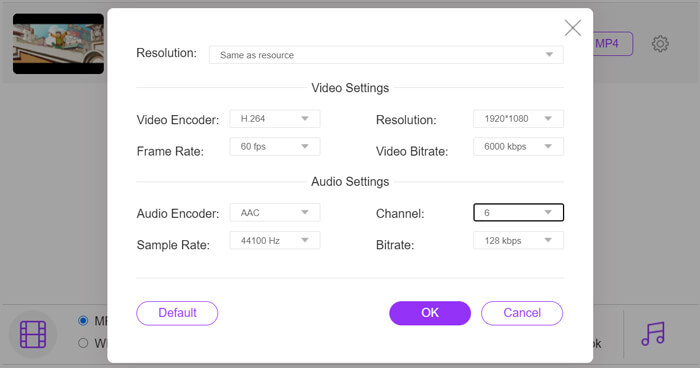
Βήμα 3. Πριν από τη μετατροπή, μπορείτε να κάνετε κλικ στο εικονίδιο Settings δίπλα στη μορφή εξόδου για να προσαρμόσετε διάφορες ρυθμίσεις βίντεο και ήχου. Εδώ μπορείτε να ρυθμίσετε ανάλυση βίντεο, κωδικοποιητή, ρυθμό καρέ, bitrate, κανάλι ήχου, ρυθμό δειγματοληψίας και άλλα. Κάντε κλικ στο κουμπί OK για να αποθηκεύσετε τις αλλαγές σας.
Βήμα 4. Μετά από όλες αυτές τις ενέργειες, μπορείτε να κάνετε κλικ στο κουμπί Convert για να ξεκινήσετε τη μετατροπή MKV σε MP4. Το αρχείο εξόδου θα διατηρήσει ακριβώς την αρχική ποιότητα εικόνας και ήχου. Στη συνέχεια μπορείτε να το μεταφέρετε στο iPad για αναπαραγωγή.
Μέρος 3. Συνήθεις ερωτήσεις σχετικά με την αναπαραγωγή αρχείων MKV σε iPad
Ερώτηση 1. Μπορεί το iMovie να επεξεργαστεί αρχεία MKV;
Όχι. Όπως αναφέραμε παραπάνω, όλες οι συσκευές Apple και το σχετικό λογισμικό δεν μπορούν να υποστηρίξουν τη μορφή MKV. Ως προεπιλεγμένος επεξεργαστής για iPad, iPhone και Mac, το iMovie δεν μπορεί να ανοίξει και να επεξεργαστεί αρχεία MKV.
Ερώτηση 2. Μπορεί το VLC να μετατρέψει το MKV σε MP4;
Ναί. Το VLC Media Player έχει τη δυνατότητα μετατροπής του αρχείου MKV. Μπορείτε να ανοίξετε VLC, να κάνετε κλικ στο μενού Πολυμέσα και να χρησιμοποιήσετε τη δυνατότητα Μετατροπή / Αποθήκευση. Στο παράθυρο Άνοιγμα πολυμέσων, μπορείτε να κάνετε κλικ στο κουμπί Προσθήκη για να φορτώσετε το αρχείο MKV. Κάντε κλικ στο κουμπί Μετατροπή και, στη συνέχεια, επιλέξτε MP4 ως μορφή στόχου. Μετά από αυτό, μπορείτε να επιλέξετε έναν κατάλληλο φάκελο προορισμού και να μετονομάσετε το αρχείο εξόδου. Στη συνέχεια, μπορείτε να κάνετε κλικ στο κουμπί Έναρξη για να κάνετε τη μετατροπή βίντεο από MKV σε MP4 με VLC.
Ερώτηση 3. Μπορούν τα Windows 10 να αναπαράγουν αρχεία MKV;
Δεν μπορείτε να βασιστείτε στο προεπιλεγμένο πρόγραμμα αναπαραγωγής, το Windows Media Player για την αναπαραγωγή αρχείων MKV σε υπολογιστή με Windows 10. Όταν θέλετε να ανοίξετε αρχεία MKV, πρέπει να βασιστείτε σε κάποιο πρόγραμμα αναπαραγωγής πολυμέσων τρίτων όπως το VLC, το PotPlayer και άλλα.
συμπέρασμα
Αφού διαβάσετε αυτή την ανάρτηση, μπορείτε να λάβετε 2 χρήσιμες συμβουλές για να αναπαράγετε αρχεία MKV σε iPad. Είτε θέλετε να παρακολουθείτε απευθείας αρχεία MKV στο iPad, είτε να μετατρέψετε MKV σε μορφή που υποστηρίζει το iPad, μπορείτε να βρείτε το κατάλληλο εργαλείο. Για περισσότερες απορίες σχετικά με την αναπαραγωγή MKV σε iPad, μπορείτε να μας αφήσετε ένα μήνυμα.
-
 M2TS σε iPad - Δωρεάν τρόποι αναπαραγωγής αρχείων βίντεο M2TS στο iPad σας
 Διαβάστε και αποκτήστε τον καλύτερο τρόπο για να μετατρέψετε το M2TS σε iPad. Εδώ είναι οι μετατροπείς αρχείων M2TS στο διαδίκτυο και εκτός σύνδεσης για αναπαραγωγή του iPad M2TS. Απλώς διαβάστε και επιλέξτε τη λύση που σας αρέσει.
-
 MKV σε MOV - Πώς να μετατρέψετε το MKV σε MOV
 Πώς μπορώ να μετατρέψω το MKV σε MOV σε Mac; Μπορεί το iMovie να διαβάσει το MKV; Τι σημαίνει η μορφή MOV; Αυτή η ανάρτηση περιγράφει 2 απλούς τρόπους για να σας βοηθήσει να μετατρέψετε MKV σε MOV με δωρεάν online και επαγγελματικούς μετατροπείς βίντεο.
-
 Tutorial - 4 δωρεάν τρόποι συγχώνευσης βίντεο στο iPhone σε νέο
 Διαβάστε και λάβετε 4 εύκολους τρόπους συγχώνευσης βίντεο στο iPhone. Υποστηρίζονται όλα τα μοντέλα iPhone και οι εκδόσεις iOS. Μπορείτε να συνδυάσετε 2 και περισσότερα βίντεο στο iPhone σε ένα νέο βίντεο γρήγορα.
