


 Video Converter Ultimate
 Εγγραφή οθόνης
 Επισκευή βίντεο
 Ασφαλές κατέβασμα
Πώς να συγχωνεύσετε αρχεία M4V; Εδώ είναι οι 2 πιο γρήγορες λύσεις
Τα αρχεία M4V, επίσης γνωστά ως αρχεία βίντεο MPEG‑4, συνήθως λαμβάνονται μέσω λήψης από το iTunes. Είναι πολύ παρόμοια με τα αρχεία MP4 επειδή και τα δύο χρησιμοποιούν δομή κοντέινερ MPEG‑4. Είναι πολύ πιθανό να συμβεί να έχετε μόλις κατεβάσει μερικά ημιτελή αποσπάσματα βίντεο σε μορφή M4V από το iTunes και στη συνέχεια να θέλετε να συγχωνεύσετε τα αρχεία M4V σε μία ολοκληρωμένη ιστορία χωρίς κενά. Πώς μπορείτε να συνδυάσετε αρχεία M4V; Αυτό το άρθρο σκοπεύει να σας δώσει δύο μεθόδους για να το κάνετε αποτελεσματικά και χωρίς απώλεια ποιότητας εικόνας.

Μέρος 1: Γρηγορότερη λύση - Χρησιμοποιήστε μια δωρεάν συγχώνευση M4V στο Διαδίκτυο
Για την πιο γρήγορη λύση, μπορείτε να χρησιμοποιήσετε το FVC Free Online Video Merger, το οποίο δεν απαιτεί πολύ χρόνο για να μάθετε τα βήματα και τις ρυθμίσεις. Απλώς ανοίξτε το εργαλείο στον φυλλομετρητή σας, προσθέστε τα αρχεία M4V σας και έπειτα κάντε ένα κλικ για να συγχωνεύσετε τα αρχεία M4V.
Βασικά χαρακτηριστικά
- • Συγχώνευση αρχείων M4V οποιουδήποτε ποσού και οποιουδήποτε μεγέθους σε ένα αρχείο δωρεάν.
- • Εύκολο στη χρήση διεπαφή και διαισθητικές διαδικασίες συγχώνευσης.
- • Μπορείτε να αποθηκεύσετε τα συγχωνευμένα αρχεία M4V ως 9 άλλες μεγάλες μορφές.
- • Μην αφήνετε υδατογράφημα στα συνδυασμένα βίντεο M4V.
- • Μεταφορτώστε τα αρχεία σας οποιουδήποτε μεγέθους σε μόλις 1 δευτερόλεπτο.
Βήματα για να ενώσετε αρχεία M4V online δωρεάν
Βήμα 1. Κάντε κλικ εδώ για να φορτώσετε το FVC Free Online Video Merger. Στη σελίδα του online εργαλείου, κάντε κλικ στο κουμπί Upload Videos to Merge στο κέντρο της οθόνης σας.
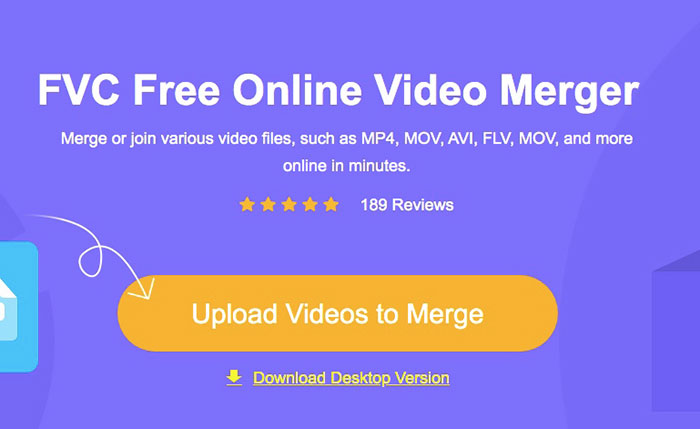
Σημείωση: Το εργαλείο θα σας ζητήσει να κατεβάσετε και να εγκαταστήσετε έναν εκκινητή αν το χρησιμοποιείτε για πρώτη φορά. Αφού εγκαταστήσετε τον εκκινητή, κάντε ξανά κλικ στο κουμπί Upload Videos to Merge.
Βήμα 2. Τώρα θα πρέπει να εμφανιστεί το παράθυρο Άνοιγμα (Open). Εδώ πρέπει να επιλέξετε τα αρχεία M4V και στη συνέχεια να κάνετε κλικ στο κουμπί Open στο κάτω μέρος του παραθύρου.
Βήμα 3. Αφού ανεβάσετε τα αρχεία M4V, μπορείτε να προσαρμόσετε τη σειρά τους αφαιρώντας τα υπάρχοντα και εισάγοντας νέα στα επιθυμητά σημεία.
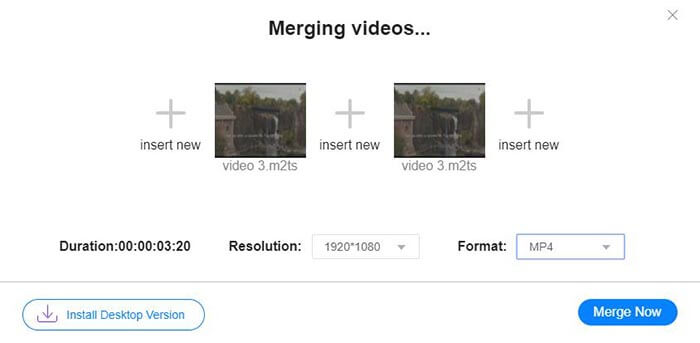
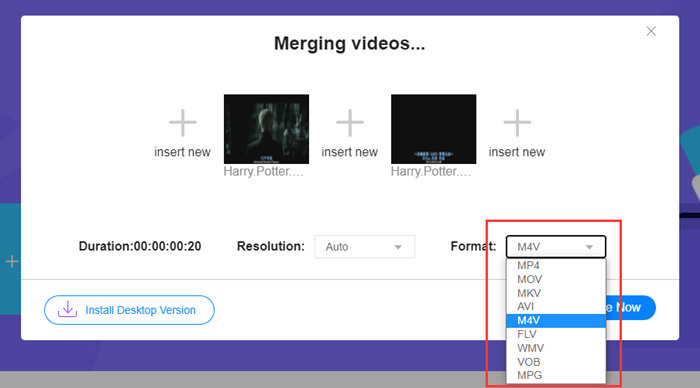
Βήμα 4. Για να διατηρήσετε το συγχωνευμένο αρχείο σε μορφή M4V, χρειάζεται να επιλέξετε M4V στη λίστα Format. Μπορείτε επίσης να επιλέξετε οποιαδήποτε από τις αναφερόμενες μορφές για να μετατρέψετε το συγχωνευμένο βίντεο M4V.
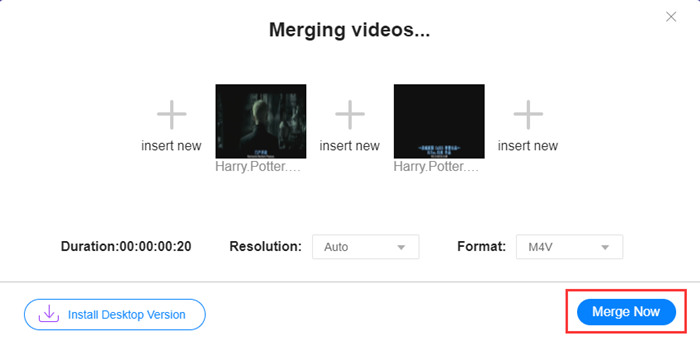
Βήμα 5. Κάντε κλικ στο κουμπί Merge Now για να ξεκινήσετε τον συνδυασμό των αρχείων M4V. Το εργαλείο θα σας ζητήσει στη συνέχεια να ορίσετε τον φάκελο προορισμού του αρχείου εξόδου.
Όταν δείτε την ανακοίνωση επιτυχίας παρακάτω, το συγχωνευμένο βίντεο αποθηκεύεται στον υπολογιστή σας.
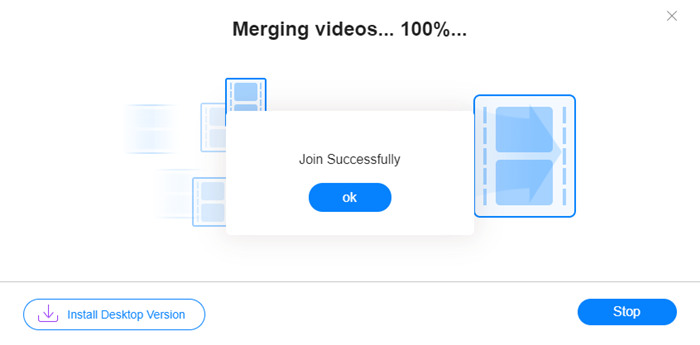
Έχετε ήδη μάθει τον πιο γρήγορο τρόπο για να συνδυάσετε αρχεία M4V. Ωστόσο, αυτή η μέθοδος σάς επιτρέπει μόνο να ενώσετε τα βίντεο το ένα μετά το άλλο, αλλά δεν μπορεί να σας βοηθήσει να κόψετε τα ανεπιθύμητα άκρα, κάτι που μπορεί να οδηγήσει σε περιόδους μαύρης οθόνης στο βίντεο. Ίσως χρειάζεστε και την επόμενη μέθοδο ώστε όχι μόνο να ενώσετε τα αρχεία M4V, αλλά και να τα περικόψετε χωρίς κενά. Μπορείτε να συμπιέσετε αρχεία M4V εδώ.
Μέρος 2: Μια μέθοδος συγχώνευσης αρχείων M4V χωρίς ραφή
Για να αποκτήσετε ένα πλήρες και ομαλό βίντεο, το απλό δέσιμο των αρχείων M4V το ένα μετά το άλλο δεν είναι αρκετό. Πρέπει επίσης να περικόψετε τα ανεπιθύμητα τμήματα στην αρχή και στο τέλος. Αυτό σημαίνει ότι χρειάζεστε ένα εργαλείο επεξεργασίας βίντεο. Υπάρχουν αμέτρητες επιλογές, αλλά εδώ θα θέλαμε να προτείνουμε το Video Converter Ultimate. Ο λόγος είναι απλός: είναι εύκολο στη χρήση και οι λειτουργίες του είναι αρκετά ισχυρές.
Βασικά χαρακτηριστικά
- • Συγχώνευση, περικοπή, περιστροφή, περικοπή και προσθήκη εφέ σε βίντεο M4V.
- • Η τεχνολογία επιτάχυνσης υλικού βοηθά στην ολοκλήρωση της σύνδεσης των αρχείων M4V 70 φορές πιο γρήγορα.
- • Άφθονη συλλογή φίλτρων και εφέ για να διακοσμήσετε τα βίντεό σας
- • Χρησιμοποιήστε τον ενσωματωμένο ενισχυτή βίντεο για να βελτιώσετε την ποιότητα του βίντεό σας
- • Μετατρέψτε τα βίντεό σας σε 3D και απολαύστε τα με τα γυαλιά 3D
Δωρεάν ΛήψηΓια Windows 7 ή νεότεραΑσφαλής λήψη
Δωρεάν ΛήψηΓια MacOS 10.7 ή νεότεροΑσφαλής λήψη
Βήματα για να συγχωνεύσετε αρχεία M4V χωρίς κενά
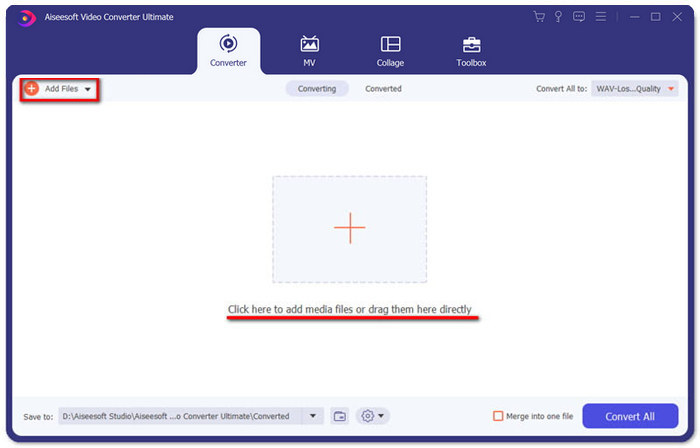
Βήμα 1. Εγκαταστήστε και εκκινήστε το Video Converter Ultimate. Κάντε κλικ στο κουμπί Add Files ή σύρετε αρχεία μέσα στη διεπαφή για να προσθέσετε βίντεο.
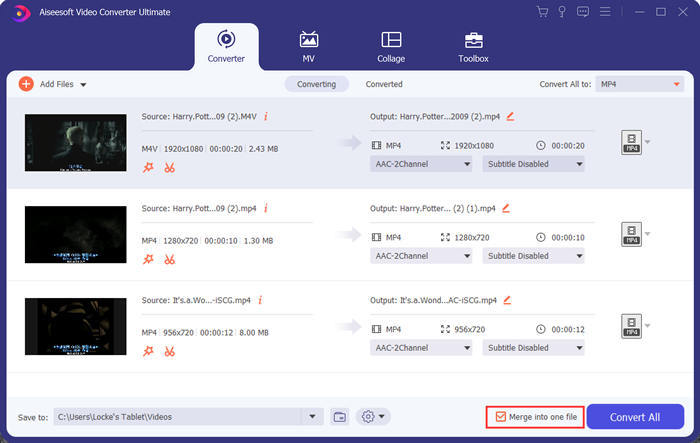
Αφού τα προσθέσετε, μπορείτε να σύρετε τα αρχεία προς τα πάνω ή προς τα κάτω για να ρυθμίσετε τη σειρά τους. Επίσης, χρειάζεται να επιλέξετε το πλαίσιο Merge into one file ώστε το πρόγραμμα να μην μετατρέψει τα προστιθέμενα βίντεο ξεχωριστά.
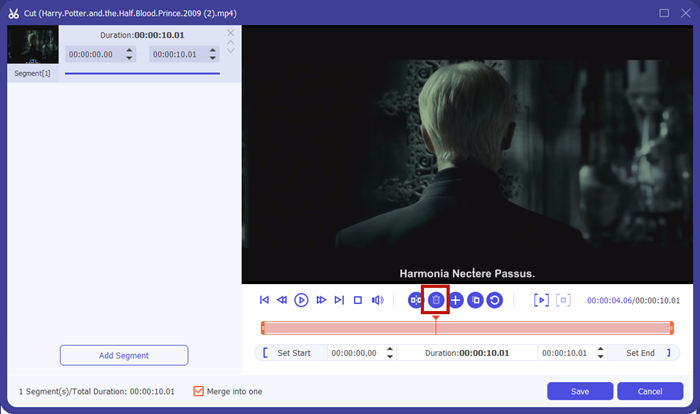
Βήμα 2. Για να χρησιμοποιήσετε τη λειτουργία περικοπής, μπορείτε να κάνετε κλικ στο εικονίδιο Cut σε ένα από τα προστιθέμενα βίντεο.
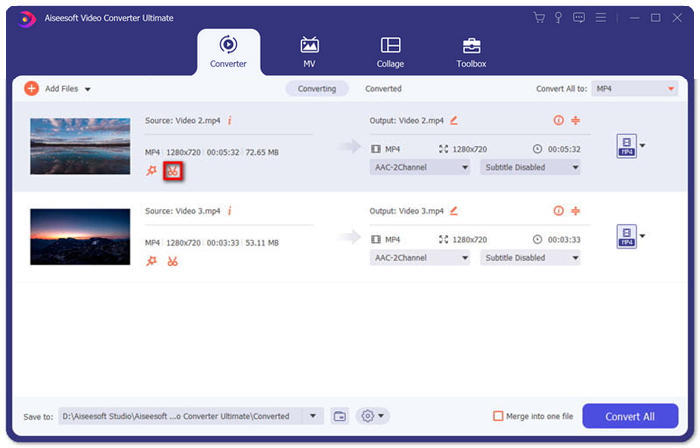
Στη διεπαφή Cut μπορείτε εύκολα να αφαιρέσετε τα ανεπιθύμητα μέρη ενός βίντεο. Απλώς επιλέξτε ένα τμήμα ορίζοντας τα σημεία έναρξης και λήξης και στη συνέχεια κάντε κλικ στο εικονίδιο κάδου απορριμμάτων για να το διαγράψετε.
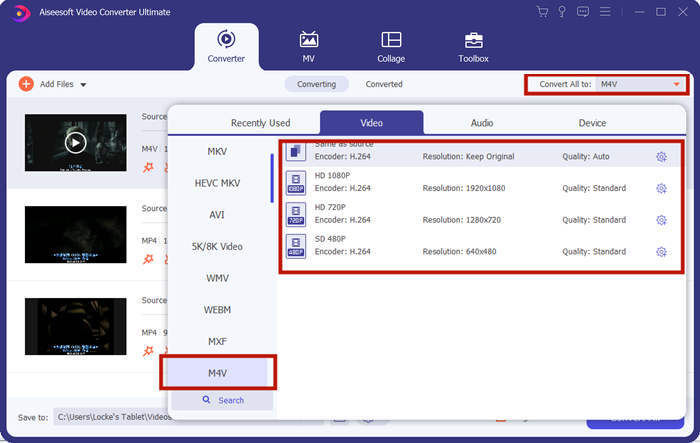
Βήμα 3. Επιστρέφοντας στην κύρια διεπαφή, μπορείτε να επιλέξετε το αρχείο εξόδου. Κάντε κλικ στο βέλος προς τα κάτω δίπλα στο Convert All to. Έπειτα μπορείτε να επιλέξετε M4V ή άλλες μορφές ως μορφή εξόδου.
Βήμα 4. Κάντε κλικ στο κουμπί Convert All στην κάτω‑δεξιά γωνία του προγράμματος και περιμένετε να ενώσει τα αρχεία M4V.

Όταν ολοκληρωθεί η συγχώνευση, θα δείτε μια ειδοποίηση επιτυχίας. Στη συνέχεια, μπορείτε να βρείτε το συγχωνευμένο αρχείο M4V στο φάκελο προορισμού. Παρακάτω είναι δύο μέθοδοι για τη σύνδεση αρχείων βίντεο M4V. Έχουμε επίσης ολοκληρώσει πολλές πιο συχνές ερωτήσεις παρακάτω.
Μέρος 3: Συχνές ερωτήσεις σχετικά με τη συμμετοχή σε αρχεία M4V
Τι είναι το αρχείο M4V;
Το M4V, σχεδιασμένο από την Apple, ονομάζεται επίσης μερικές φορές το iTunes Video File. Είναι παρόμοιο με το MP4 επειδή βασίζονται και τα δύο στο MPEG-4. Το πιο ειδικό χαρακτηριστικό του M4V είναι ότι το iTunes θα μπορούσε να προσθέσει προστασία DRM σε αυτό για να αποτρέψει τη μη εξουσιοδοτημένη διανομή βίντεο iTunes.
Πώς να ανοίξετε ένα αρχείο M4V;
Αν ένα αρχείο M4V δεν προστατεύεται από DRM, μπορεί να αναπαραχθεί σε VLC, QuickTime, Windows Media Player και σε πολλούς άλλους media players. Μερικές φορές αρκεί επίσης να αλλάξετε την κατάληξη .M4V σε .MP4 για να ανοίξει. Ωστόσο, ένα αρχείο M4V με προστασία DRM μπορεί να αναπαραχθεί μόνο σε εξουσιοδοτημένες συσκευές.
Μπορώ να καταργήσω την προστασία DRM από ένα αρχείο M4V;
Ναι μπορείς. Μπορείτε να βρείτε αμέτρητα προγράμματα αφαίρεσης DRM στην αγορά. Εδώ είναι μερικά από αυτά: TunesKit DRM M4V Converter, Aimersoft DRM Media Converter, Requiem DRM Remover, Ondesoft iTunes Convertert, Apple Music Converter.
συμπέρασμα
Αυτό το κείμενο παρουσίασε δύο αποτελεσματικούς τρόπους για να ενώσετε πολλά αρχεία βίντεο M4V σε ένα. Για την πιο γρήγορη λύση, το FVC Free Online Video Merger είναι η καλύτερη επιλογή σας. Μπορείτε να το χρησιμοποιήσετε χωρίς να κατεβάσετε κανένα πρόγραμμα. Η διαδικασία αποστολής μπορεί επίσης να ολοκληρωθεί αμέσως. Αν όμως θέλετε υψηλότερη ποιότητα ή αν θέλετε όχι μόνο να συνδυάσετε αρχεία M4V αλλά και να τα περικόψετε, μπορείτε να στραφείτε στο Video Converter Ultimate. Σας προσφέρει ισχυρές δυνατότητες επεξεργασίας, ενώ η διεπαφή χρήστη είναι φιλική για αρχάριους. Αν έχετε βρει κάποια καλύτερη λύση, θα θέλαμε να τη μάθουμε. Αφήστε μας απλώς ένα σχόλιο παρακάτω.
-
 Πώς να μετατρέψετε M4V σε MP4 με / Χωρίς DRM
 6 τρόποι δωρεάν μετατροπής M4V σε MP4 (περιλαμβάνεται η αφαίρεση DRM)
-
 5 καλύτερες συσκευές αναπαραγωγής M4V για εύκολη αναπαραγωγή αρχείων M4V σε υπολογιστές / κινητά
 Κορυφαίες 5 συσκευές αναπαραγωγής M4V για Windows / Mac / Android / iOS που πρέπει να γνωρίζετε
-
 Πώς να εξαγάγετε MP3 από το M4V με 4 εξαιρετικές μεθόδους που πρέπει να γνωρίζετε
 Μετατροπέας M4V σε MP3 - 4 καλύτερες μέθοδοι εξαγωγής MP3 από αρχεία M4V
