


 Video Converter Ultimate
 Εγγραφή οθόνης
 Επισκευή βίντεο
 Ασφαλές κατέβασμα
5 τρόποι διόρθωσης του Windows Media Player που δεν λειτουργεί στα Windows 7/8/10
Το Windows Media Player σταμάτησε να λειτουργεί. Ένα πρόβλημα προκάλεσε το πρόγραμμα να σταματήσει να λειτουργεί σωστά. Θα αναπαράγει επίσης ήχο αλλά όχι βίντεο. Πώς να διορθώσετε αυτό το πρόβλημα;
Όταν το Windows Media Player σταματήσει να λειτουργεί, ενδέχεται να λάβετε το σφάλμα "Window Media Player έχει σταματήσει να λειτουργεί" χωρίς συγκεκριμένες πληροφορίες σχετικά με αυτό ή ενημερώνεστε ότι "Ο τύπος αρχείου δεν υποστηρίζεται". Ακόμα και δεν υπάρχουν προτροπές και τα κλικ δεν λειτουργούν.
Υπάρχουν πολλοί λόγοι για τους οποίους ο Windows Media Player δεν λειτουργεί. Το πιο συνηθισμένο πρόβλημα είναι ότι τα αρχεία δεν υποστηρίζονται, γεγονός που μπορεί να οδηγήσει σε αναπαραγωγή βίντεο χωρίς εικόνα, χωρίς ήχο ή χωρίς υπότιτλους. Σε άλλες περιπτώσεις, τα αίτια μπορεί να είναι πολύ ποικίλα χωρίς κάποιο συγκεκριμένο μήνυμα σφάλματος. Σε αυτήν την περίπτωση, πρέπει να ελέγξετε όλα τα προβλήματα που αναφέρονται στο παρακάτω άρθρο για να διορθώσετε αυτό το σύνθετο σφάλμα. Μπορείτε όμως επίσης να επιλέξετε τον καλύτερο τρόπο, χρησιμοποιώντας έναν εναλλακτικό πρόγραμμα αναπαραγωγής βίντεο, ώστε να βλέπετε οποιοδήποτε βίντεο χωρίς προβλήματα και περιορισμούς.

Μέρος 1: Το καλύτερο εναλλακτικό πρόγραμμα αναπαραγωγής πολυμέσων που δεν πρέπει να χάσετε
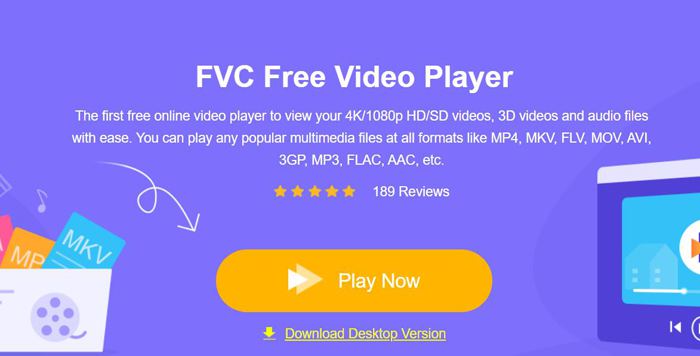
Για να αποφύγετε το πρόβλημα του Windows Media Player που δεν λειτουργεί, είναι προτιμότερο να επιλέξετε μια επαγγελματική εναλλακτική λύση. Το FVC Free Video Player είναι ένα δωρεάν διαδικτυακό πρόγραμμα αναπαραγωγής βίντεο που θα λύσει όλα τα προβλήματα που μπορεί να αντιμετωπίσετε όταν χρησιμοποιείτε το Windows Media Player. Υποστηρίζει την αναπαραγωγή βίντεο χωρίς περιορισμούς μορφής και ανάλυσης. Και χωρίς να χρειάζεται να κατεβάσετε κάποιο άλλο λογισμικό, μπορείτε να αναπαράγετε ομαλά όλα τα είδη βίντεο.
- 1. Υποστήριξη αναπαραγωγής σχεδόν όλων των μορφών, συμπεριλαμβανομένων αρχείων FLV, MKV, RMVB και DVD ή Blu-ray.
- 2. Αναπαραγωγή βίντεο υψηλής ποιότητας με ανάλυση 4K.
- 3. Δυνατότητα προσαρμογής των ηχητικών κομματιών και των υπότιτλων σε διαφορετικές γλώσσες.
- 4. Τραβήξτε ένα στιγμιότυπο οθόνης ανά πάσα στιγμή κατά την αναπαραγωγή βίντεο.
Βήμα 1: Μεταβείτε στον ιστότοπο του FVC Free Video Player από οποιοδήποτε πρόγραμμα περιήγησης. Έπειτα κάντε κλικ στο κουμπί Play Now για να εγκαταστήσετε τον εκκινητή. Μετά από λίγα λεπτά, κάντε ξανά κλικ στο κουμπί Play Now για να ξεκινήσει το FVC Free Video Player.
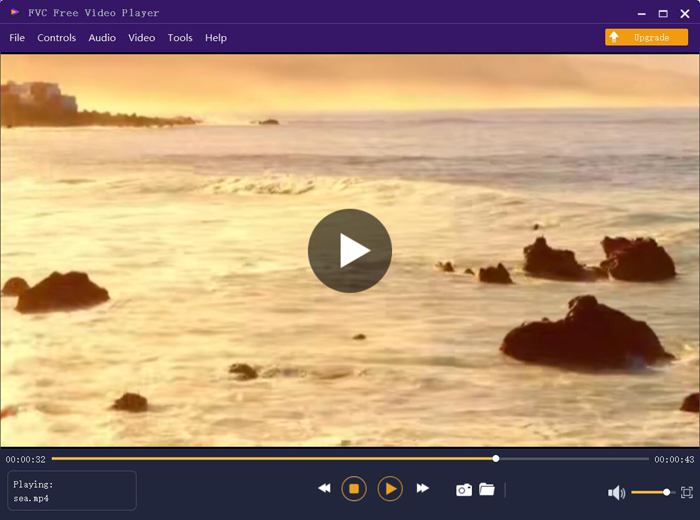
Βήμα 2: Κάντε κλικ στο κουμπί Open Files για να επιλέξετε το επιθυμητό βίντεο. Στη συνέχεια θα ξεκινήσει αυτόματα η αναπαραγωγή. Στο μενού Control μπορείτε να δείτε τις συντομεύσεις πληκτρολογίου για τη ρύθμιση της έντασης. Μπορείτε επίσης να επιλέξετε τα ηχητικά ή τα βίντεο κανάλια σύμφωνα με τις ανάγκες σας. Επιπλέον, αν κάνετε κλικ στο κουμπί Tools και επιλέξετε την επιλογή Effect, μπορείτε ακόμη να ρυθμίσετε την απόχρωση, τη φωτεινότητα, την αντίθεση, τον κορεσμό και το gamma.
Μέρος 2: Τρόπος διόρθωσης του Windows Media Player που δεν λειτουργεί στα Windows 7/8/10
Όπως αναφέρθηκε προηγουμένως, πολλοί λόγοι μπορεί να προκαλέσουν το Windows Media Player να μην λειτουργεί και υπάρχουν 3 μέθοδοι για την επίλυση αυτού του προβλήματος σε διαφορετικές καταστάσεις.
Μέθοδος 1: Εκκινήστε το εργαλείο αντιμετώπισης προβλημάτων του Window Media Player
Όταν το Windows Media Player δεν αποκρίνεται μετά από κλικ, αυτός ο τρόπος θα σας βοηθήσει να το λύσετε.
Βήμα 1: Πατήστε τα πλήκτρα Windows και R στο πληκτρολόγιό σας για να ανοίξετε το πρόγραμμα Run. Έπειτα πρέπει να αντιγράψετε και να επικολλήσετε το msdt.exe -id WindowsMediaPlayerConfigurationDiagnostic στη γραμμή αναζήτησης. Κάντε κλικ στο κουμπί OK για να μεταβείτε στο εργαλείο αντιμετώπισης προβλημάτων ρυθμίσεων του Windows Media Player. Στη συνέχεια κάντε κλικ στο κουμπί Next για να το ξεκινήσετε.
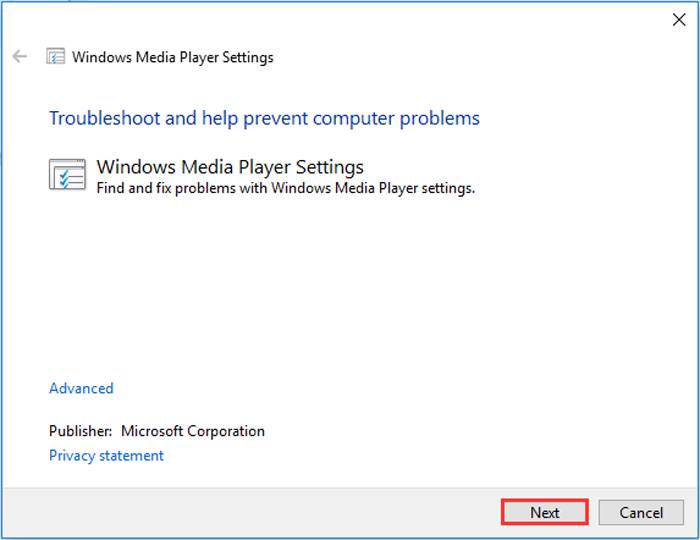
Βήμα 2: Αφού εμφανιστεί το παράθυρο, κάντε κλικ στο κουμπί Apply this fix για να επαναφέρετε τον Windows Media Player στις προεπιλεγμένες ρυθμίσεις. Έπειτα μπορείτε να δοκιμάσετε να επανεκκινήσετε τον Windows Media Player.
Μέθοδος 2: Εγκαταστήστε άλλους αποκωδικοποιητές στο Windows Media Player
Εάν το Windows Media Player δεν λειτουργεί με κάποια ειδικά βίντεο ή ήχους, μπορείτε να πραγματοποιήσετε λήψη του αποκωδικοποιητή που ανταποκρίνεται για αναπαραγωγή αυτών των βίντεο.
Βήμα 1: Ανοίξτε το Microsoft Store στον υπολογιστή σας. Κάντε κλικ στο κουμπί Search και στη συνέχεια πληκτρολογήστε Video Extension στη γραμμή αναζήτησης. Μπορείτε να κατεβάσετε την επιθυμητή επέκταση βίντεο στον υπολογιστή σας.
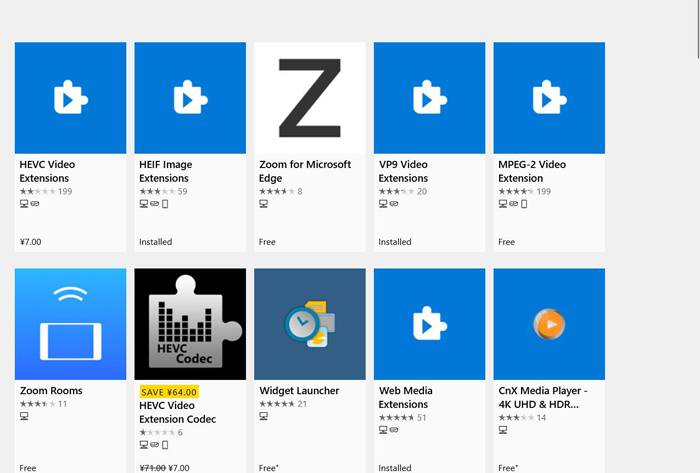
Βήμα 2: Μετά την εγκατάσταση, ανοίξτε ξανά τα βίντεο μέσω του Windows Media Player. Πρέπει όμως να σημειωθεί ότι εξακολουθούν να υπάρχουν πολλές μορφές που δεν υποστηρίζονται, όπως FLV, RMVB κ.λπ.
Μέθοδος 3: Επανεγκατάσταση του Windows Media Player.
Εάν η αναφερόμενη μέθοδος δεν λειτουργεί, θα πρέπει να προσπαθήσετε να εγκαταστήσετε ξανά το λογισμικό όταν το Windows Media Player σταματήσει να λειτουργεί.
Βήμα 1: Πατήστε τα πλήκτρα Windows και R στο πληκτρολόγιό σας για να ανοίξετε το πρόγραμμα Run. Έπειτα πληκτρολογήστε optionalfeatures.exe στη γραμμή αναζήτησης. Κάντε κλικ στο κουμπί OK για να ανοίξετε ή να κλείσετε μια λειτουργία. Έπειτα μπορείτε να αποεπιλέξετε το Windows Media Player.
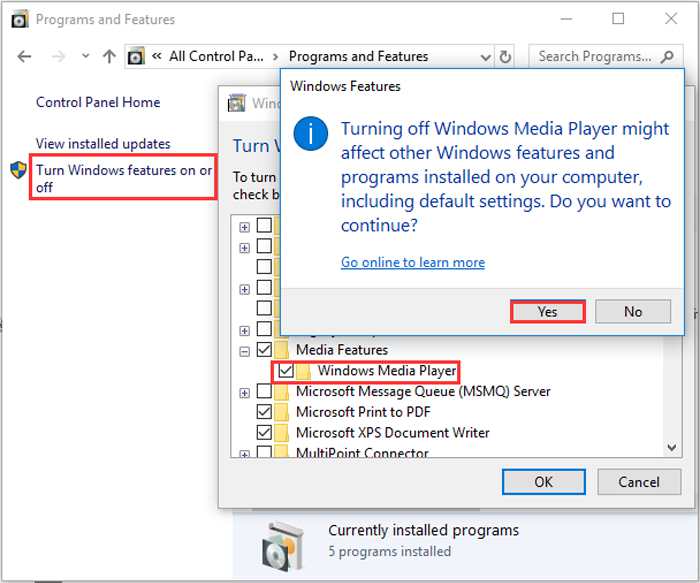
Βήμα 2: Επανεκκινήστε τον υπολογιστή σας και επαναλάβετε την προηγούμενη διαδικασία. Στη συνέχεια επιλέξτε ξανά (τσεκάρετε) το Windows Media Player. Αφού το κάνετε αυτό, επανεκκινήστε ξανά τον υπολογιστή σας και το λογισμικό θα εγκατασταθεί αυτόματα στον υπολογιστή σας.
Εκτός από αυτά τα προβλήματα, το Windows Media Player έχει επίσης πολλά μειονεκτήματα. Δεν μπορείτε να ρυθμίσετε την ταχύτητα της αναπαραγωγής βίντεο και τα πλήκτρα πρόσβασης είναι πάντα άχρηστα. Γιατί λοιπόν να μην επιλέξετε το δωρεάν online πρόγραμμα αναπαραγωγής βίντεο για να λύσετε όλα τα προβλήματα;
Μέρος 3: Συνήθεις ερωτήσεις του Windows Media Player που δεν λειτουργούν
1. Γιατί δεν είναι δυνατή η αναπαραγωγή αρχείων βίντεο FLV στο Windows Media Player;
Παρόλο που ο Windows Media Player υποστηρίζει την εγκατάσταση πολλαπλών αποκωδικοποιητών για την αναπαραγωγή βίντεο σε ορισμένες ασυνήθιστες μορφές, η μορφή FLV δεν υποστηρίζεται. Σε αυτήν την περίπτωση, μπορείτε να δοκιμάσετε να κατεβάσετε εναλλακτικούς Windows Media Player ή να μετατρέψετε τις μορφές των βίντεο.
2. Γιατί το Windows Media Player δεν λειτουργεί μετά από ενημερώσεις των Windows 10;
Ίσως το Windows Media Player κατέστρεψε μετά την ενημέρωση. Μπορείτε να δοκιμάσετε την αναφερθείσα μέθοδο 3 για να επανεγκαταστήσετε το Windows Media Player.
3. Πώς να επιλέξετε κομμάτια υποτίτλων στο Window Media Player;
Δυστυχώς, δεν υπάρχει επιλογή να επιλέξετε διαφορετικούς υπότιτλους, κομμάτια βίντεο και ήχου στο Windows Media Player. Μπορείτε να επιλέξετε άλλες εναλλακτικές λύσεις για την αναπαραγωγή βίντεο.
συμπέρασμα
Οι λόγοι για τους οποίους το Windows Media Player δεν λειτουργεί θα είναι πολύ περίπλοκοι, γεγονός που καθιστά δύσκολη την επίλυση αυτού του προβλήματος. Έτσι, μπορείτε απλά να κατεβάσετε το καλύτερο εναλλακτικό πρόγραμμα αναπαραγωγής πολυμέσων - το FVC Free Video Player για την ομαλή αναπαραγωγή βίντεο με υψηλή ποιότητα. Με αυτόν τον τρόπο, μπορείτε να αποτρέψετε το Windows Media Player να μην λειτουργεί για πάντα.
-
 Πώς να παίξετε DVD στο Windows Media Player το 2021
 Γιατί δεν αναπαράγεται το DVD μου στο Windows Media Player; Πώς να παίξετε DVD στο Windows 7 media player; Αυτή η ανάρτηση μοιράζεται 3 τρόπους αναπαραγωγής DVD με ή χωρίς WMP.
-
 6 επαληθευμένες λύσεις για να διορθώσετε βίντεο που δεν αναπαράγονται στο Chrome
 Για να διορθώσετε το πρόβλημα που δεν αναπαράγονται βίντεο στο Chrome, το μόνο που χρειάζεται να κάνετε είναι να διαβάσετε την αντιμετώπιση προβλημάτων και να εκτελέσετε τις επαληθευμένες λύσεις μία προς μία.
-
 5 100% Λύσεις εργασίας για να διορθώσετε τα βίντεο που δεν αναπαράγονται στο iPad
 Τα βίντεό σας δεν αναπαράγονται στο iPad; Ακολουθούν πέντε λύσεις που θα σας βοηθήσουν να απαλλαγείτε από αυτό το πρόβλημα και στη συνέχεια μπορείτε να απολαύσετε εύκολα τα αγαπημένα σας βίντεο στο ακουστικό.
