


 Video Converter Ultimate
 Εγγραφή οθόνης
 Επισκευή βίντεο
 Ασφαλές κατέβασμα
Γρήγορα και εύκολα βήματα Τρόπος περιστροφής και αναστροφής GIF χρησιμοποιώντας εκτός σύνδεσης και σε απευθείας σύνδεση
Επεξεργάζεστε ένα βίντεο σε οριζόντια διάταξη και θέλετε να προσθέσετε ορισμένα εφέ χρησιμοποιώντας GIF. Ωστόσο, το GIF που δημιουργήσατε ή κατεβάσατε είναι σε κατακόρυφη διάταξη, και επειδή είναι κάθετο, δεν εφαρμόζεται σωστά στο κάδρο. Τώρα θέλετε να το περιστρέψετε και να αναστρέψετε ορισμένα από αυτά. Παράλληλα, το κατέβασμα από μη αξιόπιστους ιστότοπους στο διαδίκτυο σάς δυσκολεύει και αυτοί οι ιστότοποι μπορεί να μεταφέρουν ιούς στη συσκευή σας. Μη φοβάστε! Γιατί αυτό το άρθρο θα σας βοηθήσει να χρησιμοποιήσετε τα καλύτερα εργαλεία για να περιστρέψετε και να αναστρέψετε GIF online και offline.

Μέρος 1: Τρόπος περιστροφής και αναστροφής GIF με τα καλύτερα εργαλεία [Εκτός σύνδεσης]
1. Video Converter Ultimate
Αυτό είναι ένα από τα καλύτερα εργαλεία που προτείνει το άρθρο ανάμεσα σε όλες τις διαδικτυακές μεθόδους και τα προγράμματα για να σας βοηθήσει με το πρόβλημα. Εγκαταστήστε το FVC Video Converter Ultimate στον υπολογιστή σας, ένα πρόγραμμα με πολλές λειτουργίες βελτίωσης βίντεο. Μία από τις δυνατότητες που προσφέρει μπορεί να περιστρέψει και να αναστρέψει GIF στο μοτίβο που θέλετε, χωρίς απώλεια ποιότητας. Ρίξτε μια ματιά στα παρακάτω βήματα για να μάθετε πώς να χρησιμοποιείτε το λογισμικό:
Βήμα 1. Αποκτήστε το πρόγραμμα
Πατήστε το κουμπί Free Download για να κατεβάσετε το λογισμικό στον υπολογιστή σας. Έπειτα εγκαταστήστε το λογισμικό και προσαρμόστε τις ρυθμίσεις εγκατάστασης όπως επιθυμείτε. Αν όλα είναι εντάξει, εκκινήστε το πρόγραμμα μετά την εγκατάσταση και κάντε κλικ στο Start Now.
Δωρεάν λήψηΓια Windows 7 ή νεότεραΑσφαλής λήψη
Δωρεάν λήψηΓια MacOS 10.7 ή νεότεροΑσφαλής λήψη
Βήμα 2. Πρόσβαση στο Video Rotator
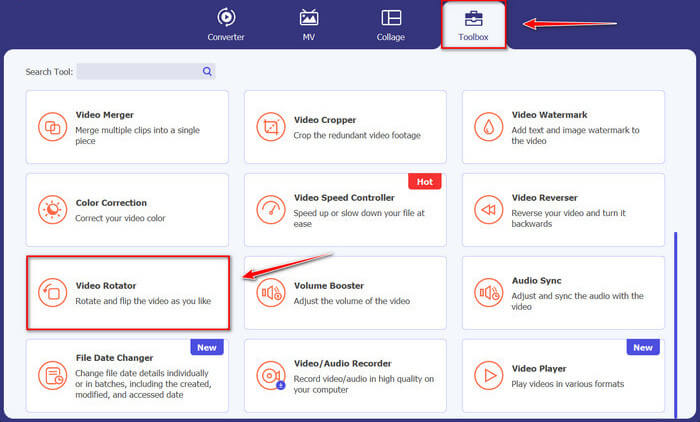
Στη συνέχεια, κάνοντας κλικ στη λειτουργία Toolbox, σύρετε την οθόνη προς τα κάτω και επιλέξτε το Video Rotator.
Βήμα 3. Εισαγωγή αρχείου GIF
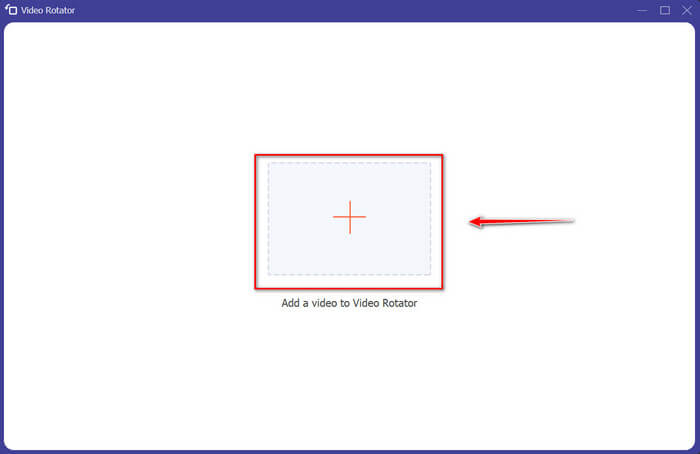
Εισαγάγετε αρχεία που θέλετε να περιστρέψετε και αναποδογυρίστε σύροντας αρχεία στη διεπαφή, μπορείτε επίσης να κάνετε κλικ στο κουμπί + και να επιλέξετε αρχεία στον υπολογιστή σας.
Βήμα 4. Περιστροφή του GIF
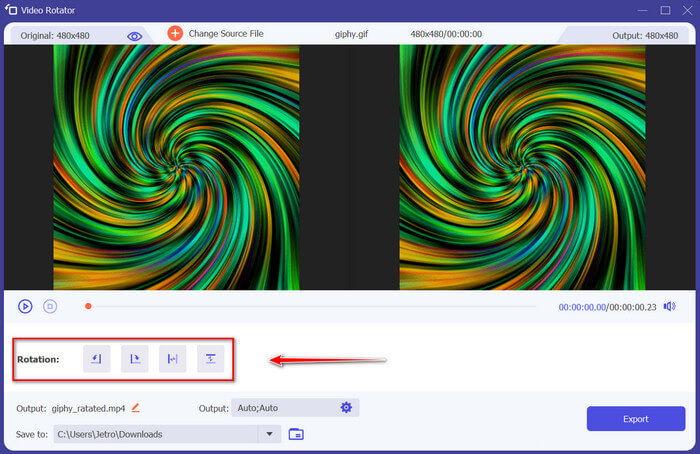
Επιλέξτε πώς θα αναστρέψετε και θα περιστρέψετε το GIF σας. Μπορείτε να το περιστρέψετε 90 μοίρες προς τα αριστερά ή προς τα δεξιά και να το γυρίσετε κάθετα ή οριζόντια.
Βήμα 5. Λήψη του περιστραμμένου GIF
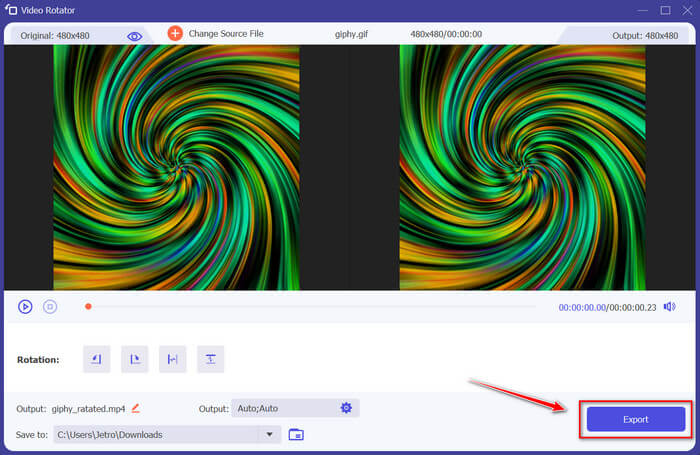
Κατεβάστε το αρχείο σας κάνοντας κλικ στο Export στη δεξιά κάτω γωνία της διεπαφής. Στη συνέχεια, θα εμφανιστεί ένα παράθυρο στην οθόνη σας. Κάντε κλικ στο Rotate Again για να περιστρέψετε ένα άλλο κλιπ βίντεο ή στο Okay αν έχετε τελειώσει.
2. Photoshop
Ένα άλλο εξαιρετικό εργαλείο εκτός σύνδεσης που συνιστάται να χρησιμοποιήσετε θα σας βοηθήσει να μάθετε πώς να περιστρέφετε και να αναστρέφετε GIF. Αυτό το εργαλείο είναι μεγάλο σε μέγεθος και πιο περίπλοκο στη χρήση, αλλά έχει τα ίδια χαρακτηριστικά με το FVC Video Converter Ultimate. Με το Photoshop, μπορείτε να περιστρέψετε και να αναστρέψετε τα GIF σαν επαγγελματίας χωρίς να αποσυνθέσετε την ποιότητά τους. Ακολουθήστε τις παρακάτω μεθόδους για να αποκτήσετε γνώσεις σχετικά με τα χαρακτηριστικά και τα τεχνικά χαρακτηριστικά του.
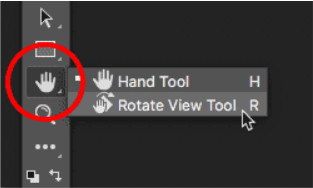
Βήμα 1. Κατεβάστε και ανοίξτε το Photoshop στον υπολογιστή σας. Έπειτα κάντε κλικ στο Hand Tool στη λίστα λειτουργιών στη Toolbar. Το Hand Tool είναι ορατό από προεπιλογή, με το Rotate View Tool κρυμμένο από πίσω. Κάντε κλικ και κρατήστε πατημένο το εικονίδιο του Hand Tool μέχρι να εμφανιστεί ένα αναδυόμενο μενού, για να επιλέξετε το Rotate View Tool. Έπειτα, από το μενού, επιλέξτε το Rotate View Tool.
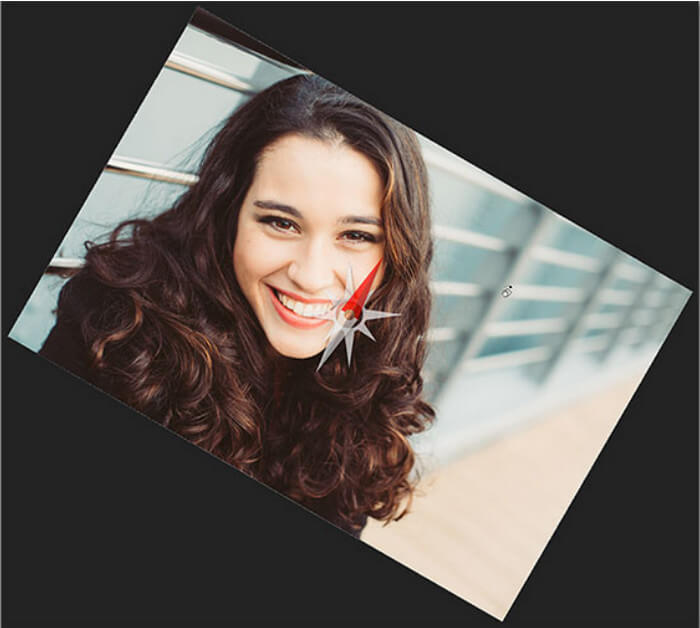
Βήμα 2. Κρατήστε πατημένο το αριστερό κουμπί του ποντικιού ενώ κάνετε κλικ στην εικόνα με το Rotate View Tool. Τότε, εμφανίζεται μια πυξίδα στο κέντρο. Στη συνέχεια, ο κόκκινος δείκτης κατεύθυνσης στο επάνω μέρος της πυξίδας δείχνει πάντα την πραγματική κορυφή της εικόνας, ώστε ακόμη κι αν περιστρέψετε τη γωνία, να ξέρετε πάντα ποια πλευρά είναι προς τα πάνω.

Βήμα 3. Κρατήστε πατημένο το κουμπί του ποντικιού και σύρετε την εικόνα για να περιστρέψετε την προβολή. Ανάλογα με τις ανάγκες σας, σύρετε δεξιόστροφα ή αριστερόστροφα. Καθώς περιστρέφετε την προβολή, η πυξίδα δείχνει την πραγματική κορυφή της εικόνας. Το Photoshop σάς επιτρέπει από προεπιλογή να περιστρέφετε ελεύθερα τη γωνία. Ωστόσο, αν πατήσετε και κρατήσετε πατημένο το πλήκτρο Shift ενώ σύρετε, η προβολή θα περιστρέφεται κατά 15 μοίρες.
3. Φωτογραφίες
Μερικές φορές τα απλά προβλήματα χρειάζονται μόνο απλές λύσεις. Με αυτό το εργαλείο, δεν χρειάζεται να κάνετε λήψη λογισμικού και να εγκαταστήσετε εφαρμογές στη συσκευή σας μόνο για να περιστρέψετε και να αναστρέψετε τα GIF. Χρησιμοποιώντας το τηλέφωνό σας Android, μπορείτε τώρα να περιστρέψετε και να αναστρέψετε GIF όποτε σας βολεύει. Εάν δεν είστε σίγουροι πώς να το κάνετε, ακολουθήστε όλα τα παρακάτω βήματα:
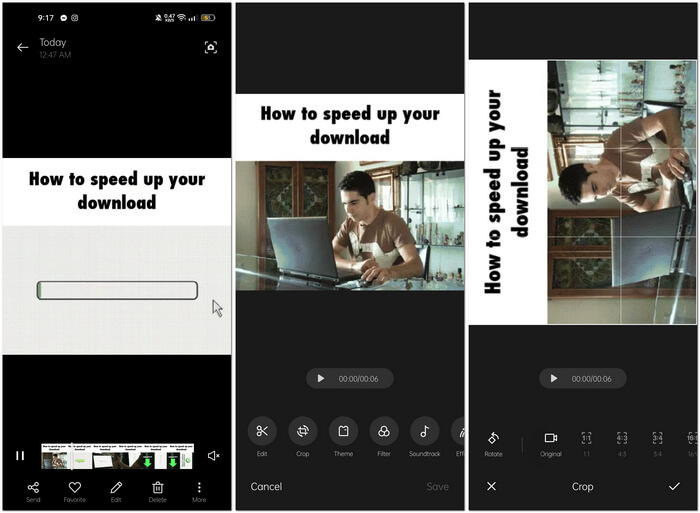
Βήμα 1. Ανοίξτε το τηλέφωνό σας και αναζητήστε τον φάκελο Photos ή Image. Επιλέξτε ένα GIF που θέλετε να περιστρέψετε και να αναστρέψετε. Επιλέξτε Edit για να ξεκινήσετε την επεξεργασία του GIF σας.
Βήμα 2. Στο κάτω μέρος της οθόνης, επιλέξτε Crop αφού επιλέξετε το κλιπ.
Βήμα 3. Περιστρέψτε το GIF σας κάνοντας κλικ στο Rotate. Μπορείτε να προσαρμόσετε το GIF μόνο κατακόρυφα ή οριζόντια. Έπειτα κάντε κλικ στο εικονίδιο Check για να αποθηκεύσετε το προσαρμοσμένο GIF.
Μέρος 2: Τα καλύτερα διαδικτυακά εναλλακτικά εργαλεία για περιστροφή και ανατροπή GIF
1. LunaPic
Αυτό το εργαλείο ιστού είναι ένα πρόγραμμα επεξεργασίας χαμηλού προϋπολογισμού που καλύπτει διάφορα διαθέσιμα εργαλεία για ένα δωρεάν εργαλείο ιστού που μπορεί να σας προσφέρει μια επαγγελματική προοπτική επεξεργασίας. Επειδή αυτό το διαδικτυακό εργαλείο καλύπτει τις περισσότερες από τις διαθέσιμες μορφές και μέσα κοινωνικής δικτύωσης, η επεξεργασία γίνεται παιχνιδάκι, παρέχοντας μια εξαιρετική εμπειρία για ορισμένους επαγγελματίες συντάκτες. Θα δείτε εργαλεία που δεν παρέχουν άλλα εργαλεία ιστού, ειδικά εκείνα που σας βοηθούν να περιστρέψετε και να αναστρέψετε τα GIF. Η διεπαφή είναι απλή και μπορεί να προσαρμοστεί στις προτιμήσεις κάθε χρήστη. Ακολουθήστε τα βήματα που παρέχονται παρακάτω για να χρησιμοποιήσετε αυτό το εξαιρετικό διαδικτυακό εργαλείο.
Βήμα 1. Κάντε κλικ στην καρτέλα Upload στην επάνω αριστερή γωνία της διεπαφής του ιστότοπου και προσθέστε αρχεία κάνοντας κλικ στο Choose file.
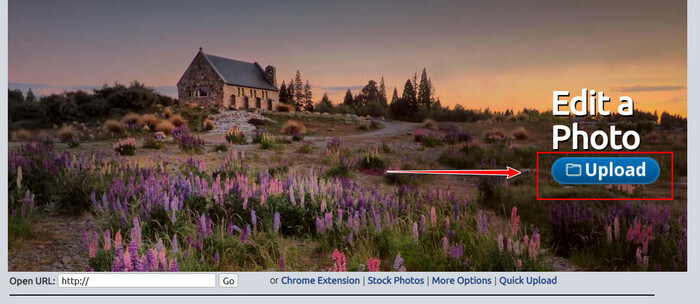
Βήμα 2. Μπορείτε να επεξεργαστείτε το GIF σας στην πρώτη διεπαφή μετά την αποστολή του αρχείου. Αλλά αν θέλετε να προσαρμόσετε την περιστροφή του GIF σας, προχωρήστε κάνοντας κλικ στην καρτέλα Edit και έπειτα στο Rotate Image.
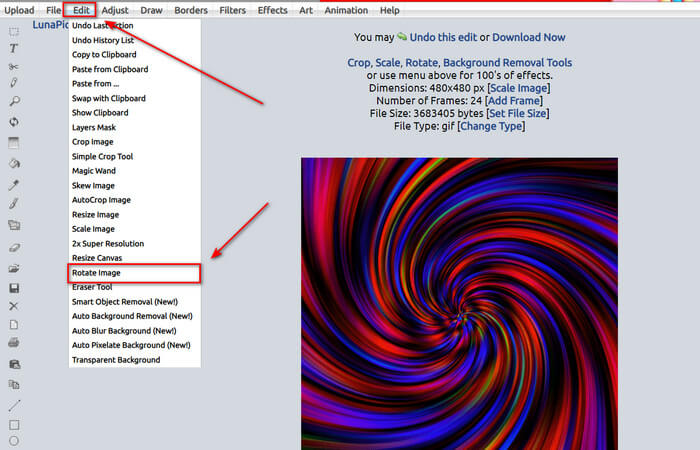
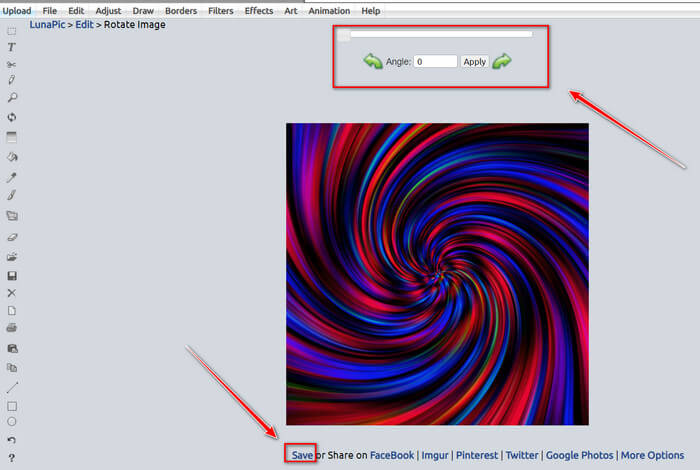
Βήμα 3. Προσαρμόστε την περιστροφή του GIF εισάγοντας συγκεκριμένες μοίρες ή κάνοντας κλικ στα βέλη αριστερά και δεξιά. Στη συνέχεια, κατεβάστε το κάνοντας κλικ στο Save που βρίσκεται στο κάτω μέρος της οθόνης.
2. Εζγκίφ
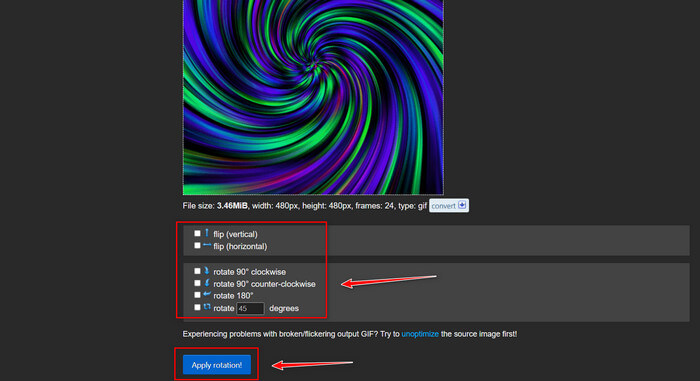
Το Ezgif.com είναι ένας απλός διαδικτυακός δημιουργός GIF και ένα σύνολο εργαλείων για τη δημιουργία και την τροποποίηση βασικών κινούμενων GIF. Το Ezgif μπορεί να αλλάξει μέγεθος, να περικόψει, να βελτιώσει, να βελτιστοποιήσει και να αντιστρέψει GIF με αυτό το εργαλείο. Ένα από τα καλύτερα χαρακτηριστικά του είναι ότι μπορείτε να περιστρέφετε GIF με εύκολα βήματα. Για να μάθετε πώς να το χρησιμοποιείτε, ακολουθήστε τα παρακάτω βήματα:
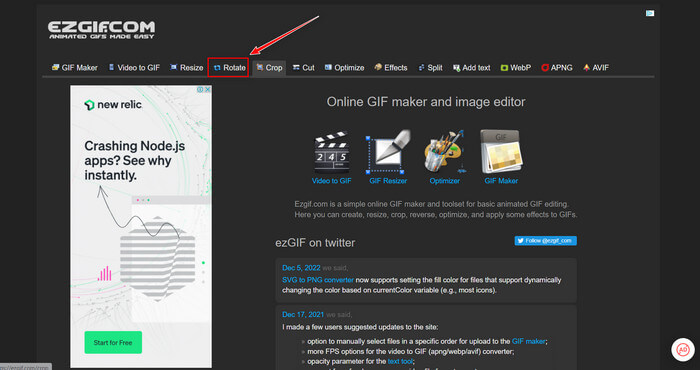
Βήμα 1. Επιλέξτε Rotate στη Toolbar στο επάνω μέρος της οθόνης.
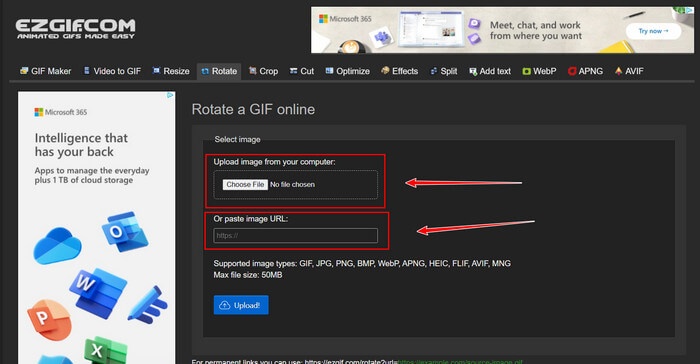
Βήμα 2. Εισαγάγετε ένα αρχείο κάνοντας κλικ στο Upload File ή αντιγράψτε το URL ενός GIF και επικολλήστε το στη διεπαφή. Έπειτα κάντε κλικ στο Upload.
Βήμα 3. Επιλέξτε προς ποια κατεύθυνση θα περιστραφεί το GIF σας. Μπορείτε επίσης να εισαγάγετε συγκεκριμένο αριθμό μοιρών ώστε να γείρετε ή να περιστρέψετε το GIF σύμφωνα με τις προτιμήσεις σας. Στη συνέχεια, κάντε κλικ στο Apply Rotation και πατήστε το εικονίδιο Save για να κατεβάσετε το προσαρμοσμένο GIF.
Μέρος 3. Συχνές ερωτήσεις σχετικά με την περιστροφή και την ανατροπή GIF
Μπορώ να περιστρέψω GIF στο iPhone μου;
Σε σύγκριση με ένα τηλέφωνο Android, είναι αδύνατο να περιστρέψετε τα GIF χρησιμοποιώντας ένα iPhone. Μπορείτε να περιστρέψετε GIF στο iPhone μόνο κατεβάζοντας μια εφαρμογή τρίτου κατασκευαστή στο διαδίκτυο.
Μπορείτε να μετατρέψετε τα βίντεο GIF του iPhone;
Στο App Store, υπάρχουν αρκετές εφαρμογές τρίτων που σας επιτρέπουν να δημιουργείτε GIF από βίντεο, όπως το MP4 to GIF. Ίσως έχετε ήδη δοκιμάσει μία ή περισσότερες από αυτές στη συσκευή σας. Η διαφορά με αυτήν την τεχνική είναι ότι θα χρησιμοποιήσουμε την ενσωματωμένη εφαρμογή Shortcuts στο iPhone ή το iPad σας. Αν δεν το γνωρίζετε, τα Shortcuts παρέχουν πρόσβαση σε εργαλεία που δεν είναι διαθέσιμα εγγενώς στο iOS και το iPadOS.
Πώς δεν μπορείτε να χρησιμοποιήσετε τα GIF στις ρυθμίσεις του iPhone;
Κάντε κύλιση προς τα κάτω στη σελίδα της εφαρμογής Ρυθμίσεις και πατήστε «Προσβασιμότητα». Στο επάνω μέρος της οθόνης, πατήστε «Κίνηση» και βεβαιωθείτε ότι δεν είναι επιλεγμένο το «Μείωση κίνησης». Εάν συμβαίνει αυτό, απενεργοποιήστε το και δείτε εάν τα GIF λειτουργούν ξανά.
συμπέρασμα
Σε όλο το άρθρο, βλέπουμε ότι η μορφή GIF χρειάζεται να περιστραφεί και να αναστραφεί ως προς τον προσανατολισμό της, κάτι που είναι απαραίτητο για την επεξεργασία βίντεο. Υπάρχουν πολλοί τρόποι να το κάνετε, δωρεάν ή επί πληρωμή, offline και online· αυτά τα διαδικτυακά εργαλεία και τα προγράμματα ανεβάζουν την επεξεργασία σε άλλο επίπεδο. Αλλά αν θέλετε να έχετε πρόσβαση στο πρόγραμμα επεξεργασίας χωρίς να σας δημιουργεί πρόβλημα η σύνδεση στο διαδίκτυο κατά τη χρήση του, κατεβάστε το Video Converter Ultimate και χρησιμοποιήστε το ως πρόγραμμα επεξεργασίας, αξιόπιστο και για άλλες μορφές βιντεοκλίπ. Σας βοηθά να επεξεργάζεστε επαγγελματικά τα βιντεοκλίπ, ειδικά περιστρέφοντας και αναστρέφοντας GIF.
-
 Επαναλάβετε το GIF με το καλύτερο Animated GIF Looper σε Windows & Mac
 Θέλετε να μάθετε το μυστικό για το καλύτερο loop GIF; Θέλετε να φτιάξετε ένα; Αν ναι, είστε στο σωστό μέρος. Έτσι, μάθετε πώς να δημιουργείτε έναν βρόχο με τον καλύτερο διαθέσιμο βρόχο.
-
 4 καλύτεροι τρόποι για να αφαιρέσετε το υδατογράφημα από το GIF [Online & Offline]
 Θέλετε να αφαιρέσετε το υδατογράφημα από το GIF; Με το εργαλείο σε αυτό το άρθρο, θα μάθετε τα διαφορετικά στυλ με το διαφορετικό εργαλείο αφαίρεσης υδατογραφήματος που είναι διαθέσιμο στην πλατφόρμα σας.
-
 Κορυφαίοι 4 μεγεθυντές GIF εκτός σύνδεσης και σε απευθείας σύνδεση που δεν πρέπει να χάσετε
 Αυτή η ανάρτηση είναι για εσάς εάν ψάχνετε για τους καλύτερους μεγεθυντές GIF. Παραθέσαμε τους μεγεθυντές GIF στο διαδίκτυο και εκτός σύνδεσης με τις καλύτερες επιδόσεις για τον υπολογιστή σας.
