


 Video Converter Ultimate
 Εγγραφή οθόνης
 Επισκευή βίντεο
 Ασφαλές κατέβασμα
Βήμα-βήμα σεμινάρια σχετικά με τον τρόπο μετατροπής GIF σε JPG
Το GIF είναι η πιο δημοφιλής μορφή αρχείου που χρησιμοποιούμε για να στέλνουμε τις υπερβολικές εκφράσεις που θέλουμε, όπως τα memes. Περιέχει επίσης κινούμενες εικόνες και στατικές εικόνες, αλλά δεν υποστηρίζουν όλες οι πλατφόρμες τη μορφή GIF. Υπάρχουν περιπτώσεις που θέλετε να μοιραστείτε μια εικόνα GIF επειδή είναι αστεία. Ωστόσο, δεν μπορείτε να τη στείλετε, επειδή το πρόγραμμα ή οι φυλλομετρητές που χρησιμοποιείτε δεν υποστηρίζουν αυτή τη μορφή. Αυτό είναι απογοητευτικό. Αν θέλετε να στείλετε την εικόνα χωρίς να αντιμετωπίσετε προβλήματα, είναι καλύτερα να μετατρέψετε την εικόνα GIF σε άλλες μορφές όπως JPG. Εφόσον η μορφή JPG είναι πολύ διαδεδομένη, μπορείτε να τη χρησιμοποιήσετε σε κάθε φυλλομετρητή και πρόγραμμα. Ευτυχώς, σε αυτό το άρθρο θα μάθετε διάφορες διαδικασίες για να μετατρέψετε GIF σε JPG με τη βοήθεια μετατροπέων εικόνας. Έτσι, αν δεν θέλετε να αντιμετωπίσετε το ίδιο πρόβλημα στο μέλλον, διαβάστε το άρθρο και ξεκινήστε να μετατρέπετε τις εικόνες σας.

Μέρος 1. GIF έναντι JPG/JPEG
| Μορφή αρχείου | GIF | JPG / JPEG |
| Επέκταση ονόματος αρχείου | .gif | .jpg / .jpeg |
| Αναπτύχθηκε από | Compuserve | Joint Photographics Experts Group |
| Τύπος Mime | εικόνα/gif | εικόνα/jpeg |
| Περιγραφή | GIF είναι η αγαπημένη μορφή αρχείου του Διαδικτύου λόγω της ικανότητάς του να κάνει κίνηση εικόνων. Τα αρχεία GIF χρησιμοποιούν φωτογραφίες bitmap και επιτρέπουν έως και 8 pixel/bit. Επίσης, επιτρέπει 256 χρώματα σε χρωματικό χώρο 24-bit RGB. Δεν είναι όλες οι φωτογραφίες GIF κινούμενες. | JPG μορφή, η οποία είναι μια δημοφιλής μορφή αρχείου στις μέρες μας. Σκοπός του είναι η συμπίεση εικόνων για μείωση του χρόνου λήψης και αποστολής. Όλα τα προγράμματα έχουν πρόσβαση σε αυτήν τη μορφή. Αυτό εξαλείφει την ανάγκη να εξετάσετε πώς να ανοίξετε αυτό το αρχείο σε διάφορα προγράμματα και προγράμματα περιήγησης. |
| Συνδεδεμένα προγράμματα / προγράμματα περιήγησης | Adobe Photoshop CorelDraw Corel PaintShop Pro Καμβάς Google Chrome Internet Explorer Microsoft Edge | Χρώμα Adobe Photoshop Πρόγραμμα φωτογραφιών IrfanView Πρόγραμμα προβολής φωτογραφιών Internet Explorer Mozilla Firefox Google Chrome |
Μέρος 2. Απλές μέθοδοι για τη μετατροπή GIF σε JPG Online
Πώς να μετατρέψετε το GIF σε JPG χρησιμοποιώντας το Free Image Converter FVC
Το FVC Free Image Converter είναι ο καλύτερος online μετατροπέας εικόνων για να μετατρέψετε GIF σε JPG. Μπορείτε γρήγορα να μετατρέψετε το αρχείο GIF σας σε JPG χρησιμοποιώντας τις απλές διαδικασίες του. Κατ’ αυτόν τον τρόπο, το online εργαλείο είναι εξαιρετικό ακόμη και για αρχάριους. Μπορείτε επίσης να χρησιμοποιήσετε την επιλογή μαζικής μετατροπής του FVC Free Image Converter. Αυτό το εργαλείο σάς επιτρέπει να μετατρέπετε πολλές φωτογραφίες σε μία μόνο διαδικασία. Επίσης, το εργαλείο δεν θα προσθέσει κανένα δυσάρεστο στοιχείο στις μετατραπείσες και αποθηκευμένες φωτογραφίες. Έτσι, μπορείτε να βλέπετε τις φωτογραφίες καθαρά. Επιπλέον, δεν θα εμφανίζονται διαφημίσεις στην οθόνη σας κατά τη διαδικασία μετατροπής. Έτσι, μπορείτε να μετατρέπετε αρχεία χωρίς να αποσπάται η προσοχή σας. Ξεκινήστε να χρησιμοποιείτε τις απλές οδηγίες παρακάτω για να μετατρέψετε το GIF σας σε εικόνα JPG.
Βήμα 1. Επισκεφτείτε την κύρια ιστοσελίδα του FVC Free Image Converter. Μπορείτε να χρησιμοποιήσετε οποιονδήποτε φυλλομετρητή από τον υπολογιστή σας για να αποκτήσετε πρόσβαση στον online μετατροπέα. Έπειτα, κάντε κλικ στη μορφή JPG από την επιλογή Convert to.
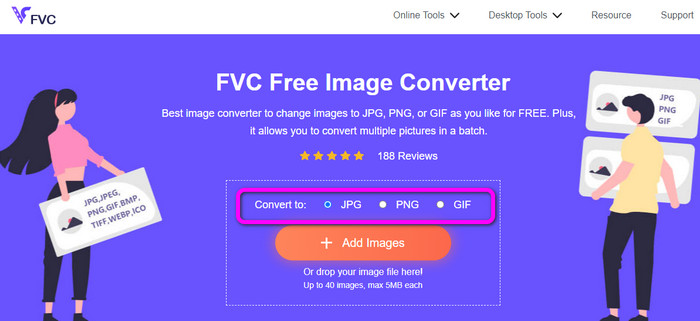
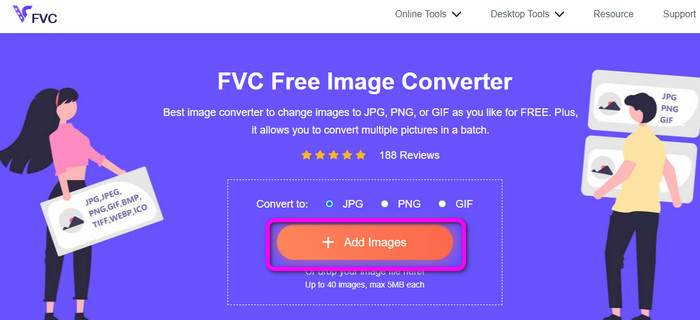
Βήμα 2. Κάντε κλικ στο κουμπί Add Images. Όταν ο φάκελος εμφανιστεί στην οθόνη, ανοίξτε την εικόνα GIF που θέλετε να μετατρέψετε. Μπορείτε επίσης να ανοίξετε τον φάκελο του υπολογιστή σας και να σύρετε ή να αποθέσετε το αρχείο εικόνας στο πλαίσιο. Μπορείτε να ανεβάσετε έως και 40 εικόνες, αν θέλετε να μετατρέψετε πολλά αρχεία.
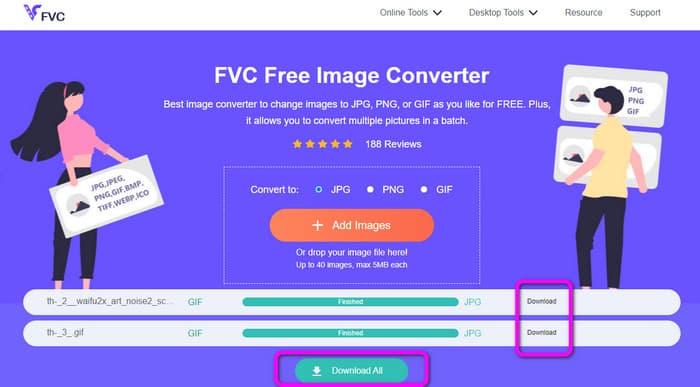
Βήμα 3. Το εργαλείο θα μετατρέψει αυτόματα τις εικόνες σας μετά τη διαδικασία αποστολής. Όταν ολοκληρωθεί η διαδικασία μετατροπής, κάντε κλικ στο κουμπί Download All. Αλλά, αν θέλετε να αποθηκεύσετε την εικόνα χειροκίνητα, κάντε κλικ στο κουμπί Download στο πλάι. Μπορείτε επίσης να χρησιμοποιήσετε αυτό το εργαλείο για να μετατρέψετε WebP σε GIF.
Πώς να μετατρέψετε το GIF σε JPG χρησιμοποιώντας το Online Convert
Ένα ακόμη χρήσιμο και βοηθητικό online εργαλείο για να μετατρέπετε GIF σε JPG είναι το Online Convert. Με τη βοήθεια αυτού του online εργαλείου, μπορείτε να μετατρέψετε διάφορα αρχεία, όπως JPG, PNG, GIF, TIFF, BMP και άλλα. Η διαδικασία μετατροπής είναι γρήγορη. Επίσης, είναι εύκολο στη χρήση, κάτι που αποτελεί πλεονέκτημα για μη επαγγελματίες χρήστες. Επιπλέον, το Online Convert προσφέρει διαδικασία μαζικής μετατροπής. Μπορείτε να εισάγετε περισσότερες από μία εικόνες που θέλετε να μετατρέψετε. Μπορείτε επίσης να εμπιστευτείτε αυτό το εργαλείο για τη μετατροπή βίντεο, ήχου, εγγράφων και άλλων. Ο online μετατροπέας εικόνων είναι διαθέσιμος σχεδόν σε όλους τους φυλλομετρητές. Περιλαμβάνει τους Firefox, Chrome, Explorer και άλλους. Ωστόσο, μπορείτε να ανεβάσετε μόνο τρεις εικόνες κατά τη μαζική μετατροπή. Πρέπει να αποκτήσετε την επί πληρωμή έκδοση αν θέλετε να ανεβάζετε πολλαπλές εικόνες ταυτόχρονα.
Βήμα 1. Μεταβείτε με τον φυλλομετρητή σας στην ιστοσελίδα του Online Convert. Κάντε κλικ στο κουμπί Choose Files στη σελίδα για να ανεβάσετε την εικόνα GIF. Μπορείτε επίσης να αποθέσετε το αρχείο στο πράσινο πλαίσιο.
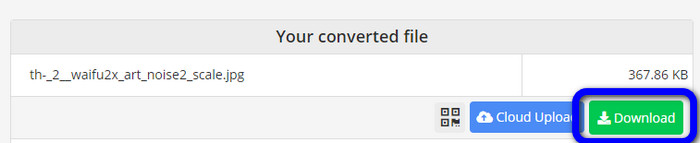
Βήμα 2. Μετά την αποστολή της εικόνας GIF, κάντε κλικ στο κουμπί Start. Μετά το κλικ, θα ξεκινήσει η διαδικασία μετατροπής. Έπειτα, κάντε κλικ στο κουμπί Download για να αποθηκεύσετε την μετατραπείσα εικόνα στον υπολογιστή σας.
Μέρος 3. Πώς να μετατρέψετε γρήγορα το GIF σε JPG εκτός σύνδεσης
Μπορείτε επίσης να χρησιμοποιήσετε το Video Converter Ultimate για να μετατρέψετε GIF σε JPG. Αυτό το offline πρόγραμμα διαθέτει έναν εξαιρετικό τρόπο μετατροπής. Έχει επίσης ένα διαισθητικό περιβάλλον εργασίας, γεγονός που το καθιστά κατάλληλο για μη επαγγελματίες χρήστες. Επιπλέον, το Video Converter Ultimate προσφέρει λειτουργία μαζικής μετατροπής. Αυτό σημαίνει ότι μπορείτε να μετατρέπετε εικόνες με ένα μόνο κλικ. Παρέχει επίσης γρήγορη διαδικασία μετατροπής. Με αυτή τη δυνατότητα, μπορείτε να μετατρέπετε πολλά αρχεία γρήγορα. Επιπλέον, υποστηρίζει διάφορες μορφές εικόνας. Περιλαμβάνει JPG, PNG, BMP, GIF, TIFF και άλλες. Εκτός από τη μετατροπή, μπορείτε επίσης να αλλάξετε την ποιότητα της φωτογραφίας σας από τις ρυθμίσεις εξόδου. Με αυτόν τον τρόπο, μπορείτε να προσαρμόζετε την ποιότητα της εικόνας ανάλογα με τις ανάγκες σας. Τέλος, το Video Converter Ultimate είναι διαθέσιμο τόσο σε Windows όσο και σε Mac, γεγονός που το καθιστά πρακτικό.
Βήμα 1. Κατεβάστε το Video Converter Ultimate στον υπολογιστή σας. Υπάρχουν δύο κουμπιά Download παρακάτω. Αν είστε χρήστης Windows, κάντε κλικ στην έκδοση για Windows. Αν χρησιμοποιείτε υπολογιστή Mac, χρησιμοποιήστε την έκδοση για Mac. Εκκινήστε το πρόγραμμα μετά την εγκατάσταση.
Δωρεάν ΛήψηΓια Windows 7 ή νεότεραΑσφαλής λήψη
Δωρεάν ΛήψηΓια MacOS 10.7 ή νεότεροΑσφαλής λήψη
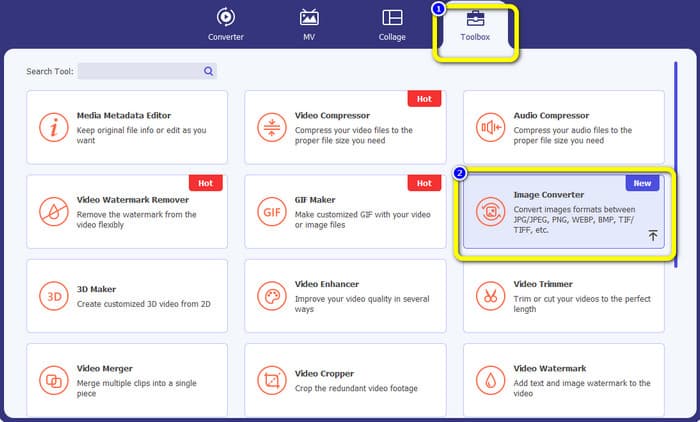
Βήμα 2. Στο επάνω μέρος του περιβάλλοντος εργασίας, κάντε κλικ στην καρτέλα Toolbox. Έπειτα, επιλέξτε το εργαλείο Image Converter. Ένα νέο παράθυρο θα εμφανιστεί στην οθόνη.
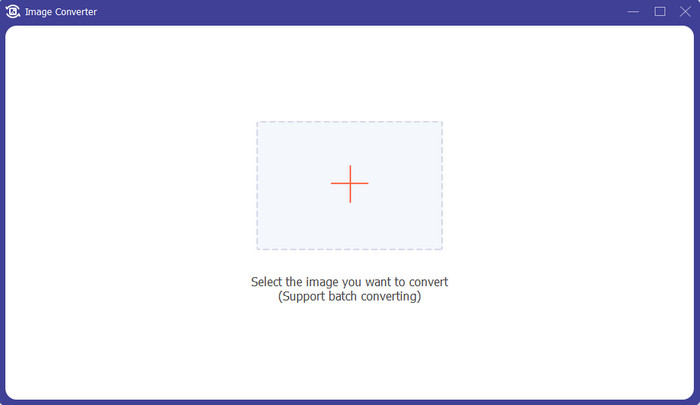
Βήμα 3. Κάντε κλικ στο σύμβολο Plus στο κεντρικό μέρος του περιβάλλοντος εργασίας. Όταν εμφανιστεί ο φάκελος αρχείων, επιλέξτε το αρχείο GIF και ανοίξτε το. Μπορείτε να προσθέσετε περισσότερα αρχεία, αφού το πρόγραμμα προσφέρει λειτουργία μαζικής μετατροπής.
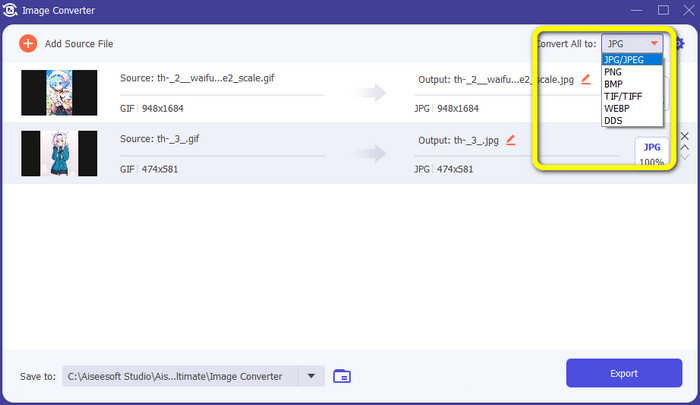
Βήμα 4. Μεταβείτε στο δεξί μέρος του περιβάλλοντος εργασίας και προχωρήστε στην επιλογή μορφής. Επιλέξτε το JPG ως μορφή εξόδου.
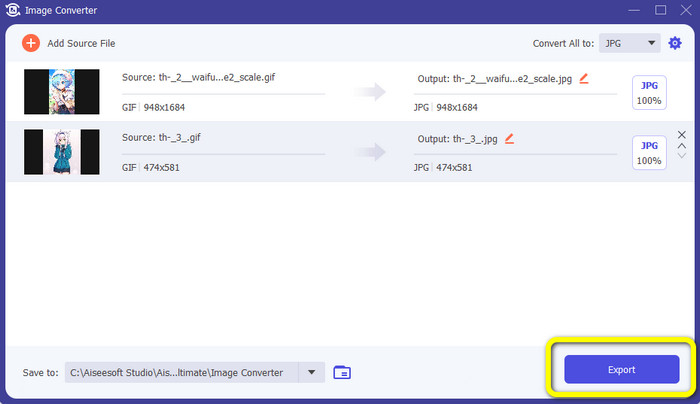
Βήμα 5. Αφού ολοκληρώσετε την επιλογή της μορφής JPG, κάντε κλικ στο κουμπί Export. Μετά τη διαδικασία, μπορείτε ήδη να ανοίξετε τις μετατραπείσες εικόνες σας στον φάκελο εξόδου.
Μέρος 4. Πώς να μετατρέψετε το GIF σε JPG σε Android και iPhone
Αν θέλετε να μετατρέψετε GIF σε JPG χρησιμοποιώντας συσκευές iPhone και Android, χρησιμοποιήστε την εφαρμογή File Converter. Αυτή η εφαρμογή προσφέρει έναν εύκολο τρόπο για να μετατρέπετε αρχεία σε JPG. Επίσης, το File Converter διατίθεται δωρεάν για λήψη. Είναι διαθέσιμο στο Google Play Store και στο App Store. Ωστόσο, όσον αφορά τη διαδικασία εγκατάστασης, είναι αρκετά αργή. Επίσης, ορισμένες επιλογές είναι δύσκολο να κατανοηθούν. Τέλος, θα αποδίδει καλά μόνο με σύνδεση στο διαδίκτυο.
Βήμα 1. Μεταβείτε στο Google Play Store ή στο App Store. Κατεβάστε το File Converter και εκκινήστε την εφαρμογή.
Βήμα 2. Στο περιβάλλον εργασίας, επιλέξτε την επιλογή Image Converter. Μετά από αυτό, επιλέξτε το JPG ως μορφή εξόδου.
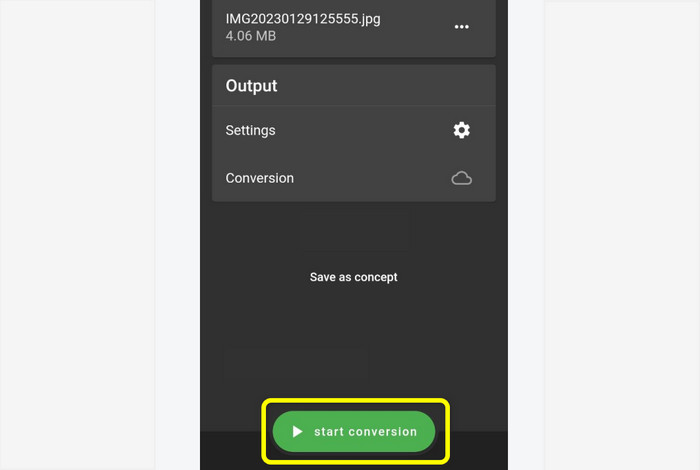
Βήμα 3. Κάντε κλικ στην επιλογή File για να εισαγάγετε την εικόνα GIF που θέλετε να μετατρέψετε. Έπειτα, κάντε κλικ στη διαδικασία Start Conversion. Μετά από αυτό, μπορείτε να αποθηκεύσετε την εικόνα σας στη Συλλογή (Gallery).
Μέρος 5. Συχνές ερωτήσεις σχετικά με τη μετατροπή GIF σε JPG
1. Είναι δυνατή η επεξεργασία ενός αρχείου GIF;
Απολύτως ναι. Εάν θέλετε να επεξεργαστείτε το αρχείο εικόνας GIF, μπορείτε να χρησιμοποιήσετε ένα εργαλείο εκτός σύνδεσης, όπως το Video Converter Ultimate. Διαθέτει διάφορα εργαλεία επεξεργασίας που μπορείτε να χρησιμοποιήσετε, όπως περιστροφή, περικοπή, προσθήκη φίλτρων και πολλά άλλα.
2. Πώς μπορώ να αποθηκεύσω τις φωτογραφίες του iPhone ως JPG;
Από προεπιλογή, όταν τραβάτε μια φωτογραφία από iPhone, θα αποθηκευτεί αυτόματα σε μορφή HEIC. Ωστόσο, οι περισσότερες συσκευές δεν αναγνωρίζουν αυτή τη μορφή αρχείου. Μπορείτε να αποθηκεύετε φωτογραφίες αλλάζοντας τις ρυθμίσεις του iPhone σας. Μεταβείτε στις Ρυθμίσεις > Κάμερα. Έπειτα, κάντε κλικ στην επιλογή Μορφές (Format). Από την επιλογή μορφής, κάντε κλικ στο Most Compatible και αποθηκεύστε τη φωτογραφία ως JPG.
3. Πώς να μετατρέψετε το GIF σε JPG στο Photoshop;
Εκκινήστε το Photoshop στον υπολογιστή σας. Έπειτα, μεταβείτε στο μενού File και κάντε κλικ στο Open για να προσθέσετε το αρχείο GIF στο πρόγραμμα. Μετά από αυτό, μπορείτε να βελτιώσετε τη φωτογραφία σας χρησιμοποιώντας τα εργαλεία επεξεργασίας του προγράμματος. Για να αποθηκεύσετε τη φωτογραφία σε μορφή JPG, μεταβείτε στην επιλογή File > Save as. Έπειτα, μεταβείτε στην επιλογή μορφής και επιλέξτε τη μορφή JPG.
συμπέρασμα
Είναι η σωστή επιλογή να μετατρέψετε τα GIF σας σε JPG αν θέλετε να μοιράζεστε φωτογραφίες χρησιμοποιώντας όλους τους φυλλομετρητές και τα προγράμματα. Γι' αυτό, αυτό το άρθρο σάς προσφέρει τον πιο εύκολο τρόπο να μετατρέπετε τα αρχεία εικόνας σας χρησιμοποιώντας το FVC Free Image Converter.
-
 Μάθετε τις ευκολότερες προσεγγίσεις για γρήγορη μετατροπή WebP σε JPG
 Ας μάθουμε όλοι αποτελεσματικοί τρόποι για να μετατρέπουμε εύκολα εικόνες Ιστού σε JPG. Αυτό το άρθρο θα σας δώσει εξαιρετικούς μετατροπείς εικόνας που μπορείτε να χρησιμοποιήσετε για να μετατρέψετε αρχεία εικόνας.
-
 Εξαιρετικές τεχνικές για άμεση μετατροπή GIF σε M4V
 Αυτός ο οδηγός σας παρέχει τις πιο αποτελεσματικές στρατηγικές για τη μετατροπή GIF σε M4V. Επιπλέον, θα σας παρουσιάσουμε τους δύο καλύτερους μετατροπείς που μπορείτε να δοκιμάσετε.
-
 Απλές οδηγίες σχετικά με τον τρόπο μετατροπής GIF σε MKV στην επιφάνεια εργασίας
 Ελάτε σε αυτό το άρθρο εάν αναζητάτε τις πιο εξαιρετικές μεθόδους μετατροπής μορφών αρχείων GIF σε MKV χρησιμοποιώντας έναν εξαιρετικό μετατροπέα με δυνατότητα λήψης.
