


 Video Converter Ultimate
 Εγγραφή οθόνης
 Επισκευή βίντεο
Πώς να κόψετε μια εικόνα στο Photoshop
Μπορείς να κάνεις πάρα πολλά στο Photoshop· είναι σαν ένα ολοκληρωμένο πακέτο εργαλείων για την επεξεργασία εικόνων. Αν χρησιμοποιείς ήδη το Photoshop και γνωρίζεις ακόμα όλα τα χαρακτηριστικά του ή αν είσαι κάποιος που προσπαθεί να εξερευνήσει τις λειτουργίες αποκοπής που προσφέρει, είμαστε εδώ για να σε υποστηρίξουμε! Μάθε και κατανόησε πώς να αποκόψεις μια εικόνα στο Photoshop γρήγορα και εύκολα. Ανακάλυψε επίσης και άλλες μεθόδους για να κάνεις αποκοπή εικόνων online, αν το Photoshop δεν ταιριάζει με τους πόρους ή τις δεξιότητές σου.

Μέρος 1. Πώς να κόψετε μια εικόνα στο Photoshop
Η εκμάθηση του τρόπου αποκοπής εικόνων στο Photoshop είναι σημαντική επειδή επιτρέπει στα άτομα να διαχωρίζουν και να χειρίζονται διαφορετικά στοιχεία μέσα σε μια εικόνα με ακρίβεια. Αυτή η ικανότητα είναι θεμελιώδης για εργασίες όπως αφαίρεση φόντου, δημιουργία κολάζ και στοχευμένες βελτιώσεις κατά την επεξεργασία εικόνας. Είτε σε γραφικό σχεδιασμό, φωτογραφία προϊόντων ή ψηφιακή τέχνη, η δυνατότητα κοπής εικόνων παρέχει ευελιξία και δημιουργικό έλεγχο, επιτρέποντας στους επαγγελματίες και τους λάτρεις να επιτύχουν τα επιθυμητά οπτικά αποτελέσματα σε διάφορα έργα.
Δείτε πώς να κόψετε μια εικόνα στο Photoshop:
Βήμα 1. Άνοιξε μια εικόνα στο Photoshop πηγαίνοντας στην καρτέλα File.
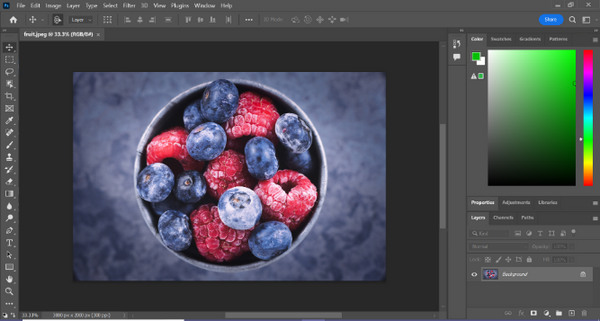
Βήμα 2. Επίλεξε το εργαλείο Object Selection και σύρε το ποντίκι πάνω από το αντικείμενό σου για να επιλέξεις την περιοχή που θέλεις να αποκόψεις.
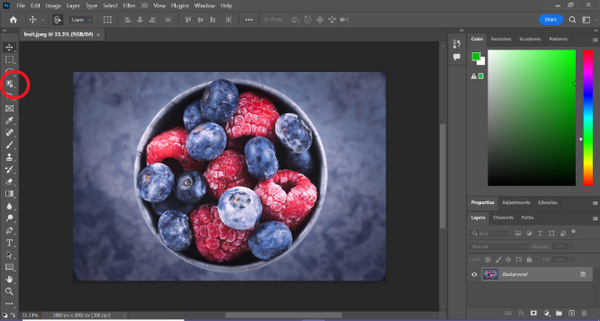
Βήμα 3. Κάνε κλικ στο Select and Mask.
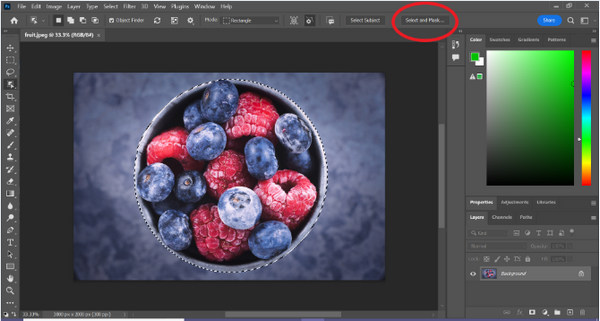
Βήμα 4. Ρύθμισε, αν χρειάζεται, τις παραμέτρους της επιλογής, όπως το feathering.
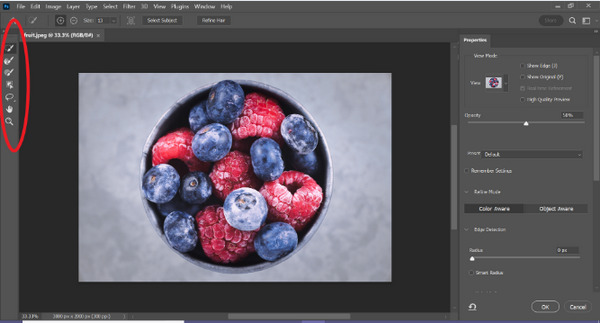
Βήμα 5. Κάνε κλικ στο εικονίδιο Mask για να αποκόψεις την εικόνα σου και αποθήκευσε την τροποποιημένη εικόνα.
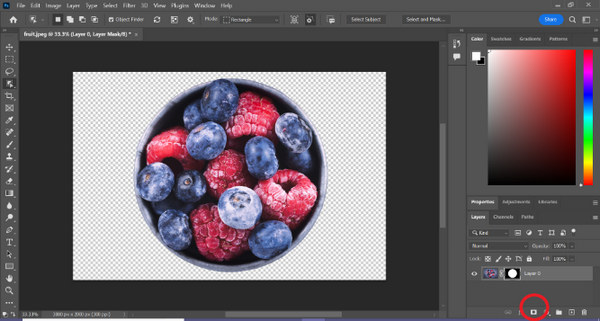
Με αυτόν τον απλό οδηγό, μπορείς πλέον να αποκόπτεις μια εικόνα στο Photoshop γρήγορα και εύκολα. Ακολούθησε απλώς τα βήματα και απόλαυσε μια απροβλημάτιστη διαδικασία ακριβούς επεξεργασίας εικόνας. Επίσης, μπορείς να αλλάξεις το χρώμα της εικόνας για να αντικαταστήσεις το αποκομμένο μέρος.
Μέρος 2. Πώς να κόψετε μια εικόνα χωρίς το Photoshop Online;
Εάν δεν έχετε εγκατεστημένο το Photoshop στον υπολογιστή σας, υπάρχει τρόπος να αποκόψετε μια εικόνα στο διαδίκτυο. Ενώ το Photoshop είναι ένα ποιοτικό εργαλείο για την επεξεργασία εικόνων, ειδικά για την τέλεια αποκοπή μιας εικόνας, χρειάστηκαν δεξιότητες και εξάσκηση για να το κατακτήσετε. Έτσι, εάν αυτό το εργαλείο δεν είναι στα χέρια σας, μπορείτε να χρησιμοποιήσετε αυτές τις μεθόδους για να κόψετε εύκολα μια εικόνα.
Μέθοδος 1: FVC Online Remover Background
Το FVC Online Background Remover είναι ευέλικτο και φιλικό προς τον χρήστη, σχεδιασμένο να αφαιρεί αυτόματα φόντα από εικόνες σε μορφές όπως PNG, JPG και JPEG. Αυτό το εργαλείο απλοποιεί τη διαδικασία δημιουργίας διαφανών φόντων και προσφέρει επιλογές προσαρμογής, επιτρέποντας στους χρήστες να χρησιμοποιούν ένα πινέλο για να επιλέγουν συγκεκριμένες περιοχές προς αφαίρεση ή διατήρηση.
Επιπλέον, το FVC Free Background Remover επιτρέπει στους χρήστες να αλλάξουν το φόντο της εικόνας σε μονόχρωμο χρώμα της επιλογής τους ή ακόμα και να το αντικαταστήσουν με άλλη φωτογραφία. Το εργαλείο υπερβαίνει την αφαίρεση φόντου, προσφέροντας απλές λειτουργίες επεξεργασίας, όπως περικοπή, μετεγκατάσταση, αναστροφή και περιστροφή, επιτρέποντας στους χρήστες να βελτιώσουν τη συνολική ελκυστικότητα των εικόνων τους. Παρακάτω είναι τα βήματα για το πώς να το χρησιμοποιήσετε.
Βήμα 1. Πήγαινε πρώτα στην επίσημη ιστοσελίδα τους και κάνε κλικ στο Upload Image.
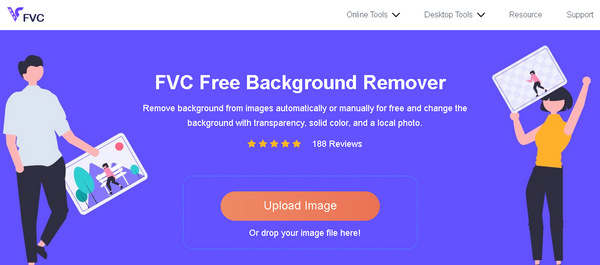
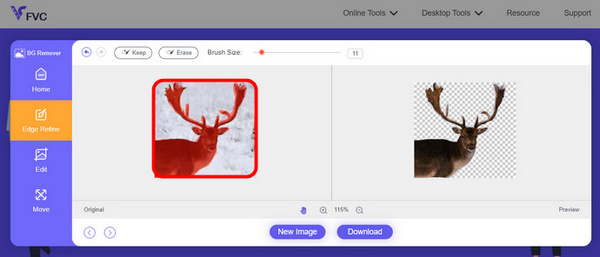
Βήμα 2. Περίμενε να ολοκληρωθεί η διαδικασία. Μετά από αυτό, μπορείς να επεξεργαστείς την εικόνα σου βελτιώνοντας τα άκρα και μετακινώντας το θέμα.
Βήμα 3. Για να αποθηκεύσετε το αποτέλεσμα, κάντε κλικ στο κουμπί Download.
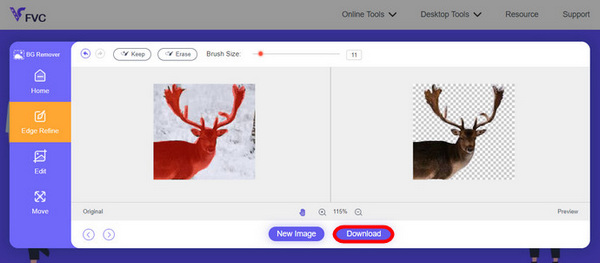
Το FVC Image Background Remover είναι πραγματικά ένα βασικό εργαλείο για την αποκοπή μιας εικόνας. Εκτός από το ότι είναι δωρεάν, το εργαλείο είναι εξαιρετικά φιλικό προς τον χρήστη για να προσθέσεις φόντο σε μια εικόνα. Βλέπεις; Αρκεί να ακολουθήσεις μερικά απλά βήματα και μπορείς εύκολα να αφαιρέσεις το φόντο των φωτογραφιών σου με μεγάλη άνεση.
Μέθοδος 2: Χρήση της λειτουργίας iPhone iOS 16
Το iPhone iOS 16 φέρνει πολλές νέες δυνατότητες και ενημερώσεις. Ένα από τα οποία είναι η αποκοπή της εικόνας. Αυτή η λειτουργία αποκοπής εικόνας επιτρέπει στους χρήστες να απομονώνουν το θέμα μιας φωτογραφίας και να δημιουργούν αποκοπές φωτογραφιών απευθείας στα iPhone τους.

Βήμα 1. Άνοιξε μια φωτογραφία στην εφαρμογή Photos.
Βήμα 2. Κράτησε πατημένο για λίγη ώρα το θέμα της φωτογραφίας και τότε θα εμφανιστεί ένα λαμπερό λευκό περίγραμμα.
Βήμα 3. Τώρα, αντέγραψε και επικόλλησε την εικόνα στις σημειώσεις σου, σε εφαρμογές ανταλλαγής μηνυμάτων ή σε μήνυμα. Μπορείς επίσης να την κάνεις απευθείας AirDrop σε άλλη συσκευή iPhone.
Αυτή η λειτουργία αποκοπής φωτογραφιών είναι διαθέσιμη μόνο σε iOS 16 και μεταγενέστερες εκδόσεις σε iPhone XS, iPhone XR και νεότερες εκδόσεις.
Μέρος 3. Συχνές ερωτήσεις σχετικά με την αποκοπή εικόνας στο Photoshop
Πώς να κόψετε κάποιον από μια εικόνα και να τον βάλετε σε μια άλλη στο Photoshop;
Για να αποκόψεις κάποιον από μια φωτογραφία στο Photoshop και να τον τοποθετήσεις σε άλλη, ακολούθησε αυτά τα βήματα:
1. Χρησιμοποίησε το εργαλείο Lasso ή Pen για να περιγράψεις προσεκτικά το άτομο.
2. Κάνε δεξί κλικ και επίλεξε Layer via Copy για να δημιουργήσεις διπλότυπο της επιλεγμένης περιοχής.
3. Άνοιξε την εικόνα προορισμού, δημιούργησε ένα νέο layer και επικόλλησε πάνω του το αντιγραμμένο layer.
4. Ρύθμισε το μέγεθος και τη θέση ανάλογα με τις ανάγκες σου, βελτιώνοντας τα άκρα για μια ομαλή ενσωμάτωση.
Πώς κόβετε κάτι στο Photoshop και το κάνετε διαφανές;
Για να αποκόψεις κάτι στο Photoshop και να το κάνεις διαφανές:
1. Χρησιμοποίησε το εργαλείο Pen ή Magic Wand για να επιλέξεις το αντικείμενο.
2. Πάτησε Delete για να αφαιρέσεις την επιλεγμένη περιοχή.
3. Αποθήκευσε την εικόνα σε μορφή PNG.
4. Βεβαιώσου ότι η διαγραμμένη περιοχή εμφανίζεται ως μοτίβο σκακιέρας, που υποδηλώνει διαφάνεια.
Πώς αφαιρείτε ένα σχήμα στο Photoshop;
Για να αφαιρέσεις (υπολογίσεις) ένα σχήμα στο Photoshop:
1. Δημιούργησε δύο σχήματα χρησιμοποιώντας το εργαλείο Shape ή οποιοδήποτε εργαλείο επιλογής.
2. Βεβαιώσου ότι και τα δύο σχήματα βρίσκονται σε ξεχωριστά layers.
3. Επίλεξε το επάνω layer, πήγαινε στο Path Operations στη γραμμή εργαλείων και διάλεξε Subtract Front Shape.
4. Το επάνω σχήμα θα αφαιρεθεί από το κάτω, δημιουργώντας ένα νέο σχήμα με την αφαιρεμένη περιοχή.
Μπορώ να κόψω σύνθετα αντικείμενα με λεπτές λεπτομέρειες στο Photoshop;
Ναι, το Photoshop προσφέρει προηγμένα εργαλεία όπως το εργαλείο Pen για ακριβείς επιλογές περίπλοκων αντικειμένων. Κάντε μεγέθυνση για ακρίβεια, δημιουργήστε σημεία αγκύρωσης γύρω από το αντικείμενο και βελτιώστε τη διαδρομή για λεπτομερείς αποκοπές.
Ποια είναι η διαφορά μεταξύ Layer via Cut και Layer via Copy κατά την κοπή μιας εικόνας στο Photoshop;
Το Layer via Cut αφαιρεί την επιλεγμένη περιοχή και την τοποθετεί σε ένα νέο στρώμα. Ενώ, το Layer via Copy αντιγράφει την επιλεγμένη περιοχή σε ένα νέο επίπεδο, αφήνοντας ανέπαφο το πρωτότυπο. Επιλέξτε με βάση το εάν θέλετε να διατηρήσετε το πρωτότυπο ή όχι κατά τη διαδικασία κοπής.
συμπέρασμα
Εύκολο, έτσι δεν είναι; Τώρα που ξέρεις πώς να αποκόψεις μια εικόνα στο Photoshop, ανέβασε αυτό το επίπεδο δεξιότητας και εξερεύνησε και άλλα χαρακτηριστικά του Photoshop. Επιπλέον, μπορείς να δοκιμάσεις άλλες μεθόδους αποκοπής μιας εικόνας online, χρησιμοποιώντας το FVC Online Background Remover ή μέσω της συσκευής iPhone σου. Η αποκοπή μιας εικόνας είναι πλέον πιο εύκολη από ποτέ, οπότε μην χάσεις αυτή την ευκαιρία και ενίσχυσε τη δημιουργικότητά σου ακολουθώντας αυτόν τον οδηγό.
-
 Πώς να αφαιρέσετε το υδατογράφημα από τη φωτογραφία στο Photoshop [Βήματα]
 Το Photoshop είναι ένα από τα δημοφιλή εργαλεία επεξεργασίας. Αποκτήστε το δωρεάν σεμινάριο εδώ χρησιμοποιώντας το Photoshop για να αφαιρέσετε το υδατογράφημα από τις φωτογραφίες. Επίσης, ανακαλύψτε εναλλακτικούς τρόπους.
-
 Πώς να κάνετε περικοπή στο Photoshop: Οδηγός για αρχάριους [2025]
 Ανακαλύψτε πώς να περικόψετε εικόνες στο Photoshop με αυτόν τον εύκολο στην παρακολούθηση οδηγό. Επίσης, μάθετε πώς να επιλέγετε περιοχές, να προσαρμόζετε τις αναλογίες διαστάσεων και πολλά άλλα για την περικοπή φωτογραφιών.
-
 Πώς να αλλάξετε χρώμα στο Photoshop | 2025 Περιεκτικός Οδηγός
 Θέλετε να ανεβάσετε τη δημιουργικότητά σας στο επόμενο επίπεδο μαθαίνοντας πώς να αλλάζετε το χρώμα φόντου στο Photoshop; Αυτό το άρθρο έχει όλα όσα πρέπει να γνωρίζετε. Διαβάστε το τώρα!
