


 Video Converter Ultimate
 Εγγραφή οθόνης
 Επισκευή βίντεο
 Ασφαλές κατέβασμα
Πώς να αυξήσετε την ανάλυση της εικόνας στην επιφάνεια εργασίας δωρεάν και επί πληρωμή
Έχετε ενδιαφέρον για τη λήψη εικόνων υψηλής ποιότητας; Τότε πρέπει να γνωρίζετε ότι χρειάζεστε υψηλό PPI, δηλαδή pixels ανά ίντσα, ώστε η εικόνα που θα τραβήξετε να έχει λεπτομερή απόδοση. Μπορεί να είναι απογοητευτικό όταν διαπιστώνετε ότι η εικόνα που καταγράψατε δεν έχει υψηλό PPI, γεγονός που μπορεί να οδηγήσει σε κακή ποιότητα όταν την εκτυπώσετε ή τη μοιραστείτε στο διαδίκτυο. Ευτυχώς, υπάρχουν τρόποι για να αυξήσετε το PPI της εικόνας. Τα εργαλεία που παρουσιάζουμε εδώ αποδεικνύουν ότι μπορούν να αυξήσουν τα pixels της εικόνας σας και να τη μετατρέψουν σε αποτέλεσμα υψηλής ποιότητας. Συνεχίστε να διαβάζετε αυτήν την ανάρτηση καθώς παρουσιάζουμε και δείχνουμε έναν οδηγό για το πώς να αυξήσετε την ανάλυση των εικόνων ώστε να πετύχετε το καλύτερο δυνατό αποτέλεσμα.

Μέρος 1. Πώς να αυξήσετε την ανάλυση της εικόνας δωρεάν στο Διαδίκτυο [Πρόσβαση σε οποιοδήποτε πρόγραμμα περιήγησης Ιστού]
FVC Free Image Upscaler
Το FVC Free Image Upscaler μπορεί να είναι ακριβώς αυτό που χρειάζεστε για να μάθετε πώς να αυξάνετε την ανάλυση μιας φωτογραφίας εύκολα και δωρεάν. Αυτό το online εργαλείο δεν κάνει αναβάθμιση της εικόνας με τη μέθοδο της επαναδειγματοληψίας, αλλά χρησιμοποιεί έναν αυτόματο ενισχυτή που ανιχνεύει τα θολά μέρη των εικόνων σας. Αν η εικόνα που ανεβάζετε έχει χάσει pixels, το εργαλείο μπορεί να λύσει το πρόβλημα δημιουργώντας νέα pixels, ώστε η εικόνα να γίνει υψηλότερης ποιότητας. Μετά την αναβάθμιση, μπορείτε να δείτε τη διαφορά πριν και μετά. Αν, λοιπόν, θέλετε να μάθετε πώς να αντιμετωπίσετε αυτό το πρόβλημα με το συγκεκριμένο εργαλείο, μπορείτε να αντιγράψετε τα απλά βήματα που παραθέτουμε για την αναβάθμιση της εικόνας.
Πώς να κάνετε upscale μια εικόνα με το FVC Free Image Upscaler:
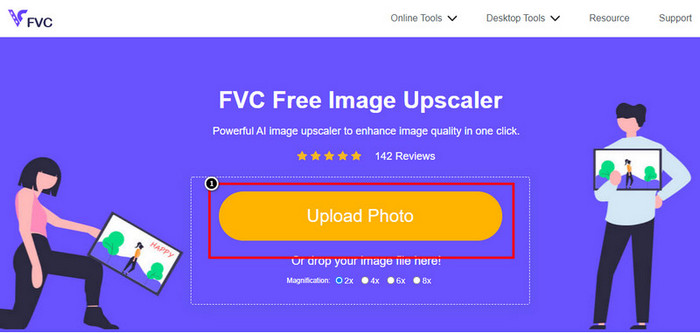
Βήμα 1. Κάντε κλικ σε αυτόν τον σύνδεσμο για να ανοίξετε την κεντρική ιστοσελίδα του FVC, όπου μπορείτε να ξεκινήσετε το upscaling της εικόνας.
Βήμα 2. Στην κεντρική σελίδα, κάντε κλικ στο Upload Image για να εισαγάγετε την εικόνα της οποίας θέλετε να αυξήσετε την ανάλυση.
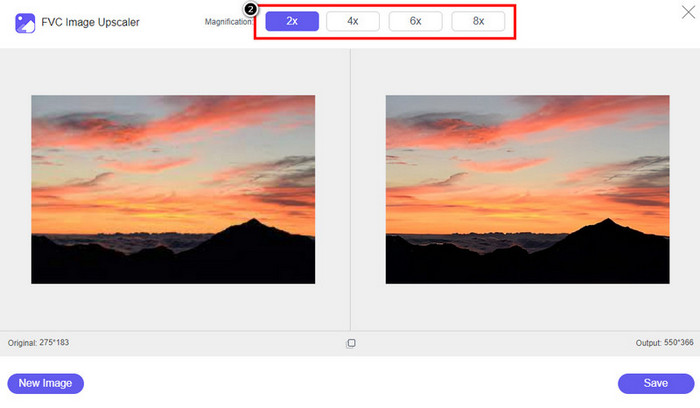
Βήμα 3. Μετά το ανέβασμα, θα εμφανιστούν στην οθόνη σας δύο στήλες: η αρχική εικόνα και η αναβαθμισμένη έκδοση. Επιλέξτε το επίπεδο Magnification που θέλετε να εφαρμόσετε στην εικόνα για να την κάνετε upscale.
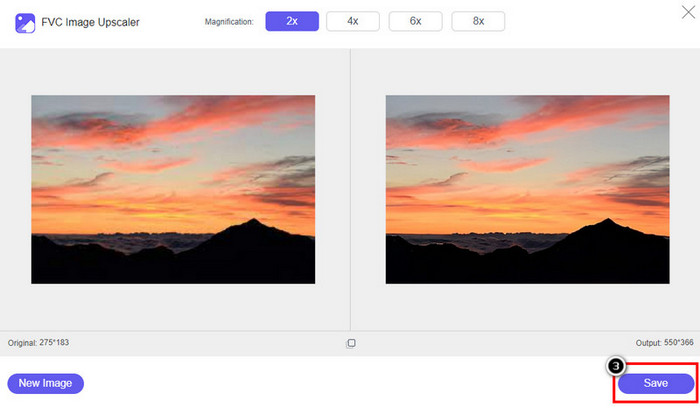
Βήμα 4. Πατήστε Save για να κατεβάσετε το τελικό αποτέλεσμα στον τοπικό σας δίσκο· τόσο απλά ολοκληρώσατε τη διαδικασία αναβάθμισης της εικόνας.
Μεγέθυνση εικόνας
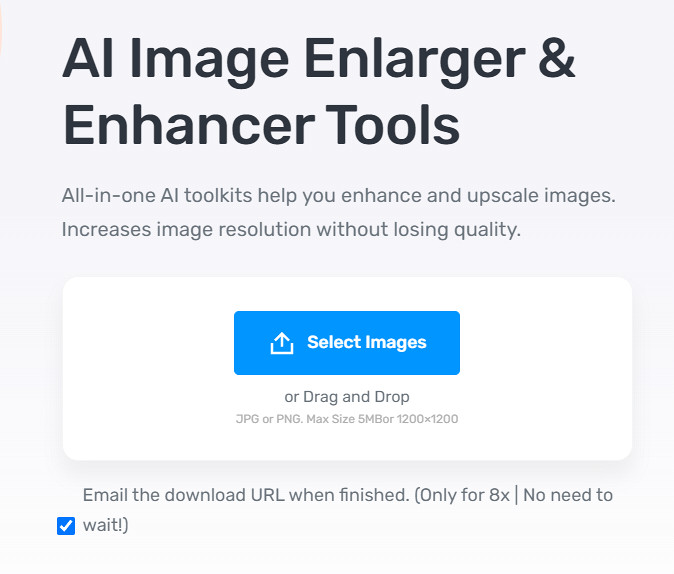
Το Image Enlarger μπορεί να σας καθοδηγήσει στο πώς να αυξήσετε την ανάλυση μιας εικόνας μέσω διαδικτύου. Αυτό το εργαλείο χρησιμοποιεί ακόμη την παραδοσιακή μέθοδο επαναδειγματοληψίας, η οποία λειτουργεί καλά για πολλές εικόνες. Εδώ μπορείτε να ανεβάσετε εικόνες σε μορφές JPG, PNG, GIF και BMP με μέγιστη διάσταση 4100 x 4100 και μέγεθος αρχείου έως 5 MB. Ωστόσο, δεν υπάρχει προεπισκόπηση για να δείτε πώς θα είναι η εικόνα αφού αυξήσετε την ανάλυση. Αυτό μπορεί να είναι πρόβλημα για πολλούς, καθώς αναρωτιόμαστε πώς θα φαίνεται η τελική εικόνα. Παρ’ όλα αυτά, αυτό το online εργαλείο έχει ήδη αποδείξει την αξία του σε άλλους χρήστες. Τώρα είναι η κατάλληλη στιγμή να διαπιστώσετε κι εσείς ότι μπορεί να είναι μια καλή επιλογή για upscaling, ακολουθώντας τα παρακάτω βήματα.
Πώς να βελτιώσετε μια φωτογραφία με το Image Enlarger:
Βήμα 1. Ανοίξτε στον περιηγητή σας την επίσημη ιστοσελίδα αυτού του εργαλείου βελτίωσης εικόνων.
Βήμα 2. Κάντε κλικ στο Choose File για να ανεβάσετε την εικόνα που θέλετε να κάνετε upscale· αν θέλετε, μπορείτε επίσης να εισαγάγετε εδώ το URL της εικόνας.
Βήμα 3. Αλλάξτε τις τιμές του πλάτους και του ύψους-στόχου σύμφωνα με τις προτιμήσεις σας για να κάνετε upscale την εικόνα. Προσθέστε τις σωστές διαστάσεις που θέλετε να πετύχετε, ώστε να έχετε το ιδανικό μέγεθος για την εικόνα.
Βήμα 4. Πατήστε το κουμπί Start για να κάνετε upscale την εικόνα που ανεβάσατε προηγουμένως.
Picverse
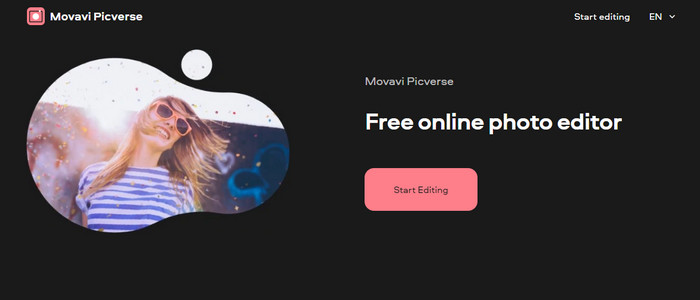
Το Picverse είναι ένα εργαλείο που υποστηρίζεται από τη Movavi και μπορείτε να το χρησιμοποιήσετε για να αυξήσετε την ανάλυση φωτογραφιών online δωρεάν. Το εργαλείο προσφέρει βασικές δυνατότητες επεξεργασίας εικόνας που διορθώνουν τα χρώματα ώστε οι εικόνες να δείχνουν καλύτερες. Ωστόσο, δεν δημιουργεί νέα pixels για να αυξήσει την ανάλυση της εικόνας που ανεβάζετε. Παρ’ όλα αυτά, το αποτέλεσμα που μπορείτε να πετύχετε στη φωτογραφία σας αν την επεξεργαστείτε εδώ είναι εξαιρετικό σε σύγκριση με άλλους online επεξεργαστές εικόνας. Συνολικά, μπορείτε να ζήσετε μια εμπειρία μίνι επαγγελματικού editor αν δοκιμάσετε αυτό το λογισμικό. Θέλετε να μάθετε πώς; Μπορείτε να ακολουθήσετε τα βήματα που παραθέτουμε για το συγκεκριμένο εργαλείο.
Πώς να δημιουργήσετε εικόνες υψηλής ανάλυσης με το Picverse:
Βήμα 1. Επισκεφθείτε την επίσημη ιστοσελίδα και κάντε κλικ στο Upload Image για να φορτώσετε την εικόνα της οποίας θέλετε να βελτιώσετε την ποιότητα.
Βήμα 2. Τώρα που οι εικόνες που θέλετε να βελτιώσετε έχουν φορτωθεί, μπορείτε να ξεκινήσετε τη βελτίωση προσαρμόζοντας τις εξής ρυθμίσεις.
Επιπλέον: Αν θέλετε να εφαρμόσετε κάποιο εφέ στην εικόνα σας, μπορείτε να επιλέξετε την κατηγορία των εφέ και να διαλέξετε το εφέ που προτιμάτε από όσα είναι διαθέσιμα. Επίσης, μπορείτε να ρυθμίσετε την ένταση του κάθε εφέ σύμφωνα με τις προτιμήσεις σας.
Βήμα 3. Για να εφαρμόσετε όλες τις αλλαγές στην εικόνα, κάντε κλικ στο κουμπί Save.
Μέρος 2. Τρόπος δημιουργίας εικόνων υψηλής ανάλυσης σε Windows και macOS εκτός σύνδεσης [Έκδοση επί πληρωμή και δωρεάν]
Adobe Photoshop
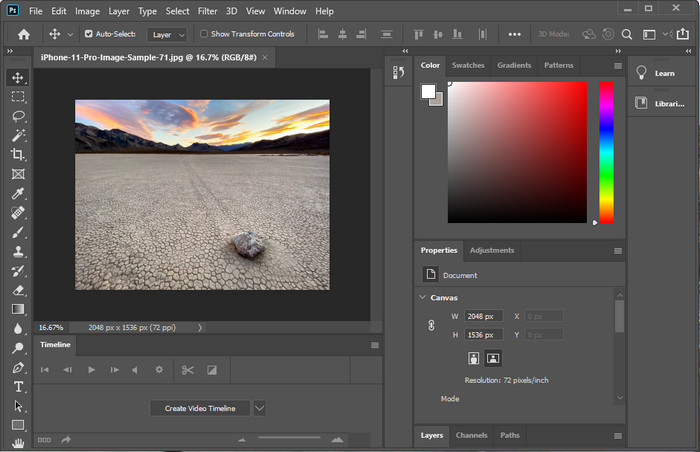
Δεν πρέπει να ξεχνάμε το Adobe Photo γιατί είναι ένα επαγγελματικό εργαλείο. πρέπει να ξέρετε πώς να κάνετε μια φωτογραφία με υψηλότερη ανάλυση. Δεν είναι καινούργιο για εμάς ότι αυτό το λογισμικό μπορεί να προσθέσει pixel στην εικόνα, ώστε η ανάλυσή της να γίνει η καλύτερη. Με τις αυτοματοποιημένες λειτουργίες του, μπορείτε να προσθέσετε περισσότερα pixel στην εικόνα σας μόλις τη βελτιώσετε. Παρόλο που αλλάζετε το μέγεθος της εικόνας εδώ, έχει μια δυνατότητα που θα μπορούσε να σας βοηθήσει να μεγεθύνετε τις εικόνες χωρίς να τις τεντώσετε. Αλλά πριν χρησιμοποιήσετε αυτό το επαγγελματικό εργαλείο, θα χρειαστεί να το αγοράσετε στον επίσημο ιστότοπο της Adobe. Ας υποθέσουμε ότι δεν έχετε χρήματα για να το αγοράσετε. Σε αυτήν την περίπτωση, μπορείτε να δοκιμάσετε να χρησιμοποιήσετε τη δωρεάν δοκιμή για να δείτε πόσο επαγγελματικό είναι αυτό το εργαλείο. Εάν έχετε κατεβάσει αυτό το λογισμικό στον υπολογιστή σας, μπορείτε να ακολουθήσετε τα βήματα που προσθέτουμε παρακάτω για να αναβαθμίσετε την εικόνα εδώ.
Πώς να κάνετε μια εικόνα υψηλότερης ανάλυσης με το Adobe Photoshop:
Βήμα 1. Ανεβάστε την εικόνα της οποίας θέλετε να αυξήσετε την ανάλυση κάνοντας κλικ στο File.
Βήμα 2. Στην επάνω γραμμή εργαλείων, κάντε κλικ στο Image και έπειτα στο Image Size για να αυξήσετε την ανάλυση της εικόνας σας.
Βήμα 3. Στο παράθυρο διαλόγου που θα ανοίξει, εισαγάγετε τις διαστάσεις που θέλετε να πετύχετε και πατήστε OK για να τις εφαρμόσετε.
Βήμα 4. Ανοίξτε το μενού File και κάντε κλικ στο Save. Θα εμφανιστεί ένα νέο παράθυρο διαλόγου, όπου μπορείτε να ρυθμίσετε την ποιότητα της εικόνας και να την αποθηκεύσετε.
ΣΕΙΡΗΤΙ
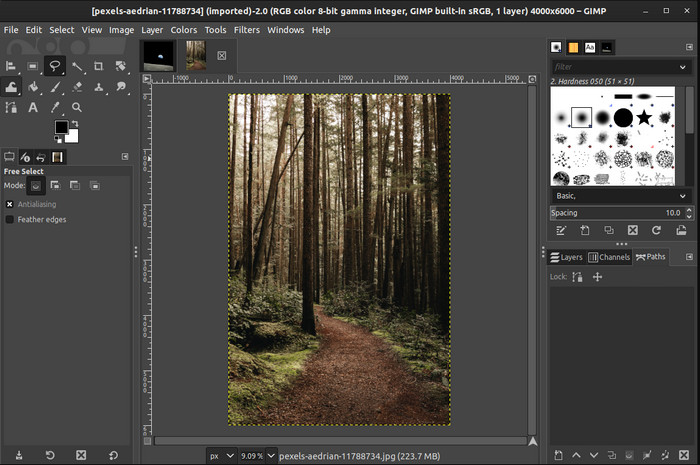
Το GIMP είναι μια εναλλακτική λύση στο Photoshop, την οποία μπορείτε να κατεβάσετε και να χρησιμοποιήσετε για να μετατρέψετε φωτογραφίες χαμηλής ανάλυσης σε υψηλής. Έγινε γνωστό ως εναλλακτικό εργαλείο αντί του Photoshop χάρη στο πόσο καλά μπορεί να επεξεργαστεί τις εικόνες σας, αν και το Photoshop διαθέτει περισσότερα εργαλεία. Με το GIMP μπορείτε εύκολα να αυξήσετε την ανάλυση μιας εικόνας σε Windows ή Mac, αρκεί να το κατεβάσετε. Όπως αναφέραμε, το εργαλείο είναι παρόμοιο με τον επεξεργαστή εικόνας της Adobe· η πολυπλοκότητά του, όμως, είναι αρκετά μεγάλη για έναν αρχάριο. Αν, ωστόσο, ακολουθήσετε τις οδηγίες που παραθέτουμε εδώ, θα μπορέσετε να χρησιμοποιήσετε το λογισμικό και να ρυθμίσετε την εικόνα σας με το GIMP.
Πώς να αυξήσετε την ανάλυση μιας φωτογραφίας με το GIMP:
Βήμα 1. Κατεβάστε το λογισμικό στη συσκευή σας, ακολουθήστε τη διαδικασία εγκατάστασης και εκκινήστε το όταν ολοκληρωθούν όλα.
Βήμα 2. Μεταβείτε στο File και κάντε κλικ στο Open για να ανεβάσετε την εικόνα της οποίας θέλετε να αυξήσετε την ανάλυση.
Βήμα 3. Ανοίξτε το μενού Image και επιλέξτε Scale Image για να ξεκινήσετε την κλιμάκωση της εικόνας με το GIMP.
Βήμα 4. Μετά το κλικ στο Scale Image, θα εμφανιστεί ένα σύνολο επιλογών όπου μπορείτε να ρυθμίσετε την ανάλυση της εικόνας. Προσαρμόστε τις τιμές καθεμιάς ώστε να αυξήσετε την ανάλυση της εικόνας.
Βήμα 5. Πατήστε το κουμπί Scale για να αποθηκεύσετε τις τιμές που ορίσατε σε καθεμία από τις ρυθμίσεις.
Μέρος 3. Συχνές ερωτήσεις σχετικά με τον τρόπο αύξησης της ανάλυσης εικόνας
Τι είναι καλύτερο, το GIMP ή το Photoshop, για να αυξήσετε την ανάλυση της εικόνας;
Το GIMP και το Adobe Photoshop είναι λογισμικό κορυφαίας ποιότητας και διαθέτουν σχεδόν ισοπεδωμένους επεξεργαστές εικόνας που μπορείτε να κατεβάσετε στη συσκευή σας. Ωστόσο, το Photoshop είναι πολύ ανώτερο όσον αφορά την αύξηση της ανάλυσης της εικόνας.
Είναι απαραίτητη η λήψη του λογισμικού για τη βελτίωση της ανάλυσης εικόνας;
Η λήψη λογισμικού μπορεί να γίνει χρήσιμη όταν δεν έχετε internet και θέλετε να βελτιώσετε την ανάλυση, αλλά συνιστούμε ανεπιφύλακτα να χρησιμοποιήσετε ένα εργαλείο Ιστού εάν έχετε αξιοπρεπές διαδίκτυο. Όπως το FVC Free Image Upscaler, αυτό το εργαλείο είναι ένα αξιόπιστο εργαλείο αναβάθμισης εικόνων στο οποίο μπορείτε να έχετε πρόσβαση στο διαδίκτυο χωρίς να κάνετε λήψη αρχείων.
Είναι δύσκολο να αναβαθμίσεις μια εικόνα;
Μερικοί άνθρωποι βρίσκουν αυτή την πρόκληση ενοχλητική λόγω του εργαλείου τους, αλλά εδώ κάνουμε τα πάντα για εσάς πιο βολικά. Αφού διαβάσετε αυτό το άρθρο, έχετε πλέον τεράστιες γνώσεις για το πώς να αντιμετωπίσετε αυτό το πρόβλημα πιο άμεσα.
συμπέρασμα
Λοιπόν, ποιο λογισμικό πιστεύετε ότι θα χρησιμοποιήσετε λόγω των πλεονεκτημάτων του; Για να αυξήσετε την ανάλυση φωτογραφιών στο διαδίκτυο ή εκτός σύνδεσης, θα χρειαστείτε λογισμικό και έναν οδηγό για τον τρόπο χρήσης τους. αυτό είναι που προσθέτουμε σε αυτό το άρθρο. Μπορείτε να επιλέξετε αυτό που πιστεύετε ότι σας ταιριάζει καλύτερα και να ακολουθήσετε τα βήματα που προσθέτουμε για να χειριστείτε εύκολα αυτό το πρόβλημα.
-
 Πώς να αφαιρέσετε το υδατογράφημα του Animaker χωρίς κόστος [αποδεδειγμένοι τρόποι]
 Πώς να αφαιρέσετε το υδατογράφημα του Animaker; Με τα καλύτερα εργαλεία που χρησιμοποιούμε σε αυτό το ιστολόγιο, μπορείτε να τα χρησιμοποιήσετε για να απαλλαγείτε από το υδατογράφημα.
-
 Οδηγός για την αφαίρεση του υδατογραφήματος από το γράφημα προέλευσης [100% Working]
 Για να αφαιρέσετε το υδατογράφημα από το Origin Graph θα χρειαστείτε βοήθεια. Η βοήθεια που χρειάζεστε περιλαμβάνεται σε αυτό το άρθρο, μπορείτε να το διαβάσετε για να μάθετε.
-
 Πώς να αφαιρέσετε εύκολα το υδατογράφημα στο SmartDraw [2 αποδεδειγμένοι τρόποι]
 Πώς να αφαιρέσετε το υδατογράφημα στο Smart Draw; Εάν έχετε την ίδια ερώτηση, μπορείτε να βασιστείτε σε αυτό το άρθρο καθώς σας καλύψαμε!
