


 Video Converter Ultimate
 Εγγραφή οθόνης
 Επισκευή βίντεο
 Ασφαλές κατέβασμα
Αφαιρέστε το αντικείμενο από τις φωτογραφίες με το 6 αποτελεσματικό λογισμικό [Δωρεάν]
Εκατομμύρια φωτογράφοι, ακόμη και όσοι είναι αρχάριοι ή φιλόδοξοι, έχουν τραβήξει πολλές λήψεις από τοπίο με ηλιοβασίλεμα, παραλία, τουριστικά αξιοθέατα, φεγγάρι και πολλά ακόμη. Με τις εικόνες μπορούμε να εκφράσουμε το ποιοι είμαστε πραγματικά. Με ένα απλό κλικ μπορείς να πυροδοτήσεις τη δημιουργικότητα όλων και το καλλιτεχνικό τους ταλέντο. Δεν είναι κάθε λήψη τέλεια· μερικές φορές χρειάζεται να αφαιρέσουμε ένα συγκεκριμένο αντικείμενο που δεν θα έπρεπε να υπάρχει στη φωτογραφία που τράβηξες. Χρειάζεσαι ένα εργαλείο για να αφαιρέσεις αντικείμενα από φωτογραφίες; Εδώ θα παρουσιάσουμε διαφορετικούς τρόπους και εργαλεία που μπορείς να χρησιμοποιήσεις για να αφαιρέσεις αμέσως τα περιττά αντικείμενα από την εικόνα που τράβηξες.

Μέρος 1. Αφαίρεση αντικειμένου από φωτογραφία χρησιμοποιώντας το καλύτερο εργαλείο αφαίρεσης αντικειμένων [Υπηρεσία Ιστού]
Το FVC Free Watermark Remover είναι η πρώτη μας επιλογή για να αφαιρείς αντικείμενα από φωτογραφίες online δωρεάν. Με αυτό μπορείς να σβήσεις οτιδήποτε χαλάει την τέλεια εικόνα σου άμεσα, χωρίς να χρειάζεται να κατεβάσεις λογισμικό στον υπολογιστή σου, ακόμη κι αν δεν έχεις καμία εμπειρία σε τέτοιου είδους επεξεργασία. Μπορείς να βασιστείς σε αυτό το εργαλείο, γιατί το μόνο που χρειάζεται είναι να τονίσεις το αντικείμενο, και θα το αφαιρέσει από την εικόνα χωρίς να αφήσει υπολείμματα. Βρήκαμε αυτό το εργαλείο διασκεδαστικό και αποτελεσματικό στην αφαίρεση περιττών στοιχείων από την εικόνα· αν θέλεις να το χρησιμοποιήσεις, τότε ακολούθησε τα βήματα που παραθέτουμε παρακάτω.
Βήμα 1. Για να ανοίξεις το εργαλείο αφαίρεσης αντικειμένων της FVC, μπορείς να κάνεις κλικ σε αυτόν τον σύνδεσμο προς την επίσημη ιστοσελίδα.
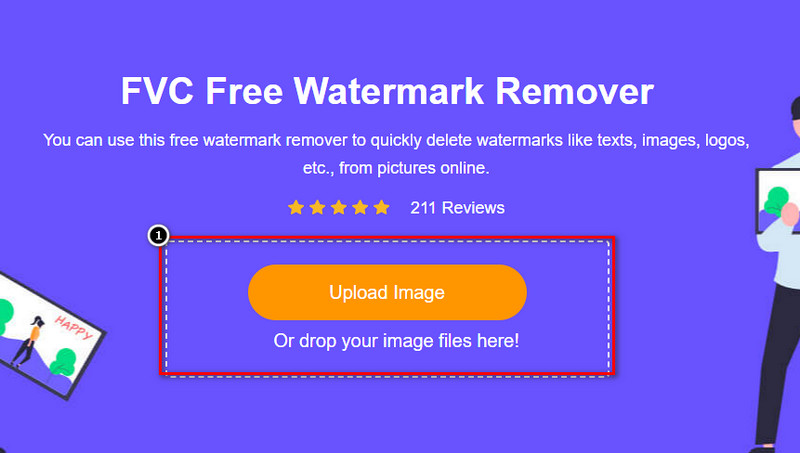
Βήμα 2. Πάτησε Upload Image για να εισαγάγεις τη φωτογραφία που τράβηξες και έχει πάνω της ένα περιττό αντικείμενο.
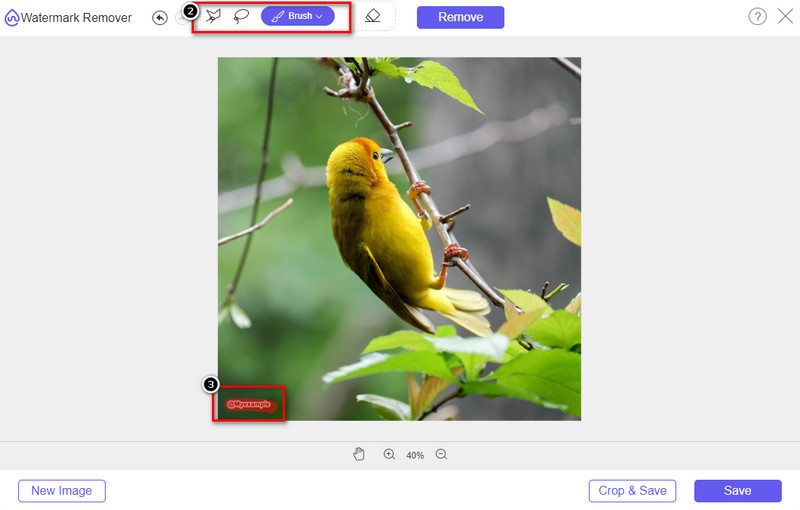
Βήμα 3. Με τα εργαλεία που είναι διαθέσιμα εδώ, θα χρειαστεί να επισημάνεις το αντικείμενο.
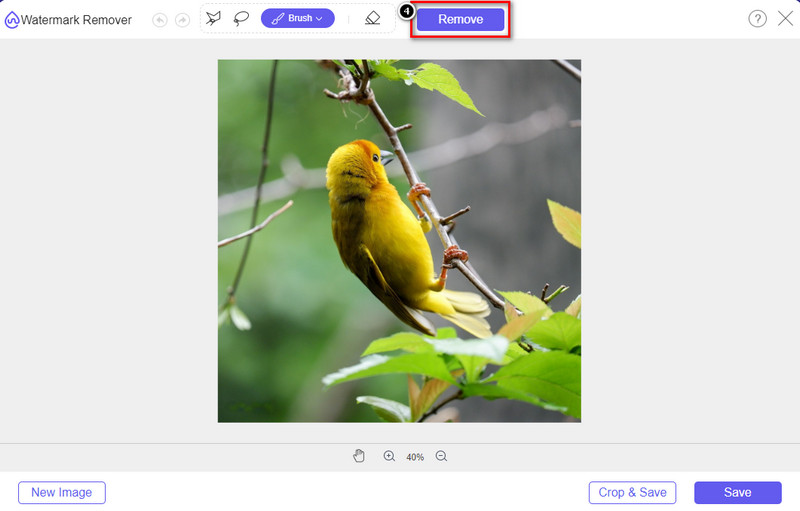
Βήμα 4. Πάτησε το κουμπί Remove για να απομακρύνεις το αντικείμενο με τη βοήθεια της τεχνολογίας τεχνητής νοημοσύνης που υποστηρίζει αυτό το εργαλείο.
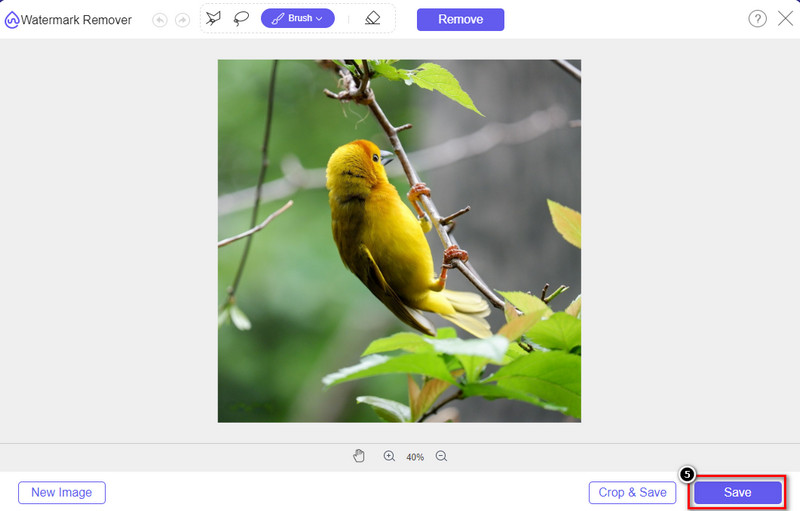
Βήμα 5. Για να κατεβάσεις την τέλεια εικόνα που επεξεργάστηκες εδώ, κάνε κλικ στο Save.
Μέρος 2. Κατάργηση αντικειμένου από τη φωτογραφία με επαγγελματική χρήση προγραμμάτων επιφάνειας εργασίας [Windows & Mac]
Photoshop
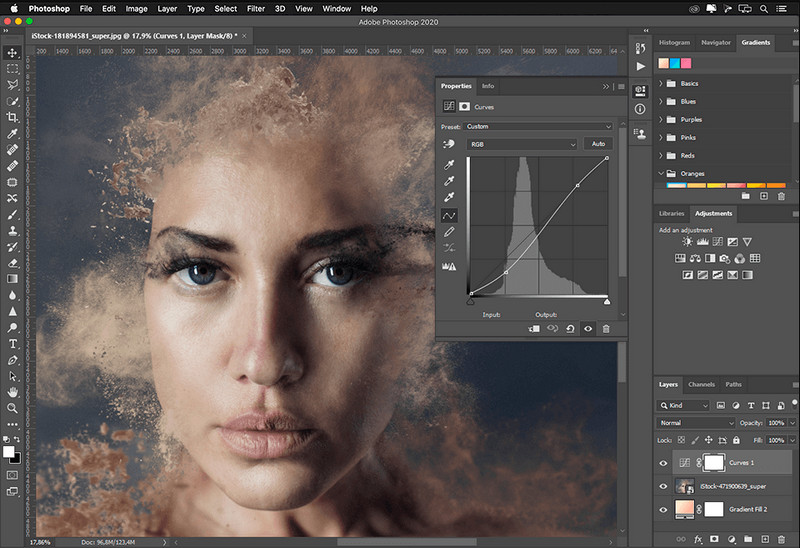
Εάν χρειάζεστε ένα επαγγελματικό εργαλείο για να αφαιρέσετε αντικείμενα από φωτογραφίες, τότε το Photoshop είναι η απάντηση! Αυτό το εργαλείο είναι ένα πλήρες πρόγραμμα επεξεργασίας εικόνας που μας παρουσιάζει με περηφάνια η Adobe. Τίποτα δεν σας εμποδίζει να κάνετε την εικόνα να φαίνεται απίστευτη με το χαρακτηριστικό και τη λειτουργία της. Λόγω της δημοτικότητάς του μεταξύ των επαγγελματιών, πολλοί αρχάριοι προσπαθούν να χρησιμοποιήσουν αυτό το λογισμικό για να επεξεργαστούν και να δημιουργήσουν τις εικόνες τους. Έτσι, εάν θέλετε να μάθετε πώς να χρησιμοποιείτε αυτό το επαγγελματικό εργαλείο, τότε μπορείτε να ακολουθήσετε το σεμινάριο που προσθέτουμε παρακάτω.
Βήμα 1. Άνοιξε την επίσημη ιστοσελίδα της Adobe και στη συνέχεια κατέβασε το Photoshop στον υπολογιστή σου.
Βήμα 2. Κάνε κλικ στο File και πάτησε Open για να ανεβάσεις την εικόνα που χρειάζεται επεξεργασία εδώ.
Βήμα 3. Στο αριστερό τμήμα, επίλεξε το Magic Wand Tool για να εντοπίσει αυτόματα το αντικείμενο στην εικόνα.
Βήμα 4. Πήγαινε στο μενού Edit και επίλεξε από κάτω το Content-Aware Fill.
Βήμα 5. Αφού το ανοίξεις, θα αφαιρέσει αυτόματα το υδατογράφημα· στη συνέχεια κάνε κλικ στο OK.
ΣΕΙΡΗΤΙ
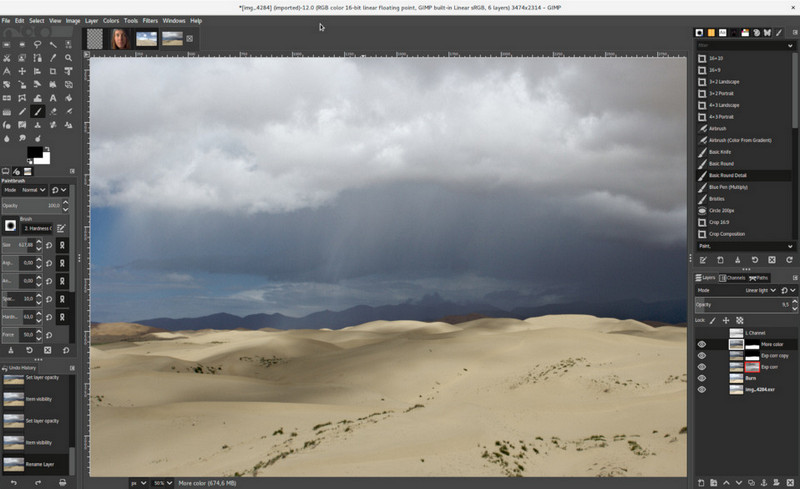
Το GIMP είναι ένα πλήρες πρόγραμμα επεξεργασίας εικόνας που μπορείς να χρησιμοποιήσεις για να αφαιρείς αντικείμενα από φωτογραφίες σε Mac, Linux και Windows δωρεάν. Είναι ένα αξιόπιστο εργαλείο, παρόμοιο με το Photoshop. Αν και το εργαλείο θεωρείται κορυφαία εναλλακτική του Adobe Photoshop, εξακολουθεί να βρίσκεται σε ενεργή ανάπτυξη. Με αυτό το εργαλείο μπορείς να επεξεργαστείς τις εικόνες σου σε βάθος ώστε να είναι ελκυστικές στο κοινό. Μπορείς επίσης να προσαρμόσεις το περιβάλλον εργασίας αν θέλεις να κάνεις τη δουλειά πιο εύκολη. Αν σκέφτεσαι να κατεβάσεις αυτό το εργαλείο για επαγγελματική επεξεργασία, μπορούμε να σε διαβεβαιώσουμε ότι μπορείς να το πετύχεις. Παρόλο που είναι πρόγραμμα ανοιχτού κώδικα, το εργαλείο δεν έχει ακόμη οριστικοποιηθεί, επειδή το γραφικό περιβάλλον (GUI) του παραμένει υπό ανάπτυξη. Αν θέλεις να το χρησιμοποιήσεις, τα παρακάτω βήματα θα σε καθοδηγήσουν στο πώς να αφαιρέσεις ένα αντικείμενο από μια φωτογραφία στο GIMP. Τα βήματα που ακολουθούν θα σε καθοδηγήσουν.
Βήμα 1. Κατέβασε και εκκίνησε το λογισμικό για να μπορέσεις να ανεβάσεις την εικόνα που θέλεις να επεξεργαστείς. Επίσης, κατέβασε το πρόσθετο Resynthesizer.
Βήμα 2. Από τα εργαλεία στην αριστερή πλευρά, επίλεξε το Free Select και άλλαξε το mode σε Add Current Selection.
Βήμα 3. Σχεδίασε τώρα γύρω από το αντικείμενο που θέλεις να αφαιρέσεις· αφού το επισημάνεις με επιτυχία, πάτησε Enter στο πληκτρολόγιό σου.
Βήμα 4. Για να χρησιμοποιήσεις το πρόσθετο που κατέβασες, πήγαινε στο Filter, έπειτα Enhance και κάνε κλικ στο Heal Selection.
Βήμα 5. Στη συνέχεια θα εμφανιστεί ένα παράθυρο διαλόγου· άλλαξε το sampling width αν χρειάζεται, όρισε το sample σε all-around και το Filling Order σε random. Πάτησε OK για να ξεκινήσει η σύνθεση της περιοχής μέσα στην εικόνα.
Εφαρμογή φωτογραφιών σε Mac
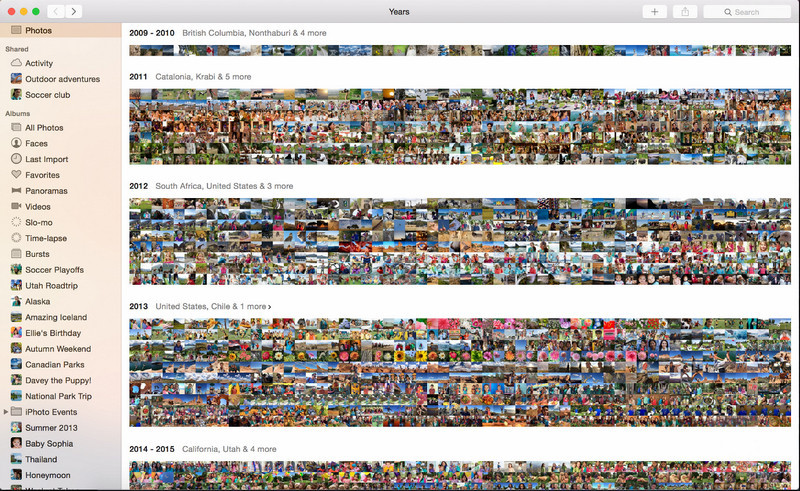
Η Εφαρμογή Φωτογραφίες (Photo App) είναι μια ενσωματωμένη λειτουργία σε ενημερωμένα προϊόντα της Apple, όπως το Mac. Η εφαρμογή είναι προεγκατεστημένη, οπότε μπορείς να παραλείψεις το στάδιο της λήψης και να τη χρησιμοποιήσεις άμεσα. Το λογισμικό δεν είναι πρόγραμμα επεξεργασίας εικόνας, επειδή ο σκοπός του είναι να λειτουργεί ως βιβλιοθήκη και πρόγραμμα προβολής φωτογραφιών σε συσκευές Mac ή iOS. Ακόμη κι αν δεν έχεις επαγγελματικό πρόγραμμα επεξεργασίας εικόνας σε Mac, μπορείς να εκμεταλλευτείς αυτές τις λειτουργίες για να πετύχεις ένα επαγγελματικό αποτέλεσμα με ένα κλικ. Αν λοιπόν θέλεις να αφαιρέσεις αντικείμενα μέσω της Εφαρμογής Φωτογραφίες, μπορείς να ακολουθήσεις τα βήματα που προσθέσαμε.
Βήμα 1. Άνοιξε την εφαρμογή Photos στο Mac σου και επίλεξε την εικόνα που έχει το περιττό αντικείμενο.
Βήμα 2. Στο επάνω δεξί μέρος, κάνε κλικ στο κουμπί Edit για να ξεκινήσεις την επεξεργασία της εικόνας.
Βήμα 3. Στη δεξιά πλευρά θα δεις την επιλογή Retouch· κάνε κλικ πάνω της για να χρησιμοποιήσεις τη λειτουργία.
Βήμα 4. Κάνε κλικ και σύρε το ποντίκι στην περιοχή που θέλεις να αφαιρέσεις.
Βήμα 5. Πάτησε το κουμπί Done για να αποθηκεύσεις τις αλλαγές που εφάρμοσες στην εικόνα.
Μέρος 3. Αφαίρεση αντικειμένου από τη φωτογραφία χρησιμοποιώντας την εφαρμογή σε Android και iOS
ΔΙΟΡΘΩΣΗ Photoshop
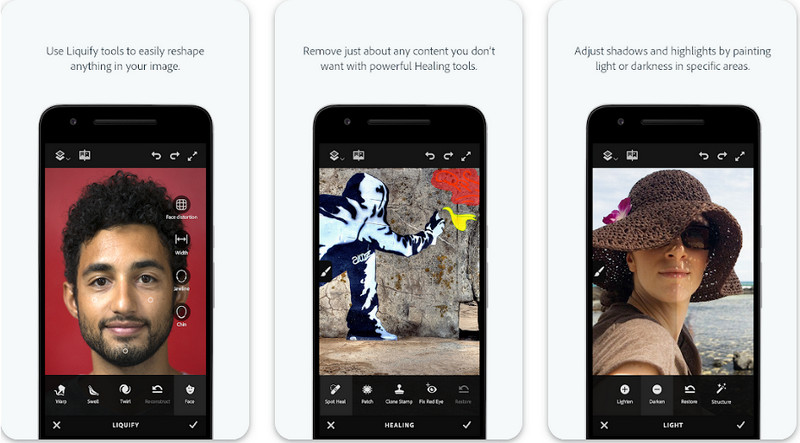
Το Photoshop FIX είναι μια αποτελεσματική εφαρμογή Android για αφαίρεση αντικειμένων από φωτογραφίες, που λειτουργεί επαγγελματικά αλλά είναι εύκολη στη χρήση. Είναι μια εφαρμογή ανοιχτού κώδικα που μπορείς να κατεβάσεις στη συσκευή σου ανοίγοντας το PlayStore. Παρόλο που το εργαλείο είναι ανοιχτού κώδικα, θα διαπιστώσεις ότι η δυνατότητα αφαίρεσης αντικειμένων είναι εξαιρετική, χωρίς αμφιβολία. Είναι μία από τις πιο δημοφιλείς εφαρμογές σε συσκευές Android για αυτή τη δουλειά. Αν λοιπόν θέλεις να μάθεις πώς να χρησιμοποιήσεις αυτήν την εφαρμογή, συνέχισε διαβάζοντας τα παρακάτω.
Βήμα 1. Κατέβασε την εφαρμογή στη συσκευή Android σου.
Βήμα 2. Πάτησε το On My Phone για να εμφανιστούν όλες οι εικόνες στη βιβλιοθήκη σου. Επίλεξε την εικόνα που θέλεις να επεξεργαστείς.
Βήμα 3. Για να χρησιμοποιήσεις τη λειτουργία αφαίρεσης αντικειμένων της εφαρμογής, κάνε κλικ στο Healing.
Βήμα 4. Εδώ μπορείς να χρησιμοποιήσεις δύο επιλογές για να το αφαιρέσεις. Για να σβήσεις το αντικείμενο με πινέλο, επίλεξε το Spot Heal. Αν όμως θέλεις να κλωνοποιήσεις ένα pixel, πρέπει να επιλέξεις το Clone Stamp. Τόνισε το υδατογράφημα με την επιλογή που προτιμάς.
Βήμα 5. Αποθήκευσε την εικόνα στη συλλογή (camera roll) σου, και αυτό ήταν!
Ρετουσάρισμα φωτογραφιών
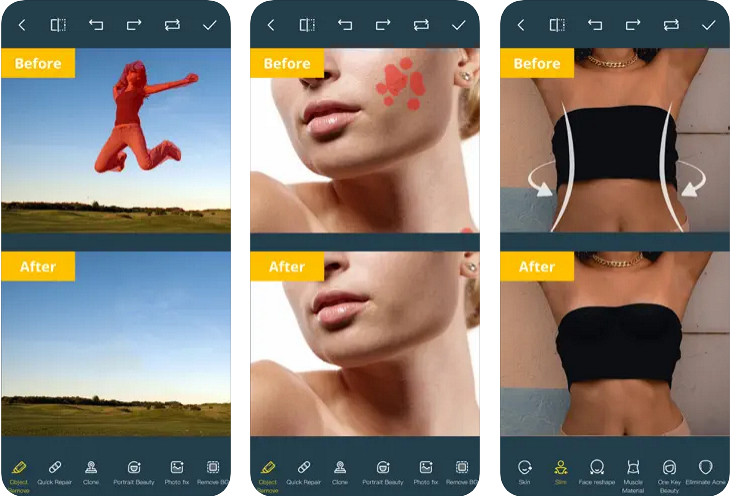
Το Photo Retouch είναι μια αξιόπιστη εφαρμογή για να αφαιρείς αντικείμενα από φωτογραφίες σε iPhone χωρίς δυσκολία. Ακόμη κι αν δεν είσαι έμπειρος στην αφαίρεση αντικειμένων από τις εικόνες σου, μπορείς να τα απομακρύνεις αποτελεσματικά. Μπορείς να κατεβάσεις αυτήν την εφαρμογή δωρεάν από το AppStore αν θέλεις να τη δοκιμάσεις. Μπορείς επίσης να αφαιρέσεις το φόντο και το υδατογράφημα από τη φωτογραφία σου, αν χρειάζεσαι κάτι τέτοιο. Αν είσαι έτοιμος να χρησιμοποιήσεις αυτήν την εφαρμογή για να απομακρύνεις το αντικείμενο από την εικόνα σου, μπορείς να ακολουθήσεις τα βήματα που παραθέτουμε.
Βήμα 1. Κατέβασε την επίσημη εφαρμογή και στη συνέχεια εκκίνησέ την.
Βήμα 2. Κάνε κλικ στο Photo Eraser, έπειτα στο Photo. Επίλεξε την εικόνα με το περιττό φόντο που θέλεις να αφαιρέσεις και βεβαιώσου ότι η εικόνα βρίσκεται στην εφαρμογή Photos του iPhone σου.
Βήμα 3. Στο κάτω μέρος, επίλεξε την επιλογή Object Removal.
Βήμα 4. Χρησιμοποίησε το πινέλο που υποστηρίζει η εφαρμογή για να επισημάνεις το αντικείμενο που θέλεις να αφαιρέσεις και κάνε κλικ στο GO για να αφαιρεθεί το αντικείμενο.
Σχετικά:
Αφαίρεση υδατογραφήματος Dreamstime
Αφαίρεση υδατογραφήματος φίλτρου Picsart
Μέρος 4. Συχνές ερωτήσεις σχετικά με τον τρόπο αφαίρεσης αντικειμένων από φωτογραφίες
Γιατί πρέπει να αφαιρέσω αντικείμενα από φωτογραφίες;
Υπάρχουν πολλές φορές που καταγράφουμε κάτι, και υπάρχουν Photobombers. Αυτό το αντικείμενο είναι ένα πρόβλημα για τους περισσότερους επαγγελματίες σε άλλα άτομα, επειδή δεν επισημαίνει την εικόνα που τραβάτε. Έτσι, αντί να τραβήξετε ξανά την εικόνα, μπορείτε να διαβάσετε τους παρακάτω ιδανικούς τρόπους για να αφαιρέσετε το αντικείμενο στη φωτογραφία σας.
Μπορώ να περικόψω την εικόνα για να αφαιρέσω αντικείμενα;
Ναι μπορείς. Εάν το αντικείμενο που θέλετε να το αφαιρέσετε στο πλάι της φωτογραφίας, τότε μπορείτε να προσπαθήσετε να περικόψετε την εικόνα με τον ενσωματωμένο επεξεργαστή σας. Ωστόσο, αυτή η επιλογή δεν αποτελεί επιλογή, ειδικά εάν το αντικείμενο βρίσκεται στο μεσαίο τμήμα ή κοντά στην εικόνα που τραβάτε. Η περικοπή της εικόνας θα αποκόψει τη φωτογραφία, επομένως είναι καλύτερο να σκεφτείτε δύο φορές αν θέλετε να δοκιμάσετε αυτήν την επιλογή.
Γιατί δεν μπορώ να ανεβάσω μια εικόνα για να αφαιρέσω το αντικείμενο;
Δεν μπορείτε να ανεβάσετε την εικόνα. είτε η εικόνα είναι κατεστραμμένη είτε η επέκταση εικόνας δεν υποστηρίζεται. Εάν η εικόνα σας είναι κατεστραμμένη, υπάρχουν τρόποι να το διορθώσετε. Μπορείτε να τα βρείτε στον ιστό αν το ψάξετε. Συνήθως, θα μπορούσε να είναι η επέκταση αρχείου της εικόνας. για να λύσετε αυτό το πρόβλημα, θα χρειαστεί να το μετατρέψετε.
συμπέρασμα
Η αφαίρεση αντικειμένων από τη φωτογραφία είναι εύκολη λόγω του εργαλείου και της εφαρμογής που χρησιμοποιούμε σε αυτό το άρθρο. Λοιπόν, ποιο εργαλείο προτιμάτε περισσότερο; Ελπίζουμε ότι αυτός ο οδηγός που προσθέτουμε θα σας βοηθήσει να λύσετε εύκολα το πρόβλημα.
-
 Πώς να μετατρέψετε εικόνα χαμηλής ανάλυσης σε υψηλής ανάλυσης στο διαδίκτυο
 Εάν θέλετε να μάθετε πώς να μετατρέπετε εικόνες χαμηλής ανάλυσης σε εικόνες υψηλής ανάλυσης στο διαδίκτυο, τότε αυτό το άρθρο είναι για εσάς. Διαβάστε πλήρως για να μάθετε πώς.
-
 Εύκολες μέθοδοι για το πώς να αφαιρέσετε το υδατογράφημα ανθεκτικό σε πυροβολισμούς
 Αφαιρέστε το υδατογράφημα Shootproof ακολουθώντας αυτές τις εύκολες μεθόδους. Χρησιμοποιήστε αυτά τα εκπληκτικά εργαλεία αφαίρεσης υδατογραφημάτων για να αφαιρέσετε εύκολα το υδατογράφημα Shootproof από την εικόνα σας.
-
 Πώς να αφαιρέσετε το υδατογράφημα Bandicam χωρίς κόπο [3 αποτελεσματικοί τρόποι]
 Πώς να αφαιρέσετε το υδατογράφημα Bandicam; Με τα εργαλεία, προσθέτουμε εδώ θα ξέρετε πώς να το αντιμετωπίσετε αποτελεσματικά!
