


 Video Converter Ultimate
 Εγγραφή οθόνης
 Επισκευή βίντεο
 Ασφαλές κατέβασμα
6 πιο αποτελεσματικοί τρόποι για να αλλάξετε το μέγεθος μιας εικόνας στον Ιστό και στην επιφάνεια εργασίας
Με δισεκατομμύρια φωτογραφίες κύρους που μπορούμε να κατεβάσουμε, οι περισσότεροι από εμάς βγάζουμε όμορφες εικόνες, ωστόσο υπάρχουν περιπτώσεις που το μέγεθός τους δεν είναι αυτό που προτιμάμε περισσότερο. Οι χρήστες προσπάθησαν να αλλάξουν το μέγεθος της εικόνας που είχαν προσαρμόζοντας το ύψος, το πλάτος και την αναλογία της εικόνας χρησιμοποιώντας το πρόγραμμα επεξεργασίας, το οποίο άλλαξε το PPI της εικόνας. Το αποτέλεσμα δεν είναι αυτό που περίμεναν όλοι. οι εικόνες υψηλής ευκρίνειας γίνονται εικονοστοιχεία.
Γιατί; Επειδή ο επεξεργαστής που χρησιμοποίησαν για να αλλάξουν το μέγεθος δεν μπορεί να δημιουργήσει ή να συμπληρώσει το κενό των pixel στην αναπροσαρμοσμένη έκδοση. Έτσι, τα ερωτήματα σχετικά με αυτό το θέμα έγιναν δημοφιλή και είμαστε εδώ για να σας βοηθήσουμε να λύσετε το πρόβλημα. Σε αυτήν την ανάρτηση ιστολογίου, θα έχετε πρακτική εμπειρία σχετικά με το πώς να αλλάξετε το μέγεθος μιας εικόνας χωρίς να μείνει καμία παραμόρφωση στο τελικό αποτέλεσμα.

Μέρος 1. Τα καλύτερα προγράμματα αλλαγής μεγέθους φωτογραφιών στα οποία μπορείτε να έχετε πρόσβαση στον Ιστό για αλλαγή μεγέθους εικόνας στο Διαδίκτυο [3 Δωρεάν εργαλεία]
Αυτά τα διαδικτυακά εργαλεία που προσθέτουμε εδώ είναι διαθέσιμα σε διαφορετικά προγράμματα περιήγησης ιστού που έχετε στη συσκευή σας. Επίσης, αυτά είναι δωρεάν, ωστόσο υπάρχει ένα εργαλείο που θα χρειαστεί να αγοράσετε για να το χρησιμοποιήσετε χωρίς περιορισμούς. Ωστόσο, αυτά είναι ικανά διαδικτυακά εργαλεία στα οποία μπορείτε να έχετε πρόσβαση για να αρχίσετε να αλλάζετε το μέγεθος της εικόνας που έχετε. Διαβάστε τα βήματα για να μάθετε πώς να τα χρησιμοποιήσετε.
1. FVC Free Image Upscaler - Το καλύτερο πρόγραμμα αλλαγής μεγέθους εικόνας στον Ιστό [Ευνοϊκή επιλογή]
Το FVC Free Image Upscaler Online είναι ένα διαδικτυακό εργαλείο τεχνητής νοημοσύνης που μπορεί γρήγορα να αλλάξει το μέγεθος εικόνων χωρίς απώλεια ποιότητας. Πράγματι, το online εργαλείο θα αλλάξει αυτόματα το μέγεθος κάθε αρχείου εικόνας που ανεβάζετε εδώ. Παρά το ότι είναι διαδικτυακό εργαλείο, η απόδοσή του στην αλλαγή μεγέθους είναι γρήγορη και αποτελεσματική. Κάθε εικόνα που ανεβάζετε εδώ διαγράφεται αυτόματα από τον διακομιστή μόλις της αλλάξετε το μέγεθος. Επίσης, διαθέτει το πιο καθαρό και ευέλικτο εργαλείο αλλαγής μεγέθους που θα χρειαστείτε· ακόμη κι αν χρησιμοποιείτε διαφορετικές συσκευές, μπορείτε να έχετε πρόσβαση σε αυτό το web εργαλείο αρκεί να έχετε σύνδεση στο διαδίκτυο. Θέλετε να δείτε πώς αποδίδει αυτό το λογισμικό σε αυτήν την εργασία; Αν ναι, διαβάστε τα παρακάτω βήματα και αντιγράψτε τα για να αλλάξετε γρήγορα και αποτελεσματικά το μέγεθος της εικόνας.
Πώς να αλλάξετε το μέγεθος εικόνας με το FVC Free Image Upscaler:
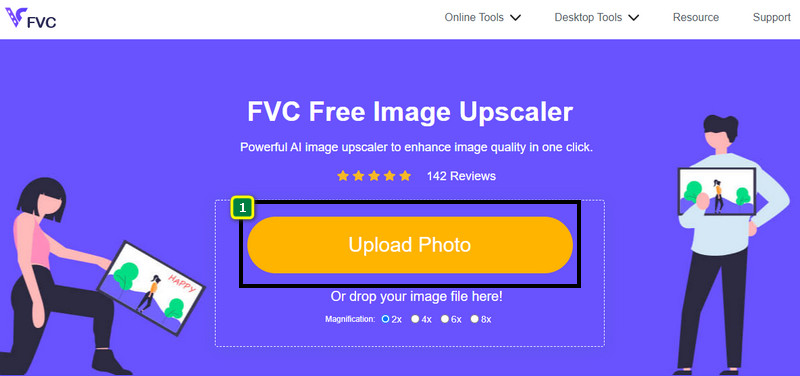
Βήμα 1. Για να αποκτήσετε πρόσβαση στο web εργαλείο, μπορείτε να κάνετε κλικ σε αυτόν τον σύνδεσμο, ο οποίος θα σας οδηγήσει αυτόματα στην επίσημη ιστοσελίδα του εργαλείου αλλαγής μεγέθους.
Βήμα 2. Κάντε κλικ στο Add Image ώστε να εμφανιστεί ένας φάκελος στην οθόνη σας, επιλέξτε το αρχείο εικόνας που θέλετε να ανεβάσετε και πατήστε Open.
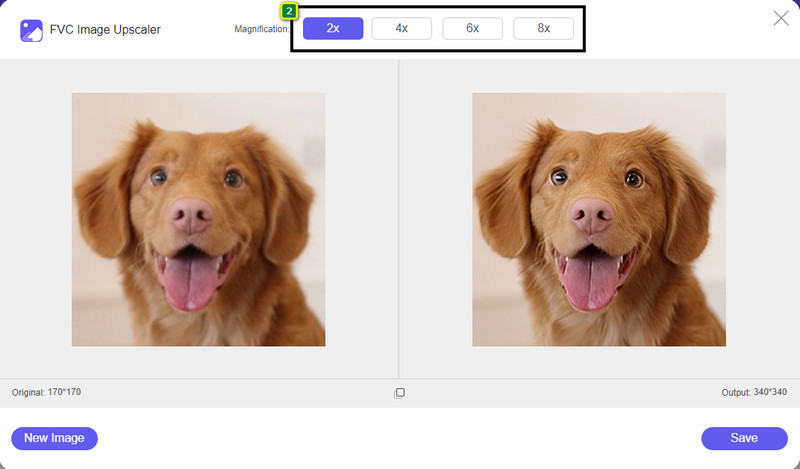
Βήμα 3. Για να αλλάξετε το μέγεθος της εικόνας, πρέπει να επιλέξετε τι είδους μεγέθυνση θέλετε να εφαρμόσετε στην εικόνα σας. Μπορείτε να δείτε ότι οι συνολικές διαστάσεις της εικόνας αλλάζουν μόλις δοκιμάσετε και κάνετε κλικ στο 2x, 4x, 6x και 8x.
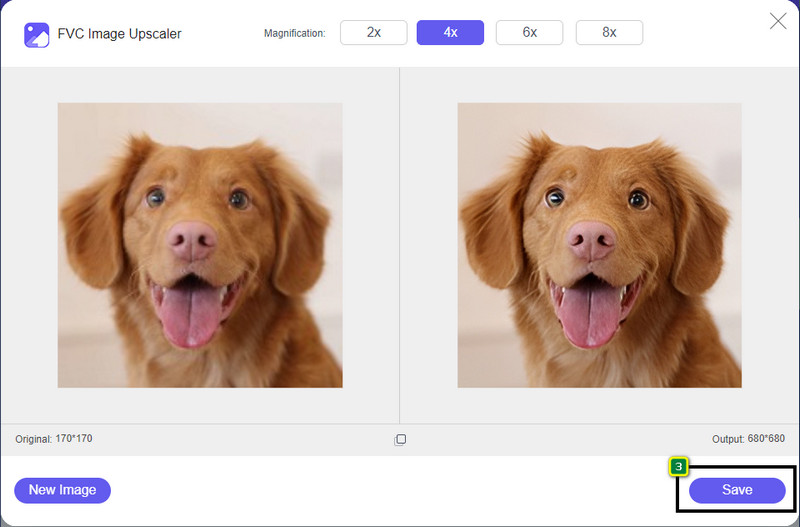
Βήμα 4. Αφού επιλέξετε τη μεγέθυνση που θέλετε να εφαρμόσετε, voilà, μπορείτε τώρα να πατήσετε Save για να κατεβάσετε την αναπροσαρμοσμένη έκδοση στον σκληρό δίσκο του υπολογιστή σας.
2. Be Funky - Photo Editor [Δωρεάν και επί πληρωμή]
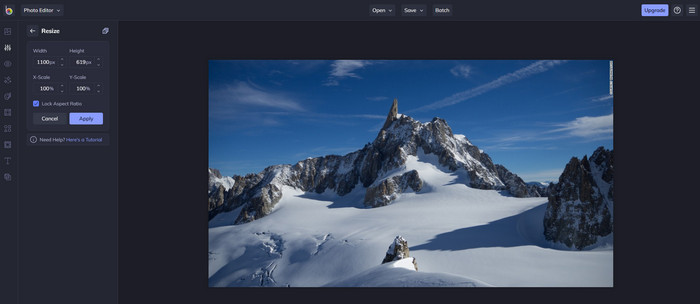
Το Be Funky - Photo Editor είναι μια δημιουργική πλατφόρμα που μπορείτε να χρησιμοποιήσετε για να κάνετε ξεχωριστά πράγματα στις εικόνες σας. Μπορεί να αλλάξει το μέγεθος αρχείων BMP χωρίς απώλεια ποιότητας. Αυτό το εργαλείο θεωρείται ένα από τα καλύτερα προγράμματα επεξεργασίας εικόνας που μπορείτε να χρησιμοποιήσετε online. Αν και έχει παρόμοιο περιβάλλον χρήστη με το Photoshop, οι λειτουργίες που προσφέρει είναι απλές και εύκολες στην κατανόηση, οπότε μπορούμε να πούμε ότι είναι επίσης φιλικό προς τον χρήστη. Επομένως, αν θέλετε να δοκιμάσετε αυτό το online εργαλείο για να αλλάξετε εύκολα το μέγεθος της εικόνας σας, ακολουθήστε τα βήματα που παραθέτουμε εδώ.
Πώς να αλλάξετε το μέγεθος εικόνας με το Be Funky:
Βήμα 1. Αναζητήστε το όνομά του στον φυλλομετρητή ιστού σας και μετά κάντε κλικ στο Get Started and Edit Photo.
Βήμα 2. Πατήστε Open για να ανεβάσετε το BMP ή οποιαδήποτε άλλη εικόνα έχετε και θέλετε να αλλάξετε το μέγεθός της εδώ.
Βήμα 3. Μεταβείτε στο Edit και πατήστε την επιλογή Resize.
Βήμα 4. Εδώ μπορείτε ελεύθερα να αλλάξετε το πλάτος και το ύψος ή την κλίμακα x και y της εικόνας. Έπειτα πατήστε Apply για να δείτε πώς φαίνεται η αναπροσαρμοσμένη έκδοση.
3. Simple Image Resizer [Δωρεάν]
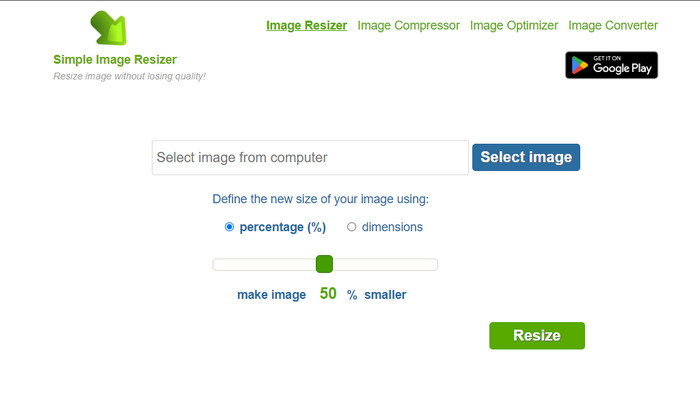
Το Simple Image Resizer σάς επιτρέπει να αλλάζετε το μέγεθος μιας εικόνας ορίζοντας το νέο μέγεθος, τροποποιώντας το ποσοστό ή τις μετρήσεις. Είναι το τελευταίο εργαλείο αλλαγής μεγέθους εικόνας που προσθέσαμε σε αυτό το άρθρο. Το απλό περιβάλλον χρήστη του και η ευκολία χρήσης του ήταν ο βασικός λόγος που το συμπεριλάβαμε. Επιπλέον, εκτός από τη λειτουργία αλλαγής μεγέθους, μπορείτε εδώ να βελτιστοποιήσετε, να συμπιέσετε και να μετατρέψετε την εικόνα σας δωρεάν, αλλά με ενοχλητικές διαφημίσεις στον ιστό. Αν, λοιπόν, θέλετε να δοκιμάσετε αυτό το online εργαλείο αλλαγής μεγέθους, ακολουθήστε τα παρακάτω βήματα.
Πώς να αλλάξετε το μέγεθος εικόνας με το Simple Image Resizer:
Βήμα 1. Χρησιμοποιώντας τον φυλλομετρητή ιστού σας, αναζητήστε το όνομά του για να ξεκινήσετε να χρησιμοποιείτε αυτό το web εργαλείο αλλαγής μεγέθους.
Βήμα 2. Πατήστε Select Image για να προσθέσετε τη φωτογραφία της οποίας θέλετε να αλλάξετε το μέγεθος εδώ.
Βήμα 3. Επιλέξτε ποιον τρόπο προτιμάτε για την αλλαγή μεγέθους και αλλάξτε το ποσοστό ή τη μονάδα μέτρησης. Ούτως ή άλλως, κάνουν το ίδιο πράγμα.
Βήμα 4. Κάντε κλικ στο Resize για να αποθηκεύσετε το τελικό αποτέλεσμα στον υπολογιστή σας.
Μέρος 2. Πώς να αλλάξετε το μέγεθος μιας εικόνας σε Windows και Mac [Paid & Free Offline]
Σε αντίθεση με το πρώτο διαδικτυακό εργαλείο που αναφέραμε 3, τα επόμενα εργαλεία που παρουσιάσαμε δεν εξαρτώνται από το Διαδίκτυο, πράγμα που σημαίνει ότι ακόμα κι αν δεν έχετε internet, μπορείτε να τα χρησιμοποιήσετε χωρίς κανένα πρόβλημα. Διότι είναι με δυνατότητα λήψης ή είναι ήδη προεγκατεστημένα στην επιφάνεια εργασίας σας. Μάθετε πώς να τα χρησιμοποιείτε σήμερα διαβάζοντας τις πληροφορίες που προσθέτουμε σε καθένα από αυτά.
1. Adobe Photoshop [Windows & Mac]
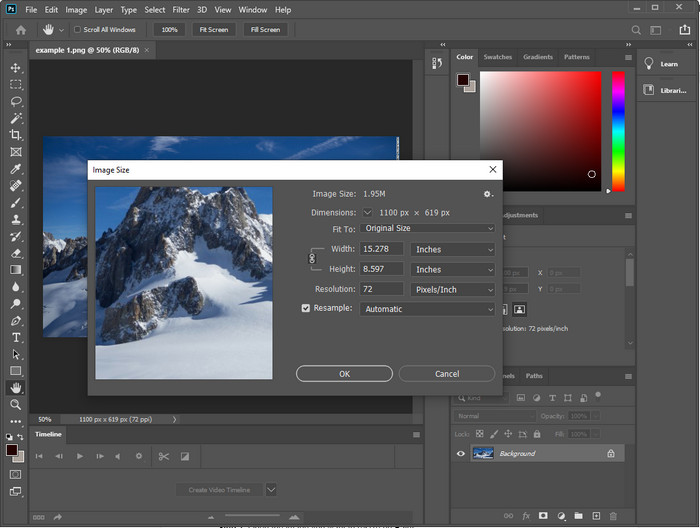
Η πρώτη μας offline επιλογή για εργαλείο αλλαγής μεγέθους εικόνων που μπορείτε να κατεβάσετε στη συσκευή σας είναι το Adobe Photoshop. Γιατί; Επειδή δημιουργεί επιπλέον δεδομένα pixel όταν αλλάζετε το μέγεθος και αποφεύγει να καταλήξετε με χαμηλής ποιότητας αποτέλεσμα στο τέλος της διαδικασίας. Επιπλέον, αυτό το λογισμικό είναι γνωστό ως επαγγελματικός επεξεργαστής εικόνας που μπορεί εύκολα να επεξεργαστεί οποιεσδήποτε ψηφιογραφίες (raster) και διανυσματικές εικόνες. Αν και το λογισμικό είναι επαγγελματικό εργαλείο, είναι κάπως ακριβό αν σκοπεύετε να το χρησιμοποιήσετε μόνο για αλλαγή μεγέθους. Αλλά αν σας ενδιαφέρει το πώς να αλλάξετε το μέγεθος μιας εικόνας στο Photoshop, συνεχίστε παρακάτω.
Πώς να αλλάξετε το μέγεθος εικόνας με το Adobe Photoshop:
Βήμα 1. Κατεβάστε και εγκαταστήστε το λογισμικό στον υπολογιστή σας, επισκεπτόμενοι την επίσημη ιστοσελίδα του.
Βήμα 2. Πατήστε File και εντοπίστε την εικόνα στον φάκελο αφού κάνετε κλικ στο Open.
Βήμα 3. Πατήστε το μενού Image στο επάνω μέρος και μετά επιλέξτε το Image Size.
Βήμα 4. Αλλάξτε τις μετρήσεις του πλάτους (Width) και του ύψους (Height) σύμφωνα με τις προτιμήσεις σας και μετά κάντε κλικ στο OK για να εφαρμόσετε τις αλλαγές.
Βήμα 5. Επιστρέψτε στο File και αποθηκεύστε την εικόνα στον υπολογιστή σας.
2. Ζωγραφική [Προεπιλεγμένη εφαρμογή στα Windows]
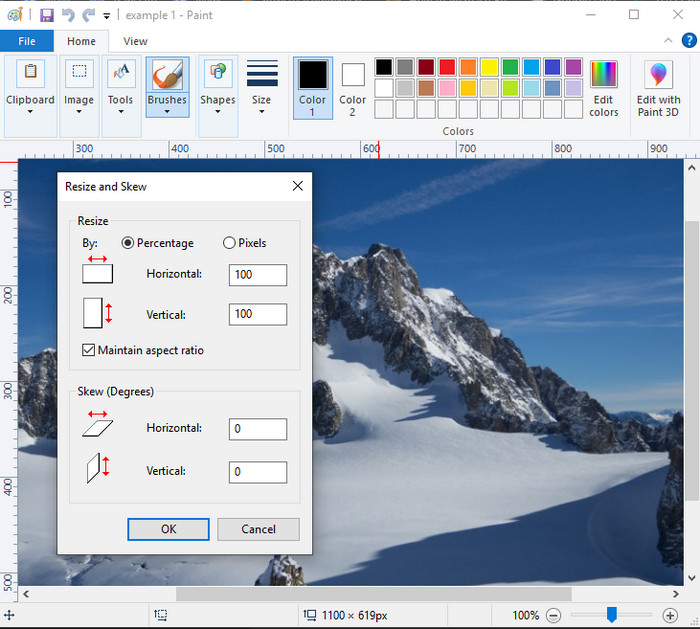
Το Paint είναι γνωστό ως μια εφαρμογή με την οποία μπορείτε να ζωγραφίσετε σε ένα κενό καμβά. Διάφοροι χρήστες των Windows το χρησιμοποιούν συνήθως για να δημιουργούν κάτι σε μια λευκή σελίδα, να προσθέτουν λεπτομέρειες σε εικόνες και να αλλάζουν το μέγεθός τους ανάλογα. Αν και δεν είναι ένας αποκλειστικός επεξεργαστής εικόνας, μπορεί παρ’ όλα αυτά να αλλάξει το μέγεθος κάθε ψηφιογραφίας που έχετε στον τοπικό σας δίσκο. Το πλεονέκτημα της χρήσης του είναι ότι δεν χρειάζεται να κατεβάσετε ξεχωριστό λογισμικό στα Windows, επειδή είναι προεγκατεστημένο. Αν, λοιπόν, θέλετε να μάθετε πώς να αλλάξετε το μέγεθος εικόνων χαμηλής ανάλυσης με αυτήν την εφαρμογή, διαβάστε το σεμινάριο που προσθέτουμε παρακάτω.
Πώς να αλλάξετε το μέγεθος εικόνας με το Paint:
Βήμα 1. Ανοίξτε την εικόνα της οποίας θέλετε να αλλάξετε το μέγεθος στο Paint.
Βήμα 2. Αφού ανοίξετε την εικόνα, κάντε κλικ στο εικονίδιο με τα δύο τετράγωνα για να ξεκινήσετε την αλλαγή μεγέθους της εικόνας που ανοίξατε εδώ.
Βήμα 3. Για να αλλάξετε το μέγεθος της εικόνας, μπορείτε να το ρυθμίσετε κατά ποσοστό ή κατά pixel. Αφού αλλάξετε τον αριθμό, πατήστε OK για να εφαρμόσετε τις αλλαγές.
Βήμα 4. Πατήστε το εικονίδιο save για να εξαχθεί η εικόνα στην οποία αλλάξατε το μέγεθος εδώ.
3. Προεπισκόπηση [Προεπιλεγμένη εφαρμογή σε Mac]
Το Preview είναι μια ενσωματωμένη εφαρμογή στην οποία μπορείτε να βασιστείτε και που σας καθοδηγεί στο πώς να αλλάξετε το μέγεθος μιας εικόνας σε Mac. Αν δεν σας αρέσει να κατεβάζετε επιπλέον εφαρμογές στο macOS, τότε είναι προτιμότερο να χρησιμοποιήσετε αυτήν την εφαρμογή. Είναι μια υποτιμημένη λύση, αλλά μπορεί να αλλάξει το μέγεθος της φωτογραφίας σας στον υπολογιστή σας. Το να μάθετε πώς να τη χρησιμοποιείτε μπορεί να είναι μεγάλο πλεονέκτημα για εσάς, ώστε να αξιοποιήσετε πλήρως τις δυνατότητες αυτού του λογισμικού. Αν σας ενδιαφέρει πώς λειτουργεί αυτό το εργαλείο, συνεχίστε με τις πληροφορίες που παραθέτουμε στη συνέχεια.
Πώς να αλλάξετε το μέγεθος εικόνας με το Preview:
Βήμα 1. Κάντε δεξί κλικ στην εικόνα στο Mac σας, κάντε κλικ στο Open with και πατήστε Preview.
Βήμα 2. Στο επάνω μέρος, κάντε κλικ στο Tools και μετά επιλέξτε Adjust Size.
Βήμα 3. Αλλάξτε τις διαστάσεις της εικόνας σύμφωνα με τις ανάγκες σας και μετά πατήστε OK για να αποθηκεύσετε τις αλλαγές που κάνατε.
Μέρος 3. Πρόσθετο: Top Image Resizer που μπορείτε να κάνετε λήψη σε Android και iPhone
1. Photo & Picture Resizer [Android]
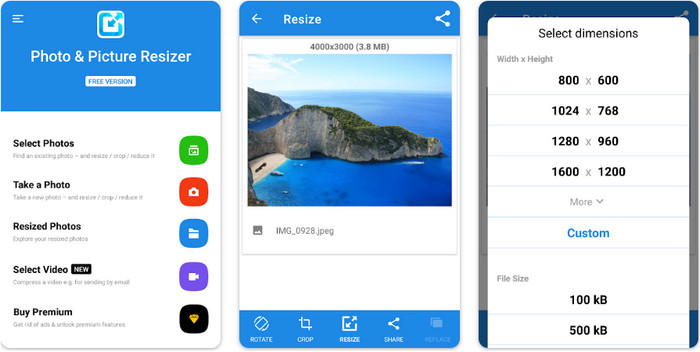
Το Photo & Picture Resizer είναι ένας από τους πιο γρήγορους και εύκολους τρόπους για να αλλάξετε το μέγεθος της εικόνας που έχετε στη συσκευή Android σας. Ακόμη και άπειροι χρήστες που θέλουν να αλλάξουν το μέγεθος μιας εικόνας μπορούν να το κατεβάσουν και να το χρησιμοποιήσουν ως εργαλείο αλλαγής μεγέθους εικόνων. Η εφαρμογή είναι δωρεάν, επομένως, αν θέλετε να χρησιμοποιήσετε τις πρόσθετες λειτουργίες της, θα χρειαστεί να κάνετε αγορά. Συνολικά, οι δυνατότητες αλλαγής μεγέθους είναι εξαιρετικές και μπορείτε να τις μάθετε από την πρώτη κιόλας προσπάθεια.
2. Δωρεάν Resizer Image [iPhone]
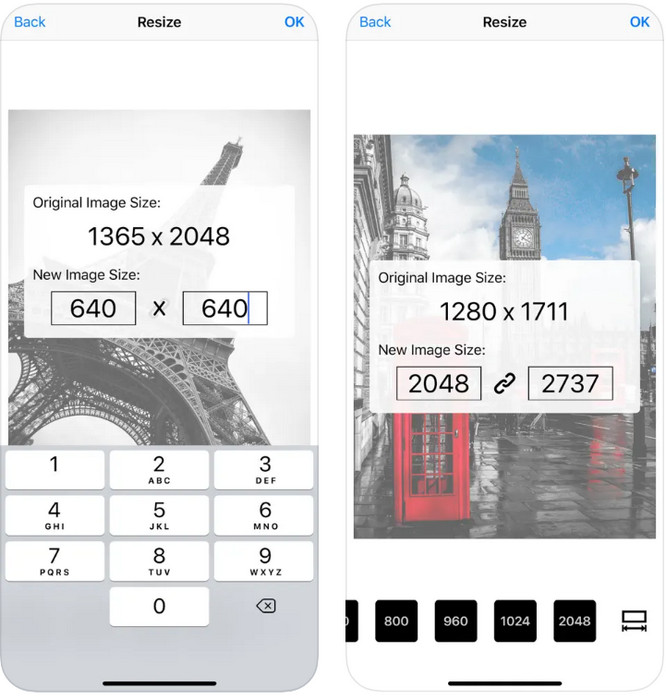
Το Image Resizer Free είναι μια εφαρμογή για iOS που μπορείτε να κατεβάσετε σε iOS 7.0 ή μεταγενέστερο. Αυτή η εφαρμογή είναι ένα στοχευμένο εργαλείο αλλαγής μεγέθους εικόνων που χρησιμοποιούν πολλοί χρήστες iOS. Δεν διαθέτει επιπλέον λειτουργίες πέρα από την κύρια: την αλλαγή μεγέθους. Αν και το εργαλείο είναι φιλικό προς τον χρήστη, πολλοί χρήστες παραπονιούνται ότι δεν μπορεί να αντικαταστήσει την αρχική εικόνα με την αναπροσαρμοσμένη έκδοση.
Μέρος 4. Συχνές ερωτήσεις σχετικά με τον τρόπο αλλαγής μεγέθους εικόνας
Ποια μορφή είναι καλύτερη για αλλαγή μεγέθους, ράστερ ή διάνυσμα;
Οι μορφές ράστερ αποτελούνται από μικροσκοπικά εικονοστοιχεία για να δημιουργήσουν την εμφάνιση της εικόνας και όταν αλλάζετε το μέγεθος ή τη διάστασή της, αυτά τα εικονοστοιχεία τεντώνονται και γίνονται ορατά. Σε αντίθεση με την αλλαγή μεγέθους της διανυσματικής εικόνας, είναι ειδικά σχεδιασμένη για αλλαγή μεγέθους και αναβάθμιση της εικόνας χωρίς να δημιουργείται χάος σε αυτήν.
Μπορώ να αλλάξω το μέγεθος του BMP online;
Ναι, μπορείτε να αλλάξετε το μέγεθος του BMP χρησιμοποιώντας την ηλεκτρονική λύση που προσθέτουμε εδώ. Ωστόσο, όταν μεγεθύνετε την εικόνα, το BMP τείνει να γίνει εικονοστοιχείο επειδή είναι εικόνες ράστερ. Επομένως, εάν θέλετε να αποφύγετε το πρόβλημα της αλλαγής μεγέθους του αρχείου BMP, προτιμήστε το FVC Free Image Upscaler Online, γιατί δεν αφήνει pixelation στην τελική έξοδο του BMP με αλλαγή μεγέθους.
Αυξάνεται το μέγεθος του αρχείου μετά την αλλαγή του μεγέθους της εικόνας;
Ναι είναι. Κυρίως επειδή η εικόνα που αλλάξατε το μέγεθος προσθέτει επιπλέον δεδομένα pixel στην πραγματική έξοδο. Ωστόσο, το μέγεθος του αρχείου του δεν διαφέρει πολύ από το αρχικό του μέγεθος.
συμπέρασμα
Ποια τεχνική αλλαγής μεγέθους εικόνας πιστεύετε ότι σας ταιριάζει καλύτερα; Επιλέξτε ανάμεσα στα εργαλεία αλλαγής μεγέθους που προσθέσαμε εδώ. Αν αντιμετωπίζετε δυσκολία στην επιλογή και έχετε πρόσβαση στο διαδίκτυο, σας προτείνουμε ιδιαίτερα το FVC Free Image Upscaler Online λόγω της απόδοσής του στην αλλαγή μεγέθους. Δεν θα συναντήσετε καμία δυσκολία στην αλλαγή μεγέθους αν χρησιμοποιήσετε αυτό το εργαλείο online.
-
 Εικόνα 1440p – Όλες οι πληροφορίες που θα χρειαστείτε [Ενημερώθηκε 2022]
 Θέλετε να μάθετε για τις εικόνες 1440p; Ή που μπορείτε να το προμηθευτείτε; Να μετατραπεί η εικόνα σας σε 1440p; Διαβάστε αυτό για να τα μάθετε όλα.
-
 Εκμάθηση για την αφαίρεση εικονοστοιχείων μιας εικόνας χρησιμοποιώντας το 3 καλύτερο πρόγραμμα Unpixelator φωτογραφιών
 Αντιμετωπίζετε πρόβλημα με το χειρισμό εικόνων με pixel; Σήμερα, λύσαμε το πρόβλημα και μπορείτε να χρησιμοποιήσετε τα εργαλεία που προσθέτουμε εδώ.
-
 Πώς να ακονίσετε την εικόνα στη φωτογραφία χρησιμοποιώντας 3 τρόπους [Γρήγορος Οδηγός]
 Πρόβλημα με την ακατέργαστη εικόνα; Εδώ, θα εισαγάγουμε τον τρόπο ευκρίνειας των εικόνων στο Photoshop χρησιμοποιώντας τους τρεις τρόπους που προσθέτουμε.
