


 Video Converter Ultimate
 Εγγραφή οθόνης
 Επισκευή βίντεο
 Ασφαλές κατέβασμα
Πώς να αλλάξετε το μέγεθος των εικόνων στο Illustrator στον υπολογιστή σας
Πολλές περίπλοκες επεξεργασίες έχουν γίνει ιδιαίτερα διαδεδομένες, ειδικά με την εμφάνιση επαγγελματικών εφαρμογών επεξεργασίας φωτογραφιών όπως το Adobe Illustrator. Ωστόσο, είναι ακόμη δυνατό να κάνετε απλή επεξεργασία με αυτές τις ισχυρές εφαρμογές. Για παράδειγμα, μπορείτε να χρησιμοποιήσετε το Adobe Photoshop αν θέλετε να αλλάξετε τις διαστάσεις της εικόνας σας. Και το ξέρατε; Μπορείτε να αλλάξετε το μέγεθος της εικόνας σας στο Illustrator με δύο τρόπους. Ο ένας είναι με χειροκίνητη κλιμάκωση της εικόνας, και ο άλλος είναι πληκτρολογώντας τις αριθμητικές τιμές που προτιμάτε για τη φωτογραφία σας. Και σε αυτόν τον οδηγό, θα σας δείξουμε αυτές τις δύο μεθόδους για το πώς να αλλάξετε το μέγεθος εικόνων στο Illustrator.

Μέρος 1. Πώς να αλλάξετε το μέγεθος των εικόνων στο Illustrator
Το Adobe Illustrator είναι το πιο χρησιμοποιούμενο λογισμικό επεξεργασίας φωτογραφιών από επαγγελματίες. Αυτή η εφαρμογή σάς επιτρέπει να δημιουργείτε εξαιρετικές εξόδους χρησιμοποιώντας τα εξελιγμένα εργαλεία ψηφιακής σχεδίασης. Είναι τέλειο για τη δημιουργία διανυσματικών εικονογραφήσεων, εικονιδίων, τυπογραφίας, λογότυπων και πολλά άλλα. Επιπλέον, διαθέτει προηγμένες επιλογές χρωμάτων για τη δημιουργία χρωματικών παλετών, χρωμάτων ντεγκραντέ και ανάμειξης διαφορετικών χρωμάτων για εκπληκτική απόδοση εικόνας.
Μπορείτε να κάνετε πολλά πράγματα με το Adobe Illustrator. Οι αναφερόμενες δυνατότητες είναι μερικές μόνο από τις πολλές δυνατότητες που προσφέρει το Illustrator. Και αν ρωτάτε αν το Adobe Illustrator μπορεί να αλλάξει το μέγεθος της εικόνας σας, τότε η απάντηση είναι ναι. Διαβάζετε συνεχώς αυτό το μέρος για να μάθετε τα βήματα σχετικά με τον τρόπο αλλαγής μεγέθους εικόνων στο Illustrator.
Πώς να αλλάξετε το μέγεθος μιας εικόνας στο Illustrator χρησιμοποιώντας το Image Scaler
Βήμα 1. Το πρώτο πράγμα που πρέπει να κάνετε είναι να κατεβάσετε το Adobe Illustrator στον υπολογιστή σας. Αφού κατεβάσετε και εγκαταστήσετε την εφαρμογή, εκτελέστε την στη συσκευή σας. Έπειτα, ανοίξτε την εικόνα σας στο Illustrator πηγαίνοντας στο File > Open. Μπορείτε επίσης να αντιγράψετε και να επικολλήσετε την εικόνα σας σε ένα artboard που έχετε ήδη ανοίξει.
Βήμα 2. Στη συνέχεια, κάντε κλικ στο Selection Tool (Cmd V στο πληκτρολόγιό σας) και κάντε κλικ στην εικόνα σας για να την επιλέξετε. Αφού την επιλέξετε, θα εμφανιστούν λαβές στις γωνίες της εικόνας. Αυτές οι λαβές μοιάζουν με μικρά λευκά τετραγωνάκια με μπλε περίγραμμα. Με αυτές τις λαβές μπορείτε να κλιμακώσετε/αλλάξετε το μέγεθος της εικόνας σας, να την περιστρέψετε και να την παραμορφώσετε (shear).
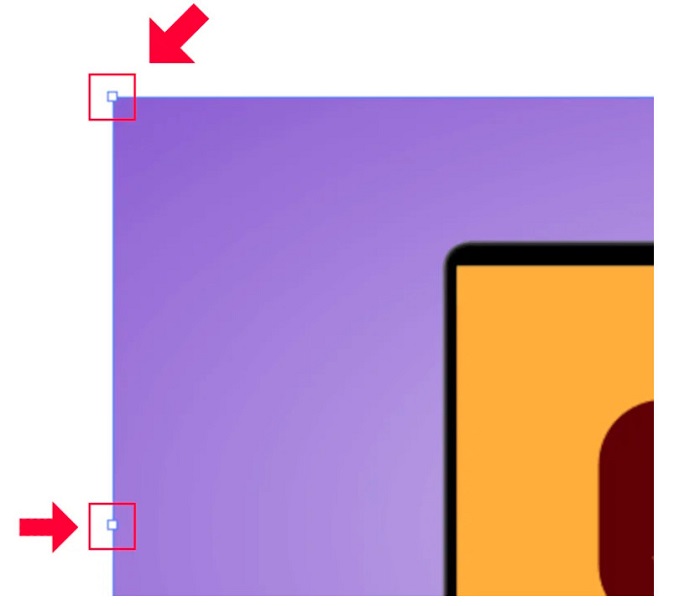
Βήμα 3. Για να αλλάξετε το μέγεθος της εικόνας σας με κλιμάκωση, κρατήστε και σύρετε οποιαδήποτε από τις λαβές στο επιθυμητό μέγεθος. Επίσης, μπορείτε να κλειδώσετε την αναλογία διαστάσεων της εικόνας σας κρατώντας πατημένο το Shift στο πληκτρολόγιο και μετακινώντας τον κέρσορα.
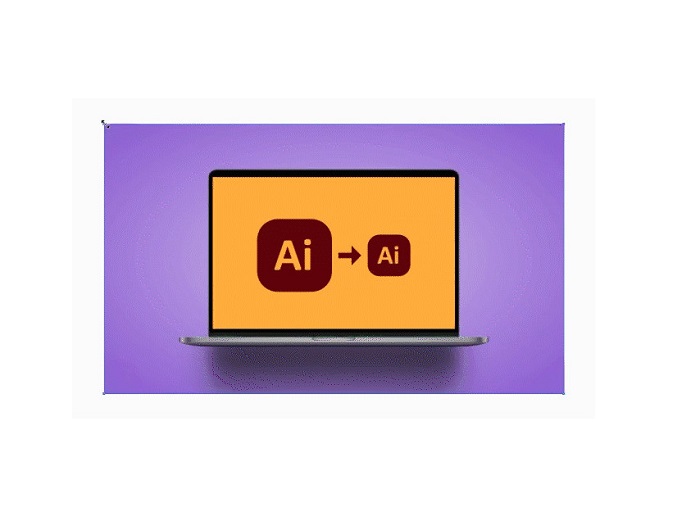
Αφού αλλάξετε το μέγεθος της εικόνας σας με βάση τις προτιμήσεις σας, μπορείτε τώρα να απελευθερώσετε κάνοντας κλικ στις λαβές.
Πώς να χρησιμοποιήσετε το Adobe Illustrator για να αλλάξετε το μέγεθος μιας εικόνας προσαρμόζοντας τις αριθμητικές τιμές
Τώρα, θα σας διδάξουμε πώς να αλλάξετε το μέγεθος της φωτογραφίας σας εισάγοντας αριθμητικές τιμές χρησιμοποιώντας το μενού Μετασχηματισμός αντί να κλιμακώνετε χειροκίνητα την εικόνα σας χρησιμοποιώντας το Εργαλείο επιλογής.
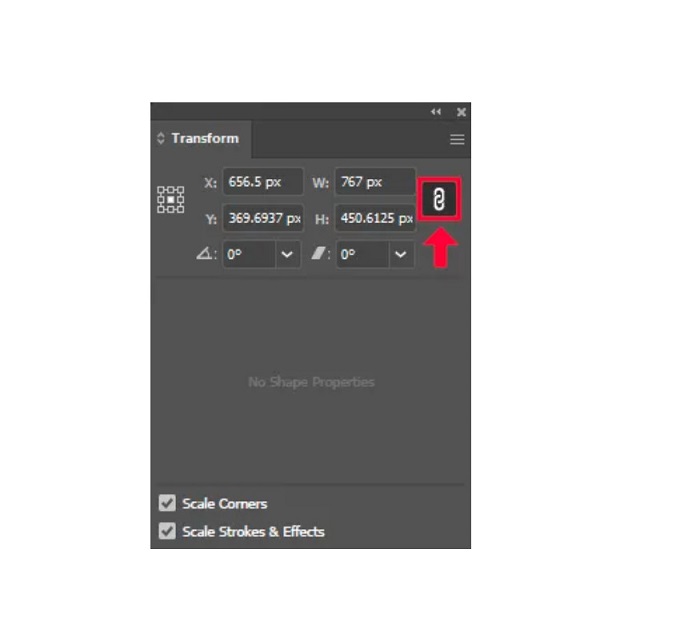
Βήμα 1. Μόλις ανοίξει το Adobe Illustrator στη συσκευή σας, ανοίξτε το μενού Transform κάνοντας κλικ στο Windows > Transform. Μπορείτε επίσης να εμφανίσετε αυτό το μενού πατώντας Shift + F8 στο πληκτρολόγιο. Έτσι μοιάζει το μενού Transform.
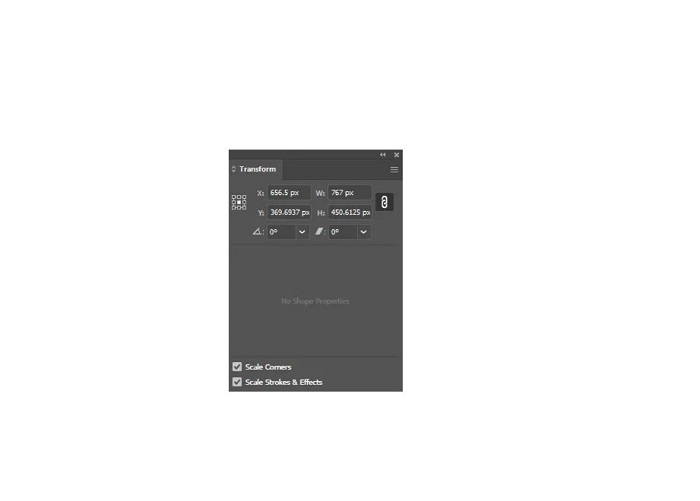
Το μενού Transform σάς επιτρέπει να αλλάξετε τη θέση του αντικειμένου σας σε σχέση με τους άξονες X και Y. Μπορείτε επίσης να χρησιμοποιήσετε αυτό το μενού για να περιστρέψετε, να παραμορφώσετε (shear) και να αλλάξετε το μέγεθος της εικόνας σας εισάγοντας μια αριθμητική τιμή.
Βήμα 2. Έπειτα, επιλέξτε την εικόνα της οποίας αλλάζετε το μέγεθος χρησιμοποιώντας το Selection Tool. Στη συνέχεια, ρυθμίστε το πλάτος και το ύψος στο μενού Transform αλλάζοντας τους αριθμούς σύμφωνα με το μέγεθος που θέλετε για τη φωτογραφία σας. Το γράμμα W δηλώνει το πλάτος (width) και το H δηλώνει το ύψος (height) της εικόνας σας.
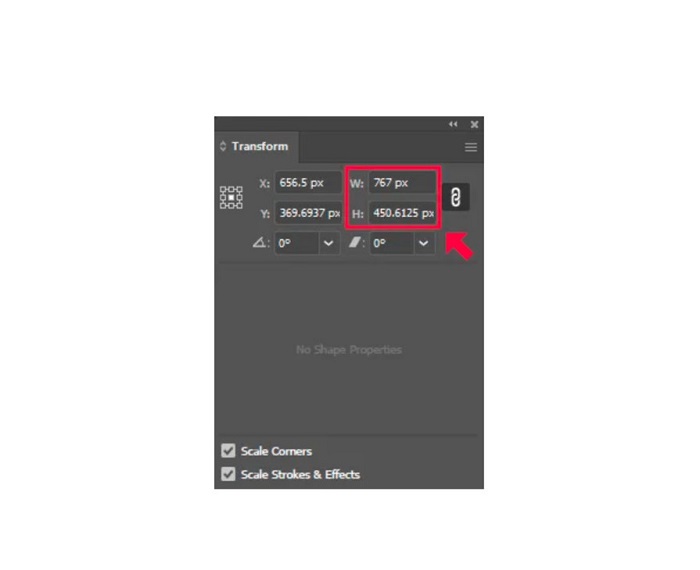
Βήμα 3. Θα βοηθήσει επίσης να κλειδώσετε την αναλογία διαστάσεων της φωτογραφίας σας κάνοντας κλικ στο εικονίδιο Chain δίπλα στο ύψος και το πλάτος. Όταν επιλέξετε την επιλογή Chain και αλλάξετε το ύψος της εικόνας σας, το πλάτος θα ακολουθήσει.
Συμβουλή. Μπορείτε επίσης να αλλάξετε την προεπιλεγμένη μονάδα μέτρησης της εικόνας σας. Το Illustrator χρησιμοποιεί pixels (px) ως προεπιλεγμένη μονάδα μέτρησης. Μπορείτε να αλλάξετε τη μονάδα ως εξής:
◆ εκατοστά (cm)
◆ Χιλιοστά (mm)
◆ ίντσες (σε)
◆ Ποσοστά (%)
Για να αλλάξετε τη μονάδα μέτρησης της εικόνας σας, πληκτρολογήστε την μετά τον αριθμό της μέτρησής σας. Αφού αλλάξετε την αριθμητική τιμή και τη μονάδα της εικόνας σας, πατήστε Enter στο πληκτρολόγιό σας.
Τώρα, θα κάνουμε εξαγωγή της εικόνας σας. Επιλέξτε την εικόνα σας χρησιμοποιώντας το Selection Tool, κάντε δεξί κλικ και επιλέξτε Export Selection.
Αφού επιλέξετε την επιλογή Export Selection, θα εμφανιστεί το μενού Export for Screens. Με αυτό το μενού μπορείτε να αποθηκεύσετε την εικόνα σας με αλλαγμένο μέγεθος σε μια μορφή κατάλληλη για χρήση.
Κάτω από τη μικρογραφία μπορείτε να κάνετε προεπισκόπηση του αποτελέσματός σας και να αλλάξετε το όνομα του αρχείου στο όνομα που προτιμάτε. Έπειτα, στον πίνακα Export to, κάντε κλικ στο εικονίδιο φακέλου για να περιηγηθείτε στην τοποθεσία όπου θα αποθηκευτεί το αποτέλεσμα. Επίσης, βεβαιωθείτε ότι το πεδίο Scale είναι ρυθμισμένο σε 1x. Στη συνέχεια, επιλέξτε τη μορφή εξόδου. Προτείνεται να χρησιμοποιήσετε μορφή PNG ή JPG.
Και τέλος, κάντε κλικ στο κουμπί Export Asset για να αποθηκεύσετε το αποτέλεσμα.
Καταπληκτικό, σωστά; Το Adobe Illustrator σάς επιτρέπει να επεξεργάζεστε τις εικόνες σας σύμφωνα με το περιεχόμενο της καρδιάς σας. Αυτό το μέρος είναι επίσης η απάντηση εάν αναζητήσετε πώς να αλλάξετε το μέγεθος των εικόνων στο illustrator χωρίς παραμόρφωση. Ωστόσο, αυτή η εφαρμογή δεν είναι ένα φιλικό προς το χρήστη εργαλείο επειδή δεν διαθέτει εύχρηστη διεπαφή. Επομένως, εάν θέλετε να αλλάξετε το μέγεθος/αναβαθμίσετε την εικόνα σας χρησιμοποιώντας μια εύχρηστη εφαρμογή, διαβάστε προσεκτικά το επόμενο μέρος.
Μέρος 2. Διαδικτυακή εναλλακτική λύση για Illustrator
Το Adobe Illustrator είναι ένα εργαλείο εκτός σύνδεσης και δεν είναι δωρεάν. Έτσι, εάν θέλετε να χρησιμοποιήσετε ένα φανταστικό πρόγραμμα αλλαγής μεγέθους εικόνας που είναι δωρεάν και που θα σας βοηθήσει να βελτιώσετε την εικόνα σας, ακολουθήστε το σεμινάριο που θα παρουσιάσουμε παρακάτω.
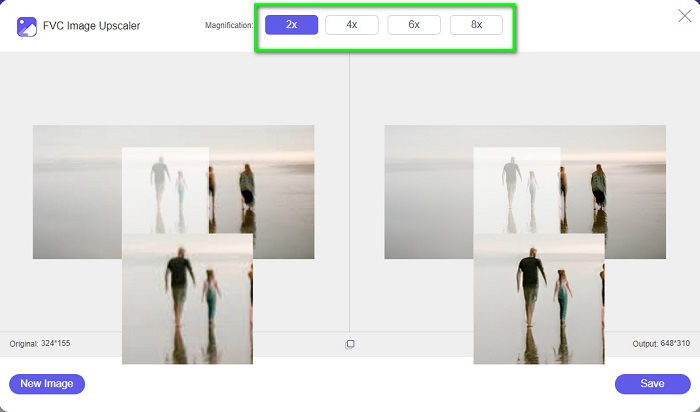
Το FVC Free Image Upscaler είναι ένα διαδικτυακό εργαλείο αύξησης ανάλυσης εικόνων που μπορεί να σας βοηθήσει να βελτιώσετε μια χαμηλής ποιότητας φωτογραφία. Αυτό το online εργαλείο μπορεί να βελτιώσει την εικόνα σας με μεγέθυνση 2x, 4x, 6x και 8x. Επιπλέον, χρησιμοποιεί τεχνολογία AI (Τεχνητή Νοημοσύνη) που εντοπίζει αυτόματα τα τμήματα χαμηλής ποιότητας της εικόνας σας και τα βελτιώνει. Υποστηρίζει όλες τις μορφές εικόνας, όπως JPEG, JPG, PNG και BMP. Επιπλέον, είναι ασφαλές στη χρήση και εντελώς δωρεάν. Και με το απλό περιβάλλον εργασίας του, μπορείτε εύκολα να αλλάξετε μέγεθος/να αυξήσετε την ανάλυση της εικόνας σας.
Πώς να αλλάξετε το μέγεθος μιας εικόνας χρησιμοποιώντας το FVC Free Image Upscaler:
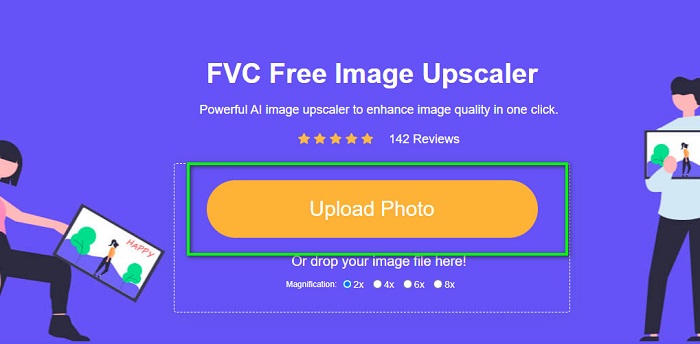
Βήμα 1. Αναζητήστε το FVC Free Image Upscaler στο πρόγραμμα περιήγησής σας ή κάντε κλικ σε αυτόν τον σύνδεσμο για να μεταβείτε απευθείας στην κεντρική σελίδα τους. Στην κύρια διεπαφή του λογισμικού, κάντε κλικ στο κουμπί Upload Photo για να εκκινήσετε την εφαρμογή στη συσκευή σας.
Βήμα 2. Έπειτα, κάντε ξανά κλικ στο κουμπί Upload Photo για να εισαγάγετε την εικόνα που θέλετε να αυξήσετε σε ανάλυση.
Βήμα 3. Όταν ανέβει η φωτογραφία σας, επιλέξτε την προεπιλογή μεγέθυνσης που θέλετε για την εικόνα. Μπορείτε να επιλέξετε ανάμεσα σε 2x, 4x, 6x και 8x.
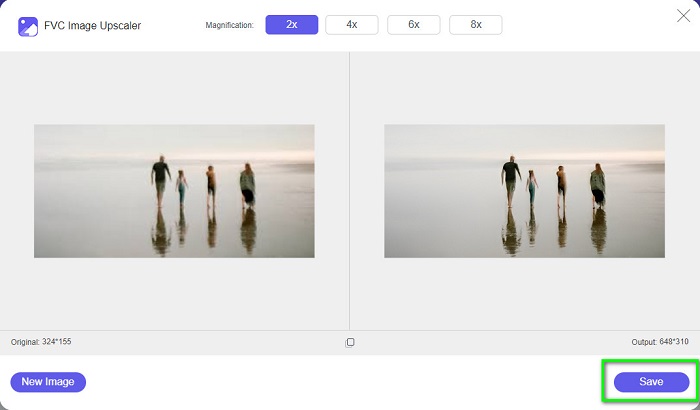
Βήμα 4. Τέλος, πατήστε το κουμπί Save για να αποθηκεύσετε το αποτέλεσμα στη συσκευή σας.
Σχετικά με:
Πώς να χρησιμοποιήσετε το GIMP για να αλλάξετε το μέγεθος εικόνων: Βήμα προς βήμα διαδικασία
Πώς να αλλάξετε το μέγεθος φωτογραφίας για το Facebook [Γρήγορα και εύκολα βήματα]
Μέρος 3. Συχνές ερωτήσεις σχετικά με τον τρόπο αλλαγής μεγέθους εικόνας στο Illustrator
Γιατί το Adobe Illustrator δεν αλλάζει το μέγεθος των εικόνων;
Δεν μπορείτε να αλλάξετε το μέγεθος μιας εικόνας στο Illustrator επειδή το πλαίσιο οριοθέτησης πιθανότατα δεν είναι ενεργοποιημένο. Για να ενεργοποιήσετε το πλαίσιο οριοθέτησης, μεταβείτε στην επιλογή Προβολή > Εμφάνιση πλαισίου οριοθέτησης. Ενεργοποιώντας το, μπορείτε τώρα να αλλάξετε το μέγεθος της εικόνας σας στο Illustrator.
Μπορώ να αλλάξω το μέγεθος μιας εικόνας στο Illustrator χωρίς απώλεια ποιότητας;
Ναί. Υπάρχει τρόπος να αλλάξετε το μέγεθος της εικόνας σας με το Adobe Illustrator. Ωστόσο, τις περισσότερες φορές, όταν αλλάζετε το μέγεθος μιας εικόνας χρησιμοποιώντας το scaler, η ποιότητα της εικόνας σας θα επηρεαστεί.
Είναι το Adobe Illustrator δωρεάν;
Όχι. Το Adobe Illustrator δεν είναι δωρεάν. Πριν χρησιμοποιήσετε αυτήν την ισχυρή εφαρμογή επεξεργασίας φωτογραφιών, πρέπει να την αγοράσετε με $20,99 ανά μήνα.
συμπέρασμα
Μάθατε πώς να αλλάζετε το μέγεθος εικόνων στο Illustrator ακολουθώντας τις μεθόδους που σας δείξαμε. Μπορεί να χρειάζεται αρκετά βήματα, αλλά αξίζει να το χρησιμοποιήσετε και να το δοκιμάσετε. Το πρόβλημα με το Adobe Illustrator είναι ότι δεν είναι δωρεάν και έχει πολύπλοκο περιβάλλον εργασίας. Γι' αυτό, αν θέλετε ένα πιο βολικό και δωρεάν εργαλείο αλλαγής μεγέθους εικόνων, χρησιμοποιήστε το FVC Free Image Upscaler.
-
 Τρόπος αλλαγής μεγέθους εικόνας – Αλλαγή μεγέθους εικόνας Adobe [Online και Offline]
 Αν ψάχνετε για εικόνα αλλαγής μεγέθους της Adobe, τότε έχουμε τη λύση για εσάς. Δείτε προσεκτικά αυτήν την ανάρτηση για να μάθετε πώς να αλλάξετε το μέγεθος των εικόνων χρησιμοποιώντας το Adobe στον υπολογιστή σας.
-
 Καλύτερη εφαρμογή Photo Resizer Online, Offline, Android και iPhone
 Ποιες είναι οι καλύτερες εφαρμογές αλλαγής μεγέθους φωτογραφιών; Κάντε κλικ στη σελίδα για να μάθετε τις κορυφαίες πέντε πιο ισχυρές εφαρμογές αλλαγής μεγέθους φωτογραφιών που μπορείτε να χρησιμοποιήσετε για να βελτιώσετε ή να αλλάξετε το μέγεθος του αρχείου σας
-
 Top 7 Pixels Enhancer για όλα τα προγράμματα περιήγησης Ιστού που πρέπει να χρησιμοποιήσετε
 Εάν θέλετε να μάθετε τους καλύτερους ενισχυτές pixel για χρήση, καλύτερα να ελέγξετε αυτήν την ανάρτηση. Αυτό το άρθρο παραθέτει επτά καλύτερους ενισχυτές εικονοστοιχείων φωτογραφιών για όλα τα προγράμματα περιήγησης ιστού.
