


 Video Converter Ultimate
 Εγγραφή οθόνης
 Επισκευή βίντεο
 Ασφαλές κατέβασμα
Εύκολα βήματα για το πώς να αλλάξετε το μέγεθος της φωτογραφίας για το Facebook
Πολλοί millennials και ενήλικες χρησιμοποιούν το Facebook ως την πιο δημοφιλή πλατφόρμα κοινωνικών μέσων. Το Facebook είναι μια εφαρμογή όπου μπορείτε να ανεβάζετε εικόνες και να τις κοινοποιείτε ή να τις στέλνετε στους φίλους σας. Και πολλοί άνθρωποι θέλουν να έχουν εικόνες εξαιρετικής ποιότητας για να τις ανεβάζουν στο Facebook. Αν θέλετε κι εσείς να ανεβάζετε φωτογραφίες υψηλής ανάλυσης και ποιότητας, έχουμε το κατάλληλο εργαλείο για εσάς. Ευτυχώς, βρήκαμε εφαρμογές σε iPhone, Android και Online που μπορούν να αλλάξουν γρήγορα και αποτελεσματικά το μέγεθος των εικόνων. Οπότε, δέστε τις ζώνες σας, γιατί σε αυτήν την ανάρτηση θα μάθετε γρήγορα πώς να αλλάξετε το μέγεθος φωτογραφιών για το Facebook.

Μέρος 1. Πώς να αλλάξετε το μέγεθος της φωτογραφίας στο iPhone για Facebook
Εάν χρησιμοποιείτε συσκευή iPhone, μπορείτε να κάνετε λήψη εφαρμογών στο AppStore για να σας βοηθήσουν να αλλάξετε το μέγεθος της φωτογραφίας σας. Επιπλέον, υπάρχουν δωρεάν εφαρμογές που μπορείτε να χρησιμοποιήσετε στη συσκευή σας iPhone. Ωστόσο, δεν παράγουν όλες οι εφαρμογές εξόδους υψηλής ποιότητας. Γι' αυτό αναζητήσαμε την καλύτερη εφαρμογή για άμεση αλλαγή μεγέθους εικόνων.
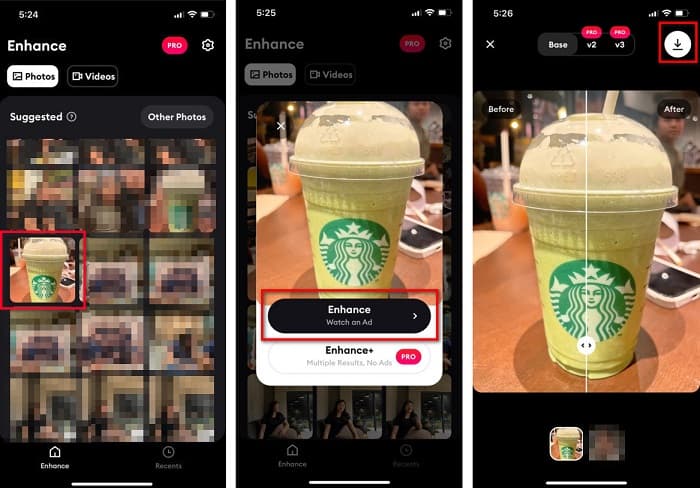
Το Remini είναι η πιο δημοφιλής εφαρμογή αλλαγής μεγέθους φωτογραφιών που μπορείτε να κατεβάσετε στο iPhone σας. Αυτή η εφαρμογή έχει φιλικό προς τον χρήστη περιβάλλον, επειδή διαθέτει κατανοητές, εύχρηστες λειτουργίες. Επιπλέον, το Remini μπορεί να βελτιώσει την εικόνα σας χρησιμοποιώντας το εργαλείο βελτίωσης με τεχνητή νοημοσύνη (AI), το οποίο αλλάζει αυτόματα το μέγεθος της εικόνας και τη βελτιστοποιεί στην καλύτερη δυνατή ποιότητα. Και όχι μόνο αυτό· με αυτή την εφαρμογή μπορείτε επίσης να βελτιώσετε το βίντεό σας με τη λειτουργία βελτίωσης βίντεο. Επιπλέον, υποστηρίζει όλες τις συνηθισμένες μορφές εικόνας, όπως JPEG, JPG και PNG. Αυτό που είναι επίσης φανταστικό με την εφαρμογή είναι ότι μπορείτε να την κατεβάσετε δωρεάν από το AppStore. Έτσι, αν θέλετε να χρησιμοποιήσετε αυτή την εφαρμογή για να αλλάξετε το μέγεθος μιας φωτογραφίας για εξώφυλλο στο Facebook, ακολουθήστε τις παρακάτω διαδικασίες.
Πώς να αλλάξετε το μέγεθος μιας εικόνας χρησιμοποιώντας την εφαρμογή Remini:
Βήμα 1. Ανοίξτε το AppStore, αναζητήστε την εφαρμογή Remini και κατεβάστε την στη συσκευή σας. Αφού εγκαταστήσετε την εφαρμογή, ανοίξτε την.
Βήμα 2. Αφού ανοίξετε την εφαρμογή, θα δείτε τις φωτογραφίες σας και επιλέξτε την εικόνα που θέλετε να βελτιώσετε. Έπειτα, πατήστε το κουμπί Enhance για να μεταβείτε στην επόμενη διεπαφή.
Βήμα 3. Πριν προχωρήσετε στην επόμενη διεπαφή, πρέπει πρώτα να παρακολουθήσετε μια διαφήμιση. Στη συνέχεια, θα δείτε το πριν και το μετά της εικόνας σας. Πατήστε το εικονίδιο Λήψης στο επάνω δεξί μέρος της οθόνης σας.
Μέρος 2. Πώς να αλλάξετε το μέγεθος της φωτογραφίας στο Android για Facebook
Είστε χρήστης Android; Μην ανησυχείς; θα παρουσιάσουμε επίσης μια εφαρμογή που μπορείτε να χρησιμοποιήσετε για να αλλάξετε το μέγεθος μιας εικόνας. Αν και υπάρχουν πολλές εφαρμογές που μπορείτε να κατεβάσετε από το PlayStore, επιλέξαμε την καλύτερη από αυτές για να σας παρουσιάσουμε. Διαβάστε παρακάτω για να μάθετε πώς να αλλάξετε το μέγεθος των εικόνων για το Facebook στο Android.
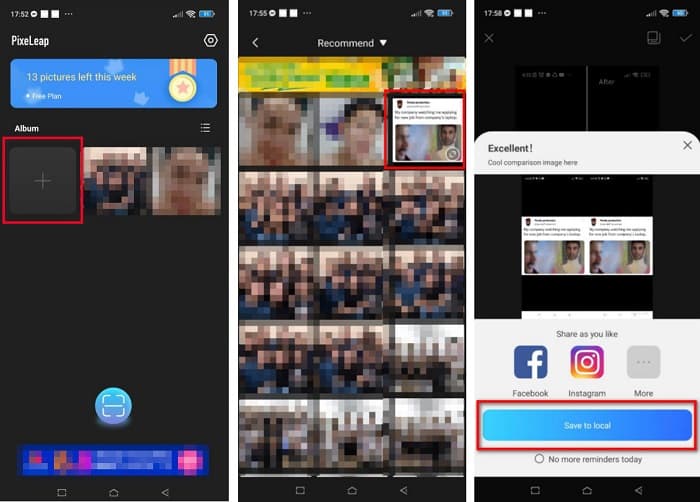
Το AI Photo Enhancer & PixelLeap είναι μια ακόμη εξαιρετική εφαρμογή που θα σας βοηθήσει να αλλάξετε το μέγεθος της εικόνας σας για καλύτερη ποιότητα. Αυτός ο μεγεθυντής φωτογραφιών διατίθεται δωρεάν στο PlayStore και είναι ασφαλής στη χρήση. Επιπλέον, αν θέλετε να βελτιώσετε ή να αποκαταστήσετε μια παλιά φωτογραφία, τότε το AI Photo Enhancer & PixelLeap είναι κατάλληλο για εσάς. Με την τεχνολογία AI που διαθέτει, αρκεί να ανεβάσετε την εικόνα που θέλετε να αλλάξετε σε μέγεθος και η εφαρμογή θα τη βελτιώσει αυτόματα. Επιπλέον, έχει απλό περιβάλλον χρήστη, γεγονός που την καθιστά εξαιρετική επιλογή αν είστε αρχάριος. Διαθέτει επίσης και άλλες δυνατότητες επεξεργασίας, όπως διόρθωση, χρωματισμό, κίνηση (animate), έκφραση (emote) και φωτισμό της εικόνας σας. Ωστόσο, το πρόβλημα με αυτή την εφαρμογή είναι ότι περιέχει πολλές διαφημίσεις που διαρκούν και αφήνει υδατογράφημα στο τελικό αποτέλεσμα. Παρ’ όλα αυτά, αυτή η εφαρμογή είναι η λύση αν θέλετε να αλλάξετε το μέγεθος μιας φωτογραφίας για το Facebook χωρίς περικοπή.
Πώς να αλλάξετε το μέγεθος μιας εικόνας χρησιμοποιώντας το AI Photo Enhancer & PixelLeap:
Βήμα 1. Εγκαταστήστε το AI Photo Enhancer & PixelLeap στη συσκευή Android σας.
Βήμα 2. Στην κεντρική διεπαφή της εφαρμογής, πατήστε το πλαίσιο με το σύμβολο + για να ανεβάσετε την εικόνα της οποίας θέλετε να αλλάξετε το μέγεθος. Έπειτα, η εφαρμογή θα σας βάλει να παρακολουθήσετε μια διαφήμιση πριν προχωρήσετε στην επόμενη διεπαφή.
Βήμα 3. Περιηγηθείτε και βρείτε την εικόνα της οποίας θέλετε να αλλάξετε το μέγεθος και έπειτα πατήστε την. Αφού επιλέξετε την εικόνα, πατήστε την επιλογή Enhance. Στη συνέχεια, η εφαρμογή θα βελτιώσει αυτόματα την εικόνα σας. Πατήστε το Save σε τοπικό αποθηκευτικό χώρο για να κατεβάσετε το αποτέλεσμα.
Μέρος 3. Πώς να αλλάξετε το μέγεθος της φωτογραφίας Online για το Facebook
Το πλεονέκτημα της χρήσης μιας διαδικτυακής εφαρμογής είναι ότι σας επιτρέπει να εξοικονομήσετε χώρο στη συσκευή σας. Επιπλέον, υπάρχουν πολλές εφαρμογές ιστού δωρεάν πρόσβασης που μπορείτε να χρησιμοποιήσετε στο πρόγραμμα περιήγησής σας. Έτσι, εάν θέλετε να χρησιμοποιήσετε μια διαδικτυακή εφαρμογή για να αλλάξετε το μέγεθος μιας εικόνας για να ανεβάσετε στο Facebook, θα σας δείξουμε πώς να αλλάξετε το μέγεθος μιας φωτογραφίας για το Facebook.
Το FVC Free Image Upscaler είναι ο καλύτερος online μεγεθυντής φωτογραφιών, που σας επιτρέπει να μεγεθύνετε την εικόνα σας κατά 2x, 4x, 6x και 8x. Με το απλό περιβάλλον χρήστη του, οι αρχάριοι μπορούν εύκολα να αλλάξουν το μέγεθος μιας εικόνας. Επιπλέον, υποστηρίζει όλες τις μορφές εικόνας, συμπεριλαμβανομένων JPEG, JPG, PNG και BMP. Αυτό που είναι ακόμη πιο εντυπωσιακό με αυτή την εφαρμογή είναι ότι χρησιμοποιεί τεχνολογία AI, η οποία εντοπίζει αυτόματα τα τμήματα χαμηλής ανάλυσης σε μια εικόνα και τα βελτιώνει. Επιπρόσθετα, μπορεί να διορθώσει πλήρως και με ακρίβεια τα χαμένα pixels, τις υφές των χρωμάτων και άλλες λεπτομέρειες. Επίσης, είναι προσβάσιμο από όλους τους διαδικτυακούς περιηγητές, όπως Google, Firefox και Safari. Επομένως, αν θέλετε να χρησιμοποιήσετε το FVC Free Image Upscaler για να αλλάξετε το μέγεθος ή να βελτιώσετε την εικόνα σας, ακολουθήστε τα παρακάτω απλά βήματα.
Πώς να αλλάξετε το μέγεθος μιας εικόνας για το Facebook χρησιμοποιώντας το FVC Free Image Upscaler:
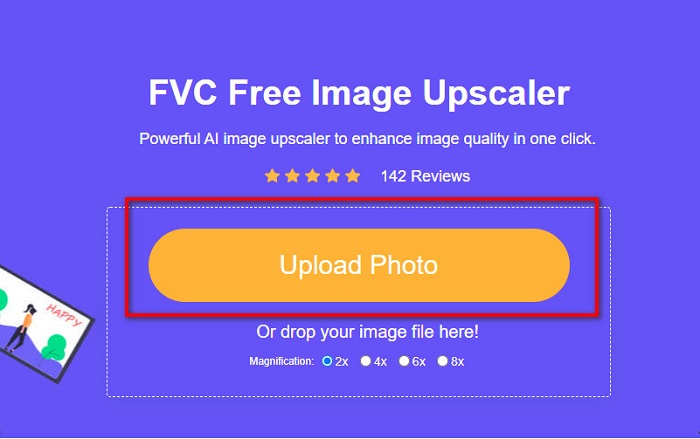
Βήμα 1. Ανοίξτε τον περιηγητή σας και πληκτρολογήστε FVC Free Image Upscaler στο πλαίσιο αναζήτησης. Μπορείτε να κάνετε κλικ στον παρεχόμενο σύνδεσμο για να μεταφερθείτε απευθείας στον ιστότοπο. Κάντε κλικ στο Upload Photo για να εκκινήσετε την εφαρμογή.
Βήμα 2. Στην κύρια διεπαφή του λογισμικού, κάντε κλικ στο Upload Photo για να εισαγάγετε την εικόνα της οποίας θέλετε να αλλάξετε το μέγεθος.
Βήμα 3. Στην επόμενη διεπαφή, επιλέξτε την προεπιλεγμένη μεγέθυνση που θέλετε για το τελικό αποτέλεσμα της εικόνας σας. Μπορείτε να επιλέξετε μεταξύ 2x, 4x, 6x και 8x μεγέθυνσης. Έπειτα προχωρήστε στο επόμενο βήμα.
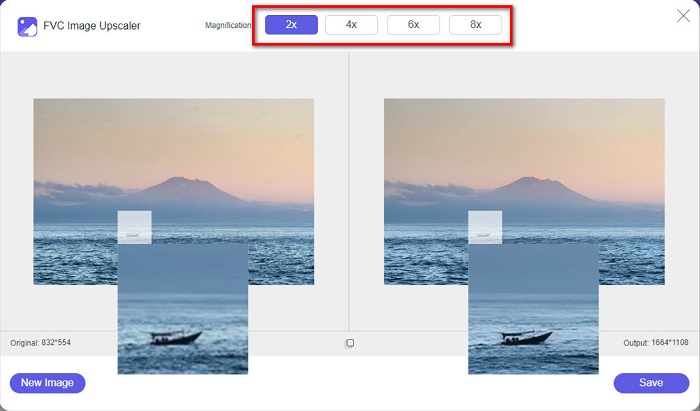
Βήμα 4. Τέλος, επιλέξτε το κουμπί Save για να αποθηκεύσετε το αποτέλεσμα στον υπολογιστή σας. Θα δείτε τη διαφορά ανάμεσα στο αρχικό σας αρχείο και στην εικόνα με αλλαγμένο μέγεθος. Μέσα σε λίγα δευτερόλεπτα, η εικόνα σας θα έχει αποθηκευτεί.
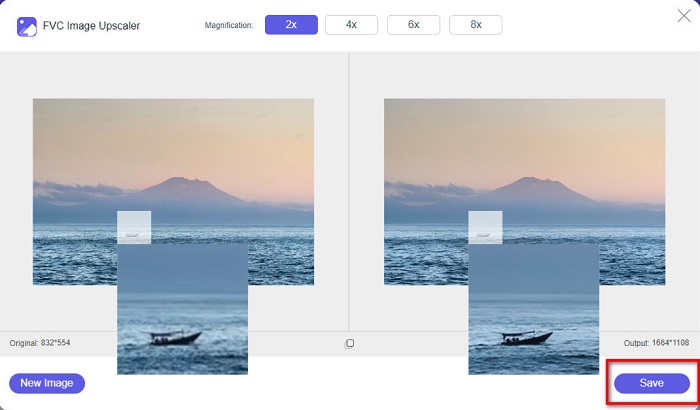
Και τέλος! Τόσο εύκολο όσο το ABC, η εικόνα σας έχει πλέον βελτιωθεί και αλλάξει το μέγεθος.
Σχετικά με:
Πώς να Οξύνω μια Εικόνα Online και Offline με 4 Εύκολους Τρόπους
Πώς να Αλλάξετε το Μέγεθος Εικόνας – Adobe Resize Image [Online και Offline]
Μέρος 4. Συχνές ερωτήσεις σχετικά με τον τρόπο αλλαγής μεγέθους φωτογραφίας για το Facebook
Ποια είναι η καλύτερη αναλογία φωτογραφίας για το Facebook;
Όσον αφορά την αναλογία φωτογραφίας, η χρήση μιας κάθετης εικόνας με λόγο διαστάσεων 4:5 και 1200 x 1500 px είναι η καλύτερη. Και αν θέλετε μια τετράγωνη εικόνα, η ανάλυση πρέπει να είναι 1080 x 1080 px.
Ποιο είναι το μέγεθος μιας ανάρτησης στο Facebook;
Το συνιστώμενο μέγεθος εικόνας για μια ανάρτηση στο Facebook είναι 1200 x 630 pixel για αποφυγή εικονοστοιχείων και ταχύτερο χρόνο φόρτωσης.
Ποια είναι η καλύτερη μορφή εικόνας για ανέβασμα στο Facebook;
Η καλύτερη και προτεινόμενη μορφή εικόνας για μεταφόρτωση στο Facebook είναι η μορφή JPG. Είναι καλύτερο να ανεβάσετε μια μορφή JPG με χρώμα RGB μικρότερο από 15 MB.
συμπέρασμα
Παραπάνω παραθέτουμε λύσεις αν θέλετε να αλλάξετε το μέγεθος μιας φωτογραφίας για το Facebook. Διαβάζοντας προσεκτικά αυτό το άρθρο, ελπίζουμε ότι μάθατε όλα τα απαραίτητα βήματα που πρέπει να ακολουθήσετε. Μπορείτε σίγουρα να αλλάξετε το μέγεθος οποιασδήποτε εικόνας θέλετε, χρησιμοποιώντας εφαρμογές για iPhone, Android ή Online. Ωστόσο, για καλύτερα αποτελέσματα, χρησιμοποιήστε το FVC Free Image Upscaler, το οποίο θα σας επιτρέψει επίσης να εξοικονομήσετε χώρο στη συσκευή σας.
-
 Καλύτερη εφαρμογή Photo Resizer Online, Offline, Android και iPhone
 Ποιες είναι οι καλύτερες εφαρμογές αλλαγής μεγέθους φωτογραφιών; Κάντε κλικ στη σελίδα για να μάθετε τις κορυφαίες πέντε πιο ισχυρές εφαρμογές αλλαγής μεγέθους φωτογραφιών που μπορείτε να χρησιμοποιήσετε για να βελτιώσετε ή να αλλάξετε το μέγεθος του αρχείου σας.
-
 Τρόπος αλλαγής μεγέθους εικόνας - Adobe Αλλαγή μεγέθους εικόνας [Online και Offline]
 Αν ψάχνετε για εικόνα αλλαγής μεγέθους της Adobe, τότε έχουμε τη λύση για εσάς. Δείτε προσεκτικά αυτήν την ανάρτηση για να μάθετε πώς να αλλάξετε το μέγεθος των εικόνων χρησιμοποιώντας το Adobe στον υπολογιστή σας.
-
 Κορυφαίοι 4 μεγεθυντές GIF εκτός σύνδεσης και σε απευθείας σύνδεση που δεν πρέπει να χάσετε
 Αυτή η ανάρτηση είναι για εσάς εάν ψάχνετε για τους καλύτερους μεγεθυντές GIF. Παραθέσαμε τους μεγεθυντές GIF στο διαδίκτυο και εκτός σύνδεσης με τις καλύτερες επιδόσεις για τον υπολογιστή σας.
