


 Video Converter Ultimate
 Εγγραφή οθόνης
 Επισκευή βίντεο
 Ασφαλές κατέβασμα
Ο απόλυτος οδηγός για τη χρήση της τεχνητής νοημοσύνης για την ευκρίνεια εικόνας σε υπολογιστή και κινητό
Έχεις ποτέ μια εικόνα που φαίνεται θαμπή και άψυχη; Ίσως η φωτογραφία σου να στερείται ευκρίνειας και καθαρότητας. Αλλά το ήξερες; Υπάρχουν πολλές εφαρμογές ενίσχυσης ευκρίνειας εικόνας που μπορείς να βρεις στο διαδίκτυο. Δεν χρειάζεσαι ακριβές λύσεις για υπολογιστή για να οξύνεις την εικόνα σου. Θα βρεις πολλές εφαρμογές που μπορούν να σε βοηθήσουν να βελτιώσεις την ευκρίνειά της, απλώς αναζητώντας στο διαδίκτυο. Όμως δεν χρειάζεται να ψάχνεις άλλο, γιατί συγκεντρώσαμε τα καλύτερα εργαλεία ενίσχυσης ευκρίνειας εικόνας και σου δείχνουμε πώς να τα χρησιμοποιήσεις. Διάβασε μέχρι το τέλος αυτό το άρθρο για να μάθεις πώς να οξύνεις δωρεάν εικόνες online ή offline.

Μέρος 1. Πώς να βελτιώσετε την ευκρίνεια της εικόνας δωρεάν online χωρίς εγγραφή
Παρόλα αυτά, υπάρχουν πολλές εφαρμογές για την ευκρίνεια μιας εικόνας. Συνιστάται να χρησιμοποιείτε το ασφαλές και πιο απλό εργαλείο. Γι' αυτό αναζητήσαμε τις καλύτερες συσκευές ευκρίνειας εικόνας και τις παραθέσαμε μόνο για εσάς. Επιπλέον, θα σας δείξουμε πώς να χρησιμοποιείτε αυτά τα εργαλεία ευκρίνειας εικόνας.
Αυξήστε την ευκρίνεια της εικόνας μέσω του δωρεάν Image Upscaler FVC
Το FVC Free Image Upscaler είναι το καλύτερο εργαλείο για να οξύνεις μια εικόνα. Αν αναζητάς ένα εργαλείο AI για ενίσχυση ευκρίνειας εικόνας, τότε το FVC Free Image Upscaler είναι ακριβώς αυτό που χρειάζεσαι. Επιπλέον, υποστηρίζει διάφορες μορφές εικόνας, όπως PNG, JPG, JPEG και BMP. Και χρησιμοποιώντας την τεχνολογία AI (Τεχνητή Νοημοσύνη), μπορείς να βελτιώσεις την εικόνα σου έως και σε μεγέθυνση 2x, 4x, 6x και 8x. Το ακόμα πιο εντυπωσιακό με αυτό το online εργαλείο είναι ότι μπορείς να το χρησιμοποιήσεις σε όλους τους δημοφιλείς περιηγητές, όπως Google, Firefox και Safari.
Επιπλέον, πολλοί αρχάριοι προτιμούν να χρησιμοποιούν αυτό το εργαλείο επειδή έχει μια απλή διεπαφή χρήστη. Επίσης, αν και είναι διαδικτυακή εφαρμογή, έχει γρήγορη διαδικασία ακονίσματος, καθιστώντας τη βολική στη χρήση. Μπορείτε επίσης να κάνετε προεπισκόπηση της εικόνας εξόδου πριν τη λήψη στη συσκευή σας. Επομένως, εάν θέλετε να χρησιμοποιήσετε αυτό το εργαλείο για να βελτιώσετε την εικόνα σας, ακολουθήστε τις παρακάτω εύκολες οδηγίες.
Πώς να ακονίσετε μια εικόνα χρησιμοποιώντας το FVC Free Image Upscaler:
Βήμα 1. Άνοιξε τον περιηγητή σου και αναζήτησε το FVC Free Image Upscaler στο πλαίσιο αναζήτησης. Μπορείς επίσης να κάνεις κλικ απευθείας στον σύνδεσμο για την κεντρική σελίδα.
Βήμα 2. Στη συνέχεια, κάνε κλικ στο κουμπί Upload Photo στην κεντρική διεπαφή χρήστη για να εισαγάγεις την εικόνα που θέλεις να οξύνεις.

Βήμα 3. Έπειτα, επίλεξε το προεπιλεγμένο magnification που θέλεις για την εικόνα σου. Μπορείς να διαλέξεις μεταξύ 2x, 4x, 6x και 8x μεγέθυνσης. Στη συνέχεια θα δεις την προεπισκόπηση του αποτελέσματος.
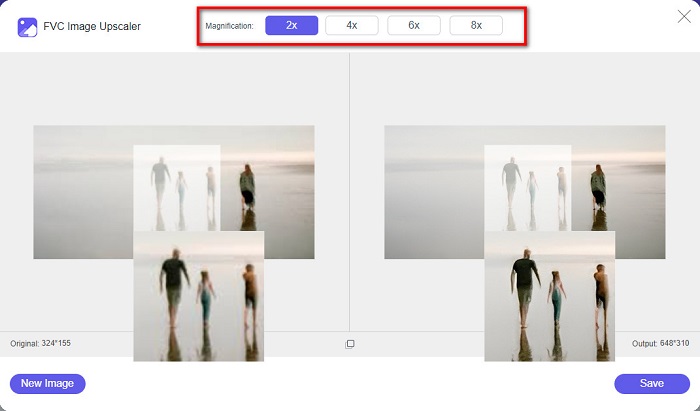
Βήμα 4. Τέλος, για να αποθηκεύσεις το αποτέλεσμα, κάνε κλικ στο κουμπί Save. Τότε η εφαρμογή θα αποθηκεύσει αυτόματα και γρήγορα την εικόνα σου στους φακέλους του υπολογιστή σου.
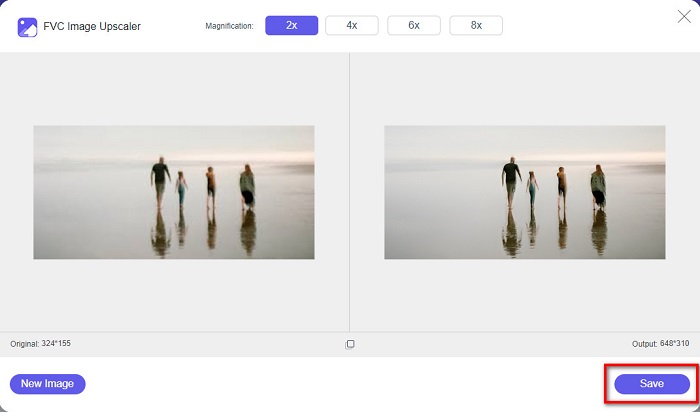
Και τέλος! Τόσο απλό, μπορείτε εύκολα να βελτιώσετε το θαμπό μέρος της εικόνας σας και να προσθέσετε ευκρίνεια σε αυτό.
Αυξήστε την ευκρίνεια της εικόνας με το VanceAI
Το VanceAI είναι ένα online εργαλείο οξύνσεως εικόνας που μπορείς να χρησιμοποιήσεις αν θέλεις να οξύνεις την εικόνα σου ή να της προσθέσεις καθαρότητα. Πράγματι, όταν προσθέτεις ευκρίνεια στην εικόνα σου, θα δείχνει καλύτερη. Γι’ αυτό, αν θέλεις να την οξύνεις γρήγορα, το VanceAI είναι το κατάλληλο εργαλείο. Επιπλέον, μπορείς να το χρησιμοποιήσεις δωρεάν σχεδόν σε όλους τους περιηγητές, όπως Google και Safari. Επίσης, βελτιώνει αυτόματα τα θαμπά τμήματα της εικόνας σου με λίγα μόνο κλικ. Με την εύχρηστη διεπαφή του, ακόμα και οι αρχάριοι μπορούν σίγουρα να το χρησιμοποιήσουν. Επιπλέον, υποστηρίζει τις πιο συνηθισμένες μορφές εικόνας, όπως JPG, JPEG και PNG. Ωστόσο, όταν οξύνεις την εικόνα σου με το VanceAI, θα προσθέσει υδατογράφημα στην εικόνα.
Πώς να κάνετε πιο ευκρινή μια θολή εικόνα χρησιμοποιώντας το VanceAI:
Βήμα 1. Στον περιηγητή σου, αναζήτησε το VanceAI και πήγαινε στην κεντρική του σελίδα. Έπειτα, στην κύρια διεπαφή, κάνε κλικ στο κουμπί Upload Image για να ανεβάσεις την εικόνα που θέλεις να οξύνεις.
Βήμα 2. Αφού ανεβάσεις την εικόνα σου, κάνε κλικ στο κουμπί Start to Process στην κάτω δεξιά γωνία της διεπαφής.
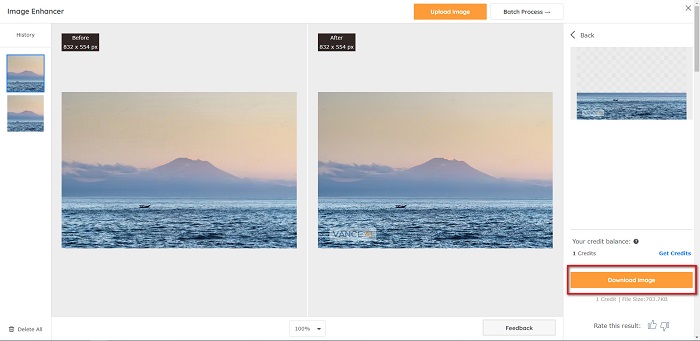
Βήμα 3. Τέλος, θα δεις την προεπισκόπηση του αποτελέσματος. Έπειτα, κάνε κλικ στο κουμπί Download Image για να κατεβάσεις την οξυμένη εικόνα σου.
Αύξηση θολής εικόνας χρησιμοποιώντας το PineTools
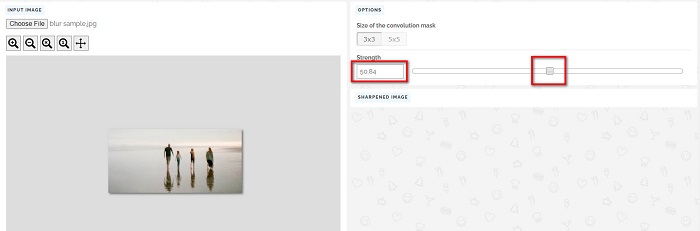
Το PineTools είναι μια ακόμη online εφαρμογή οξύνσεως που μπορείς να χρησιμοποιήσεις πολύ εύκολα. Με την απλή διεπαφή χρήστη του, οι αρχάριοι μπορούν επίσης να χρησιμοποιήσουν αυτό το εργαλείο για να βελτιώσουν την ποιότητα της εικόνας. Μπορείς να ρυθμίσεις την ισχύ ή την ευκρίνεια της εικόνας σου χρησιμοποιώντας το ρυθμιστικό (slider). Επιπλέον, μπορείς να επιλέξεις το μέγεθος της μάσκας συνέλιξης (convolution mask) της εικόνας σου μεταξύ 3x3 και 5x5. Το ακόμα καλύτερο με αυτή την online εφαρμογή είναι ότι μπορείς να την ανοίξεις σχεδόν σε όλους τους περιηγητές, όπως Google και Safari. Το μειονέκτημα του PineTools είναι ότι περιέχει πολλές διαφημίσεις που μπορεί να σε αποσπούν όσο οξύνεις την εικόνα σου. Παρ’ όλα αυτά, πολλοί αρχάριοι χρησιμοποιούν αυτό το εργαλείο επειδή είναι πολύ βολικό.
Πώς να κάνετε πιο ευκρινή μια θολή εικόνα χρησιμοποιώντας το PineTools
Βήμα 1. Πρώτα, αναζήτησε το PineTools στον περιηγητή σου και κάνε κλικ στη σελίδα που οδηγεί στον ιστότοπό του. Έπειτα, κάνε κλικ στο κουμπί Choose Files στην πρώτη διεπαφή για να ανεβάσεις τη φωτογραφία που θέλεις να οξύνεις.

Βήμα 2. Στη συνέχεια, στο πάνελ Sharpen, μετακίνησε το mini box στην ισχύ ή στην ευκρίνεια που προτιμάς για την εικόνα σου.
Βήμα 3. Έπειτα, κάνε κλικ στο κουμπί Sharpen κάτω από τη διεπαφή για να οξύνεις την εικόνα σου. Αν θέλεις να αποθηκεύσεις την τελική εικόνα, κάνε κλικ στη μορφή εικόνας που επιθυμείς και θα αποθηκευτεί στη συσκευή σου.
Μέρος 2. Πώς να κάνετε ευκρίνεια εικόνας σε Windows/Mac
Πώς να κάνετε την εικόνα πιο ευκρινή στο Photoshop
Το Adobe Photoshop είναι ένα ισχυρό και ευρέως χρησιμοποιούμενο λογισμικό επεξεργασίας εικόνας που χρησιμοποιείται από πολλά άτομα παγκοσμίως. Απευθύνεται τόσο σε αρχάριους όσο και σε επαγγελματίες και περιέχει πολλές λειτουργίες που επιτρέπουν στους χρήστες να επεξεργάζονται εικόνες με ακρίβεια και δημιουργικότητα. Από απλές προσαρμογές έως περίπλοκα σχέδια, το Photoshop σάς επιτρέπει να ζωντανέψετε τις ιδέες σας. Τα φίλτρα ευκρίνειας που προσφέρει βοηθούν στο να φαίνονται οι φωτογραφίες πιο ευκρινείς τροποποιώντας την αντίθεση και τις λεπτομέρειες. Η ευκρίνεια μιας φωτογραφίας στο Photoshop είναι απλή και δεν θα καταστρέψει το πρωτότυπο χάρη στα εξελιγμένα επίπεδα και φίλτρα του - ιδανικά για εικόνες κοινωνικών μέσων, εμπορική φωτογραφία και γραφιστική.
Βήμα 1. Κάνε κλικ στο Layers panel > Filter menu > Convert for Smart Filters.

Βήμα 2. Επίλεξε Sharpen > Unsharp Mask under Filter.
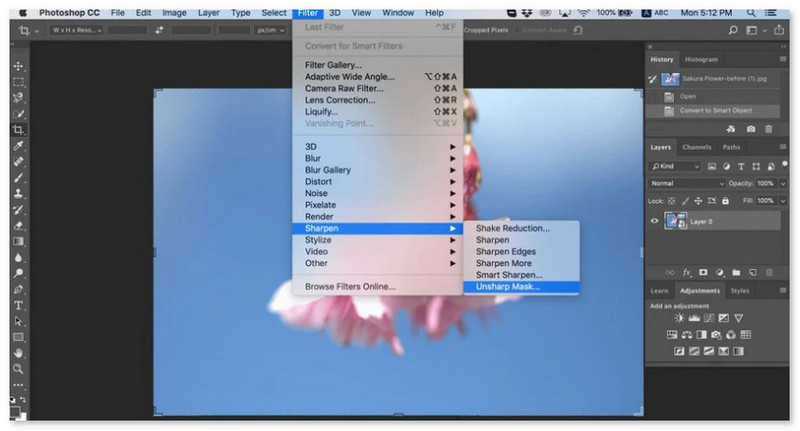
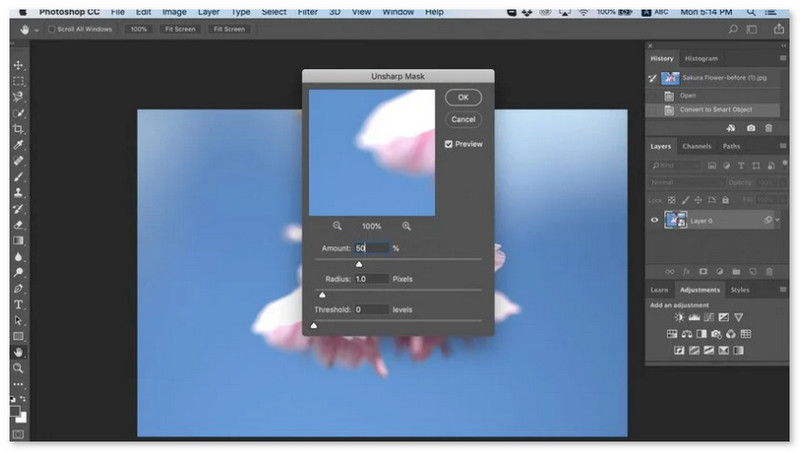
Βήμα 3. Ρύθμισε τις ρυθμίσεις και κάνε κλικ στο OK.
Πώς να κάνετε μια εικόνα πιο ευκρινή στο GIMP
Σε αντίθεση με την εφαρμογή ευκρίνειας εικόνας που παρουσιάστηκε παραπάνω, το GIMP είναι ένα εργαλείο εκτός σύνδεσης που μπορείτε να χρησιμοποιήσετε εάν θέλετε να βελτιώσετε την εικόνα σας ή να βελτιώσετε την ποιότητά της. Επιπλέον, πολλοί επαγγελματίες χρησιμοποιούν αυτό το εργαλείο για την ευκρίνεια των εικόνων και τη βελτίωση τους. Πολλοί άνθρωποι αναγνωρίζουν αυτό το εργαλείο ως εναλλακτική λύση στο Adobe Photoshop. Υποστηρίζει σχεδόν όλες τις μορφές εικόνας, όπως PNG, JPG, JPEG, WebP και BMP. Επιπλέον, διαθέτει πολλές δυνατότητες επεξεργασίας που μπορείτε να χρησιμοποιήσετε, όπως ρετουσάρισμα φωτογραφιών, αλλαγή συνθέσεων και πολλά άλλα. Αλλά το μειονέκτημα αυτής της εφαρμογής είναι ότι έχει μια σκληρή διεπαφή, καθιστώντας δύσκολη τη χρήση της για αρχάριους.
Ωστόσο, εάν είστε επαγγελματίας σε πολλές εφαρμογές επεξεργασίας φωτογραφιών, σίγουρα θα βρείτε το GIMP ένα εξαιρετικό εργαλείο για την ευκρίνεια μιας εικόνας.
Πώς να ακονίσετε μια εικόνα στο GIMP:
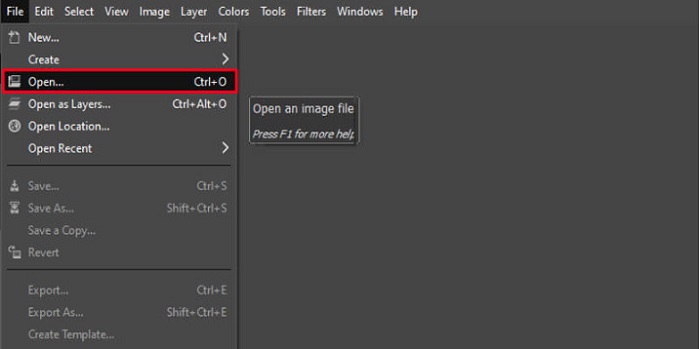
Βήμα 1. Κάνε λήψη του προγράμματος οξύνσεως εικόνας GIMP στη συσκευή σου. Στην κεντρική διεπαφή του λογισμικού, εισήγαγε την εικόνα σου κάνοντας κλικ στο File > Open.
Βήμα 2. Στη συνέχεια, δημιούργησε ένα διπλότυπο layer κάνοντας κλικ στο κουμπί Layer > Duplicate. Μπορείς επίσης να χρησιμοποιήσεις συντομεύσεις για να αντιγράψεις layer: πάτησε Shift + Ctrl + D και το layer θα αντιγραφεί.
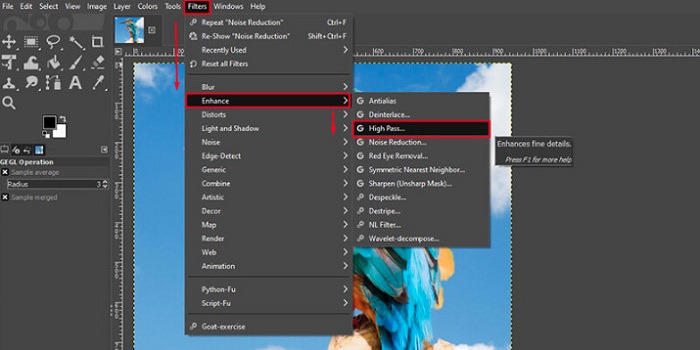
Βήμα 3. Έπειτα, θα μειώσουμε τον θόρυβο πηγαίνοντας στο Filter > Enhance > Noise Reduction. Κατόπιν, θα χρησιμοποιήσουμε την επιλογή High Pass για να εφαρμόσουμε την ευκρίνεια που θέλουμε. Πήγαινε στο Filters > Enhance > και μετά επίλεξε την επιλογή High Pass.
Βήμα 4. Στη συνέχεια, θα χρησιμοποιήσουμε την επιλογή Vivid Light για να φωτίσουμε την εικόνα μας και να προσθέσουμε λεπτομέρειες. Πήγαινε στο Option στην ενότητα mode και άλλαξε το Normal σε Vivid Light.
Βήμα 5. Δημιούργησε ξανά ένα διπλότυπο layer για τις τελικές πινελιές, έπειτα πήγαινε στο Filters > Enhance > Sharpen (Unsharp Mask). Στη συνέχεια, μπορείς να ρυθμίσεις την Radius, Amount και Threshold της εικόνας σου. Έπειτα, πάτησε Ctrl + S στο πληκτρολόγιό σου για να αποθηκεύσεις το αποτέλεσμα.
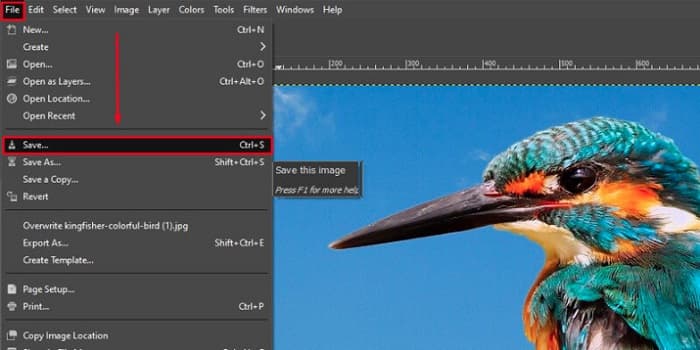
Και αυτό ήταν! Αν είσαι από αυτούς που ψάχνουν πώς να οξύνουν εικόνες με το GIMP, τότε αυτός είναι ο οδηγός για σένα. Ακολούθησε αυτά τα βήματα για να αυξήσεις την ποιότητα της εικόνας σου χρησιμοποιώντας το GIMP.
Μέρος 3. Πώς να κάνετε την εικόνα πιο ευκρινή σε iPhone/Android
Το Picwand AI Photo Editor είναι ένα ισχυρό πρόγραμμα επεξεργασίας που σας βοηθά να επεξεργάζεστε τις φωτογραφίες σας με τεχνητή νοημοσύνη. Μπορείτε να τις επεξεργαστείτε απευθείας στον ιστότοπο του Picwand ή να το κατεβάσετε σε συσκευές iPhone ή Android. Υπάρχουν πολλές έξυπνες λειτουργίες, όπως μεγέθυνση εικόνων, κοπή φόντων, εξαγωγή αντικειμένων και διαύγεια εικόνων, όλα χάρη στην προηγμένη τεχνητή νοημοσύνη. Διορθώστε θολές εικόνες, ρετούς παλιών εικόνων ή εξαλείψτε ανεπιθύμητα πράγματα με το Picwand και κάντε το γρήγορα και με ακρίβεια. Η απλή διεπαφή του το καθιστά κατάλληλο για όλους, ανεξάρτητα από την εμπειρία τους.
Βήμα 1. Άνοιξε την εφαρμογή και επίλεξε AI Image Upscaler.
Βήμα 2. Ανέβασε μια εικόνα και επίλεξε τον επιθυμητό συντελεστή μεγέθυνσης.
Βήμα 3. Πάτησε το εικονίδιο λήψης (download) για εξαγωγή.

Μέρος 4. Συχνές ερωτήσεις σχετικά με τον τρόπο ευκρίνειας θολής εικόνας
Υπάρχει κάποια εφαρμογή για τη διόρθωση εικονοστοιχείων;
Ναι. Μπορείς να χρησιμοποιήσεις ένα image upscaler για να ρυθμίσεις τα pixel της εικόνας σου. Ένα από τα καλύτερα εργαλεία για να διορθώσεις pixelated φωτογραφίες είναι το PIXLR. Είναι επίσης καλό για να ξεθολώσεις την εικόνα σου.
Είναι το GIMP δωρεάν;
Το GIMP είναι μια εφαρμογή επεξεργασίας εικόνας διαθέσιμη σε Windows, Mac και Linux. Είναι μια δωρεάν εφαρμογή, στην οποία μπορείτε να αλλάξετε τον πηγαίο κώδικα. Ωστόσο, πρέπει να αγοράσετε την εφαρμογή για να αποκτήσετε πρόσβαση στις άλλες λειτουργίες επεξεργασίας της.
Μπορώ να ακονίσω μια εικόνα χρησιμοποιώντας το Canva;
Ευτυχώς, το Canva έχει μια λειτουργία όπου μπορείτε να προσθέσετε ευκρίνεια στην εικόνα σας. Έτσι, το Canva μπορεί να είναι ένα κατάλληλο εργαλείο για εσάς εάν έχετε μια θολή εικόνα.
συμπέρασμα
Ελπίζουμε ότι απαντήσαμε στις ερωτήσεις σου σχετικά με το πώς να οξύνεις εικόνες. Υπάρχουν 7 τρόποι να το κάνεις γρήγορα και αποτελεσματικά, όπως με το Video Converter Ultimate, το PhotoShop, το VanceAI και άλλα. Επίσης, αν αναζητάς ένα εντελώς δωρεάν εργαλείο, μπορείς να στρέψεις την προσοχή σου στο FVC Free Image Upscaler. Είναι ένα 100% δωρεάν online εργαλείο.
-
 Κορυφαίοι 4 μειωτήρες ποιότητας εικόνας που μπορείτε να χρησιμοποιήσετε online και εκτός σύνδεσης
 Αυτοί οι μειωτήρες ποιότητας εικόνας μπορούν να σας βοηθήσουν να μειώσετε την ποιότητα της εικόνας σας για ορισμένους λόγους. Εάν χρειάζεστε ένα, διαβάστε αυτό το άρθρο!
-
 Επίσημοι τρόποι για να αναβαθμίσετε την εικόνα σε 4k με ένα Hands-On Tutorial
 Για να αναβαθμίσετε την εικόνα σε 4k, θα χρειαστείτε ένα λογισμικό στη συσκευή σας. Εάν δεν έχετε, θα πρέπει να επιλέξετε το εργαλείο που περιλαμβάνουμε εδώ.
-
 Πώς να επεξεργαστείτε τη διαύγεια της φωτογραφίας χρησιμοποιώντας δωρεάν και επί πληρωμή εφαρμογές
 Πώς να επεξεργαστείτε τη σαφήνεια της φωτογραφίας; Αυτή η ερώτηση θα απαντηθεί καθώς διαβάζετε αυτό το άρθρο και θα προσθέσουμε συμβουλές που θα πρέπει να γνωρίζετε!
