


 Video Converter Ultimate
 Εγγραφή οθόνης
 Επισκευή βίντεο
Διαδικασία μετατροπής αρχείου WebM σε MOV: Μέθοδοι χωρίς προβλήματα που πρέπει να γνωρίζετε
Όσον αφορά την παραγωγή και τη ροή, δεν είναι κάθε μορφή βίντεο συμβατή με κάθε ψηφιακή πλατφόρμα. Όταν προσπαθείτε να εισαγάγετε, να δημιουργήσετε, να ανεβάσετε ή να κατεβάσετε σχετικά αρχεία, αυτό μπορεί να προκαλέσει σημαντικά προβλήματα. Η Apple, για παράδειγμα, δεν χρησιμοποιεί τα παραδοσιακά προγράμματα περιήγησης στα οποία έχουμε εξελιχθεί στο παρελθόν – έχει τη δική της πλατφόρμα που ονομάζεται Safari. Αυτός είναι ο λόγος για τον οποίο οι μορφές βίντεο που υποστηρίζονται μόνο από το Google Chrome, το Mozilla Firefox, το Opera και τον Microsoft Edge δεν είναι πάντα προσβάσιμες στους χρήστες Mac ως προς το πρόγραμμα περιήγησης.
Ένα από αυτά είναι ένα βίντεο WebM, μια μορφή που παρέχει ανοιχτή συμπίεση βίντεο για το HTML5. Αν χρησιμοποιείτε Mac, χρειάζεστε πρόγραμμα αναπαραγωγής πολυμέσων τρίτου μέρους για να το παρακολουθήσετε. Ωστόσο, η μορφή αρχείου MOV είναι αυτό που χρειάζεστε αν θέλετε να αναπαράγετε τα βίντεό σας χωρίς καμία δυσκολία, καθώς πρόκειται για την εγγενή ανάπτυξη της Apple για το Apple QuickTime Player. Άρα, αυτό που θέλετε είναι να μετατρέψετε WebM σε MOV στο Mac σας και σε αυτό το άρθρο σάς παρουσιάζουμε τους καλύτερους τρόπους για να το κάνετε.
Μέρος 1. Μια επισκόπηση: WebM και MOV
Εάν έχετε εκτεθεί στην κατανάλωση και τη ροή βίντεο για αρκετό καιρό τώρα, πρέπει να έχετε παρακολουθήσει πολλά βίντεο διαφορετικών μορφών χρησιμοποιώντας διαφορετικές πλατφόρμες. Ίσως αναρωτηθήκατε κάποτε τι αντιπροσωπεύουν αυτές οι επεκτάσεις αρχείων ή πώς διαφέρουν η μία από την άλλη. Σίγουρα έχετε προσπαθήσει να παίξετε ένα συγκεκριμένο βίντεο στο πρόγραμμα περιήγησής σας, αλλά δεν θα το κάνει, λέγοντας ότι δεν υποστηρίζεται. Το WebM για παράδειγμα υποστηρίζεται μόνο από πολλά σύγχρονα προγράμματα περιήγησης όπως το Chrome, το Firefox και το edge, καθώς συνήθως ενσωματώνεται σε ιστοσελίδες χρησιμοποιώντας HTML5
Μέρος 2. Ο καλύτερος μετατροπέας που βοηθά στη μετατροπή WebM σε MOV
Η μετατροπή αρχείων βίντεο δεν είναι τόσο δύσκολη όσο νομίζετε. Παρόλο που υπάρχουν πολυάριθμα προγράμματα και εφαρμογές που μπορούν να σας βοηθήσουν, υπάρχει ένα από αυτά που κάνει τη δουλειά γρήγορα και εύκολα. Το FVC Video Converter Ultimate είναι λογισμικό διαθέσιμο για δωρεάν λήψη, που σας γλιτώνει από τον χρόνο αναζήτησης στο διαδίκτυο για να βρείτε τον καλύτερο online μετατροπέα. Στόχος μας είναι να σας προσφέρουμε το καλύτερο. Δεν χρειάζεται να ανησυχείτε για τη μορφή του βίντεο που θέλετε να μετατρέψετε, επειδή αυτό το λογισμικό υποστηρίζει διάφορες μορφές και, επιπλέον, προσφέρει πολλές επιλογές για να επεξεργαστείτε το βίντεό σας κατά τη διάρκεια της ίδιας της μετατροπής. Αυτά είναι τα βήματα που πρέπει να ακολουθήσετε για να χρησιμοποιήσετε αυτό το λογισμικό:
Βήμα 1: Πριν από τη διαδικασία μετατροπής, πρέπει πρώτα να κατεβάσετε το λογισμικό και μπορείτε να το κάνετε αυτό κάνοντας κλικ στο κουμπί Free Download. Μπορείτε να επιλέξετε έκδοση για Windows ή Mac. Σε αυτή την περίπτωση, επιλέξτε For Mac OS. Περιμένετε να ολοκληρωθεί η λήψη του αρχείου .exe και ανοίξτε το μόλις τελειώσει για να ξεκινήσει η εγκατάσταση.
Βήμα 2: Όταν ολοκληρωθεί η εγκατάσταση του λογισμικού, εκκινήστε το και θα εμφανιστεί μια διεπαφή. Μόλις εκκινηθεί το λογισμικό, θα βρεθείτε αυτόματα στην καρτέλα Converter. Αν όχι, κάντε κλικ σε αυτήν.
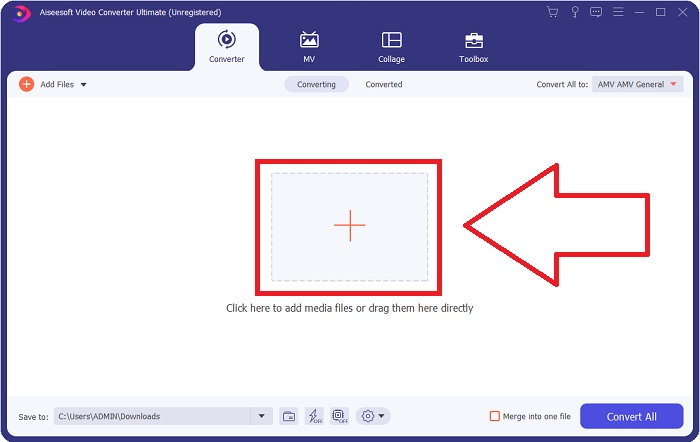
Βήμα 3: Θα υπάρχει ένα κουμπί + στο κέντρο της διεπαφής στο οποίο μπορείτε να κάνετε κλικ για να εισαγάγετε το αρχείο βίντεο που θέλετε να μετατρέψετε. Επίσης, μπορείτε απλώς να σύρετε και να αποθέσετε τα βίντεό σας με ευκολία.
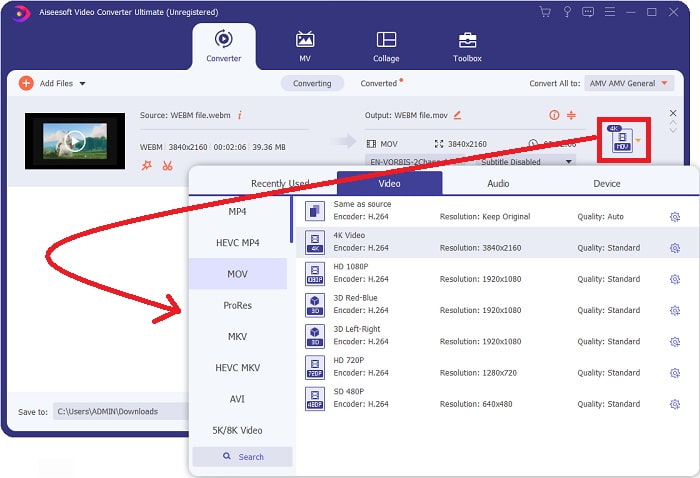
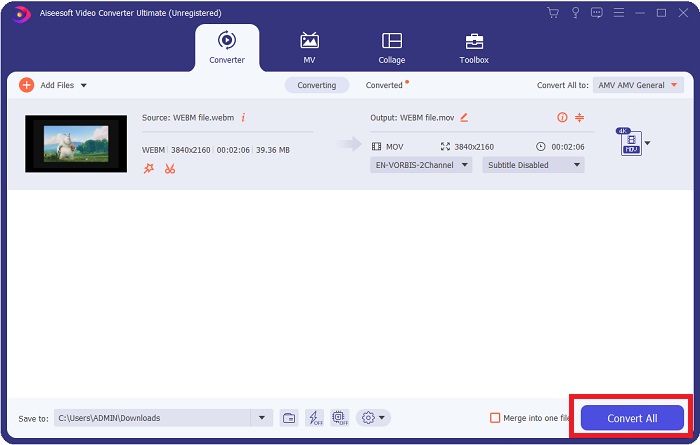
Βήμα 4: Μόλις το βίντεό σας εισαχθεί με επιτυχία, θα εμφανιστεί μια άλλη διεπαφή. Από εκεί, μπορείτε να δείτε τη τρέχουσα μορφή του βίντεό σας στα δεξιά. Υπάρχει ένα βέλος λίστας δίπλα της, κάντε κλικ σε αυτό και θα εμφανιστούν διάφορες επιλογές. Μπορείτε να επιλέξετε οποιαδήποτε μορφή θέλετε να μετατραπεί το βίντεό σας, αλλά σε αυτή την περίπτωση, επιλέξτε MOV. Υπάρχουν επιλογές από τις οποίες μπορείτε να διαλέξετε, όπως ανάλυση και ποιότητα ήχου. Για περισσότερα, κάντε κλικ στο εικονίδιο με το γρανάζι δίπλα στην ποιότητα ή την ανάλυση που επιλέξατε και μπορείτε να επεξεργαστείτε περαιτέρω το βίντεό σας ανάλογα με τις ανάγκες σας. Για να αποθηκεύσετε τις αλλαγές, κάντε κλικ στο Create New.
Βήμα 5: Μόλις τελειώσετε και είστε ικανοποιημένοι με τις αλλαγές, εντοπίστε το Convert All στην κάτω δεξιά γωνία της διεπαφής και κάντε κλικ σε αυτό για να εξαχθεί το μετατρεπόμενο βίντεό σας.
Μέρος 3. Συμβουλές μπόνους: Άλλοι διαδικτυακοί μετατροπείς που μετατρέπουν το WebM σε MOV
Μέθοδος 1: Χρησιμοποιήστε τη δωρεάν μετατροπή
Εάν δεν θέλετε πλέον να κατεβάζετε λογισμικό και απλώς συνεχίζετε ήδη τη διαδικασία μετατροπής, μπορούμε να σας δείξουμε εναλλακτικές για αυτήν. Αυτό γίνεται καθαρά διαδικτυακά ενώ εξακολουθεί να σας προσφέρει τις δυνατότητες που χρειάζεστε για τις ανάγκες επεξεργασίας σας. Εάν θέλετε μια μέθοδο χωρίς προβλήματα, αυτό το εργαλείο web είναι μονόδρομος.
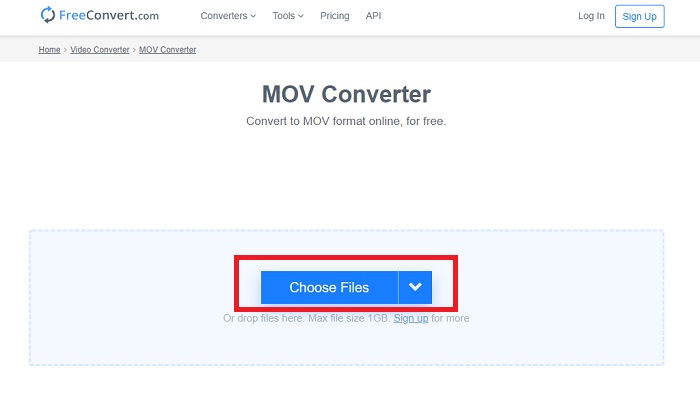
Βήμα 1: Μεταβείτε στην ίδια την ιστοσελίδα και θα βρεθείτε σε μια διεπαφή όπου υπάρχει ένα κουμπί Choose Files στο κέντρο της σελίδας. Κάντε κλικ σε αυτό για να εισαγάγετε το αρχείο βίντεο που θέλετε να μετατρέψετε.
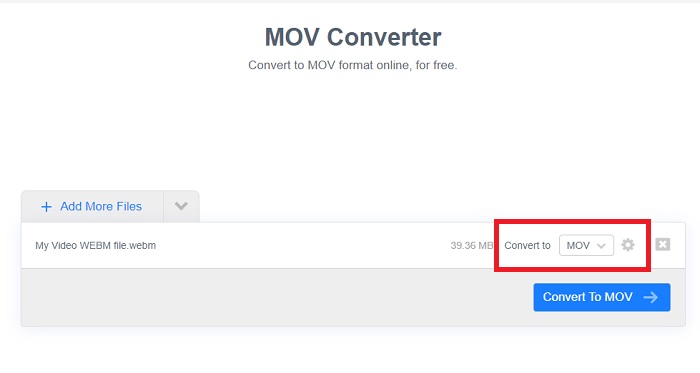
Βήμα 2: Όπως και στο ίδιο το λογισμικό, μπορείτε να δείτε την τρέχουσα μορφή του βίντεό σας στα δεξιά και δίπλα της υπάρχει ένα βέλος λίστας. Κάντε κλικ σε αυτό και επιλέξτε από τις μορφές στις οποίες θέλετε να μετατραπεί το βίντεό σας. Για περισσότερες επιλογές, κάντε κλικ στο εικονίδιο με το γρανάζι για να επεξεργαστείτε περαιτέρω το βίντεό σας. Κάντε κλικ στο κουμπί Apply Settings για να διατηρήσετε τις αλλαγές που κάνατε.
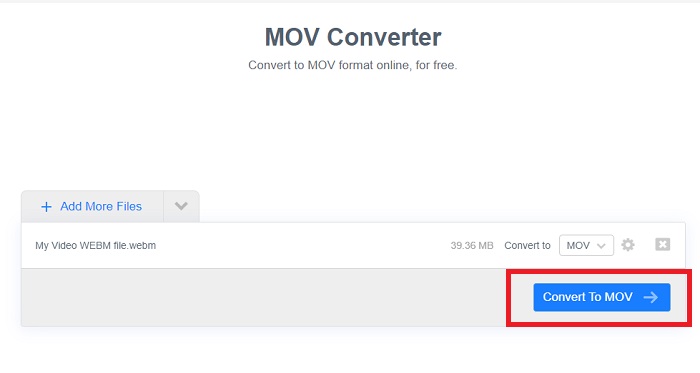
Βήμα 3: Αν ολοκληρώσατε όλες τις αλλαγές, μπορείτε τώρα να ξεκινήσετε τη μετατροπή κάνοντας κλικ στο κουμπί Convert to MOV ακριβώς από κάτω και να περιμένετε να τελειώσει. Έπειτα, μπορείτε να εξαγάγετε το μετατρεπόμενο βίντεό σας κάνοντας κλικ στο Download MOV.
Μέθοδος 2: Χρησιμοποιήστε το Cloud Convert
Αυτό το διαδικτυακό εργαλείο προσφέρει μερικές ακόμη επιλογές για εσάς ενώ μετατρέπετε το αρχείο WebM σε MOV online. Μπορείτε όχι μόνο να επεξεργαστείτε την ανάλυση ή την ποιότητα ήχου, αλλά και fps, υπότιτλους και πολλά άλλα. Ακολουθήστε αυτά τα εύκολα βήματα για να χρησιμοποιήσετε αυτόν τον διαδικτυακό μετατροπέα:
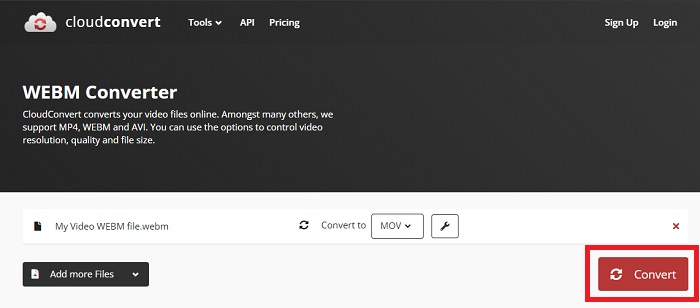
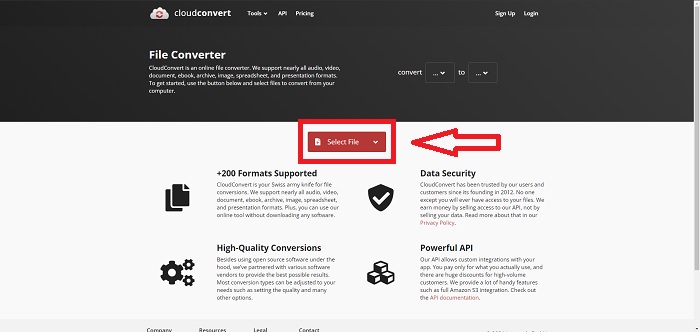
Βήμα 1: Πρώτα πρέπει να εισαγάγετε το αρχείο βίντεο που θέλετε να μετατρέψετε κάνοντας κλικ στο κουμπί Select File στο κέντρο της σελίδας. Αν θέλετε να μετατρέψετε αρχεία ταυτόχρονα, κάντε κλικ στο Add more Files.
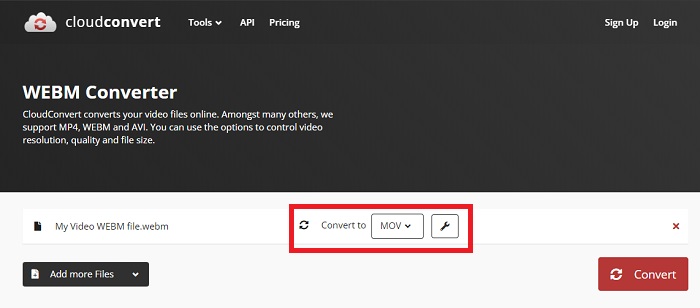
Βήμα 2: Δίπλα στο αρχείο, μπορείτε να επιλέξετε ποια μορφή βίντεο θέλετε κάνοντας κλικ στο βέλος λίστας. Επίσης, κάντε κλικ στο εικονίδιο με το κλειδί-γαλλικό κλειδί για περισσότερες επιλογές. Από εκεί, μπορείτε να επεξεργαστείτε ορισμένες πτυχές του βίντεό σας και του ήχου του. Στη συνέχεια, κάντε κλικ στο OK για να αποθηκεύσετε τις αλλαγές.
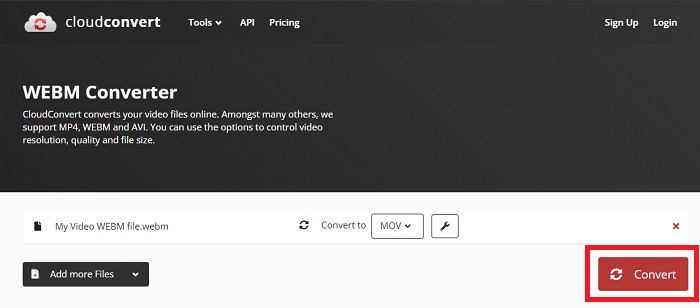
Βήμα 3: Μόλις τελειώσετε με όλες τις επεξεργασίες, κάντε κλικ στο κουμπί Convert που εμφανίζεται με κόκκινο χρώμα και περιμένετε να ολοκληρωθεί. Τέλος, κάντε κλικ στο Download που εμφανίζεται με πράσινο χρώμα για να εξαγάγετε το πλήρως μετατρεπόμενο βίντεό σας.
Μέθοδος 3: Χρησιμοποιήστε το ZamZar Convert
Αυτό το εργαλείο web προσφέρει λιγότερες επιλογές για το βίντεό σας, καθώς μετατρέπει μόνο τη μορφή βίντεο και ήχου. Ωστόσο, κάνει τη δουλειά πιο γρήγορα από τις άλλες μεθόδους που αναφέρονται. Για να χρησιμοποιήσετε αυτόν τον διαδικτυακό μετατροπέα, ακολουθήστε τα βήματα που παρέχονται:
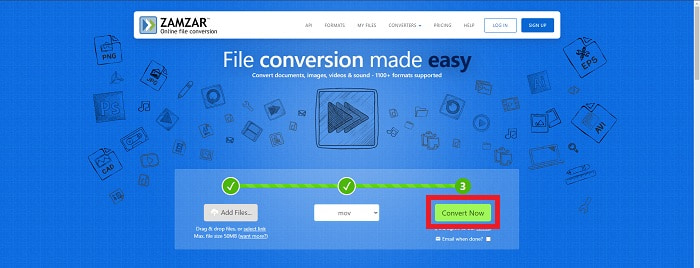
Βήμα 1: Στο κέντρο της σελίδας υπάρχουν μόνο τρία κουμπιά που πρέπει να πατήσετε για να μετατραπεί το βίντεό σας. Πρώτα, κάντε κλικ στο Add files για να εισαγάγετε το αρχείο βίντεο.
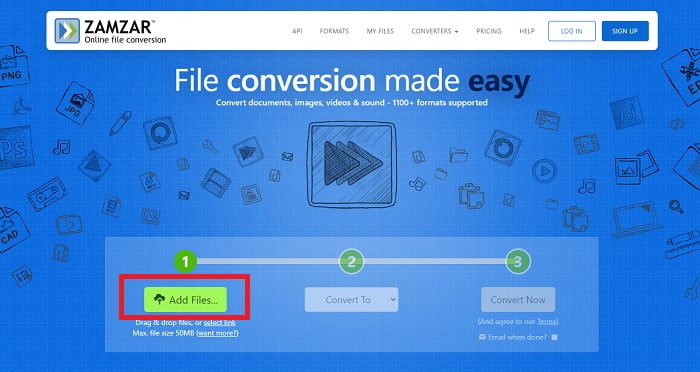
Βήμα 2: Στο δεύτερο κουμπί, μπορείτε να επιλέξετε ποια μορφή βίντεο και ήχου θέλετε για το βίντεό σας. Σε αυτή την περίπτωση, επιλέξτε μορφή MOV.
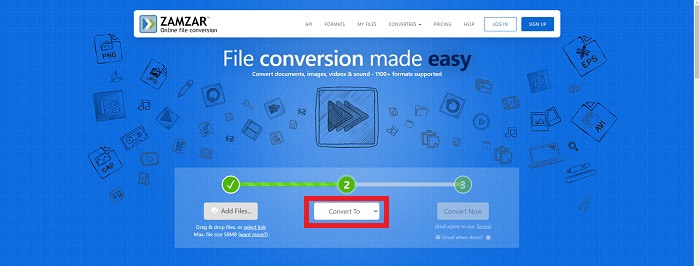
Βήμα 3: Τέλος, κάντε κλικ στο τρίτο και τελευταίο κουμπί, Convert Now, για να ξεκινήσει η διαδικασία μετατροπής και περιμένετε να τελειώσει. Όταν ολοκληρωθεί, κάντε κλικ στο Download για να εξαγάγετε τελικά το βίντεό σας στην επιφάνεια εργασίας σας.
Μέρος 4. Συχνές ερωτήσεις σχετικά με τη μετατροπή WebM σε MOV
Τι ακριβώς είναι η μορφή WebM;
Το WebM είναι μια μορφή αρχείου ανοιχτών πολυμέσων ειδικά για τον ιστό που περιλαμβάνει ροές βίντεο συμπιεσμένες με κωδικοποιητές βίντεο VP8 ή VP9, ροές ήχου συμπιεσμένες με κωδικοποιητές ήχου Vorbis ή Opus και κείμενα WebVTT. Η δομή του αρχείου WebM βασίζεται στο κοντέινερ πολυμέσων Matroska. Τα περισσότερα προγράμματα περιήγησης ιστού δέχονται αρχεία WebM, καθώς μερικές φορές χρησιμοποιούνται σε ιστότοπους HTML5 για την αναπαραγωγή ταινιών στο διαδίκτυο. Για παράδειγμα, το YouTube χρησιμοποιεί τη μορφή αρχείου WebM Video για όλα τα βίντεο στη σελίδα του, που κυμαίνονται από 360p έως άλλες εξαιρετικά υψηλές ποιότητες. Το Wikimedia και το Skype είναι το ίδιο.
Τι προγράμματα αναπαραγωγής πολυμέσων χρειάζομαι για την αναπαραγωγή βίντεο WebM σε περίπτωση που δεν θέλω να τα μετατρέψω σε MOV;
Υπάρχει μια εναλλακτική λύση αν δεν θέλετε να περάσετε από όλη τη διαδικασία μετατροπής για να αναπαράγετε το βίντεο WebM. Μπορείτε να χρησιμοποιήσετε μια εφαρμογή τρίτου μέρους ή αυτό που αποκαλούμε cross‑platform. Μερικοί από αυτούς τους media players τρίτων είναι οι VLC, KM Player, Media Player Classic, Winamp, jetAudio Basic, Moovidia, Persian και XBMC, τους οποίους μπορείτε να κατεβάσετε από τις αντίστοιχες ιστοσελίδες τους για να αναπαράγετε αρχεία WebM.
Είναι το MOV υψηλής ή χαμηλής ποιότητας;
Η αναπαραγωγή βίντεο είναι αρκετά υψηλής ποιότητας με αρχεία MOV. Το MOV είναι ιδιαίτερα χρήσιμο καθώς μπορεί να χωρέσει μικτά μέσα όπως εικόνες, βίντεο και κινούμενα σχέδια 360 μοιρών. Περιέχει επίσης όλες τις πληροφορίες βίντεο και ήχου. Αυτό κάνει την επεξεργασία του αρχείου πολύ πιο απλή.
συμπέρασμα
Υπάρχουν πράγματι πολλά εργαλεία που μπορείτε να χρησιμοποιήσετε για να μετατρέψετε το βίντεό σας από μια μορφή σε άλλη είτε μέσω της χρήσης ενός λογισμικού είτε μέσω ενός εργαλείου Ιστού που μπορείτε να βρείτε στο διαδίκτυο. Ωστόσο, εξακολουθούν να πάνε χέρι-χέρι όσον αφορά τις επιλογές ή την ευκολία που προσφέρουν. Μερικοί απλώς τελειώνουν τη δουλειά και άλλοι παρέχουν διάφορες επιλογές για να διαλέξετε. Αυτό το άρθρο εστιάζει σε αυτό για να σας βοηθήσει να γνωρίζετε ποια πρέπει να χρησιμοποιήσετε ανάλογα με τις ανάγκες σας. Αυτός είναι ο λόγος για τον οποίο προτείνουμε περισσότερο το Video Converter Ultimate, καθώς προσφέρει όλες τις πρόσθετες επιλογές που μπορεί να μην ξέρετε ποτέ πότε θα το χρειαστείτε. Είναι καλύτερα να έχετε αυτό το λογισμικό δίπλα σας όλη την ώρα για να σας γλιτώσει από τον κόπο να βρείτε έναν μετατροπέα στο διαδίκτυο κάθε φορά που τον χρειάζεστε.
-
 Πώς να αλλάξετε το GIF σε μορφή WebM χωρίς να χάσετε την ποιότητα των αρχείων
 Μετατρέψτε τα Gif σας σε μορφή βίντεο WebM για να έχετε μια ετικέτα βίντεο HTML5. Βασιστείτε σε αυτό το παρακάτω εργαλείο για να μάθετε ποιο είναι το καλύτερο για τη δουλειά.
-
 3 τρόποι για να μετατρέψετε το WebM σε MP3 χωρίς απώλεια ποιότητας ήχου
 Αντιμετωπίζετε πρόβλημα επειδή τα αρχεία WebM δεν μπορούν να χρησιμοποιηθούν για την αναπαραγωγή του ήχου που αποθηκεύετε; Στη συνέχεια, διαβάστε αυτό το άρθρο καθώς παρέχουμε μια αποτελεσματική βοήθεια μετατρέποντας το WebM σε MP3.
-
 3 Εκπληκτικό λογισμικό που χρησιμοποιείται για τη μετατροπή του αρχείου WebM σε μορφή AVI
 Δεν έχετε ιδέα πώς να μετατρέψετε το WebM σε AVI; Τότε ας αρχίσουμε να διαβάζουμε αυτό το άρθρο. Καθώς καθορίζουμε όλες τις λεπτομέρειες στο WebM και στους τρεις μετατροπείς που μπορείτε να χρησιμοποιήσετε για τη μετατροπή.
