


 Video Converter Ultimate
 Εγγραφή οθόνης
 Επισκευή βίντεο
 Ασφαλές κατέβασμα
Πώς να μετατρέψετε MP3 σε ήχο κλήσης στο iPhone χωρίς κόπο
Βρίσκετε ότι οι προεπιλεγμένοι ήχοι κλήσης στο iPhone σας δεν είναι και οι αγαπημένοι σας και θα θέλατε κάποιος από τα αρχεία MP3 σας να γίνει αντ’ αυτών ήχος κλήσης στο iPhone σας; Κι αν σας λέγαμε ότι είναι δυνατό να μετατρέψετε MP3 σε ήχο κλήσης σε iPhone;
Σε αυτό το άρθρο, μάθετε 3 διαφορετικούς τρόπους για να κάνετε τα αρχεία μουσικής MP3 στο iPhone σας να γίνουν ήχος κλήσης. Η μετατροπή τους είναι λίγο δύσκολη, αλλά με το σωστό εργαλείο και μέθοδο, ας το κάνουμε όσο πιο απλό και βολικό για εσάς. Τι περιμένεις; Ας βουτήξουμε!

Μέρος 1. Μετατροπή MP3 σε Ήχο κλήσης για iPhone σε Mac/Windows
Ένας από τους πιο εύκολους και γρήγορους τρόπους για να μετατρέψετε MP3 σε ήχο κλήσης στο iPhone είναι να χρησιμοποιήσετε το προτεινόμενο από FVC Video Converter Ultimate από υπολογιστή Windows ή macOS. Αυτό το ολοκληρωμένο εργαλείο μετατροπής υποστηρίζει έως και 300 διαφορετικές μορφές, συμπεριλαμβανομένης της μορφής M4R, γεγονός που το καθιστά ένα αξιόπιστο εργαλείο για να μετατρέψετε μουσικά αρχεία MP3 σε ήχο κλήσης iPhone. Επιπλέον, αυτός ο μετατροπέας είναι έως και 120 φορές ταχύτερος σε σύγκριση με άλλα εργαλεία μετατροπής, καθιστώντας τη διαδικασία μετατροπής γρήγορη και χωρίς ταλαιπωρία.
Δείτε πώς να χρησιμοποιήσετε το προτεινόμενο από FVC Video Converter Ultimate για να μετατρέψετε το MP3 σας σε ήχο κλήσης:
Βήμα 1. Πρώτα, κατεβάστε και εγκαταστήστε το εργαλείο στον υπολογιστή σας, είτε Windows είτε Mac.
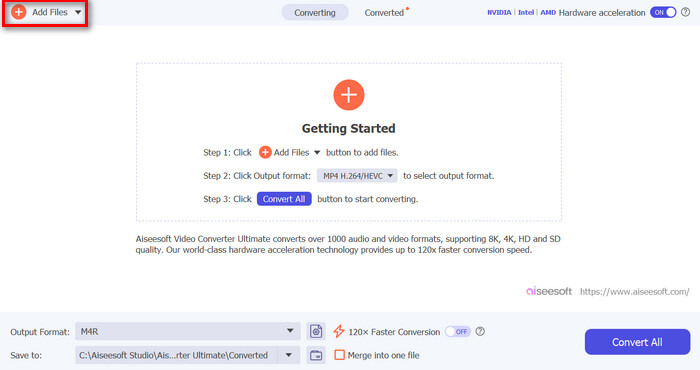
Βήμα 2. Εκκινήστε το εργαλείο και, μόλις βρεθείτε στην κύρια οθόνη του, κάντε κλικ στο κουμπί Add Files. Αυτό θα σας επιτρέψει να εισαγάγετε το αρχείο MP3 που θέλετε να μετατρέψετε σε ήχο κλήσης iPhone.
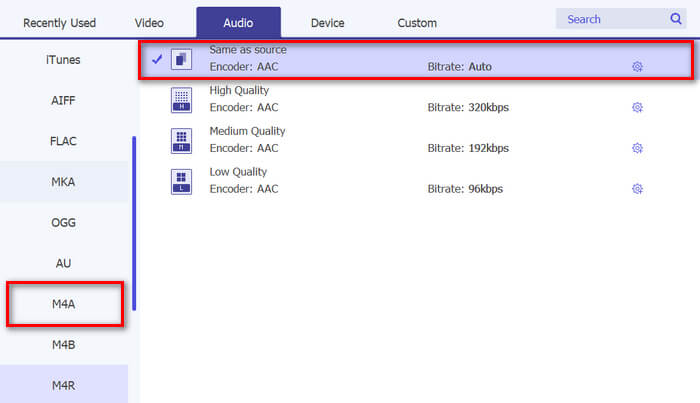
Βήμα 3. Τώρα, πηγαίνετε στο Output format και, από τη λίστα με τις διάφορες μορφές ήχου, επιλέξτε M4R. Το M4R είναι ο τύπος αρχείου για τους ήχους κλήσης του iPhone.
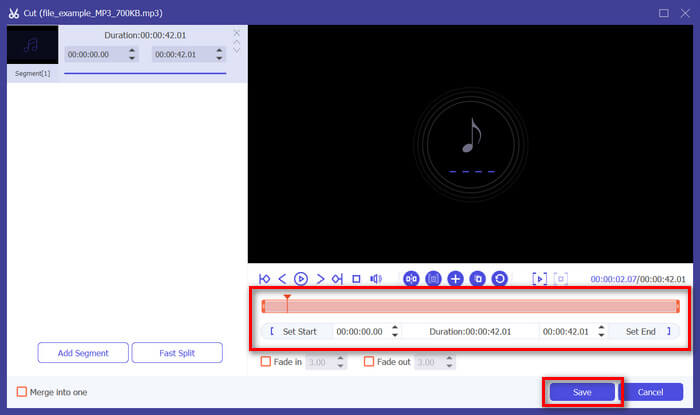
Βήμα 4. Στη συνέχεια, βεβαιωθείτε ότι το αρχείο MP3 έχει διάρκεια μόνο 30 δευτερόλεπτα. Αν ξεπερνά αυτή τη διάρκεια, μεταβείτε στο κουμπί Cut και προσαρμόστε τη διάρκεια του αρχείου απλώς μετακινώντας τη γραμμή στο χρονολόγιο ή ορίζοντας χειροκίνητα τον χρόνο λήξης του αρχείου στα 30 δευτερόλεπτα.
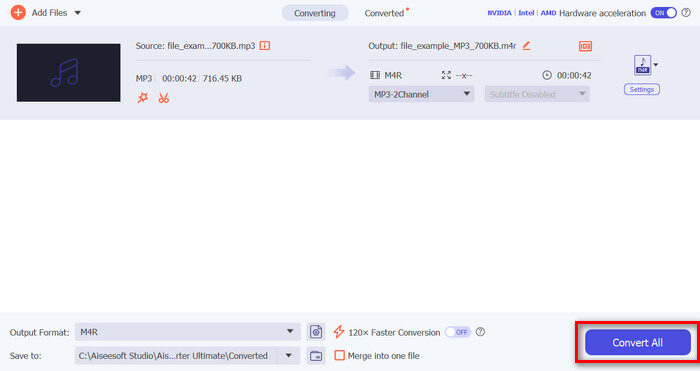
Βήμα 5. Τώρα κάντε κλικ στο κουμπί Convert All για να ξεκινήσετε τη μετατροπή των αρχείων MP3 σε ήχους κλήσης iPhone. Τα μετατραπέντα αρχεία αποθηκεύονται απευθείας σε φάκελο στον υπολογιστή σας.
Είναι γρήγορο, σωστά; Είναι πραγματικά απίστευτο πώς αυτό το εργαλείο Video Converter Ultimate που έχει επιλεγεί από το FVC κάνει τη μετατροπή MP3 σε ήχο κλήσης iPhone εύκολη και γρήγορη. Έτσι, αν ψάχνετε για ένα εργαλείο μετατροπέα που μπορεί να σας εξοικονομήσει χρόνο, δοκιμάστε αυτό το εργαλείο τώρα.
Μέρος 2. Μετατροπή MP3 σε ήχο κλήσης στο iPhone
Εάν προτιμάτε μια άμεση μέθοδο χωρίς τη χρήση υπολογιστή, το GarageBand προσφέρει μια βολική λύση για τη μετατροπή MP3 σε ήχους κλήσης απευθείας στο iPhone σας. Αυτό το εργαλείο είναι μια ισχυρή εφαρμογή δημιουργίας μουσικής που είναι προεγκατεστημένη στα περισσότερα iPhone. Αυτό το εργαλείο δεν είναι μόνο φιλικό προς το χρήστη, αλλά παρέχει επίσης διάφορες δυνατότητες για την αποτελεσματική προσαρμογή των αρχείων ήχου σας.
Δείτε πώς να χρησιμοποιήσετε το GarageBand για να μετατρέψετε το MP3 σας σε ήχο κλήσης:
Βήμα 1. Αρχικά, ανοίξτε την εφαρμογή GarageBand στο iPhone σας. Αν δεν έχετε εγκατεστημένη την εφαρμογή, μεταβείτε στο App Store και εγκαταστήστε την.
Βήμα 2. Πατήστε το εικονίδιο Project και στη συνέχεια το εικονίδιο Loop κοντά στην επάνω δεξιά γωνία.
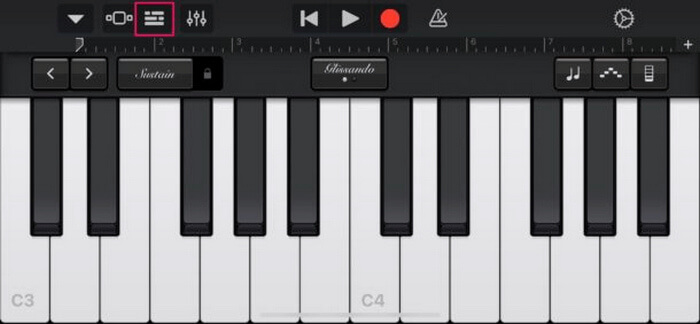
Βήμα 3. Τώρα, πατήστε Music or Files για να επιλέξετε το αρχείο MP3 και κρατήστε το πατημένο για να το εισαγάγετε στο GarageBand.
Βήμα 4. Έπειτα, πατήστε στο κομμάτι και σύρετε και τα δύο άκρα για να περικόψετε τον ήχο. Βεβαιωθείτε ότι ο ήχος κλήσης είναι μικρότερος από 30 δευτερόλεπτα.
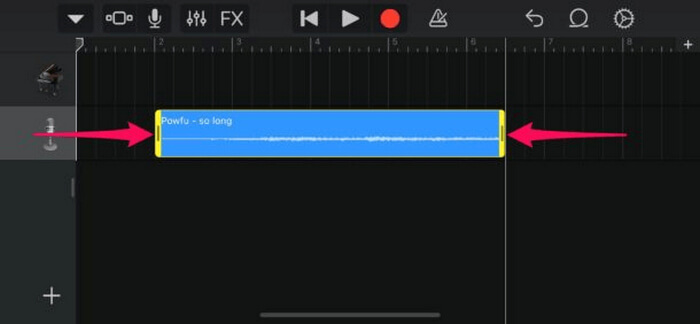
Βήμα 5. Θα δείτε το βέλος που δείχνει προς τα κάτω στην επάνω αριστερή γωνία. Πατήστε το και, στη συνέχεια, επιλέξτε My Songs για να αποθηκεύσετε το κλιπ.
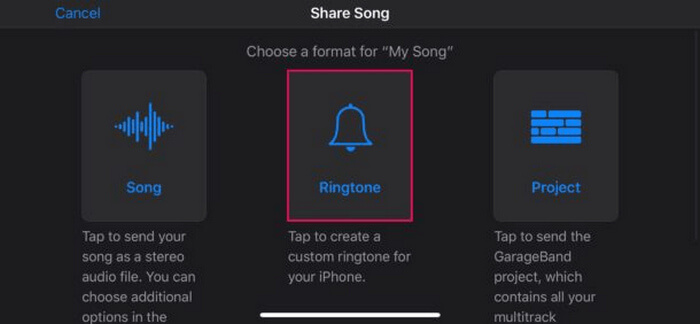
Βήμα 6. Βρείτε το κλιπ που δημιουργήσατε, κρατήστε το πατημένο, πατήστε Share και επιλέξτε την επιλογή Ringtone. Μην ξεχάσετε να δώσετε όνομα στον ήχο κλήσης και να πατήσετε Export.
Βήμα 7. Για να χρησιμοποιήσετε το μετατρεπόμενο αρχείο MP3 ως ήχο κλήσης στο iPhone σας, πατήστε Use Sound As για να ορίσετε τον ήχο κλήσης ως προεπιλεγμένο ήχο μηνύματος κειμένου ή για μια συγκεκριμένη επαφή. Εναλλακτικά, μεταβείτε στις Settings, Sounds & Haptics και Ringtone για να αλλάξετε τον ήχο κλήσης στο iPhone σας.
Εάν προτιμάτε να μετατρέπετε αρχεία MP3 απευθείας σε ήχους κλήσης στο iPhone σας, αυτή η μέθοδος είναι ιδανική για εσάς. Ωστόσο, οι νέοι χρήστες θα χρειαστούν λίγο χρόνο για να το μάθουν αυτό, καθώς περιέχει πολύπλοκα χαρακτηριστικά που μπορεί να τους κατακλύσουν στην αρχή.
Μέρος 3. Μετατροπή MP3 σε ήχο κλήσης iPhone [Διαδικτυακό και δωρεάν]
Εάν προτιμάτε μια δωρεάν και online μέθοδο για να μετατρέψετε MP3 σε ήχο κλήσης iPhone, το FVC Free Audio Converter είναι αυτό που χρειάζεστε. Με αυτό το εργαλείο, μπορείτε να μετατρέψετε εύκολα οποιαδήποτε μορφή του αρχείου ήχου σας, ειδικά από MP3 σε M4R, καθώς υποστηρίζει τις μορφές ήχου MP3, AAC, AC3, WMA, WAV, AIFF, FLAC, MKA, M4A, M4B και M4R. Επιπλέον, αυτό το εργαλείο είναι ιδανικό για όσους χρειάζονται έναν φορητό online μετατροπέα ήχου, χάρη στη πολύ διαισθητική και απλή διεπαφή του.
Δείτε πώς να χρησιμοποιήσετε το FVC Free Audio Converter για να μετατρέψετε το MP3 σας σε ήχο κλήσης:
Βήμα 1. Κάντε κλικ στο κουμπί Add Files για να εισαγάγετε τα αρχεία MP3 που θέλετε να μετατρέψετε σε ήχο κλήσης.
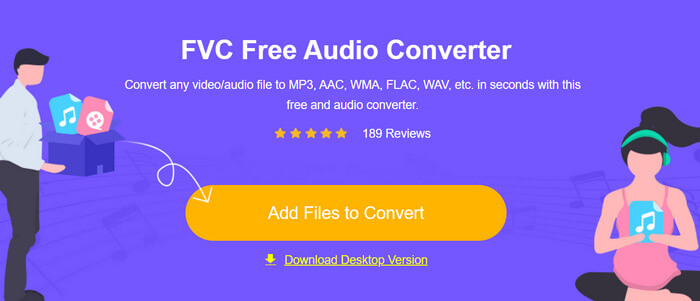
Βήμα 2. Επιλέξτε M4R ως μορφή εξόδου ήχου.
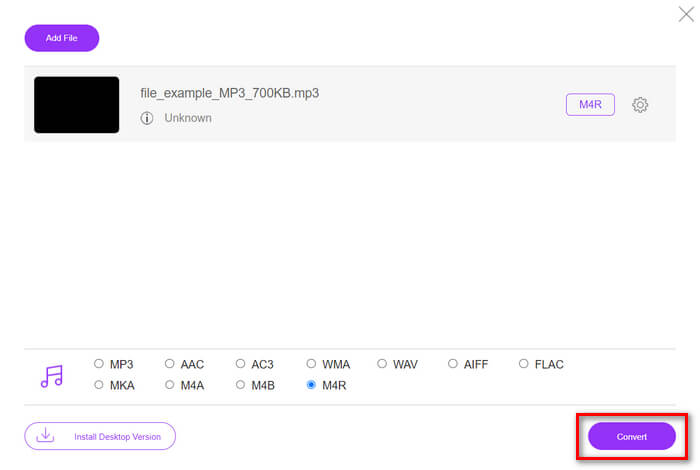
Βήμα 3. Τέλος, για να ξεκινήσει η μετατροπή του αρχείου MP3 σε ήχο κλήσης, κάντε κλικ στο κουμπί Convert. Το μετατραπέν αρχείο θα αποθηκευτεί απευθείας στον υπολογιστή σας.
Αν αναζητάτε μια δωρεάν και online εναλλακτική μέθοδο για να μετατρέψετε MP3 σε M4R ήχο κλήσης σε iPhone, το FVC Free Audio Converter είναι μια ιδανική λύση. Η διαισθητική διεπαφή του απλοποιεί τη διαδικασία μετατροπής και υποστηρίζει ποικιλία μορφών ήχου, εξασφαλίζοντας συμβατότητα με διαφορετικούς τύπους αρχείων.
Μέρος 4. Πώς να μεταφέρετε μετατρεπόμενους ήχους κλήσης στο iPhone από έναν υπολογιστή
Τώρα που επιτέλους μετατρέψατε τα αρχεία MP3 σε ήχους κλήσης στον υπολογιστή σας, ο πιο γρήγορος τρόπος για να τα μεταφέρετε στο iPhone σας είναι χρησιμοποιώντας το iTunes.
Δείτε πώς να μεταφέρετε τους μετατρεπόμενους ήχους κλήσης σε iPhone χρησιμοποιώντας το iTunes:
Βήμα 1. Ανοίξτε το iTunes στον υπολογιστή σας και συνδέστε το iPhone σας με καλώδιο USB.
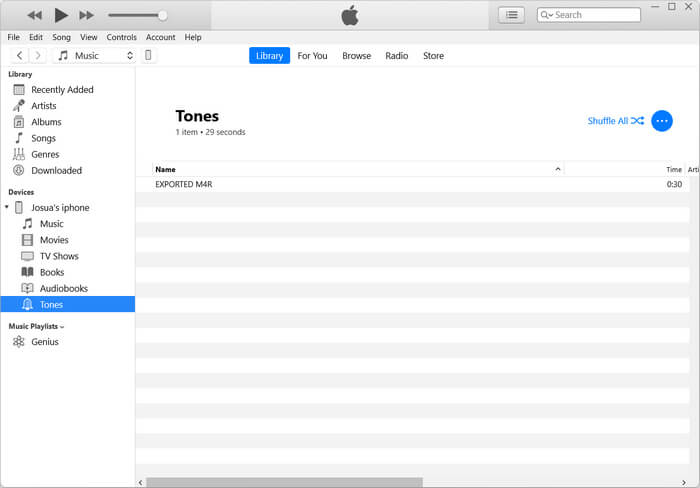
Βήμα 2. Σύρετε το μετατραπέν αρχείο ήχου κλήσης στη βιβλιοθήκη του iTunes. Βεβαιωθείτε ότι εμφανίζεται στην ενότητα Tones.
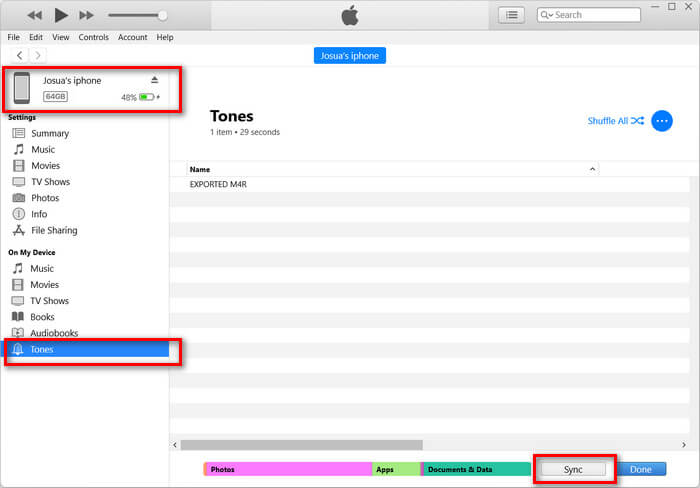
Βήμα 3. Επιλέξτε το εικονίδιο του iPhone σας στο iTunes, μεταβείτε στην καρτέλα Tones και επιλέξτε Sync Tones. Έπειτα, διαλέξτε το αρχείο ήχου κλήσης που έχετε εισαγάγει και κάντε κλικ στο Apply για να γίνει συγχρονισμός.
Βήμα 4. Τώρα, στο iPhone σας, μεταβείτε στις Ρυθμίσεις (Settings), επιλέξτε Sounds & Haptics, πατήστε Ringtone και διαλέξτε τον νέο ήχο κλήσης σας.
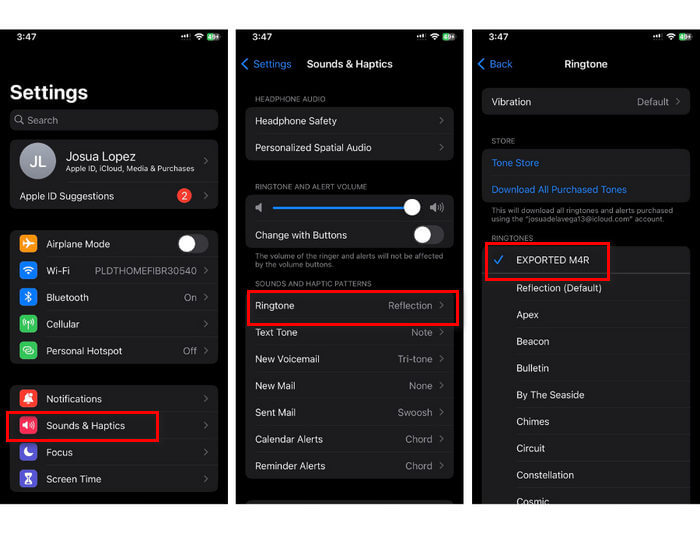
Ορίστε το έχετε. Τώρα μπορείτε εύκολα να μεταφέρετε και να χρησιμοποιήσετε το μετατρεπόμενο MP3 σε ήχο κλήσης στο iPhone σας, δίνοντας στη συσκευή σας μια προσωπική πινελιά με τους αγαπημένους σας ήχους.
Μέρος 5. Συχνές ερωτήσεις σχετικά με τη μετατροπή MP3 σε ήχο κλήσης
Ποια είναι η καλύτερη δωρεάν τοποθεσία κλήσης;
Πολλοί ιστότοποι προσφέρουν δωρεάν ήχους κλήσης, αλλά ορισμένοι δημοφιλείς και αξιόπιστοι είναι οι Zedge, Mobile9 και Tones7. Αυτοί οι ιστότοποι παρέχουν μια μεγάλη ποικιλία ήχων κλήσης που μπορείτε να κατεβάσετε και να χρησιμοποιήσετε στο τηλέφωνό σας.
Τι μορφή είναι ο ήχος κλήσης MP3 σε iPhone;
Η μορφή ήχου κλήσης iPhone είναι M4R. Όταν μετατρέπετε ένα αρχείο MP3 για να χρησιμοποιηθεί ως ήχος κλήσης σε iPhone, πρέπει να αποθηκευτεί σε μορφή M4R.
Πώς να προσθέσετε MP3 στον ήχο κλήσης iPhone;
Για να προσθέσετε MP3 στον ήχο κλήσης του iPhone σας, πρέπει πρώτα να μετατρέψετε το αρχείο MP3 σε M4R χρησιμοποιώντας ένα εργαλείο μετατροπέα όπως το Video Converter Ultimate που έχει επιλεγεί από το FVC. Αφού μετατρέψετε το αρχείο MP3, χρησιμοποιήστε το iTunes για να το μεταφέρετε στο iPhone σας και να το χρησιμοποιήσετε ως νέο ήχο κλήσης.
συμπέρασμα
Μπορείτε πλέον να χρησιμοποιήσετε τα αγαπημένα σας αρχεία MP3 και να δημιουργήσετε έναν ήχο κλήσης για το iPhone σας. Απλώς επιλέξτε το εργαλείο μετατροπής που ταιριάζει καλύτερα στις ανάγκες σας. Καθένα από αυτά προσφέρει έναν απλό τρόπο για να μετατρέψετε MP3 σε ήχο κλήσης σε iPhone. Λοιπόν, τι περιμένετε; Ξεκινήστε τώρα να δημιουργείτε τον δικό σας μοναδικό ήχο κλήσης και κάντε το iPhone σας πραγματικά δικό σας!
-
 MOV VS MP4 - Ποιο θα επιλέξετε;
 MOV VS MP4, ποιο είναι καλύτερο; Αυτή η ανάρτηση λέει τη διαφορά μεταξύ MP4 και MOV, ώστε να έχετε την καλύτερη επιλογή για χρήση στα αρχεία βίντεο.
-
 FLAC εναντίον MP3: Ποια μορφή αρχείου ήχου κυριαρχεί
 Αυτή η ανάρτηση θα συγκρίνει τις βασικές διαφορές μεταξύ FLAC και MP3. Αυτό περιλαμβάνει την ποιότητα ήχου, το μέγεθος αρχείου, τη συμβατότητα και πολλά άλλα.
-
 Πώς να μετατρέψετε MP3 σε M4A για βελτιωμένη ποιότητα ήχου
 Βελτιώστε την ποιότητα των αρχείων μουσικής σας μετατρέποντας MP3 σε M4A με τις συμβουλές και τα κόλπα των ειδικών μας. Ο οδηγός μας προσφέρει οδηγίες βήμα προς βήμα και προτεινόμενο λογισμικό.
