


 Video Converter Ultimate
 Εγγραφή οθόνης
 Επισκευή βίντεο
 Ασφαλές κατέβασμα
Το βίντεο MP4 δεν εμφανίζεται στο Premiere Pro: Λόγοι και λύσεις για μάθηση
Το Premiere Pro είναι ένα εξαιρετικό επαγγελματικό εργαλείο για επεξεργασία βίντεο. Ωστόσο, μερικές φορές «κολλάει», προκαλώντας προβλήματα αναπαραγωγής που διακόπτουν τη δουλειά σας. Είναι επίσης απογοητευτικό όταν προσπαθείτε να επεξεργαστείτε ομαλά και το βίντεο συνεχίζει να καθυστερεί, να «σπάει» ή, ακόμα χειρότερα, να μην εμφανίζεται καθόλου. Πρόκειται για ένα συνηθισμένο ζήτημα που αντιμετωπίζουν πολλοί χρήστες του Adobe Premiere Pro. Ευτυχώς, υπάρχουν τρόποι να αντιμετωπίσετε αυτό το πρόβλημα. Εντοπίζοντας τη συγκεκριμένη αιτία για την οποία το βίντεο MP4 δεν εμφανίζεται στο Premiere Pro και ακολουθώντας τα βήματα που περιγράφονται σε αυτόν τον οδηγό, μπορείτε να επιστρέψετε στην επεξεργασία και την αναπαραγωγή χωρίς πονοκεφάλους. Ας βουτήξουμε λοιπόν στο θέμα και ας πάμε κατευθείαν στην ουσία!
Μέρος 1. Γιατί το βίντεο MP4 δεν εμφανίζεται στο Premiere Pro
Για όσους αντιμετωπίζουν σφάλματα στο Premiere Pro όταν πρόκειται για την εμφάνιση βίντεο MP4, εδώ έχουμε συγκεντρώσει μερικούς από τους λόγους για τους οποίους συμβαίνει αυτό.
Έκδοση λογισμικού:
Μπορεί να είναι η έκδοση του Premiere Pro που χρησιμοποιείτε. Με άλλα λόγια, μπορεί να χρησιμοποιείτε απαρχαιωμένο λογισμικό που δεν υποστηρίζει ορισμένες μορφές ή λειτουργίες αρχείων MP4.
Περιορισμοί υλικού:
Ίσως το πρόβλημα να οφείλεται και στο υλικό του συστήματός σας. Η συσκευή σας μπορεί να μην πληροί τις απαιτήσεις για τη σωστή αποκωδικοποίηση και εμφάνιση του αρχείου MP4 στο Premiere Pro.
Θέση αρχείου:
Στη συνέχεια έχουμε τη θέση του αρχείου. Το αρχείο MP4 ενδέχεται να βρίσκεται σε έναν φάκελο στον οποίο το Premiere Pro δεν έχει πρόσβαση, λόγω ρυθμίσεων δικαιωμάτων ή προβλημάτων στη διαδρομή του αρχείου.
Κατεστραμμένο αρχείο:
Ένας ακόμα λόγος για τον οποίο το βίντεο MP4 δεν εμφανίζεται στο Premiere Pro είναι ότι το αρχείο μπορεί να είναι κατεστραμμένο. Αυτό μπορεί να εμποδίσει το Premiere Pro να το διαβάσει σωστά.
Ασυμβατότητα κωδικοποιητή (codec):
Αν το αρχείο MP4 δεν είναι κατεστραμμένο, τότε ίσως έχει κωδικοποιηθεί με έναν κωδικοποιητή (codec) που το Premiere Pro δεν υποστηρίζει.
Λανθασμένες ρυθμίσεις εισαγωγής:
Καλό είναι επίσης να ελέγξετε τις ρυθμίσεις εισαγωγής. Λανθασμένες ρυθμίσεις εισαγωγής ή μεταδεδομένα που σχετίζονται με το αρχείο MP4 μπορεί να προκαλέσουν τη μη εμφάνισή του στο Premiere Pro.
Κατεστραμμένη μνήμη cache:
Φυσικά, όπως και σε άλλα προγράμματα, η media cache μέσα στο Premiere Pro μπορεί να έχει καταστραφεί. Αν συμβαίνει αυτό, προκαλεί προβλήματα στην εισαγωγή ή την εμφάνιση του αρχείου MP4.
Μέρος 2. Μέθοδοι επίλυσης του προβλήματος όπου το Premiere Pro δεν εμφανίζει βίντεο MP4
Μετατροπή MP4 σε συμβατή μορφή:
Αν το αρχείο MP4 είναι ο κύριος λόγος για αυτό το ζήτημα, τότε σκεφτείτε να το μετατρέψετε σε άλλες μορφές βίντεο. Γι' αυτό, σας προτείνουμε ιδιαίτερα να χρησιμοποιήσετε ένα ισχυρό εργαλείο μετατροπής βίντεο που θα σας προσφέρει εξαιρετική ποιότητα εξόδου για χρήση στο Premiere Pro.
Bonus: Χρησιμοποιήστε το FVC Video Converter Ultimate για μετατροπή βίντεο
Το Video Converter Ultimate, που προτείνεται από το FVC, είναι διαθέσιμο τόσο για Windows όσο και για Mac, καθιστώντας το προσβάσιμο σε όλους. Διαθέτει ένα φιλικό προς τον χρήστη περιβάλλον εργασίας και ταυτόχρονα μια εξαιρετικά προηγμένη τεχνολογία υπερταχείας επιτάχυνσης υλικού που επιταχύνει τη μετατροπή έως και 120 φορές. Επιπλέον, δεν περιορίζεται μόνο στη μετατροπή MP4· υποστηρίζει πάνω από 1000 άλλες μορφές που μπορείτε να επιλέξετε ως μορφή εξόδου.
Πέρα από την απλή μετατροπή μορφών, προσφέρει μια σειρά από ισχυρά εργαλεία επεξεργασίας στο Toolbox του. Αυτά τα εργαλεία, που βασίζονται σε τεχνητή νοημοσύνη, εξασφαλίζουν απρόσκοπτη βελτίωση και επεξεργασία των βίντεό σας, χωρίς καμία δυσκολία! Τώρα, ας εξετάσουμε τη διαδικασία μαζικής μετατροπής βίντεο που προσφέρει, ακολουθώντας τα βήματα που περιγράφονται παρακάτω.
Δωρεάν λήψηΓια Windows 7 ή νεότεραΑσφαλής λήψη
Δωρεάν λήψηΓια MacOS 10.7 ή νεότεραΑσφαλής λήψη
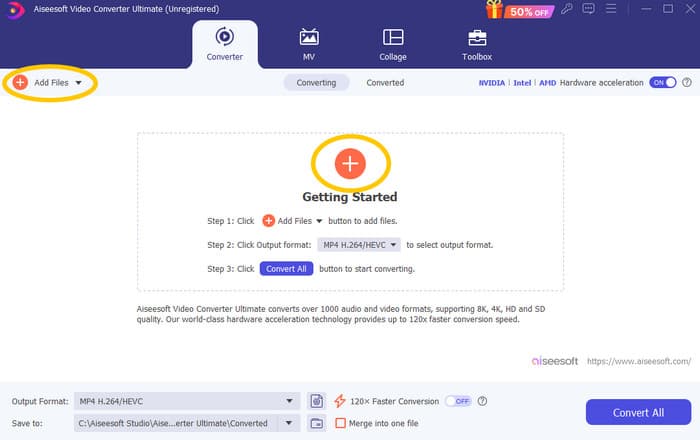
Βήμα 1. Ας υποθέσουμε ότι έχετε ήδη εγκαταστήσει το λογισμικό στον υπολογιστή σας. Μπορείτε τώρα να το εκκινήσετε και να κάνετε κλικ στο κουμπί Add για να εισαγάγετε αρχεία. Μπορείτε επίσης να χρησιμοποιήσετε την καρτέλα Add Files ή να σύρετε αρχεία από τον φάκελό σας.
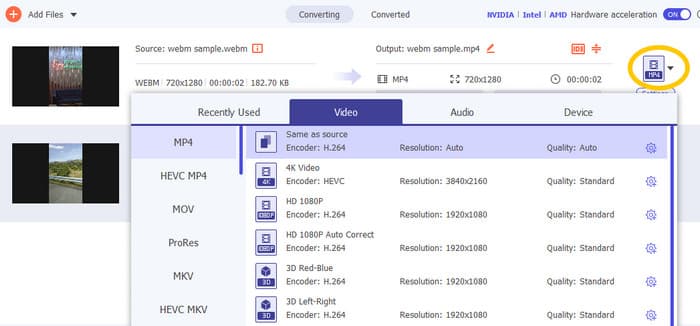
Βήμα 2. Στη συνέχεια, κάντε κλικ στο αναπτυσσόμενο βέλος από την ενότητα μορφής εξόδου και επιλέξτε την επιθυμητή μορφή από το μενού Video. Κάντε κλικ στον κωδικοποιητή που επιλέξατε για να τον εφαρμόσετε.
Βήμα 3. Όταν όλα είναι όπως τα θέλετε, κάντε κλικ στο κουμπί Convert All για να ξεκινήσει η μετατροπή.

Επιδιόρθωση κατεστραμμένων αρχείων MP4:
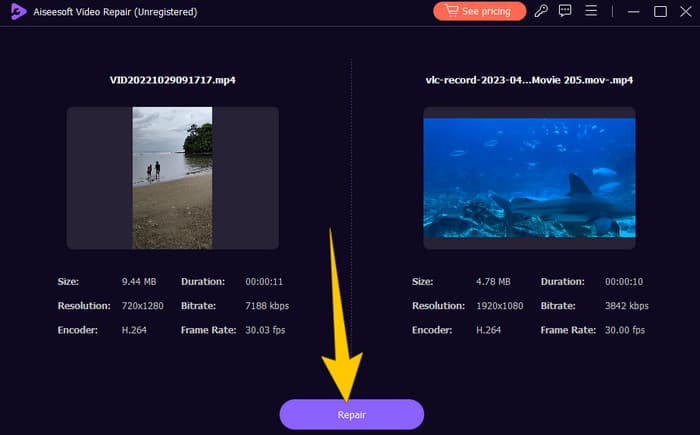
Αν το βίντεο MP4 δεν εμφανίζεται στο Premiere Pro, μπορεί να είναι κατεστραμμένο. Σε αυτή την περίπτωση, μπορείτε να χρησιμοποιήσετε ένα εξειδικευμένο εργαλείο επιδιόρθωσης βίντεο, όπως το Video Repair, για να αντιμετωπίσετε τυχόν προβλήματα καταστροφής. Μπορείτε γρήγορα να επιδιορθώσετε και να αναπαράγετε ένα "χαλασμένο" αρχείο χωρίς καμία δυσκολία. Διαθέτει πολύ υψηλό ποσοστό επιτυχίας και είναι εξαιρετικά εύκολο στη χρήση, με μόνο λίγα κλικ. Επιπλέον, το λογισμικό λειτουργεί αντιγράφοντας τα σωστά τμήματα από ένα δείγμα βίντεο για να "μπαλώσει" τα κατεστραμμένα σημεία, εξασφαλίζοντας ομαλή αναπαραγωγή. Επίσης, υποστηρίζει την επιδιόρθωση MP4 και πολλών ακόμη μορφών, διατηρώντας τα δεδομένα σας ασφαλή. Δείτε πώς να διορθώσετε το κατεστραμμένο αρχείο MP4 σας.
Βήμα 1. Κατεβάστε το εργαλείο επιδιόρθωσης βίντεο στον υπολογιστή σας και ανοίξτε το για να ξεκινήσετε.
Δωρεάν λήψηΓια Windows 7 ή νεότεραΑσφαλής λήψη
Δωρεάν λήψηΓια MacOS 10.7 ή νεότεραΑσφαλής λήψη
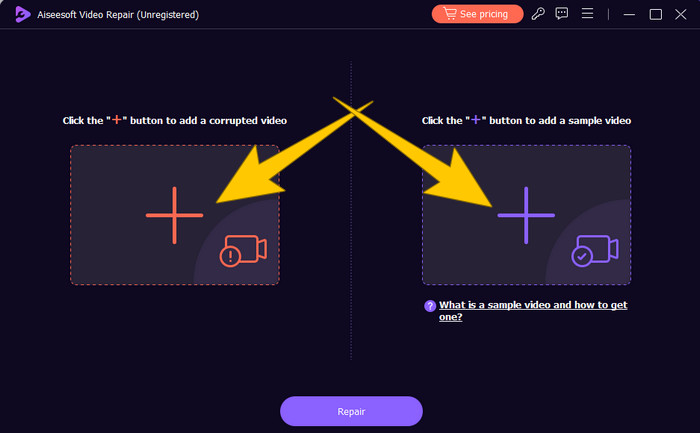
Βήμα 2. Στην κύρια διεπαφή, κάντε κλικ στο κόκκινο κουμπί με το σύμβολο συν για να ανεβάσετε το κατεστραμμένο βίντεο MP4. Στη συνέχεια, κάντε κλικ στο μπλε κουμπί για να ανεβάσετε το δείγμα βίντεο.
Βήμα 3. Μετά την εισαγωγή των αρχείων, ήρθε η ώρα να τα διορθώσετε. Για να το κάνετε αυτό, κάντε κλικ στο κουμπί Repair.
Επανεκκίνηση υπολογιστή και επαναφορά του Premiere Pro:
Σκεφτείτε να επαναφέρετε το Premiere Pro και να επανεκκινήσετε τον υπολογιστή σας, ώστε να ανανεωθούν οι πόροι του συστήματος. Με αυτόν τον τρόπο μπορείτε επίσης να επαναφέρετε τις προτιμήσεις στις προεπιλεγμένες ρυθμίσεις, κάτι που μερικές φορές λύνει προβλήματα συμβατότητας.
Εκκαθάριση αρχείων cache:
Η εκκαθάριση των αρχείων cache του Premiere Pro είναι πάντα προτεινόμενη. Διαγράψτε λοιπόν τα αρχεία cache για να καθαρίσετε τυχόν κατεστραμμένα ή παρωχημένα δεδομένα που μπορεί να προκαλούν το πρόβλημα. Αρκεί να μεταβείτε στο Edit>Preferences>Media Cache>Delete.
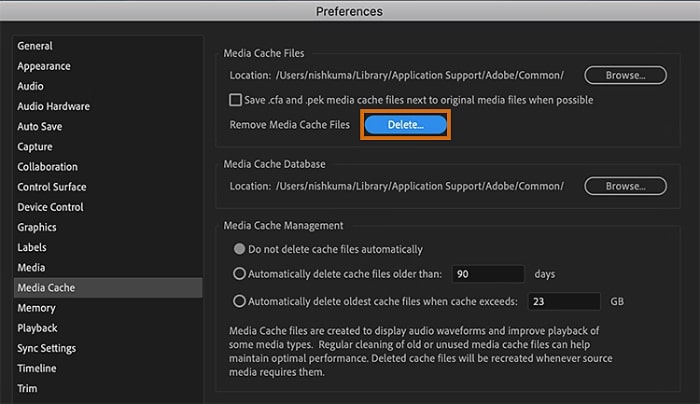
Αλλαγή ρυθμίσεων στο Premiere Pro:
Τέλος, ελέγξτε τις ρυθμίσεις του Premiere Pro και βεβαιωθείτε ότι ταιριάζουν με τις προδιαγραφές των αρχείων MP4 σας. Αυτό περιλαμβάνει τον ρυθμό καρέ, την ανάλυση και τον κωδικοποιητή. Ναι, προσαρμόζοντας αυτές τις ρυθμίσεις ώστε να αντιστοιχούν στα αρχεία MP4, τα προβλήματα συμβατότητας μπορούν μερικές φορές να λυθούν.
Μέρος 3. Συχνές ερωτήσεις σχετικά με το Premiere Pro και το ζήτημα της μη εμφάνισης MP4
Τι πρέπει να κάνω αν τα αρχεία MP4 μου έχουν ασύμβατο κωδικοποιητή, με αποτέλεσμα να μην εμφανίζονται στο Premiere Pro;
Αν τα αρχεία MP4 σας έχουν ασύμβατο κωδικοποιητή, μπορείτε να χρησιμοποιήσετε έναν μετατροπέα HD βίντεο, όπως το Video Converter Ultimate, για να τα μετατρέψετε σε συμβατή μορφή.
Γιατί τα αρχεία MP4 μου δεν εμφανίζονται στο Premiere Pro;
Τα αρχεία MP4 μπορεί να μην εμφανίζονται στο Premiere Pro για διάφορους λόγους, όπως ασύμβατος κωδικοποιητής, προβλήματα με τις ρυθμίσεις του Premiere Pro και καταστροφή του αρχείου.
Μπορώ να κάνω αντιμετώπιση προβλημάτων στο ζήτημα της μη εμφάνισης αρχείων MP4 στο Premiere Pro;
Ναι, μπορείτε να κάνετε αντιμετώπιση προβλημάτων ελέγχοντας τον κωδικοποιητή των αρχείων MP4, ώστε να βεβαιωθείτε ότι ταιριάζουν με τους υποστηριζόμενους κωδικοποιητές του Premiere Pro. Επίσης, μπορείτε να προσπαθήσετε να επιδιορθώσετε τυχόν κατεστραμμένα αρχεία MP4 και να προσαρμόσετε, αν χρειαστεί, τις ρυθμίσεις του Premiere Pro.
Συμπέρασμα
Αυτή η ανάρτηση παρουσιάζει τους λόγους για τους οποίους τα αρχεία βίντεο MP4 δεν εμφανίζονται στο Premiere Pro. Παρέχονται επίσης οι λύσεις, ώστε να αποκτήσετε μια εικόνα για το πώς θα αντιμετωπίσετε το πρόβλημα. Τις περισσότερες φορές, το ίδιο το αρχείο βίντεο είναι η αιτία που εμφανίζεται το ζήτημα. Επομένως, πρέπει να βεβαιώνεστε ότι βρίσκεται σε καλή κατάσταση κάθε φορά που το ανοίγετε στο Premiere Pro.
-
 Γρήγοροι & εύκολοι τρόποι για να συγχρονίσετε ήχο και βίντεο στο Adobe Premiere Pro
 Θέλετε να μάθετε πώς να συγχρονίζετε ήχο και βίντεο στο Premiere Pro; Τότε αυτό το άρθρο είναι για εσάς, καθώς το δοκιμάζουμε στην πράξη με απλά και πραγματικά βήματα.
-
 Πώς να επιταχύνετε ένα βίντεο στο Premiere Pro και με εναλλακτικά εργαλεία
 Θέλετε να μάθετε πώς να χρησιμοποιήσετε το Premiere Pro για να επιταχύνετε ένα βίντεο; Τότε βρίσκεστε στο κατάλληλο άρθρο, καθώς παρέχουμε βήματα και άλλες οικονομικές εναλλακτικές λύσεις.
-
 Τα βίντεο στο Instagram δεν παίζουν; Δείτε πώς μπορείτε να τα διορθώσετε
 Meta Description:Ανεβάζετε βίντεο στο Instagram και δεν παίζουν; Μην ανησυχείτε, γιατί αυτό το άρθρο θα σας δώσει χρήσιμες πληροφορίες και γρήγορες λύσεις για αυτό το ζήτημα. Διαβάστε τώρα!
