


 Video Converter Ultimate
 Εγγραφή οθόνης
 Επισκευή βίντεο
 Ασφαλές κατέβασμα
3 Συμβουλές για να διορθώσετε το VLC που δεν παίζει DVD
Το VLC Media Player είναι ένα από τα πιο δημοφιλή προγράμματα αναπαραγωγής βίντεο και ήχου. Εκτός από διάφορες μορφές ψηφιακών πολυμέσων, το VLC μπορεί επίσης να αναπαράγει DVD, Audio CD και VCD. Ωστόσο, πολλοί χρήστες έχουν αντιμετωπίσει το πρόβλημα το VLC δεν αναπαράγει DVD. Αντιμετωπίζετε την ίδια κατάσταση;

Στην πραγματικότητα, πολλοί λόγοι μπορεί να προκαλέσουν το πρόβλημα το VLC Media Player δεν αναπαράγει DVD. Σε αυτή την ανάρτηση θα συζητήσουμε πώς να το λύσετε με 3 διαφορετικούς τρόπους, είτε το VLC δεν μπορεί να διαβάσει τον δίσκο DVD, είτε τα αρχεία βίντεο και ήχου του DVD «κολλάνε», είτε το VLC δεν αναπαράγει ολόκληρο το DVD.
Μέρος 1. Ενημέρωση ή επανεγκατάσταση VLC για να διορθώσετε το VLC που δεν παίζει DVD
Όταν το VLC Media Player δεν αναπαράγει DVD, θα πρέπει πρώτα να επανεκκινήσετε τον υπολογιστή και το VLC για να ελέγξετε αν το πρόβλημα εξακολουθεί να υπάρχει. Αν το ζήτημα με το VLC που δεν παίζει DVD παραμένει, μπορείτε να επιλέξετε να αναβαθμίσετε το VLC στην πιο πρόσφατη έκδοση.
Ανοίξτε το VLC Media Player στον υπολογιστή σας με Windows 10/8/7 ή σε Mac. Κάντε κλικ στην καρτέλα Help στη γραμμή μενού στο επάνω μέρος. Από το αναπτυσσόμενο μενού, επιλέξτε την επιλογή Check for Updates. Αν υπάρχει διαθέσιμη ενημέρωση, μπορείτε να ακολουθήσετε τις οδηγίες στην οθόνη για να αναβαθμίσετε το VLC στην πιο πρόσφατη έκδοση.
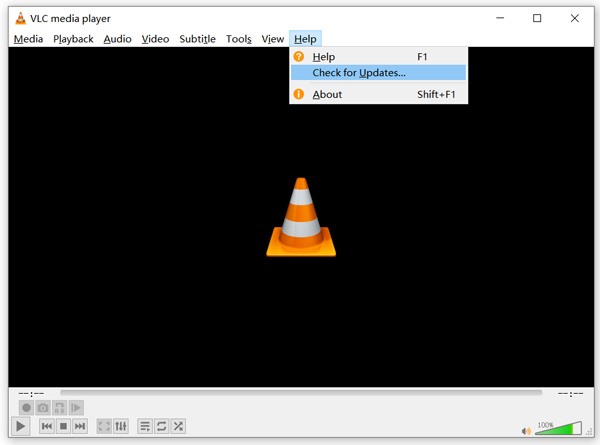
Εδώ μπορείτε επίσης να απεγκαταστήσετε το VLC και στη συνέχεια να το εγκαταστήσετε ξανά στον υπολογιστή σας. Μπορείτε να επισκεφθείτε τον ιστότοπο του VideoLAN για να εγκαταστήσετε δωρεάν μια κατάλληλη έκδοση.
Όταν έχετε εγκαταστήσει μια νέα έκδοση VLC, μπορείτε να αναπαράγετε το DVD σας και να ελέγξετε αν μπορεί να ανοίξει DVD ως συνήθως.
Μέρος 2. Επαναφέρετε τις προτιμήσεις για να επιδιορθώσετε το VLC που δεν παίζει το ζήτημα DVD
Σε ορισμένες περιπτώσεις, μπορείτε να προσαρμόσετε ή να επαναφέρετε τις προτιμήσεις VLC για να λύσετε το πρόβλημα που δεν παίζει το VLC. Ο παρακάτω οδηγός θα σας δείξει πώς να ορίσετε τις προτιμήσεις VLC.
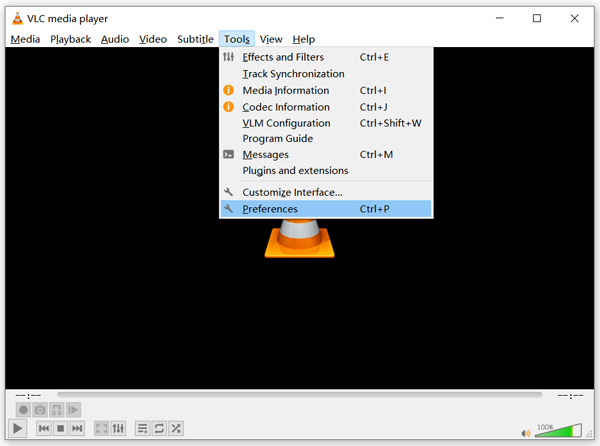
Βήμα 1. Ανοίξτε το VLC και επιλέξτε το μενού Tools. Επιλέξτε την επιλογή Preferences από τη λίστα που εμφανίζεται.
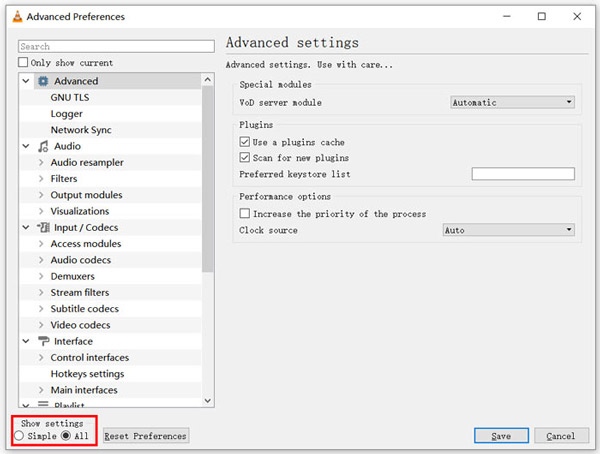
Βήμα 2. Τώρα θα μεταφερθείτε στο παράθυρο Simple Preferences. Τσεκάρετε το All κάτω από το Show Settings στην κάτω αριστερή γωνία για να μπείτε στο παράθυρο Advanced Preferences.
Βήμα 3. Εδώ μπορείτε να κάνετε κλικ στο κουμπί Reset Preferences για να δοκιμάσετε να διορθώσετε το πρόβλημα που το VLC δεν αναπαράγει DVD. Επίσης, μπορείτε να πάτε στην ενότητα Video στα αριστερά, να κάνετε κλικ στο Filters και στη συνέχεια να επιλέξετε την επιλογή Deinterlacing video filter στα δεξιά. Κάντε κλικ στο κουμπί Save για να επιβεβαιώσετε τη λειτουργία σας.
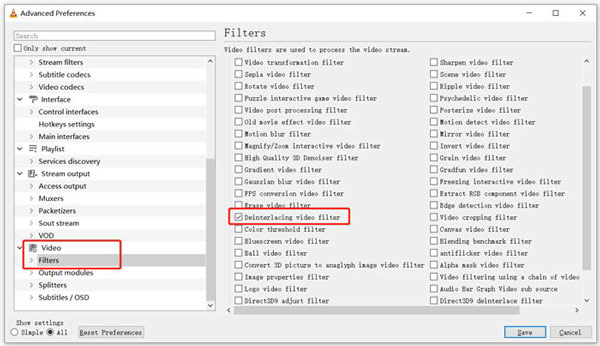
Είτε επιλέξετε να επαναφέρετε είτε να προσαρμόσετε τις προτιμήσεις του VLC, μετά από όλες τις ενέργειές σας, θα πρέπει να επανεκκινήσετε το VLC και στη συνέχεια να το χρησιμοποιήσετε για να αναπαράγετε DVD.
Μέρος 3. Αποκτήστε ένα εναλλακτικό εργαλείο VLC για αναπαραγωγή DVD
Αν το VLC εξακολουθεί να μην αναπαράγει DVD σε υπολογιστή με Windows 10/8/7 ή σε Mac, θα πρέπει να βρείτε ένα εναλλακτικό πρόγραμμα αναπαραγωγής αντί του VLC για να σας βοηθήσει να δείτε ταινίες DVD στον υπολογιστή. Εδώ σας προτείνουμε ιδιαίτερα το Free Online DVD Player για να παρακολουθείτε οποιαδήποτε DVD με υψηλή ποιότητα.
Είναι μια εντελώς δωρεάν συσκευή αναπαραγωγής DVD που σας επιτρέπει να αναπαράγετε δίσκους DVD, φακέλους DVD και αρχεία εικόνας ISO και στα Windows 10/8/7 PC και Mac. Αυτή η δωρεάν συσκευή αναπαραγωγής DVD μπορεί να αναπαράγει απευθείας το DVD σας σε οποιοδήποτε πρόγραμμα περιήγησης ιστού όπως τα Chrome, IE, Firefox και Safari. Είναι εξοπλισμένο με όλες τις δυνατότητες αναπαραγωγής DVD που χρειάζεστε. Επιπλέον, σας επιτρέπει να τραβήξετε στιγμιότυπα, να προσθέσετε, να προσαρμόσετε και να επιλέξετε υπότιτλους και κομμάτια ήχου.
Βήμα 1. Όταν θέλετε να αναπαράγετε DVD, μπορείτε να μεταβείτε σε αυτή τη σελίδα Free Online DVD Player και να κάνετε κλικ στο κουμπί Play Now για να εγκαταστήσετε έναν Launcher για την αναπαραγωγή DVD. Μόλις ολοκληρωθεί η εγκατάσταση, το πρόγραμμα αναπαραγωγής DVD θα ξεκινήσει αυτόματα.

Βήμα 2. Όταν μπείτε σε αυτό το πρόγραμμα αναπαραγωγής DVD, μπορείτε να επιλέξετε Open Disc ή Open File, ανάλογα με τις ανάγκες σας. Για να αναπαραγάγετε έναν δίσκο DVD, θα πρέπει να εισαγάγετε τον δίσκο DVD και να επιλέξετε την επιλογή Open Disc. Για να ανοίξετε φάκελο DVD ή αρχείο DVD ISO, μπορείτε να χρησιμοποιήσετε την επιλογή Open File.
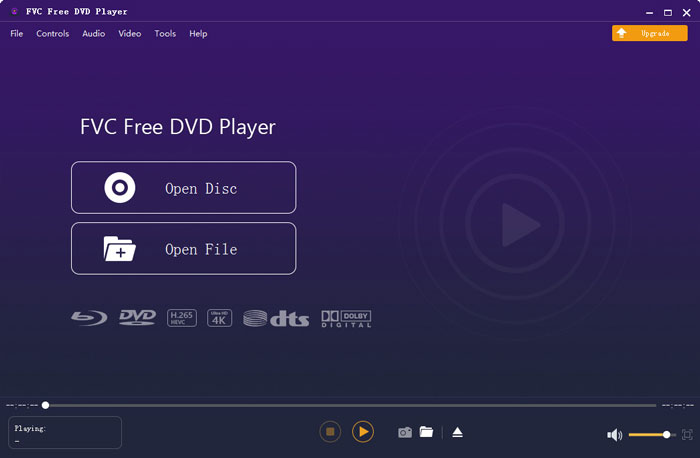
Βήμα 3. Σας παρέχεται πλήρης έλεγχος της αναπαραγωγής DVD. Μπορείτε να προωθείτε, να γυρίζετε πίσω, να κάνετε παύση και να τη σταματάτε οποιαδήποτε στιγμή θέλετε. Μπορείτε επίσης να τραβάτε στιγμιότυπα οθόνης από τις αγαπημένες σας σκηνές. Επίσης, μπορείτε να αλλάζετε το κομμάτι ήχου, το κομμάτι βίντεο και το κομμάτι υποτίτλων ανάλογα με τις ανάγκες σας.
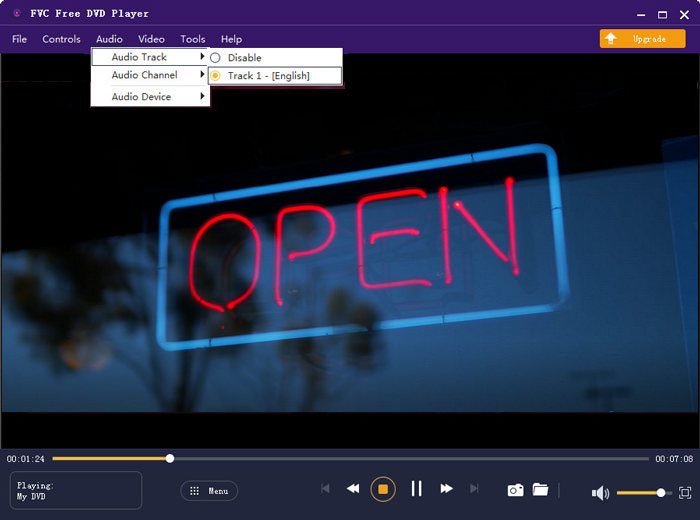
Αυτή η εναλλακτική λύση του VLC Media Player έχει τη δυνατότητα αναπαραγωγής ταινιών DVD με υψηλή ποιότητα εικόνας και ήχου. Έχει σχεδιαστεί με την προηγμένη τεχνολογία κωδικοποίησης βίντεο και υποστηρίζει τόσο DTS-HD όσο και Dolby TrueHD. Έτσι, όταν αντιμετωπίζετε το VLC που δεν παίζει πρόβλημα DVD, μπορείτε να βασιστείτε σε αυτό το DVD player για να παρακολουθήσετε τα DVD σας.
Περισσότερες εναλλακτικές λύσεις στο VLC θα βρείτε εδώ.
Μέρος 4. Οι συχνές ερωτήσεις του VLC Media Player δεν αναπαράγουν DVD
Ερώτηση 1. Πώς να παίξετε DVD με VLC;
Για αναπαραγωγή της ταινίας DVD στο VLC Media Player, μπορείτε να τοποθετήσετε δίσκο DVD στη μονάδα δίσκου του υπολογιστή, να ανοίξετε το VLC Media Player και, στη συνέχεια, να κάνετε κλικ στο μενού Media. Επιλέξτε Άνοιγμα δίσκου και DVD και, στη συνέχεια, κάντε κλικ στο κουμπί Αναζήτηση για να φορτώσετε το αρχείο DVD. Μετά από αυτό, το VLC θα ξεκινήσει την αναπαραγωγή του DVD σας.
Ερώτηση 2. Γιατί δεν μπορώ να παίξω DVD στα Windows 10;
Η ενσωματωμένη υποστήριξη αναπαραγωγής DVD της Microsoft δεν είναι πλέον διαθέσιμη στα Windows 10. Γι 'αυτό δεν μπορείτε να αναπαράγετε DVD σε υπολογιστή με Windows 10. Αντ 'αυτού, η Microsoft προσφέρει το λογισμικό Windows DVD Player που κοστίζει $14.99 για να παρακολουθείτε DVD.
Ερώτηση 3. Πώς να αντιγράψετε ένα DVD σε MP4;
Όταν θέλετε να παρακολουθήσετε DVD στον υπολογιστή, μπορείτε επίσης να επιλέξετε να μετατρέψετε το DVD σε ένα ψηφιακό αρχείο βίντεο, όπως το MP4. Μπορείτε να βασιστείτε στον ισχυρό μετατροπέα DVD σε MP4 για να «ripάρετε» το DVD σας σε MP4 χωρίς απώλεια ποιότητας.
συμπέρασμα
Το VLC μπορεί να λειτουργήσει ως δωρεάν πρόγραμμα αναπαραγωγής DVD για να σας βοηθήσει να αναπαράγετε DVD σε υπολογιστές με Windows 10/8/7, Mac και Linux. Μπορεί εύκολα να έχει πρόσβαση στο μενού του DVD, στα κεφάλαια και σε άλλα σχετικά περιεχόμενα. Ωστόσο, πολλοί χρήστες παραπονέθηκαν για το πρόβλημα το VLC δεν αναπαράγει DVD.
Σε αυτή την ανάρτηση, μπορείτε να βρείτε 3 αποτελεσματικές λύσεις για να διορθώσετε το πρόβλημα το VLC Media Player δεν αναπαράγει DVD. Ελπίζουμε να μπορείτε να παρακολουθείτε καλύτερα τις ταινίες DVD σας αφού διαβάσετε αυτή τη σελίδα.
-
 Πώς να εγγράψετε το αρχείο _TS Video σε DVD σε Mac / Windows 10
 Πώς μπορώ να μετατρέψω και να εγγράψω αρχεία TS σε δίσκο DVD; Αυτός ο αναλυτικός οδηγός θα σας δείξει πώς να αντιγράψετε αρχεία TS και φακέλους σε DVD σε Windows / Mac, ώστε να μπορείτε να παρακολουθείτε αρχεία TS σε συσκευή αναπαραγωγής DVD ή τηλεόραση.
-
 Πώς να εγγράψετε βίντεο οθόνης με ήχο με VLC Media Player
 Είναι ένας αναλυτικός οδηγός για την ολοκληρωμένη χρήση της δυνατότητας εγγραφής οθόνης VLC. Μπορείτε να βρείτε τη λεπτομερή διαδικασία, την αντιμετώπιση προβλημάτων και την καλύτερη εναλλακτική λύση από το άρθρο.
-
 Οι 5 καλύτεροι παίκτες βίντεο για iPhone που δεν πρέπει να χάσετε το 2021
 Για να αναπαράγετε βίντεο σε όλες τις μορφές και να έχετε καλύτερη εμπειρία προβολής στο iPhone σας, θα πρέπει να διαβάσετε αυτό το άρθρο και να μάθετε για τα καλύτερα 5 προγράμματα αναπαραγωγής βίντεο για iPhone 12/11/X/8/7/6.
