


 Video Converter Ultimate
 Εγγραφή οθόνης
 Επισκευή βίντεο
 Ασφαλές κατέβασμα
Πώς να εγγράψετε MP4 στο iPhone: Ρυθμίσεις και καλύτερες λύσεις για να ανακαλύψετε
Καταγράφει το iPhone σε MP4; Συνήθως, τα iPhone καταγράφουν βίντεο σε μορφή MOV, η οποία γενικά λειτουργεί καλά. Ωστόσο, αν θέλετε να μοιραστείτε αυτά τα βίντεο του iPhone με συσκευές που δεν υποστηρίζουν το MOV, θα αντιμετωπίσετε προβλήματα. Επομένως, είτε παρακολουθείτε, είτε τραβάτε, είτε επεξεργάζεστε ένα βίντεο στο iPhone σας, είναι σημαντικό να κατανοείτε τις μορφές βίντεο που χρησιμοποιεί. Αυτή η κατανόηση ή γνώση μπορεί να σας βοηθήσει να αποφύγετε προβλήματα αναπαραγωγής, χρησιμοποιώντας τον σωστό τύπο αρχείου και τα κατάλληλα codecs. Σε αυτό το άρθρο λοιπόν, θα σας δείξω τρεις απλούς τρόπους για να καταγράφετε βίντεο σε MP4 στο iPhone σας, ώστε τα βίντεο να είναι συμβατά για αναπαραγωγή και επεξεργασία.

Μέρος 1. Το iPhone εγγράφει βίντεο σε MP4
Πολλοί άνθρωποι, ειδικά μη χρήστες iPhone, αναρωτιούνται αν ένα iPhone καταγράφει σε μορφή MP4. Λοιπόν, για να απαντήσετε γρήγορα σε αυτό, τα iPhone μπορούν να εγγράψουν βίντεο σε δύο μορφές. Αλλά αυτό εξακολουθεί να εξαρτάται από τις ρυθμίσεις. Η προεπιλεγμένη επιλογή είναι το MOV, το οποίο είναι μια ευρέως χρησιμοποιούμενη μορφή για συσκευές Apple που παίζει καλά σε ορισμένες συσκευές. Ωστόσο, τα iPhone προσφέρουν επίσης μια επιλογή εξοικονόμησης χώρου που ονομάζεται υψηλή απόδοση ή HEVC. Αυτό χρησιμοποιεί διαφορετική μορφή, αλλά μπορείτε ακόμα να προβάλετε αυτές τις εγγραφές απευθείας στο iPhone σας.
Τώρα, όσον αφορά την εγγραφή οθόνης, η ενσωματωμένη συσκευή εγγραφής οθόνης του iPhone αποθηκεύει εγγραφές μόνο σε μορφή MOV. Επομένως, εάν χρειάζεστε εγγραφές MP4 και εάν θέλετε να επεξεργαστείτε αυτά τα βίντεο MP4 απευθείας στο iPhone σας, θα πρέπει να καταφύγετε σε μια επαγγελματική συσκευή εγγραφής οθόνης ή λογισμικό επεξεργασίας στον υπολογιστή σας λόγω περιορισμών στο App Store.
Μέρος 2. Πώς να εγγράψετε MP4 στο iPhone χωρίς μετατροπή
Σε συνάφεια με την καταγραφή βίντεο σε MP4 σε ένα iPhone, παρουσιάζουμε ένα επαγγελματικό λογισμικό που ονομάζεται FVC Screen Recorder, το οποίο θα σας βοηθήσει να καταγράφετε την οθόνη του iPhone σας, ακόμη και τα βίντεό του, και να παράγει από αυτά ένα αρχείο εξόδου σε MP4. Το FVC Screen Recorder διαθέτει διάφορα εργαλεία εγγραφής, συμπεριλαμβανομένου αυτού για το iPhone σας. Λειτουργεί κατοπτρίζοντας την οθόνη του τηλεφώνου σας και έπειτα καταγράφει τα πάντα σε αυτήν, συμπεριλαμβανομένου του ήχου του συστήματος. Αυτό που το κάνει ξεχωριστό είναι ότι προσφέρει εργαλεία σχολιασμού που θα σας βοηθήσουν να εξατομικεύσετε τις εγγραφές που έχετε κάνει. Πράγματι, με αυτό το FVC Screen Recorder, δεν θα χρειάζεται να μετατρέπετε τα βίντεο του iPhone μόνο και μόνο για να έχετε εξαιρετική ποιότητα βίντεο σε MP4. Το μόνο που χρειάζεται είναι να ακολουθήσετε τον παρακάτω οδηγό για το πώς να εγγράφετε MP4 σε iPhone, και είστε έτοιμοι.
Βήμα 1. Το πρώτο πράγμα που πρέπει να κάνετε είναι να αποκτήσετε το πρόγραμμα εγγραφής για τον υπολογιστή σας. Μπορείτε να το κατεβάσετε σε επιτραπέζιο υπολογιστή ή Mac κάνοντας κλικ στα κουμπιά Λήψη παρακάτω. Συμβουλή: Μπορείτε ήδη να ετοιμάσετε το iPhone σας και να το συνδέσετε στο ίδιο WLAN με το οποίο είναι συνδεδεμένος ο υπολογιστής σας.
Δωρεάν ΛήψηΓια Windows 7 ή νεότεραΑσφαλής Λήψη
Δωρεάν ΛήψηΓια MacOS 10.7 ή νεότεροΑσφαλής Λήψη
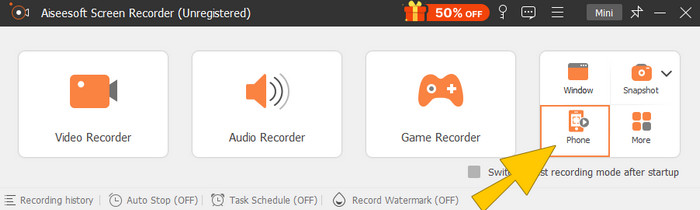
Βήμα 2. Εκκινήστε το πρόγραμμα εγγραφής οθόνης και κάντε κλικ στο εργαλείο εγγραφής Phone. Έπειτα, επιλέξτε την επιλογή iOS. Μεταβείτε στο Πίνακα Ελέγχου (Control Center) του iPhone σας, πατήστε τη λειτουργία Screen Mirroring και επιλέξτε εκεί την επιλογή Screen Recorder. Αυτό θα συνδέσει τις δύο συσκευές σας για να ξεκινήσει η εγγραφή.
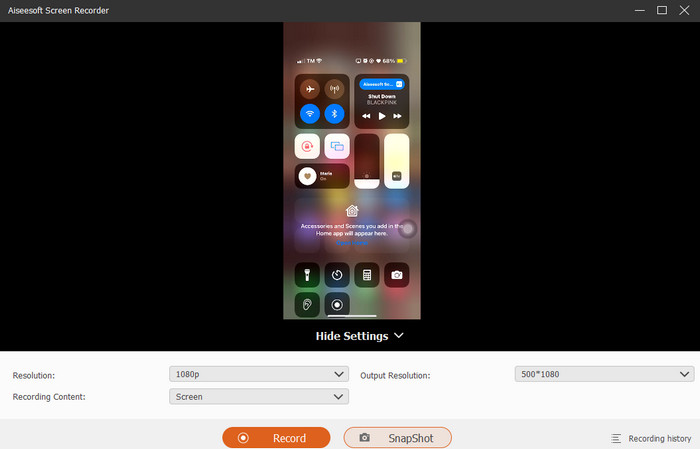
Βήμα 3. Όταν συνδεθούν, μπορείτε πλέον να κάνετε κλικ στο κουμπί Record. Στη συνέχεια, πατήστε το κουμπί Stop όταν τελειώσετε.
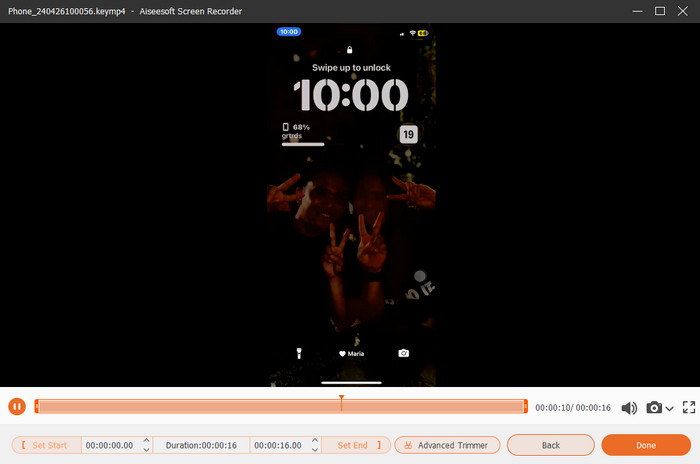
Βήμα 4. Μετά την εγγραφή, το εργαλείο θα σας μεταφέρει στην ενότητα αποθήκευσης, όπου μπορείτε να επεξεργαστείτε την αρχική εγγραφή. Οι επεξεργασίες περιλαμβάνουν την ένταση του ήχου, το κόψιμο (trimming) και τη λήψη στιγμιότυπου οθόνης. Διαφορετικά, κάντε κλικ στο κουμπί Done για να αποθηκεύσετε το καταγεγραμμένο MP4.
Μέρος 3. Πώς να εγγράψετε MP4 μέσω ρυθμίσεων iPhone
Συνήθως, τα βίντεο που τραβάτε με το iPhone σας δεν αποθηκεύονται ως αρχεία MP4. Ωστόσο, εάν τα θέλετε σε μορφή MP4, πρέπει να τροποποιήσετε τις ρυθμίσεις, που είναι ίσως ο απλούστερος τρόπος για να το κάνετε. Αλλά περιμένετε, είναι σημαντικό να σημειώσετε ότι η εναλλαγή σε MP4 μπορεί να οδηγήσει σε άφθονη αποθήκευση στο τηλέφωνό σας. Επομένως, προτού τροποποιήσετε τις ρυθμίσεις, σκεφτείτε αν αξίζει να δοκιμάσετε. Διαφορετικά, δείτε τα βήματα που παρέχονται παρακάτω.
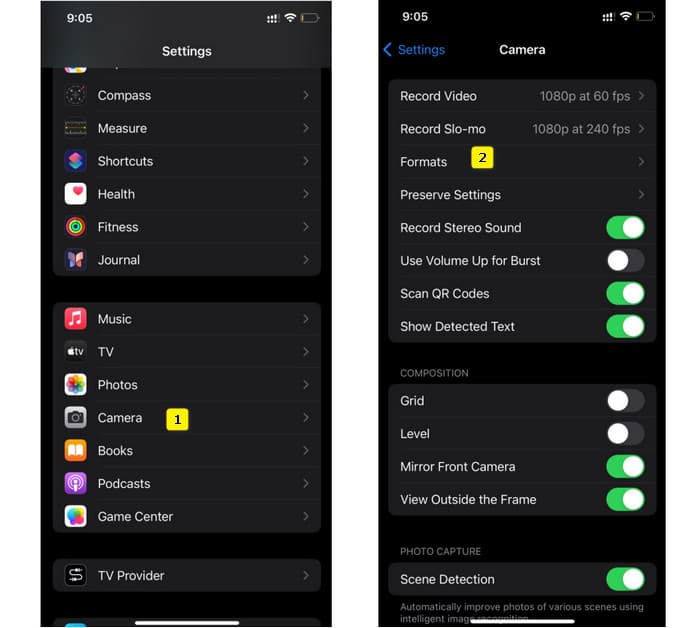
Βήμα 1. Μεταβείτε στην εφαρμογή Ρυθμίσεις του τηλεφώνου σας, βρείτε την εφαρμογή Κάμερα και πατήστε για να την ανοίξετε.
Βήμα 2. Τώρα μεταβείτε στην ενότητα Format και πατήστε την. Έπειτα, ορίστε την στην επιλογή Most Compatibility, ώστε να έχετε το MP4 ως προεπιλεγμένη μορφή.
Βήμα 3. Αφού το κάνετε αυτό, μπορείτε να αρχίσετε να καταγράφετε το iPhone σας χρησιμοποιώντας το ενσωματωμένο εργαλείο εγγραφής οθόνης.
Μέρος 4. Μετατρέψτε τις εγγραφές iPhone σε MP4 Online δωρεάν
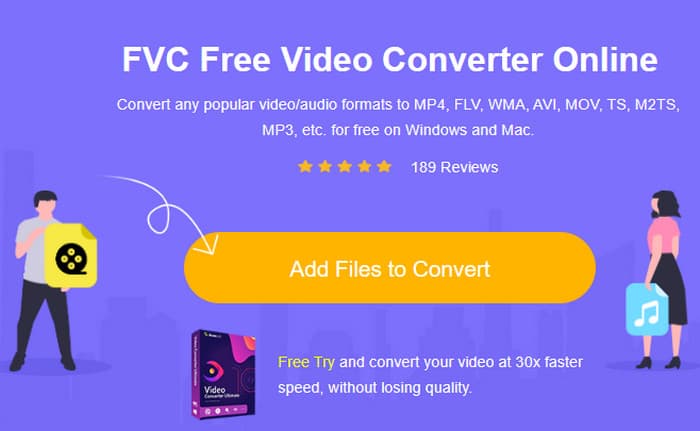
Ας το παραδεχτούμε, όταν η εγγραφή κατευθείαν σε MP4 δεν είναι εφικτή για εσάς, η έσχατη λύση θα είναι η μετατροπή. Έτσι, μπορείτε να χρησιμοποιήσετε έναν δωρεάν online μετατροπέα για να έχετε μια πιο εύκολη και γρήγορη λύση για το βίντεό σας. Γνωρίστε το FVC Free Video Converter Online, ένα δωρεάν πρόγραμμα που σας επιτρέπει να μετατρέπετε τα βίντεο και τη μουσική σας σε διαφορετικές μορφές. Λειτουργεί με δημοφιλή αρχεία βίντεο και ήχου και μπορεί να τα μετατρέψει σε μορφές όπως MP4, FLV, AVI, WMV, MOV, MKV και πολλές ακόμη. Ακόμη και βίντεο υψηλής ανάλυσης μπορούν να μετατραπούν γρήγορα χωρίς απώλεια ποιότητας! Μπορείτε επίσης να μετατρέψετε πολλαπλά βίντεο ταυτόχρονα, βοηθώντας σας να εξοικονομήσετε περισσότερο χρόνο στη μετατροπή. Αυτό που το κάνει ακόμη πιο βολικό είναι ότι δεν θα χρειαστεί να κατεβάσετε χωριστά τα μετατρεπόμενα αρχεία, καθώς θα σας ζητήσει απλώς να επιλέξετε έναν φάκελο προορισμού όπου οι έξοδοι θα αποθηκευτούν απευθείας! Ας δοκιμάσουμε, λοιπόν, αυτό το εκπληκτικό εργαλείο και ας μετατρέψουμε γρήγορα τα βίντεο του iPhone σας!
Βήμα 1. Στον περιηγητή (browser) του υπολογιστή σας, επισκεφθείτε την επίσημη ιστοσελίδα του εργαλείου. Έπειτα, κάντε κλικ στο κουμπί Add Files to Convert για να κατεβάσετε τον εκκινητή (launcher). Μόλις εγκατασταθεί, κάντε ξανά κλικ στο κουμπί για να ανεβάσετε τα βίντεο του iPhone σας.
Βήμα 2. Όταν μεταβείτε στην κύρια διεπαφή και θέλετε να προσθέσετε περισσότερα βίντεο από το iPhone για μετατροπή, απλώς κάντε κλικ στο κουμπί Add File. Έπειτα, ορίστε τα αρχεία σε MP4 κάνοντας κλικ πάνω τους και επιλέγοντας τη μορφή στο κάτω μέρος.
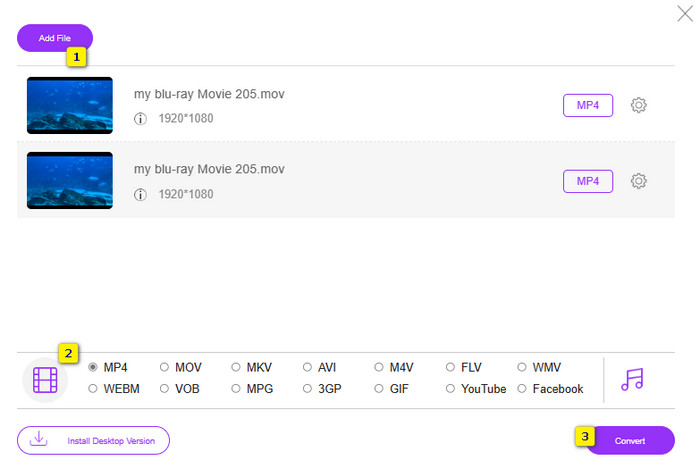
Βήμα 3. Όταν τελειώσετε, κάντε κλικ στο κουμπί Convert και επιλέξτε τον φάκελο προορισμού των αρχείων. Αμέσως μετά την επιλογή, θα ξεκινήσει η διαδικασία μετατροπής.
Με τα παραπάνω βήματα, μπορείτε εύκολα να μετατρέψετε δωρεάν τα βίντεο MOV από iPhone σε MP4.
Μέρος 5. Συχνές ερωτήσεις σχετικά με τις εγγραφές βίντεο MP4 του iPhone
Μπορώ να επεξεργαστώ βίντεο MP4 που έχουν εγγραφεί στο iPhone μου;
Ναι, μπορείτε να επεξεργαστείτε τα βίντεο MP4 στο iPhone σας. Για να το κάνετε αυτό, χρησιμοποιήστε διάφορες εφαρμογές επεξεργασίας βίντεο που είναι διαθέσιμες στο App Store σας. Διαφορετικά, μπορείτε να μεταφέρετε τα βίντεο στον υπολογιστή σας και να τα επεξεργαστείτε χρησιμοποιώντας επαγγελματικό λογισμικό επεξεργασίας βίντεο.
Πώς μπορώ να μεταφέρω βίντεο MP4 από το iPhone μου σε υπολογιστή;
Υπάρχουν πολλές μέθοδοι που μπορείτε να χρησιμοποιήσετε για να μεταφέρετε τα βίντεό σας από το iPhone σε υπολογιστή. Μπορείτε να χρησιμοποιήσετε ένα καλώδιο USB, να ανεβάσετε τα βίντεο στο χώρο αποθήκευσης cloud ή να χρησιμοποιήσετε λογισμικό που θα σας βοηθήσει να τα μεταφέρετε.
Τι ποιότητα και ανάλυση βίντεο καταγράφει το iPhone σε MP4;
Αυτό εξαρτάται από το μοντέλο του iPhone σας. Τα iPhone συνήθως καταγράφουν βίντεο σε μορφή MP4 με διάφορες αναλύσεις και επιλογές ποιότητας. Οι επιλογές κυμαίνονται από τυπική ευκρίνεια έως υψηλή ευκρίνεια και ακόμη και 4K σε νεότερα μοντέλα.
συμπέρασμα
Αυτές είναι οι μέθοδοι που σας δίνουν καθοδήγηση σχετικά με τον τρόπο εγγραφής MP4 στο iPhone σας εύκολα. Επιλέξτε αυτό που σας ταιριάζει καλύτερα και μοιραστείτε το και με τους φίλους σας!
-
 Πώς να μετατρέψετε MP4 σε MOV σε Mac / PC / Online
 Πώς να μετατρέψετε MP4 σε MOV σε Mac; Υπάρχει δωρεάν τρόπος μετατροπής MP4 σε MOV χωρίς απώλεια ποιότητας; Αυτή η ανάρτηση μοιράζεται 4 απλούς τρόπους για να σας βοηθήσει να πραγματοποιήσετε τη μετατροπή βίντεο από MP4 σε MOV σε Mac, Windows PC και online.
-
 Tutorial - 4 δωρεάν τρόποι συγχώνευσης βίντεο στο iPhone σε νέο
 Θέλετε να συνδυάσετε βίντεο σε ένα στο iPhone σας; Διαβάστε και αποκτήστε 4 εύκολους τρόπους με όλα τα μοντέλα iPhone και τις εκδόσεις iOS που υποστηρίζονται.
-
 [Επιλύθηκε] Πώς να διορθώσετε τα βίντεο που δεν παίζονται στο iPhone με λεπτομερή βήματα
 Δεν είναι δυνατή η αναπαραγωγή τοπικών βίντεο στη συλλογή στο iPhone σας μέσω του προεπιλεγμένου προγράμματος αναπαραγωγής βίντεο; Συμβαίνει πάντα βίντεο στο YouTube που δεν παίζονται στο iPhone; Ακολουθούν 5 λύσεις που θα σας βοηθήσουν σε αυτό το άρθρο.
