


 Video Converter Ultimate
 Εγγραφή οθόνης
 Επισκευή βίντεο
 Ασφαλές κατέβασμα
3 Καλύτερες συσκευές εγγραφής κλήσεων Facebook - Πώς να εγγράψετε κλήσεις βίντεο στο Facebook
How to record Facebook video calls to remain the precious time between you and your friends and families? After Facebook equips the feature of video calling, more and more users are likely to contact others through Facebook calls rather than phone calls. But as an additional communication function of a social media platform, it doesn’t have the recording feature as the phone call. However, the derived standalone app—Facebook Messenger doesn’t have a built-in recorder. In this case, you can learn about 3 easy-to-use Facebook call recorders for computers, iOS devices, and Android mobile with the detailed guidelines in this article.

Μέρος 1: Η καλύτερη ηλεκτρονική συσκευή εγγραφής κλήσεων Facebook για Windows / Mac
Without downloading any third-party software, you can use FVC Free Screen Recorder to record Facebook video calls online for free. It is a user-friendly Facebook call recorder that has a concise interface with multiple features you need.
- 1. Καταγράψτε δωρεάν κλήσεις και βίντεο στο Facebook online με απλά βήματα.
- 2. Η απώλεια ηχογράφησης ήχων και βίντεο για τη διατήρηση βίντεο υψηλής ποιότητας.
- 3. Δεν υπάρχει υδατογράφημα για την προστασία της ιδιοκτησίας σας.
- 4. Οι εγγραφές θα αποθηκευτούν αυτόματα στη βιβλιοθήκη πολυμέσων και μπορείτε να επιλέξετε να διαγράψετε, να κατεβάσετε και να μοιραστείτε ελεύθερα στο SNS.
Step 1: Navigate to the website of FVC Free Screen Recorder on any browser. Click the Start Recording button to install the launcher in a few seconds, and then click the Start Recording button again to launch the recorder.
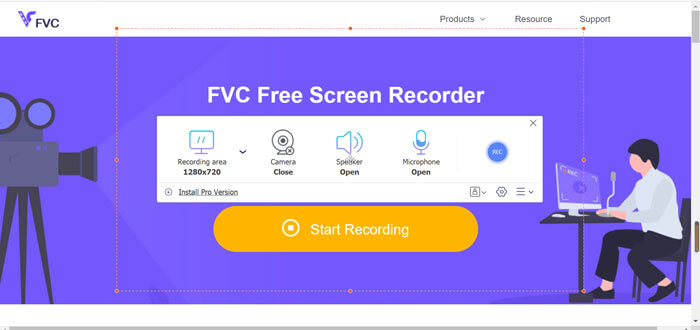
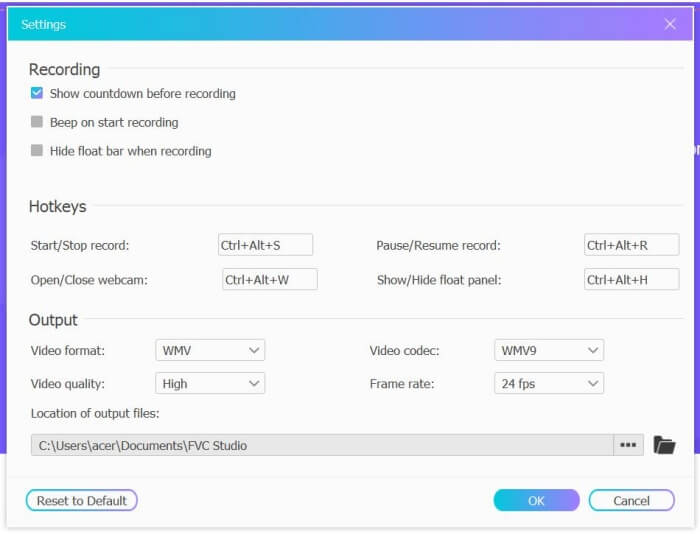
Step 2: Click the Recording Area menu to choose the full screen or select region freely. Then turn on the Microphone and the Speaker voice. As for adjusting the video settings, you can click the Setting icon. And you can choose the MP4 format, High quality, and 24 fps to keep the high quality of the recordings. Then click the REC button to start recording Facebook calls.
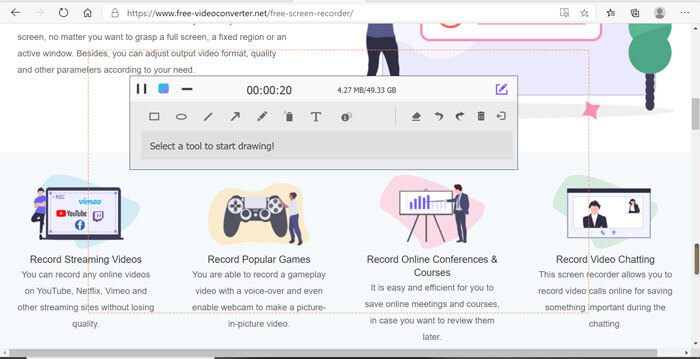
Step 3: There will pop up a toolbox with multiple editing tools. You can choose to add shapes, words, and lines according to your need. Then click the Stop icon to save your recording in the cloud. You can click the right mouse to choose to download it on your computer.
Η χρήση αυτής της δωρεάν ηλεκτρονικής συσκευής εγγραφής βιντεοκλήσεων Facebook είναι ο καλύτερος τρόπος για τους χρήστες υπολογιστών να καταγράφουν διαδικτυακές κλήσεις βίντεο Facebook. Προσαρμόζοντας τις ρυθμίσεις εγγραφής εκ των προτέρων, μπορεί να αποθηκεύσει τις κλήσεις Facebook σε μορφή MP4 με μικρό μέγεθος και υψηλή ποιότητα. Εάν έχετε συνηθίσει να έχετε κλήσεις Facebook σε κινητό, συνεχίστε να διαβάζετε αυτό το άρθρο.
Μέρος 2: Τρόπος εγγραφής κλήσης Facebook για iOS μέσω της προεπιλεγμένης συσκευής εγγραφής
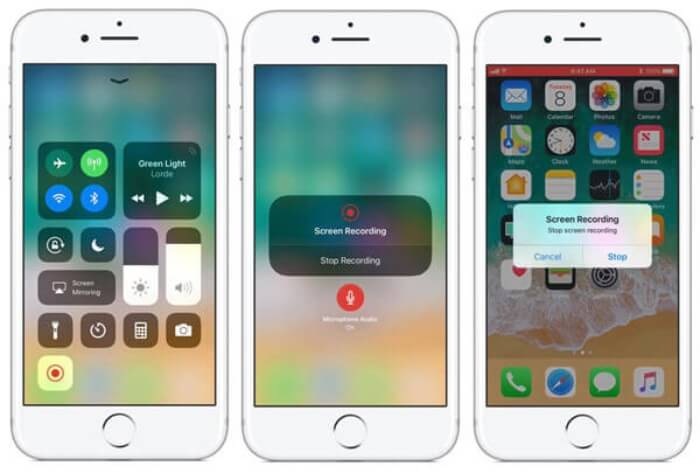
Η ενημερωμένη έκδοση iOS 11 ή νεότερη έκδοση έχει μια νέα προεπιλεγμένη συσκευή εγγραφής στο iPhone και το iPad σας, η οποία είναι η καλύτερη επιλογή για τη λήψη βιντεοκλήσεων Facebook χωρίς λήψη εφαρμογών. Εδώ μπορείτε να μάθετε πώς να προσθέσετε τη συσκευή εγγραφής κλήσεων Facebook στις συντομεύσεις στο κέντρο ελέγχου και τον τρόπο χρήσης της.
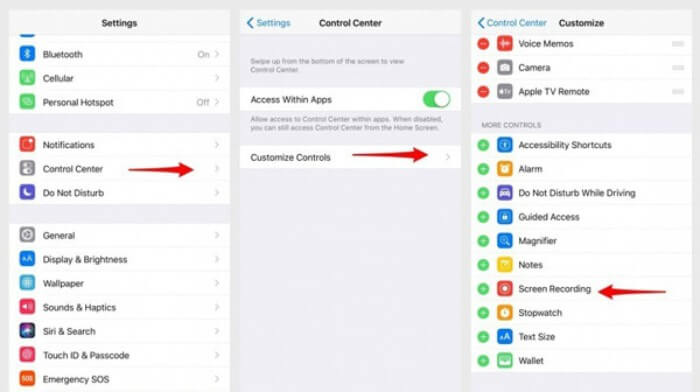
Step 1: Tap the Settings app on your iPhone/iPad and scroll down to choose the Control Center option. Then tap the Customize Controls tab and find the Screen Recording function. Tap the Plus icon to add this feature to the control center.
Step 2: Pull down from the top of the phone screen to open the control center and you will find the recording app at the bottom. Tap the Screen Recording icon to start the recording, and you can choose to capture the videos or only record the audio track. If you want to finish it, tap the red Status Bar at the top and tap the Stop option in the pop-up window.
Μέρος 3: Μια εύκολη συσκευή εγγραφής Facebook Messenger για Android
Ορισμένα τηλέφωνα Android δεν διαθέτουν ενσωματωμένες συσκευές εγγραφής και υπάρχουν πάρα πολλές συσκευές εγγραφής βιντεοκλήσεων Facebook για να διαλέξετε το Android. Έτσι, μπορείτε να μάθετε μια από τις καλύτερες συσκευές εγγραφής για κινητά Android με τα λεπτομερή βήματα στο επόμενο μέρος.
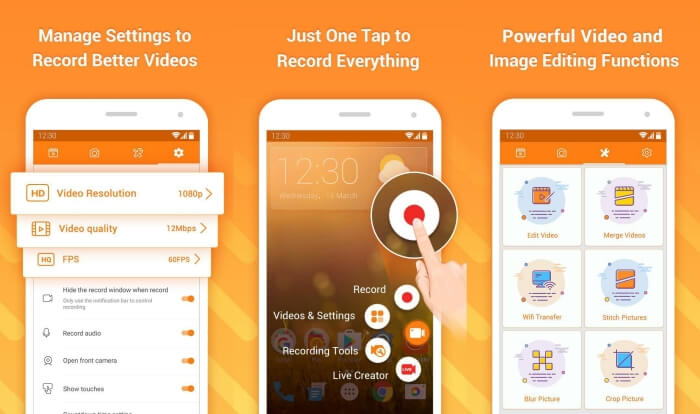
DU Recorder is an easy-to-use Facebook call recorder for Android and it’s famous for its smooth recording. Without root, everyone can use it to record Facebook Messenger calls in one tap.
Step 1: Launch the recorder and there are four menus including recordings, screenshots, editing tools, and settings. Firstly, tap the Settings menu to adjust the video parameters. To keep high quality, you can choose 1080p resolution and 30 fps frame rate.
Step 2: Don’t close the recorder and just launch Facebook Messenger. Then you can see the recorder icon. Tap the icon and choose the Recording icon to start capturing the screen and voice. And you can tap it again to stop the recording. Then you can tap the Editing icon to clip the recording and add music to it.
Ίσως σας ενδιαφέρει επίσης:
Μέρος 4: Συνήθεις ερωτήσεις για το Facebook Call Recorder
1. Έχει το Facebook την προεπιλεγμένη συσκευή εγγραφής για εγγραφή βιντεοκλήσεων σε υπολογιστή;
Όχι, δεν είναι. Έτσι, πρέπει να βασιστείτε σε άλλους επαγγελματικούς καταγραφείς κλήσεων Facebook. Εάν δεν θέλετε να κάνετε λήψη άλλου λογισμικού που θα καταλαμβάνει τον χώρο αποθήκευσης στον υπολογιστή σας, το FVC Free Screen Recorder είναι η καλύτερη επιλογή σας.
2. Πώς να ξεκινήσετε μια συνομιλία με έναν φίλο σας στο Facebook Messager App;
Αρχικά, ανοίξτε το Facebook Messenger στο κινητό σας και, στη συνέχεια, επιλέξτε το πλαίσιο συνομιλίας του φίλου που θέλετε να πραγματοποιήσετε μια κλήση στο Facebook. Και τώρα μπορείτε να δείτε το εικονίδιο βίντεο, ώστε να μπορείτε να κάνετε κλικ για να ξεκινήσετε μια βιντεοκλήση.
3. Ποια μορφή πρέπει να επιλέξω για να αποθηκεύσω τις εγγραφές όταν χρησιμοποιώ συσκευές εγγραφής Facebook Messenger;
Είτε χρησιμοποιείτε συσκευή εγγραφής κλήσεων Facebook σε υπολογιστή ή κινητό, η καλύτερη μορφή για την αποθήκευση βιντεοκλήσεων Facebook είναι το MP4. Μπορεί να εξοικονομήσει περισσότερο χώρο αποθήκευσης και είναι συμβατό με όλες τις συσκευές.
συμπέρασμα
The above article has introduced 3 Facebook video call recorders. For iPhone, iPad, and some Android mobiles, you can use the built-in recorder on your phone easily. Otherwise, you can choose any recorder including the DU recorder on Google Play. As for PC, FVC Free Screen Recorder is your best choice to capture Facebook calls. If you encountered other problems when using Facebook call recorders, please leave your comment below.
-
 Snagit 2021 Review - Πλεονεκτήματα, μειονεκτήματα και η καλύτερη εναλλακτική λύση
 Ποια είναι η καλύτερη εναλλακτική λύση για το Snagit; Υπάρχει ένα εργαλείο καταγραφής οθόνης όπως το Snagit; Αυτή η ανάρτηση θα εξετάσει το Snagit και θα μοιραστεί την καλύτερη εναλλακτική λύση στο Snagit για να τραβήξει την οθόνη.
-
 6 καλύτερες συσκευές εγγραφής WAV που δεν πρέπει να χάσετε σε επιτραπέζιο υπολογιστή και σε απευθείας σύνδεση
 Το καλύτερο λογισμικό εγγραφής WAV που μοιραζόμαστε σε αυτό το άρθρο διαθέτει μια ποικιλία χρήσιμων λειτουργιών, οι οποίες σας βοηθούν να καταγράψετε ήχο και φωνή σαν επαγγελματίες.
-
 Κορυφαία 4 δωρεάν ηχογραφήσεις AIFF που παράγουν ήχο υψηλής ποιότητας
 Αυτό το άρθρο μιλά για το AIFF και μερικά από τα πιο δημοφιλή εργαλεία που μπορείτε να χρησιμοποιήσετε για να δημιουργήσετε μορφή AIFF υψηλής ποιότητας.
