


 Video Converter Ultimate
 Εγγραφή οθόνης
 Επισκευή βίντεο
 Ασφαλές κατέβασμα
Βήμα προς βήμα Πώς να προσθέσετε το Art Album σε MP3 χρησιμοποιώντας το καλύτερο λογισμικό στην επιφάνεια εργασίας
Prefixing album art can become handy, especially if you want to help the listener feel more attached to the music they are listening to. With this album art, users can glimpse an idea of what the music is all about, chiefly the digital ones. In some scenarios, MP3 doesn’t have a proper album art or isn’t attached to the file. If you experience the same thing, it is essential to learn how to add album art to MP3 music on your desktop. To know more about this topic, keep reading this article as we provide compact knowledge about the problem.

Μέρος 1. Πώς να προσθέσετε εξώφυλλο άλμπουμ σε MP3 με το Video Converter Ultimate [Προτεινόμενος Επεξεργαστής Ετικετών]
Are you looking to use ultimate software to add album art to MP3? FVC Video Converter Ultimate is the recommended tag editor in this task. This software isn’t recommended for no reason. Unlike other software, there are limited album art formats you can upload and use as a cover for your MP3 music, but not with this tool. With this ultimate software, you can add the album art on your MP3, WAV, WMA, AAC, FLAC, and 1000+ video and audio formats. Amazing right? This tool is the first choice for adding an image cover to your album. Do you want to know how to use the ultimate software? In that case, you can read and follow the demonstration thoroughly we include below.
Step 1. Click the download button below, choose which operating system you currently use. After downloading the software, proceed to install the tool. If all is done, click Start Now to launch the software on your desktop.
Δωρεάν ΛήψηΓια Windows 7 ή νεότεραΑσφαλής λήψη
Δωρεάν ΛήψηΓια MacOS 10.7 ή νεότεροΑσφαλής λήψη
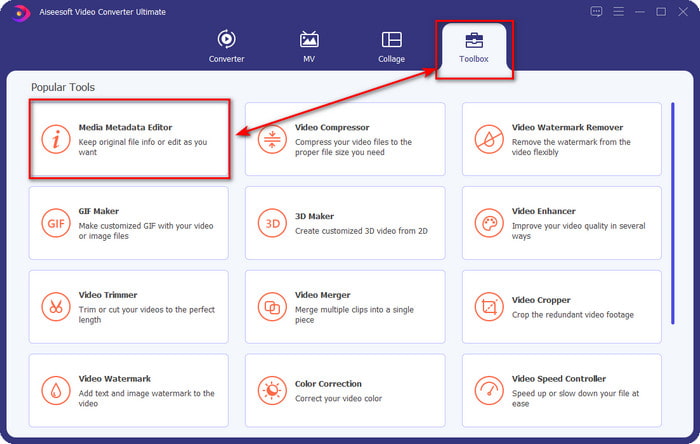
Step 2. Proceed onto the Toolbox section click Media Metadata Editor under it.
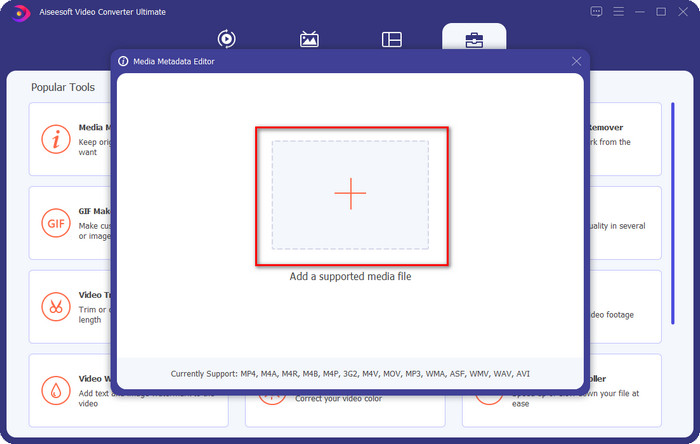
Step 3. Select the music file you want to add album art to by clicking the + button. To insert the music file you’ve selected, click Open.
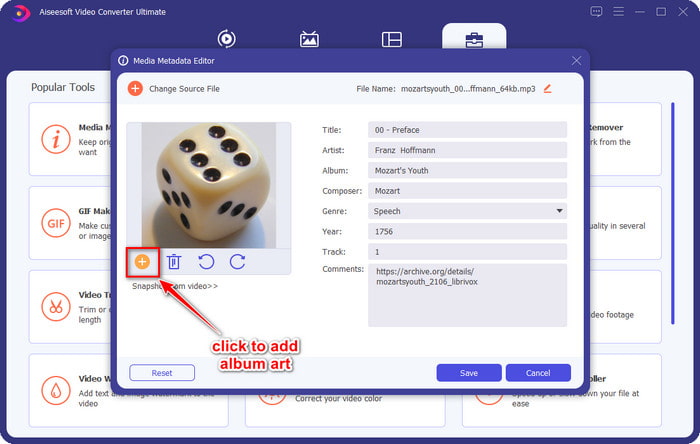
Step 4. Next, click the + button on the left lower left side of the interface, find the album cover you want to use, and click Open. Add the other metadata you want on the textbox if you need it.
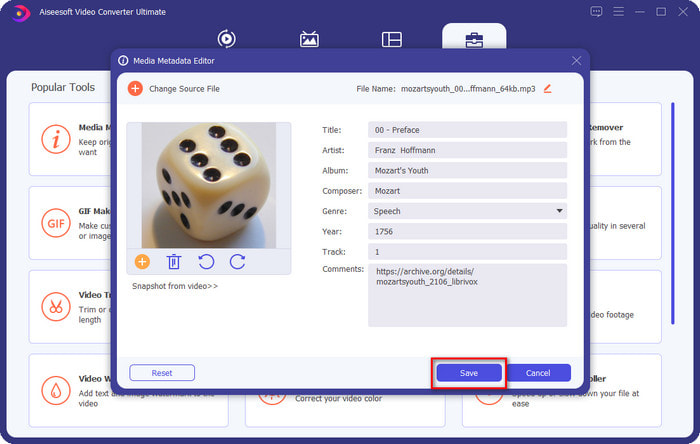
Step 5. If you are finished adding the album art and the metadata on the MP3 file you have, you can now click Save to attach the album art to the MP3 file you’ve uploaded. Easy isn’t it? Everything becomes possible and easy if you use the ultimate tool to fix the problem.
Μέρος 2. Πώς να προσθέσετε το εξώφυλλο άλμπουμ σε MP3 χρησιμοποιώντας το δωρεάν πρόγραμμα επεξεργασίας μεταδεδομένων VLC Media Player]
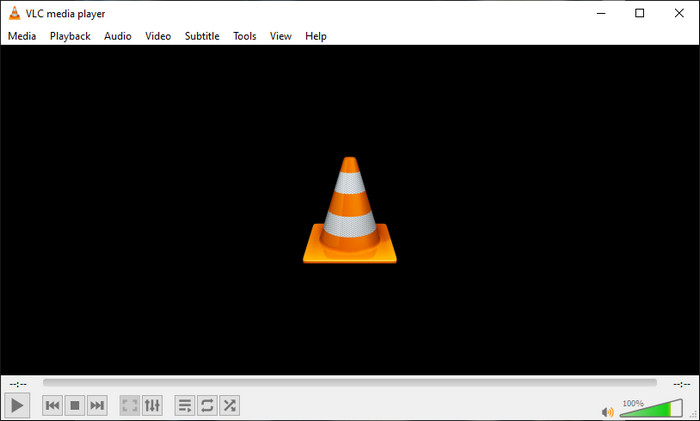
VLC Media Player is the best media player that most of us have. This tool can play any video file, and it is capable of editing metadata as well, like adding album art to the music file. With this media player, you can freely adjust or add metadata. If you want a tutorial on adding album art to MP3 on Windows 10/11 or Mac with this tool, the steps below are for you.
Step 1. Download the media player on your desktop and open it.
Step 2. On the main interface, click Tools, and under it, click Information.
Step 3. Right-click the VLC icon on the bottom right corner, add the album art, and click Save.
Μέρος 3. Πώς να προσθέσετε το εξώφυλλο άλμπουμ σε MP3 στο iTunes [Ενσωματωμένος επεξεργαστής μεταδεδομένων σε Mac]
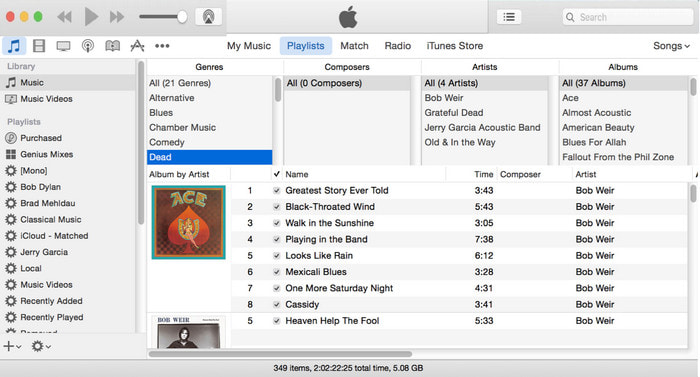
For Mac users, iTunes is our go-to metadata editor to add the image cover on our MP3 file. This built-in app can help us edit the metadata on the file that we have on Mac. However, the software is currently unavailable on some Mac versions because it is now changed into three separate apps that perform the same as iTunes. But on some Mac with the older version. If you are one of the Mac users that wants to know how to add album art to MP3 on iTunes, you can follow the steps below.
Step 1. Open the iTunes application on your Mac.
Step 2. Click the Music then Library and right-click the music file that doesn’t have album art.
Step 3. On the options above, click Artwork, then Add Artwork, select the image you’ve want to upload, and click OK to apply it.
Μέρος 4. Συχνές ερωτήσεις σχετικά με τον τρόπο προσθήκης εξώφυλλου άλμπουμ σε MP3
Μπορώ να προσθέσω εξώφυλλο άλμπουμ σε MP3 στο Audacity;
Δυστυχώς, δεν μπορείτε να προσθέσετε το εξώφυλλο εικόνας στο αρχείο MP3 που έχετε χρησιμοποιώντας το Audacity. Αυτό το εργαλείο δεν υποστηρίζει καμία μορφή εικόνας ή βίντεο, επειδή προορίζεται να χρησιμοποιηθεί ως πρόγραμμα επεξεργασίας μουσικής. Ωστόσο, μπορείτε να χρησιμοποιήσετε το Audacity ως πρόγραμμα επεξεργασίας μεταδεδομένων εάν θέλετε να επεξεργαστείτε τα μεταδεδομένα MP3.
Γιατί το εξώφυλλο του άλμπουμ μου λείπει από το αρχείο ήχου μου;
Υπάρχουν τρεις λόγοι για τους οποίους το εξώφυλλο του άλμπουμ σας λείπει από το αρχείο ήχου σας. Ο πρώτος λόγος είναι ότι το αρχείο που πρέπει να κατεβάσετε δεν περιλαμβάνει εξώφυλλο άλμπουμ, ειδικά αν πρόκειται για πειρατεία. Το μεγαλύτερο μέρος του αρχείου μουσικής που έχουμε κατεβάσει στον Ιστό δεν περιλαμβάνει εξώφυλλο άλμπουμ για να αποφύγουμε προβλήματα κειμενογράφου. Στη συνέχεια, το αρχείο χάθηκε επειδή η εικόνα δεν ήταν σωστά συνδεδεμένη. Ορισμένοι χρήστες αντιμετωπίζουν αυτό το πρόβλημα και είναι δύσκολο να το χειριστούν, επομένως είναι απαραίτητη η χρήση ενός επαγγελματικού προσθετικού εξώφυλλου άλμπουμ. Τέλος, η εικόνα είναι κατεστραμμένη. Εάν το αρχείο που ανεβάσατε δεν είναι διαθέσιμο ως εξώφυλλο άλμπουμ ή το αρχείο μουσικής που έχετε είναι κατεστραμμένο, αυτός μπορεί να είναι ο λόγος πίσω από αυτό.
Ποια είναι τα καλύτερα μεταδεδομένα που μπορώ να χρησιμοποιήσω;
If the metadata editor we provided above is limited, you can click on this link to go to a new article to gather all of the best metadata editors you can use.
συμπέρασμα
Τώρα που έχουμε την ιδέα να προσθέσουμε εξώφυλλο άλμπουμ σε MP3, ήρθε η ώρα να επιλέξουμε ποιο εργαλείο πιστεύουμε ότι μας ταιριάζει καλύτερα. Εάν είστε χρήστης Mac και δεν θέλετε να κάνετε λήψη λογισμικού στην επιφάνεια εργασίας σας, πρέπει να επιλέξετε το iTunes. Αλλά το iTunes καταργείται σταδιακά στην ενημερωμένη έκδοση του Mac. Αν θέλετε να κατεβάσετε ένα δωρεάν εργαλείο που μπορεί να σας βοηθήσει να προσθέσετε το εξώφυλλο στη μουσική σας, τότε το VLC είναι μια εξαιρετική επιλογή. Ωστόσο, το εργαλείο δεν είναι επαγγελματικό εργαλείο. Επομένως, εάν θέλετε έμπειρο λογισμικό που μπορεί να σας φιλοξενήσει σε αυτήν την εργασία, διαθέσιμο και στα δύο λειτουργικά συστήματα, Windows και Mac, χρησιμοποιήστε το απόλυτο λογισμικό. Κατεβάστε το λογισμικό στην επιφάνεια εργασίας σας για να έχετε το επαγγελματικό εργαλείο στη διάθεσή σας κάνοντας κλικ στο κουμπί λήψης που παρουσιάζεται παραπάνω.
-
 Πώς να προβάλλετε εύκολα μεταδεδομένα φωτογραφιών και βίντεο στο iOS
 Θέλετε να μάθετε πώς να βλέπετε μεταδεδομένα σε iPhone και iPad; Στη συνέχεια, η ανάγνωση αυτού του άρθρου μπορεί να σας βοηθήσει να λύσετε αυτό το πρόβλημα χωρίς κόπο.
-
 Οι καλύτερες τεχνικές για τον τρόπο επεξεργασίας ετικετών iD3 στο iTunes [Αποτελεσματικές συμβουλές]
 Θέλετε να ξέρετε πώς να επεξεργάζεστε ετικέτες στο iTunes; Τότε είστε στο σωστό μέρος. Καθώς συζητήσαμε τις μεθόδους, μπορείτε να ακολουθήσετε για να επεξεργαστείτε τις ετικέτες χρησιμοποιώντας το iTunes.
-
 Τρόπος επεξεργασίας ιδιοτήτων αρχείων WAV σε Windows 10/11 & Mac [Επίλυση]
 Αναζητάτε έναν τρόπο να επεξεργαστείτε τις ιδιότητες των αρχείων WAV σας στα Windows 10/11; Αυτή η ερώτηση θα έχει απάντηση αν συνεχίσετε να διαβάζετε αυτό το άρθρο.
