


 Video Converter Ultimate
 Εγγραφή οθόνης
 Επισκευή βίντεο
Πώς να προσθέσετε γρήγορα εικόνες σε ένα βίντεο σε λιγότερο από ένα λεπτό
Υπάρχουν πολλοί λόγοι για τους οποίους χρειάζεται να προσθέσετε εικόνες στο βίντεο. Για παράδειγμα, ορισμένοι συντάκτες διαπίστωσαν ότι η προσθήκη εικόνων στα βίντεό τους δημιουργεί μια νέα αλληλεπίδραση για τους άλλους χρήστες. Με αυτόν τον τρόπο, μπορείτε να το χρησιμοποιήσετε για να αντιπροσωπεύσετε την επωνυμία σας ή να κάνετε μια εξαιρετική οπτική παρουσίαση και να βοηθήσετε το βίντεό σας να μεταφέρει το σωστό μήνυμα στους χρήστες. Γνωρίζατε όμως ότι πολλά εργαλεία κάνουν την ίδια δουλειά; Γνωρίζουμε ότι είναι δύσκολο να επιλέξετε ποιο εργαλείο θα σας ταιριάζει καλύτερα. Σήμερα, λοιπόν, έχουμε ήδη ξεχωρίσει τα τρία εργαλεία που βρήκαμε και έχουν καλή απόδοση. Αφού διαβάσετε αυτό το άρθρο, θα μάθετε να προσθέτετε εικόνες στα βίντεό σας.

Μέρος 1. Οδηγός βήμα προς βήμα για την προσθήκη εικόνας σε βίντεο με το Video Converter Ultimate
Θέλετε να προσθέσετε μια εικόνα στο βίντεο με το απόλυτο εργαλείο; Τότε, χρησιμοποιήστε το Video Converter Ultimate. Με τη βοήθεια αυτού του κορυφαίου εργαλείου, μπορείτε εύκολα να τοποθετήσετε (overlay) την εικόνα πάνω στο βίντεο, ακόμη κι αν δεν είστε επαγγελματίας σε αυτόν τον τομέα επεξεργασίας. Πέρα από τη δυνατότητα προσθήκης επικάλυψης εικόνας στο βίντεο, μπορείτε εύκολα να χρησιμοποιήσετε αυτό το εργαλείο για να προσθέσετε μουσική ως φόντο, να προσθέσετε υπότιτλους και πολλά άλλα. Είναι γνωστό ως η ολοκληρωμένη λύση για τα περισσότερα προβλήματα που σχετίζονται με το βίντεο. Θέλετε να μάθετε ποια είναι τα πλεονεκτήματα της χρήσης του; Αν ναι, μπορείτε να διαβάσετε τις πληροφορίες που παρέχονται παρακάτω.

FVC Video Converter Ultimate
5.689.200+ λήψεις- Παρέχει εξαιρετική απόδοση στη μετατροπή και την επεξεργασία.
- Επεξεργαστείτε και δημιουργήστε ένα φανταστικό βίντεο με λίγα κλικ.
- Υποστηρίζει 200+ μορφές, όπως MP4, MOV, FLV, WMV, AVI, MTV κ.λπ.
- Διατίθεται σε όλες τις πολλαπλές πλατφόρμες για λήψη, όπως Windows και Mac.
Δωρεάν ΛήψηΓια Windows 7 ή νεότεραΑσφαλής λήψη
Δωρεάν ΛήψηΓια MacOS 10.7 ή νεότεροΑσφαλής λήψη
Δεν είναι εκπληκτικό ποια είναι τα πράγματα που μπορείτε να κάνετε με το εργαλείο; Ναι, γνωρίζουμε ότι το εργαλείο είναι εντυπωσιακό από πολλές απόψεις. Εάν αυτό το εργαλείο τράβηξε την προσοχή σας και θέλετε να μάθετε πώς να προσθέτετε μια εικόνα σε ένα βίντεο με αυτό το εργαλείο, μπορείτε να διαβάσετε τον παρακάτω οδηγό.
Βήμα 1. Κάντε κλικ στο κουμπί λήψης παρακάτω για να το κατεβάσετε απευθείας στον δίσκο σας, ακολουθήστε άμεσα την εγκατάσταση και εκκινήστε το. Πριν από οτιδήποτε άλλο, θα εκτιμούσαμε αν εξοικειωνόσασταν με τη διεπαφή του εργαλείου, ώστε να ξεχωρίζετε εύκολα τα επόμενα βήματα.
Δωρεάν ΛήψηΓια Windows 7 ή νεότεραΑσφαλής λήψη
Δωρεάν ΛήψηΓια MacOS 10.7 ή νεότεροΑσφαλής λήψη
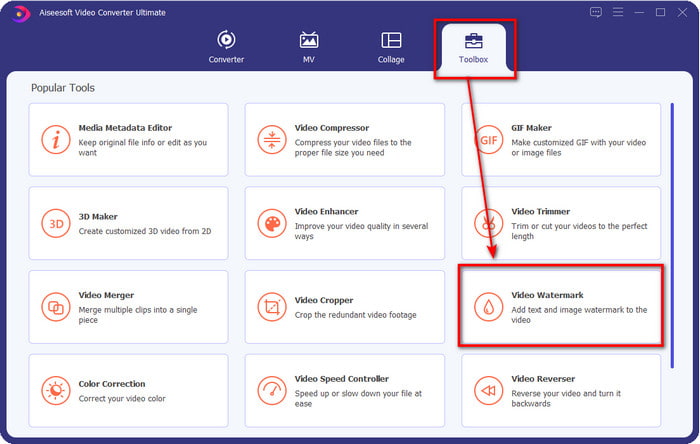
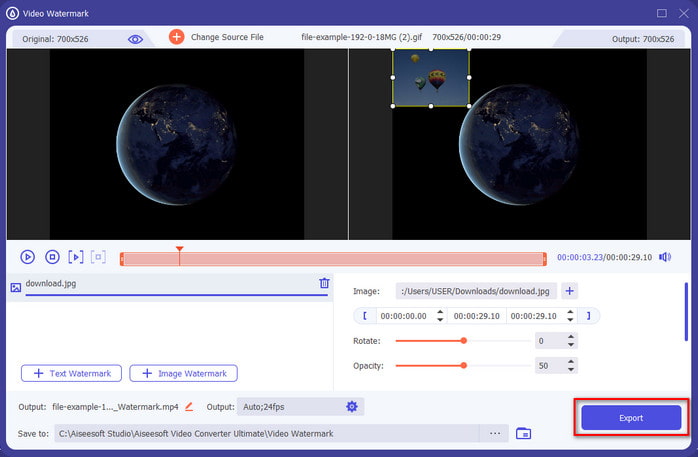
Βήμα 2. Μόλις το εργαλείο εκτελείται στο σύστημα, κάντε κλικ στο Toolbox και, κάτω από αυτό, εντοπίστε το Video Watermark και ανοίξτε το.
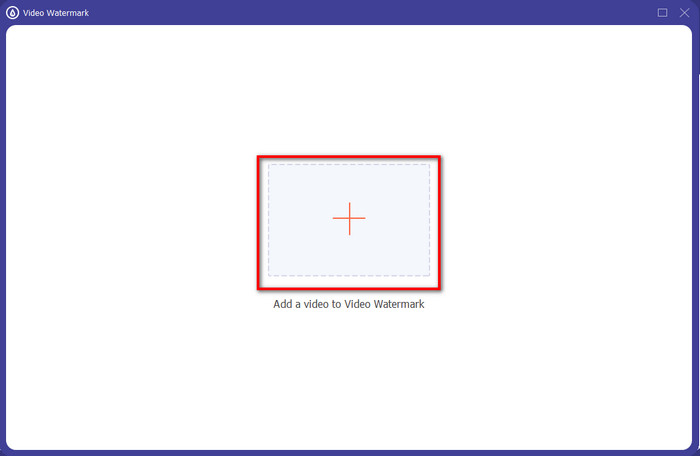
Βήμα 3. Αφού πατήσετε το κουμπί +, θα εμφανιστεί ένας φάκελος αρχείων στην οθόνη· εντοπίστε το αρχείο και πατήστε Open εφόσον αυτό είναι το αρχείο βίντεο.
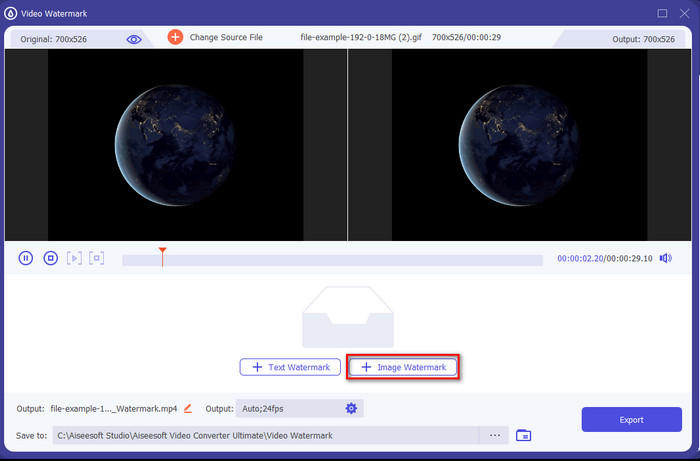
Βήμα 4. Θα εμφανιστεί ένα νέο παράθυρο, κάντε κλικ στο Image Watermark, έπειτα θα εμφανιστεί ξανά ένας φάκελος, αλλά αυτή τη φορά θα εισαγάγετε την εικόνα που θέλετε να προσθέσετε στο βίντεό σας και θα πατήσετε Open.
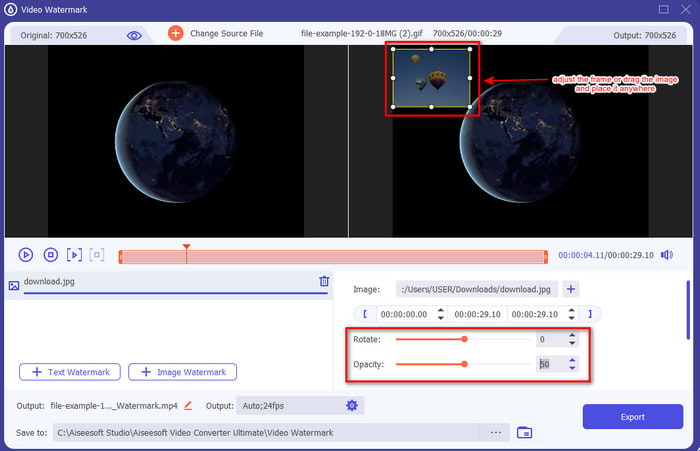
Βήμα 5. Προσαρμόστε το μέγεθος της εικόνας που έχετε εισαγάγει στο βίντεο και τη θέση της, σύροντας το frame της φωτογραφίας. Μπορείτε να την τοποθετήσετε οπουδήποτε θέλετε, κρατώντας και σύροντας την εικόνα. Επιπλέον, μπορείτε να ρυθμίσετε και τη διαφάνεια της εικόνας, προσαρμόζοντας το Opacity. Επίσης, μπορείτε να περιστρέψετε την εικόνα, σύροντας το slider του Rotate.
Βήμα 6. Αφού επεξεργαστείτε τη φωτογραφία, ήρθε η ώρα να κάνετε κλικ στο Export.
Σχετικά:
Πώς να Προσθέσετε Ήχο σε Βίντεο
Πώς να Προσθέσετε Υπότιτλους σε Βίντεο
Μέρος 2. Πώς να επικαλύπτετε εικόνες σε βίντεο στο Διαδίκτυο δωρεάν
Online Video Cutter – Προσθήκη εικόνας σε βίντεο
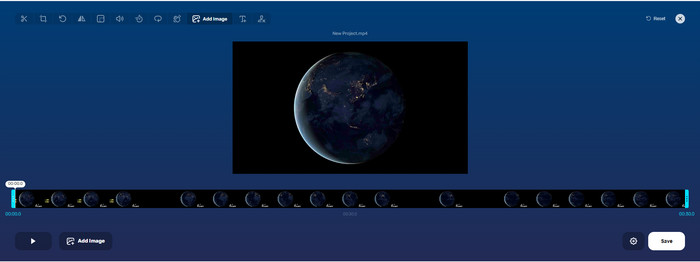
Αν θέλετε να επικαλύψετε εικόνες online, μπορείτε να χρησιμοποιήσετε το Online Video Cutter – Add Image to a Video. Αυτό το διαδικτυακό εργαλείο προσφέρει έναν απλό αλλά αποτελεσματικό τρόπο προσθήκης φωτογραφιών σε οποιοδήποτε βίντεο. Αν και το εργαλείο είναι εξαιρετικό στη χρήση, είναι κάπως κουραστικό να ανεβάζετε το βίντεο, επειδή αυτό εξαρτάται από τη σύνδεσή σας στο διαδίκτυο. Επίσης, δεν μπορείτε να προσθέσετε δύο εικόνες εδώ, διότι δεν υποστηρίζεται. Αλλά αν θέλετε να χρησιμοποιήσετε το εργαλείο, μπορείτε να ακολουθήσετε τα παρακάτω βήματα.
Βήμα 1. Ανοίξτε το πρόγραμμα περιήγησής σας και αναζητήστε το διαδικτυακό εργαλείο στη γραμμή αναζήτησης και, στη συνέχεια, ανοίξτε το.
Βήμα 2. Κάντε κλικ στο Open File για να ανεβάσετε το βίντεο και μετά κάντε κλικ στο Add Image για να ανεβάσετε την εικόνα που προσθέσατε.
Βήμα 3. Σύρετε την εικόνα για να αλλάξετε τη θέση της, κάντε κλικ στο Save για κωδικοποίηση και αποθηκεύστε την στον υπολογιστή σας.
Πλεονεκτήματα
- Δωρεάν για χρήση και δεν θα χρειαστεί να το κατεβάσετε.
- Υποστηρίζει βασικές λειτουργίες επεξεργασίας για τους χρήστες.
- Δεν έχει υδατογράφημα στην τελική έξοδο.
Μειονεκτήματα
- Δεν μπορεί να προσθέσει έως και 2 ή περισσότερες εικόνες στο βίντεο.
- Η μεταφόρτωση της εικόνας και του βίντεο απαιτεί χρόνο για να φορτώσει.
Flixier
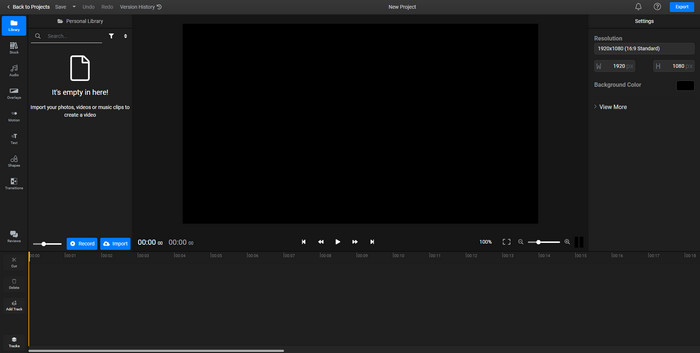
Μπορείτε να χρησιμοποιήσετε το Flixier για να προσθέσετε μια εικόνα σε βίντεο online δωρεάν. Επίσης, μπορείτε να επεξεργαστείτε το πρότυπο βίντεό σας με αυτό το διαδικτυακό εργαλείο, συμπεριλαμβανομένης της προσθήκης εικόνων. Αυτό το εργαλείο παρέχει εξαιρετικές ενσωματωμένες δυνατότητες επεξεργασίας που μπορείτε να χρησιμοποιήσετε για να κάνετε το βίντεό σας να δείχνει καλύτερο. Αν και το web εργαλείο σάς προσφέρει αυτήν τη μοναδική δυνατότητα, τη στιγμή που θα το κάνετε export, θα υπάρχει ένα υδατογράφημα στο τελικό αποτέλεσμα επειδή είναι δωρεάν. Ωστόσο, μπορείτε να αγοράσετε την premium έκδοση του εργαλείου για να αφαιρέσετε αυτό το υδατογράφημα.
Βήμα 1. Ανοίξτε τη μηχανή αναζήτησής σας, αναζητήστε το όνομα του εργαλείου και κάντε κλικ στο Choose File.
Βήμα 2. Κάντε κλικ στο Import για να ανεβάσετε το βίντεο και τις εικόνες, σύρετε το βίντεο και την εικόνα στο Timeline και βεβαιωθείτε ότι η εικόνα βρίσκεται επάνω από το βίντεο. Αλλάξτε τη θέση της εικόνας, σύροντάς την μέσα στο βίντεο.
Βήμα 3. Κάντε κλικ στο Export και έπειτα στο Export and Download για να το αποθηκεύσετε στον σκληρό δίσκο του υπολογιστή σας.
Πλεονεκτήματα
- Δωρεάν και προσβάσιμο στο διαδίκτυο.
- Παρέχει περισσότερες δυνατότητες επεξεργασίας από το πρώτο διαδικτυακό εργαλείο.
- Υποστηρίζει την προσθήκη πολλαπλών εικόνων στο βίντεό σας.
Μειονεκτήματα
- Το τελικό αποτέλεσμα έχει ένα υδατογράφημα στο τέλος επειδή είναι δωρεάν.
- Πρέπει να αγοράσει την έκδοση VIP για να αφαιρέσει το υδατογράφημα στην έξοδο βίντεο.
Μέρος 3. Συχνές ερωτήσεις σχετικά με την προσθήκη εικόνων σε βίντεο
Η προσθήκη εικόνων σε ένα βίντεο επηρεάζει την ποιότητα;
Η ποιότητα του βίντεο δεν θα επηρεάσει την εικόνα που προσθέτετε. Για απλοποίηση, η προσθήκη εικόνων δεν έχει σημαντική ποιότητα βίντεο, ακόμα κι αν προσθέσετε πολλές φωτογραφίες. Ωστόσο, εάν εξάγετε το βίντεο στο πρόγραμμα επεξεργασίας που χρησιμοποιήσατε και το ρυθμίσετε σε χαμηλή ποιότητα, περιμένετε την έξοδο βίντεο παρακάτω.
Γιατί οι εικόνες που προσθέτω στο βίντεο γίνονται θολές;
Ο κύριος λόγος που έγινε είναι ότι η εικόνα είναι ήδη θολή από την αρχή. Για να αποφύγετε αυτό το πρόβλημα, πρέπει πρώτα να ελέγξετε την εικόνα και να βεβαιωθείτε ότι δεν είναι θολή πριν τη χρησιμοποιήσετε στο βίντεό σας.
Μπορώ να προσθέσω μια μετάβαση στην εικόνα στο βίντεο;
Με ορισμένους επεξεργαστές, είναι δυνατή η προσθήκη μιας μετάβασης στην εικόνα σας. Αν και υπάρχουν πολλές διαφορετικές κινούμενες μεταβάσεις, το cut, το fade, το wipe και το dissolve είναι τα πιο κοινά διαθέσιμα. Παρόλο που αυτά είναι τα πιο συνηθισμένα, εξακολουθεί να είναι ιδανικό για την προσθήκη μιας μετάβασης στην εικόνα για να γίνει το βίντεο πιο επαγγελματικό και συναρπαστικό.
συμπέρασμα
Αφού διαβάσετε αυτό το άρθρο, το να μάθετε πώς να προσθέτετε φωτογραφίες σε ένα βίντεο γίνεται πιο εύκολο στην κατανόηση, αν μελετήσετε ολόκληρο το περιεχόμενο με τα διάφορα εργαλεία online και offline. Παρόλο που παρουσιάζουμε διαφορετικά σετ εργαλείων, εξακολουθούμε να συνιστούμε σε όλους τους χρήστες να χρησιμοποιούν το απόλυτο εργαλείο για να αναλάβουν αυτή την εργασία. Το Video Converter Ultimate προσφέρει μια εύκολα κατανοητή διεπαφή, ώστε να βοηθά τους χρήστες να κάνουν τη δουλειά αποτελεσματικά. Ακόμα δεν είστε σίγουροι αν σας ταιριάζει; Λοιπόν, το να κατεβάσετε το εργαλείο είναι ο μόνος τρόπος να αποδείξετε ότι είναι κατάλληλο για εσάς.
-
 5 Ευεργετικοί μετατροπείς OGV σε WMV για τη μετατροπή των αρχείων OGV σας
 Υπάρχουν 5 διαφορετικοί μετατροπείς OGV σε WMV που μπορείτε να χρησιμοποιήσετε για να μετατρέψετε τα αρχεία OGV. Αυτό το άρθρο παρέχει ένα ισχυρό γεγονός για τους διαθέσιμους μετατροπείς 5 ogv.
-
 Περίληψη για το 2 καλύτερο λογισμικό μετατροπής AMV σε WMV [2022]
 Θέλετε να μετατρέψετε το AMV σε WMV; Εάν ναι, πρέπει να διαβάσετε αυτό το άρθρο για να έχετε μια ιδέα για το τι είναι το AMV και πώς να μετατρέψετε το αρχείο σε μορφή WMV.
-
 Τα πιο χρήσιμα εργαλεία για τη μετατροπή SWF σε WMV (Online και Offline)
 Δυσκολεύεστε να βρείτε μια συσκευή αναπαραγωγής για τα αρχεία SWF σας; Δεν χρειάζεται να ανησυχείτε γιατί μπορείτε απλώς να το μετατρέψετε σε μορφή WMV για καλύτερη εμπειρία που καταναλώνει βίντεο. Διαβάστε αυτό το άρθρο για να μάθετε περισσότερα σχετικά με αυτήν τη διαδικασία μετατροπής.
