


 Video Converter Ultimate
 Εγγραφή οθόνης
 Επισκευή βίντεο
 Ασφαλές κατέβασμα
Ανακαλύψτε πώς να αλλάξετε το μέγεθος ενός βίντεο στο Android με αποτελεσματικές μεθόδους
Είτε είστε influencer στα μέσα κοινωνικής δικτύωσης είτε απλώς θέλετε να μοιραστείτε το πιο πρόσφατο ταξίδι σας με φίλους και οικογένεια, η αλλαγή διαστάσεων των βίντεό σας μπορεί να κάνει τεράστια διαφορά. Όχι μόνο βοηθά στη βελτιστοποίηση του μεγέθους του αρχείου για πιο εύκολη κοινοποίηση, αλλά μπορεί επίσης να βελτιώσει την εμπειρία προβολής για το κοινό σας. Σε αυτή την ανάρτηση, θα σας δείξουμε πώς να αλλάξετε το μέγεθος βίντεο σε Android, από την προσαρμογή του λόγου διαστάσεων μέχρι την αλλαγή της ανάλυσης. Με τον απλό και εύκολο στην παρακολούθηση οδηγό μας, μπορείτε να αλλάζετε το μέγεθος των βίντεό σας σαν επαγγελματίας και να ανεβάσετε το περιεχόμενό σας σε άλλο επίπεδο.

Μέρος 1. Εκμάθηση Πώς να περικόψετε ένα βίντεο στο Android με τη Samsung Gallery
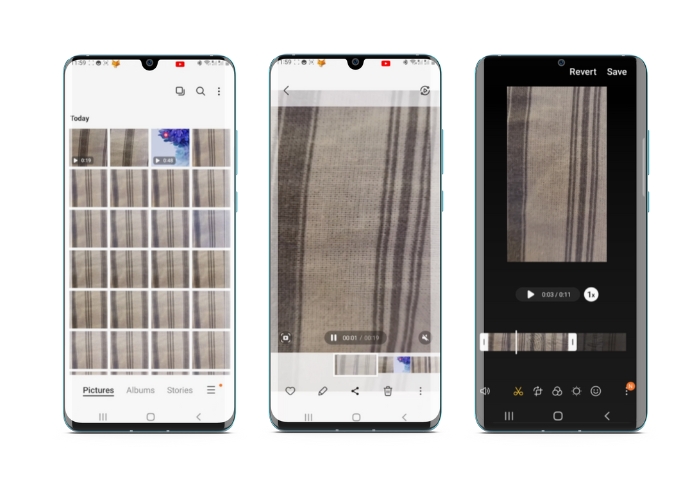
Η εφαρμογή Samsung Gallery είναι απαραίτητη για τη διαχείριση και την επεξεργασία του οπτικού περιεχομένου σας, εάν έχετε μια συσκευή Samsung. Ένα από τα χρήσιμα χαρακτηριστικά της εφαρμογής είναι η δυνατότητα περικοπής βίντεο εν κινήσει. Επιτρέπει στους χρήστες να αφαιρέσουν ανεπιθύμητα μέρη ενός βίντεο ή να προσαρμόσουν την αναλογία διαστάσεων. Η λειτουργία περικοπής το καθιστά εύκολο και διαισθητικό. Με το Samsung Gallery, μπορείτε εύκολα να δημιουργήσετε και να μοιραστείτε βίντεο υψηλής ποιότητας που είναι προσαρμοσμένα στις ανάγκες σας. Δείτε τα παρακάτω βήματα για να σας βοηθήσουν να χρησιμοποιήσετε αυτό το εργαλείο περικοπής προγράμματος επεξεργασίας βίντεο Android.
Βήμα 1. Ανοίξτε την εφαρμογή Samsung Gallery στη συσκευή σας και βρείτε το βίντεο που θέλετε να περικόψετε.
Βήμα 2. Πατήστε στο βίντεο για να το ανοίξετε και έπειτα πατήστε το κουμπί Επεξεργασία (το εικονίδιο με το μολύβι) στο κάτω μέρος της οθόνης. Από την οθόνη Επεξεργασία, επιλέξτε την επιλογή Περικοπή.
Βήμα 3. Θα δείτε τώρα ένα ορθογώνιο να εμφανίζεται πάνω από το βίντεο, με λαβές σε κάθε γωνία. Σύρετε τις λαβές για να αλλάξετε το μέγεθος του ορθογωνίου όπως χρειάζεται, ώστε να περικόψετε το βίντεο. Πατήστε το κουμπί Αναπαραγωγή για να κάνετε προεπισκόπηση του περικομμένου βίντεο.
Βήμα 4. Αν είστε ικανοποιημένοι με το αποτέλεσμα, πατήστε το κουμπί Αποθήκευση για να αποθηκεύσετε το περικομμένο βίντεο στη Συλλογή σας.
Μέρος 2. Περίληψη Πώς να περικόψετε ένα βίντεο στο Android με το Google Photos
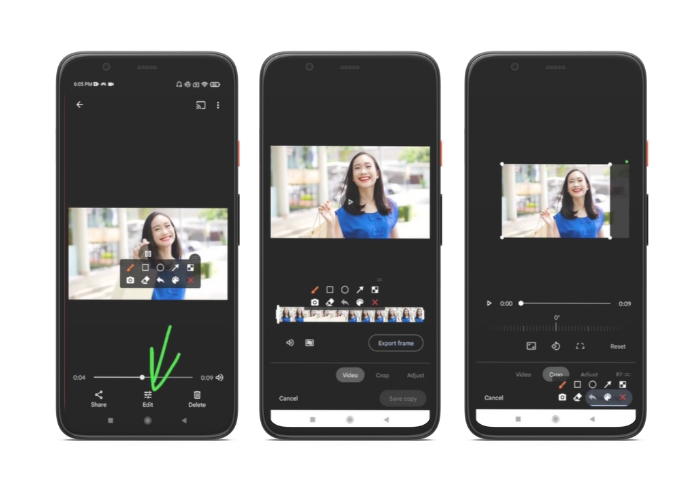
Το Google Photos είναι μια δημοφιλής εφαρμογή διαχείρισης φωτογραφιών και βίντεο για χρήστες Android και διαθέτει ένα ευρύ φάσμα λειτουργιών που σας βοηθούν να επεξεργαστείτε και να βελτιώσετε το οπτικό σας περιεχόμενο. Ένα εξαιρετικό χαρακτηριστικό αυτού του εργαλείου είναι η δυνατότητα περικοπής βίντεο, η οποία σας επιτρέπει να αφαιρείτε ανεπιθύμητα μέρη και να εστιάσετε στις πιο σημαντικές στιγμές. Μπορείτε να περικόψετε βίντεο με λίγα μόνο αγγίγματα, καθιστώντας εύκολη και διαισθητική τη δημιουργία εκλεπτυσμένου και επαγγελματικής εμφάνισης περιεχομένου βίντεο στη συσκευή σας Android. Εδώ, θα σας δείξουμε πώς να περικόψετε βίντεο με το Google Photos βήμα προς βήμα.
Βήμα 1. Εκκινήστε την εφαρμογή Google Φωτογραφίες στη συσκευή Android και βρείτε το βίντεο που θέλετε να περικόψετε. Στη συνέχεια, πατήστε το κουμπί Επεξεργασία που βρίσκεται στο κάτω μέρος της οθόνης.
Βήμα 2. Από την οθόνη Επεξεργασίας, επιλέξτε την επιλογή Περικοπή & περιστροφή.
Βήμα 3. Θα δείτε τώρα ένα ορθογώνιο να επικαλύπτει το βίντεο, με λαβές σε κάθε γωνία. Χρησιμοποιήστε τις λαβές για να αλλάξετε το μέγεθος του ορθογωνίου όπως χρειάζεται, ώστε να περικόψετε το βίντεο.
Βήμα 4. Τέλος, πατήστε Αποθήκευση για να αποθηκεύσετε τις αλλαγές που κάνατε στο βίντεο.
Μέρος 3. Οδηγός πώς να περικόψετε ένα βίντεο στο Android με μια εφαρμογή τρίτου μέρους
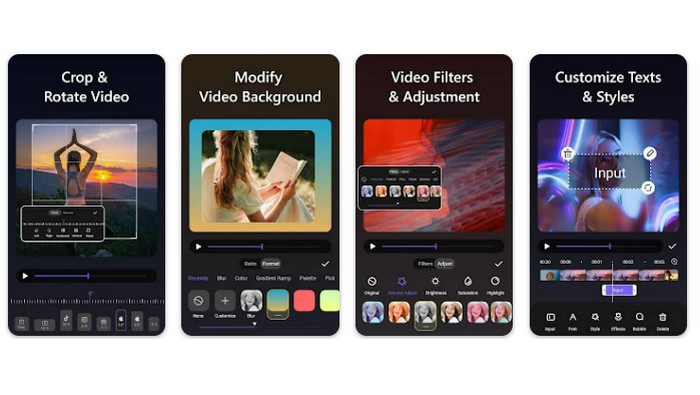
Η εύκολη δημιουργία και επεξεργασία βίντεο είναι πλέον προσιτή σε όλους όσοι διαθέτουν Android συσκευή, χάρη στο Vid.fun. Αυτό το πρόγραμμα επιτρέπει στους χρήστες να επεξεργάζονται τα βίντεό τους με πολλούς τρόπους, όπως να προσθέτουν μουσική, κείμενο και εφέ, να κόβουν και να συγχωνεύουν τμήματα και πολλά άλλα. Μπορείτε να μάθετε πώς να αλλάξετε το μέγεθος ενός βίντεο σε Android ακολουθώντας τα παρακάτω βήματα για αυτήν την εφαρμογή.
Βήμα 1. Κατεβάστε την εφαρμογή Vid.fun από το Google Play Store και στη συνέχεια ξεκινήστε ένα νέο έργο.
Βήμα 2. Από τη συλλογή ή το ρολό κάμερας της συσκευής σας, επιλέξτε το κλιπ που θέλετε να περικόψετε και σύρετέ το στη χρονογραμμή.
Βήμα 3. Επιλέξτε το επιθυμητό τμήμα βίντεο στη χρονογραμμή πατώντας επάνω του· στη συνέχεια, χρησιμοποιήστε το κουμπί Περικοπή στο κάτω μέρος της οθόνης για να τροποποιήσετε το τμήμα.
Βήμα 4. Ένα ορθογώνιο έχει υπερτεθεί στο βίντεο και μπορείτε να σύρετε τις γωνίες του για να κάνετε προσαρμογές. Για να περικόψετε το βίντεο, αρκεί να πιάσετε τις γωνιακές λαβές και να τις τραβήξετε στη θέση που θέλετε. Όταν τελειώσετε, μπορείτε να στείλετε το βίντεο στα αγαπημένα σας πρόσωπα ή να το αναρτήσετε στο διαδίκτυο.
Μέρος 4. Σύσταση εφαρμογής
Φυσικά, μετά τις εφαρμογές για κινητά, έχουμε και μια πρόταση για εφαρμογή υπολογιστή. Το Video Converter Ultimate από την FVC είναι ένα ολοκληρωμένο λογισμικό για τη μετατροπή μορφών βίντεο, που περιλαμβάνει πολλά εργαλεία επεξεργασίας. Η δυνατότητα προσαρμογής του λόγου διαστάσεων του βίντεο είναι ένα από τα πιο σημαντικά χαρακτηριστικά του.
Με αυτό το πρόγραμμα, μπορείτε εύκολα να τροποποιήσετε το σχήμα και το μέγεθος του βίντεο αλλάζοντας την αναλογία διαστάσεων. Εάν θέλετε να μοιραστείτε ένα βίντεο στα μέσα κοινωνικής δικτύωσης με συγκεκριμένη αναλογία διαστάσεων ή εάν απλώς πρέπει να κάνετε το βίντεο να ταιριάζει σε ένα συγκεκριμένο μέγεθος οθόνης, το FVC Video Converter Ultimate σας καλύπτει. Μάθετε πώς να περικόψετε βίντεο στο Android με τη βοήθεια αυτού του προγράμματος.
Βήμα 1. Λήψη και εγκατάσταση του FVC Video Converter Ultimate
Μπορείτε να κατεβάσετε την εφαρμογή κάνοντας κλικ σε ένα από τα κουμπιά Δωρεάν λήψη παρακάτω. Μόλις το πρόγραμμα ληφθεί, εγκαταστήστε το και εκκινήστε το στον υπολογιστή σας.
Δωρεάν λήψηΓια Windows 7 ή νεότεραΑσφαλής λήψη
Δωρεάν λήψηΓια MacOS 10.7 ή νεότεροΑσφαλής λήψη
Βήμα 2. Εισαγωγή του βίντεο για περικοπή
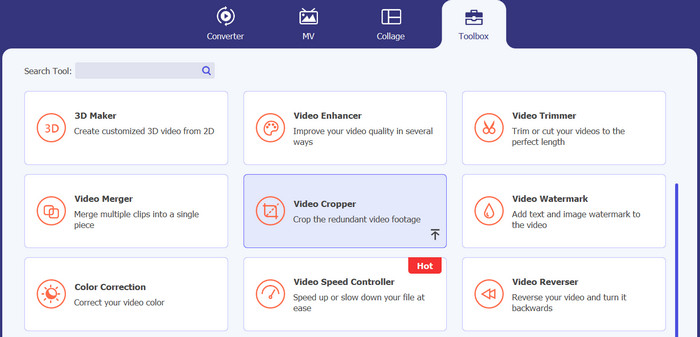
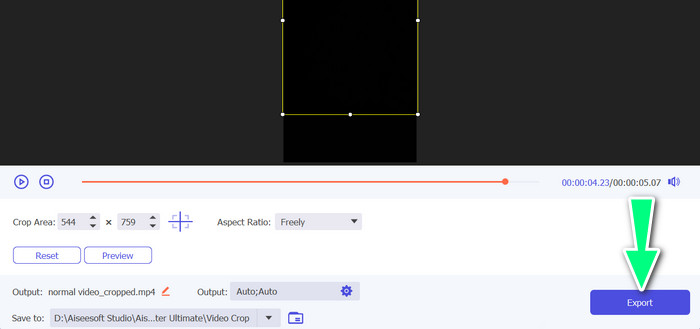
Στη συνέχεια, μεταβείτε στην καρτέλα Toolbox που βρίσκεται στο επάνω μέρος της διεπαφής του προγράμματος. Έπειτα, επιλέξτε την επιλογή Video Cropper και προσθέστε ένα αρχείο κάνοντας κλικ στο κουμπί με το σύμβολο συν.
Βήμα 3. Περικοπή του αρχείου βίντεο
Μπορείτε τώρα να περικόψετε το εισαγόμενο βίντεο. Χρησιμοποιώντας τα ρυθμιστικά της περιοχής περικοπής, προσαρμόστε την περιοχή που θέλετε να περικόψετε από το βίντεο. Μπορείτε επίσης να επιλέξετε μια συγκεκριμένη αναλογία διαστάσεων από το αναπτυσσόμενο μενού. Κάντε προεπισκόπηση του περικομμένου βίντεο για να βεβαιωθείτε ότι το επιθυμητό τμήμα του βίντεο έχει περικοπεί.

Βήμα 4. Εξαγωγή του περικομμένου βίντεο
Τέλος, πατήστε το κουμπί Εξαγωγή στην κάτω δεξιά γωνία για να ολοκληρώσετε τη διαδικασία περικοπής και να αποθηκεύσετε το περικομμένο βίντεο.
Μέρος 5. Συχνές ερωτήσεις σχετικά με την περικοπή βίντεο στο Android
Πώς μπορώ να περικόψω βίντεο χωρίς απώλεια ποιότητας;
Ένας τρόπος για να περικόψετε βίντεο χωρίς απώλεια ποιότητας είναι να χρησιμοποιήσετε ένα εργαλείο επεξεργασίας βίντεο που υποστηρίζει μη καταστροφική περικοπή. Αυτό σημαίνει ότι το αρχικό αρχείο βίντεο δεν έχει αλλάξει και μόνο το περικομμένο τμήμα αποθηκεύεται ως νέο αρχείο.
Η περικοπή ενός βίντεο στο Android θα επηρεάσει την ποιότητα ή την ανάλυσή του;
Ναι, η περικοπή ενός βίντεο στο Android μπορεί να επηρεάσει την ποιότητα ή την ανάλυσή του, καθώς η διαδικασία περιλαμβάνει την αφαίρεση ενός τμήματος του αρχικού βίντεο. Ωστόσο, ο βαθμός στον οποίο επηρεάζεται η ποιότητα ή η ανάλυση εξαρτάται από διάφορους παράγοντες, όπως το μέγεθος της περικοπής, η ποιότητα του αρχικού βίντεο και η μέθοδος που χρησιμοποιείται για την περικοπή του βίντεο.
Είναι δυνατόν να περικόψετε ένα βίντεο και να προσθέσετε εφέ ή φίλτρα ταυτόχρονα στο Android;
Ναι, είναι εφικτό να περικόψετε ένα βίντεο και ταυτόχρονα να προσθέσετε εφέ ή φίλτρα σε Android. Υπάρχουν διάφορες εφαρμογές επεξεργασίας βίντεο διαθέσιμες στο Google Play Store που προσφέρουν τόσο επιλογές περικοπής όσο και εφέ βίντεο και φίλτρα βίντεο. Μερικά δημοφιλή παραδείγματα είναι το FVC Video Converter Ultimate, το Filmora κ.λπ.
συμπέρασμα
Το να μάθετε πώς να περικόπτετε ένα βίντεο σε Android είναι μια απλή διαδικασία που μπορεί να γίνει με διάφορες εφαρμογές και λογισμικά. Το Samsung Gallery, το Google Photos και το FVC Video Converter Ultimate είναι μόνο μερικά παραδείγματα εργαλείων που μπορούν να σας βοηθήσουν να περικόψετε τα βίντεό σας σε Android συσκευές.
-
 Οδηγός για τον τρόπο επιδιόρθωσης βίντεο που δεν παίζουν σε τηλέφωνα Android
 Θέλετε να μάθετε ποιοι είναι οι λόγοι για τους οποίους δεν είναι δυνατή η αναπαραγωγή βίντεο στη συσκευή σας Android; Και αν ναι, υπάρχουν τρόποι να διορθώσετε το πρόβλημα μόνοι σας; Συνεχίστε να διαβάζετε για να μάθετε περισσότερα.
-
 Οι ευκολότεροι τρόποι για να επιταχύνετε ένα βίντεο στις συσκευές σας Android [2023]
 Γνωρίζατε ότι μπορείτε να επιταχύνετε ένα βίντεο στο Android σας; Επομένως, εάν θέλετε να μάθετε πώς να επιταχύνετε ένα βίντεο στο τηλέφωνό σας Android, διαβάστε αυτήν την εγγραφή.
-
 3 εξαιρετικές μέθοδοι για το πώς να περικόψετε βίντεο στο Android
 Θέλετε να χρησιμοποιήσετε τη συσκευή σας Android για να κόψετε ένα βίντεο; Τότε αυτή η ανάρτηση είναι για εσάς. Θα συζητήσουμε πολύτιμους τρόπους για το πώς να συντομεύσετε ένα βίντεο στο Android.
