


 Video Converter Ultimate
 Εγγραφή οθόνης
 Επισκευή βίντεο
Πώς να φτιάξετε βίντεο αργής κίνησης με την καλύτερη ιδέα που παρέχεται
Όλοι θέλαμε να δημιουργούμε βίντεο σε αργή κίνηση, γιατί χάρη σε αυτά μαθαίνουμε να εκτιμούμε τη μία λεπτομέρεια μετά την άλλη, που μπορούν να συλληφθούν από τις συσκευές μας σε πολύ σύντομο χρόνο. Αντιλαμβανόμαστε την αργή κίνηση ως έναν από τους πολλούς τρόπους καταγραφής αναμνήσεων, πέρα από τη λήψη βίντεο σε κανονική ταχύτητα. Ωστόσο, σε ορισμένες συσκευές δεν υπάρχει δυνατότητα άμεσης εγγραφής βίντεο σε αργή κίνηση. Και είναι πολύ δύσκολο να βρεθεί η καλύτερη λύση για όσους δεν διαθέτουν αυτή τη λειτουργία στις συσκευές τους. Διαβάστε αυτό το άρθρο για να μάθετε πώς να φτιάχνετε βίντεο σε αργή κίνηση.

Μέρος 1. Πώς να δημιουργήσετε βίντεο αργής κίνησης στα Windows
Ένα λογισμικό όπως το Video Converter Ultimate μπορεί να κάνει σχεδόν ό,τι θα επιθυμούσε ένας μοντέρ από ένα δωρεάν πρόγραμμα σαν αυτό. Διατίθεται για Windows και Mac, αλλά ξεχωρίζει ανάμεσα σε όλα τα προγράμματα που υπάρχουν στα Windows. Μπορεί να ανεβάσει την επεξεργασία του βίντεό σας σε άλλο επίπεδο και διαθέτει μια λειτουργία που ονομάζεται Video Speed Controller, με την οποία μπορείτε να ρυθμίσετε την ταχύτητα αναπαραγωγής του βίντεο ή να το μετατρέψετε σε αργή κίνηση. Το λογισμικό αυτό είναι προσβάσιμο και συμβατό με μεγάλο αριθμό μορφών αρχείων. Ακολουθούν τα βήματα για να το χρησιμοποιήσετε σωστά:
Βήμα 1. Για να αποθηκεύσετε το λογισμικό στον υπολογιστή σας, κάντε κλικ στο Free Download. Αφού το κατεβάσετε στην επιφάνεια εργασίας, εγκαταστήστε το και ετοιμαστείτε να το εκκινήσετε.
Δωρεάν ΛήψηΓια Windows 7 ή νεότεραΑσφαλής λήψη
Δωρεάν ΛήψηΓια MacOS 10.7 ή νεότεροΑσφαλής λήψη
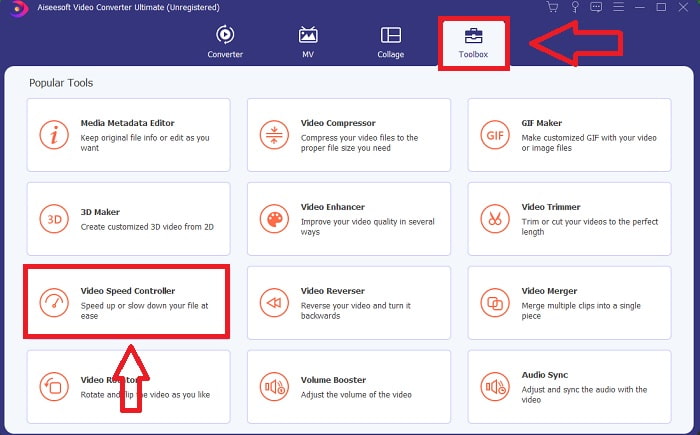
Βήμα 2. Μετά την εγκατάσταση, ανοίξτε το λογισμικό, επιλέξτε την επιλογή Toolbox και στη συνέχεια κάντε κλικ στο Video Speed Controller για να ξεκινήσετε την επεξεργασία της ταχύτητας αναπαραγωγής του βίντεο.
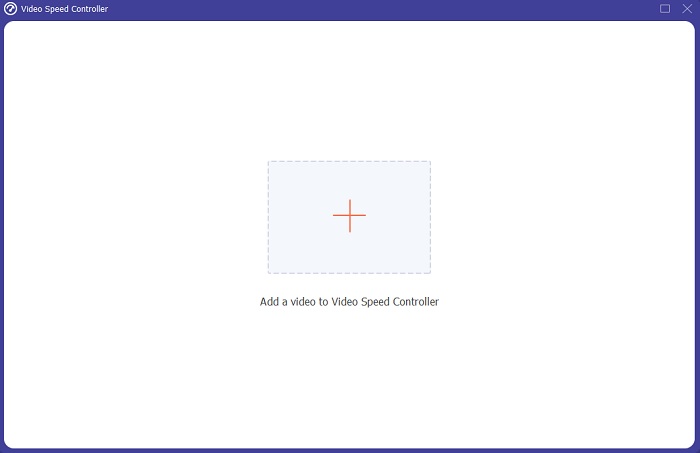
Βήμα 3. Προσθέστε οποιοδήποτε αρχείο κάνοντας κλικ στο εικονίδιο + από την τοποθεσία που προτιμάτε και, στη συνέχεια, τροποποιήστε το βιντεοκλίπ.
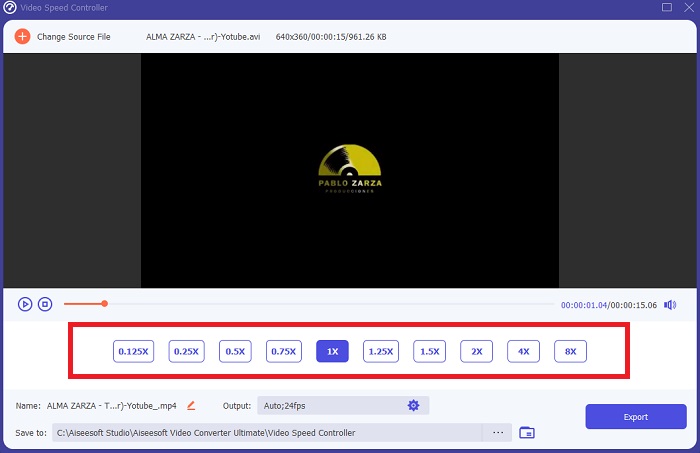
Βήμα 4. Αλλάξτε την ταχύτητα αναπαραγωγής καθορίζοντας πόσες φορές θα αυξηθεί ή θα μειωθεί ο ρυθμός καρέ του βίντεο.
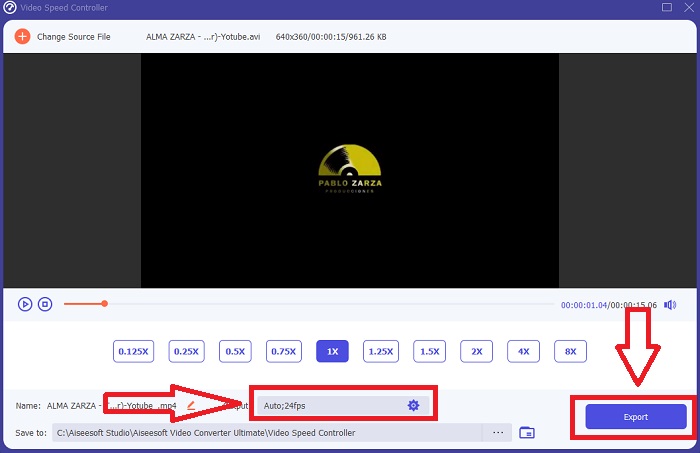
Βήμα 5. Αφού ολοκληρώσετε τις ρυθμίσεις της ταχύτητας αναπαραγωγής του βιντεοκλίπ, μπορείτε να επιλέξετε το επιθυμητό αποτέλεσμα αλλάζοντας τη μορφή, την ανάλυση και την ποιότητα, μεταξύ άλλων. Όταν είστε έτοιμοι, κάντε κλικ στο Export και επιλέξτε την τοποθεσία όπου θα αποθηκευτεί το έργο σας.
Πλεονεκτήματα
- Είναι λογισμικό δωρεάν για λήψη διαθέσιμο σε Windows και Mac.
- Έχει πολλά εργαλεία που βοηθούν στην επεξεργασία ενός βίντεο και αυτά μπορούν να χρησιμοποιηθούν εύκολα.
Μειονεκτήματα
- Μπορεί να αγοραστεί για να ξεκλειδώσει τις αποκλειστικές λειτουργίες, αλλά δεν είναι τόσο ακριβό.
Σχετικά:
Μέρος 2. Πώς να δημιουργήσετε βίντεο αργής κίνησης σε Mac
Δημιουργήστε τρέιλερ κινηματογραφικού επιπέδου με το iMovie στο Mac σας σε ανάλυση 4K. Αφού επεξεργαστείτε τα βίντεό σας, δώστε τους τις τελικές πινελιές με κινούμενους τίτλους, μουσική, φίλτρα και εφέ. Δημιουργήστε ένα καλοδουλεμένο, επαγγελματικό βίντεο με το iMovie της Apple και μοιραστείτε το με την οικογένεια και τους φίλους σας. Δεν είναι καθόλου δύσκολο. Αν χρησιμοποιήσετε τα διάφορα πρότυπα και τα εργαλεία ολοκλήρωσης του iMovie, το βίντεό σας θα δείχνει πολύ καλύτερο. Με αυτή τη νέα δυνατότητα, μπορείτε να αλλάξετε την ταχύτητα με την οποία ο Mac σας αναπαράγει το βίντεο ή ακόμα και να δημιουργήσετε βίντεο σε αργή κίνηση. Δεδομένου ότι οι περισσότεροι μοντέρ πρέπει να δώσουν προτεραιότητα στα ζητήματα που προκύπτουν, παρακάτω παρατίθενται τα βήματα για να φτάσετε στην ταχύτητα που θέλετε χρησιμοποιώντας αυτό το εργαλείο σε Mac.
Βήμα 1. Ανοίξτε την εφαρμογή iMovie στο Mac σας και επιλέξτε από το πάνελ Timeline το βιντεοκλίπ με το οποίο θέλετε να δουλέψετε.
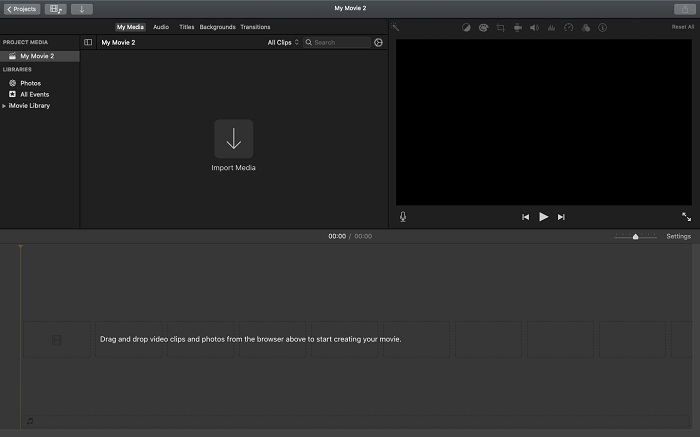
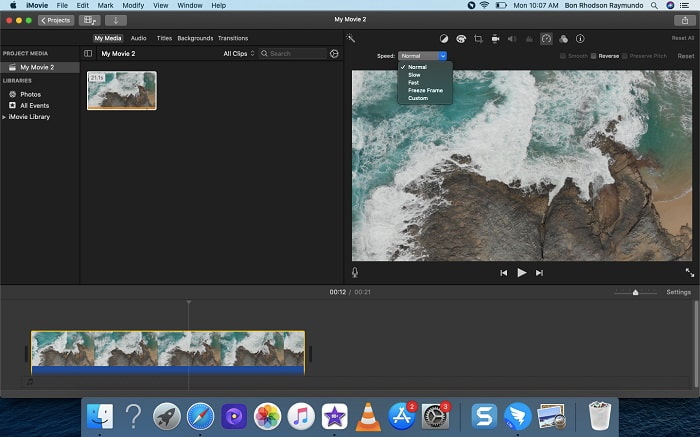
Βήμα 2. Κάνοντας κλικ στο κουμπί Speed στην επάνω αριστερή γωνία της διεπαφής, μπορείτε να δείτε τις ρυθμίσεις ταχύτητας. Από το κουμπί ταχύτητας μπορείτε να επιλέξετε μεταξύ Slow και Fast για να ρυθμίσετε με ακρίβεια την ταχύτητα αναπαραγωγής.
Βήμα 3. Κάντε κλικ στο εικονίδιο Upload στην επάνω δεξιά γωνία της διεπαφής για να αποθηκεύσετε το αρχείο στον σκληρό δίσκο του υπολογιστή σας.
Πλεονεκτήματα
- Είναι λογισμικό δωρεάν για λήψη σε Mac.
- Μπορεί να δείξει το κομμάτι του βίντεο κλιπ που μπορεί να βοηθήσει στην εύκολη επεξεργασία.
Μειονεκτήματα
- Ορισμένα από τα χαρακτηριστικά βασίζονται επαγγελματικά. Δεν διαθέτει εργαλεία που βοηθούν ένα βίντεο να ενισχύσει πλήρως τις δυνατότητές του.
- Δεν μπορείτε να προσαρμόσετε την ταχύτητα αναπαραγωγής του βίντεό σας χρησιμοποιώντας αυτό το λογισμικό, επειδή θα επιλέξετε μόνο τις δεδομένες επιλογές.
Μέρος 3. Πώς να φτιάξετε βίντεο αργής κίνησης στο Διαδίκτυο
Μέθοδος 1. Χρησιμοποιήστε το VEED
Αν ψάχνετε για το πιο απλό online εργαλείο που μπορείτε να χρησιμοποιήσετε για να φτιάξετε βίντεο σε αργή κίνηση, το VEED είναι η κατάλληλη επιλογή. Για να λειτουργήσει όμως, θα χρειαστείτε σταθερή σύνδεση στο διαδίκτυο, αφού πρόκειται για διαδικτυακό εργαλείο και είναι διαθέσιμο μόνο online. Με την ευανάγνωστη διεπαφή του και τα φιλικά προς τον χρήστη εργαλεία του, μπορείτε να δημιουργείτε βίντεο σε αργή κίνηση με άνεση. Μία από τις βασικές λειτουργίες του μπορεί να επιβραδύνει την ταχύτητα ενός βίντεο· για να δημιουργήσετε βίντεο σε αργή κίνηση πρέπει να μειώσετε την κανονική ταχύτητα του βίντεό σας και, με τη βοήθεια του VEED, δεν χρειάζεται να ανησυχείτε για τη διαδικασία. Για να σας βοηθήσουμε στη διαδρομή σας με αυτό το web εργαλείο, ακολουθούν τα βήματα που παρέχονται για εσάς:
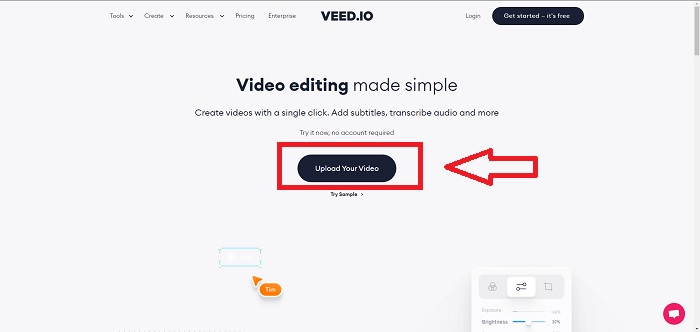
Βήμα 1. Κάνοντας κλικ στο κουμπί Upload Your Video, μπορείτε να στείλετε ένα αρχείο βίντεο από τον υπολογιστή σας στον χώρο αποθήκευσης του διακομιστή.
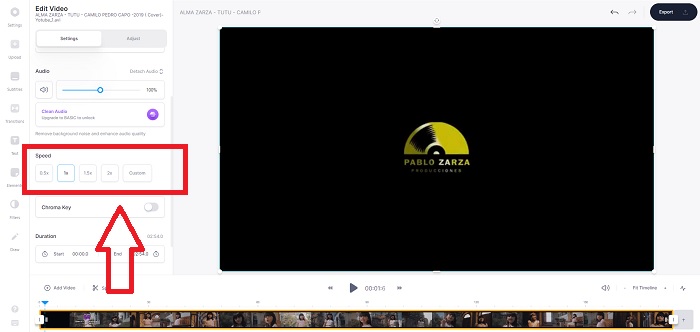
Βήμα 2. Μόλις μετακινήσετε το ποντίκι σας πάνω από τη διεπαφή επεξεργασίας του web εργαλείου, εμφανίζεται ένα κομμάτι βίντεο. Βρείτε και κάντε κλικ στην επιλογή Speed για να αλλάξετε την ταχύτητα αναπαραγωγής. Επιλέγοντας Custom, μπορείτε να παίξετε το βιντεοκλίπ σας σε προσαρμοσμένη ταχύτητα, ακόμη κι αν η ταχύτητα που προτιμάτε δεν εμφανίζεται ως προκαθορισμένη επιλογή.
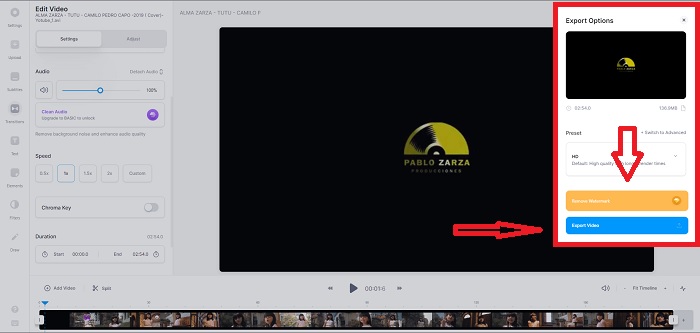
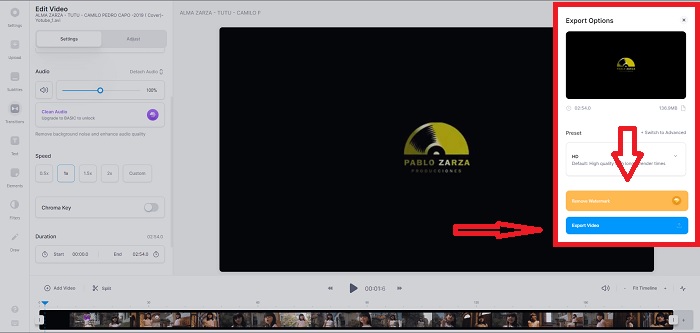
Βήμα 3. Αφού επεξεργαστείτε το βίντεο στην ταχύτητα που επιθυμείτε, κάντε κλικ στο Export για να συνεχίσετε στην καρτέλα εξαγωγής. Παράλληλα, μπορείτε να αναβαθμίσετε στην premium έκδοση του web εργαλείου και να επιλέξετε την ποιότητα βίντεο που θέλετε, καθώς και να αφαιρέσετε το υδατογράφημα. Μόλις ολοκληρωθούν όλα, μπορείτε να εξαγάγετε το βίντεο στον υπολογιστή σας.
Πλεονεκτήματα
- Διαθέτει σεμινάρια που βοηθούν στη χρήση του εργαλείου Ιστού.
- Είναι ένα καλό εργαλείο ιστού που περιέχει πληροφορίες σχετικά με εργαλεία, τιμές, πόρους και επιχειρήσεις.
Μειονεκτήματα
- Έχει μόνο έναν μικρό αριθμό εργαλείων για χρήση.
Μέθοδος 2. Χρησιμοποιήστε το InVideo
Το InVideo είναι ένα online εργαλείο που προσφέρει καλύτερη απόδοση βίντεο από άλλα διαδικτυακά εργαλεία, χάρη στα δημιουργικά του πρότυπα και τα διάφορα εργαλεία που προσφέρει. Αυτή η διαδικτυακή υπηρεσία θεωρείται μετατροπέας MP4 σε αργή κίνηση, με μία από τις βασικές της λειτουργίες στην επεξεργασία βίντεο και τη δυνατότητά της να μετατρέπει οποιοδήποτε βιντεοκλίπ σε μορφή MP4. Το InVideo λειτουργεί ως στήριγμα για κάθε μοντέρ όταν δυσκολεύεται να επιλέξει το σωστό web εργαλείο για να δημιουργήσει βίντεο σε αργή κίνηση. Για να σας βοηθήσουμε περαιτέρω με αυτό το ζήτημα, ακολουθούν τα βήματα που πρέπει να ακολουθήσετε:
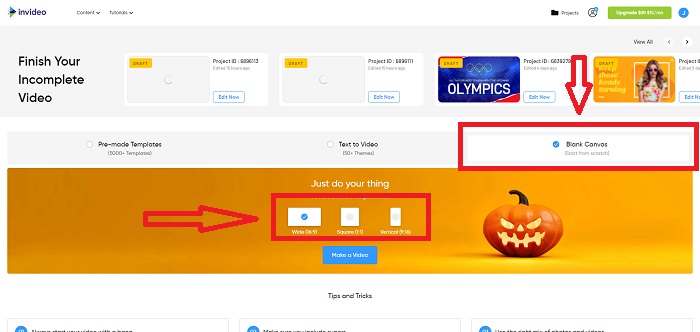
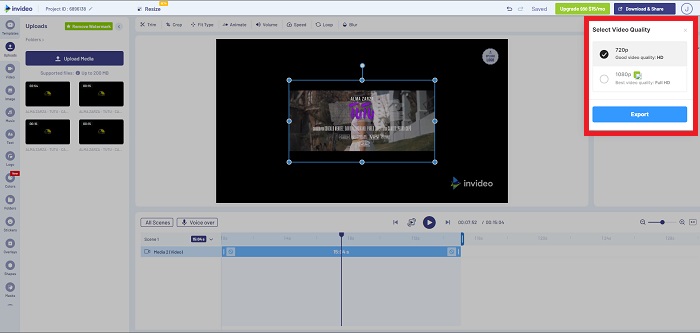
Βήμα 1. Για να χρησιμοποιήσετε το web εργαλείο, θα χρειαστεί να δημιουργήσετε λογαριασμό. Στη συνέχεια, επιλέξτε ένα πρότυπο με το οποίο θα εργαστείτε. Για να ξεκινήσει η μεταφόρτωση, κάντε κλικ στο κουμπί Upload στην επάνω αριστερή γωνία της διεπαφής.
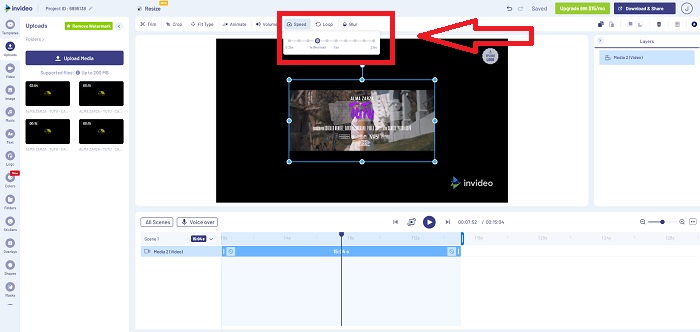
Βήμα 2. Κάντε κλικ στην καρτέλα Speed στην επάνω δεξιά γωνία της διεπαφής και σύρετέ την στο κομμάτι βίντεο για να επεξεργαστείτε την ταχύτητα αναπαραγωγής του κλιπ. Απλώς κάντε κλικ και σύρετε το Slider για να αλλάξετε την ταχύτητα αναπαραγωγής.
Βήμα 3. Κατεβάστε και μοιραστείτε τη δουλειά σας όταν τελειώσετε την επεξεργασία και, στη συνέχεια, αναβαθμίστε στην έκδοση Premium για ακόμη καλύτερα αποτελέσματα.
Πλεονεκτήματα
- Διαθέτει προσαρμοσμένα πρότυπα διαθέσιμα για χρήση δωρεάν.
- Περιέχει επαγγελματικά χαρακτηριστικά.
Μειονεκτήματα
- Πρέπει να το αγοράσετε για να ξεκλειδώσετε όλες τις λειτουργίες.
Μέθοδος 3. Χρησιμοποιήστε το Typito
Αν αναρωτιέστε ποιος online επεξεργαστής μπορεί να λύσει το ζήτημα της μετατροπής ενός βίντεο σε αργή κίνηση, δοκιμάστε το Typito. Το Typito κάνει εύκολη τη δημιουργία εντυπωσιακών βίντεο που θα βοηθήσουν το υλικό σας να ξεχωρίσει από τα υπόλοιπα και από το πλήθος. Είναι ό,τι είναι το Canva, αλλά σε έκδοση επεξεργασίας βίντεο. Αυτή η web εφαρμογή δεν απευθύνεται μόνο σε επαγγελματίες· μπορείτε να τη χρησιμοποιήσετε για σχολικές εργασίες ή ημιεπαγγελματικά πολυμέσα. Θα χρειαστείτε επίσης μια διεύθυνση email για να χρησιμοποιήσετε την εφαρμογή και να μετατρέψετε το κλιπ σας με τις επιθυμητές ρυθμίσεις.
Βήμα 1. Σύρετε και αφήστε αρχεία πολυμέσων από την επιφάνεια εργασίας του υπολογιστή σας ή κάντε κλικ στο εικονίδιο φακέλου για να τα προσθέσετε.
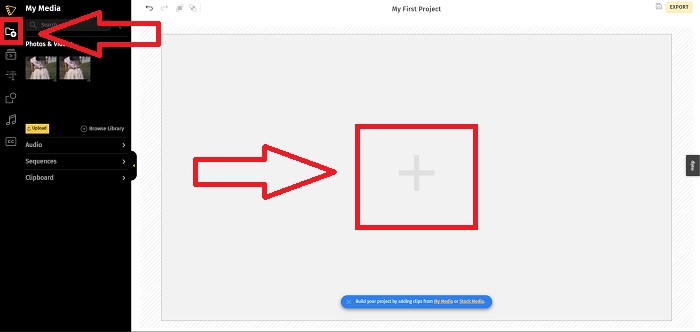
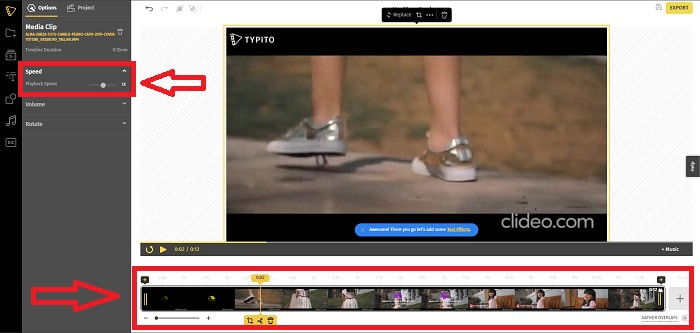
Βήμα 2. Για να αρχίσετε να επεξεργάζεστε το βίντεό σας, μεταβείτε στο κομμάτι βίντεο και επιλέξτε το αρχείο. Στη συνέχεια, κάντε κλικ στο Add Projects. Για να αλλάξετε την ταχύτητα αναπαραγωγής ενός βίντεο, εντοπίστε τη λειτουργία Speed στην αριστερή γωνία της διεπαφής και χρησιμοποιήστε το Slider για να ρυθμίσετε την ταχύτητα.
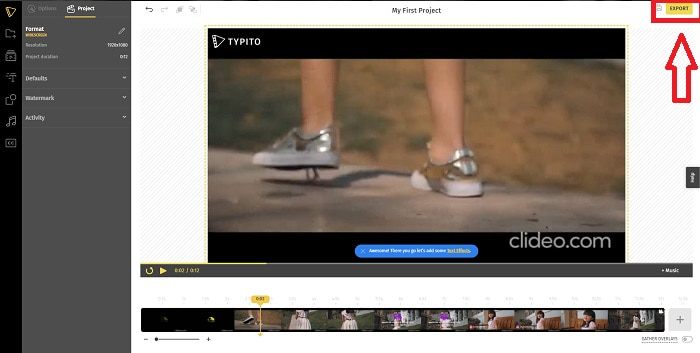
Βήμα 3. Κάνοντας κλικ στο Export στην επάνω δεξιά γωνία της διεπαφής, μπορείτε να κατεβάσετε το μετατρεμμένο αρχείο στην επιφάνεια εργασίας σας. Κατεβάστε το όταν είναι έτοιμο.
Πλεονεκτήματα
- Είναι ένα διαδικτυακό εργαλείο που είναι εύκολο στη χρήση.
- Περιέχει μορφές και πρότυπα για χρήση κατά την επεξεργασία του βίντεό σας.
Μειονεκτήματα
- Η διεπαφή του εργαλείου Ιστού είναι πολύ απλή.
- Έχει λίγα διαθέσιμα εργαλεία.
Μέρος 4. Συχνές ερωτήσεις σχετικά με το πώς να φτιάξετε βίντεο αργής κίνησης
Χάνω την ποιότητα του βίντεο αν επιβραδύνω;
Όχι, το ίδιο με την αύξηση της ταχύτητας αναπαραγωγής του βίντεό σας. Η επιβράδυνση του βίντεό σας δεν χάνει την ποιότητα του βίντεό σας. Για κάποιο λόγο, γιατί ορισμένα από τα βίντεο γίνονται λίγο δυσάρεστα μετά τη μείωση της ταχύτητας αναπαραγωγής του βίντεο, είναι ότι η ποιότητα του βίντεο είναι ήδη βαρετή και χαμηλή. Επιπλέον, αν εντατικοποιήσετε για να μειώσετε την ταχύτητα αναπαραγωγής του βίντεο κλιπ σας, ο ρυθμός καρέ θα διαιρεθεί στο μισό, προκαλώντας καθυστέρηση και μείωση της ποιότητας.
Ποια εφαρμογή είναι η καλύτερη για βίντεο αργής κίνησης;
Το Video Converter Ultimate είναι ο καλύτερος δωρεάν μετατροπέας ή επεξεργαστής για Windows και Mac. Διαθέτει επίσης λειτουργίες που μπορούν να βελτιώσουν και να ενισχύσουν το βίντεό σας και είναι προσβάσιμο σε κάθε χρήστη που θα χρησιμοποιήσει τον μετατροπέα.
Είναι το Google Photos η καλύτερη εφαρμογή για τη μετατροπή βίντεο αργής κίνησης σε κανονική ταχύτητα;
Όπως θα φανταζόταν κανείς, υπάρχουν μερικά μειονεκτήματα στη χρήση αυτής της δωρεάν εφαρμογής. Πρώτα και κύρια, η ταχύτητα επεξεργασίας βίντεο είναι σχετικά αργή, ιδιαίτερα κατά την επεξεργασία ενός μεγάλου βίντεο κλιπ. Επιπλέον, εάν διαιρέσετε το βίντεο πριν αλλάξετε την ταχύτητα αναπαραγωγής, ο ήχος στο παρασκήνιο ή η φωνητική αφήγηση θα τεθεί σε σίγαση. Ανεξάρτητα από αυτό, είναι μια εξαιρετική δωρεάν εφαρμογή Android. Μπορείτε ακόμα να χρησιμοποιήσετε εφαρμογές τρίτων, αλλά οι περισσότερες από τις εύχρηστες δεν είναι δωρεάν.
συμπέρασμα
Για να κλείσουμε αυτό το άρθρο δυναμικά, η δημιουργία ενός βίντεο σε αργή κίνηση θα είναι παιχνιδάκι με τις λύσεις που αναφέρθηκαν παραπάνω. Το Video Converter Ultimate μπορεί να θεωρηθεί ένα πρόγραμμα επεξεργασίας βίντεο σε αργή κίνηση που κάνει αυτή την εργασία πιο εύκολη και διαχειρίσιμη από ποτέ. Ο αριθμός των λειτουργιών που διαθέτει αυτό το λογισμικό δικαιολογεί το ότι αποκαλείται επαγγελματικό εργαλείο επεξεργασίας που θα χρησιμοποιείτε ξανά και ξανά.
-
 [Επιλύθηκε] Πώς να διορθώσετε τα βίντεο που δεν παίζονται στο iPhone με λεπτομερή βήματα
 Δεν είναι δυνατή η αναπαραγωγή τοπικών βίντεο στη συλλογή στο iPhone σας μέσω του προεπιλεγμένου προγράμματος αναπαραγωγής βίντεο; Συμβαίνει πάντα βίντεο στο YouTube που δεν παίζονται στο iPhone; Ακολουθούν 5 λύσεις που θα σας βοηθήσουν σε αυτό το άρθρο.
-
 5 εφαρμόσιμες μέθοδοι για τη διόρθωση του QuickTime που δεν μπορεί να ανοίξει αρχεία MOV
 Η μορφή MOV δημιουργείται κυρίως για αναπαραγωγή στο QuickTime Player. Ωστόσο, μερικές φορές μπορεί να διαπιστώσετε ότι δεν παίζουν σε αυτό. Μάθετε πώς να διορθώσετε το QuickTime δεν θα αναπαράγει αρχεία MOV από αυτήν την ανάρτηση.
-
 Πώς να μετατρέψετε αρχεία MKV για αναπαραγωγή στο PS3 ομαλά [Λύθηκε]
 Θέλετε να παίξετε βίντεο MKV στο PS3 σας; Ωστόσο, το PS3 δεν μπορεί να παίξει απευθείας αρχεία MKV. Αυτό το άρθρο θα σας δείξει τρόπους μετατροπής βίντεο MKV σε μορφές βίντεο που υποστηρίζονται από PS3 για αναπαραγωγή στο PS3 χωρίς καμία ταλαιπωρία.
