


 Video Converter Ultimate
 Εγγραφή οθόνης
 Επισκευή βίντεο
 Ασφαλές κατέβασμα
Πώς να εγγραφείτε δωρεάν αρχεία MOV (QuickTime)
Αφού συλλέξετε πολλά υλικά βίντεο MOV, ίσως θελήσετε να τακτοποιήσετε τα υλικά και να τα ενώσετε σε ένα πλήρες αρχείο. Ωστόσο, για αρχάριους ή ερασιτέχνες παραγωγούς βίντεο, η χρήση ενός τεχνικού εργαλείου όπως το Adobe Premiere Pro μπορεί να είναι πολύ περίπλοκη. Ίσως θα περάσετε ημέρες ή και μήνες για να μελετήσετε πώς να χειριστείτε το πρόγραμμα.
Στην πραγματικότητα, αν θέλετε μόνο να ενώσετε αποσπάσματα βίντεο, μπορείτε να χρησιμοποιήσετε ένα απλό και αποτελεσματικό εργαλείο ένωσης βίντεο για να λύσετε το πρόβλημά σας, το οποίο χρειάζεται μόνο λίγα λεπτά για να συγχωνεύσει δύο ή περισσότερα αρχεία MOV μαζί.
Με τα παρακάτω βήματα, μπορείτε εύκολα να συνδυάσετε αρχεία MOV τόσο σε Mac όσο και σε Windows. Συνεχίστε λοιπόν να διαβάζετε και δοκιμάστε μόνοι σας τις μεθόδους.

Μέρος 1. Πώς να συγχωνεύσετε βίντεο MOV στο QuickTime
Το MOV, επίσης γνωστό ως QuickTime File Format (QTFF), είναι ένα δοχείο ψηφιακού βίντεο με κωδικοποίηση MPEG-4. Παρουσιάστηκε από την Apple το 1998 για να υποστηρίξει το QuickTime Player. Επομένως, αν έχετε Mac, μπορείτε στην πραγματικότητα να χρησιμοποιήσετε το QuickTime Player για να ενώσετε αρχεία mov με ευκολία.
Παραδόξως, το QuickTime δεν είναι μόνο ένα πρόγραμμα αναπαραγωγής πολυμέσων, αλλά και ένα πρόγραμμα επεξεργασίας βίντεο που σας επιτρέπει να συγχωνεύσετε ξεχωριστά βίντεο, να επεξεργαστείτε βίντεο κλιπ, ακόμη και να εγγράψετε ήχο ή βίντεο στο Mac σας. Εκτός αυτού, είναι εύκολο στη χρήση και διατηρεί την αρχική ποιότητα των βίντεο.
Ακολουθούν τα βήματα σχετικά με τον τρόπο συμμετοχής βίντεο κλιπ στο QuickTime.
Βήμα 1. Βρείτε τα βίντεο που θέλετε να συγχωνεύσετε και ανοίξτε ένα από αυτά με το QuickTime Player. (Μπορείτε πρώτα να τα μετακινήσετε σε έναν φάκελο ή στην επιφάνεια εργασίας για να γλιτώσετε ταλαιπωρία.)
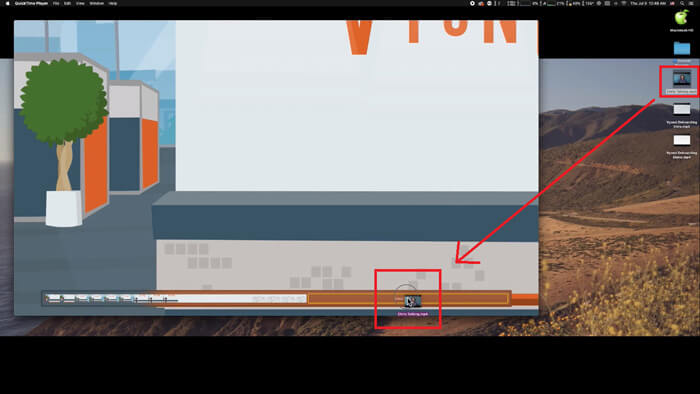
Βήμα 2. Αφού ανοίξετε το αρχείο, θα εμφανιστεί στην οθόνη ένα παράθυρο αναπαραγωγής. Τώρα σύρετε το άλλο κλιπ βίντεο μέσα στο QuickTime Player. Μπορείτε να κρατήσετε και να σύρετε το κλιπ βίντεο για να το τοποθετήσετε στη σωστή σειρά. Όταν αφήσετε το ποντίκι, θα εμφανιστεί ένα κουμπί Τέλος (Done) δίπλα στα κλιπ βίντεο. Κάντε κλικ σε αυτό.
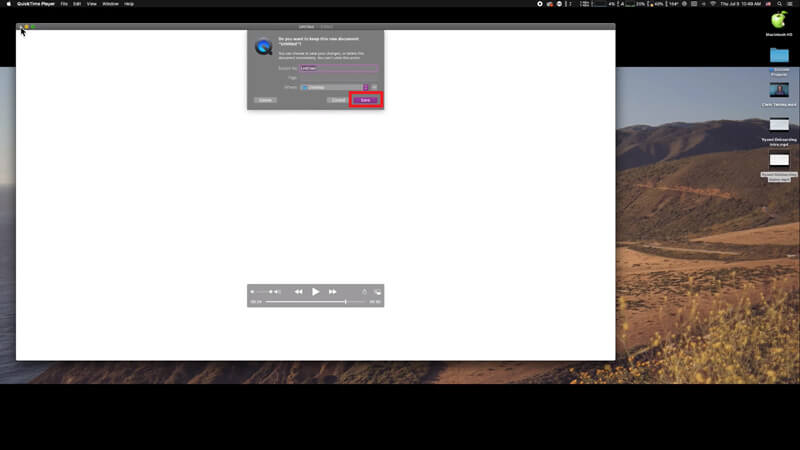
Βήμα 3. Κλείστε το QuickTime και θα εμφανιστεί αμέσως ένα μήνυμα που θα σας υπενθυμίζει να αποθηκεύσετε το συγχωνευμένο βίντεο. Απλώς πληκτρολογήστε ένα νέο όνομα και επιλέξτε μια θέση αποθήκευσης πριν κάνετε κλικ στο κουμπί Αποθήκευση (Save).
Μέρος 2. Πώς να συγχωνεύσετε αρχεία MOV online & δωρεάν
Ωστόσο, το QuickTime δεν μπορεί να σας βοηθήσει να συγχωνεύσετε διάφορα αρχεία βίντεο σε διαφορετικές μορφές, όπως MP4, MOV, AVI, WMV, FLV κ.λπ. σε ένα μόνο αρχείο MOV. Σε αυτή την περίπτωση, χρειάζεται να χρησιμοποιήσετε ένα πιο επαγγελματικό εργαλείο συγχώνευσης βίντεο που υποστηρίζει πολλαπλές μορφές βίντεο.
Γι' αυτό σας παρουσιάζουμε το FVC Free Online Video Merger, το καλύτερο εργαλείο ένωσης βίντεο για δωρεάν συγχώνευση βίντεο. Χρησιμοποιώντας αυτό το εργαλείο, μπορείτε να ανεβάσετε όσα βίντεο θέλετε χωρίς κανέναν περιορισμό. Εκτός από MOV, μπορείτε να εξάγετε και άλλες δημοφιλείς μορφές βίντεο, κάτι που είναι πολύ βολικό για να μοιραστείτε το βίντεο σε πλατφόρμες streaming όπως το YouTube.
Αντί να εγκαταστήσετε σοβαρό και δαπανηρό πρόγραμμα στον υπολογιστή σας, μπορείτε να συμμετάσχετε σε οποιοδήποτε βίντεο για να δημιουργήσετε ένα εκπληκτικό βίντεο στο διαδίκτυο με αυτόν τον εύχρηστο συνδυασμό βίντεο, το οποίο σας επιτρέπει επίσης να δημιουργήσετε ένα βίντεο χωρίς υδατογράφημα. Ανεξάρτητα από το σύστημα που χρησιμοποιείτε, Windows, Mac ή Linux, μπορεί να λειτουργήσει καλά. Το μόνο που χρειάζεστε είναι ένα πρόγραμμα περιήγησης και ένα σταθερό δίκτυο.
Τα παρακάτω βήματα θα σας καθοδηγήσουν σχετικά με τον τρόπο λειτουργίας αυτού του εργαλείου συγχώνευσης βίντεο.
Βήμα 1. Κάντε κλικ στον παραπάνω σύνδεσμο για να ανοίξετε στον browser σας τον ιστότοπο του FVC Free Online Video Merger.
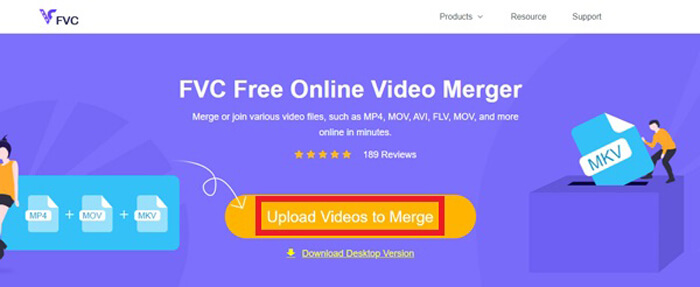
Βήμα 2. Κάντε πρώτα κλικ στο κουμπί Upload Videos to Merge στο banner. Στη συνέχεια, ακολουθήστε τις οδηγίες στην οθόνη για να κατεβάσετε και να εγκαταστήσετε έναν εκκινητή (launcher) στον υπολογιστή σας.
Βήμα 3. Μόλις ολοκληρωθεί η εγκατάσταση, θα εμφανιστεί αμέσως ένα παράθυρο. Τώρα μπορείτε να επιλέξετε και να προσθέσετε όλα τα αρχεία MOV που θέλετε να ενώσετε στο εργαλείο συγχώνευσης βίντεο.
Βήμα 4. Μετά το ανέβασμα, ελέγξτε αν η σειρά των αποσπασμάτων βίντεο είναι σωστή. Στη συνέχεια, αλλάξτε την Ανάλυση (Resolution) όπως χρειάζεστε και τη Μορφή (Format) σε MOV ή σε οποιαδήποτε άλλη μορφή θέλετε.
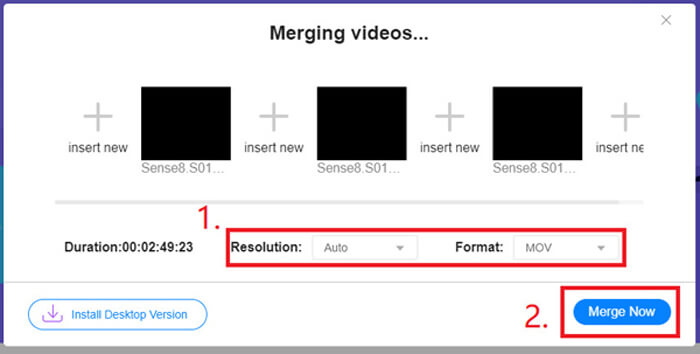
Βήμα 5. Κάντε κλικ στο Merge Now για να ξεκινήσει η συγχώνευση.
Μέρος 3. Πώς να συγχωνεύσετε αρχεία MOV στα Windows 10
Εάν δεν διαθέτετε Mac αλλά διαθέτετε υπολογιστή με Windows 10, μπορείτε να δοκιμάσετε τα ακόλουθα βήματα για να ενώσετε αρχεία MOV.
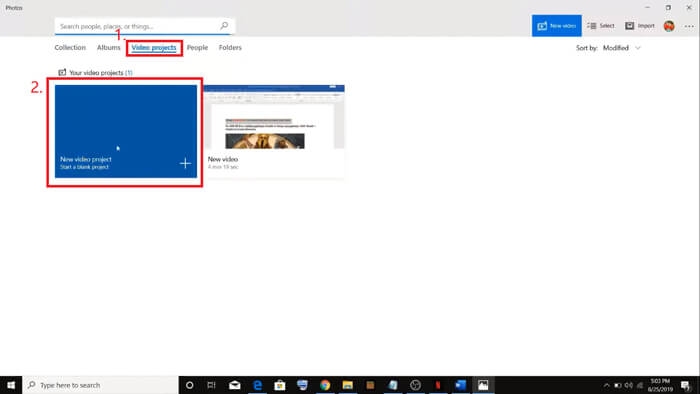
Βήμα 1. Ανοίξτε την εφαρμογή Φωτογραφίες (Photos) στον υπολογιστή σας. Μπορείτε να τη βρείτε κάνοντάς την αναζήτηση στη Γραμμή αναζήτησης (Search). Έπειτα επιλέξτε την καρτέλα Έργα βίντεο (Video projects) επάνω και κάντε κλικ στο Νέο έργο βίντεο (New video project). Ονομάστε το έργο βίντεο.
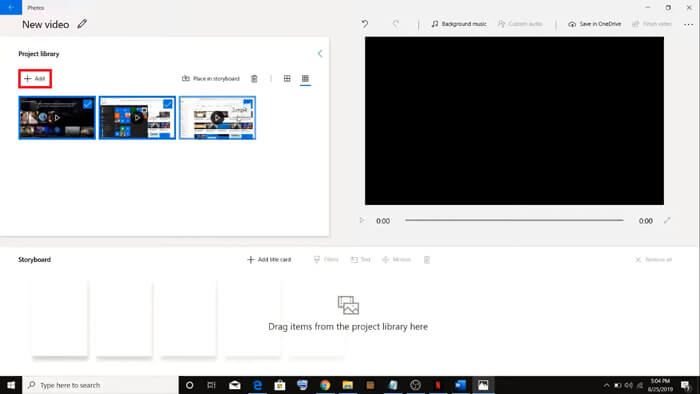
Βήμα 2. Κάντε κλικ στο κουμπί Προσθήκη (Add) στην επάνω αριστερή γωνία και επιλέξτε όλα τα βίντεο που θέλετε να μετατρέψετε από τον υπολογιστή σας.
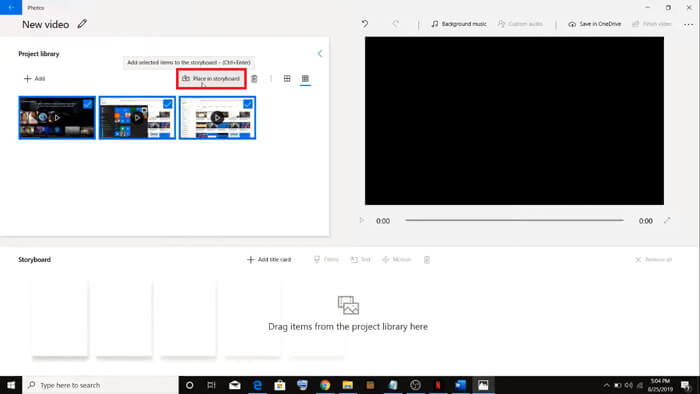
Βήμα 3. Έπειτα κάντε κλικ στο κουμπί Τοποθέτηση στο storyboard (Place in storyboard) για να συνδυάσετε όλα τα αρχεία MOV σας.
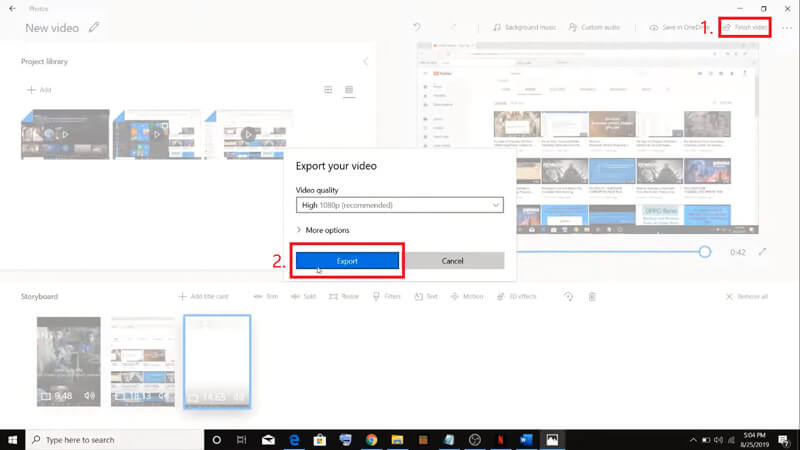
Βήμα 4. Αφού ρυθμίσετε τη σειρά των βίντεο, κάντε κλικ στο Ολοκλήρωση βίντεο (Finish video) στην επάνω δεξιά γωνία. Στη συνέχεια, κάντε Export για να αποθηκεύσετε το συγχωνευμένο βίντεο στον υπολογιστή σας.
Μέρος 4. Συχνές ερωτήσεις για συγχώνευση MOV
1. Μπορώ να χρησιμοποιήσω το QuickTime Player στα Windows;
Παρόλο που η Apple δεν υποστηρίζει πια το QuickTime για Windows, μπορείτε ακόμη να βρείτε στο Διαδίκτυο το πακέτο εγκατάστασης του QuickTime. Ωστόσο, θα πρέπει να προσέξετε ότι μπορείτε να το χρησιμοποιήσετε μόνο για αναπαραγωγή βίντεο. Ουσιαστικά, είναι ένας απλός player που δεν σας βοηθά ιδιαίτερα.
Αν είστε χρήστης Windows που θέλει να συγχωνεύσει αρχεία MOV, μπορείτε απλώς να χρησιμοποιήσετε το ισχυρό FVC Free Online Video Merger.
2. Ποιο είναι καλύτερο για το YouTube, το MOV ή το MP4;
Αφού δημιουργήσετε ένα υπέροχο βίντεο συγχωνεύοντας όλο το υλικό σας, ίσως θελήσετε να το ανεβάσετε στο YouTube, το Facebook, το Instagram ή άλλες πλατφόρμες. Αν ναι, το MP4 θα είναι καλύτερη επιλογή, επειδή έχει μικρότερο μέγεθος και είναι πιο εύκολο να κοινοποιηθεί μέσω Internet.
Ίσως θέλετε να μάθετε περισσότερες διαφορές μεταξύ MOV και MP4.
3. Μπορεί το QuickTime Player να εξαγάγει βίντεο MP4;
Όχι και ναι. Διότι το ίδιο το QuickTime δεν επιτρέπει στους χρήστες να εξάγουν αρχεία MP4. Όμως, αν έχετε πληρώσει και αναβαθμίσει το QuickTime σε QuickTime Pro, τότε μπορείτε να απολαμβάνετε τη συγχώνευση αρχείων MOV και να λαμβάνετε αυτόματα το μετατρεπόμενο αρχείο MP4. Αν δεν θέλετε να πληρώσετε ούτε ένα σεντ αλλά εξακολουθείτε να θέλετε να μετατρέψετε MOV σε MP4 σε Mac, μπορείτε να δοκιμάσετε ένα δωρεάν online μετατροπέα που ονομάζεται FVC Free Online Video Converter, ο οποίος είναι συμβατός τόσο με Mac όσο και με Windows.
συμπέρασμα
Λοιπόν, αυτές είναι οι μέθοδοι που μπορείτε να υιοθετήσετε όταν χρειάζεται να συγχωνεύσετε αρχεία MOV σε ένα. Αν χρησιμοποιείτε Mac, μπορείτε να αξιοποιήσετε απευθείας το ενσωματωμένο λογισμικό QuickTime Player για να πάρετε το συγχωνευμένο αρχείο MOV. Οι χρήστες Windows 10 μπορούν να δοκιμάσουν τις Φωτογραφίες (Photos). Όσο για άλλους υπολογιστές με Windows, οι χρήστες μπορούν να επιλέξουν το FVC Free Online Video Merger και να απολαύσουν μια φανταστική εμπειρία συγχώνευσης βίντεο χωρίς περιορισμούς, χωρίς διαφημίσεις και χωρίς ιούς.
Εάν σας αρέσει αυτή η ανάρτηση και την βρείτε πρακτική, μπορείτε να τη μοιραστείτε με τους φίλους σας. Και μην διστάσετε να μας αφήσετε το σχόλιό σας. Τώρα είναι η σειρά σας να δοκιμάσετε τις μεθόδους και να συγχωνεύσετε τα αρχεία σας.
-
 Πώς να μετατρέψετε το QuickTime σε MP4 σε Windows / Mac / Online / iOS / Android
 Διαβάστε και λάβετε 4 τρόπους μετατροπής του QuickTime σε βίντεο MP4 δωρεάν στο τηλέφωνο ή τον υπολογιστή σας. Μπορείτε να αλλάξετε τη μορφή αρχείου από MOV σε MP4 σε Windows / Mac / iPhone / Android / online με ευκολία.
-
 Κορυφαίοι 4 τρόποι δωρεάν μετατροπής MP4 σε MOV
 Πώς να μετατρέψετε MP4 σε MOV σε Mac; Υπάρχει δωρεάν τρόπος μετατροπής MP4 σε MOV χωρίς απώλεια ποιότητας; Αυτή η ανάρτηση μοιράζεται 4 απλούς τρόπους για να σας βοηθήσει να πραγματοποιήσετε τη μετατροπή βίντεο από MP4 σε MOV σε Mac, Windows PC και online.
-
 Πώς να μετατρέψετε M2TS σε MOV σε Windows / Mac (Online / Offline)
 Πρέπει να μετατρέψετε το M2TS σε MOV για την αναπαραγωγή αρχείων βίντεο σε αρκετές συσκευές αναπαραγωγής και πλατφόρμες; Αυτό το άρθρο θα σας βοηθήσει να βρείτε την καλύτερη μέθοδο Online / Offline για να μετατρέψετε το M2TS σε MOV σε Windows / Mac.
