


 Video Converter Ultimate
 Εγγραφή οθόνης
 Επισκευή βίντεο
Πώς να αλλάξετε τα μεταδεδομένα των αρχείων MOV σε Mac με βήματα χωρίς κόπο
Όλοι γνωρίζουμε ότι το MOV είναι μία από τις κορυφαίες μορφές που μπορείτε ιδανικά να χρησιμοποιήσετε για αναπαραγωγή βίντεο στις συσκευές Apple και για επεξεργασία. Αλλά τι κάνει το MOV μοναδικό; Υποστηρίζει μια συμπίεση βίντεο που προτιμάται από επαγγελματίες. Αν και μπορεί να αποθηκεύσει πολλαπλά στοιχεία σε ένα μόνο αρχείο, είναι ακόμη πιθανό τα MOV να έχουν μπερδεμένες ετικέτες (tags), πράγμα που μπορεί να οδηγήσει σε πρόβλημα. Θα βοηθούσε να τις επεξεργαστείτε κατάλληλα, ώστε να έχετε σωστά μεταδεδομένα και να το διορθώσετε άμεσα. Με το κατάλληλο εργαλείο, αυτή η εργασία είναι παιχνιδάκι. Σήμερα λοιπόν, θα παρουσιάσουμε τους καλύτερους τρόπους για να επεξεργαστείτε άμεσα τα μεταδεδομένα αρχείων MOV.

Μέρος 1. Πώς να επεξεργαστείτε τα μεταδεδομένα MOV με το Ultimate Tag Editor σε Mac
Το FVC Video Converter Ultimate είναι η ολοκληρωμένη λύση σας για αυτό το πρόβλημα με τα μεταδεδομένα, καθώς υποστηρίζει πάνω από 1000 μορφές σε Mac και Windows. Με αυτό το εργαλείο, μπορείτε άμεσα να αφαιρέσετε, να επεξεργαστείτε ή να προσθέσετε μεταδεδομένα στο αρχείο MOV σας. Και τι άλλο; Μπορείτε να κάνετε πολλαπλές επεξεργασίες στο MOV σας, όπως κοπή, περικοπή, συγχώνευση, crop και χιλιάδες ακόμη λειτουργίες, ακόμη κι αν δεν είστε επαγγελματίας στο editing. Πράγματι, είναι εντυπωσιακό να έχετε αυτό το εργαλείο δίπλα σας, και υπάρχουν πολλά ακόμη που μπορείτε να κάνετε με αυτό μέσα σε λίγα μόνο κλικ. Ωστόσο, σήμερα σας παρουσιάζουμε τις αναλυτικές οδηγίες που έχουμε προσθέσει και μπορείτε να ακολουθήσετε για να επεξεργαστείτε με επιτυχία τα μεταδεδομένα των αρχείων MOV σας.
Βήμα 1. Μπορείτε να αποκτήσετε τον απόλυτο μετατροπέα στο Mac ή στα Windows πατώντας το κουμπί λήψης παρακάτω. Προχωρήστε στη διαδικασία εγκατάστασης κάνοντας κλικ στο αρχείο που κατεβάσατε και πατήστε Start Now για να εκκινήσετε αμέσως το εργαλείο.
Δωρεάν ΛήψηΓια Windows 7 ή νεότεραΑσφαλής λήψη
Δωρεάν ΛήψηΓια MacOS 10.7 ή νεότεροΑσφαλής λήψη
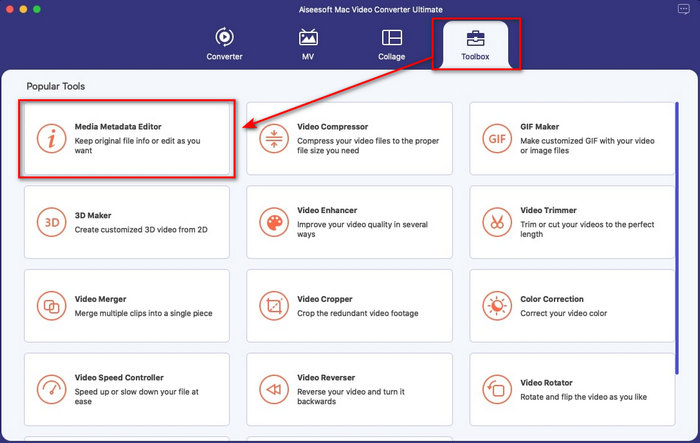
Βήμα 2. Η διεπαφή του εργαλείου θα εμφανιστεί στην οθόνη σας· μεταβείτε στην ενότητα Toolbox και ανοίξτε το Media Metadata Editor.
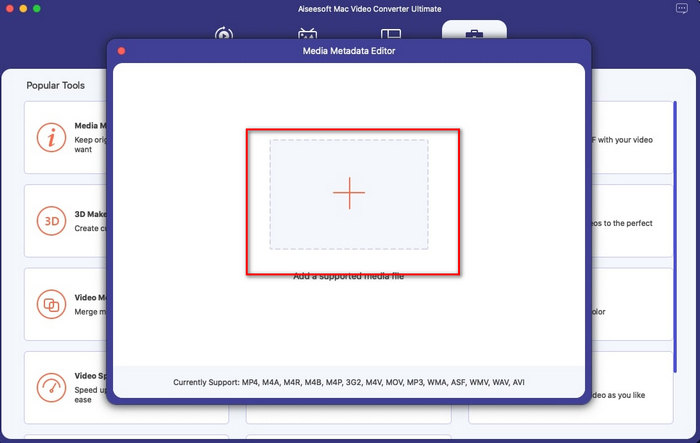
Βήμα 3. Αφού ανοίξετε τον επεξεργαστή, θα εμφανιστεί ένα μικρό παράθυρο· πατήστε το κουμπί + για να ανοίξετε έναν φάκελο όπου μπορείτε να εντοπίσετε το αρχείο και, για να το εισαγάγετε, κάντε κλικ στο Open.
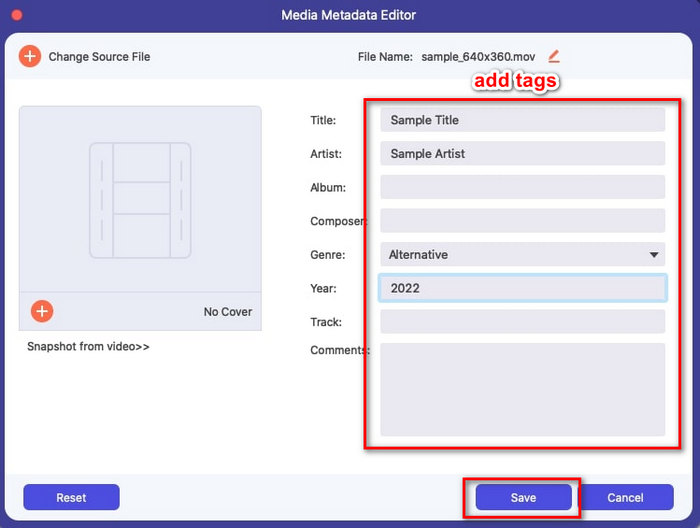
Βήμα 4. Τώρα μπορείτε να προσθέσετε, να επεξεργαστείτε ή να αφαιρέσετε τις ετικέτες (tags) στο αρχείο MOV εδώ στο text box. Όταν ολοκληρώσετε, κάντε κλικ στο κουμπί Save. Έχετε πλέον επεξεργαστεί τα μεταδεδομένα στα αρχεία MOV σας τόσο γρήγορα και απλά.
Σχετικά:
Μέρος 2. 3 από τους καλύτερους επεξεργαστές ετικετών MOV για αλλαγή μεταδεδομένων MOV
VLC Media Player
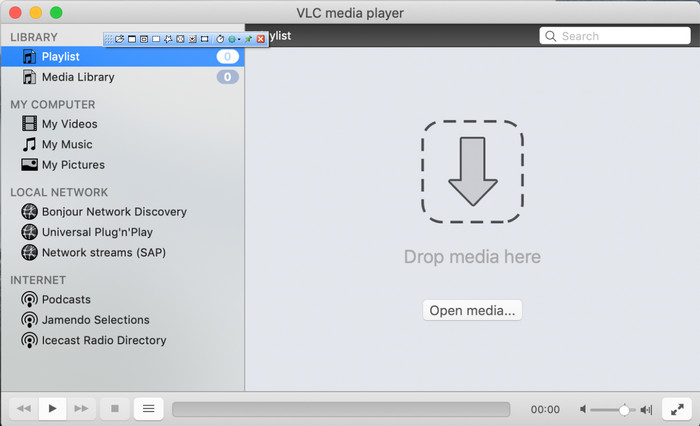
Το VLC Media Player είναι ένας δημοφιλής media player διαθέσιμος σε Mac και Windows. Παρόλο που μπορεί να αναπαράγει διάφορες μορφές βίντεο, μπορεί επίσης να αλλάξει τα μεταδεδομένα των πολυμέσων σας, όπως στα MOV. Επιπλέον, αν θέλετε να δείτε τα μεταδεδομένα του αρχείου σας, μπορείτε εύκολα να το χρησιμοποιήσετε για προβολή. Ωστόσο, δεν είναι τόσο αποτελεσματικό όσο τα εξειδικευμένα προγράμματα επεξεργασίας μεταδεδομένων που μπορείτε να χρησιμοποιήσετε σε Mac ή Windows. Παρ’ όλα αυτά, μπορείτε ακόμη να επεξεργαστείτε τα μεταδεδομένα αρχείου MOV μέσα από αυτόν τον media player.
Βήμα 1. Κατεβάστε τον media player από την επίσημη ιστοσελίδα του VLC και ανοίξτε τον.
Βήμα 2. Πατήστε Command + I στο πληκτρολόγιό σας και θα εμφανιστούν οι πληροφορίες πολυμέσων, όπου μπορείτε να προσθέσετε ή να διαγράψετε τα μεταδεδομένα του αρχείου MOV.
Βήμα 3. Κάντε κλικ στο Save Metadata όταν τελειώσετε με την εφαρμογή των tags στο MOV.
iTunes
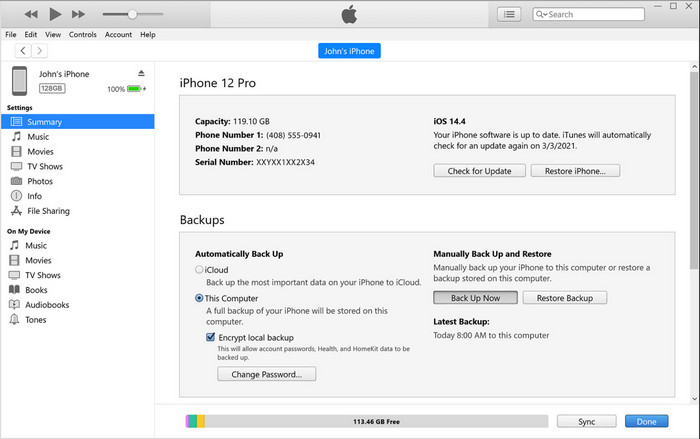
Το iTunes είναι η καλύτερη προεγκατεστημένη εφαρμογή streaming που μπορείτε να χρησιμοποιήσετε σε κάθε συσκευή Apple. Αυτό το εργαλείο είναι γεμάτο δυνατότητες, όπως μουσικό player και κατάστημα για μουσική, ταινίες, podcast και πολλά ακόμη, προστατευμένα με DRM για αποφυγή προβλημάτων πνευματικών δικαιωμάτων. Παρά το γεγονός ότι είναι μια εξαιρετική ενσωματωμένη εφαρμογή, ο ανταγωνισμός στα εργαλεία επεξεργασίας μεταδεδομένων είναι πολύ έντονος για να μπορέσει το iTunes να ξεχωρίσει. Ωστόσο, εξακολουθούμε να το συμπεριλαμβάνουμε, επειδή μπορεί να αλλάξει τα μεταδεδομένα MOV σε Mac.
Βήμα 1. Ανοίξτε και εισαγάγετε το αρχείο MOV στη βιβλιοθήκη iTunes.
Βήμα 2. Έπειτα, κάντε δεξί κλικ στο αρχείο .mov που προσθέσατε και επιλέξτε Get Info. Αφού το πατήσετε, θα δείτε διάφορες επιλογές για αλλαγή των μεταδεδομένων, όπως λεπτομέρειες, εξώφυλλα (artwork), στίχοι, επιλογές, ταξινόμηση και αρχείο· προσαρμόστε τα ανάλογα με τις ανάγκες σας.
Βήμα 3. Πατήστε OK για να αποθηκεύσετε τις αλλαγές.
MetaZ
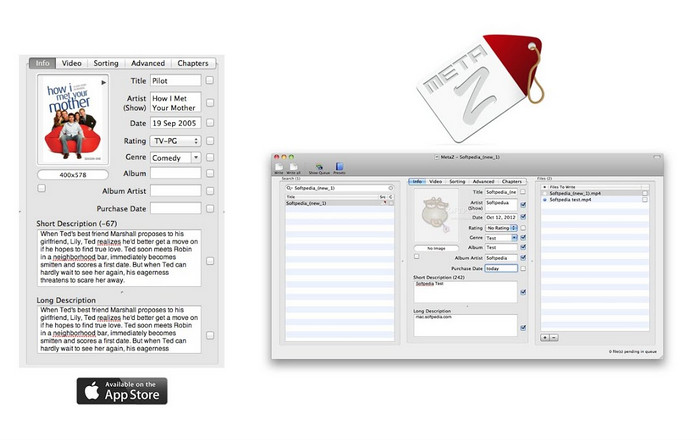
Για το macOS X, μπορείτε να κατεβάσετε ελεύθερα το Metaz για να αλλάξετε εύκολα τα μεταδεδομένα των αρχείων σας. Αυτό το πρόγραμμα επεξεργασίας μεταδεδομένων μπορεί να σας βοηθήσει να αλλάξετε τις ετικέτες βίντεο στις περισσότερες μορφές, όπως το MOV. Με αυτήν την εφαρμογή, μπορείτε να κάνετε το κόλπο εύκολα και να οργανώσετε το MOV στη βιβλιοθήκη σας. Ωστόσο, πολλές αναφορές έχουν συμβεί τελευταία με την εφαρμογή. Οι χρήστες αντιμετωπίζουν πολλά ενοχλητικά προβλήματα κατά τη χρήση της εφαρμογής. Παρόλο που μπορεί να προκύψουν προβλήματα, εξακολουθεί να είναι ένας από τους πιο επιλεγμένους επεξεργαστές μεταδεδομένων MOV που μπορείτε να κατεβάσετε στο Mac σας.
Βήμα 1. Κατεβάστε την εφαρμογή στο Mac σας, ανοίξτε την και θα εμφανιστούν τρεις ενότητες στη διεπαφή του εργαλείου, όπου μπορείτε να προσθέσετε το αρχείο, να επεξεργαστείτε τα tags και να αναζητήσετε tags.
Βήμα 2. Σύρετε και αποθέστε το αρχείο MOV στο αριστερό τμήμα. Στη δεξιά πλευρά του θα δείτε ότι το πρόγραμμα θα αναζητήσει αυτόματα tags για το αρχείο MOV με βάση τον τίτλο του, αλλά μπορείτε να τα τροποποιήσετε στο μεσαίο τμήμα αν θέλετε.
Βήμα 3. Πατήστε Write και τα tags θα προστεθούν στο αρχείο MOV.
Μέρος 3. Συχνές ερωτήσεις σχετικά με τον επεξεργαστή μεταδεδομένων MOV
Μπορώ να χρησιμοποιήσω το πρόγραμμα επεξεργασίας μεταδεδομένων QuickTime για να αλλάξω ετικέτες;
Δυστυχώς, δεν μπορείτε, επειδή αυτό το εργαλείο μπορεί να αναπαράγει μόνο μορφή πολυμέσων, να επεξεργάζεται τα βίντεο και να κάνει εγγραφή. Αλλά μπορείτε να προβάλετε ελεύθερα τα μεταδεδομένα του αρχείου σας στο Quicktime ακολουθώντας αυτά τα απλά βήματα. Αρχικά, ανοίξτε το αρχείο MOV στο Quicktime και παίξτε το. Θα δείτε διαφορετικές επιλογές στο επάνω μέρος. κάντε κλικ στο Παράθυρο και κάτω από αυτό, πατήστε Προβολή επιθεωρητή και, στη συνέχεια, θα εμφανιστεί ένα νέο παράθυρο στην οθόνη σας για να δείτε τις μικρές πληροφορίες σχετικά με το αρχείο MOV σας.
Η αλλαγή των ετικετών MOV επηρεάζει την ποιότητα;
Ευτυχώς δεν θα γίνει επειδή έχετε προσαρμόσει τις ετικέτες, όχι την ανάλυση ή την ποιότητα του αρχείου MOV. Επομένως, εάν ανησυχείτε ότι η ανάλυση του βίντεο μπορεί να μειωθεί μετά την αλλαγή των ετικετών, θα το επαναλάβουμε. δεν θα γίνει.
Η προσθήκη μεταδεδομένων στο MOV θα αυξήσει το μέγεθος του αρχείου;
Σε οποιοδήποτε αρχείο, αφού προσθέσετε μεταδεδομένα σε αυτό το αρχείο, θα δείτε τη διαφορά μεταξύ του αρχείου που δεν έχει ετικέτα και αυτού που έχει. Ωστόσο, αυτές οι ετικέτες δεν είναι τόσο μεγάλες όσο το περιεχόμενο του αρχείου. Επομένως, εάν προσθέσετε μεταδεδομένα στο MOV σας, περιμένετε ότι θα αυξηθεί λίγο σε μέγεθος επειδή έχετε προσθέσει πληροφορίες σχετικά με το αρχείο βίντεο.
συμπέρασμα
Τώρα που ολοκληρώσαμε την παρουσίαση για το πώς να αλλάζετε τα μεταδεδομένα αρχείων MOV, ήρθε η ώρα να επιλέξετε ποιον οδηγό θα ακολουθήσετε. Αν θέλετε να κατεβάσετε ένα δωρεάν εργαλείο στο Mac σας, μπορείτε να εγκαταστήσετε τα VLC και Metaz για να διορθώσετε ή να επεξεργαστείτε τα μεταδεδομένα των MOV. Αν όμως δεν το επιθυμείτε, μπορείτε να χρησιμοποιήσετε το iTunes για να επεξεργαστείτε εύκολα τα μεταδεδομένα. Αν και αυτά τα εργαλεία είναι πολύ χρήσιμα, δεν υπάρχει ακόμη κάποιο με τόσο ισχυρές δυνατότητες επεξεργασίας μεταδεδομένων σε Mac όσο αυτό που μπορεί να σας προσφέρει το FVC Video Converter Ultimate. Επομένως, αν εξακολουθείτε να αναρωτιέστε τι να χρησιμοποιήσετε, θα σας προτείναμε θερμά να επιλέξετε το απόλυτο αυτό εργαλείο για την εργασία αυτή, επειδή είναι εύκολο στη χρήση αλλά προσφέρει ένα πλήρες πακέτο δυνατοτήτων για κάθε σας ανάγκη.
-
 Τι είναι τα Μεταδεδομένα: Μάθετε τις Βασικές Πληροφορίες για τα Μεταδεδομένα
 Τι είναι τα Μεταδεδομένα; Είναι αυτό σημαντικό; Ποια είναι τα μέρη των μεταδεδομένων; Έχετε την ίδια ερώτηση; Σε αυτό το άρθρο, θα μάθετε τις βασικές πληροφορίες σχετικά με τα μεταδεδομένα.
-
 4 από τα καλύτερα προγράμματα προβολής μεταδεδομένων σε απευθείας σύνδεση και εκτός σύνδεσης [Ενημερώθηκε 2022]
 Μπορώ να ελέγξω τα μεταδεδομένα του αρχείου μου; Ναι, μπορείτε, με τη βοήθεια αυτής της ανάρτησης θα σας παρουσιάσουμε τα διάφορα προγράμματα προβολής μεταδεδομένων που μπορείτε να χρησιμοποιήσετε.
-
 Οι κορυφαίοι 4 πιο επιλεγμένοι επεξεργαστές ετικετών WMV στην επιφάνεια εργασίας [Ενημέρωση 2022]
 Χρειάζεστε έναν αξιόπιστο επεξεργαστή ετικετών WMV για να επεξεργαστείτε τις ετικέτες WMV; Λοιπόν, αυτό το άρθρο παρέχει αρκετές γνώσεις σχετικά με το εργαλείο που υποστηρίζει το WMV.
