


 Video Converter Ultimate
 Εγγραφή οθόνης
 Επισκευή βίντεο
Απλοί τρόποι για να προσθέσετε γρήγορα εικόνα σε βίντεο στο iMovie
Η προσθήκη εικόνων σε ένα βίντεο έχει γίνει ένας από τους καλύτερους τρόπους για να μεταφέρετε ακόμη πιο αποτελεσματικά το μήνυμα στο κοινό. Τα περισσότερα προγράμματα επεξεργασίας βίντεο σάς βοηθούν να τοποθετήσετε γρήγορα μια εικόνα πάνω σε ένα βίντεο και, αν είστε χρήστης Apple, ίσως έχετε ήδη συναντήσει το iMovie. Θεωρείται ένα από τα καλύτερα προγράμματα επεξεργασίας που μπορείτε να χρησιμοποιήσετε στη συσκευή Apple σας. Ωστόσο, πολλοί μέσοι χρήστες Apple δυσκολεύονται με το iMovie, επειδή δεν έχουν προηγούμενη εμπειρία με αυτό. Αν, λοιπόν, είστε κι εσείς χρήστης Apple που αντιμετωπίζει προβλήματα με τη χρήση του και θέλετε να προσθέσετε μια εικόνα σε βίντεο, μπορείτε να διαβάσετε αυτό το άρθρο· το να μάθετε πώς να προσθέτετε εικόνες σε βίντεο στο iMovie είναι απλό, αν διαβάσετε προσεκτικά τα παρακάτω.

Μέρος 1. Πώς να επικαλύψετε μια εικόνα σε ένα βίντεο στο iMovie [Mac]
Εάν έχετε iMovie σε Mac, μπορείτε να το χρησιμοποιήσετε και να προσθέσετε την εικόνα στο βίντεο. Τώρα λοιπόν, αν θέλετε να μάθετε πώς να τοποθετείτε μια φωτογραφία στο βίντεο iMovie, τα παρακάτω βήματα θα σας βοηθήσουν.
Βήμα 1. Αναζητήστε το iMovie στο Finder και κάντε κλικ για να το ανοίξετε.
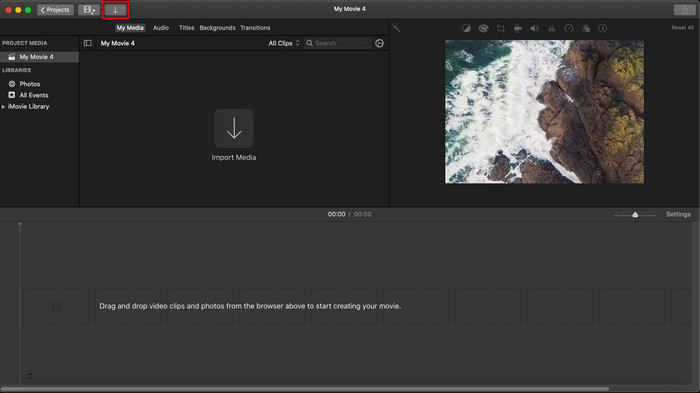
Βήμα 2. Στο επάνω αριστερό μέρος του iMovie, κάντε κλικ στο κουμπί Import για να εισαγάγετε εύκολα το βίντεο και την εικόνα. Σύρετε και τοποθετήστε το αρχείο πολυμέσων που εισαγάγατε στο Timeline.
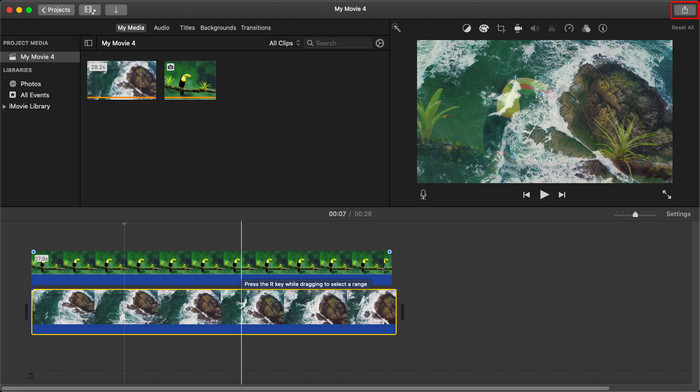
Βήμα 3. Προσαρμόστε την εικόνα που εισαγάγατε και τη διάρκειά της. Στη συνέχεια, κάντε κλικ στο Export για να κατεβάσετε το αρχείο στον υπολογιστή σας.
Τα βήματα που παρουσιάσαμε εδώ προέρχονται από την πρακτική εμπειρία χρήσης του iMovie. Τα βήματα ενδέχεται να διαφέρουν εάν υπάρχει ενημέρωση στο εργαλείο ή εάν πραγματοποιηθούν σύντομα κάποιες αλλαγές.
Μέρος 2. Τρόπος εισαγωγής φωτογραφιών σε βίντεο με το iMovie [iOS]
Τι γίνεται αν χρησιμοποιείτε μια συσκευή iOS και θέλετε να χρησιμοποιήσετε το iMovie ως πρόγραμμα επεξεργασίας για να προσθέσετε μια εικόνα σε ένα βίντεο; Είναι δυνατόν? Λοιπόν, ναι, είναι. Μπορούμε να σας μάθουμε πώς να τοποθετείτε μια εικόνα σε ένα βίντεο iMovie στο iPhone διαβάζοντας τις παρακάτω λεπτομέρειες με τα βήματα που παρέχουμε.
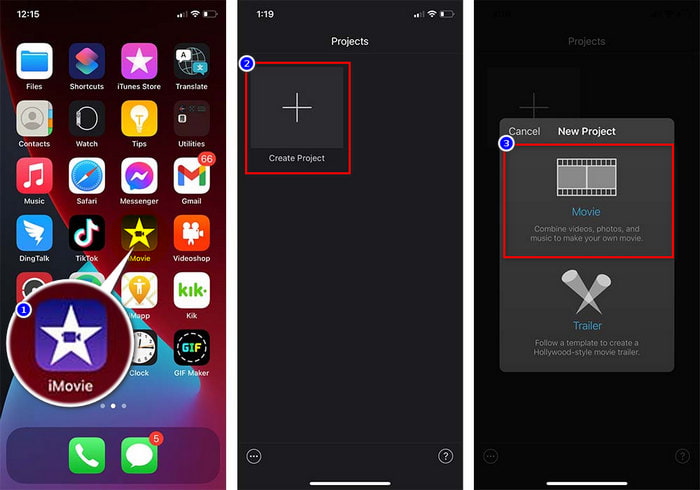
Βήμα 1. Εκτελέστε την εφαρμογή iMovie στη συσκευή iOS, πατήστε Create Project και μετά Movie. Προσθέστε το βίντεο που βρίσκεται στη βιβλιοθήκη σας.
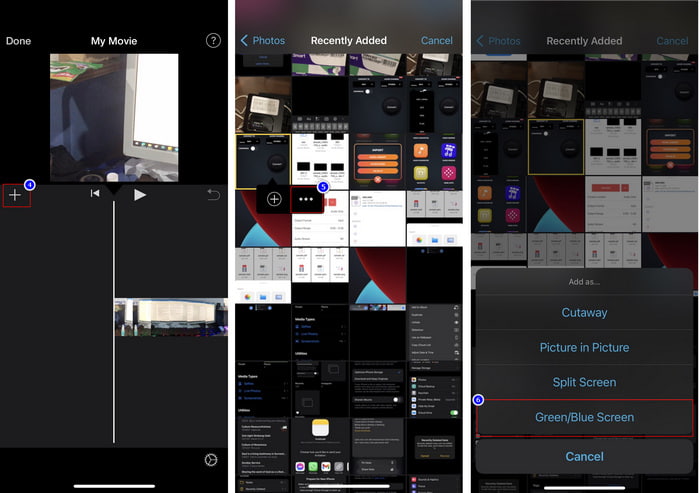
Βήμα 2. Πατήστε το κουμπί + για να προσθέσετε την εικόνα-υδατογράφημα στο βίντεο. Αναζητήστε την στη βιβλιοθήκη, πατήστε την, πιέστε τη γραμμή με τις τρεις τελείες και επιλέξτε Green/Blue Screen. Αγγίξτε την εικόνα για να αφαιρέσετε αυτόματα το φόντο.
Βήμα 3. Πατήστε Done, κάντε κλικ στο Export και έπειτα στο Save Videos.
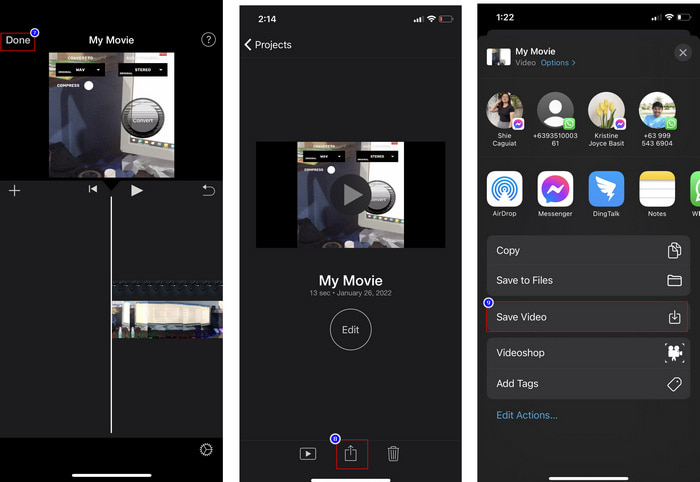
Όλα τα βήματα που παρουσιάσαμε εδώ προέρχονται από την πρακτική εμπειρία χρήσης του iMovie σε iOS. Ωστόσο, ορισμένα από τα βήματα ενδέχεται να αλλάξουν εάν γίνει μια ενημέρωση στην εφαρμογή επεξεργασίας σύντομα.
Μέρος 3. Η ευκολότερη λύση για την εισαγωγή φωτογραφίας σε βίντεο με το καλύτερο λογισμικό υδατογραφήματος βίντεο σε Mac
Έχετε τις ίδιες δυσκολίες στο να προσθέσετε φωτογραφίες πάνω από βίντεο στο iMovie; Δοκιμάστε να χρησιμοποιήσετε το Video Converter Ultimate, γιατί αυτό το εργαλείο είναι η καλύτερη εναλλακτική λύση στο iMovie. Η συνολική του απόδοση έχει ήδη επαινεθεί από εκατομμύρια χρήστες που το έχουν δοκιμάσει. Ακόμα κι αν αντιμετωπίζουν διαφορετικά προβλήματα στα βίντεό τους, εξακολουθούν να επιλέγουν το απόλυτο αυτό εργαλείο για να τα λύσουν. Επιπλέον, με αυτό το πρόγραμμα μπορείτε να κάνετε σχεδόν τα πάντα που σχετίζονται με βίντεο, όπως κοπή, προσθήκη εικόνων, συγχώνευση, περικοπή κ.λπ. Όποιο κι αν είναι το πρόβλημα, αποτελεί μια ολοκληρωμένη λύση. Θέλετε να το λύσετε; Τότε ακολουθήστε τα βήματα που γράψαμε παρακάτω, για να μπορέσετε να τα εφαρμόσετε εύκολα.
Χαρακτηριστικά:
◆ Το απόλυτο εργαλείο υποστηρίζει πολλαπλές μορφές, επομένως η μεταφόρτωση της μορφής σας δεν θα είναι δύσκολη.
◆ Υποστηρίζει μια ευκολονόητη διεπαφή για γρήγορη προσθήκη εικόνων σε οποιοδήποτε βίντεο μέσα σε λίγα δευτερόλεπτα.
◆ Υποστηρίζει διαφορετικές πλατφόρμες όπως Mac και Windows για να επιτρέπει στους χρήστες να απολαμβάνουν σε όλες τις πλατφόρμες.
Βήμα 1. Μπορείτε να κατεβάσετε το εργαλείο κάνοντας κλικ στο κουμπί λήψης παρακάτω, να το εγκαταστήσετε άμεσα και να το ανοίξετε μετά την εγκατάσταση.
Δωρεάν ΛήψηΓια Windows 7 ή νεότεραΑσφαλής λήψη
Δωρεάν ΛήψηΓια MacOS 10.7 ή νεότεροΑσφαλής λήψη
Βήμα 2. Αφού το ανοίξετε, πατήστε το κουμπί + που εμφανίζεται για να εισαγάγετε το αρχείο βίντεο. Στη συνέχεια θα ανοίξει ένα φάκελος όπου θα εντοπίσετε το αρχείο βίντεο και κάντε κλικ στο Open.
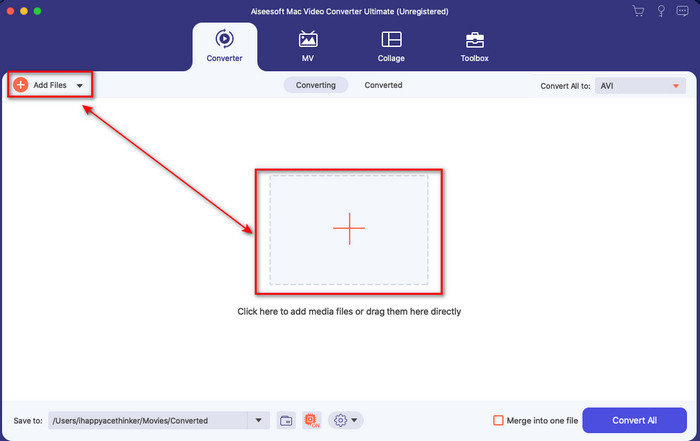
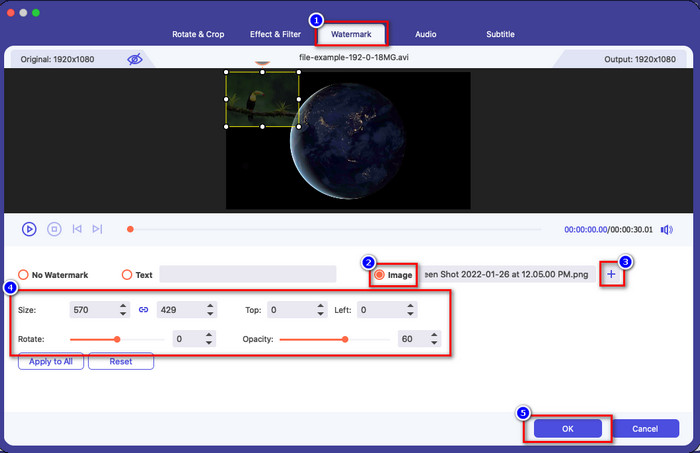
Βήμα 3. Πατήστε το κουμπί με το μαγικό ραβδί για να ανοίξετε το παράθυρο επεξεργασίας του μετατροπέα. Μεταβείτε στο Watermark, κάντε κλικ στην εικόνα και έπειτα πατήστε add για να ανεβάσετε την εικόνα. Μπορείτε επίσης να επεξεργαστείτε την opacity (διαφάνεια) της εικόνας ή να την rotate (περιστρέψετε) ανάλογα με τις ανάγκες σας και, για να εφαρμόσετε τις αλλαγές, κάντε κλικ στο OK.
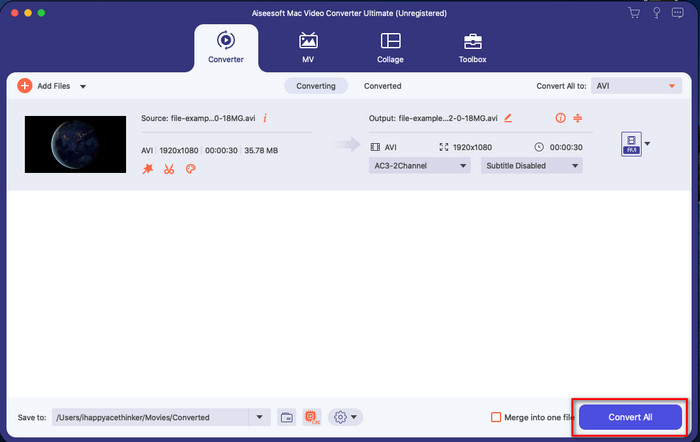
Βήμα 4. Κάντε κλικ στο κουμπί Convert All για να εξαχθεί το αρχείο βίντεο. Μετά τη διαδικασία εξαγωγής, θα αποθηκευτεί σε φάκελο του υπολογιστή σας· τόσο εύκολα θα έχετε πλέον μια εικόνα-υδατογράφημα στο βίντεό σας. Λοιπόν, τώρα πιστεύετε στις δυνατότητες του Video Converter Ultimate? Προσθέσατε ήδη την εικόνα-υδατογράφημα στο βίντεό σας τόσο γρήγορα.
Σχετικά:
Πώς να Προσθέσετε Ήχο σε Βίντεο
Πώς να Προσθέσετε Υπότιτλους σε Βίντεο
Μέρος 4. Συχνές ερωτήσεις σχετικά με την προσθήκη φωτογραφιών σε βίντεο στο iMovie
Υπάρχουν περιορισμοί στον αριθμό των εικόνων που προστίθενται στα βίντεο iMovie;
Μέχρι στιγμής, δεν αντιμετωπίσαμε καμία ταλαιπωρία με την προσθήκη πολλών εικόνων στο βίντεο κατά τη χρήση του iMovie. Ωστόσο, η διαδικασία εξαγωγής απαιτεί χρόνο εάν προσθέσετε πάρα πολλές φωτογραφίες στο βίντεο, αλλά δεν θα διακοπεί, σύμφωνα με την εμπειρία.
Ποιες είναι οι μορφές εικόνας που μπορώ να χρησιμοποιήσω στο iMovie;
Υπάρχουν πολλές μορφές ακίνητης εικόνας που υποστηρίζει το iMovie, όπως BMP, PNG, JPG ή JPEG, HEIF, PSD, RAW TIFF και TGA, αλλά αν θέλετε μια κινούμενη εικόνα, μπορείτε να χρησιμοποιήσετε GIF. Αν και αυτές οι μορφές είναι πολλές, εξακολουθεί να μην υποστηρίζει όλες τις μορφές εικόνας όπως EXIF, WebP και άλλες παρόμοιες.
Γιατί να χρησιμοποιήσω το iMovie;
Για τους χρήστες της Apple, το iMovie είναι μια από τις καλύτερες επιλογές για τη δημιουργία ταινίας μικρού μήκους, διαφήμισης, vlog και πολλά άλλα. όλα αυτά είναι δωρεάν. Το πρόγραμμα επεξεργασίας παρέχει μια ημι-προηγμένη διεπαφή για να βοηθήσει τους χρήστες να έχουν μια πρακτική εμπειρία για το πώς φαίνεται μια προηγμένη διεπαφή ή εργαλείο. Επίσης, το λογισμικό είναι λιγότερο τεχνικό, αλλά είναι εξειδικευμένο. Δεν είναι συνηθισμένο να βλέπετε έναν επεξεργαστή που παρέχει λιγότερο τεχνικό τρόπο χρήσης, αλλά μπορεί να σας βοηθήσει να είστε επαγγελματίας και να προσθέσετε ορισμένες εξειδικευμένες τεχνικές που διαθέτουν τα προηγμένα εργαλεία.
συμπέρασμα
Τελικά, μπορούμε να πούμε ότι πλέον έχουμε αρκετές γνώσεις ώστε να προσθέτουμε εύκολα φωτογραφίες πάνω από βίντεο στο iMovie. Με το κορυφαίο εργαλείο της Apple, μπορείτε να κάνετε εδώ σχεδόν κάθε απαιτητική επεξεργασία. Ωστόσο, δεν θα βρείτε όλες τις λειτουργίες που χρειάζεστε στο iMovie, αλλά μπορείτε να χρησιμοποιήσετε το Video Converter Ultimate για να έχετε έναν εύχρηστο editor σε όλες τις πλατφόρμες. Ίσως αναρωτιέστε γιατί να χρησιμοποιήσετε αυτό το απόλυτο εργαλείο. Δεν χρειάζονται πολλά λόγια, όταν μιλάμε για αυτό το πρόγραμμα, αφού παραθέσαμε παραπάνω τα αποδεικτικά στοιχεία. Τι πρέπει λοιπόν να κάνετε; Μπορείτε να κάνετε κλικ στο κουμπί λήψης, να αποκτήσετε προσωπική εμπειρία χρήσης του εργαλείου και να λύσετε το πρόβλημα.
-
 Οι 5 πιο επιλεγμένες εφαρμογές εγγραφής ήχου σε Android και iOS [2022 Ενημερώθηκε]
 Δεν ξέρετε ποια εφαρμογή εγγραφής ήχου πρέπει να χρησιμοποιήσετε; Εάν ναι, αυτό το άρθρο θα σας βοηθήσει να επιλέξετε ποια εφαρμογή θα σας βοηθήσει με την εργασία εγγραφής ήχου.
-
 Φωνητικό σημείωμα σε iOS – Πλεονεκτήματα, μειονεκτήματα, δυνατότητες & 4 καλύτερες αντικαταστάσεις
 Τι είναι το Voice Memo; Είναι η καλύτερη συσκευή εγγραφής ήχου στο iOS; Αναζητάτε απάντηση σε αυτή την ερώτηση; Έτσι, διαβάστε το πλήρες πεδίο αυτού του άρθρου για να μάθετε περισσότερα.
-
 7 Τελευταίοι δωρεάν μετατροπείς MOD για αλλαγή του αρχείου MOD σε νέα μορφή
 Ποιοι είναι οι μετατροπείς MOD που μπορείτε να χρησιμοποιήσετε; Σκέφτεστε την ίδια ερώτηση; Εδώ είμαστε λοιπόν, παρέχοντας τα επτά εργαλεία που μπορείτε να χρησιμοποιήσετε για να μετατρέψετε τα αρχεία MOD σας.
