


 Video Converter Ultimate
 Εγγραφή οθόνης
 Επισκευή βίντεο
 Ασφαλές κατέβασμα
Οι ευκολότεροι μέθοδοι για το πώς να αφαιρέσετε το λογότυπο ManyCam από τη συσκευή σας
Θα θέλατε να μάθετε πώς να αφαιρέσετε το λογότυπο του ManyCam στα Windows και στο Mac σας; Τότε, αυτή η ανάρτηση θα σας παρουσιάσει διάφορους τρόπους για να αφαιρέσετε ένα λογότυπο από τα βίντεό σας που αξίζει να δοκιμάσετε. Η αναπαραγωγή των αγαπημένων σας βίντεο με υδατογραφήματα ή λογότυπα είναι λίγο ενοχλητική. Δεν μπορείτε να απολαύσετε τα βίντεό σας και γίνεται ένας παράγοντας απόσπασης της προσοχής. Μάλιστα, δεν μπορείτε καν να δείτε ορισμένα μέρη των βίντεο λόγω των υδατογραφημάτων, εικόνων, κειμένου ή λογότυπων. Ευτυχώς, μπορείτε να χρησιμοποιήσετε εξαιρετικά προγράμματα με δυνατότητα αφαίρεσης υδατογραφήματος για να απομακρύνετε αυτά τα περιττά στοιχεία από τα βίντεό σας.
Με τη βοήθεια αυτών των εφαρμογών, δεν θα απογοητευτείτε ποτέ ξανά. Εάν ενδιαφέρεστε να μάθετε τις καλύτερες μεθόδους για την αφαίρεση του λογότυπου ManyCam, η καλύτερη επιλογή σας είναι να διαβάσετε αυτό το άρθρο.

Μέρος 1: Πώς να αφαιρέσετε το λογότυπο ManyCam ενεργοποιώντας τη συνδρομή
Αν θέλετε να μάθετε πώς να αφαιρείτε υδατογραφήματα από το ManyCam, βρίσκεστε στο κατάλληλο μέρος. Το ManyCam είναι λογισμικό ζωντανής μετάδοσης, διαθέσιμο τόσο για Windows όσο και για Mac. Αυτή η εφαρμογή σάς επιτρέπει να δημιουργείτε μια ξεχωριστή μετάδοση στις πλατφόρμες σας, να φτιάχνετε οδηγούς, επαγγελματικές παρουσιάσεις, live streaming παιχνιδιών και πολλά άλλα. Επιπλέον, διαθέτει ακόμη περισσότερες χρήσιμες λειτουργίες, όπως προσθήκη μουσικής, εγγραφή της οθόνης σας, χρήση πράσινου φόντου (green screen), streaming παιχνιδιών κ.ά. Για τους δημιουργούς περιεχομένου, το ManyCam είναι πολύτιμο και χρήσιμο. Παρέχει βασικά εργαλεία που χρειάζονται, όπως screencasting και εγγραφή οθόνης, κάνοντάς το ιδιαίτερα πρακτικό για αυτούς.
Ωστόσο, κάθε φορά που δημιουργείτε ή επεξεργάζεστε το βίντεό σας, υπάρχει ένα λογότυπο manycam στο κάτω μέρος του βίντεο, το οποίο είναι ενοχλητικό. Ευτυχώς, μπορείτε να αφαιρέσετε αυτό το λογότυπο ενεργοποιώντας τη συνδρομή στο ManyCam. Ακολουθήστε αυτά τα βήματα παρακάτω για να μάθετε πώς να αφαιρέσετε το λογότυπο manycam ενεργοποιώντας τη συνδρομή.
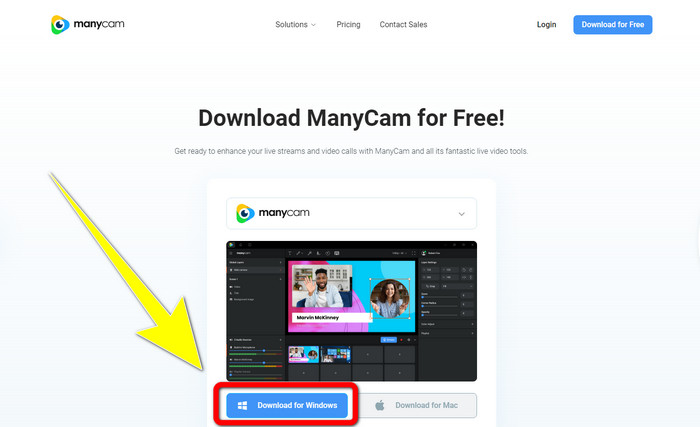
Βήμα 1: Για να κατεβάσετε το ManyCam, κάντε κλικ στο κουμπί Download for Windows. Στη συνέχεια, προχωρήστε στη διαδικασία εγκατάστασης.
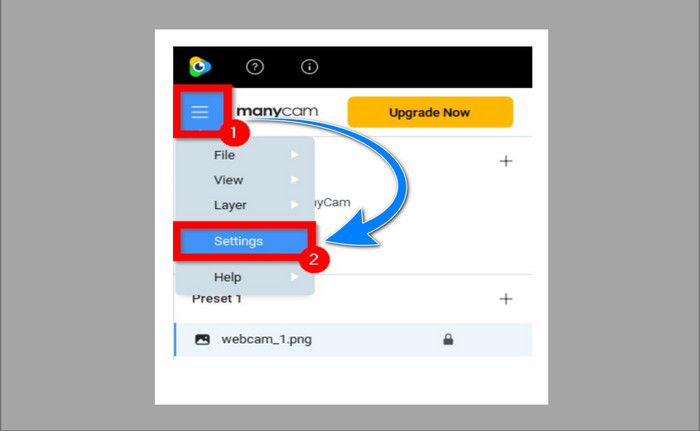
Βήμα 2: Εκκινήστε την εφαρμογή στον υπολογιστή σας και κάντε κλικ στο εικονίδιο με τις τρεις γραμμές (sandwich) του ManyCam, έπειτα μεταβείτε στο Settings > Account και συνδεθείτε στον λογαριασμό που δημιουργήσατε αφού αγοράσατε τη συνδρομή.
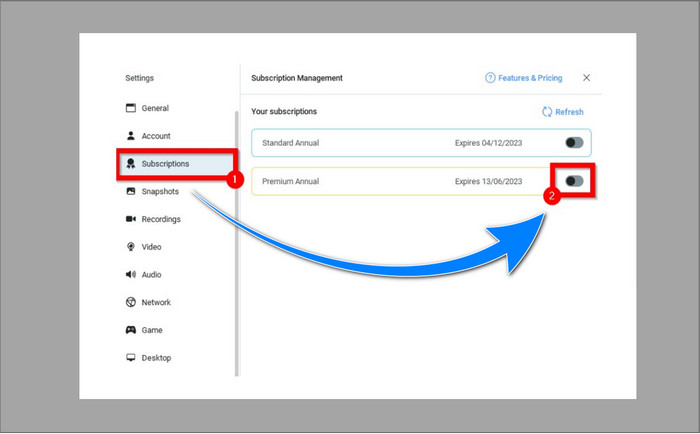
Βήμα 3: Μεταβείτε στην καρτέλα Subscription για να βεβαιωθείτε ότι η συνδρομή είναι ενεργοποιημένη.
Βήμα 4: Αν η συνδρομή είναι ήδη ενεργή, θα εμφανιστεί ένα μήνυμα Pop-up και έχετε τελειώσει.
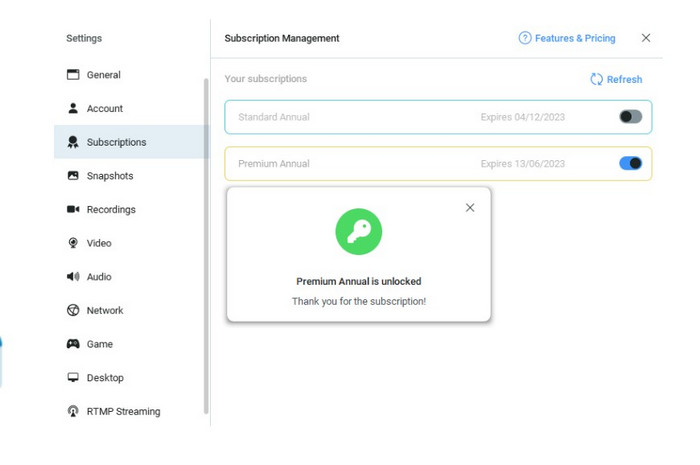
Εάν η εφαρμογή ManyCam είναι ήδη ενεργοποιημένη, τα υδατογραφήματα ή το λογότυπο στα βίντεό σας θα αφαιρεθούν αυτόματα. Μπορείτε να απολαύσετε την παρακολούθηση των αγαπημένων σας βίντεο χωρίς να συναντήσετε υδατογραφήματα σε αυτά.
Μέρος 2: Πώς να αφαιρέσετε το λογότυπο ManyCam χωρίς συνδρομή
Θέλετε να αφαιρέσετε το υδατογράφημα από το ManyCam δωρεάν; Πέρα από την ίδια την εφαρμογή ManyCam, μπορείτε να χρησιμοποιήσετε και άλλο πρόγραμμα για να αφαιρέσετε το λογότυπο του ManyCam. Η καλύτερη εφαρμογή που μπορείτε να αξιοποιήσετε είναι το Video Converter Ultimate. Αυτό το πρόγραμμα μπορεί να αφαιρέσει περιττά στοιχεία από τα βίντεό σας, όπως κείμενο, υδατογραφήματα, λογότυπα κ.λπ. Επιπλέον, το Video Converter Ultimate διαθέτει πολλά εργαλεία επεξεργασίας που μπορείτε να απολαύσετε, όπως ελεγκτή ταχύτητας βίντεο, βελτιωτή βίντεο, προσθήκη και αφαίρεση υδατογραφημάτων, διόρθωση χρωμάτων, ενίσχυση έντασης ήχου και άλλα. Το καλύτερο εργαλείο που μπορείτε να χρησιμοποιήσετε για την αφαίρεση υδατογραφημάτων με το Video Converter Ultimate είναι το Video Watermark Remover.
Αυτό το εργαλείο θα σας βοηθήσει να εξαλείψετε εύκολα τα υδατογραφήματα. Επιπλέον, αυτή η εφαρμογή είναι διαθέσιμη τόσο σε Windows όσο και σε Mac. Επίσης, δεν θα δυσκολευτείτε να χρησιμοποιήσετε αυτήν την εφαρμογή. Υποστηρίζει επίσης πολλές μορφές αρχείων ήχου και βίντεο, όπως MP4, FLV, MOV, MKV, MP3, AAC και άλλα. Εάν θέλετε να αφαιρέσετε το λογότυπο ManyCam χρησιμοποιώντας το Video Converter Ultimate, αυτό το άρθρο θα σας δείξει δύο τρόπους. Αυτοί οι τρόποι είναι η χρήση κοπής βίντεο και αφαίρεσης υδατογραφήματος βίντεο.
1. Χρήση Video Cropper
Βήμα 1. Κατεβάστε το FVC Video Converter Ultimate και προχωρήστε στη διαδικασία εγκατάστασης.
Δωρεάν ΛήψηΓια Windows 7 ή νεότεραΑσφαλής λήψη
Δωρεάν ΛήψηΓια MacOS 10.7 ή νεότεροΑσφαλής λήψη
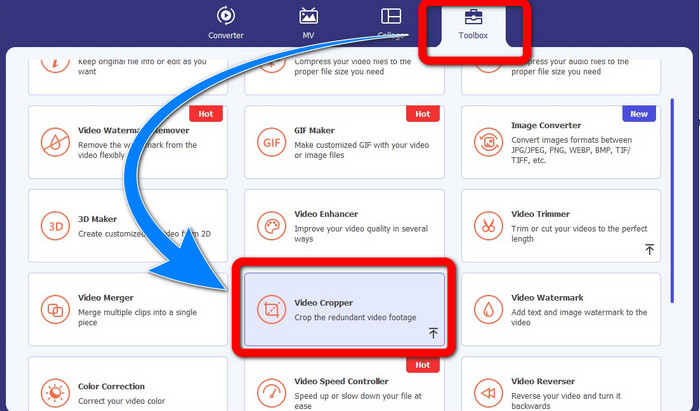
Βήμα 2: Μετά την εγκατάσταση, ανοίξτε την εφαρμογή. Κάντε κλικ στο Toolbox > Video Cropper.
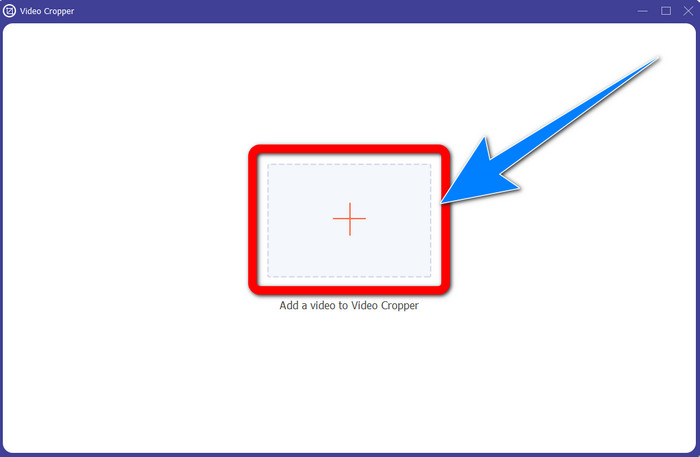
Βήμα 3: Αφού κάνετε κλικ στο Video Cropper, θα εμφανιστεί νέο παράθυρο. Κάντε κλικ στο κουμπί με το σύμβολο Plus και προσθέστε τα βίντεό σας με υδατογράφημα από το ManyCam.
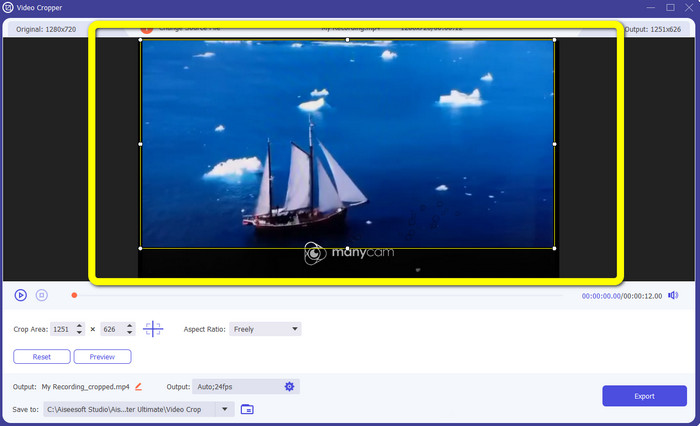
Βήμα 4: Όταν προστεθεί το αρχείο σας, μπορείτε να περικόψετε το βίντεο και να αφαιρέσετε το υδατογράφημα.
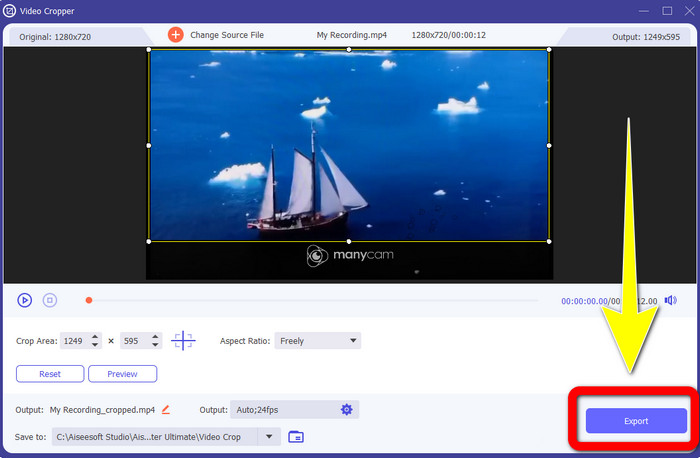
Βήμα 5: Όταν αφαιρεθεί το υδατογράφημα, κάντε κλικ στο κουμπί Export για να αποθηκεύσετε το τελικό σας αποτέλεσμα. Πλέον μπορείτε να αναπαράγετε το αγαπημένο σας βίντεο χωρίς υδατογράφημα.
2. Χρήση του Video Watermark Remover
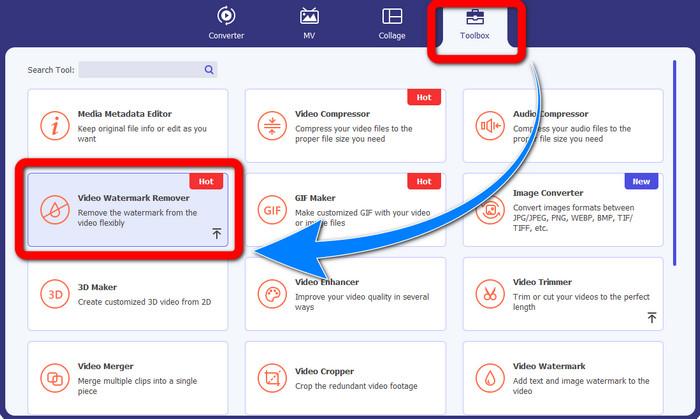
Βήμα 1: Ανοίξτε την εφαρμογή. Μεταβείτε στο Toolbox > Video Watermark Remover.
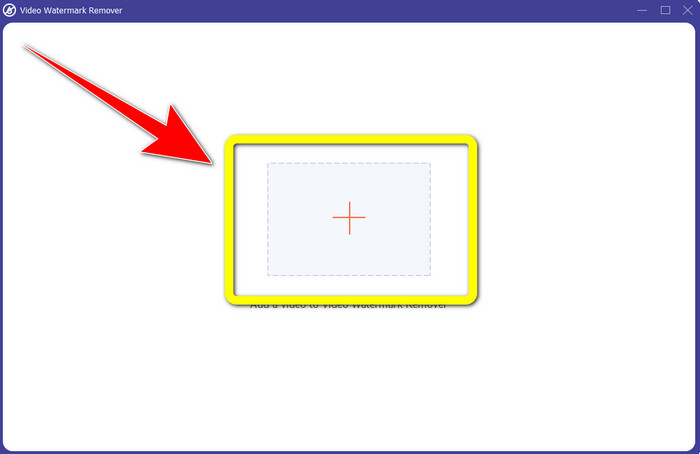
Βήμα 2: Μετά το κλικ στο Video Watermark Remover, θα εμφανιστεί νέο παράθυρο. Κάντε κλικ στο κουμπί με το σύμβολο Plus για να επισυνάψετε το βίντεό σας με υδατογραφήματα από το ManyCam.
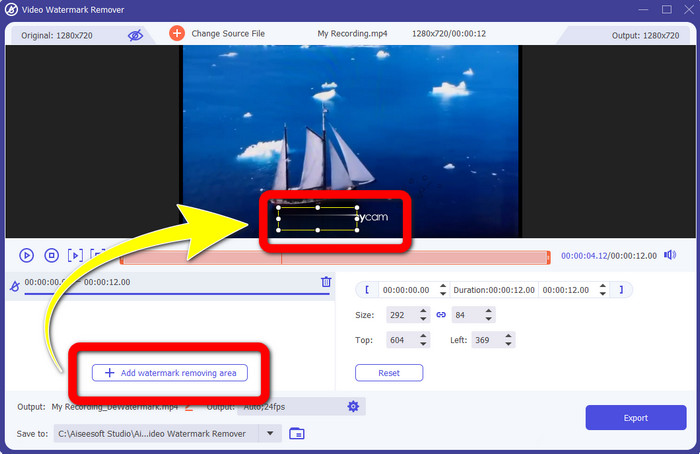
Βήμα 3: Αφού επισυνάψετε ήδη το βίντεό σας, κάντε κλικ στο Add Watermark Removing Area και στη συνέχεια θα εμφανιστεί ένα κουτί στο βίντεό σας. Σύρετε το κουτί πάνω από το υδατογράφημα για να το καλύψετε.
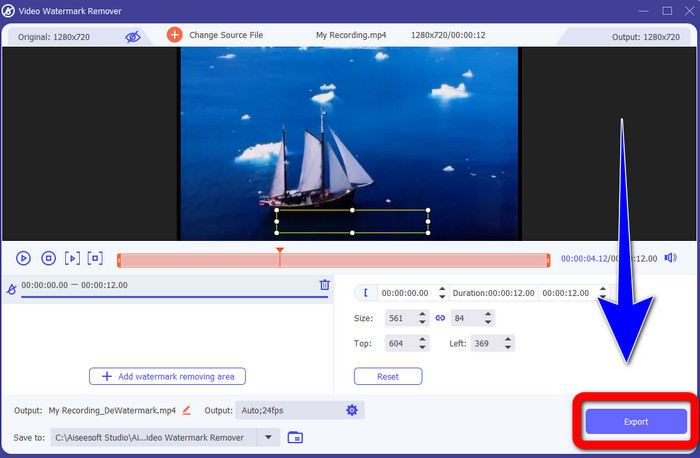
Βήμα 4: Όταν ολοκληρώσετε την αφαίρεση των υδατογραφημάτων από τα βίντεό σας, κάντε κλικ στο Export για να αποθηκεύσετε το αποτέλεσμα. Αυτός είναι ο καλύτερος τρόπος για να αφαιρέσετε δωρεάν το λογότυπο του ManyCam.
Μέρος 3: Συχνές ερωτήσεις σχετικά με την κατάργηση του λογότυπου ManyCam
Πόσος χρόνος θα χρειαστεί για την αφαίρεση του λογότυπου;
Δεν χρειάζεται να περιμένετε περισσότερο γιατί η διαδικασία αφαίρεσης του λογότυπου ή τυχόν περιττών αντικειμένων θα διαρκέσει μόνο λίγα δευτερόλεπτα.
Μπορώ να αφαιρέσω το λογότυπο ManyCam από το τηλέφωνό μου;
Ναί! Μπορείτε να αφαιρέσετε το λογότυπο ManyCam στα Android ή στο iPhone σας χρησιμοποιώντας διαφορετικές εφαρμογές λογισμικού με συσκευές αφαίρεσης υδατογραφημάτων. Αναζητήστε την εφαρμογή στο play store ή στο κατάστημα εφαρμογών σας και προσπαθήστε να χρησιμοποιήσετε αυτές τις εφαρμογές που μπορείτε να δείτε στα κορυφαία αποτελέσματα.
Υπάρχει καλύτερος τρόπος για να αφαιρέσω τα υδατογραφήματα στο Mac μου;
Βεβαίως, Ναι! Μπορείτε να χρησιμοποιήσετε μια εξαιρετική εφαρμογή με δυνατότητα αφαίρεσης υδατογραφήματος για να αφαιρέσετε υδατογραφήματα στο Mac σας. Αυτή η εφαρμογή είναι το Video Converter Ultimate. Είναι ιδανική τόσο για Windows όσο και για Mac. Αυτό το λογισμικό μπορεί να βοηθήσει στην αφαίρεση περιττών στοιχείων από τα βίντεό σας, όπως λογότυπα, υδατογραφήματα, εικόνες και κείμενο.
Μπορώ να χρησιμοποιήσω το εργαλείο περικοπής από την εφαρμογή ManyCam για να αφαιρέσω το λογότυπο ManyCam;
Δυστυχώς, Όχι! Η χρήση του εργαλείου περικοπής για την αφαίρεση του λογότυπου από το ManyCam δεν είναι αποτελεσματική. Ακόμα κι αν προσπαθήσετε να περικόψετε το βίντεο για να βγάλετε το λογότυπο, αυτό θα εξακολουθήσει να εμφανίζεται. Η μόνη λύση για να αφαιρέσετε το λογότυπο είναι να ενεργοποιήσετε τη συνδρομή στο ManyCam.
Εκτός από το ManyCam, υπάρχει εναλλακτικός τρόπος για να αφαιρέσω τα υδατογραφήματα στα βίντεό μου;
Ναι υπάρχει! Εκτός από το ManyCam, υπάρχουν περισσότερες εφαρμογές με αφαίρεση υδατογραφήματος που μπορείτε να χρησιμοποιήσετε χωρίς να αγοράσετε. Μία από τις καλύτερες εφαρμογές που μπορείτε να χρησιμοποιήσετε για να αφαιρέσετε υδατογραφήματα στα βίντεό σας είναι το Video Converter Ultimate. Είναι απλό και εύκολο στη χρήση, το οποίο είναι κατάλληλο για αρχάριους.
συμπέρασμα
Με βάση τις παραπάνω πληροφορίες, μπορείτε να μάθετε πώς να αφαιρέσετε το λογότυπο του ManyCam στα Windows και στο Mac σας. Μπορείτε να χρησιμοποιήσετε την εφαρμογή ManyCam για να αφαιρέσετε εύκολα το λογότυπο, αφού ενεργοποιήσετε τη συνδρομή σας. Επιπλέον, αν θέλετε να χρησιμοποιήσετε μια εφαρμογή με δωρεάν αφαίρεση υδατογραφήματος, πρέπει να χρησιμοποιήσετε το Video Converter Ultimate. Αυτή η εφαρμογή θα σας βοηθήσει σημαντικά στην εξάλειψη περιττών στοιχείων από τα βίντεό σας.
-
 Οι ευκολότεροι μέθοδοι για το πώς να αφαιρέσετε το υδατογράφημα από τις φωτογραφίες
 Σας εκνευρίζουν τα υδατογραφήματα στις φωτογραφίες σας; Μην ανησυχείτε! Αυτό το άρθρο θα παρέχει απλές και εύκολες μεθόδους για να αφαιρέσετε τα υδατογραφήματα από τις φωτογραφίες σας.
-
 Πώς να αφαιρέσετε το υδατογράφημα Powtoon χρησιμοποιώντας 4 αποτελεσματικές μεθόδους
 Διαβάστε αυτό το άρθρο για να μάθετε πώς μπορείτε να αφαιρέσετε το υδατογράφημα Powtoon χρησιμοποιώντας τα καλύτερα εργαλεία που συμπεριλάβαμε εδώ και έναν οδηγό.
-
 Αναθεώρηση του Apowersoft Watermark Remover – Χαρακτηριστικά, πλεονεκτήματα και μειονεκτήματα και τιμές
 Το Apowersoft Watermark Remover είναι ένα από τα καλύτερα υδατογραφήματα που υποστηρίζει online και offline, κάντε κλικ σε αυτό για να μάθετε περισσότερα!
